
Lock the headers, scroll the data. When a workbook grows past a few screens, the first thing you lose is your orientation. The XLSX Freeze Pane Manager on Elysia Tools freezes top rows and left columns automatically, applies row and column outline groups from a JSON range spec, and writes a collapsed-style export so large tables read like well-edited documents.
What freeze panes actually fix
Excel’s freeze-pane feature is older than most of its users. It locks a row, a column, or both so that scrolling the rest of the sheet leaves the headers visible. The reason every report, every dashboard, every data review you have ever opened uses frozen panes is that human eyes need an anchor. Without one, you read “Q3 revenue” and then have to scroll back up to find out what column that figure lives in. With one, the anchor travels with you.
The problem is that doing this in Excel itself is fiddly. You click View, then Freeze Panes, then choose the right cell. You repeat it per sheet. You never quite remember whether “Freeze Top Row” also locked the leftmost column. And if you have twenty sheets in a workbook, the cycle takes longer than the analysis you were about to do.
The XLSX Freeze Pane Manager at Elysia Tools takes the click-path out. Drop in the workbook, choose what to lock, and the tool rewrites the panes across every sheet you selected. The result is a file where every page is anchored without you ever clicking View.
How the tool reads your intent
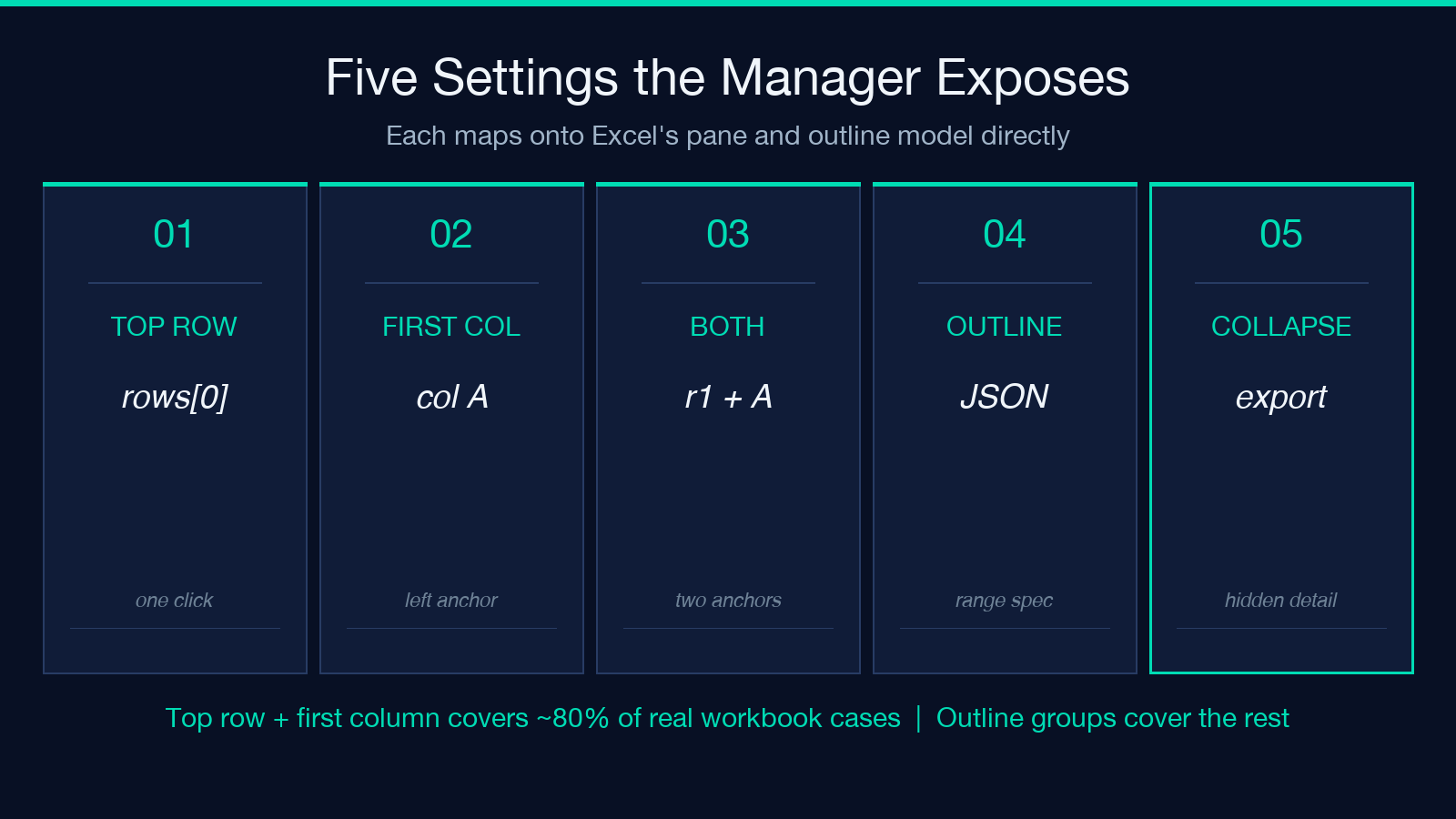
The Freeze Pane Manager exposes two settings you would otherwise set by hand in Excel: which rows to freeze, and which columns to freeze. You can specify one row (the header), one column (the row labels), or both. Internally, the tool maps each combination onto Excel’s pane model:
- Top row only — sets the freeze on the second row so the first row scrolls off as the page scrolls down.
- First column only — sets the freeze on the second column so the labels stay put while data scrolls horizontally.
- Top row and first column — sets the freeze on the second row AND second column, locking both axes.
The implementation uses ExcelJS, which mirrors the OOXML pane model directly. The pane position is stored in the worksheet view; when the workbook is reopened in Excel, Numbers, LibreOffice Calc, or Google Sheets, the pane state survives. Nothing about the tool is proprietary — it writes standard XLSX.
For batch operation, the tool iterates across all selected sheets in one pass. If your workbook has twelve sheets, you specify the freeze once, and the manager applies it to all twelve. This is the part that pays off on large workbooks. You can grab a real-world workbook at the XLSX samples hub to see how multi-sheet workbooks typically arrive.
Why outline groups change how a workbook reads
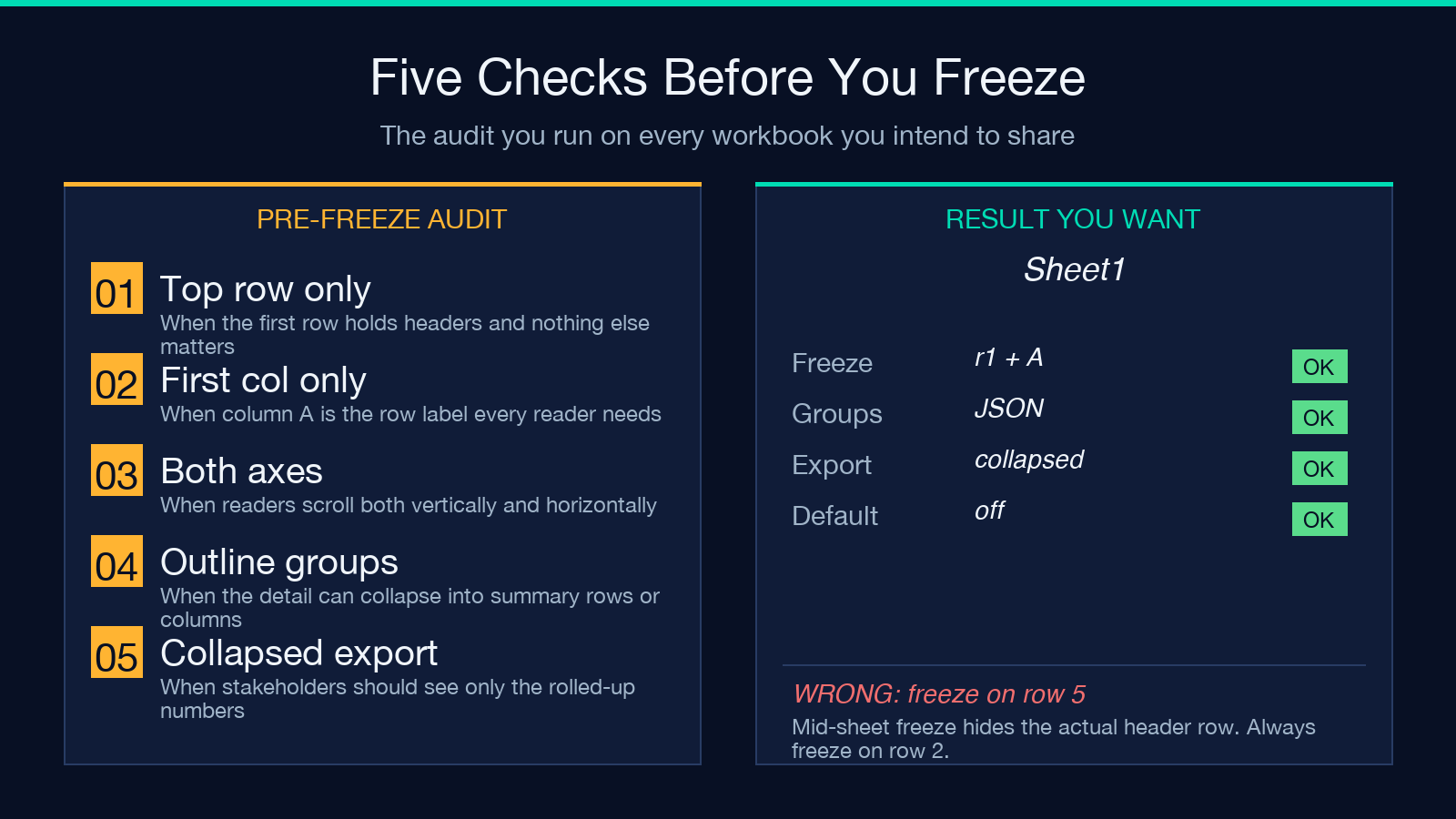
Freezing panes is half the readability battle. The other half is letting readers collapse the detail they do not need. Excel’s outline (group) feature adds the small “-” and “+” buttons at the left edge of a row group and at the top of a column group. Click “-” and an entire group collapses to a single summary row; click “+” and it expands again.
The XLSX Freeze Pane Manager reads a JSON range spec and turns it into Excel outline groups. Here is a small example of what the JSON looks like:
{
  "rowGroups": [
    { "range": "2:5", "collapsed": true },
    { "range": "10:12", "collapsed": false }
  ],
  "columnGroups": [
    { "range": "B:D", "collapsed": true }
  ]
}
Each range follows Excel’s A1-style notation for rows (2:5) and columns (B:D). The collapsed flag tells the tool whether the group should start expanded or collapsed. With collapsed: true, the workbook opens in a tidied state — readers see only the summary rows until they click to expand. With collapsed: false, the group starts expanded, and the reader can collapse it on demand.
This is the difference between a workbook that opens already-organized and a workbook that opens with forty rows of detail before you find the summary. Try it on a sample like Basic XLSX Sheet to see how a tiny workbook behaves when grouped.
Auto-freezing the first column when the sheet is wide enough
A common pattern in real workbooks: a sheet with 5 columns does not need a frozen first column. A sheet with 30 columns does. The Freeze Pane Manager detects this and applies the freeze only when the sheet crosses a configurable width threshold. You can disable it if you always want the first column locked, but the auto-detect default matches how readers actually consume wide data.
The detection is straightforward: count the columns that have non-empty data in row 1. If that count is greater than the threshold (default 12), freeze column A. The threshold is exposed so you can tune it to your reporting style — a financial model might want to freeze column A only when there are 8 or more columns, while a logistics sheet with many narrow fields might want to freeze it at 5.
When to use row groups versus column groups
Row groups and column groups are not interchangeable. They organize different axes of the same data:
- Row groups organize the vertical dimension. Use them when rows are the unit of aggregation — e.g. grouping all rows for “Q1” under one “-” button, all rows for “Q2” under another.
- Column groups organize the horizontal dimension. Use them when columns are the unit of aggregation — e.g. grouping all months under a “FY2025” header, all quarters under a “Year” header.
The two are combinable. A common pattern is row groups for time periods and column groups for metric categories. The Freeze Pane Manager lets you apply both in the same pass — the rowGroups and columnGroups keys in the JSON spec are independent.
For workbooks with mixed structure (some sheets wide, some sheets tall), the manager applies the groups per sheet. The JSON spec is the same across sheets, but each sheet interprets it against its own layout. This is the right behavior — a column group on a sheet with 6 columns is harmless, but a row group on a sheet with 30 rows and no time structure would create empty buttons.
What the collapsed export gives you
The collapsed export is the optional fourth output. When enabled, the tool applies the groups AND exports the workbook in its collapsed state. The exported file shows only the summary rows (and the always-visible row), hiding the detail rows inside each collapsed group. Anyone opening the exported file sees a clean, readable version without needing to expand anything.
This is useful for two scenarios. First, sharing a workbook with a stakeholder who should see the high-level numbers without the underlying detail. Second, embedding a workbook in a document or report where the embedded preview should be readable at a glance.
The export keeps the data intact. The hidden rows are still in the file — they are just collapsed behind the group buttons. To expand them, the user clicks the “+” button, and the data reappears. This is the same behavior as Excel’s native group feature; nothing is destructively removed.
A few realistic settings worth knowing
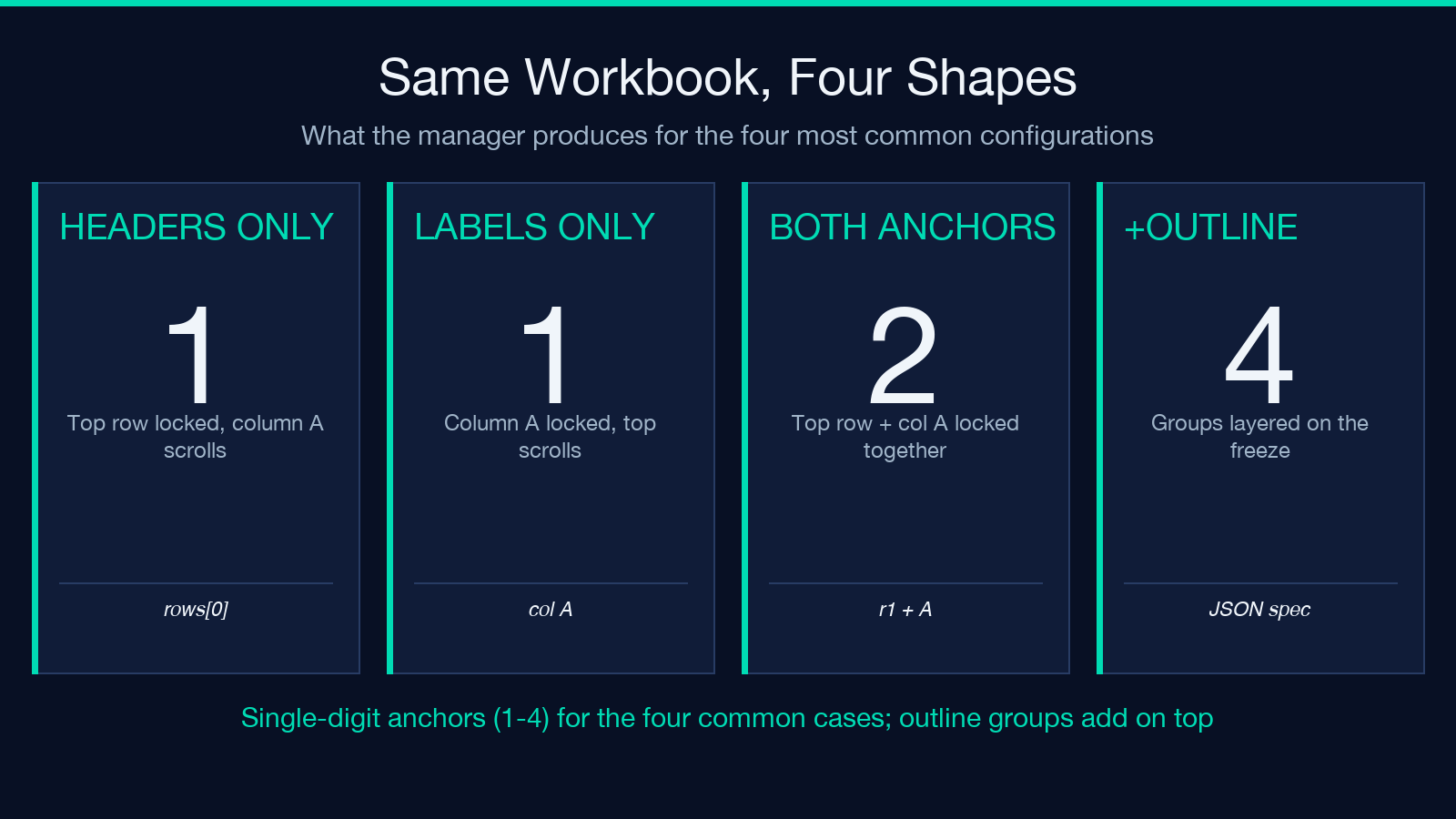
Three settings carry most of the practical configuration:
- Freeze top row — the most common setting. Use it whenever your first row contains headers that any reader will need to reference while scrolling down.
- Freeze first column — useful when column A contains row labels (IDs, names, dates) that any reader will need to reference while scrolling right.
- Collapse row groups on export — useful when shipping a workbook to a stakeholder who should see only the rolled-up numbers.
Other settings — outline level depth, summary row position (above or below the group), and whether to preserve the existing pane state — are exposed for the rarer cases where they matter. The defaults match Excel’s own defaults, so the typical output looks like what Excel would produce if you had set up the file by hand.
Closing
The reason this tool earns its place in a workflow is repetition. Freezing panes and applying outline groups by hand is fine for one workbook. Across dozens, it is the kind of task that erodes an afternoon. The XLSX Freeze Pane Manager turns a multi-click, multi-sheet chore into a single configuration that you can re-run whenever the data refreshes.
For more Excel-side tools that complement this one — formula builders, CSV batch converters, conditional formatting rule editors — browse the Format Conversion category at Elysia Tools. The category root collects every conversion-shaped tool on the site, including the XLSX ones and their CSV, PDF, and JSON neighbors.
Explore more tools at elysiatools.com.
