
7Z Archive Preview is the difference between asking “is the right file in here?” and waiting three minutes for a 4 GB extraction to finish. When the archive weighs more than your patience, the preview tool reads its table of contents and hands you the file list, sizes, and a quick sanity check — without ever pulling a single byte off disk into a real extraction path. That is why the tool exists: not to replace 7-Zip, but to make its directory-listing mode ergonomic and scriptable.
The 7Z format sits at the high end of the compression spectrum. LZMA2 with a tuned dictionary will routinely hit 30–60% better ratios than zip on text, source code, and binary logs. That compression power is exactly why you cannot peek inside casually — opening the archive to “just check” usually means extracting, then deleting, then promising yourself you will clean up the temp dir later. The 7Z archive preview at Elysia Tools skips all of that. You hand it a .7z file, and within a second you get a JSON object listing every file, its uncompressed size, its compressed size on disk, plus an archive-level summary: total files, total directories, total uncompressed bytes, compression ratio.
This field guide is a working tour through that preview flow: how the parser handles the standard 7z l -ba output, why the encoding switch on Windows exists, what the JSON shape actually tells you, and three places the preview saves you from the worst-case “extract then delete” workflow.
Why the 100 MB file limit is intentional
The tool’s file input caps at 100 MB (fileLimit: 100 1024 1024), which looks arbitrary until you think about the actual workload. The preview is a metadata reader: it spawns 7z l -ba against the file and parses stdout. The CLI does not read the entire archive into memory — it reads the header and central directory, which is bounded by the file count, not the payload size. Even a 4 GB archive has a header that fits comfortably in a few MB.
The 100 MB cap exists for a different reason: browser-based file upload reliability. Most browsers can stream larger files in chunks, but anything beyond a few hundred MB risks a dropped chunk mid-upload that aborts the whole transfer. 100 MB is the sweet spot where a single-shot upload succeeds in the vast majority of network conditions. For genuinely massive archives, the recommended workflow is to preview the archive locally with the 7-Zip CLI and only upload to Elysia Tools when you need a scriptable JSON output rather than the raw CLI listing.
How the parser handles the 7z l output
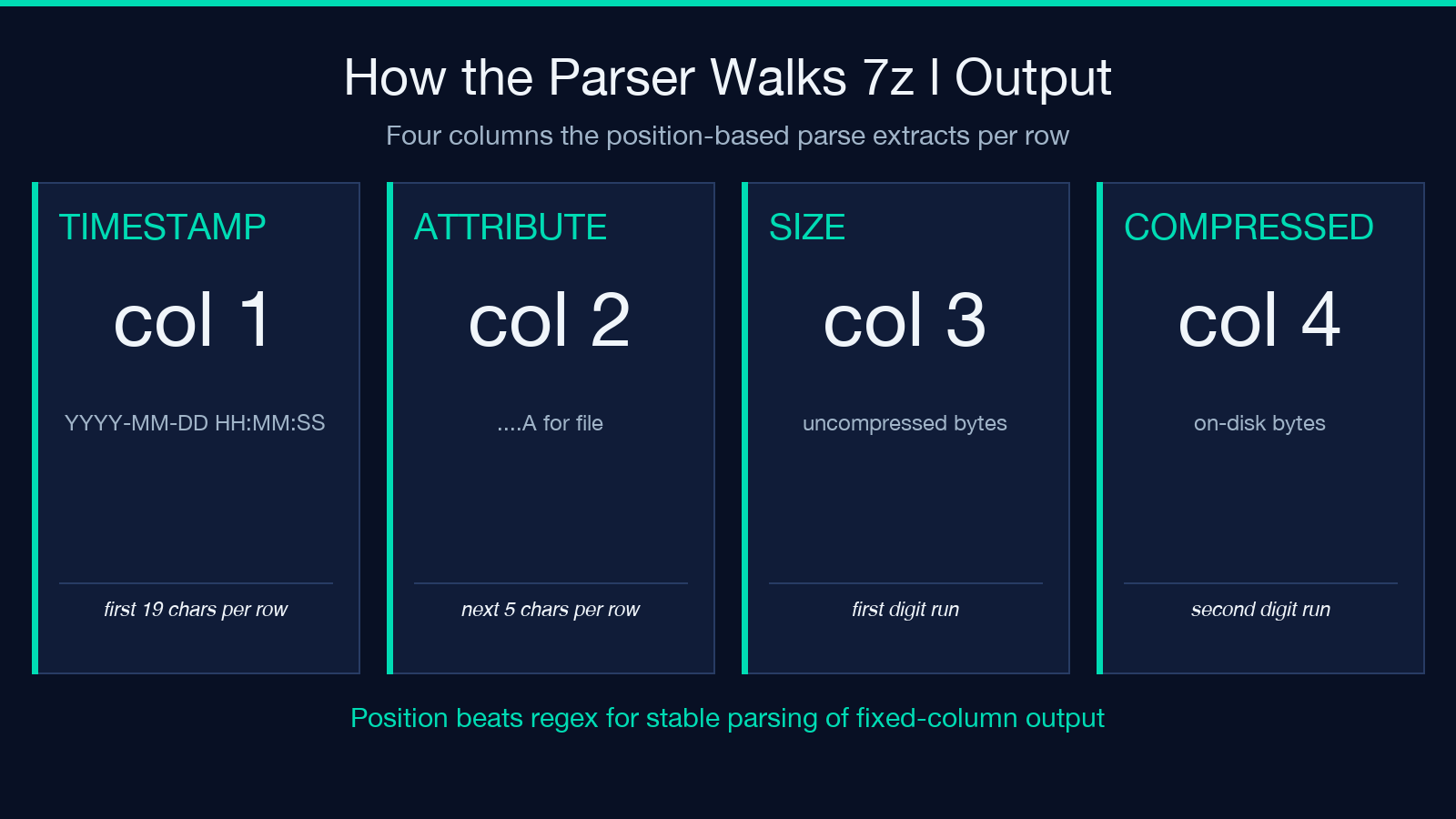
The 7Z CLI’s 7z l -ba listing is line-oriented and friendly to scripted parsing — once you know its column layout. Every file row starts with a 19-character timestamp (YYYY-MM-DD HH:MM:SS), followed by a 5-character attribute block (....A for a normal file, ....D for a directory), then the size and compressed size columns separated by whitespace, then the path. The parser in 7Z Archive Preview uses a position-based parse: it strips the first 19 characters for the timestamp, takes the next 5 for the attribute block, then matches the first digit run as the size and the second digit run as the compressed size. Anything left over is the file path, including spaces and Unicode.
A real archive row looks like this:
2025-10-19 11:11:07 ....A          319         2330  src/index.ts
2025-10-19 11:11:07 ....A       884213       412005  data/large-dataset.csv
2025-10-19 11:11:07 ....D                      0    vendor/
The parser tracks two running counters as it walks the rows: totalFiles increments only on non-directory entries, and totalUncompressedSize accumulates every file’s size column. The final archiveInfo object summarizes those into {fileName, archiveSize, totalFiles, totalDirectories, totalUncompressedSize, compressionRatio} so a downstream script can decide whether to extract, skip, or request more context.
The compression ratio field is the most useful single number: it is (totalUncompressedSize - totalCompressedSize) / totalUncompressedSize * 100, formatted as a percentage string. If your archive is at 92% compression, the format is doing its job and the preview is just confirming it. If the ratio is closer to 5%, something has gone wrong (the file was already compressed — jpegs, mp4s, pre-zipped logs — and 7Z has nothing to do).
The Windows encoding switch is not optional
On Linux and macOS, the 7z CLI speaks UTF-8 natively. On Windows, the same binary defaults to the system code page — which for Chinese, Japanese, and Korean systems means GBK / Shift-JIS / CP949 output. The parser handles this with a platform() check at the top of the process function:
const isWindows = platform() === 'win32'
let output: string
if (isWindows) {
    const cmd = '7z l -ba "' + archiveFile + '"'
    const { stdout } = await execAsync(cmd, {
        encoding: 'buffer',
        shell: true,
    })
    output = iconv.decode(stdout as unknown as Buffer, 'cp936')
} else {
    const cmd = '7z l -ba "' + archiveFile + '"'
    const { stdout } = await execAsync(cmd, {
        encoding: 'utf8',
    })
    output = stdout
}
The buffer + iconv-lite decode via cp936 is what lets a preview against a Windows-extracted archive preserve Chinese filename characters instead of dropping them into ??? blocks. If you have ever wondered why a 7Z archive created on a Chinese Windows machine shows gibberish when listed on Linux, this is the seam where it usually breaks — and the 7Z Archive Preview tool bakes the fix in.
The error path is also handled: if the 7z command is not on PATH, the shell returns an ENOENT-style message that the tool detects and converts to a friendly install reminder pointing at the 7-Zip homepage. That turns a cryptic command not found: 7z into a one-line actionable error, which is the difference between a working CI pipeline and a 30-minute yak-shaving session.
What the JSON output tells you at a glance
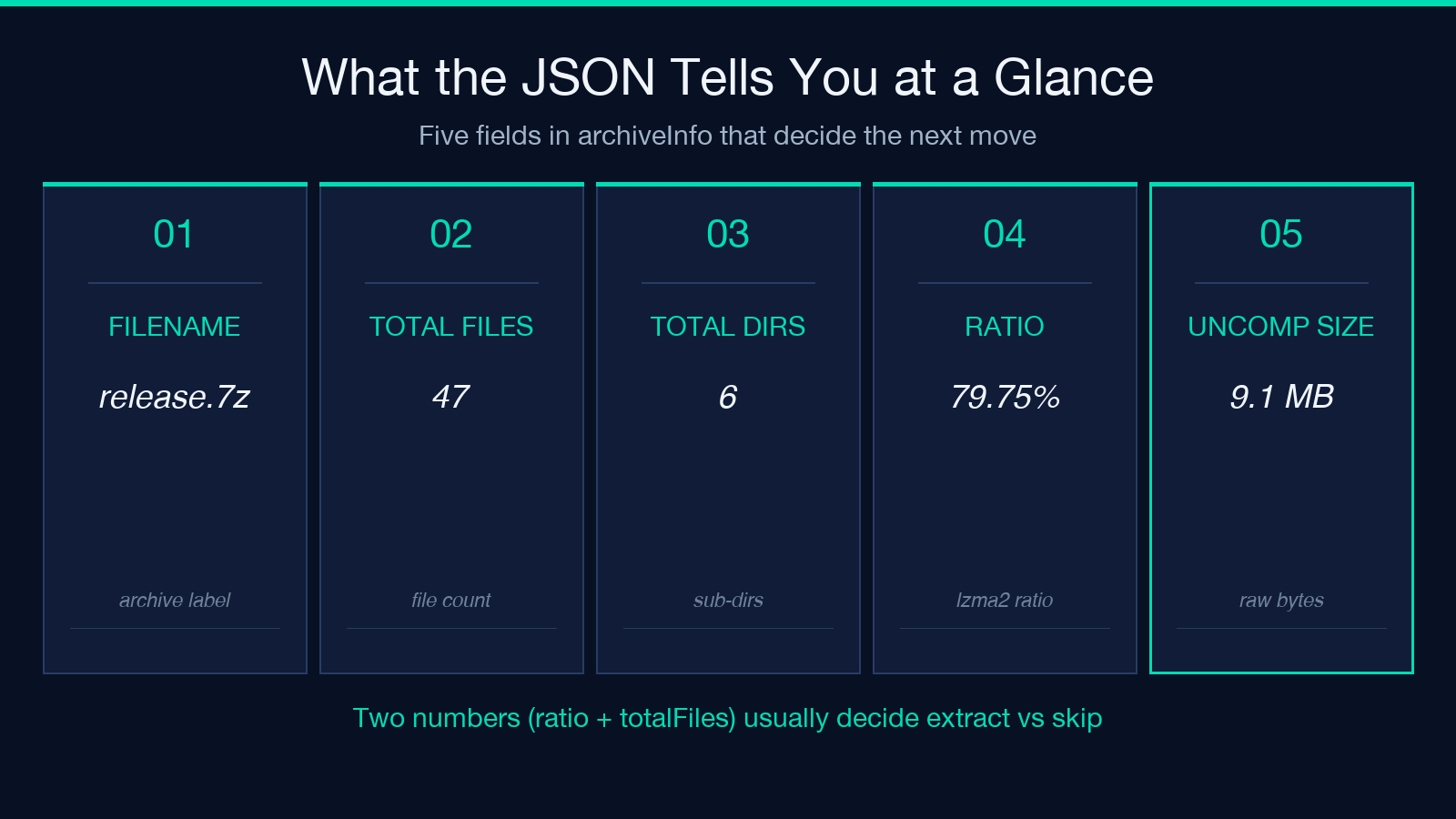
A typical preview against a small archive produces output that has this shape:
{
  "archiveInfo": {
    "fileName": "release-2025-10-19.7z",
    "archiveSize": 1843921,
    "totalFiles": 47,
    "totalDirectories": 6,
    "totalUncompressedSize": 9103452,
    "compressionRatio": "79.75%"
  },
  "files": [
    {"name": "index.ts", "size": 319, "compressedSize": 2330, "isDirectory": false, "path": "src/index.ts"},
    {"name": "large-dataset.csv", "size": 884213, "compressedSize": 412005, "isDirectory": false, "path": "data/large-dataset.csv"}
  ],
  "message": "Found 47 files and 6 directories in 7Z archive"
}
Three numbers tell you almost everything you need to decide whether to extract:
* totalFiles / totalDirectories — the structural shape. A 47-file archive with 6 directories is a normal source release; a 1-file archive labeled .7z is almost always a mistake (someone double-compressed or renamed a file).
* totalUncompressedSize — how big the data is in raw form. If this is 9 MB and the archive on disk is 1.8 MB, the compression is real and the preview cost was worth it.
* compressionRatio — the percentage above. Anything below 10% on text-heavy content is a red flag that the archive contains pre-compressed blobs.
The files array is sorted alphabetically by path, which means the preview output is stable across runs against the same archive. That stability matters when you compare two preview outputs as a sanity check — for example, confirming that a CI-built artifact contains the same files as the locally-built one before shipping it.
Three places the preview saves the extraction round-trip
The practical wins are concentrated in three workflows where extracting-to-check is the wrong default.
Build artifact verification. CI pipelines often produce 7Z artifacts for download links. Before publishing the link, you want to confirm the artifact contains what you think it contains — not just trust the build script. The preview returns the file list in under a second for archives up to several GB, which fits inside any reasonable build verification step. The same approach works for the 7Z to ZIP converter output check: preview the source 7Z, run the conversion, preview the resulting ZIP, and diff the file lists to confirm the conversion preserved everything.
Backup integrity spot-checks. A 7Z backup file sitting on a slow drive should not be opened just to confirm it is still readable. The preview’s read of the central directory does not require extracting any file content, so it is safe to run against terabyte-scale archives on a schedule. If the preview returns a totalFiles of 0 or fails to parse, you have a corruption signal — investigate before trusting the backup.
Pre-flight for selective extraction. When you only want one file out of a 10,000-file archive, the preview is the lookup step. Confirm the file is present, note its size, then pass it to 7z e for targeted extraction. The preview cost is bounded (it reads metadata, not payload), and you avoid discovering mid-extraction that the file you wanted is not actually there.
When the preview is not the right tool
There are three cases where the preview deliberately does not help, and a different tool is the right answer:
* You need the actual file contents. The preview reads the table of contents; it never decompresses payload data. For that, you want a real extraction tool or the 7Z to TAR converter when the next stage is a tar pipeline.
* You are checking archive integrity with a CRC test. The preview does not verify per-file CRCs. For that, use 7z t directly — that command walks every entry’s checksum and is the canonical way to confirm an archive is not corrupted.
* The archive is encrypted with a passphrase. 7Z’s header encryption means the file list itself is opaque without the passphrase. The preview will fail with a parse error or return an empty list, which is the correct behavior — encryption hides the structure, not just the content.
Four decisions the preview maps onto
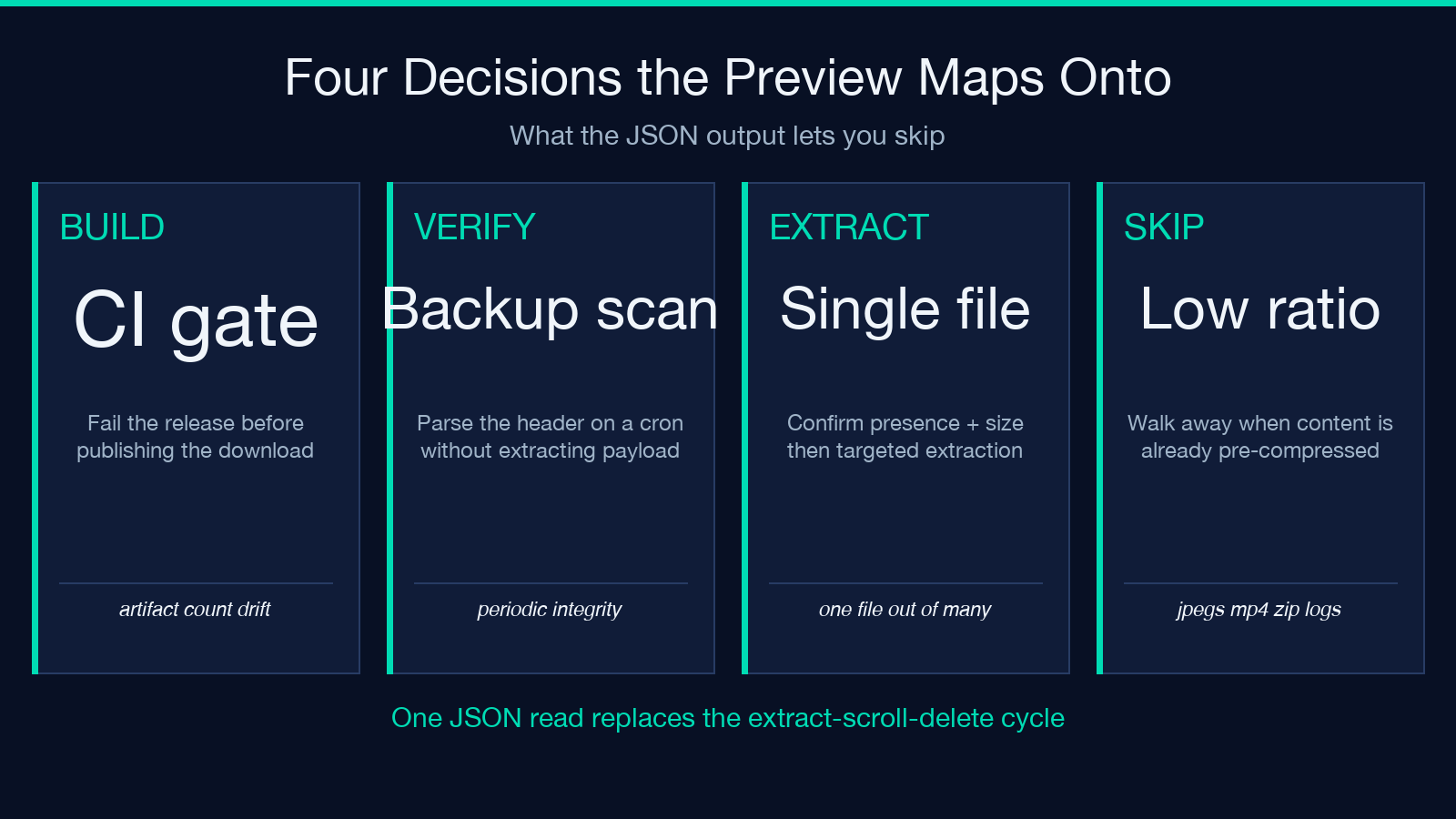
Four small decisions the preview output maps onto:
* Build. The artifact uploaded by CI matches the expected file count and the top-N file list. If the count drifts, fail the release before publishing the download link.
* Verify. The backup on the slow drive is still parseable. A periodic cron job runs the preview; non-zero totalFiles plus successful parse means the header is intact.
* Extract. The user wants one specific file out of an archive. Preview confirms presence and size, then targeted extraction pulls just that file.
* Skip. The compression ratio is below 10% and the content is already a known pre-compressed format. The preview’s job is done; the file is going through a different pipeline.
Each of these is a one-second decision instead of a three-minute extraction cycle.
Putting it together
The preview tool is one of those small utilities that earns its place every time the alternative is “extract, scroll, delete, and hope you cleaned up.” The implementation is a thin layer over 7z l -ba with two real engineering decisions baked in: position-based parsing instead of regex, and an explicit Windows encoding switch. Both decisions are the kind of thing you only appreciate after you have debugged the failure once — and the 7Z archive preview at Elysia Tools bakes them in so you do not have to.
For a working archive-inspection workflow, the preview pairs naturally with the conversion tools at Elysia Tools: the 7Z to ZIP, 7Z to TAR, and 7Z to GZ converters handle the format-change step, while the preview confirms the source is what you think it is before you commit to a conversion. Browse the full archive-tool family at elysiatools.com/en/tools — the preview is the cheap, fast first move in any archive-handling pipeline.
