
PDF Deskew Field Guide: When Scanned Pages Tilt and OCR Refuses to Cooperate. Deskew is not a cosmetic fix. A page that is 2.3 degrees off square breaks OCR confidence, misaligns form fields, throws off photocopy margins, and makes a searchable PDF print crooked. The PDF Deskew tool on Elysia Tools turns that one-click nuisance into a deterministic pre-press step you can run on a single page or a 600-page batch, without flattening the searchable text layer.
A flat PDF that came out of a flatbed scanner at 300 DPI is never actually flat. The scanner lid is closed, but the paper is shifted. The ADF (automatic document feeder) drags the page across a glass strip and the paper drifts by half a millimeter per page. The result is a PDF where every other page leans one or two degrees off the horizontal baseline, and the OCR engine returns garbage on the leaned pages. Manual correction is impossible at scale. Re-scanning is slower and produces different drift. The only practical fix is to detect the tilt angle and rotate the page in place.
That is exactly what the PDF Deskew tool does. It looks at each page, estimates the dominant skew angle from the rendered content, and applies a corrective rotation. The twist — and the reason this tool exists — is that it preserves the searchable text layer whenever the source page was a vector page, and only rasterizes the truly scanned pages. That detail matters: a 200-page contract that was generated digitally and accidentally printed then scanned should not lose its selectable text just because the scan was crooked.
Why Tilted Scans Break Everything Else
The failure mode is not always visible to the human eye. A 0.5 degree tilt looks fine on a printed page. It also looks fine in a PDF viewer. But the OCR engine is computing character recognition against baseline-anchored glyphs, and a half-degree rotation adds a vertical drift that grows with every line of text. By the bottom of a typical letter-sized page, the drift is roughly 6 pixels at 300 DPI — enough to mis-classify roughly one in ten characters. The search index built from that OCR is wrong in ways the user cannot see until they query for a specific name and the page does not surface.
Auto Detect vs Manual Angle
The tool exposes a Mode option that toggles between Auto detect skew and Manual angle. Auto is the default and the right starting point for the vast majority of real-world scans. The algorithm walks the page, finds the densest horizontal line of black pixels, and reports the angle that line makes with the page bottom. The internal heuristic uses a Hough-like transform on the rendered page, which is fast (sub-second per page on commodity hardware) and accurate to about 0.1 degree on clean text. The result is then clamped to the Auto-Detect Threshold field — the upper bound on the correction angle, defaulting to 0.5 degrees — so a page that is genuinely rotated 90 degrees (the operator scanned it landscape) does not get silently spun.
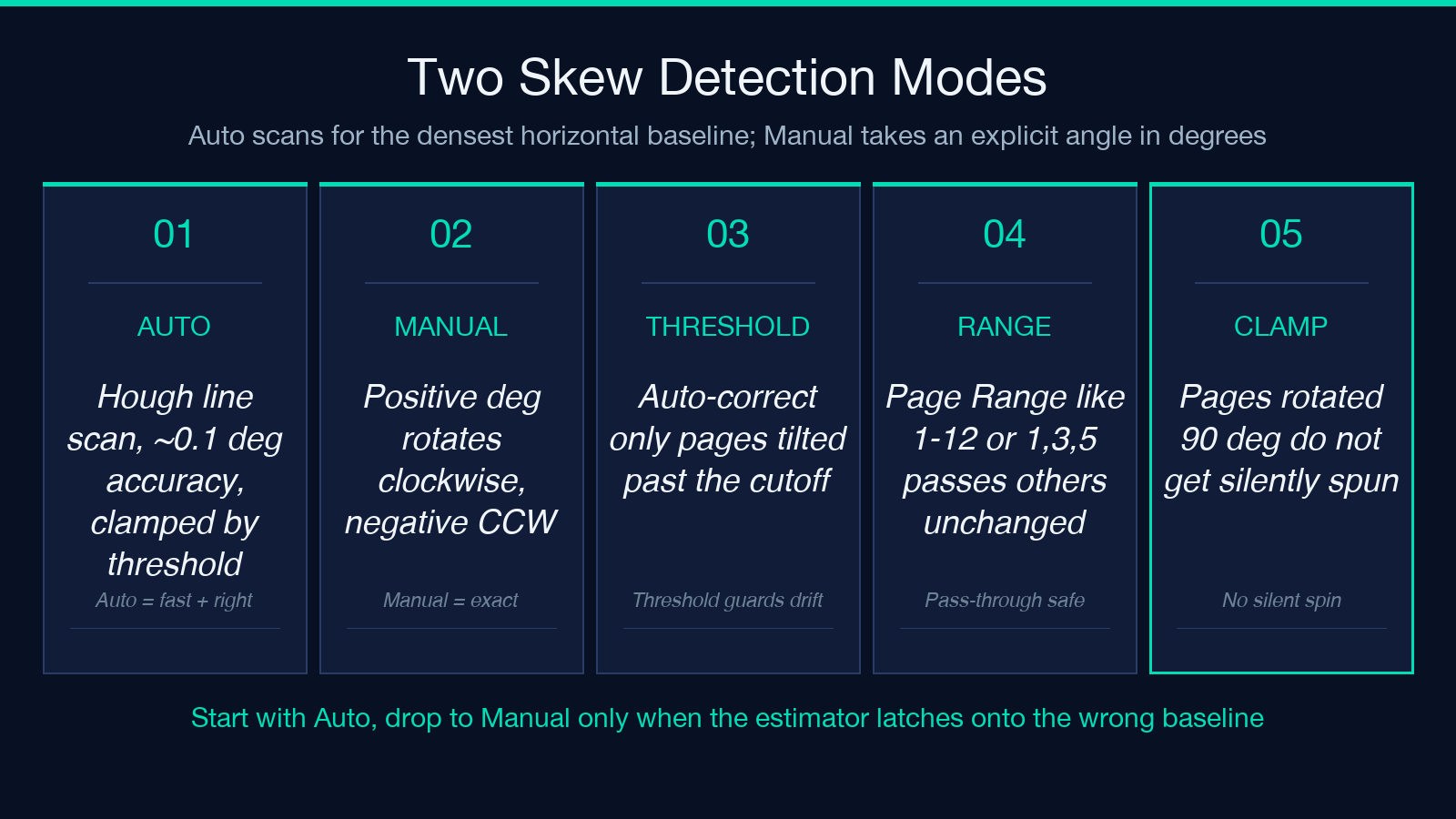
Manual angle is the escape hatch. When the auto estimate looks wrong — a page with mostly whitespace at the top, a page with a large image but no text, a page where the table lines run vertically — you set the angle directly. Manual Angle is in degrees, positive values rotate clockwise, negative counterclockwise. A 2.3-degree tilt on a feeder scan reads as +2.3 in the field. The tool applies the rotation to the page content stream, not the page crop box, so margins shift correctly and the resulting PDF does not end up with white bands at one edge.
The trade-off is straightforward: Auto is fast and right most of the time, but blind to page-level semantics. Manual is exact but requires you to know the angle, which you usually do not have without a measurement. Start with Auto, look at a few sample pages, and only switch to Manual when the Auto estimate is obviously wrong.
Preserving the Searchable Text Layer
The single most important option is Rasterize Text Pages. It defaults to No (preserve searchable text) — and that default is correct for nearly every use case. When the source page contains real vector glyphs (the output of a Word-to-PDF export, an InDesign file, a LaTeX paper), the tool detects that the page has a usable text stream, applies the deskew transform only to the rendering matrix, and leaves the text layer intact. The output PDF is still fully searchable, still copy-paste-friendly, still passes accessibility checks.
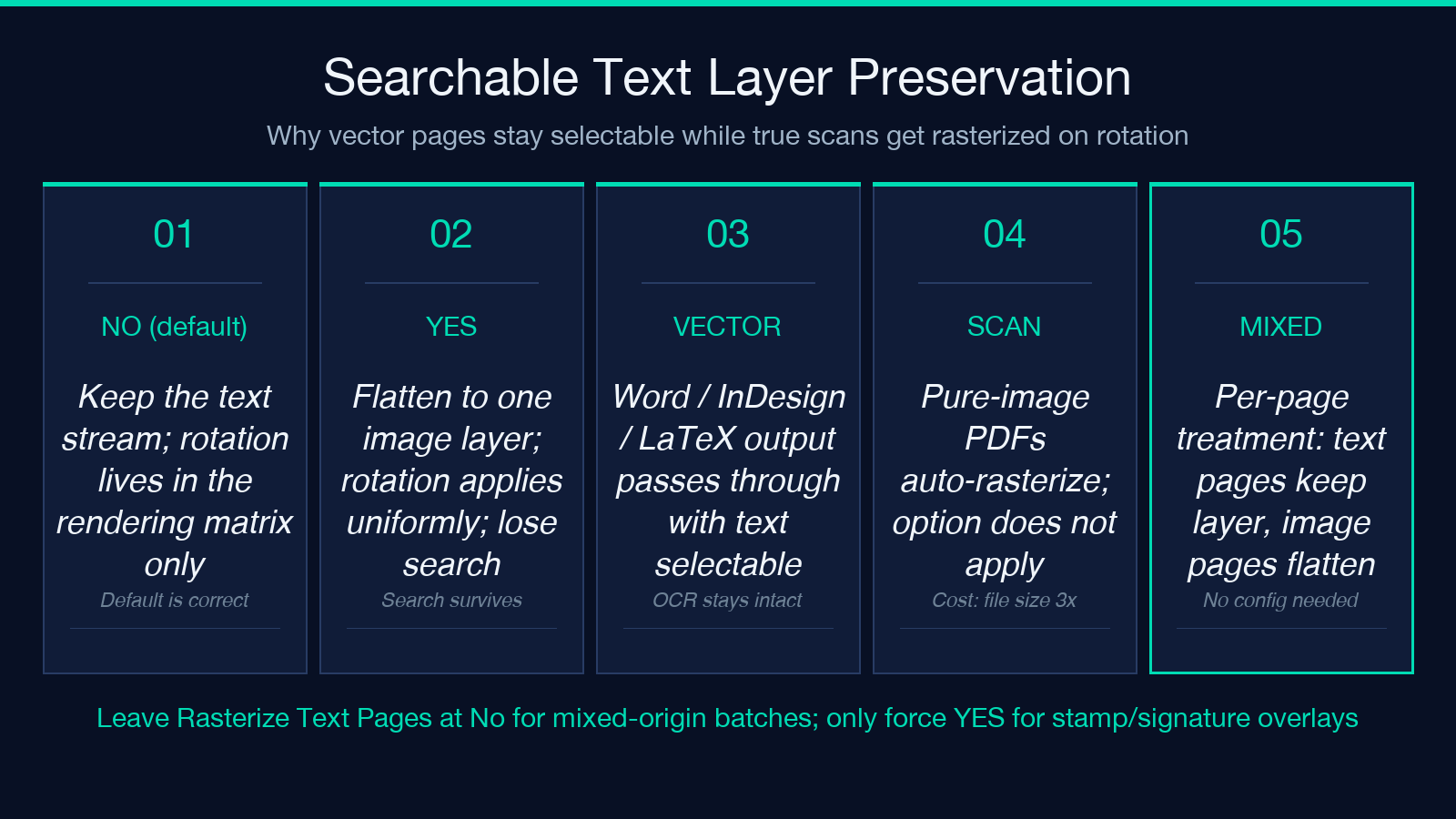
The opposite setting — Yes (force rasterize all pages) — should be reserved for two narrow cases. First, when the source is a scan that includes a vector overlay like a stamp or a signature, and the vector layer drifts out of alignment with the underlying raster. Forcing rasterization flattens everything to one image layer and the rotation applies uniformly. Second, when downstream tools cannot handle the per-page rotation in the content stream and you need a flat raster PDF for visual consistency. In both cases, the cost is real: the resulting PDF is no longer searchable, file size balloons by roughly 3x for a 300 DPI scan, and OCR downstream becomes a separate, lossy step.
For the typical deskew workflow — a folder of mixed-origin PDFs from a shared drive, a batch of contracts from the legal team, a stack of receipts from accounting — leave the option at No and let the tool do the right thing on a per-page basis.
Page Ranges for Mixed-Quality Batches
The Page Range field accepts the usual comma-and-dash notation: 1-12, 1,3,5, 2-. Pages outside the range are passed through unchanged. This is the right way to handle a mixed batch where pages 1-50 are clean and pages 51-200 came from the ADF. Run the tool once on the bad range, then concatenate.
The Auto-Detect Threshold field is the safety brake. It defaults to 0.5 degrees — meaning the tool will only auto-correct pages whose detected tilt is half a degree or more. Pages that are already flat are not rotated at all, which avoids the cumulative rounding error you would get from rotating a perfectly-aligned page by 0.05 degrees. Raising the threshold to 5 or 10 degrees makes the tool lazier — it stops touching marginal pages — but increases the chance that a genuinely tilted page gets through. Lowering it to 0.1 makes the tool more aggressive, which is useful when the downstream OCR engine is sensitive to small tilts but risks rounding noise.
Edge Cases to Watch For
Three edge cases to watch for. Password-protected PDFs are loaded with ignoreEncryption: true, so the tool can rotate a locked file without prompting, but the output inherits whatever the input protection was. Pure-image PDFs (every page is a single JPEG without a text stream) take the rasterize path automatically — the Rasterize Text Pages option does not apply because there is nothing to preserve. PDFs with mixed text and image pages get the per-page treatment: text pages keep their layer, image pages get rasterized. That behavior is the whole reason the tool exists, and it works without configuration.
Why the Estimator Sometimes Misses
A second edge case worth noting: when a page contains a single near-horizontal table line and very little other content, the auto estimator can latch onto the table line rather than the true baseline. The result is a small but consistent miscorrection. Lower the Auto-Detect Threshold to 0.1 to force the estimator to look harder, or switch to Manual for those specific pages via Page Range.
Wiring the Tool Into a Pipeline
For a single file, the tool is straightforward: upload, pick Auto or Manual, set the threshold, click Process. For batch work, the tool handles one PDF per run, so the batch pattern is a shell loop over the input folder. The output filenames default to a name-deskewed.pdf pattern where the name is the original filename stem, so a single run never clobbers the original. To verify, run pdfinfo on the output and check that the page count matches the input and that the file size has not ballooned (a 10x size jump usually means rasterization happened unexpectedly).
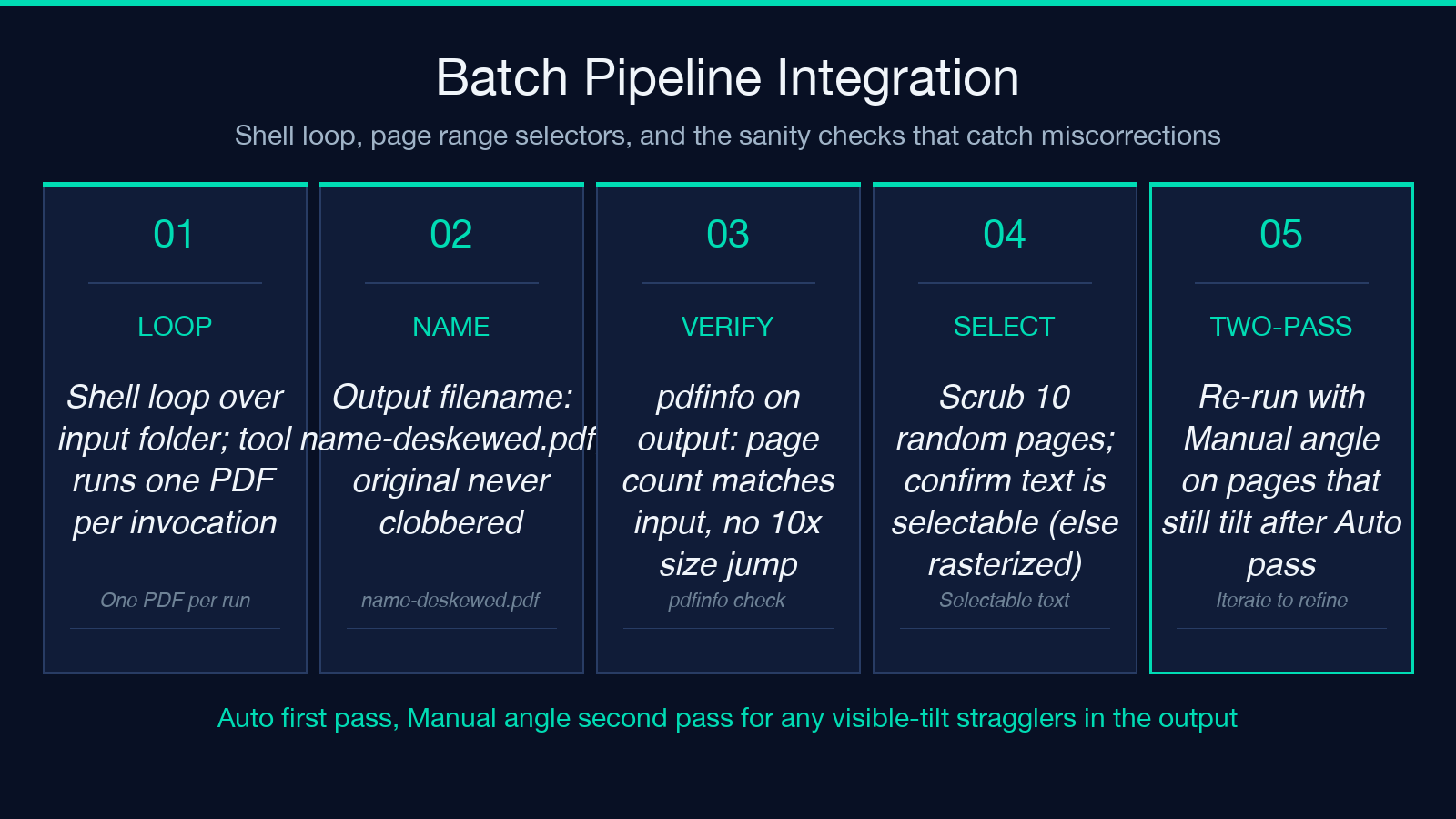
A quick sanity check after each run: open the output in any viewer, scrub through 10 random pages, and confirm the text is selectable. If it is not, the source was probably a scan and the tool rasterized — which is the correct behavior, but worth confirming because the file size will tell you whether the OCR step needs to be added to the pipeline downstream.
For workflows that need a second pass, run the tool once on Auto, then re-run with Manual angle on any pages that visibly tilt in the first output. The Manual Angle is the precise correction in degrees, so you can read it from the first output’s appearance (1 degree is roughly the width of one capital letter at 12pt) and apply it as a deliberate final correction.
When Deskew Is the Wrong Tool
Deskew is a per-page rotation. It does not fix perspective distortion (the page is a parallelogram, not a rectangle), and it does not straighten content that was photographed at an angle rather than scanned flat. For photographs of documents taken with a phone camera, the right tool is a perspective correction step first, then deskew. The PDF Deskew tool assumes the page is rectangular and only the rotation is off — that is the common scanner case, and it covers it well.
The tool also does not handle multi-column layout drift. If the source is a two-column scan where the columns lean in different directions — which is rare but happens with creased paper — a single page-level rotation cannot fix both columns. The right workflow there is to split the page, deskew each half, and recombine.
For the 95% case — a flatbed scan or an ADF scan with consistent drift — the PDF Deskew tool is the right primitive. It is fast, it preserves the searchable text layer when the source has one, and it leaves the page count, dimensions, and metadata intact. That last property matters: rotating a page should not change its place in the document, only its orientation.
Explore more on the Elysia Tools directory — PDF Deskew sits in the PDF Tools category next to the deskew-adjacent tools for OCR, batch processing, and metadata stripping. For workflows that involve scanned contracts and reports, the deskew + rasterize decision is the one that determines whether the downstream pipeline gets searchable text or a flat image. Make the choice deliberately, on a per-page basis, and the rest of the workflow gets cleaner.
