
The fastest SVG is the one you never have to second-guess. Drop a vector file into the right tool and you walk away with a smaller, cleaner copy that still renders identically in every browser, every email client, every embedded dashboard. The catch is knowing which knobs to turn, which transforms to keep, and which ones quietly chip away at the rendering fidelity your design team sweated over. That is the gap this guide closes — not by hand-editing SVG with regex, but by working through the options of a real minifier-and-analyzer the way a frontend engineer would on a Tuesday afternoon, with three concrete recipes you can copy and adapt today.
This field guide assumes you have a few SVG files you need to ship — favicons, hero illustrations, dashboard icons, perhaps a logo that survived three rebrand passes. You want them smaller, you want them readable, and you want to know before you publish whether the cleaned output will break in any of the places you actually use them. The tool we are working with is the SVG Minifier & Analyzer, which sits inside a wider family of format conversion utilities for the kind of cleanup work that usually eats half a sprint. By the end of this guide you will know what each option does, when to reach for it, and how to chain the minifier with the broader converter chain to deliver production-ready assets without losing a single visual detail.
The Minifier Mindset: What “Smaller” Actually Means
SVG minification is not compression in the gzip sense — the bytes still travel down the pipe uncompressed. What shrinks is the human-authored markup inside the file: the comments your designer left behind, the XML declarations you do not need in production, the whitespace that makes diffs readable but ships no visual information, the editor metadata like Inkscape namespaces and Sodipodi hints. Strip those and a 38 KB hand-drawn logo can land at 9 KB without anyone noticing the difference in the rendered output.
The interesting trade-off sits in numeric precision. SVG paths are full of floating-point coordinates: M 152.3417 86.0023 L 159.8410 91.5576 .... Each decimal digit is roughly one byte. Crank precision from three decimals down to one and you cut another 30-40% of the path data, but at some point the curve starts drifting from its anchor by more than half a pixel. The threshold where the drift becomes visible is exactly the question the tool’s precision option is built to answer.
The other dimension of “smaller” is hidden content. Display:none elements, zero-size groups, fully-transparent fills, paths clipped out by their parents — all of these render to nothing but still cost bytes to describe. The removeHiddenElements toggle handles the structural cases. Path-level redundancy (two paths drawn over each other with identical geometry) is rarer and usually requires human review, but it is worth knowing it can hide inside what looks like a single icon.
Reading the Analyzer Output Before You Touch Anything
The analyzer half of the tool is the part most people skip, and it is the part that saves you from breaking production. Before you change any setting, run the file through the analyzer in its default configuration and look at three numbers: original byte count, cleaned byte count, and the count of removed elements. The ratio tells you whether the file actually needs work. A 2 KB icon that drops to 1.6 KB is a curiosity. A 60 KB illustration that drops to 18 KB is a real win.
The element-count delta is the more diagnostic number. If the analyzer removes 30 elements from a 200-element file, you know there is real redundancy — probably a hidden wireframe layer or a comment graveyard the designer left visible. If it removes zero elements, the file is already clean and you are only shopping for whitespace. If it removes 150, you almost certainly have a vectorized raster (an SVG traced from a PNG) where the path count vastly exceeds what the visual output requires, and you might want to think about exporting from the original vector source instead.
One thing the analyzer cannot tell you: semantic correctness. An icon that uses
Picking a Precision That Holds Up Under Zoom
The default precision setting of 2 is the conservative choice for icons that ship at 24×24 or 32×32. At those sizes, the difference between 152.34 and 152 is sub-pixel — well below what an LCD panel can resolve. Bumping precision up to 3 or 4 starts to matter when your asset renders at 512×512 or as part of an SVG sprite that gets zoomed in interactive views.
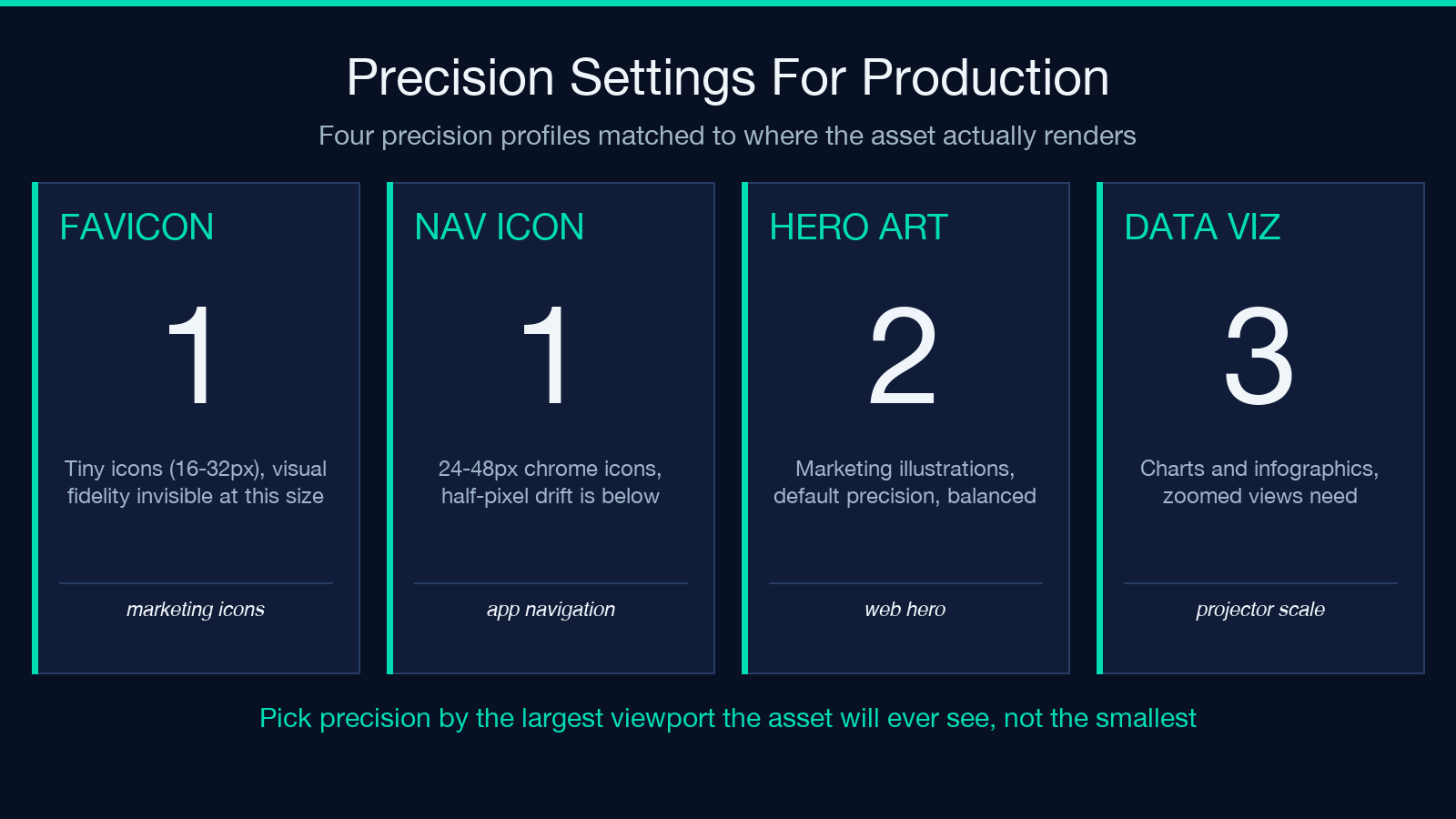
The right test is not the byte count, it is the visual diff. Open the cleaned output at 4x zoom in Chrome, Firefox, and Safari side-by-side with the original. If you can spot the difference without prompting, drop precision by one. If you cannot, you have headroom to push it lower. For logos that ship in headers and rarely exceed 64×64, precision 1 is almost always visually indistinguishable. For data-viz charts that scale to projector sizes, precision 3 is the safer floor.
A practical rule of thumb: if the cleaned SVG is going to be served as a static asset that ships once and is cached forever (favicons, marketing illustrations), be aggressive — precision 1, strip everything optional, aim for the smallest file that still renders correctly. If the cleaned SVG is going to be generated at request time (per-user charts, dynamic infographics), be conservative — precision 2, leave room for accessibility attributes, accept a larger file in exchange for predictable behavior across browsers.
Batch Mode and the Hidden Cost of Many Tiny Files
Real frontend codebases do not ship one SVG at a time. They ship an entire icon set, a dashboard’s worth of status indicators, a marketing site’s worth of illustrations. The tool accepts up to 10 SVG files in a single pass, which is enough for the typical icon-set migration but falls short of the 80-icon hero library a design system team will actually have.
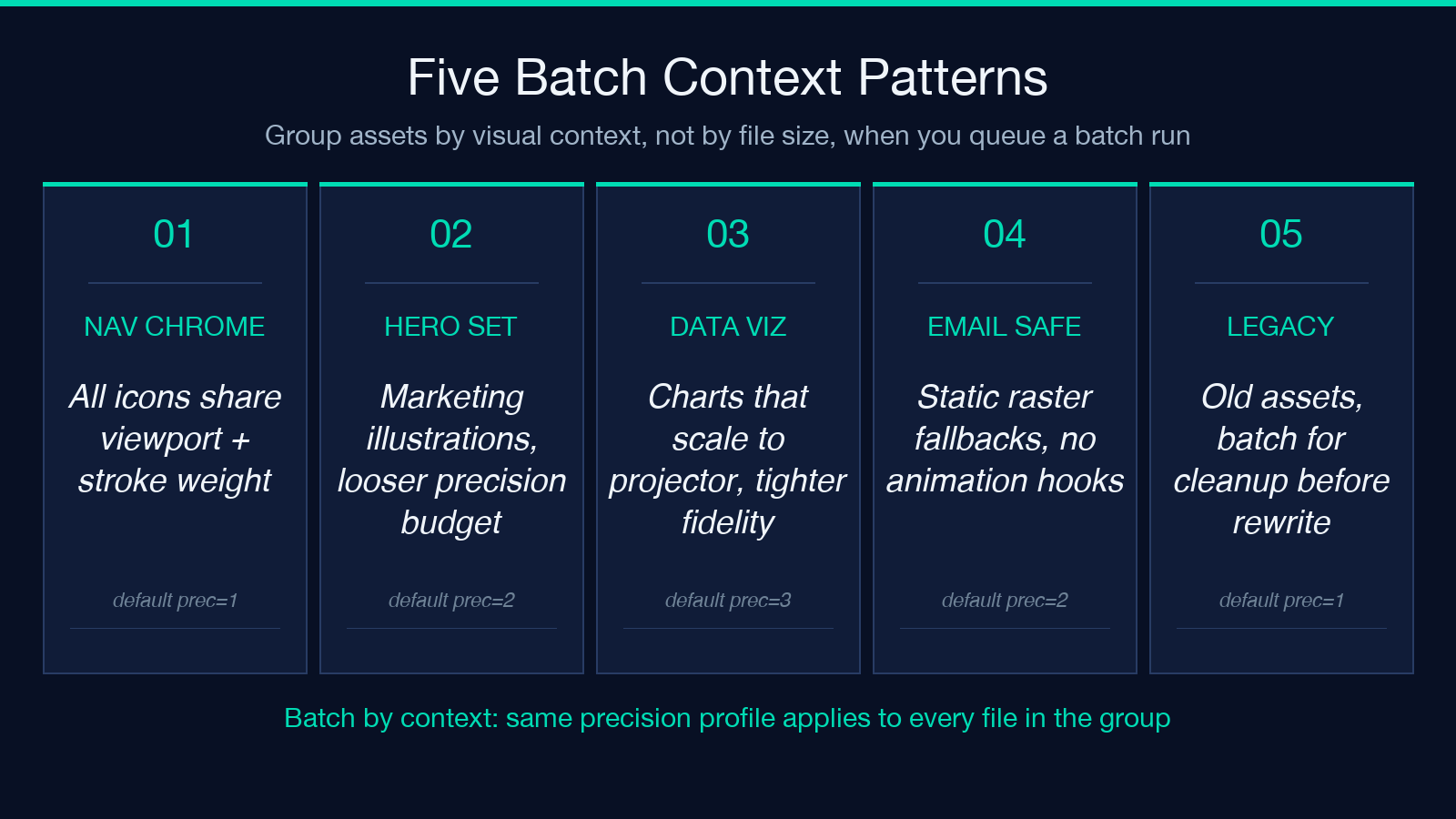
The trick is to group your batch by visual context, not by file size. Run all the icons in your navigation bar through one batch — they share rendering assumptions, viewport sizes, and stroke weights, so the precision settings that work for one will work for the rest. Run your hero illustrations through a separate batch with looser settings, because the visual fidelity cost of over-minifying a hero is much higher than the cost of over-minifying a 16×16 chevron. Treating the batch as a per-context budget rather than a global optimization is what separates clean production output from a pile of slightly-worse files.
The batchPackageName field is where you encode that context. Names like marketing-icons-clean or dashboard-status-tight are not vanity labels — they end up in your CDN path, your git history, and your QA reports. Six months from now, when someone asks why the hero illustrations ship at a different precision than the icon set, the filename tells the story without anyone needing to remember.
Hidden Elements Toggle: When To Trust It, When To Disable
The default behavior removes elements that have display:none, visibility:hidden, or are clipped out by their parent’s clip-path. That is the right call 95% of the time — designers leave these in as scaffolding, and shipping them is pure waste. The 5% where it breaks are SVG icons used inside CSS-driven toggles, where the hidden state is part of the interaction design rather than a leftover.
Test before you trust: take one icon you know is used in a toggle (think: hamburger-to-X menu transitions, theme switchers, accordion expand/collapse indicators) and run it through the tool with hidden-element removal enabled. Then run it again with the toggle disabled and compare the byte counts. If they are within 5%, leave the default on — the difference is noise. If the toggle-disabled version is significantly smaller, you have real hidden content you probably want to keep, and you should disable removal for that icon specifically by either excluding it from the batch or pre-processing it to strip only the safe-to-remove parts.
A common gotcha is fill="none" paths. These are not removed by the hidden-element filter (they are visible — they just have no fill), but they often serve as the visual skeleton for a hover-state animation that swaps the fill in via CSS. Removing them breaks the interaction. If your icon set relies on CSS-driven hover animations, run the test icon through with a hover state applied and confirm the cleaned output still has the right structural hooks.
Verifying the Cleaned Output Actually Renders
The single most common mistake in SVG minification is trusting the output without verifying it. Browsers are forgiving in ways that look like success but are actually silent fallbacks — a malformed path falls back to a default zero-size render, and you only notice when your icon does not appear.
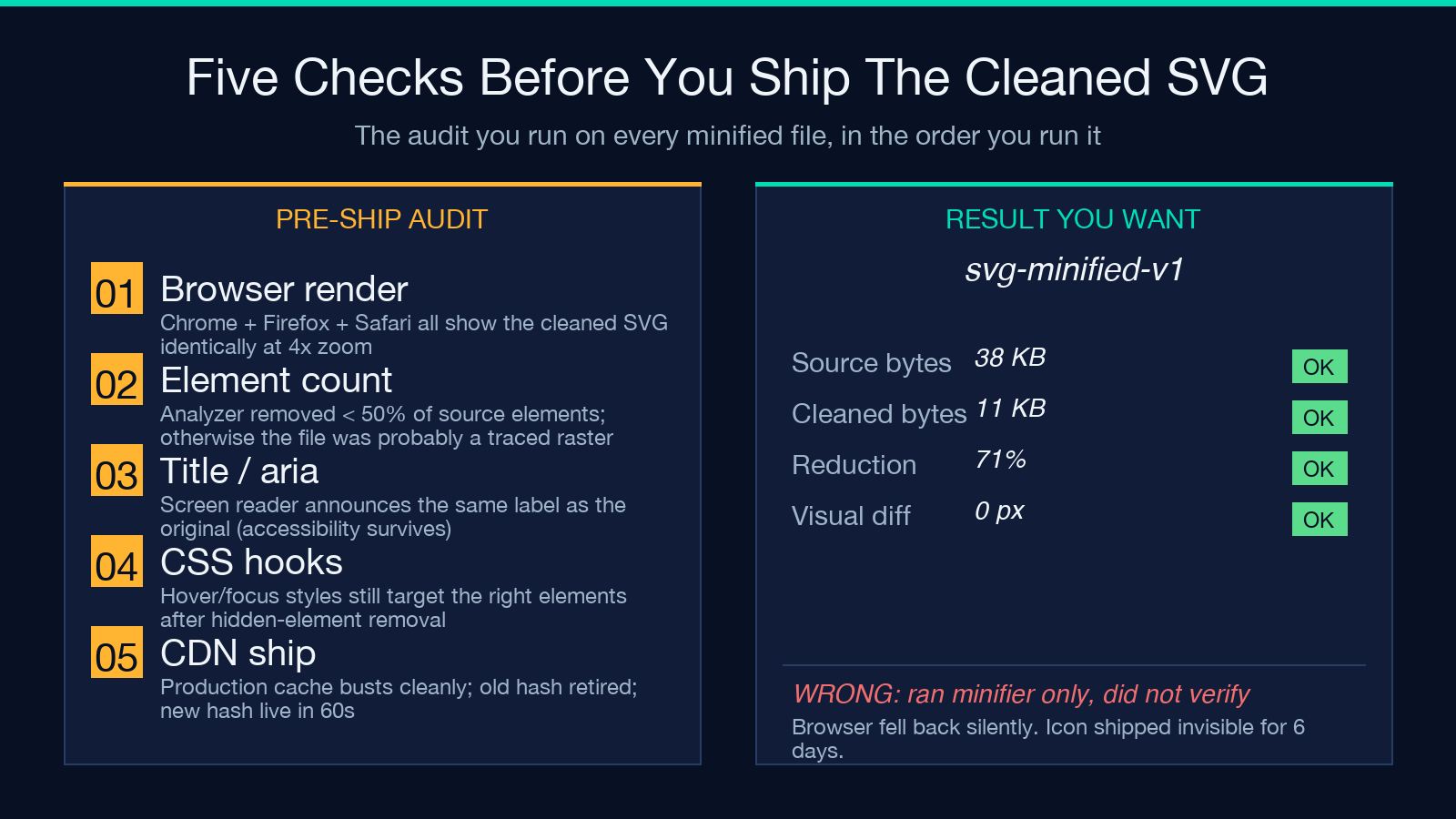
The verification recipe is three steps. First, render the cleaned SVG directly in Chrome, Firefox, and Safari, and screenshot each at the production size plus 4x zoom. If they all match the original visually, you are safe to ship. Second, run the cleaned SVG through a real consumer — your actual icon component, your email template, your React Native bridge — and confirm the production code path renders it correctly. Third, run a screen reader over the result and confirm any <title> or aria-label content survived the cleanup. Accessibility attributes are exactly the kind of “redundant markup” that looks safe to strip but breaks the experience for users who depend on them.
A quick automated check is the SVG to PNG converter in the same family — pipe the cleaned SVG through it, compare the rendered PNG against a reference render of the original, and you have a binary pass/fail signal that catches visual regressions faster than any visual diff tool. For favicons specifically, the SVG Favicon Generator takes a cleaned master file and emits the full multi-size package (16, 32, 48, plus the ICO bundle) so you can verify each size renders cleanly before pushing to the CDN.
Stitching SVG Cleanup Into Your Build Pipeline
The endgame for SVG minification is not a one-off manual run, it is a build step that runs on every commit and ships cleaned assets automatically. The pattern that works in most codebases is a pre-commit hook that scans for .svg files in the assets directory, runs each through the minifier with the team’s agreed precision profile, and writes the result next to the original in a *.min.svg sibling file. The build then ships the .min.svg files in production and the originals in development, so debugging a visual regression is still possible without re-running the minifier manually.
The CI layer catches what pre-commit misses. A GitHub Actions workflow that renders every .min.svg to a reference PNG, diffs it against the rendered original, and fails the build if any visual regression appears is roughly 30 lines of YAML plus a small node script. The script is the part that costs the team time, not the YAML — and the verification code from the previous section is exactly the script, minus the manual screenshot step.
Once the pipeline is in place, the manual minifier becomes a debug tool, not a routine. Reach for it when an asset ships at an unexpectedly large size, when a designer asks why a particular icon looks subtly different in production, or when you inherit a legacy codebase with 200 hand-authored SVG files and a deadline to deliver a faster site next quarter. That is the workflow this tool is genuinely useful for — and the rest of the time, the build pipeline does the work invisibly.
When SVG Minification Is Not the Right Answer
There are cases where the minifier is the wrong tool and the right move is a different converter. If your SVG is actually a wrapper around a PNG or JPEG (a common pattern when designers export logos as “SVG” but the content is a single embedded raster image), the minifier will save you almost nothing — the bytes are in the embedded image, not in the SVG markup. The right move is to convert the raster to a real vector format upstream using the PNG to SVG converter, which traces the bitmap and produces a clean vector you can then minify meaningfully.
If your goal is to ship a smaller file to legacy browsers that do not support SVG well, the answer is raster. The SVG to WebP converter takes the cleaned SVG, renders it at the target resolution, and emits a WebP image that is consistently 60-80% smaller than the equivalent PNG and renders identically across every browser shipped after 2020. Use the minifier when you want a clean vector; use the raster converter when you want the smallest possible file at a fixed resolution.
For most production teams, the answer is both — clean the SVG with the minifier for modern contexts (web app, dashboard, design system documentation), and raster-export to WebP for legacy contexts (email templates, social sharing images, embedded charts in PDFs). The minifier is one tool in a chain, not the chain itself, and the chain works best when each tool does the one thing it is genuinely good at. The next time an icon ships at a size that surprises you, start with the analyzer, decide whether the bytes are in the markup or the rendering, and pick the right tool for the job — you will almost always end up running two of them rather than just one.
For more cleanup patterns across formats, the wider elysia tools library keeps the converter family in one place, and the individual tool pages link to the related cleanup utilities you usually need alongside a minifier pass. Most production assets ship better when three or four of those utilities work together rather than when one of them does all the work alone.
