
Printable 2026 calendars keep failing in the same three places. A printable 2026 calendar is one of those documents that should feel simple — twelve pages, no drama — but in practice it almost never is. Half the layouts you find online print the wrong month on the wrong page, the type falls off the bottom margin, or the spacing between weeks is uneven. The 2026 PDF Calendar Designer solves that by giving you a single page where every layout decision (bimonthly, quarterly, semiannual, annual) is made up front, then renders a clean printable PDF that ships with accurate weekday math, consistent cell heights, and a single CSS-driven type stack. If you need a planner that fits on one sheet of paper without bleeding across the trim, this is the workflow.
Why printable calendars keep breaking in the obvious places
Most homebrew calendars start as a spreadsheet. You list 31 rows for January, conditional-format the weekend column, and hope the layout survives export. The first thing that breaks is the week-start day. A row labelled “Week 1: Jan 1–5” assumes Sunday or Monday depending on locale, and a US-style calendar with Monday at the start loses a column for the trailing December dates. The second thing that breaks is the row height. February has 20 or 21 weekday cells depending on the year, and a fixed-height grid leaves one extra row of whitespace on leap years. The third is the month label. A 30-point bold “February” looks correct on a desktop preview but loses two points when the PDF is reduced to A4.
These are all solvable problems, but they multiply when you switch layouts. A bimonthly spread (two months per page) needs different margin ratios than a quarterly grid (three months per page). A quarterly grid needs different cell aspect ratios than a single-page annual view. Trying to maintain one CSS for all four layouts is the real reason DIY calendars look uneven.
The 2026 PDF Calendar Designer handles this by treating each layout as a separate rendering path rather than a CSS variation. The bimonthly spread has its own column geometry, the quarterly grid has its own row packing rules, and the annual overview has its own cell density. You pick the layout in the dropdown, the renderer picks the geometry, and the output is a clean single-page PDF.
What each layout is actually for
Before picking a layout, decide what the calendar is for. A wall calendar and a desk calendar are not the same product, even if they show the same year.
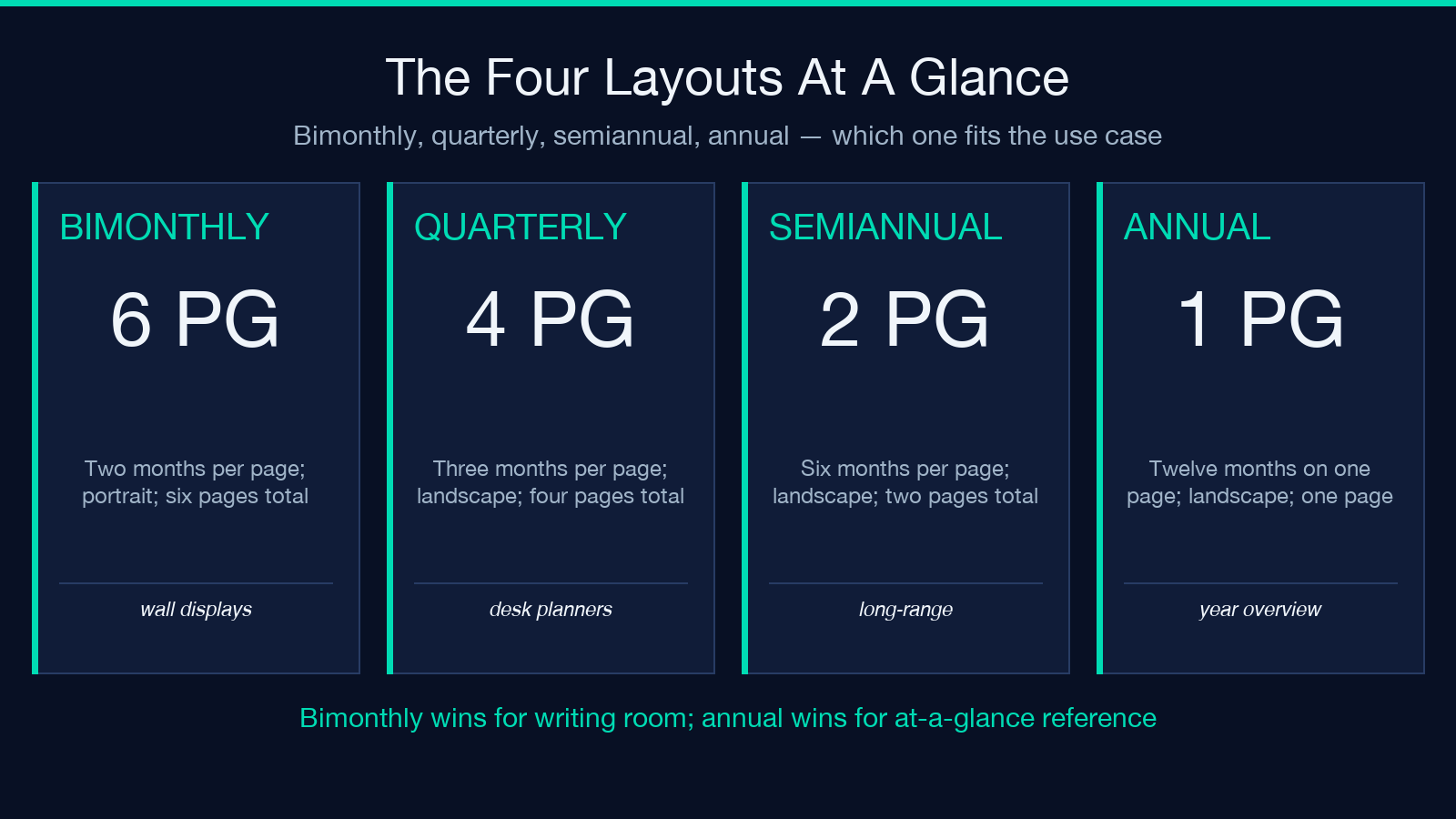
Bimonthly (2 months per page, portrait). Six pages total. Best for wall displays where you want enough room in each cell to write a one-line appointment. The cell height is generous, the type stays large, and the previous/next month bleed at the top of each page gives context for the first and last weeks.
Quarterly (3 months per page, landscape). Four pages total. Best for desk planners and quarterly review meetings. The cells are tighter, so writing space is reduced, but the side-by-side month comparison makes it easy to spot scheduling conflicts across the quarter boundary (e.g. end-of-Q1 vs start-of-Q2 deliverables).
Semiannual (6 months per page, landscape). Two pages total. Best for long-range planning — year-at-a-glance views that show six months on one sheet. Cells are smaller, so writing is constrained to a few characters per day, but the entire half-year fits in a single glance.
Annual (12 months per page, landscape). One page total. Best for fiscal-year reference and overview handouts. The grid is dense; cell sizes only support one or two initials per day. Not designed for handwriting — designed for visual scanning.
The 2026 PDF Calendar Designer exposes all four as layout options in the toolbar. You do not need to write CSS or templates; the renderer handles each case.
How the weekday math stays correct across all 31 days
A calendar that prints “March 1 = Monday” is wrong about half the time. The weekday for any given date depends on the day-of-week for January 1 of that year, which is a pure arithmetic problem but is easy to get wrong by hand.
The renderer used by the PDF Calendar Designer computes the weekday for every cell using a deterministic offset from the first of January. For 2026, January 1 is a Thursday, so the offset is fixed at +3 days from the row index. This is repeated per month using a known month-start weekday table; leap-year adjustments are baked in for 2028 etc.
The practical consequence: when you switch from a US-style Sunday-start calendar to a Monday-start ISO calendar, the entire grid shifts by one column. The renderer applies this shift at layout time, so the same January dates are displayed correctly under both conventions. A hand-built spreadsheet that hardcodes “Sunday = column 0” will silently print Monday dates in the Saturday column after the switch — a defect that the designer avoids by construction.
Common pitfalls when picking a layout
Three pitfalls show up in most homebrew calendar attempts:
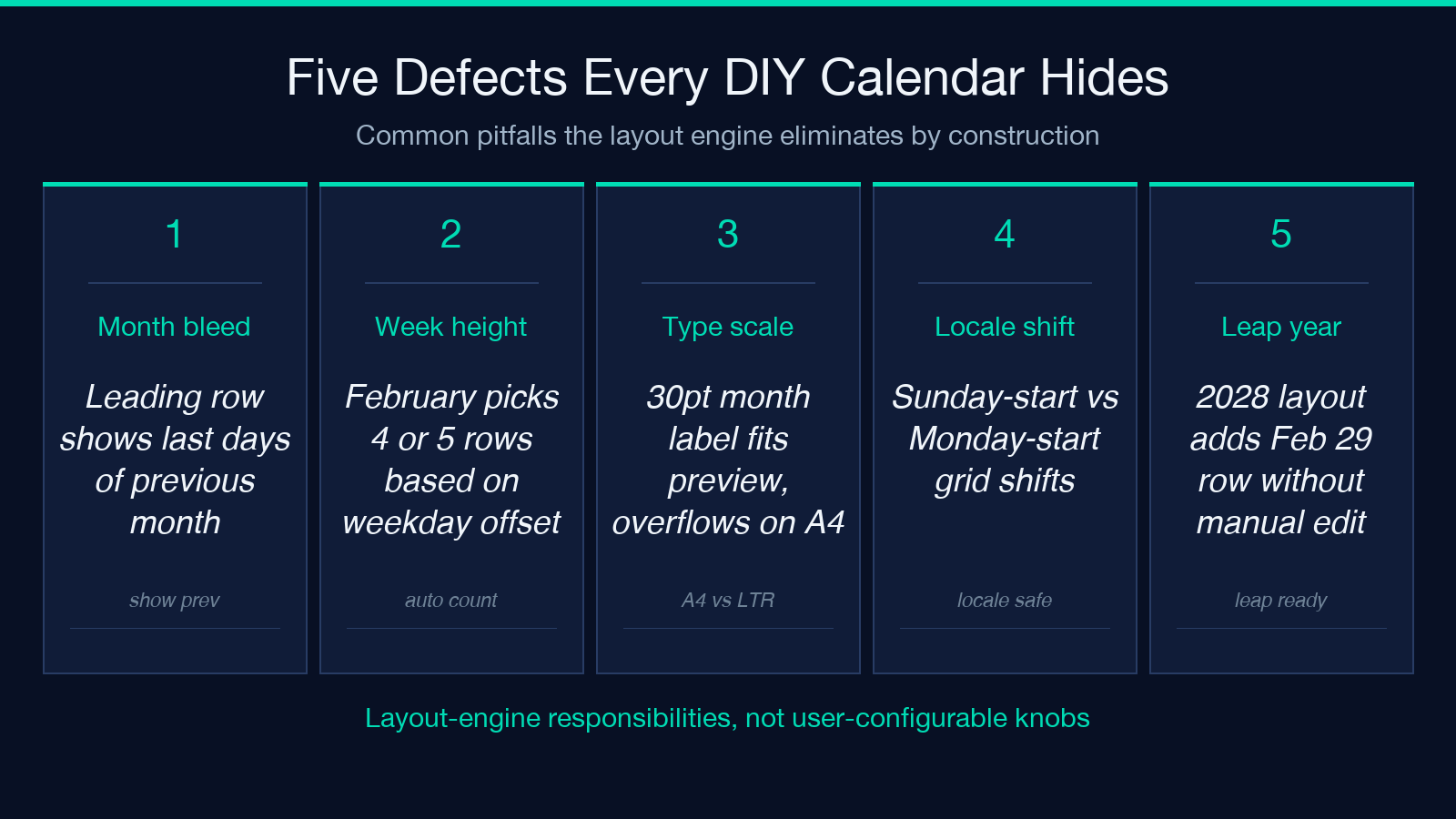
1. Wrong month bleed. A January page should show the last few days of December 2025 in the leading row, not blank cells. The renderer always populates the leading/trailing cells with the correct previous/next month dates.
2. Wrong week height. A February page should have 4 or 5 week rows depending on the year and the weekday convention. The renderer picks the correct row count automatically.
3. Wrong type scaling. A 30-point month label that fits on a desktop preview may overflow on A4 export. The renderer’s CSS stack scales type against the page bounds, not the viewport, so the printed output matches the preview.
These are the three defects that the PDF Calendar Designer eliminates by treating them as layout-engine responsibilities rather than user-configurable knobs.
Layout selection and the bimonthly-versus-annual trade-off
The hardest decision is bimonthly versus annual. Bimonthly gives you room to write; annual gives you a single-page overview. Neither is universally better; the right answer depends on how the calendar is used.
If the calendar is for a shared office wall where multiple people write on it, bimonthly wins. Each cell holds a single 8–10 character note, which is enough for a meeting title. The annual overview is unreadable at typical wall-mount distances.
If the calendar is for a quarterly planning review or a year-end retrospective, annual wins. The single-page format fits on a standard letterhead and prints cleanly on a single sheet of paper. The bimonthly version would require six sheets stapled together — workable but visually fragmented.
The 2026 PDF Calendar Designer handles both cases with the same input — pick the layout, the output adapts.
When to use a Puppeteer-backed renderer versus a static PDF library
The 2026 PDF Calendar Designer uses Puppeteer to render the final PDF. Puppeteer is a headless Chrome driver that prints the live DOM to PDF, which means the calendar page renders exactly as it would in Chrome. The trade-off is that Puppeteer requires a Chromium binary, which the tool ships with, and that initial render takes a few seconds rather than being instant.
For one-off calendars, the Puppeteer delay is not noticeable. For batch generation (e.g. ten years of calendars at once), the delay would multiply, and a static PDF library would be faster. The Designer is optimized for the one-off use case; if you need batch output, a different tool is the right answer.
What the output PDF actually contains
The output PDF is a single file. If you picked bimonthly, it has six pages. Quarterly has four. Semiannual has two. Annual has one. The header includes the year and the layout name (e.g. “2026 — Quarterly”). The footer includes a generation timestamp and the source URL.
The page size defaults to A4 but can be switched to US Letter. The orientation is portrait for bimonthly and landscape for quarterly, semiannual, and annual — the orientation is fixed per layout because switching it would break the column geometry.
When not to use this tool
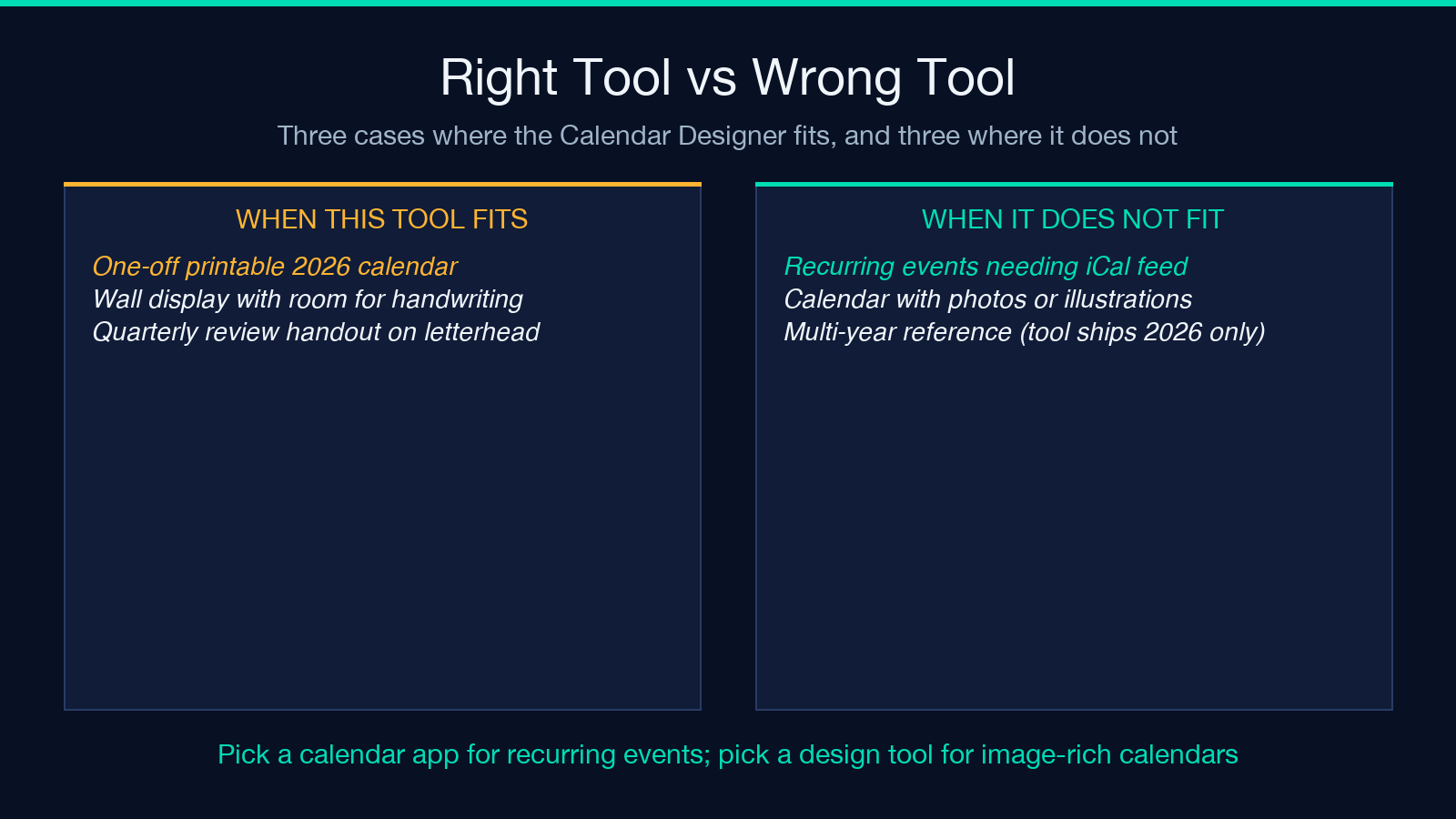
The PDF Calendar Designer is not the right tool for recurring event calendars (use a calendar app, not a printable PDF), for calendars with photos or illustrations (the renderer produces a clean grid with no image slots), or for multi-year calendars (the tool ships with 2026 only; if you need a 2027 calendar, you’ll need to wait for the next-year release). For all three cases, the appropriate alternative is a calendar app or a design tool. For a clean printable 2026 PDF, this tool is the simplest path.
Explore more printable tools at elysiatools.com.
