
Three resize modes, five output formats, and one decision that prevents 90% of blurry thumbnails. Image resizing looks simple until you ship a hero banner that looks fine on a 1440-wide desktop and turns into soft mush on a 720-wide phone. Every team that runs a content pipeline eventually meets the moment when their CMS, social platform, and image CDN each demand a different pixel dimension, and the team has to figure out which algorithm respects aspect ratio, which one preserves sharpness, and which one turns transparency into a black rectangle. The Image Resizer tool folds those decisions into a single form that picks the right engine for the format you hand it, and the rest of this guide walks through how each mode behaves, when to reach for which format, and the three failure modes that show up over and over when you skip the explicit algorithm choice.
The three resize modes and what each one actually does
Most image editors hide the resize algorithm behind a generic “Resize” button, but the choice between algorithms is the entire game when the output needs to look identical across screen densities. The Image Resizer exposes them as explicit options so the tradeoff is visible.
Bilinear / Bicubic resampling reads color values from the source image and averages neighbors to compute new pixel values. It is fast, works on every format, and produces the smoothest result for photographic content. The cost is that small text and high-contrast edges lose crispness because the algorithm treats every pixel as a color average, not a structural element. For Instagram-style photo banners and content imagery where the source is already slightly soft, bilinear is the safest default.
Lanczos / Mitchell-Netravali resampling is the modern default for downscaling photos because it uses a wider filter kernel that preserves edges better than bicubic while staying smooth in gradients. It is the algorithm that powers most high-quality image pipelines (Chrome’s image rendering, ImageMagick’s high-quality preset, libvips default). For a hero image going from 2400 to 1200 pixels, Lanczos produces a noticeably crisper result than bilinear at the cost of a few extra milliseconds per image.
Nearest-neighbor resize ignores neighbor pixels and copies the closest source pixel into each output pixel. The output looks pixelated and blocky on photos, but it is the only correct choice when the source is pixel art, a chart, a QR code, or any image where every pixel carries discrete meaning. Using bilinear on a QR code turns the sharp black-and-white blocks into gray mush that scanners fail to read. The Image Resizer exposes nearest-neighbor as a separate option precisely because the use case is niche but unforgiving — when you need it, you really need it.
A practical rule: Lanczos for photo downscaling, bilinear for photo upscaling and general web imagery, nearest-neighbor for anything with sharp discrete boundaries. The tool exposes all three so the right call is one radio-button switch, not a deep dive into the renderer settings.
Format choice is half the resize decision
Resizing the same source PNG to 800px wide and exporting as JPEG versus PNG versus WebP versus AVIF produces files that range from 60 KB to 600 KB and look almost identical on a backlit laptop screen. The format pick depends on three constraints the source itself defines, not on personal taste.
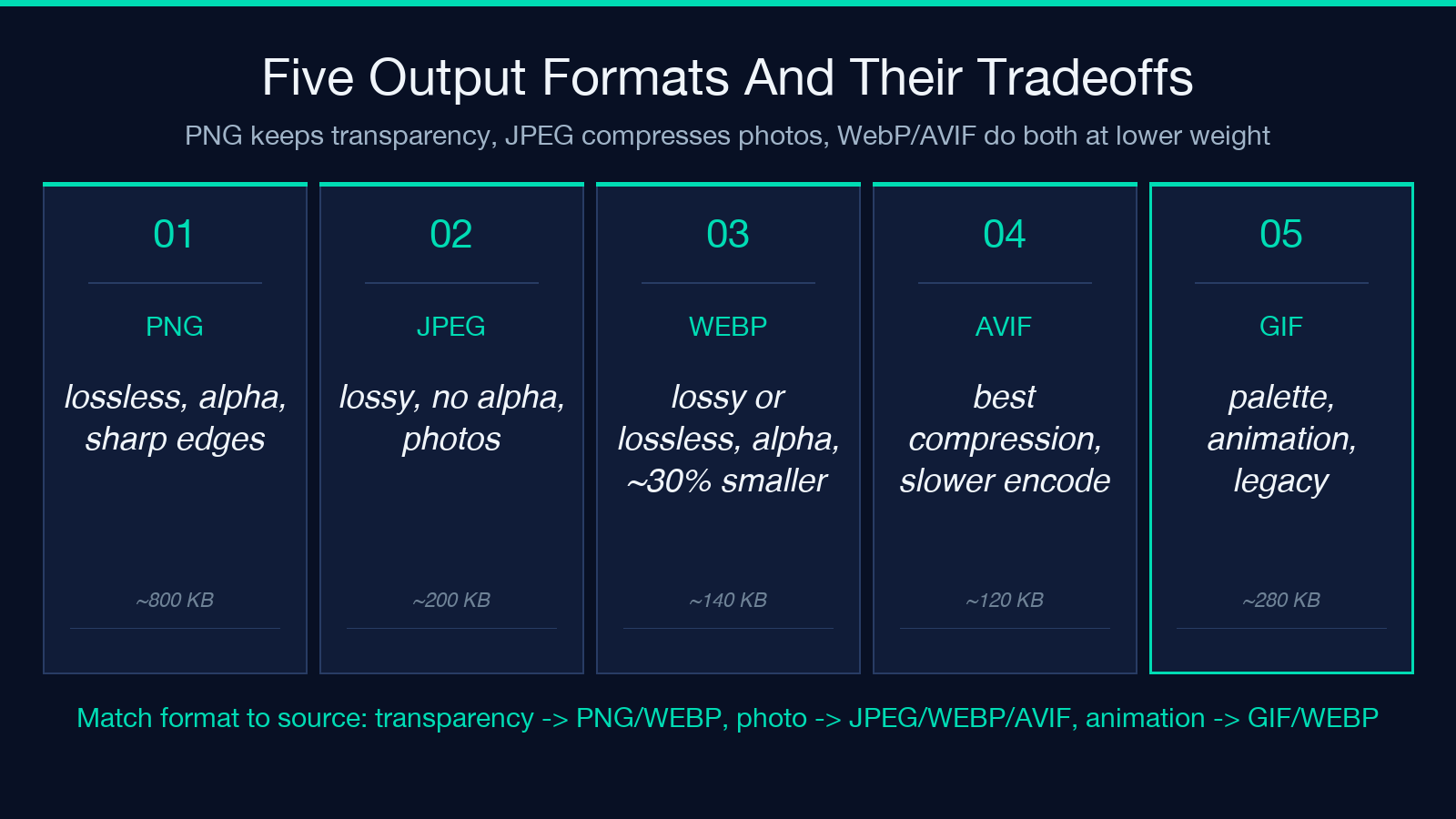
PNG is lossless and supports full alpha transparency, which makes it the right format when the image has text overlays, transparency, or graphics with sharp edges (logos, UI screenshots, charts). A 1920×1080 PNG of a dashboard can easily run to 800 KB; resize to 1200 wide and the file size barely budges because the algorithm preserves every pixel. The tradeoff is file weight — PNG is the heaviest format in the family, and for content imagery without transparency it is wasteful.
JPEG is lossy and discards color information the eye barely notices, which produces much smaller files at the cost of visible compression artifacts around sharp edges. JPEG does not support transparency at all — a transparent PNG exported as JPEG will get a black or white background baked in, which is the silent failure mode that breaks logos and product shots. For photos and content imagery without transparency, JPEG at 80-85 quality is the workhorse choice.
WebP and AVIF are modern formats that combine better compression with transparency support, and the Image Resizer exposes both as first-class output options. WebP at 80 quality typically matches JPEG at 90 in perceived quality at 30% smaller file size, and supports full alpha. AVIF pushes compression further still but takes longer to encode and is not yet supported by every browser or social platform. For projects where the delivery surface is known (a modern web app, an editorial CMS), WebP is the right call. For projects that need broad compatibility, stick with JPEG and PNG.
A good test: take the source image and save it as PNG, JPEG at 80 quality, WebP at 80 quality, and AVIF at 60 quality, all at the target dimensions, and compare them on the actual delivery surface. The WebP samples, PNG samples, and JPG samples collections give you reference images at multiple resolutions so you can see the file-size-vs-quality tradeoff for the same subject across formats before committing.
How aspect ratio, crop, and pad solve the “wrong-shape” problem
The most common resizing failure is not a blurry output — it is the wrong output dimensions. The source is 1600×1200, the target slot is 1200×630 (an Open Graph card), and a naive stretch distorts faces and product shapes into an unrecognizable form. The Image Resizer surfaces four strategies that resolve this.
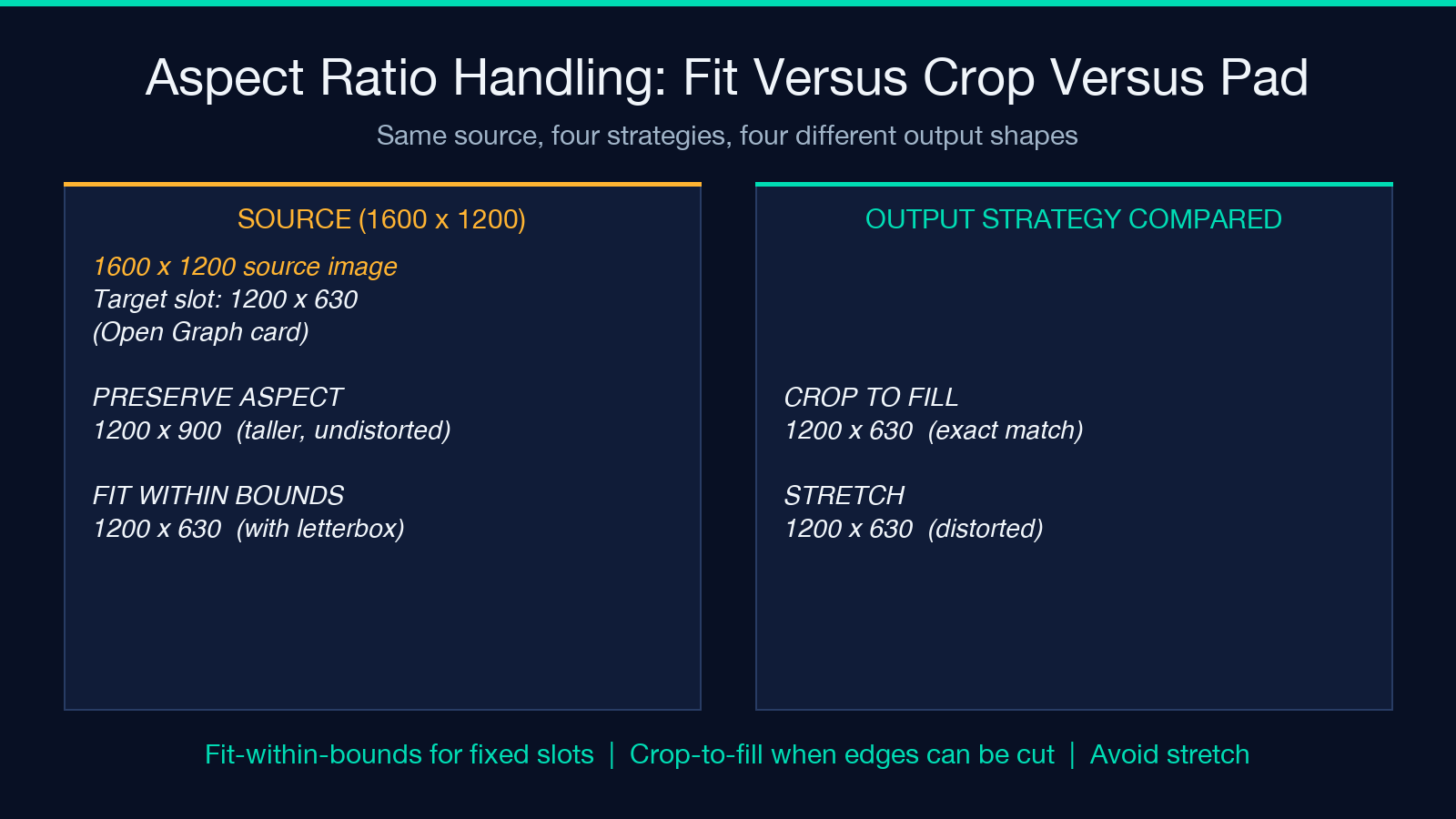
Preserve aspect ratio keeps the source width-to-height ratio and scales to fit the longer target dimension. A 1600×1200 source resized to fit a 1200-wide slot stays at 1200×900 — taller than the 630 slot wants, but undistorted. Use this when you control the slot and can adjust it to fit the source.
Fit within bounds scales the image so the entire image fits inside the target box without distortion, and adds a transparent or background-colored letterbox/pillarbox to fill the unused space. Use this when the slot dimensions are fixed (social cards, OG cards, banner placements).
Crop to fill scales so the shorter dimension fills the target, then crops the overflow on the longer dimension. The output exactly matches the target dimensions, but content at the edges of the source can be cut off. Use this when you can position the focal point and the slot dimensions are non-negotiable.
Stretch ignores aspect ratio and maps every source pixel to the target dimensions, producing distortion. This is the wrong choice 99% of the time and exists only for cases where the source is a generative texture or background tile where distortion is invisible. Avoid for content imagery.
A practical rule: if the slot dimensions are fixed and the source aspect ratio is close, fit-within-bounds with a transparent background gives the cleanest output. If the source aspect ratio is far off, crop-to-fill is the better trade than letterboxing a portrait source into a landscape slot.
Batch resizing for editorial and social pipelines
A single resize takes a second; a hundred resizes for an editorial pipeline take an afternoon if you open Photoshop each time. The Image Resizer accepts batch input — paste a list of source paths or drop a folder, set one set of dimensions and format options, and the tool processes every image through the same pipeline. The output filenames preserve the source name with the new dimensions and extension appended, so a batch run produces a parallel directory ready to upload.
For social pipelines, batch resize typically runs as a daily job: pull today’s product photos from the asset bucket, resize to the four required output dimensions (Instagram square, Instagram portrait, Twitter card, Open Graph), and save the output to a staging folder for review. The batch mode ensures every image gets the same treatment — no human accidentally resizing one to 1080 instead of 1200 because the format string was off by one digit.
The Image Resizer page lets you upload up to dozens of images in a single run and configure output dimensions, format, quality, and resize mode once. For larger automation, the underlying pipeline is what content management systems use behind the scenes — the tool just exposes the same knobs in a web form.
The three failure modes that show up over and over
Even with a clear pipeline, certain mistakes repeat across teams and content campaigns.
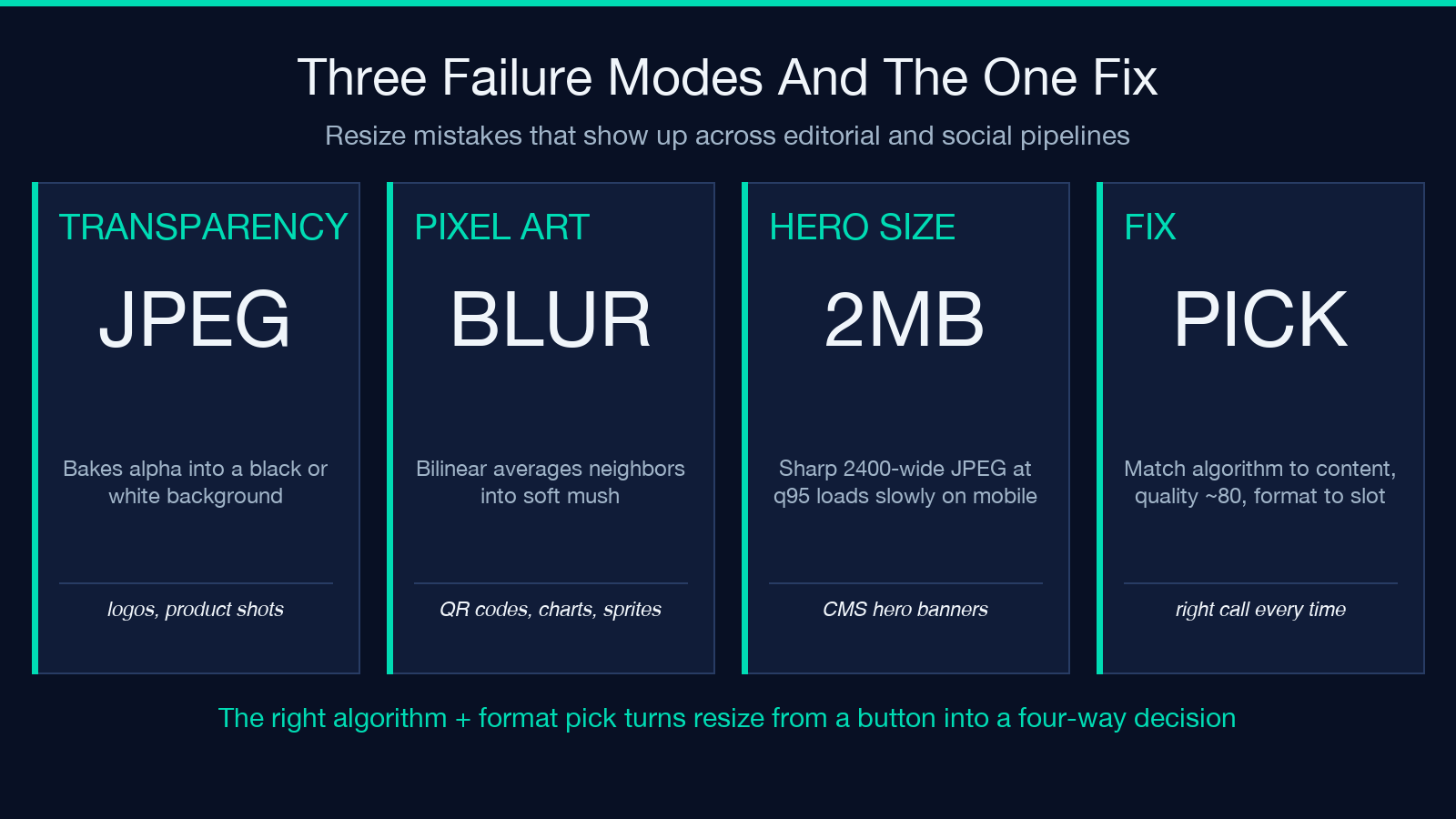
Exporting a transparent PNG as JPEG. The output gets a black or white background where the transparency used to be. If the image is a logo or product shot on a colored background, the background bake-in makes the image unusable on its original context. Always preserve PNG when the source has transparency, or export as WebP if WebP is acceptable on the delivery surface.
Resizing a vector or pixel-art source with bilinear. A logo exported from Figma, a chart rendered from a data tool, a QR code generated server-side — all of these have sharp discrete edges that bilinear averages into a soft blur. The fix is nearest-neighbor resize for any image where every pixel carries meaning, or exporting at the target dimensions directly from the source tool rather than resizing a raster export.
Saving a high-resolution source as JPEG at 95 quality and shipping 2MB hero images. The file size grows quadratically with dimension, and a 2MB hero image is the leading cause of slow first-paint on mobile. A 2400-wide hero JPEG at 80 quality runs around 200KB and looks identical to the 95-quality version on a 1080-wide phone. Resize to the largest dimension the delivery surface actually renders, and choose quality around 80 for JPEG / 75 for WebP / 50 for AVIF as a starting point.
The Image Resizer tool surfaces each of these decisions as an explicit option, which forces the right call to be visible rather than buried in a default. For teams shipping content across multiple platforms, that visibility is the difference between a fast page and a slow one.
When to upscale versus when to redesign the source
The other side of the resize decision is when the source image is too small for the slot, not too large. Upscaling a 400-pixel-wide image to fill a 1600-pixel hero slot cannot conjure detail that the source never captured, but the right algorithm minimizes the damage. Bicubic upscaling produces a soft, painterly result that hides the pixelation by smoothing it. Lanczos upscaling preserves edges better but cannot hide that the source was low-resolution. The honest move is usually to redesign the slot (use a smaller hero, use a different image, use a collage) rather than to upscale a small source into a large frame.
For cases where upscale is unavoidable — generating avatars from a low-res source, scaling a tiny icon into a 256-pixel menu slot — pair the upscale with a sharpening pass in the same pipeline. Bicubic upscale followed by unsharp mask produces a usable result; bicubic upscale alone produces the soft, low-detail look that signals to the viewer that the image is the wrong size for the slot.
A short checklist before you press resize
Before every resize run, walk through four checks: confirm the source format matches the output format’s strengths (no transparency into JPEG); pick the algorithm based on the source content type (Lanczos for photos, nearest-neighbor for pixel art); pick the output dimensions based on the largest dimension the delivery surface actually renders, not the largest dimension the source happens to have; and pick a quality setting around 80 for JPEG, 75 for WebP, 50 for AVIF as a starting point and tune from there based on the file-size budget.
These four checks are not original — they are the same checklist that every high-traffic CMS uses behind the scenes. The Image Resizer exposes them as visible options precisely so the checks do not get skipped when the resize feels like a single-step operation. The 30 seconds spent picking the right algorithm and format are the difference between a fast page and a slow one, and between an image that looks crisp on a 4K display and one that visibly falls apart.
Putting it together
The right image resize pipeline starts with the slot dimensions, picks a format that matches the source transparency and the delivery surface, chooses an algorithm that respects the source’s content type, and ships at a quality setting that balances file size against visible artifacts. Most teams get this wrong by treating resize as a single button click; the Image Resizer treats it as the four-way decision it actually is.
For a reference set of source images to test against, the TIFF samples and AVIF samples collections give uncompressed and modern-compression baselines so you can see the output delta without the source format muddying the comparison.
Explore more tools at elysiatools.com.
