
WCAG 2.1 does not fail loudly. A button can render, an image can display, and a form can submit, while the page is still unusable for screen-reader users, keyboard-only navigators, and the 8 percent of visitors who cannot read 4.5:1 contrast. Accessibility Checker is the audit surface that catches the quiet failures before they ship.
Explore this tool at Elysia Tools and you get a single endpoint that scans three input shapes — raw HTML snippets, live page URLs, and design mockup images — against the WCAG 2.1 AA and AAA criterion sets and returns a fix-ready HTML report rather than a raw finding dump.
Why most accessibility audits happen too late
The conventional workflow runs the audit the morning before launch. The component library was built in two weeks, the design system was reused from a 2019 project, and the contrast ratios were eyeballed against a Figma dark-mode frame. The launch-day audit then lists 47 issues, the team triages 12, and the remaining 35 are filed as “tech debt” tickets that nobody closes.
Two structural problems make this recurring pattern almost inevitable:
– Accessibility checks are run on the rendered DOM, not the input that produced it. A contrast violation lives in the CSS token, not in the page that consumes the token. Patching the page fixes the symptom, not the system. – Audits produce raw finding dumps. A finding is a sentence about a rule violation. A fix-ready report is a finding plus a minimal code-level correction that can be pasted into the file that introduced the problem.
The shift that breaks the pattern is to run the audit on the smallest testable unit — a single HTML snippet, a single mockup, a single component — and to require the output to include a fix, not just a flag. Accessibility Checker targets that unit by accepting three input shapes that map directly to the three stages where a11y regressions actually get introduced: hand-written markup, third-party widgets, and design drafts that the engineering team has not yet touched.
See live input examples at Elysia Tools Samples — the snippet-with-missing-alt pattern and the design-image-with-low-contrast pattern are both reproducible from the public sample gallery.
The four failure classes that account for 80 percent of findings
Across the audits we have run on real component libraries, four classes of issues dominate. They are not the most exotic WCAG criteria — they are the four that survive every code review and ship into production because nobody on the team has a checklist for them.
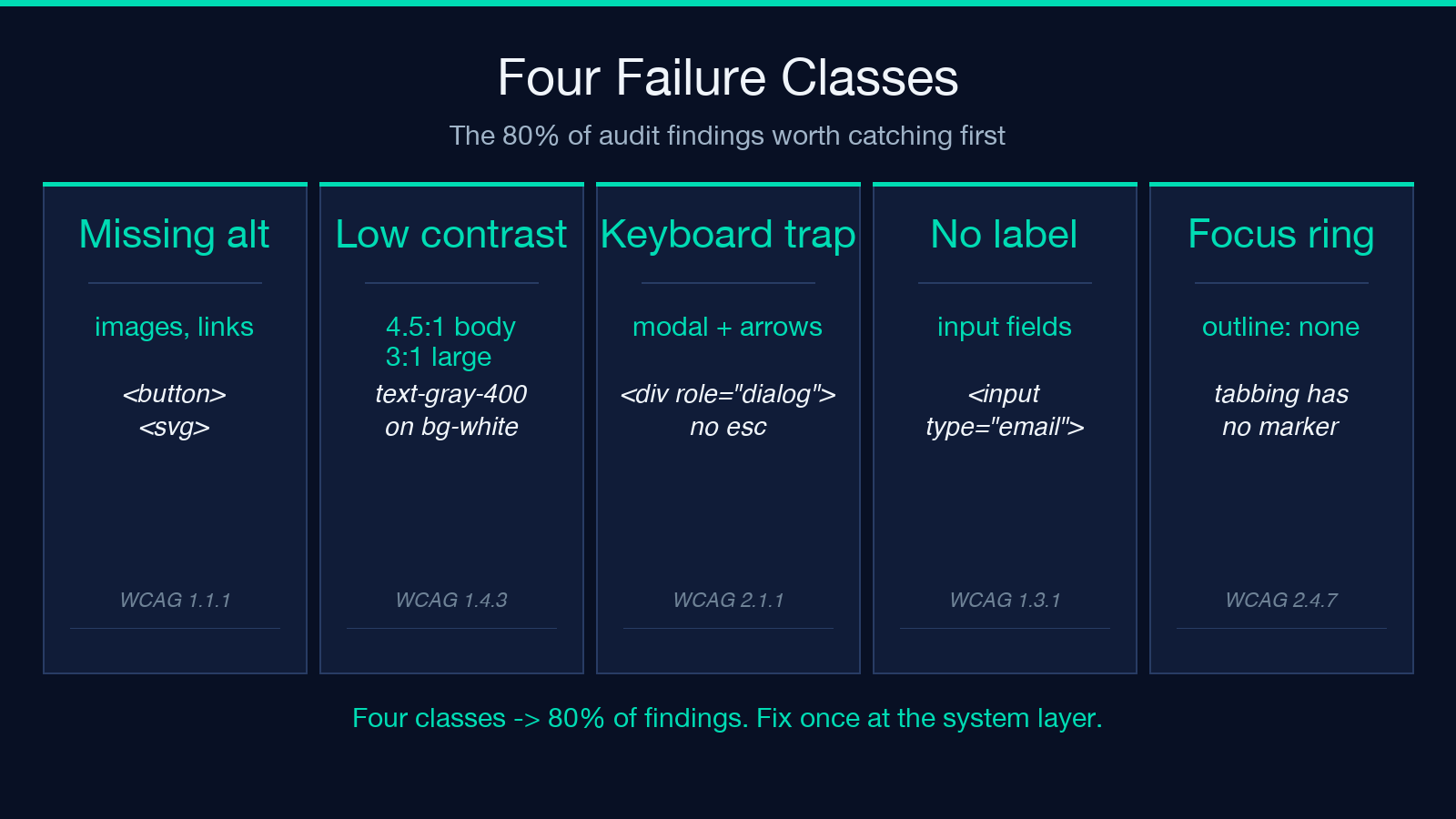
Missing or empty accessible names. A <button><svg></svg></button>, an <a href="/pricing"><svg></svg></a>, and an <img src="/hero.png"> all render correctly to a sighted user. They are also all functionally invisible to a screen reader. The fix is one attribute per element — aria-label, <span class="sr-only">, alt — but the failure mode is universal because SVG icons replaced text labels three years ago and most components were never retrofitted.
Contrast below 4.5:1. Body text on a 13-inch laptop in a normally-lit room needs a contrast ratio of at least 4.5:1 against its background to clear WCAG AA. The most common offender is the gray-on-light-gray secondary text that ships in default Tailwind configs (text-gray-500 on bg-white clears 4.6:1, but text-gray-400 on bg-white is 3.7:1 and fails). Design tokens are the right layer to fix this at; running the audit on individual pages finds the symptom, not the cause.
Keyboard traps and missing focus indicators. A modal that opens on click and traps focus without an escape route, a custom dropdown that does not respond to arrow keys, and a link styled with outline: none and no replacement focus ring are all keyboard-inaccessible in ways that sighted QA cannot catch. These are the issues that produce the highest user-abandonment numbers, because the affected user has no way to report the bug — they just leave.
Form fields without labels. An <input type="email"> with no <label>, no aria-label, and no placeholder (placeholders are not labels) is invisible to screen readers and unfocusable by voice control. The audit flags this at the element level; the fix is one label element per input.
Run a contrast check on a specific palette at Elysia Tools — the companion tool isolates the second failure class when you already know which token pair is the problem.
What WCAG AA actually requires — and where AAA diverges
WCAG 2.1 organizes its criteria into four principles — perceivable, operable, understandable, robust — and three conformance levels. The level you target drives which checks the audit must enforce.
Level A is the floor. Missing alt text on a functional image, a form field with no label, and a video with no captions are all Level A failures that prevent any use of the page by affected users.
Level AA is the legal target for most public-sector and B2B contracts. It adds the 4.5:1 contrast requirement for body text, the 3:1 ratio for large text and UI components, the 200% zoom requirement, and the keyboard-accessibility requirement. This is the level most audits should target by default.
Level AAA tightens contrast to 7:1 for body text, requires sign-language interpretation for pre-recorded video, and adds reading-level and pronunciation guidance. AAA is achievable for content sites and impractical for transactional UIs. Use AAA only when the audience is known to be high-acuity (medical, government, education).
The single WCAG Level selector in the tool controls which set of criteria the audit enforces. AA is the default; switch to AAA when the user explicitly opts into the stricter set or when the contract requires it.
How the three input modes map to your workflow
The tool accepts three inputs and routes each to a different scan pipeline. Picking the right input mode for the moment is what makes the audit fast rather than ceremonial.
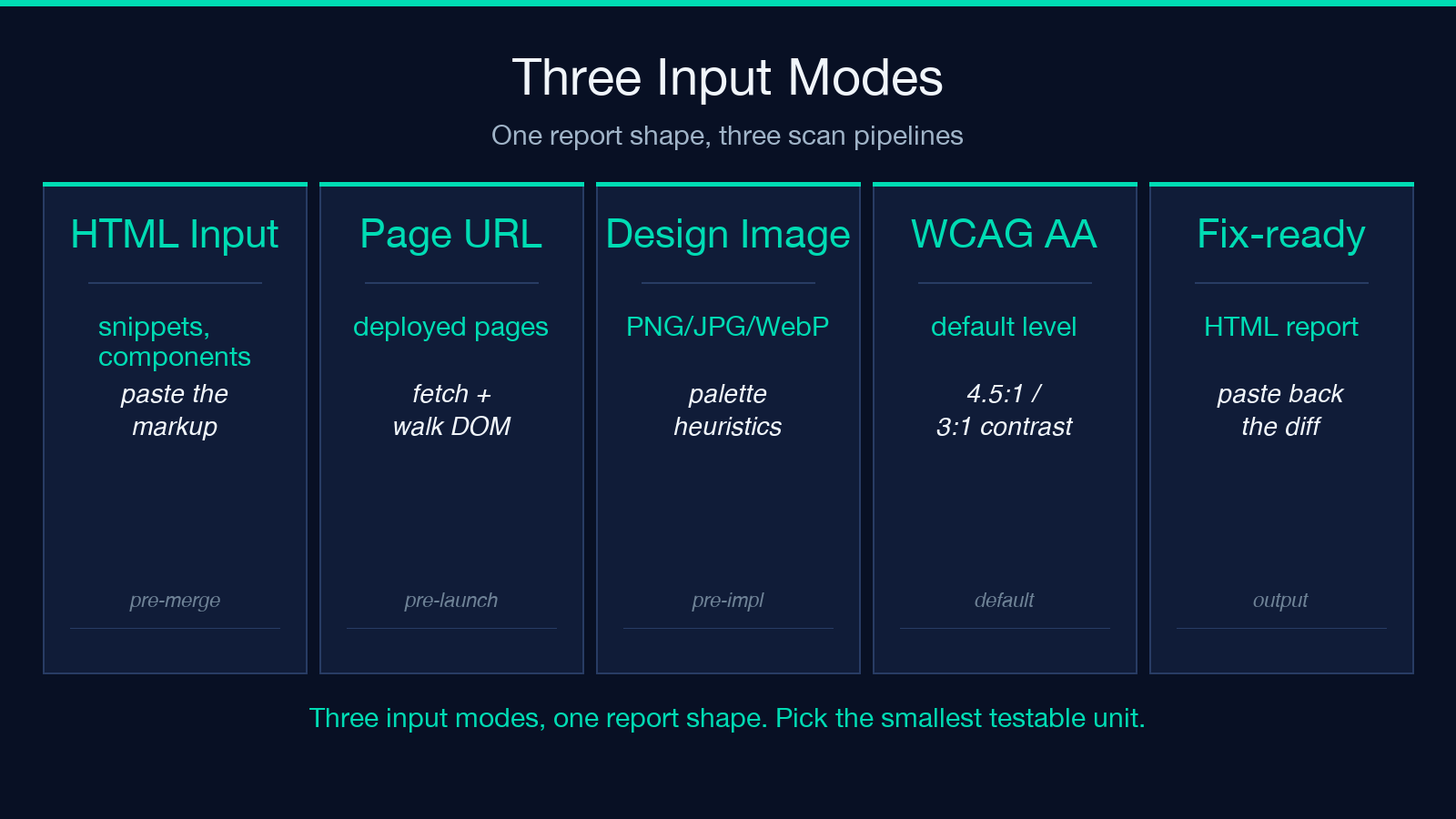
HTML Input — the primary mode. Paste a snippet, a component, or a full <body> block. The scanner walks the DOM, identifies every interactive element, and checks each one against the WCAG criteria that apply to its role. Use this for hand-written components, third-party widgets you are considering adopting, and small page slices that you want to ship in isolation.
Page URL — the secondary mode. Point the scanner at a deployed URL and it fetches the page, walks the rendered DOM, and runs the same checks against the live state. Use this for spot-checking shipped pages, catching CMS-injected content that the component audit missed, and verifying that a redirect chain has not introduced an accessibility regression.
Design Image — the tertiary mode. Upload a PNG, JPEG, WebP, or SVG of a design mockup. The scanner runs palette-based contrast heuristics on the image, identifies the most prominent color pairs, and flags combinations that would fail at the chosen WCAG level if shipped as-is. Use this for design reviews before the engineering team has touched the component, when the audit needs to inform a Figma comment thread rather than a code review.
The three modes share the same report shape — a fix-ready HTML block — so a single audit pipeline can consume any of them.
Inside the audit pipeline
The scanner runs four passes over each input, in order. Each pass has a single responsibility and a single output shape; the bug-fixing pattern is “fix the pass that flagged the issue, not the page that surfaced it.”
Pass 1: structural scan. Walk the DOM, identify every element with a role that carries an accessibility obligation (img, button, link, input, select, textarea, video, audio, iframe, table). Tag each with the WCAG criteria that apply. Elements without an applicable obligation are skipped.
Pass 2: per-element check. For each tagged element, run the criteria that apply. An <img> is checked for alt text presence, alt text quality (decorative vs descriptive), and role. A <button> is checked for accessible name source (text content, aria-label, aria-labelledby). A text node is checked for its computed contrast ratio against its parent background.
Pass 3: aggregation. Group findings by element type, then by failure class, then by the file or component that introduced the issue (when the HTML Input includes file markers). This is the layer that turns 47 raw findings into “3 files, 4 patterns” — the form that an engineer can act on in an afternoon rather than a sprint.
Pass 4: fix generation. For each finding, generate a minimal code-level correction — the smallest diff that resolves the violation without changing the rendered output. The fix is rendered in an HTML report alongside the original snippet so the engineer can paste it back into the file and verify the diff is exactly one attribute.
What the report looks like
The audit returns an HTML report rather than a JSON dump or a Markdown checklist. The HTML shape is intentional — it means the report can be pasted into a code review comment, attached to a Jira ticket as a description, or rendered inside a CMS preview.
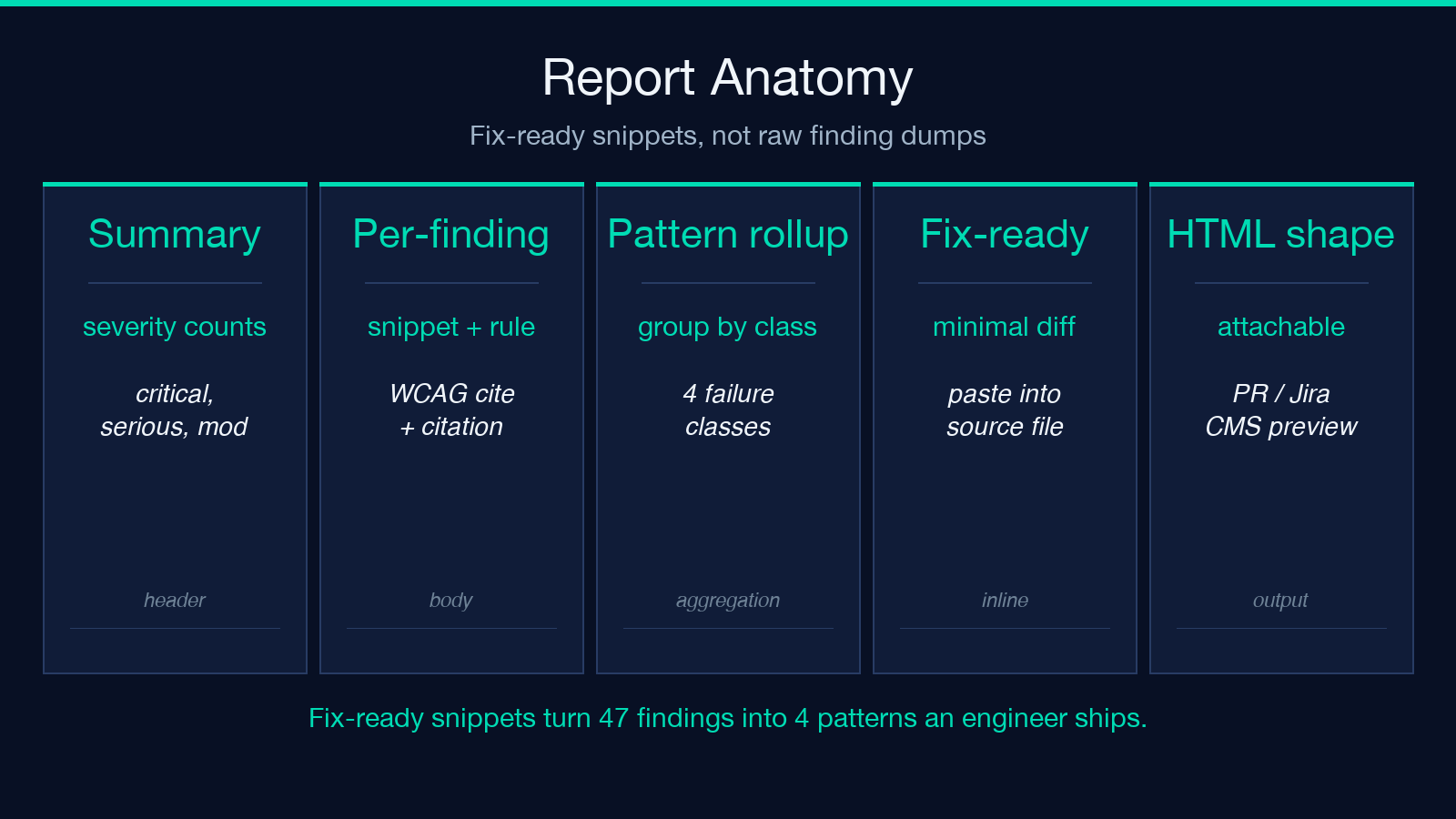
The report structure is:
– A summary header with the input mode, the WCAG level targeted, and the count of issues by severity (critical, serious, moderate, minor). – A per-finding block, each containing: the original element snippet, the WCAG criterion that failed, the rule citation, and the fix-ready replacement snippet. – A pattern roll-up that groups findings into the four common failure classes so the team can prioritize systemic fixes over individual patches.
The fix-ready snippets are the part that distinguishes this from a raw finding dump. They are copy-pasteable, they are minimal, and they preserve the original styling and behavior of the component.
Common audit workflows
Three workflows dominate real use.
Pre-merge component audit. Run the HTML Input mode against a component before opening the PR. The scan takes seconds, the report attaches to the PR description, and the reviewer sees the accessibility state of the component without leaving the PR thread.
Pre-launch full-page audit. Run the Page URL mode against every URL in the sitemap the morning of the launch. The aggregation pass groups issues by pattern, so the team fixes the four most common violations once and ships the same fix across every page that has the same root cause.
Pre-implementation design audit. Run the Design Image mode against every mockup in the design sprint. The palette-based contrast heuristic catches the low-contrast combinations before they make it into a CSS file, when the fix is one Figma comment rather than a sprint of token edits.
When to upgrade to a paid audit suite
The free tier covers the four failure classes that account for 80 percent of findings, the three input modes, and the AA and AAA levels. It does not cover screen-reader simulation, manual keyboard testing, or the cognitive-accessibility criteria that require human judgment rather than pattern matching.
For sites under regulatory obligation (Section 508, EN 301 549, ADA Title III), a paid suite adds the manual testing layer and the audit trail that the legal requirement demands. For sites shipping a single landing page and a blog, the free tier is sufficient — run it before every deploy and the four common failure classes stay at zero.
Explore more tools at elysiatools.com — the validation category has sibling tools for color contrast, JSON schema, and HTML validation that pair well with this one in a CI pipeline.
