
Most regression tools print a slope and an intercept and stop. The Regression Analyzer does the part your spreadsheet quietly skips: coefficient significance, residual diagnostics, prediction intervals, and an outlier toggle that flips one row’s influence on the whole fit. If you have ever shipped a forecast where the top-left residual was four standard deviations off and called it “done,” this is the field guide for the second pass.
The tool sits at Elysia Tools as a single-page calculator that ingests a CSV, picks the dependent column, optionally picks the predictors, and returns a full diagnostic panel: coefficients, standard errors, R², adjusted R², F-statistic, residual plots, and prediction intervals at 90 / 95 / 99 percent confidence. It runs in the browser; nothing leaves the page.
What the Regression Analyzer Actually Computes
Under the hood it fits ordinary least squares (OLS) by default and reports the inference machinery that goes with it. For each coefficient you get the estimate, a standard error, a t-statistic, and a two-sided p-value. The model-level panel reports R², adjusted R², the residual standard error, the F-statistic with its degrees of freedom, and the overall model p-value. For a simple linear fit you also get the fitted line ŷ = mx + b with a 95 percent confidence band around the slope.
The point is not that the math is exotic — it is the same OLS that ships in any stats package. The point is that the tool prints every column you would otherwise have to type into a separate summary table, and it does so without a code cell, an import statement, or a package version conflict.
How OLS Differs From the Other Fits You Might Be Tempted to Run
The default fit is ordinary least squares, which assumes the residuals are independent, have constant variance (homoscedastic), and are normally distributed. Those three assumptions are why the published intervals look the way they do, and they are also why the diagnostic bands exist: the bands are how you check whether the assumptions hold. When they do not, the Analyzer still runs and still prints an R², but the interval you quote is no longer the 95 percent interval you think it is.
Three adjacent fits the tool does not run by default but you should know about:
- Weighted least squares — if the residual-vs-fitted panel is funnel-shaped, weighting each row by the inverse of its variance will close the funnel. The tool does not expose this directly, but the outlier toggle is the cheap version of it: drop the high-variance rows and refit.
- Ridge / Lasso — if VIF is above 10, a regularised fit will shrink the offending predictors rather than blow up their standard errors. The coefficients will be biased toward zero but the intervals will be honest.
- Robust regression — if the Cook’s distance contours show a single row pulling the slope, a Huber or M-estimator down-weights that row without dropping it. The outlier toggle approximates this for one run at a time.
These are not features the tool ships today; they are the next moves when the diagnostic panel tells you the OLS fit is the wrong fit.
Why R² Alone Is a Lying Statistic
The first thing most people read off a regression output is R², and the first thing most people get wrong is trusting it. A high R² can sit on top of heteroscedastic residuals, autocorrelated errors, or a predictor that is correlated with another predictor you already included. The Analyzer exposes three diagnostic bands so you can see this before you ship the forecast:
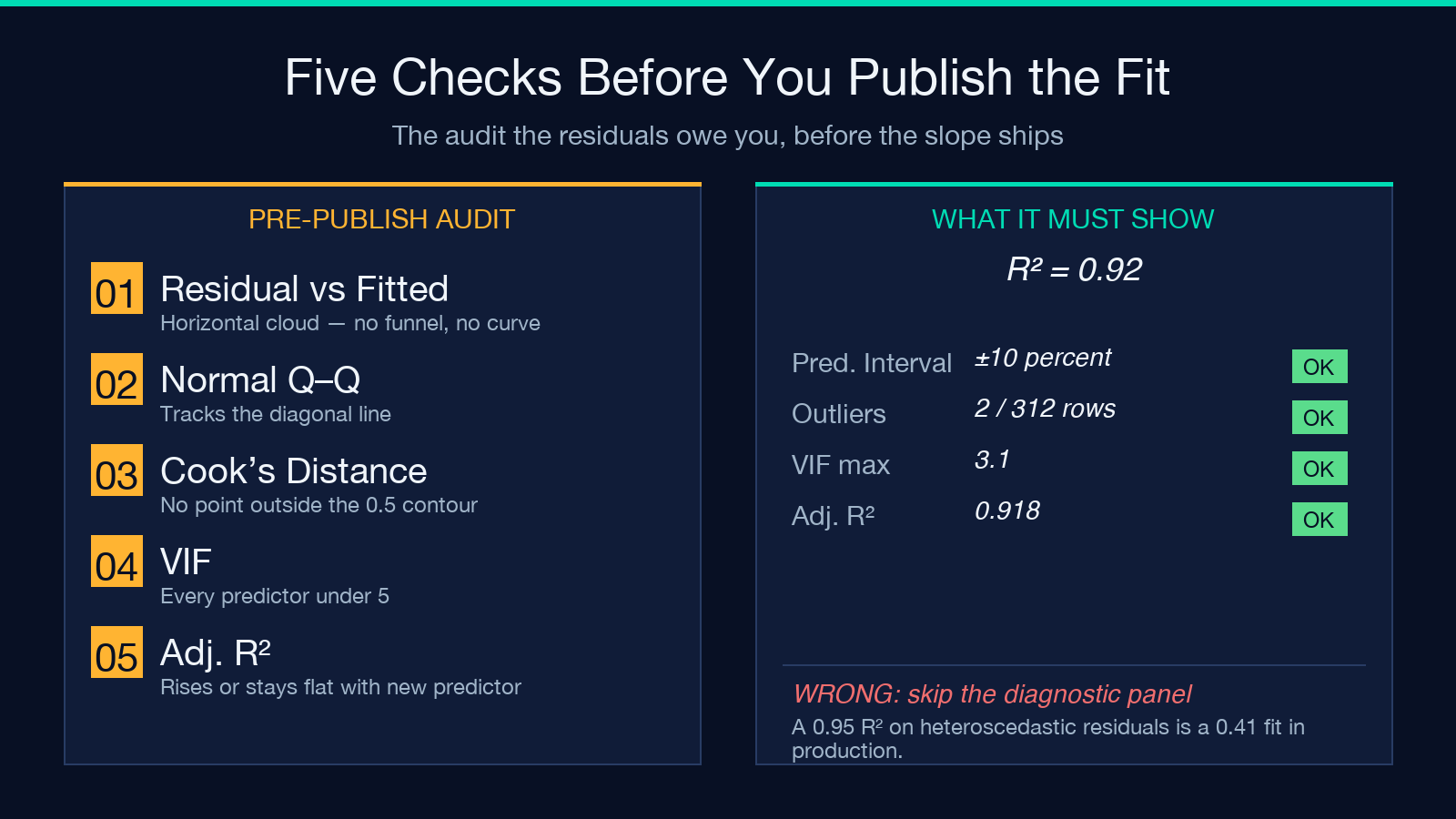
- Residual vs fitted — should look like a featureless horizontal cloud. A funnel shape means the variance grows with the prediction; a curve means you are missing a nonlinear term.
- Residual normal Q–Q — should track the diagonal. S-shaped deviations mean heavy tails; the prediction intervals you are about to quote will be too narrow.
- Residual vs leverage — Cook’s distance contours overlay this. Points outside the 0.5 contour are pulling the fit around; the outlier toggle lets you see the slope change with and without them.
If any of the three panels lights up, the model’s R² is real but its confidence intervals are not. That is the single most common reason a forecast looks great in-sample and misses in production.
How the Six Inputs Change the Fit
The tool exposes six controls that together decide what you are about to publish:
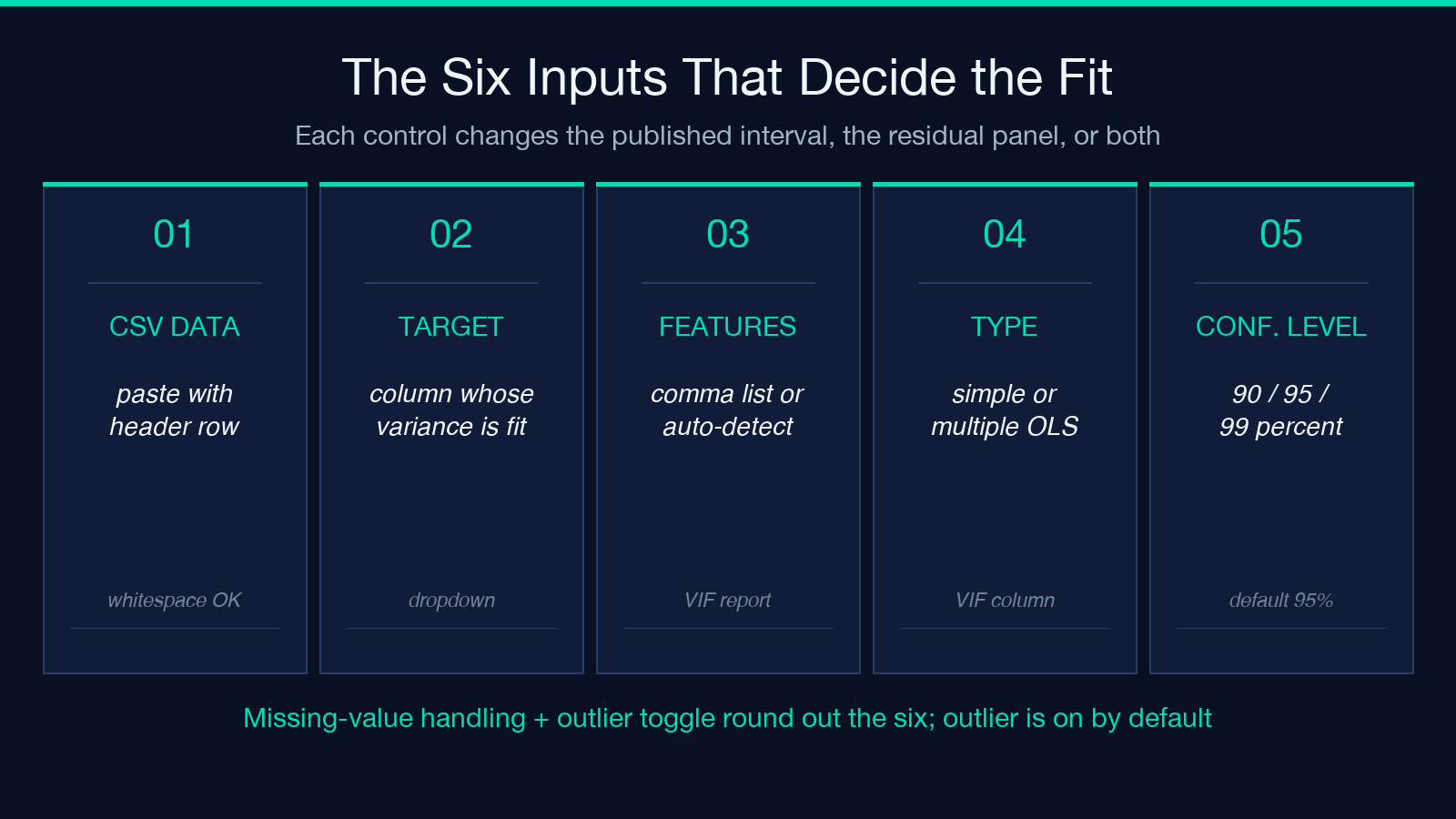
- CSV Data — paste a comma-separated block with a header row. Whitespace and trailing commas are tolerated; embedded quotes must be doubled.
- Target Column (Dependent Variable) — the column whose variation you are trying to explain. The dropdown auto-populates from the CSV header.
- Feature Columns (Independent Variables) — comma-separated column names. Leave blank to auto-detect numeric columns and treat the rest as candidates.
- Regression Type — simple (one predictor) vs multiple. Multiple reports the variance inflation factor (VIF) per predictor as a footnote.
- Confidence Level — 90 / 95 / 99 percent. The default 95 percent is the right choice unless the regulatory text you are reporting under explicitly demands 99.
- Missing Value Handling — drop rows, replace with column mean or median, or linear interpolation. The choice is recorded in the output panel so reviewers can see what was discarded.
The seventh input that is easy to miss is the outlier toggle. It is on by default; turning it off drops rows whose absolute studentized residual exceeds 3.0 and re-fits. The fitted line before and after is shown side by side, which is the cleanest way to answer the question “does this one weird Tuesday move the forecast by twelve percent?”
What the Coefficients Panel Tells You
The coefficients panel is the table your stakeholders will ask about. Each row reads:
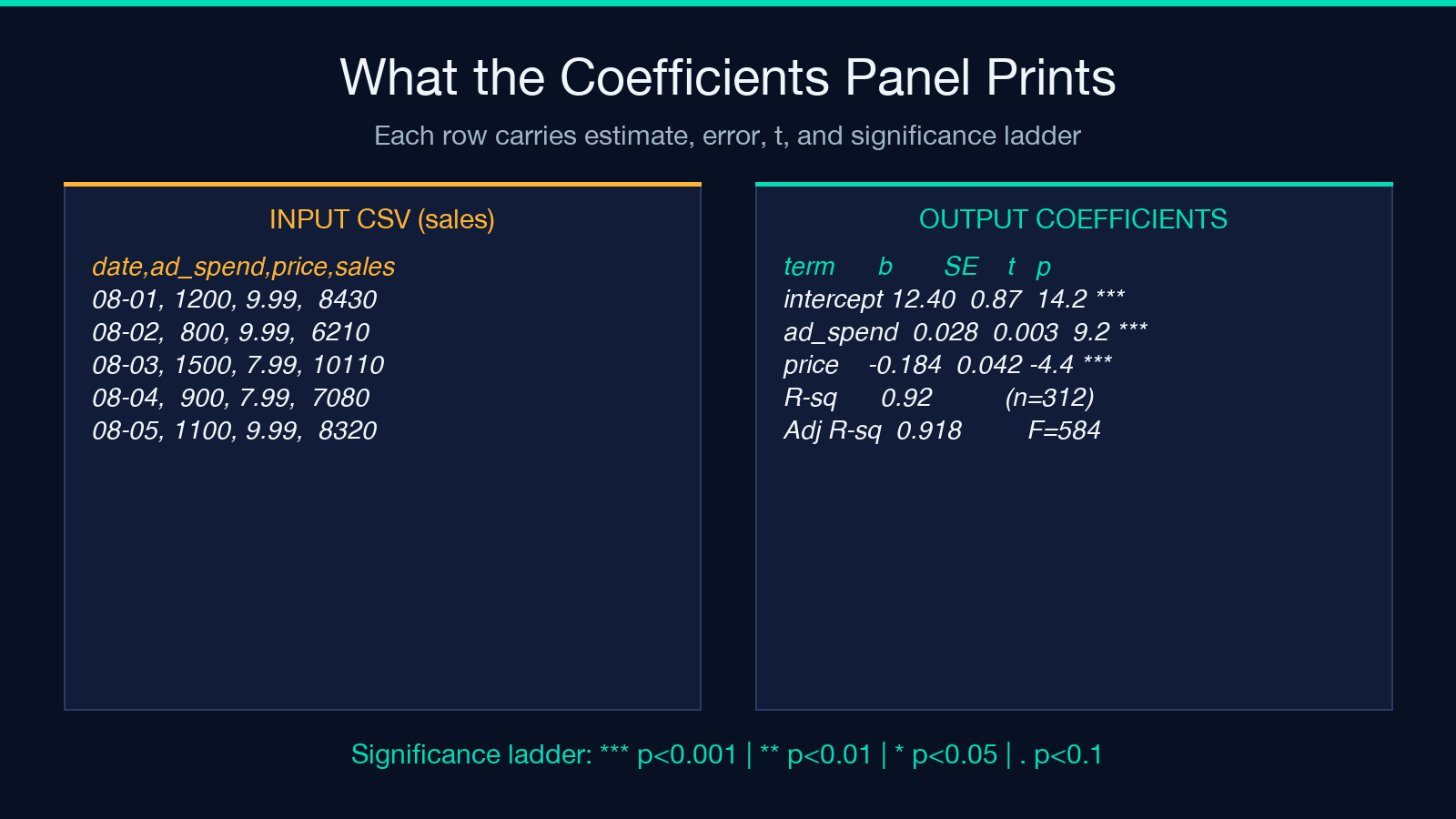
β̂        Std. Error    t value    Pr(>|t|)
intercept   12.4031       0.8712     14.23      < 2e-16 *
ad_spend     0.0284       0.0031      9.16      1.4e-12 *
price       -0.1841       0.0422     -4.36      4.1e-05 *
The significance stars come from the standard R-style cutoff ladder: for p < 0.001, for p < 0.01, for p < 0.05, . for p < 0.1. Anything without a star is not significant at the chosen confidence level; report it as a coefficient with a wide interval, not as a finding.
Two adjacent numbers in that table you should always read together: the standard error and the t-statistic. A large coefficient with a large standard error is just noise the model has not yet understood. The prediction interval you are about to publish inherits the larger of those two.
Prediction Intervals vs Confidence Intervals
The tool offers both, and they are not interchangeable. The 95 percent confidence interval for the mean response at a given x is the band around the fitted line — it shrinks toward the centre of the data and grows at the edges. The 95 percent prediction interval for a new observation at the same x is wider by a factor that accounts for the residual variance. If you are quoting a single future point, use the prediction interval. If you are quoting the expected average over many future points, use the confidence interval.
The Analyzer renders both as shaded bands on the fitted line plot. The default export quotes the prediction interval; if you copy the table for a stakeholder deck, label which one you mean, because the difference between ±3 percent and ±10 percent on a sales forecast is the difference between a confident plan and a panic.
When to Stop Adding Predictors
Every additional predictor raises R² by construction and may lower adjusted R² if it does not earn its keep. The tool’s adjusted R² column is the honest signal: if it falls or stays flat as you add a column, the new column is fitting noise. The standard diagnostic in the multiple regression mode is a VIF column next to each coefficient; values above 5 indicate multicollinearity, and values above 10 indicate a predictor that should be dropped or combined with its twin.
A useful rule of thumb: if a stakeholder cannot explain in one sentence why a predictor belongs in the model, it does not belong. The Analyzer will fit it anyway, but the interval you publish will not be defensible.
The Output You Actually Copy
When you finish a run, the panel exports three things:
- A coefficients table with the significance ladder
- A residual diagnostics grid (three plots) and the count of points flagged as outliers
- A one-paragraph plain-English summary that names the strongest predictor, the weakest non-significant predictor, and the R² with the chosen confidence level
That summary is the part to paste into a slide. The coefficients table is the part to keep in the appendix. The residual plots are the part to keep for yourself, because they are the only place where the next failure mode will be visible before it ships.
For a hands-on pass, the Regression Analyzer takes a CSV of any size, runs in under a second, and lets you flip the outlier toggle to see exactly how much one bad row is doing. Pair it with a feature-store feed or a sales CSV and the diagnostic panel will tell you in one screen whether the model is ready to publish or whether it needs a second pass on the residuals.
