
Most Markdown tables you have read this week were not typed by hand. They were exported from a spreadsheet, scraped from a CSV, or assembled by a generator that quietly decided how wide each column should be, whether numbers should right-align, and whether the header row deserved bold formatting. The visible result is a four-line Markdown table; the invisible work is five formatting decisions that the author rarely sees and almost never documents. When those decisions drift, the table still renders in a browser, but it loses the semantic structure that screen readers, Markdown linters, and downstream converters actually consume. This guide walks through those five formatting decisions, shows what each one does to the rendered output, and explains the workflow that turns raw CSV or JSON into a Markdown table you can paste anywhere without editing.
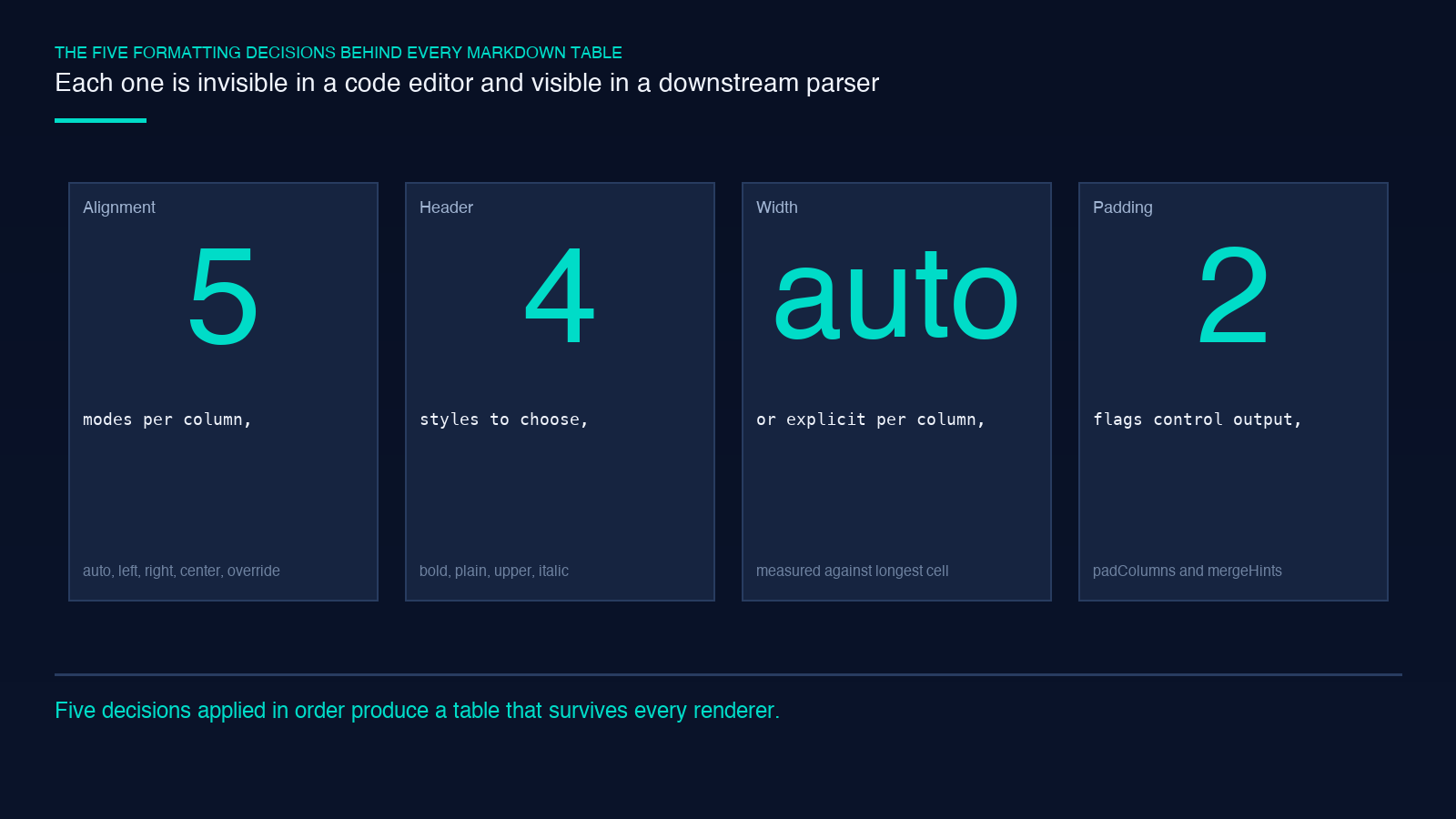
The fastest path to a usable Markdown table is to feed raw data into the Markdown Table Generator, pick the format that matches your source, and let the generator make the formatting decisions for you. The five decisions it controls are alignment mode, header style, column width, padding, and merge hints. Each one changes the rendered output in a way that is invisible in a code editor but visible the moment the table is read by a tool that interprets Markdown structure.
What the Generator Actually Does to Raw Input
The generator accepts three input formats: CSV, JSON, or a hand-typed array. The first decision is which format matches your source data. CSV is the natural choice for spreadsheet exports; JSON is the right choice when the data lives in an API response or a config file; arrays are useful for small inline tables where the data is short enough to type directly. Once the input format is set, the generator parses the rows, detects whether a header row exists, and produces a Markdown table string ready to paste into a README, an issue tracker, or a documentation page.
A typical CSV-to-table conversion looks like this: feed three rows of comma-separated data, set hasHeader to true, pick auto alignment, and the generator emits a table where the header row is bold, the first column is left-aligned (because it contains text), and the numeric column is right-aligned (because auto alignment detects the numeric type). The output is a four-line Markdown block that reads cleanly in any renderer. See a working example in the Markdown format samples collection, where the same CSV is rendered with four different alignment and header-style combinations.
Alignment Modes and When Auto Beats Explicit
Alignment is the formatting decision most often skipped, and skipping it produces tables that look slightly wrong in nearly every renderer. The generator offers three alignment modes: auto, left, right, and center. auto inspects each column’s data type and picks the alignment that matches the dominant content: text columns go left, numeric columns go right, and short identifier columns (UUIDs, hex codes) go left. left, right, and center force a single alignment across every column.
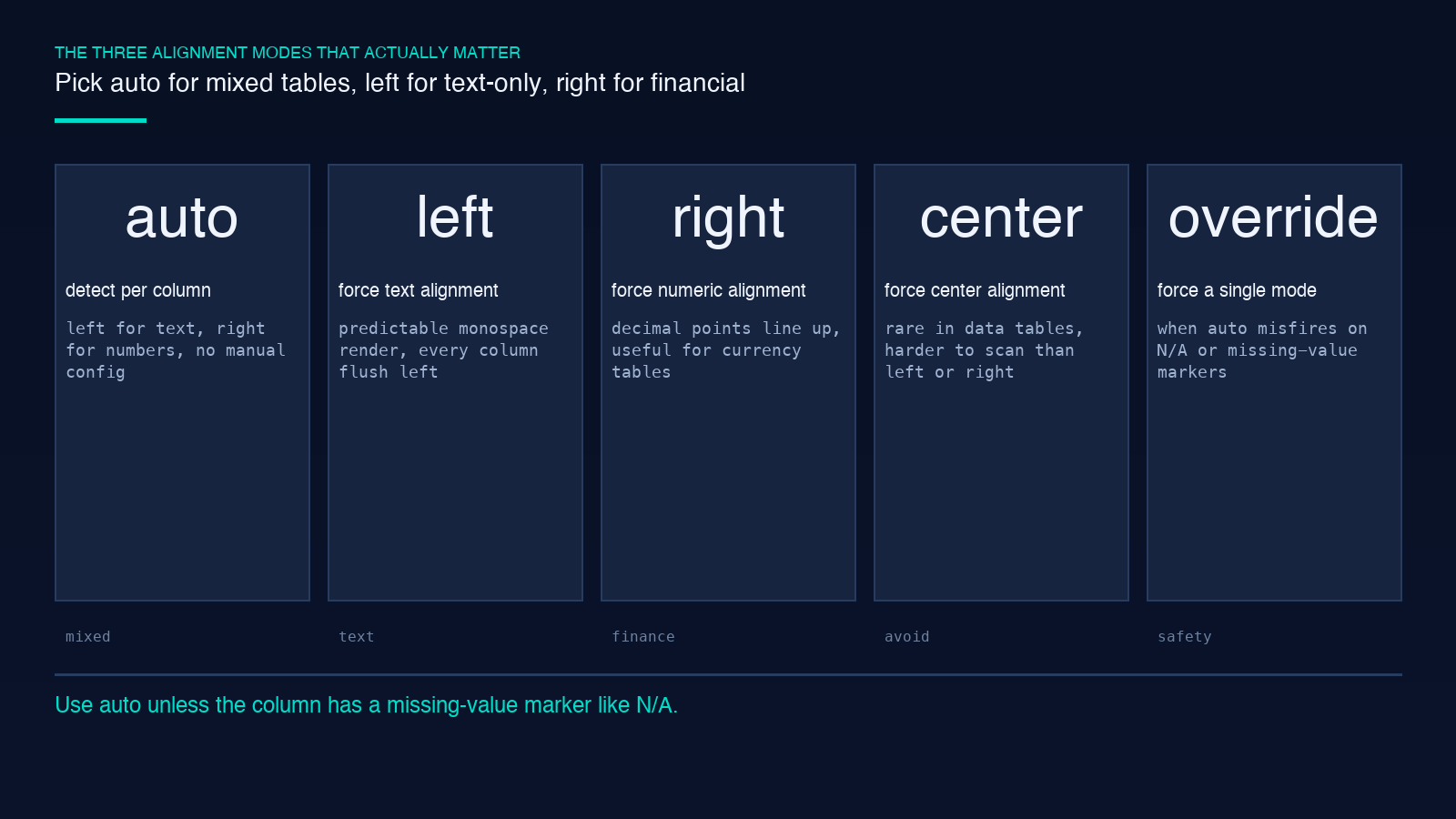
The empirical rule: use auto for mixed-content tables where one column is numeric and the others are text. Use left for tables where every column is text and you want predictable monospace alignment in raw view. Use right for financial tables where the decimal points must line up vertically. Avoid center for data tables; centered text is harder to scan than left- or right-aligned text, and it does not improve readability when the column contains words or numbers.
A subtle pitfall: when a numeric column contains one missing value rendered as N/A or -, auto alignment may switch the column to left because the non-numeric token breaks the type detection. The fix is to either replace missing values with 0 before generation or force right alignment explicitly. The generator cannot distinguish between a deliberate string and a missing-value marker.
Header Styles Beyond Bold
The default header style is bold, which wraps the header cell text in .... This produces a table where the header row stands out without changing the column count or the Markdown structure. Three other header styles are available: plain (no formatting), uppercase (transforms text to upper case), and italic (wraps text in ...).
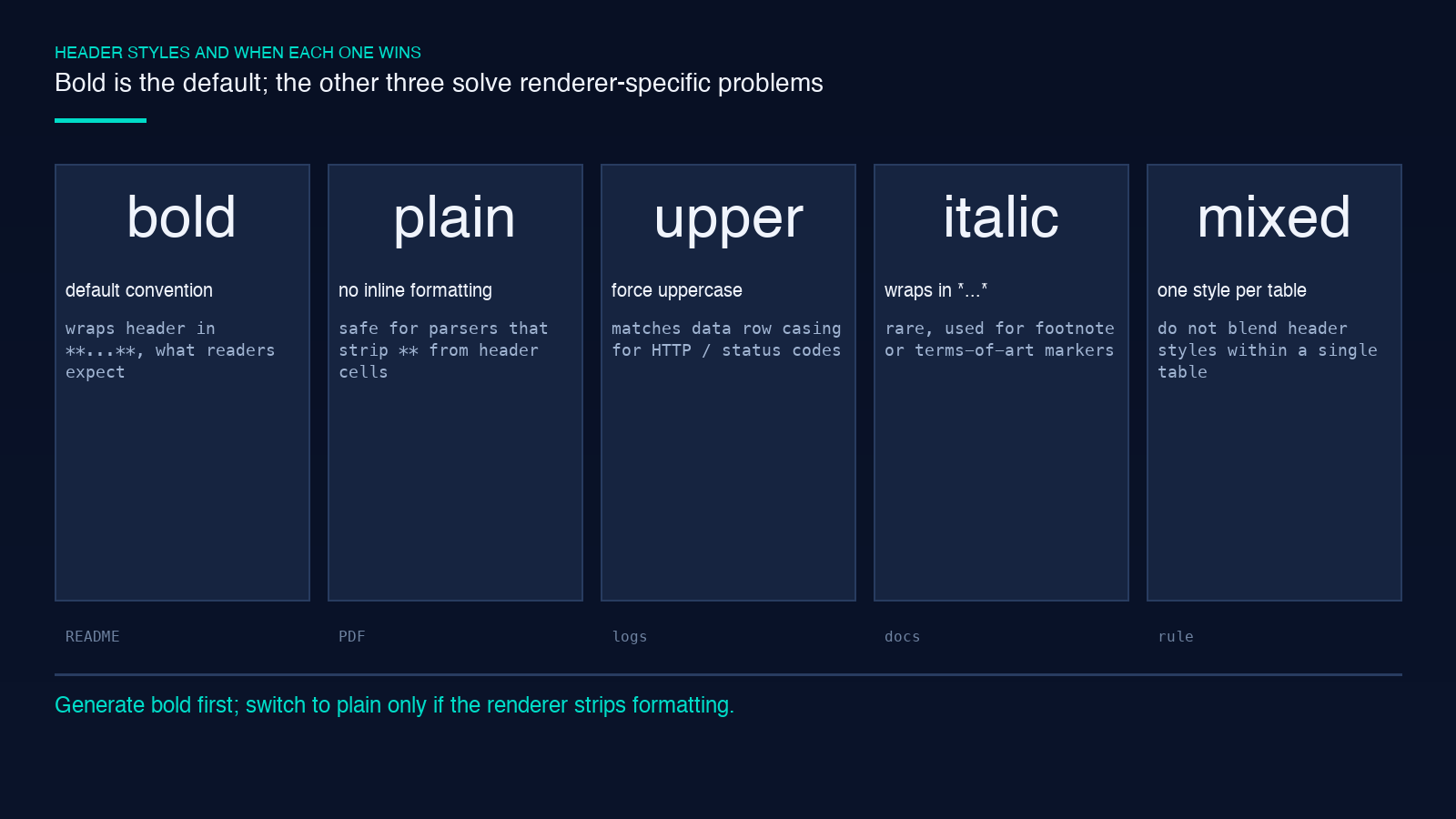
bold is the right default for documentation, README files, and issue trackers because bold header text is the convention readers expect. uppercase is useful for short identifier columns where the lowercase/uppercase distinction carries meaning (HTTP methods, status codes) and you want the header row to match the casing of the data rows. plain is correct when the table will be consumed by a downstream parser that does not understand inline Markdown formatting; some Markdown-to-PDF converters strip ... and leave an empty header cell, which plain avoids. italic is rare in technical tables and is best reserved for footnote markers or terms-of-art disclaimers.
A practical workflow: generate the table once with bold, paste it into the target renderer, and confirm the header row renders as expected. If the renderer strips bold, regenerate with plain. Do not mix header styles within a single table; the generator applies one style to all header cells.
Column Width Control for Monospace Renderers
The generator accepts a columnWidths parameter as a comma-separated list of integers: 12, 12, 8 sets the first two columns to 12 characters wide and the third to 8. This control matters in two situations: when the table will be rendered in a monospace context (terminal output, code blocks, fixed-width documentation) and when column widths must line up vertically across multiple tables.
Without explicit width control, the generator picks the minimum width that fits each column’s longest cell. This is usually correct for proportional fonts but produces jagged alignment in monospace renderers. The fix is to measure the longest cell in each column and pass those widths to the generator. For a three-column table where the longest cells are Description (11 chars), Timestamp (9 chars), and Value (5 chars), pass columnWidths: "12, 12, 8" to add one character of padding on each side.
The trade-off: explicit column widths produce tables that look perfect in monospace but may look stretched in proportional renderers. The empirical threshold is to set explicit widths only when the table will be rendered in a fixed-width context more than half the time; for proportional-only rendering, let the generator pick widths automatically.
Padding, Merge Hints, and the Two Flags That Matter
Two boolean flags control the final formatting: padColumns and includeMergeHints. padColumns adds one space of padding on each side of every cell, producing | Alice | instead of |Alice|. The unpadded form is valid Markdown and renders identically in most renderers, but the padded form is more diff-friendly (changes to a cell value do not shift surrounding whitespace) and matches the convention used by GitHub-flavored Markdown linters.
includeMergeHints adds a comment line above the table that documents the merge range syntax: . This is useful when the table will be converted back to a spreadsheet (Excel, Google Sheets, CSV-with-metadata) and the merge structure needs to survive the round-trip. For most README and documentation use cases, includeMergeHints adds noise without value and should be left off.
The minimal flag combination for clean, linter-friendly Markdown is padColumns: true and includeMergeHints: false. This combination produces tables that pass the strictest Markdown linter checks and render identically across GitHub, GitLab, Bitbucket, and most static-site generators.
A Five-Step Workflow From CSV to Paste-Ready Table
Step one: identify the source format. If the data is in a spreadsheet, export as CSV with UTF-8 encoding. If the data is in an API response, copy the JSON array. Step two: paste the data into the generator and confirm the parse succeeded; the generator shows a row count and a column count before formatting. Step three: set hasHeader to true if the first row contains column names, false if the first row is data. Step four: pick auto alignment unless you have a specific reason to override. Step five: set padColumns: true and includeMergeHints: false, then copy the generated Markdown.
The whole workflow takes under a minute for tables up to 50 rows. For tables larger than 50 rows, the bottleneck is the paste step, not the generation; the generator handles multi-thousand-row inputs without slowdown.
When Markdown Tables Break and How to Recover
Three failure modes recur. First, special characters in cell content (|, newline, backtick) require escaping: | becomes |, newline becomes <br>, backtick becomes ` `. The generator handles this automatically, but if you edit the output by hand and introduce an unescaped pipe, the table renders with a phantom column break. Second, alignment markers in the separator row (|—|, |:–:|`) must match the number of columns in the header; a missing or extra separator cell produces a Markdown parse error in strict renderers. Third, very wide tables (more than 8 columns) overflow on mobile devices regardless of formatting; the fix is to split the table into two narrower tables joined by a shared key column, not to add more columns to one table.
When the table renders incorrectly, the fastest diagnostic is to count the pipe characters in each row: a valid Markdown table row contains exactly n+1 pipes for an n-column table. If the count is off by one, a cell contains an unescaped pipe. If the count is correct but the table still breaks, the separator row is the next thing to check.
Putting It All Together
A clean Markdown table is the result of five formatting decisions, applied in order: input format, header detection, alignment mode, column widths, and the two formatting flags. The generator makes every one of those decisions either automatic (for auto alignment and default width) or explicit (for forced alignment and fixed widths). The output is a paste-ready Markdown block that renders identically across renderers, passes strict linter checks, and survives round-trips through CSV and JSON without losing structure.
Open the Markdown Table Generator, paste your data, and accept the defaults. The table you get back will be cleaner than the one you would have typed by hand, and the formatting decisions will be documented in the generator’s output rather than scattered across your editor’s undo history. For more rendering examples and edge cases, the Markdown format samples collection shows the same data rendered with every alignment and header-style combination.
