
Most text files you have converted to PDF this year were converted the wrong way. You pasted the content into a word processor, hit “Save as PDF,” and trusted the output to look right. The output did look right, until you noticed the line spacing was tighter than the original, the special characters were missing, the page margins were different, or the file encoding silently dropped the accented characters that mattered. The visible result is a PDF that reads cleanly in any viewer; the invisible work is six formatting decisions that the word processor made for you and that you almost never saw. When those decisions drift, the PDF still opens, but it loses the typographic fidelity that a faithful text-to-PDF converter is supposed to preserve. This guide walks through those six decisions, shows what each one does to the rendered PDF, and explains the workflow that turns a raw .txt or .md file into a PDF that respects the original line breaks, encoding, and font sizing.
The fastest path to a faithful PDF is to feed the file directly into the Text File to PDF Converter, pick the encoding that matches your source, and let the converter make the formatting decisions for you. The six decisions it controls are file encoding detection, font size, line height, line-break preservation, word wrapping, and page geometry. Each one changes the rendered PDF in a way that is invisible in the file viewer but visible the moment the PDF is printed, archived, or processed by a downstream tool that interprets page structure.
What the Converter Actually Does to Raw Input
The converter accepts a single text file as input: .txt, .md, .csv, or any plain-text format the browser can read. The first decision is which encoding the source uses. The default is auto, which attempts UTF-8 detection first and falls back to a single-byte decode when the file contains bytes outside the UTF-8 range. UTF-8 covers the ASCII subset cleanly and extends to every accented Latin character plus the Cyrillic, Greek, Hebrew, Arabic, and CJK ranges. Files saved on a Windows machine as cp1252 or on an older Mac as MacRoman decode correctly under the auto-detect path because both encodings share the ASCII range and the non-ASCII bytes rarely collide with valid UTF-8.
A typical conversion looks like this: pick a .txt file that contains 200 lines of mixed prose, set encoding: auto, pick fontSize: 12, leave lineHeight at the default 1.2, enable preserveLineBreaks: true and wordWrap: true, pick A4 portrait, and the converter emits a PDF where every line break from the source survives intact, every paragraph wraps cleanly inside the page margins, and the font size matches the value you typed. The output is a single PDF that prints identically on Letter paper and on A4 paper with only the margin offset changing. See a working example in the text file samples collection, where the same .txt file is rendered with three different encoding and font-size combinations.
Encoding Detection and Why Auto Beats Explicit in Most Cases
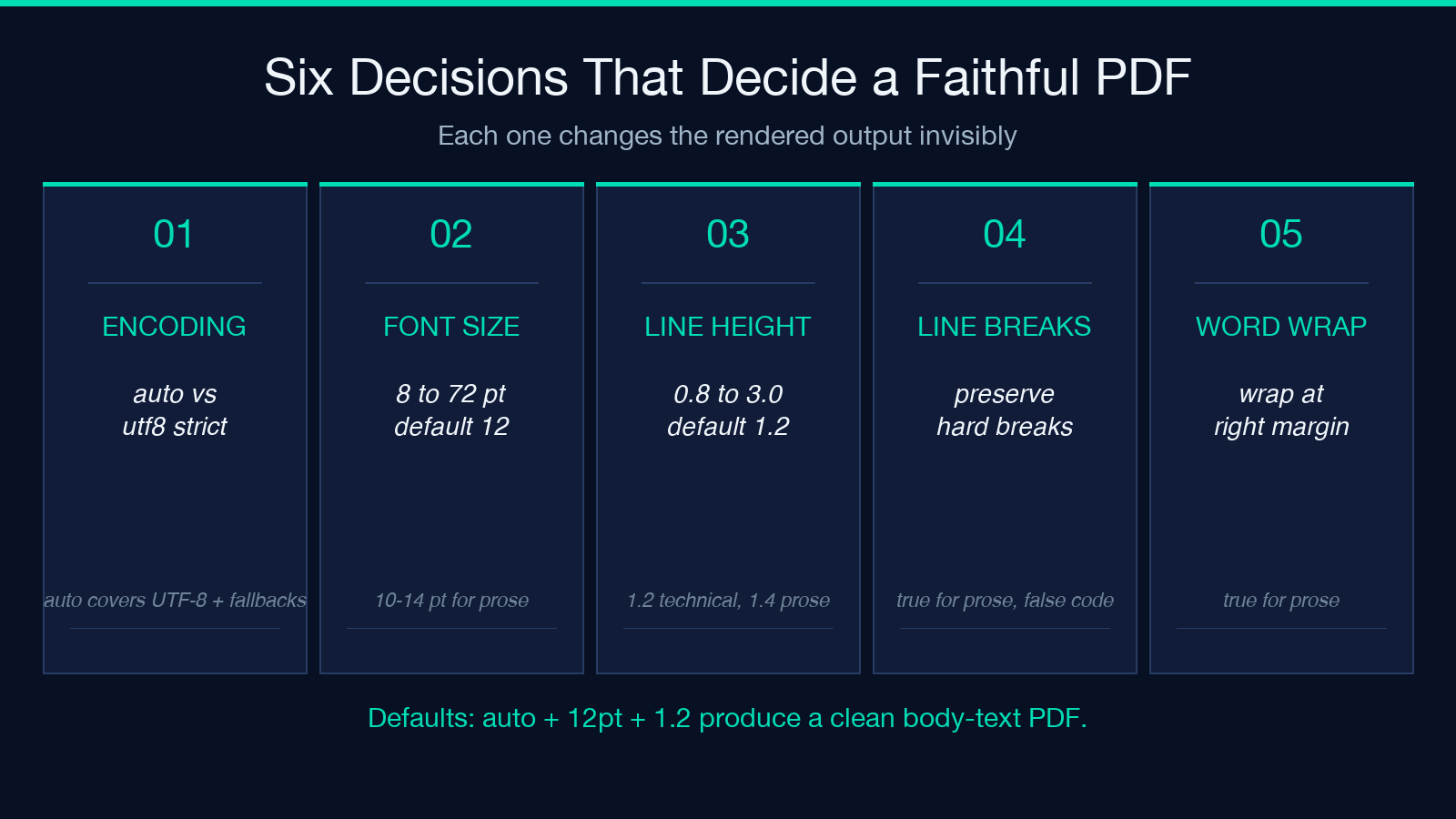
Encoding is the formatting decision most often guessed, and guessing wrong produces PDFs where accented characters render as boxes or replacement glyphs. The converter offers two encoding modes: auto (detect UTF-8 first, fall back to single-byte decode) and utf8 (force UTF-8 strictly, error on any invalid byte). auto is the right default for files uploaded from a modern editor or scraped from a web page because both sources produce UTF-8 by default. utf8 is the right choice when the file is known to be UTF-8 and any decode error should fail loud rather than silently produce replacement glyphs.
The empirical rule: use auto for files of unknown provenance, files dragged from a chat attachment, or files exported from a database that does not record its encoding. Use utf8 for files you wrote yourself in a modern editor, files committed to a Git repository, or files served by an API that declares Content-Type: text/plain; charset=utf-8. Avoid forcing a single-byte encoding (cp1252, latin1) unless the source system is genuinely legacy; the converter does not expose those as options because the auto-detect path covers them cleanly.
A subtle pitfall: when the file contains a UTF-8 BOM (EF BB BF as the first three bytes), strict utf8 decoding succeeds but the BOM character sometimes leaks into the rendered PDF as an invisible leading glyph that shifts the first line of text. The fix is to either strip the BOM before conversion (most modern editors do this on save) or rely on auto, which treats the BOM as a non-content byte and discards it. The converter cannot distinguish between a deliberate BOM and a content artifact unless you tell it which one to expect.
Font Size and Line Height as a Paired Decision
The converter accepts a fontSize parameter in points (8 to 72) and a lineHeight multiplier (0.8 to 3.0). The two parameters are paired: changing font size without changing line height produces a PDF where the text feels cramped or airy for the page width, and changing line height without changing font size produces a PDF where the leading looks unbalanced relative to the glyph height. The default pair of fontSize: 12 and lineHeight: 1.2 is calibrated for body prose on A4 portrait; any deviation should adjust both values together.
A practical workflow: start with the defaults, generate the PDF, and read one page on screen. If the text feels cramped, increase lineHeight to 1.4 or 1.5 (the standard for printed prose). If the text feels airy and wastes vertical space, decrease lineHeight to 1.1 (the standard for technical reference material). If the page count matters more than readability, decrease fontSize to 10 and keep lineHeight at 1.2. If accessibility matters more than page count, increase fontSize to 14 or 16 and keep lineHeight at 1.4.
The trade-off: larger font sizes and looser line heights produce PDFs that are easier to read but consume more pages. The empirical threshold is to keep fontSize between 10 and 14 for most prose; below 10, the text strains the eyes on screen; above 16, the PDF looks like a children’s book and the page count triples. For tables, code listings, or reference material where the reader scans rather than reads, the lower end (10pt, 1.2) is correct.
Line-Break Preservation Versus Word Wrap
Two boolean flags control how the source text flows into the PDF: preserveLineBreaks and wordWrap. preserveLineBreaks keeps every newline character in the source as a hard line break in the PDF, producing a document that looks identical to the source file when viewed in a fixed-width context. wordWrap controls whether long lines wrap at the page margin (the default and the right behavior for prose) or extend past the right edge and get clipped (the wrong behavior, which happens when both flags are off).
The combination that produces a faithful PDF for prose is preserveLineBreaks: true and wordWrap: true. The first flag keeps paragraph breaks and any deliberate hard-wrapped lines (such as poem stanzas or address blocks); the second flag wraps long lines at the right margin so they do not bleed off the page. The combination that produces a faithful PDF for code listings is preserveLineBreaks: true and wordWrap: false. The first flag keeps every line of code intact; the second flag lets long lines extend past the right margin (acceptable for code, where readers expect to scroll horizontally in a fixed-width context, but unacceptable for prose).
A common mistake: setting preserveLineBreaks: false for prose. This collapses every newline in the source into a single space, producing a PDF where paragraphs run into each other and the original document structure is lost. The fix is to leave preserveLineBreaks: true unless the source is a single-paragraph blob with no deliberate line breaks.
Page Geometry and the Three Defaults That Matter
Three page geometry parameters control the PDF layout: pageSize (A4, A3, A5, Letter, Legal), orientation (portrait or landscape), and the implicit margins applied by the converter. The defaults of A4 portrait match the paper size used in most of the world outside North America; Letter portrait matches the paper size used in the United States and Canada. The two formats differ slightly in dimensions (A4 is 210x297mm, Letter is 8.5x11in or 215.9×279.4mm) and the converter handles the difference transparently.
A practical workflow: pick the page size that matches the printer or the archival system that will consume the PDF. If the PDF will be printed on whatever printer is nearby, pick the regional default (A4 outside North America, Letter inside). If the PDF will be archived alongside other PDFs from the same source, pick the page size the source uses. If the PDF will be shared with readers in both regions, pick A4 because most modern tools (browsers, mobile viewers) handle A4 cleanly and resize Letter to fit.
The orientation default of portrait is correct for prose, code listings, and most reference material. Switch to landscape when the content is wide tables, wide diagrams, or content with horizontal flow that does not fit comfortably in portrait. The converter handles the rotation transparently; the text flows within the new page width and the line breaks recompute automatically.
A Six-Step Workflow From Text File to PDF
Step one: identify the source encoding. If the file is from a modern editor or web source, leave encoding on auto. If the file is from a legacy system, force utf8 and verify the decode succeeds. Step two: pick a font size that matches the content type. Use 10pt for code and reference material, 12pt for prose, 14pt for accessibility-priority documents. Step three: pick a line height that pairs with the font size. Use 1.2 for technical content, 1.4 for prose, 1.5 for accessibility-priority documents. Step four: decide whether line breaks should be preserved. Keep preserveLineBreaks: true unless the source is a single-paragraph blob. Step five: decide whether word wrap should be enabled. Keep wordWrap: true for prose, switch to false for code listings. Step six: pick the page size and orientation that match the destination printer or archive.
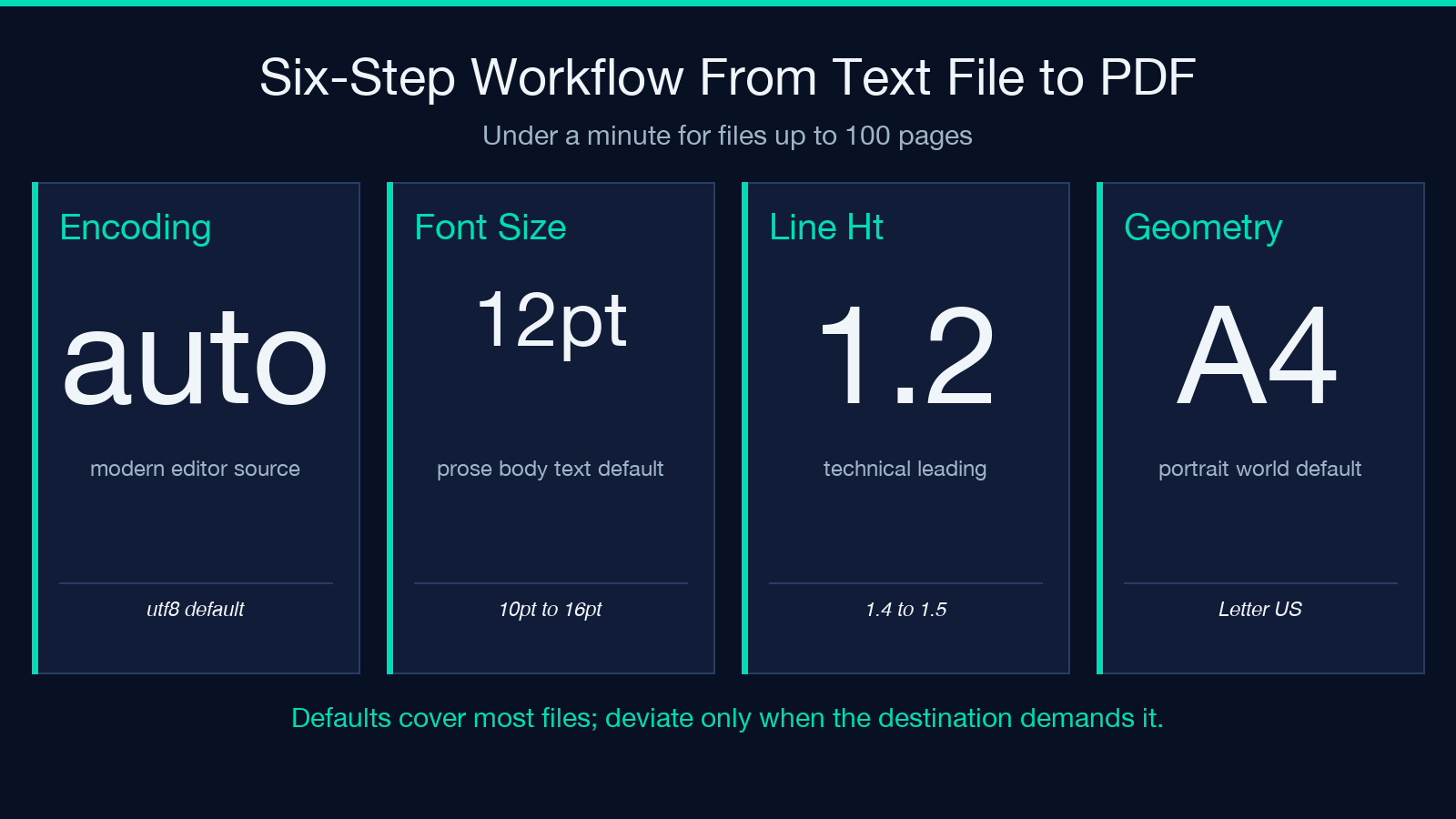
The whole workflow takes under a minute for files up to 100 pages. For files larger than 100 pages, the bottleneck is the upload step, not the conversion; the converter handles multi-megabyte text inputs without slowdown.
When Text-to-PDF Conversion Breaks and How to Recover
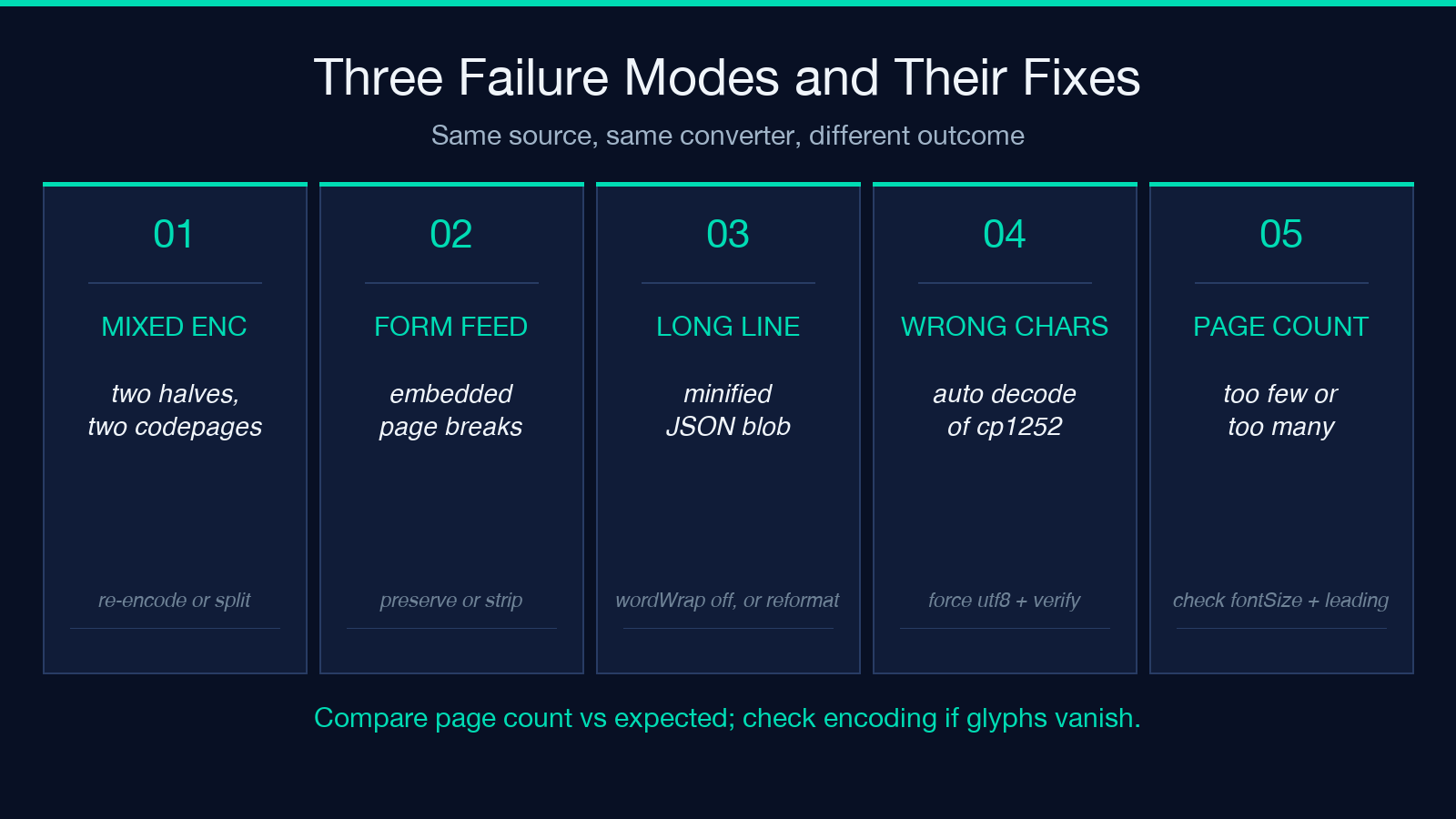
Three failure modes recur. First, files with mixed encodings (a UTF-8 header followed by a cp1252 body, the result of concatenating two files from different sources) decode partially under auto and produce replacement glyphs in the section that uses the second encoding. The fix is to either re-encode the entire file to UTF-8 before conversion or split the file into two and convert each piece with its own encoding setting. Second, files with embedded form-feed characters (f, the legacy page-break marker) produce PDFs that contain blank pages at every form-feed position. The fix is to either preserve the form-feeds as page breaks (the converter handles this correctly by default) or strip them before conversion if the blank pages are unwanted. Third, files with very long single lines (a minified JSON blob, a single-line log file) defeat wordWrap: true and produce PDFs where the line extends past the right margin. The fix is to either switch to wordWrap: false and accept the horizontal scroll, or reformat the source to wrap at a reasonable line length before conversion.
When the PDF renders incorrectly, the fastest diagnostic is to compare the page count against the expected page count. If the page count is much lower than expected, wordWrap: false is likely the cause. If the page count is much higher, lineHeight is set too high or fontSize is set too low. If the page count matches but the text looks wrong, the encoding is the next thing to check.
Putting It All Together
A faithful text-to-PDF conversion is the result of six formatting decisions, applied in order: encoding, font size, line height, line-break preservation, word wrap, and page geometry. The converter makes every one of those decisions either automatic (for auto encoding and default font sizing) or explicit (for forced encoding and fixed font sizing). The output is a PDF that respects the original document structure, renders identically across viewers, and prints cleanly on the destination printer without reformatting by the print driver.
Open the Text File to PDF Converter, upload your text file, and accept the defaults. The PDF you get back will be closer to the source than the one you would have produced by pasting into a word processor, and the formatting decisions will be documented in the converter’s settings rather than scattered across your editor’s export dialog. For more encoding examples and edge cases, the text file samples collection shows the same source file rendered with three different encoding and font-size combinations. Explore more tools at elysiatools.com.
