# 8 Free Audio Tools for Album Art, Metadata, and Channel Control That Actually Work
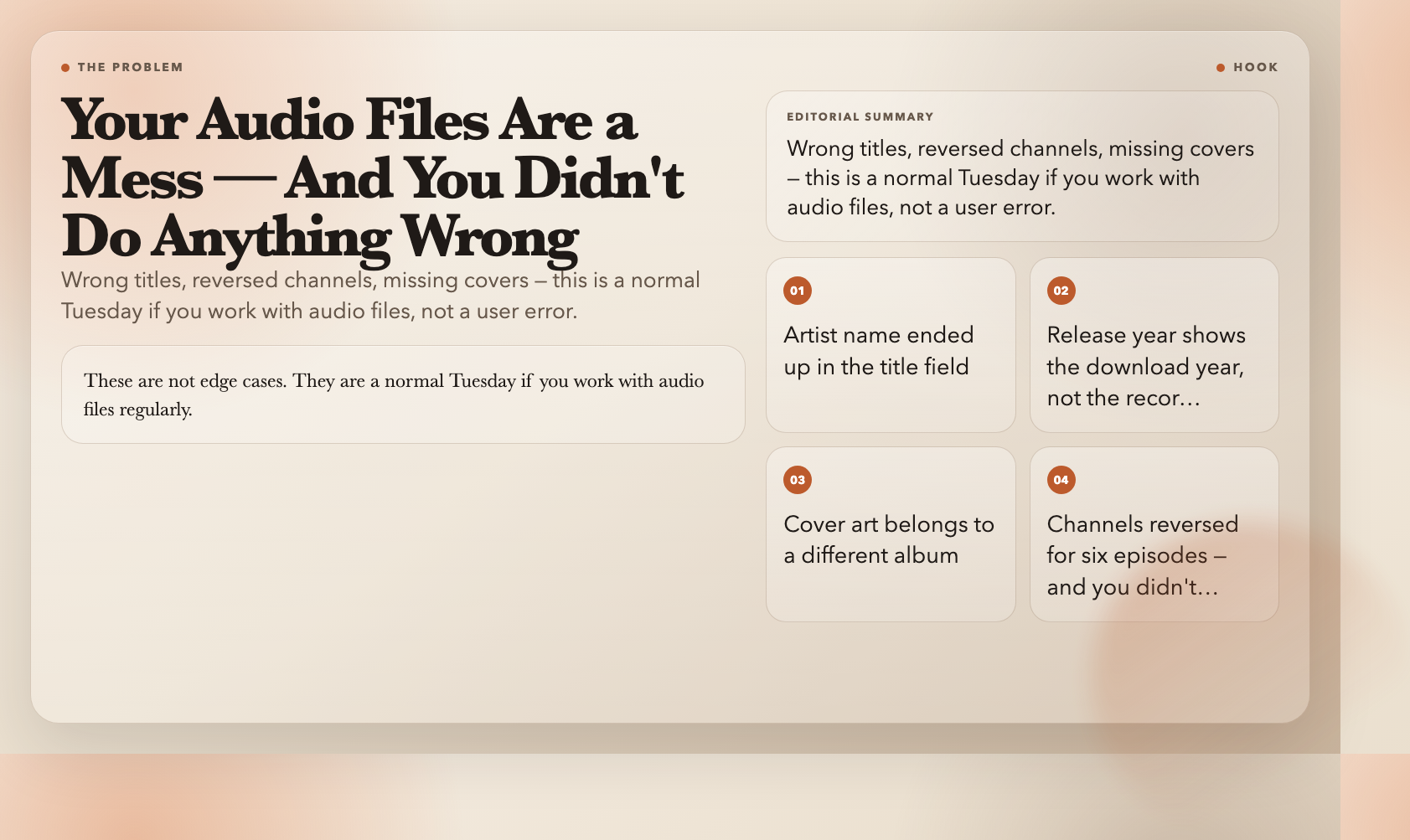
You download an album. The artist name ended up in the title field. The release year is “2024” in every single file because that was the download year, not the recording year. The cover art is for a completely different album. Somewhere on your computer, a podcast has its left and right channels reversed and you’ve been exporting it that way for six episodes.
These are not edge cases. They are a normal Tuesday if you work with audio files regularly. And they all have one thing in common: a paid desktop app is not the answer. Eight free browser tools fix all of it.
Album Art Tools
#
Album Art Adder
Every audio format supports embedded cover art, but downloaded music almost always arrives with the wrong image or none at all. The Album Art Adder embeds a new cover into any audio file in seconds. Pick the MP3 or FLAC, choose your image, and the tool writes it using standard ID3v2.3 tags. FFmpeg copies the audio stream without re-encoding — quality stays identical.
The impact is practical: mismatched album art breaks playlist organization in Spotify, Apple Music, Plex, and every other app. One correct image per file, done.
Use it when: You have a folder of correctly tagged audio but the covers are wrong or missing. Run through the batch and move on.
#
Album Art Extractor
The reverse comes up just as often. You need the cover image from a track as a standalone JPG or PNG — for a tracklist graphic, a playlist cover, or a blog post. The Album Art Extractor pulls the first embedded cover out of any audio file and saves it as a clean image. FFmpeg handles extraction, so it works across MP3, FLAC, M4A, OGG, and other common formats. If the file has no art, it says so directly instead of returning an empty file.
Extract at full resolution — no screenshot required.
Metadata Management Tools
#
Audio Metadata Viewer
Before editing, check what you’re working with. The Audio Metadata Viewer reads every tag — artist, album, title, genre, year, track number — and every technical detail: codec, bitrate, sample rate, and duration. It shows everything in a structured view so nothing gets missed. One file might store the year as “2023” while another stores it as “23.” A comment field might contain metadata you didn’t know was there. The viewer surfaces it all before you touch anything.
Use it when: Auditing a batch of files. See everything, then decide what to change or remove.
#
Audio Metadata Editor
The Audio Metadata Editor writes artist, album, title, genre, year, track number, and comments directly into an audio file. It does this without re-encoding — FFmpeg copies the audio stream and patches only the tag metadata. Audio quality is preserved exactly.
For podcasters, this means consistent episode numbers and show notes across an entire season. For music collectors, it means transforming a chaotic download folder into a properly organized library. Fill in the fields, pick your output format, download.
Use it when: Files have incomplete or inconsistent tags and need fixing — without sacrificing any audio quality.

#
Audio Metadata Remover
Sometimes the goal is the opposite: a completely clean file with no identifying information. The Audio Metadata Remover strips all tags, chapters, lyrics, and embedded covers from an audio file, leaving only the raw audio stream. FFmpeg copies the audio and skips the metadata entirely — lossless and thorough.
This is the tool for sharing audio without broadcasting where it came from, for submitting to platforms that enforce their own metadata standards, or for privacy-sensitive recordings.
Use it when: A file needs to go out clean, with no artist name, no comments, no embedded art.
Channel Control Tools
#
Audio Channel Mapper
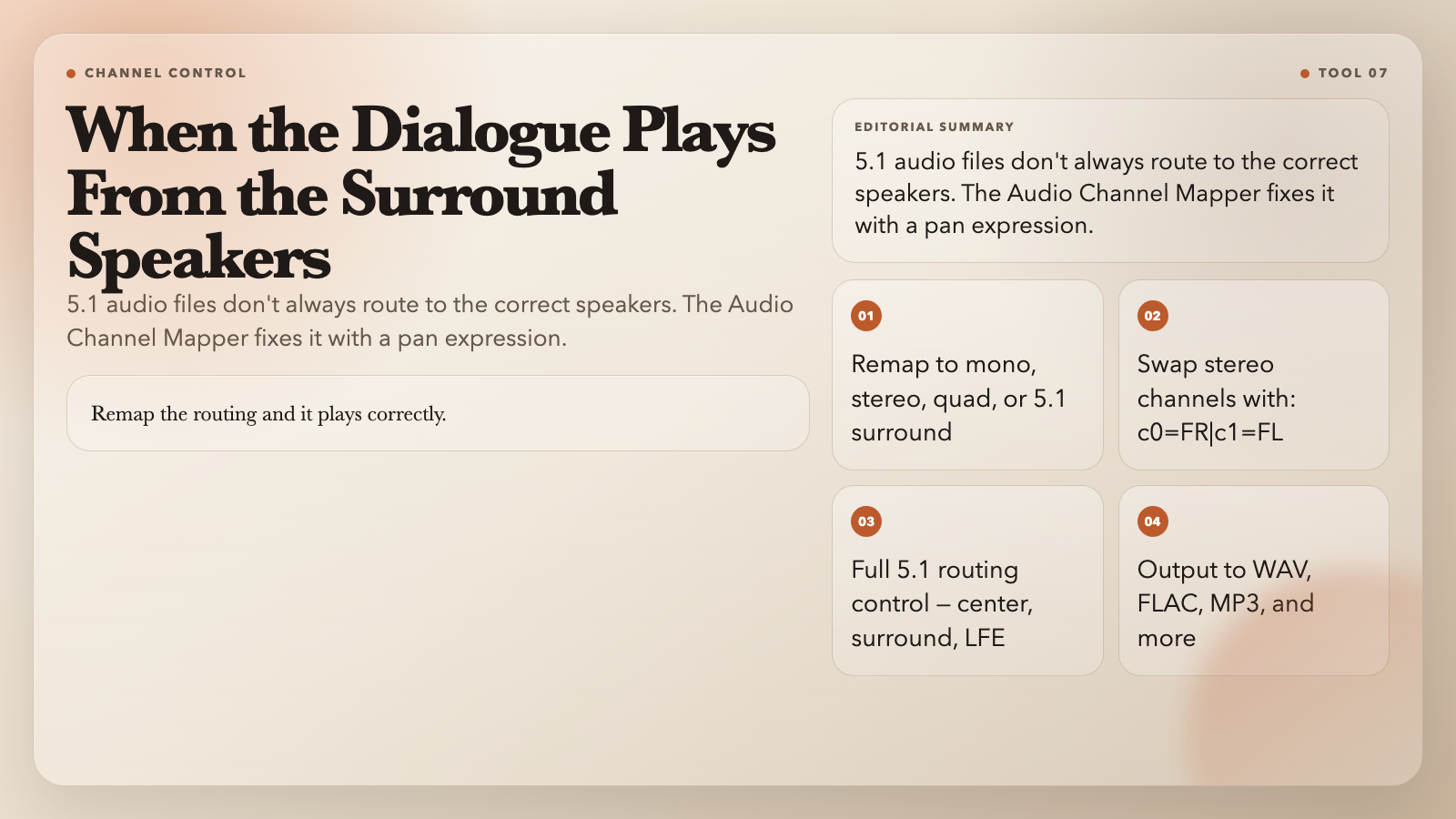
Surround audio files don’t always route to the right speakers. The Audio Channel Mapper remaps any channels to any output layout — mono, stereo, quad, or 5.1 surround — using FFmpeg’s pan filter. Define the routing with a pan expression. Swap stereo channels with `c0=FR|c1=FL`. Route a full 5.1 layout with precise control over center, surround, and LFE channels. Output as WAV, FLAC, MP3, or several other formats.
This is the tool for audio engineers working with multichannel stems, video editors fixing surround routing, or anyone dealing with a file whose channels are in the wrong order.
Use it when: A 5.1 file plays the dialogue through the surround speakers instead of the center channel. Remap the routing and it plays correctly.
#
Audio Channel Mixer
The Audio Channel Mixer blends stereo left and right channels into a mono file with custom ratios. Set left to 0.3 and right to 0.7, and the mono output is weighted toward the right. The slider shows the current balance visually — no guesswork. Output to MP3, FLAC, WAV, or other formats.
This is how you create a mono mix for platforms that don’t support stereo, isolate one channel from a stereo recording, or blend both channels into a centered speech track. Set the ratios, pick the format, download.
Use it when: A podcast was recorded in stereo but needs a mono mix for a platform that requires it.
#
Audio Channel Swap
The Audio Channel Swap exchanges the left and right channels of a stereo file in one click. Right becomes left. Left becomes right.
This fixes wiring mistakes. Recording equipment gets connected backwards. USB audio interfaces sometimes route channels differently than expected. When that happens, swap the channels, download the fixed file, and move on without re-recording.
Use it when: The audio is correct but reversed — someone sounds like they’re on the right when they should be on the left.
The Bottom Line
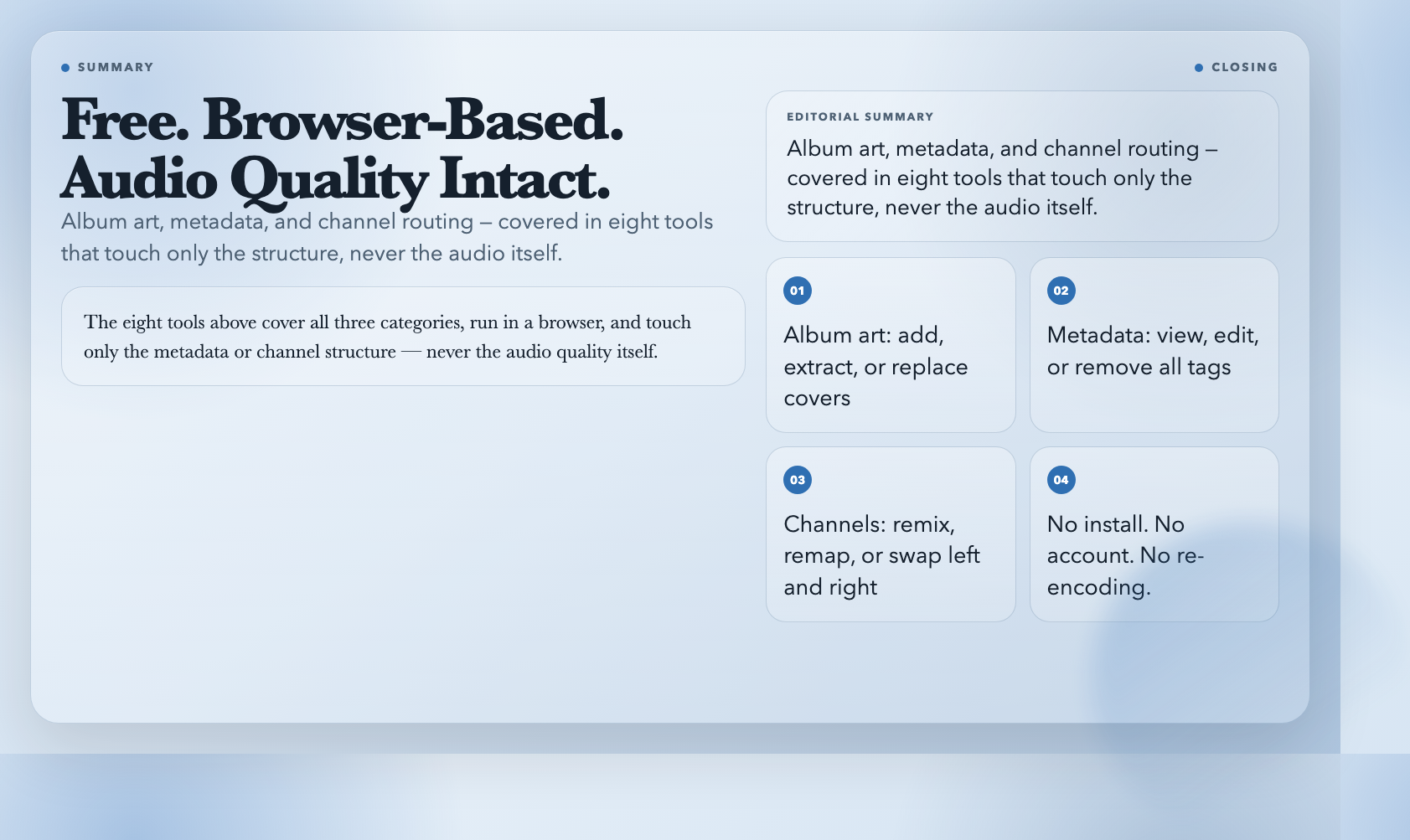
Album art, metadata tags, and channel routing are unglamorous problems. They show up constantly if you work with audio, and they break things in other apps when they’re wrong — mismatched covers, inconsistent tags, reversed channels. The eight tools above cover all three categories, run in a browser, and touch only the metadata or channel structure — never the audio quality itself.
One problem these tools don’t solve yet: automatically downmixing 5.1 surround audio to stereo while keeping the dialogue centered. That requires a manual mix decision. If you’ve found a free tool that handles it well, it’s worth knowing about.