# 8 Free AI Tools That Extract Clean Data from Receipts, ID Cards, and Images
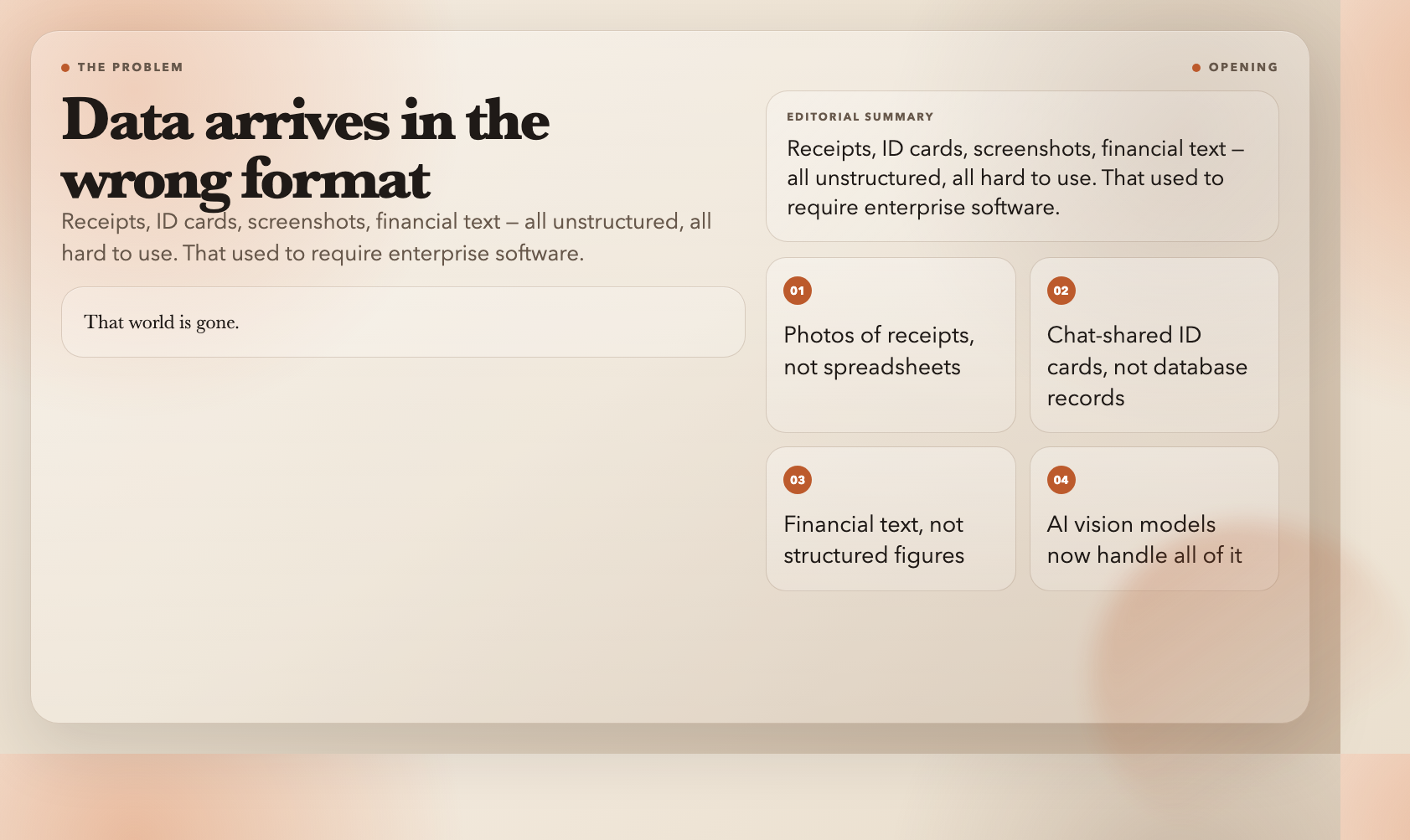
The data you need most always arrives in the wrong format — receipts as crumpled paper, ID cards as chat photos, financial figures buried in paragraphs, whiteboard screenshots. We used to need expensive software to extract any of it. That world is gone. AI vision models now handle all of it — and the tools on Elysia Tools make it free to use right now. These eight are the most practically useful.
—
1. Receipt OCR — Extract Structured Data from Any Receipt Photo
The hardest part of receipt processing isn’t reading the text. It’s getting that text into a format your app can actually use.
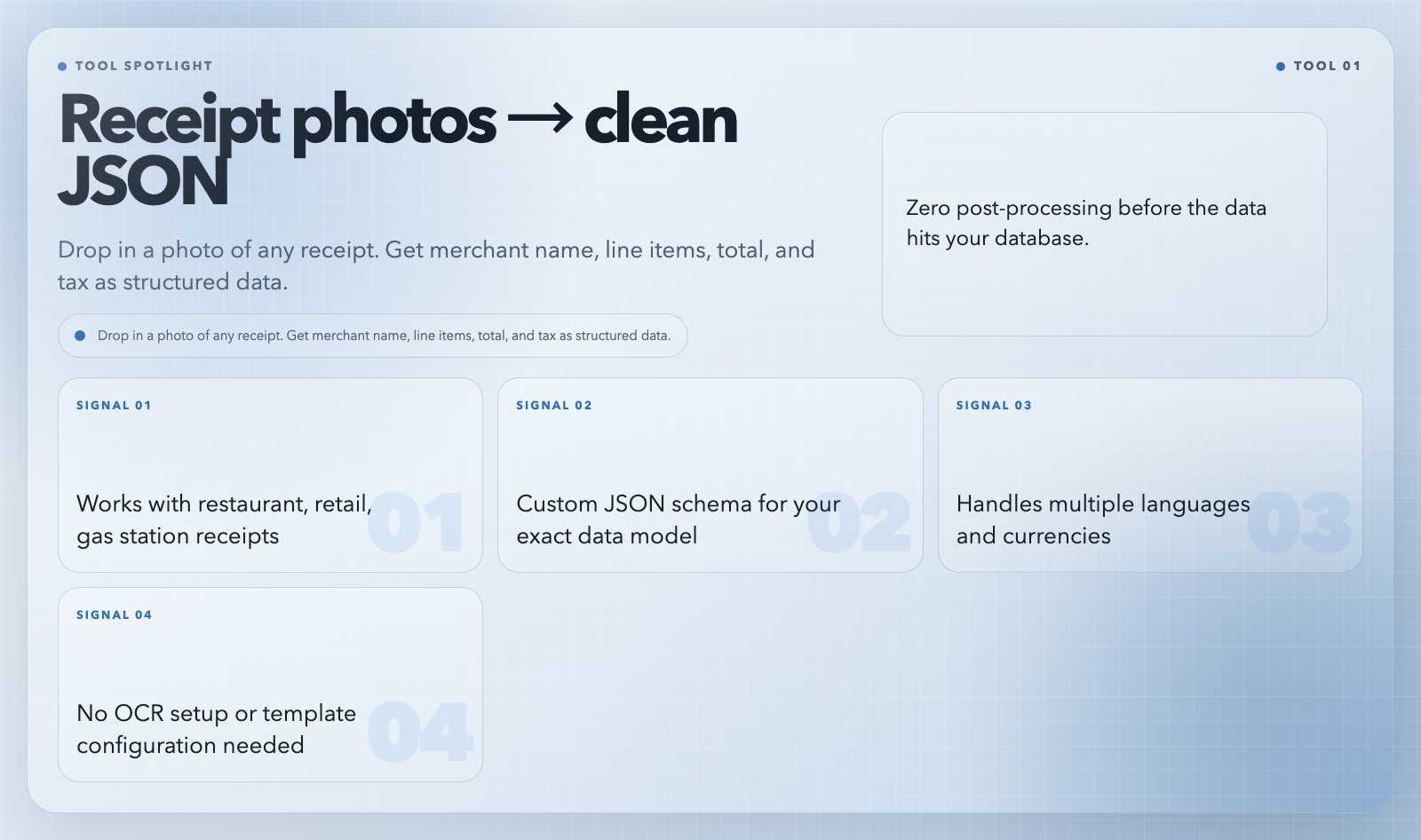
`ai-image-to-receipt-json` solves exactly that. Drop in a photo of any receipt — restaurant, retail, gas station — and it returns clean JSON with every field named and structured. Merchant name, receipt number, date, time, line items with quantities and prices, total, tax, payment method. All extracted automatically.
The killer feature is the custom JSON format option. If your system expects a specific field structure, you can define it and the tool extracts to that exact schema. This means zero post-processing before the data hits your database.
A practical use case: business travelers who snap receipts throughout the day. Feed them into this tool and you get a structured expense record with zero manual entry. No more guessing which merchant it was from a faded logo.
—
2. ID Card OCR — Extract Fields from ID Card Photos
ID cards are even more problematic than receipts. The data is there — name, birthdate, ID number — but it’s embedded in a complex layout with photos, holograms, and multiple scripts. Most extraction tools give up.
This one doesn’t. `ai-ocr-id-card-to-json` reads the card photo and returns structured JSON with every relevant field. Name, date of birth, ID number, gender, address, place of birth, and validity period.
Use cases that come up constantly: KYC onboarding flows, event check-in systems, appointment reminders that pre-fill patient info. Instead of asking users to type everything manually, they snap a photo. The data fills in automatically.
—
3. Image to Markdown — Extract Text from Any Image
The two tools above are specialized. This one is the general-purpose workhorse.
`ai-image-to-markdown` takes any image — a photo of a whiteboard, a scanned document, a screenshot, a page from a PDF — and returns the full text as clean markdown. Not raw text. Markdown. That means headers stay headers, lists stay lists, and tables render as tables.
This is the tool I reach for when someone sends me a screenshot of a document and I need to quote from it. No more retyping. No more guessing at faded text. Just drop it in and copy the output.
It’s also genuinely useful for researchers. Photograph a book page or a printed article, feed it through this tool, and you have searchable, copyable, translatable text in seconds.
—
4. Currency Extractor — Pull Financial Figures from Any Text
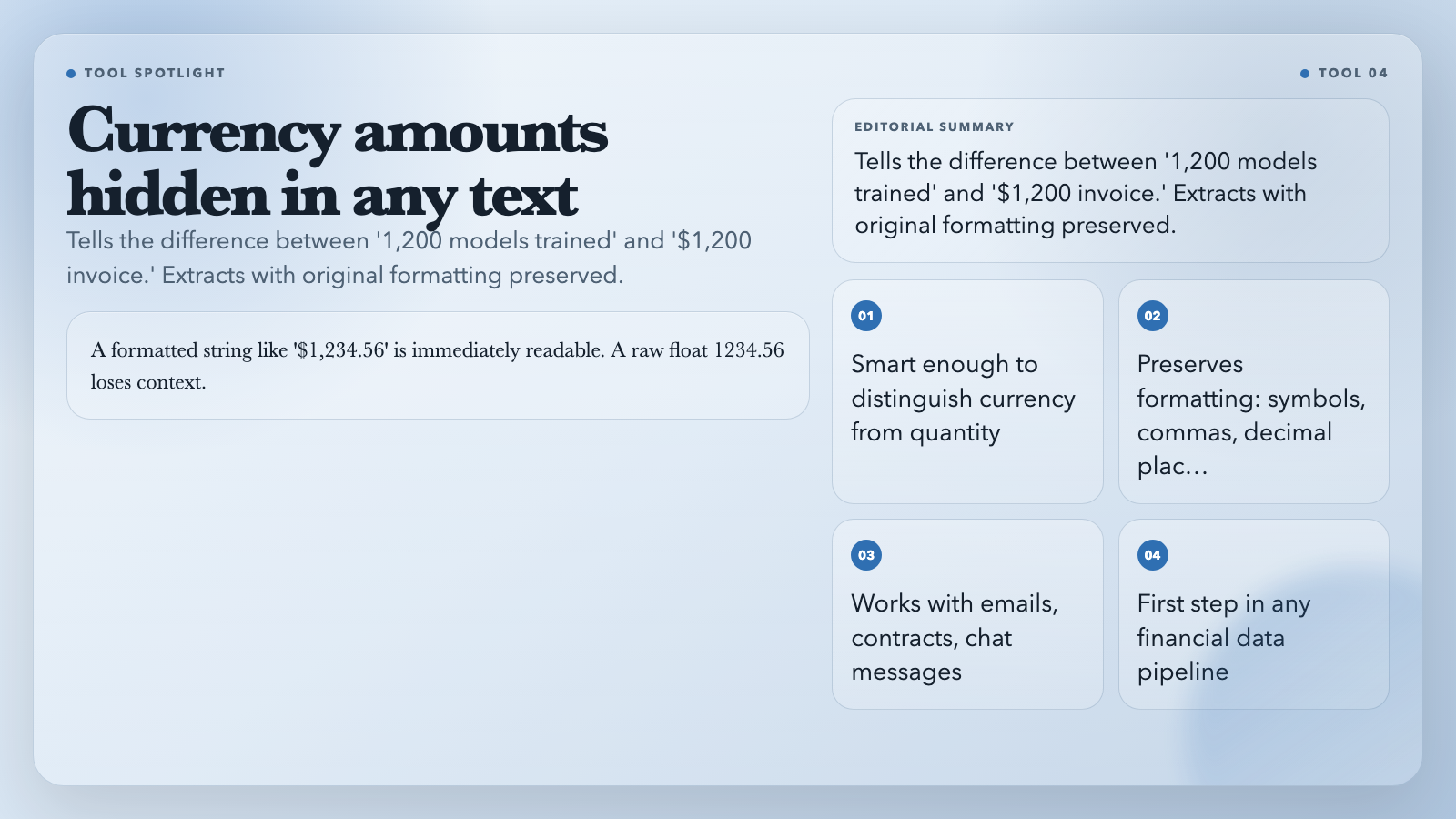
Numbers are everywhere in text. So are currency amounts. The problem is telling them apart. “We trained 1,200 models” has a number, but it’s not a financial figure. “Invoice #1234 for $1,200” has a currency amount mixed in.
`ai-currency-extractor` is built to solve exactly this. Feed it any text — an email, a contract clause, a financial report, a chat message — and it extracts every currency amount with the original formatting preserved. Dollar signs, commas, decimal places. All intact.
The preservation of formatting matters for anyone building financial workflows. A formatted string like “$1,234.56” is immediately readable. A raw float 1234.56 loses context. This tool keeps what matters.
For expense management, invoice processing, and financial document analysis, this is the first step in the pipeline: get the numbers out cleanly.
—
5. Data Normalizer — Clean Messy Data Without Writing Scripts
Data rarely arrives clean. Names are formatted inconsistently. Addresses vary. Product names have synonyms. A rules-based cleaning script can handle known cases, but real-world data throws curveballs.
`ai-data-normalizer` takes a different approach: it understands what your data is. Feed it a messy CSV, a JSON file with inconsistent field names, an Excel sheet where dates are formatted six different ways. The tool analyzes the content, infers the intended structure, and outputs clean, standardized data in the format you need.
What makes it different from a regex find-and-replace: the AI understands semantics. It knows that “New York,” “NY,” and “N.Y.” are the same thing. It knows that a phone number with dots and a phone number with dashes are the same phone number. It makes the calls a rules engine can’t.
For developers who spend hours writing one-off cleaning scripts, this is the tool that replaces most of them.
—
6. Regex Explainer — Understand Any Regex Pattern in Plain English
Regex is famously write-only. Six months after you write a pattern, it reads like ancient hieroglyphics. Patterns written by other people are worse.
`ai-regex-explainer` takes any regex pattern and returns a plain-English explanation broken down segment by segment. Each part of the pattern gets an explanation, position markers showing where it matches, and working examples of what it would and wouldn’t match.
It also flags potential issues — performance problems, edge cases, compatibility notes across JavaScript, Python, and PCRE dialects.
The practical scenario comes up constantly: you find a regex on Stack Overflow that almost does what you need. You feed it to this tool and understand exactly what it’s doing. Then you know whether to use it as-is or adapt it.
—
7. Math Solver — Extract and Solve Equations from Images or Text
Mathematical content is some of the hardest to extract from documents. A photographed equation, a screenshot of a problem set, a PDF with complex notation — these are all difficult for standard OCR because the symbols are precise. One wrong character changes the meaning.
`ai-math-solver` handles this. Drop in an image of a math problem or type it directly, and it returns the solution with working shown. From basic arithmetic through calculus, it reads the notation and produces the answer.
This is useful in a surprising range of contexts: educators creating content, students checking work, developers building educational tools. The extraction aspect — getting the equation from an image — is where this tool earns its place alongside the others on this list.
—
8. Language Detector — Identify Language from Any Text
This one is a utility, but it’s one that comes up constantly in data pipelines. You have text content of unknown origin. Before you route it, translate it, or process it further, you need to know what language it’s in.
`ai-language-detector` takes any text input — a sentence, a paragraph, a full page — and returns the detected language from a list of 20+ supported languages. Fast, stateless, no setup.
It’s the first step in any multilingual content pipeline. Route messages, categorize documents, trigger the right processing workflow. One API call, one answer.
—
Why This Category Matters
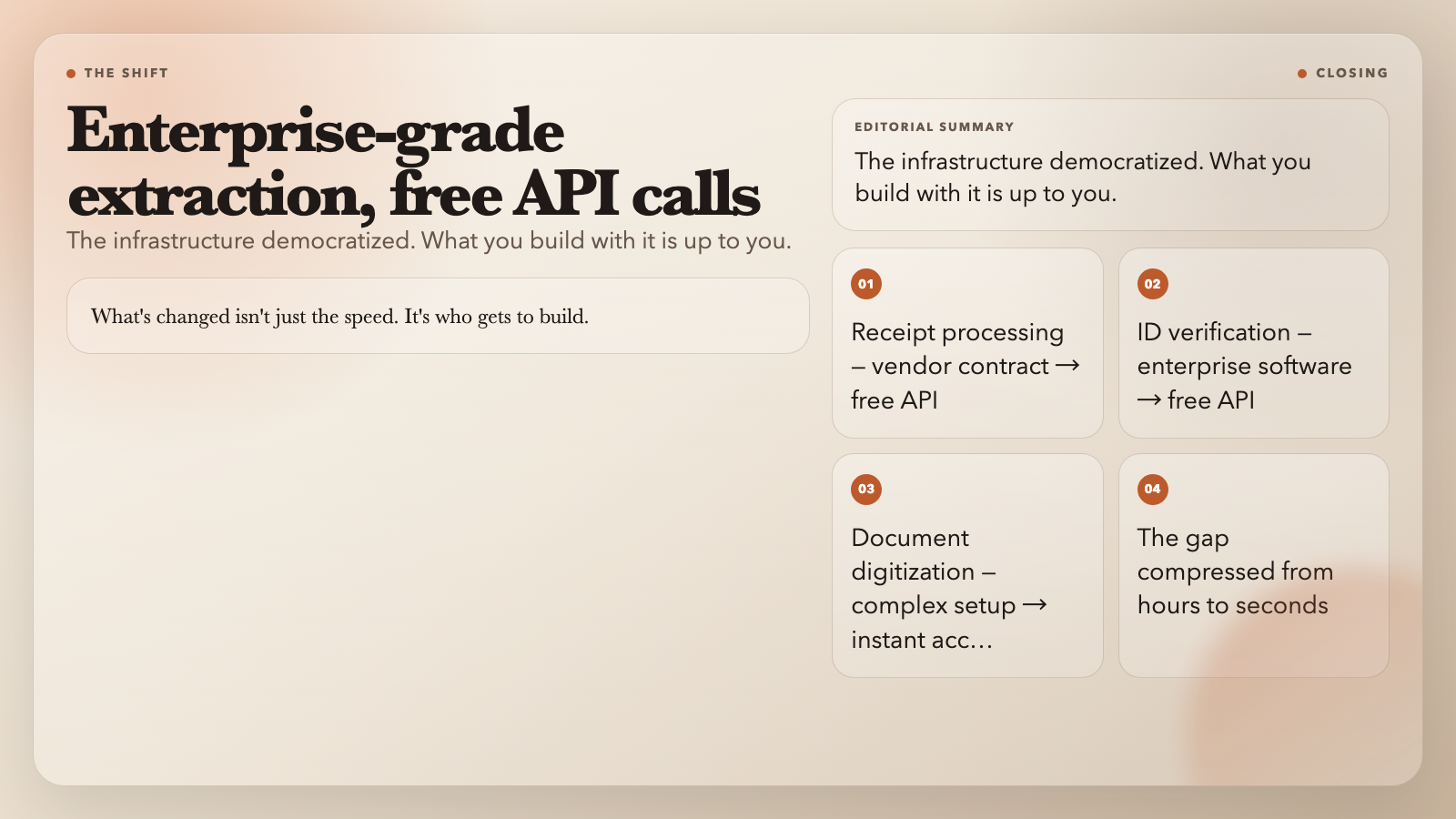
Five years ago, each of these tasks required either expensive commercial software, complex API setups, or manual work. The gap between “I have this data” and “I have this data in a usable format” was measured in hours and dollars.
AI compressed that gap to seconds and zero dollars.
What’s changed isn’t just the speed. Receipt processing, ID verification, document digitization — these used to require vendor contracts. Now they’re free API calls. That is why the question isn’t whether this is possible. It’s what happens next when everyone can do it. Explore Elysia Tools →