# Why Your Chrome Extension Screenshots Look Unprofessional (And the Free Tool That Fixes Them in Seconds)
You spent three months building your Chrome extension. The code is clean, the feature set is solid, and you’re ready to publish. You upload your screenshots to the Chrome Web Store developer dashboard — and your listing goes live with images that look stretched, cropped, or simply wrong.
This happens constantly. The Chrome Web Store enforces two screenshot dimensions: 1280×800 and 640×400 — both in a 16:10 aspect ratio that’s wider than most laptop screens and many application windows. The moment you take a screenshot of your extension’s popup and try to force it into those dimensions, you’re making a decision: crop content, distort the image, or accept white bars on the sides. Most developers make the wrong call, and their listings suffer for it.
The fix takes 30 seconds. And it costs nothing.
The Dimension Trap That Catches Most Extension Developers
The Chrome Web Store’s screenshot requirements aren’t arbitrary, but they’re also not obvious. A 16:10 aspect ratio (1280×800) differs from the 16:9 standard on most developer laptops, and from the 4:3 of older displays. It differs more dramatically from the small square or portrait dimensions of extension popups and option pages.
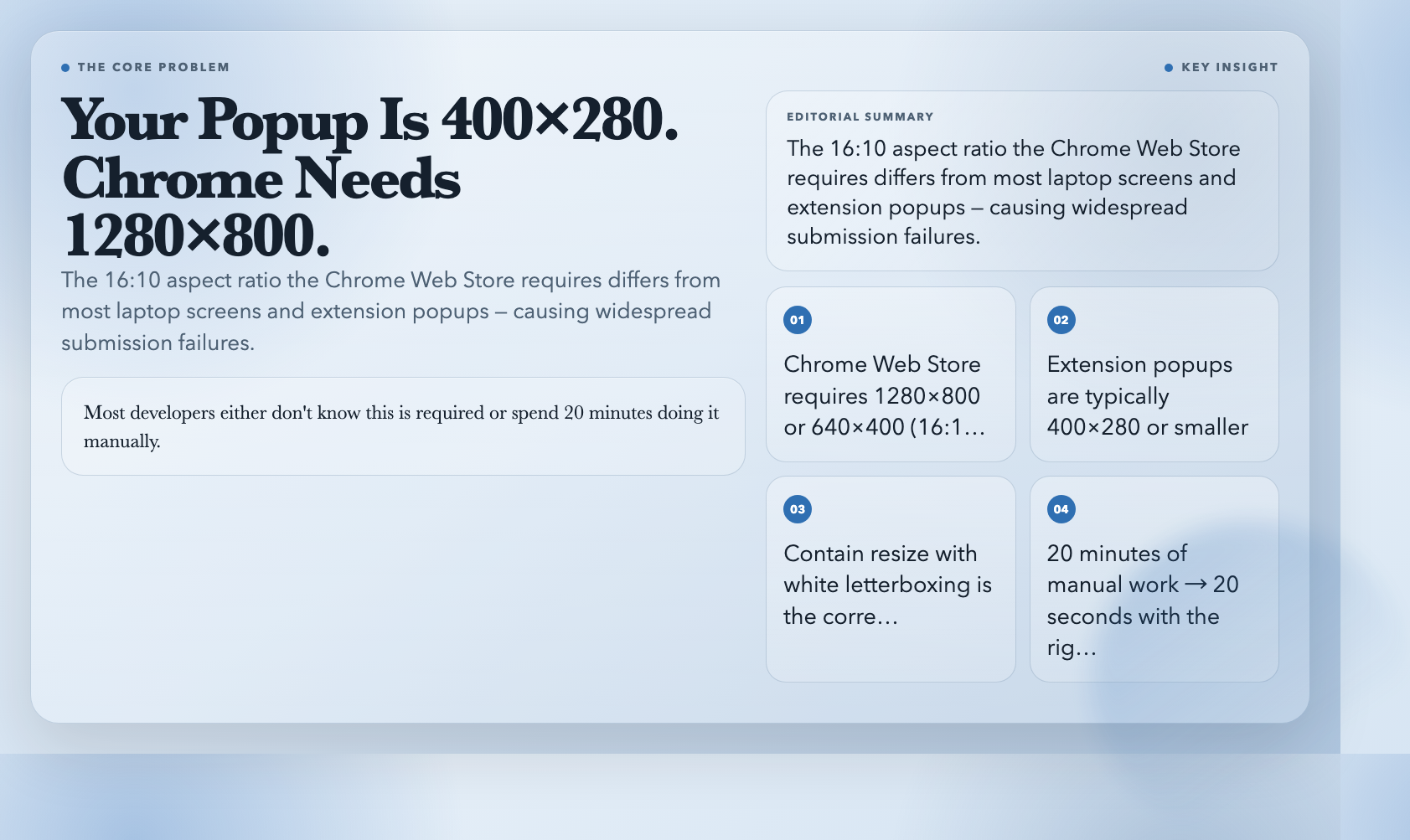
Take a typical extension popup at 400×280. To force it into 1280×800 without distortion, you need to scale it up and pad it. Most developers either don’t know this is required (leading to rejected or flagged submissions) or they do it manually in an image editor — spending 20 minutes per submission on a task that should take 20 seconds.
The Chrome Web Store allows up to 20 screenshots per listing. For a well-documented extension with multiple feature screenshots and a hero image, that’s a real time investment — and a real source of release friction.
Chrome Web Store Screenshots Resized: The Free Tool That Removes This Entire Category of Work
Chrome Web Store Screenshots Resized accepts up to 20 images and converts all of them to the exact 1280×800 or 640×400 dimensions the Chrome Web Store requires. It uses a contain resize strategy: the original image scales to fit within the target dimensions, and white padding fills the remaining space.
The practical result is a screenshot that shows your entire UI at appropriate size, with clean letterboxing on any non-target edges. No content is cropped. No aspect ratio is distorted. The output is a properly named file in your chosen format (PNG, JPEG, WebP, or AVIF) packaged in a ZIP ready to upload directly to the Chrome Web Store.
The tool also applies quality optimization during conversion — JPEG and WebP outputs use sensible quality settings (90 and above by default) that keep file sizes reasonable without visible compression artifacts. EXIF and metadata are stripped by default, which is what the Chrome Web Store expects.
One submission package, built in under a minute, from screenshot to store-ready ZIP.
The Icon Problem: One Source File, Eleven Sizes, Zero Manual Work
Icons are a separate submission requirement, and they come in more varieties than most developers expect. The Chrome Web Store listing needs 128×128. The extensions page uses 48×48. The toolbar favicon needs 16×16 — and it must be embedded in a favicon.ico file, a multi-resolution container format with specific binary encoding rules.
Most developers solve this with a paid Mac utility, an online tool with watermarks on free tiers, or a manual process involving multiple browser tabs. None of these approaches is terrible, but all of them impose friction that has nothing to do with the actual goal: getting a correctly sized icon into your extension package.
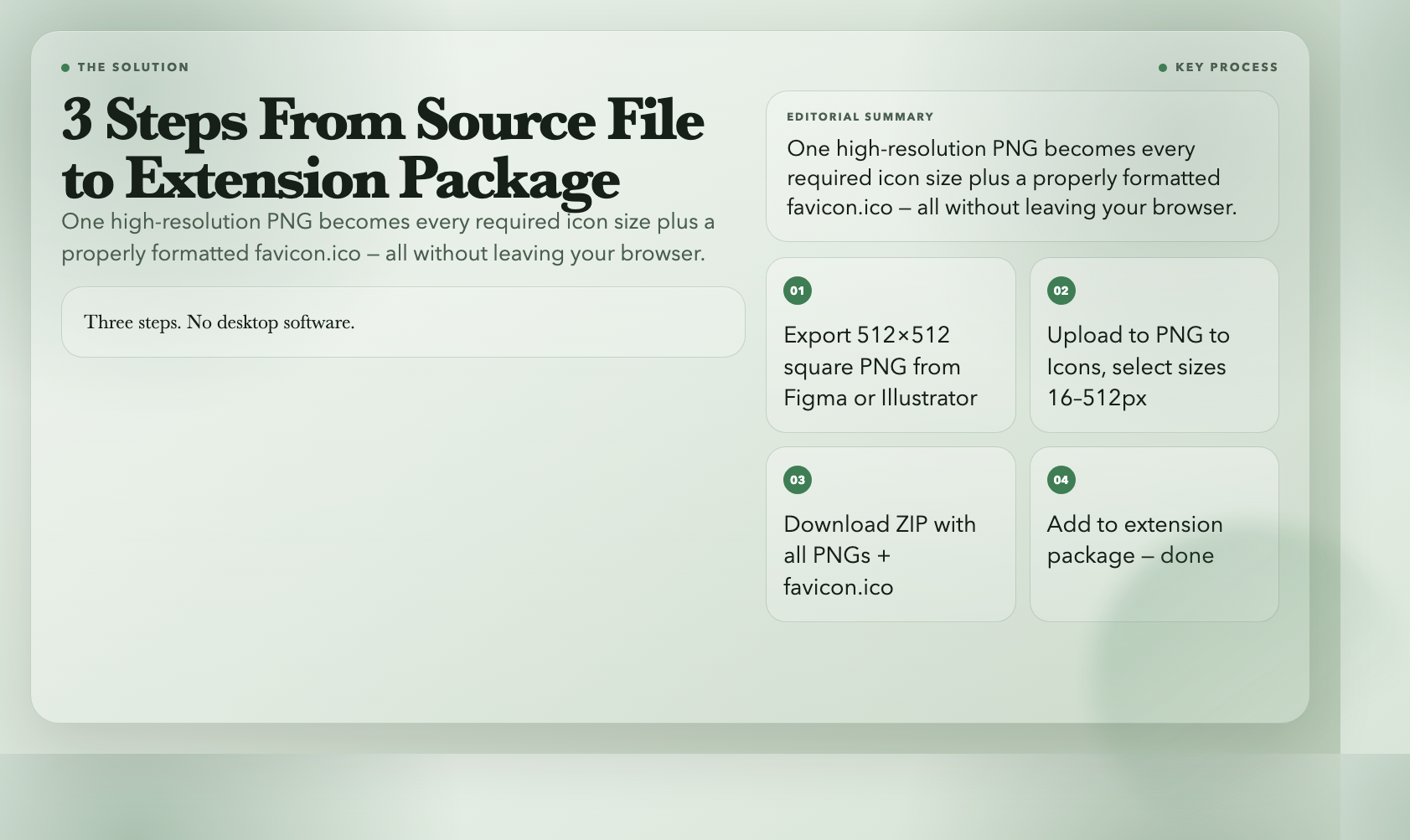
PNG to Icons automates this entirely. Upload a single square PNG at 512×512 or higher resolution, choose your target sizes from the allowed set (16, 32, 48, 64, 72, 96, 128, 192, 256, 384, 512 pixels), and download a ZIP containing all PNG sizes plus a correctly formatted favicon.ico file. The tool builds the ICO binary from your uploaded PNG — handling the byte-level encoding of the multi-resolution format automatically.
The workflow becomes: export one high-quality icon from Figma or Illustrator → upload to PNG to Icons → download ZIP → add to extension package. Three steps. No desktop software.
The Real Argument for Free Developer Tools in 2026
Asset preparation tools occupy an uncomfortable middle ground in the developer toolchain. They’re too specific for general-purpose image editors to handle well, and too utilitarian for professional design tools to prioritize. The result is a market gap filled by single-purpose utilities — many of which cost money, carry watermarks, or require installation on a specific operating system.
The category of “Chrome extension asset preparation” is too small for a commercial tool vendor to prioritize. The free tools that do exist tend to be either online utilities with poor UX, or browser-based tools that impose file size limits or output restrictions. The tools on ElysiaTools — built as part of a larger collection of 1,600+ free utilities — don’t have these constraints. They’re fast, they produce correct output, and they’re available without registration.
This is increasingly the pattern in free developer tooling: not a single-purpose free tool with limited use cases, but a large, maintained collection where the sum of the toolset removes entire categories of paid software from the average developer workflow.
Here’s what that means for your next submission: your extension took months to build. Your listing deserves 30 seconds of attention. The Chrome Web Store Screenshots Resized tool and PNG to Icons will make sure the extension you built looks like it belongs there — because in a marketplace with thousands of alternatives, presentation isn’t decoration. It’s the first argument your product makes.