Why Your Recordings Sound Flat and the 5 Free Tools That Fix It
You’ve got a decent microphone. Your room isn’t perfect but it’s treated. Your levels are calibrated. Yet something is missing — that punch, that presence, that “pro” quality you hear on commercial recordings.
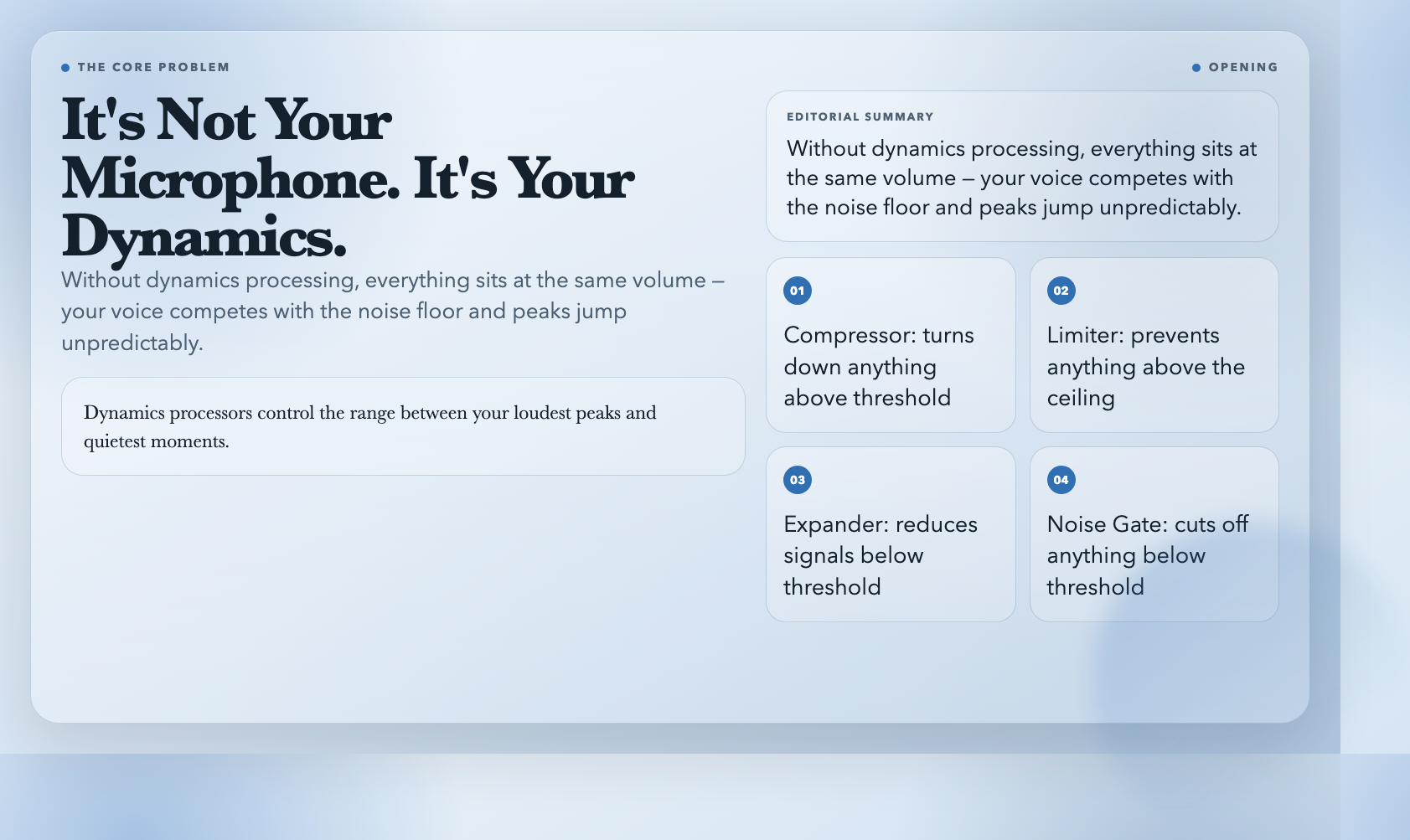
It’s probably not your room. It’s probably your dynamics.
Dynamics processors control the range between your loudest peaks and quietest moments. Without them, everything sits at the same volume and the mix disappears against background noise. Professional studios have paid hundreds of dollars per plugin for these processors. ElysiaTools built five free browser-based alternatives that do the same work.
1. Audio Compressor — The Foundation of Pro Sound
A compressor listens to your audio and automatically turns down anything above a set level — the threshold. Set threshold at -18dB and ratio at 4:1, and anything peaking above -18dB gets compressed to one-quarter of its original level above that point.
The four parameters you control:
- Threshold (-60 to 0dB): when compression kicks in
- Ratio (1:1 to 20:1): how hard it compresses
- Attack (0–1000ms): how fast it responds — fast attack catches transients (the initial hit of a snare), slow attack lets the transient through
- Release (1–3000ms): how fast it lets go once the signal drops back below threshold
The result: quiet parts get raised, loud parts get tamed, the entire track sits at a consistent level. This is why every commercial track you’ve heard has been compressed — often multiple times through multiple processors.
A vocalist whose voice dips and surges can end up at a consistent level throughout. A snare that hits hard on the downbeat and weakly on the backbeat gets evened out. A guitar that jumps between mellow and distorted stays in its space in the mix.
Use it for: Vocals, drums, bass, any instrument with inconsistent levels.
2. Audio Limiter — Preventing the One Thing That Breaks Everything
A limiter is a compressor with an infinite ratio. Where a compressor set at 4:1 reduces peaks above threshold, a limiter prevents anything from going above the ceiling — period.
The ceiling is usually set close to 0dB. Set it at -1dB and the limiter catches anything trying to exceed that point and prevents it. This is called ceiling protection, and it is how professional recordings avoid digital clipping while still sounding loud.
Beyond ceiling protection, limiters make things sound louder without increasing the average level. The limiter catches peaks, so you push the input level higher. More signal hits the threshold, more gets tamed, and the result feels louder to the ear even though the actual peak is controlled.
Streaming platforms enforce loudness standards — Spotify wants -14 LUFS integrated, YouTube sits around -14 to -16, broadcast TV is often -24. A limiter is the last processor before export, ensuring your track passes those requirements without clipping.
Use it for: Final stage before export, podcast mastering, any track going to a LUFS-compliant platform.
3. Audio Expander — Making Quiet Things Quieter
An expander does the opposite of a compressor. Where a compressor reduces signals above a threshold, an expander reduces signals below a threshold. It controls the quiet end of a recording — floor noise, room rumble, bleed from other instruments.
Set threshold at -50dB and ratio at 1.5:1. Anything below -50dB gets expanded: quiet signals become even quieter. The noise floor drops. The contrast between signal you want and noise you don’t goes up.
This is what makes a clean drum recording sound clean. Without expansion, the room noise between hits sits at the same relative level as the drums. With expansion, room noise drops below audibility and the drums cut through cleanly.
Use it for: Drum recordings, location sound, any recording with a noisy background.
4. Audio Noise Gate — The Silence Between Sounds
A noise gate is an expander set to extremes. When the signal drops below the gate threshold, output goes to silence. When it rises above, the gate opens and the signal passes through.
This is for when you need absolute silence between sounds — no room noise, no bleed, no ambient hum. A drum recording where you want only the hits and nothing else. A vocal where only the performance comes through, not the air conditioning.
The distinction from an expander is binary: a gate either lets sound through fully or cuts it entirely. An expander attenuates gradually. Gates are surgical cuts.
Use it for: Tightening drum performances, cleaning vocals from untreated rooms, isolating an instrument from a multi-track.
5. Audio Multi-band Compressor — The Processor Masters Use
A standard compressor acts on the entire frequency spectrum at once. Set threshold at -18dB and everything above that gets compressed — bass, mids, and highs together.
A multi-band compressor splits audio into frequency bands and processes each independently. ElysiaTools’ version uses three bands with crossover points at 200Hz and 4000Hz. Low frequencies (below 200Hz), mid frequencies (200Hz–4kHz), and high frequencies (above 4kHz) each get their own threshold, ratio, attack, release, and makeup settings.
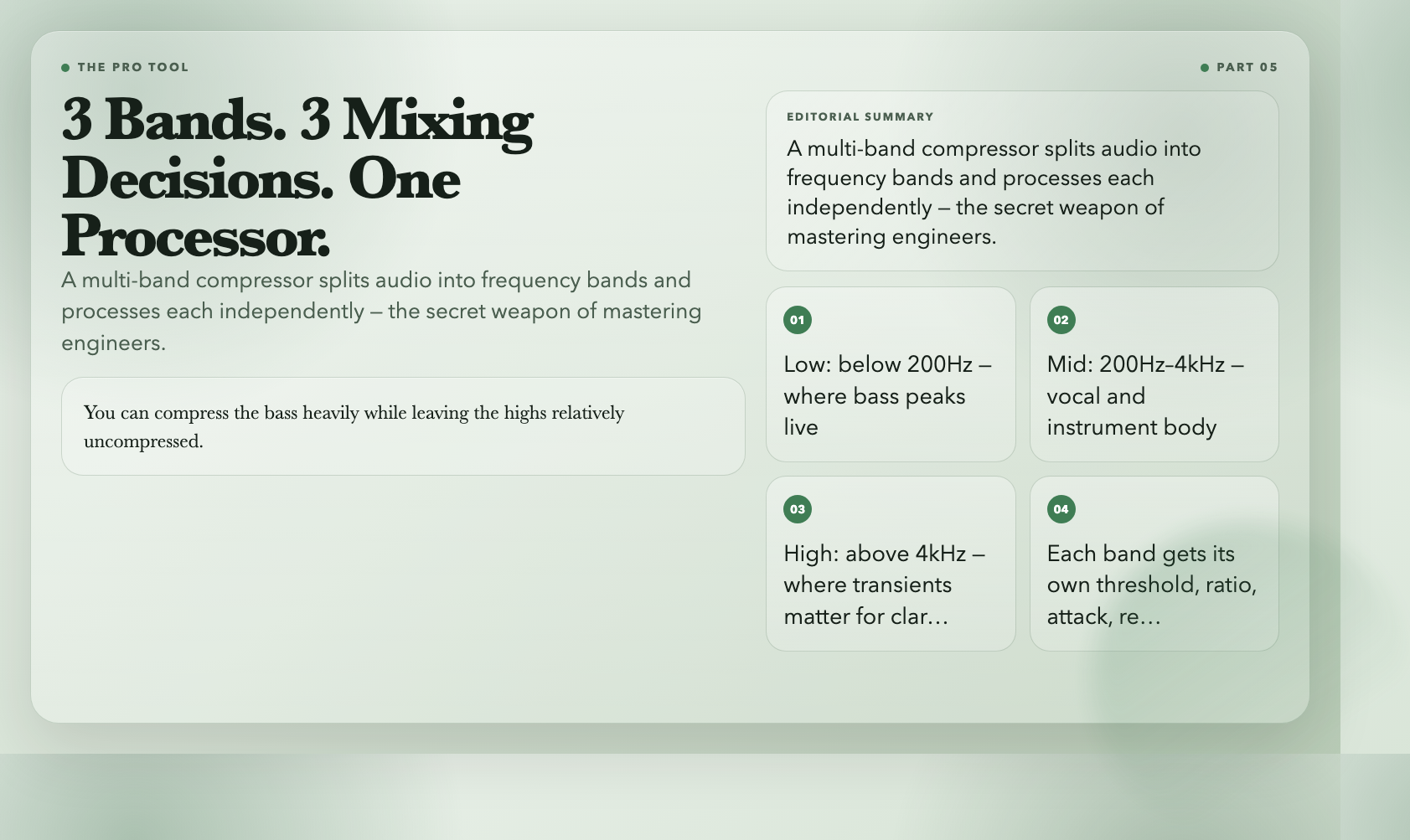
You can compress the bass heavily (where peaks tend to live) while leaving the highs relatively uncompressed (where transients matter for clarity). Each band becomes a separate mixing decision. This is what gives commercial recordings their characteristic sound — punchy, controlled low end with clear, present highs.
The tradeoff: wrong crossover points create phase artifacts where the bands meet. Too-low threshold and the band compresses constantly, making the sound feel squeezed. Used well, it’s the most powerful dynamics tool available.
Use it for: Final mix processing, mastering, any recording that needs frequency-specific dynamics control.
Try Audio Multi-band Compressor →
The One Below the Fold: Audio Gated Reverb
Audio Gated Reverb applies a reverb effect that cuts off abruptly once the input signal drops below a threshold — the gate. This is the signature sound of 1980s snare drum processing: a big, washy reverb that sounds enormous in the room but snaps shut the moment the drummer’s hand leaves the head.
Phil Collins’ “In the Air Tonight” is the canonical example. That massive snare sound — enormous room, instant cutoff — defined an era of pop production. When you need that specific aesthetic, nothing else delivers.
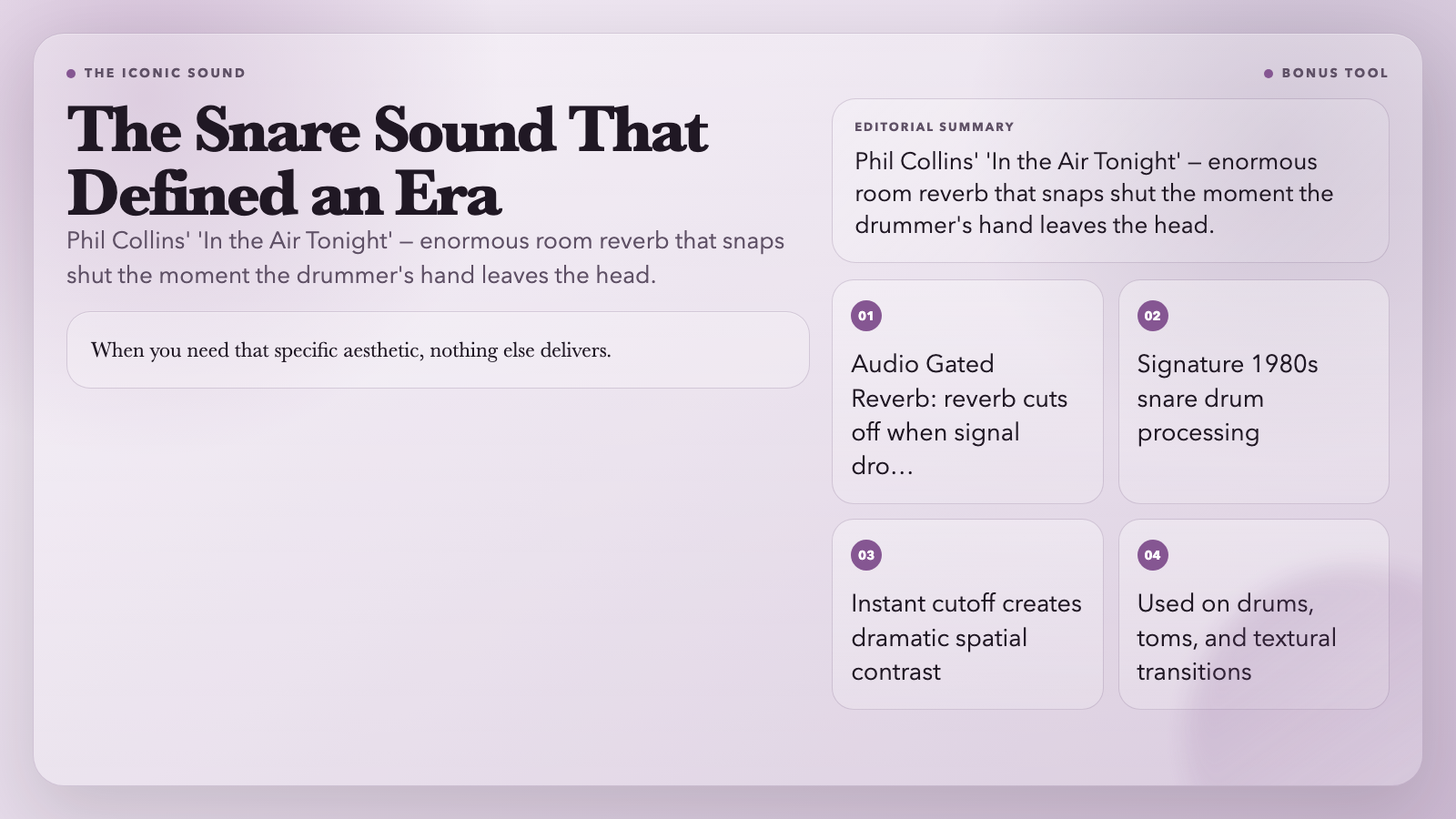
Use it for: Snare drums, gated toms, dramatic textural transitions.
The Real Problem You’re Solving
Amateur recordings sound amateur not because of the microphone or room — it’s that no dynamics processing has been applied. Peaks jump out unpredictably. Quiet parts disappear in noise. The mix has no punch, no contrast, no presence.
The five tools above solve that. They run in your browser, free, with no account required. The same FFmpeg-powered processing that professional DAWs use — available at a URL.
The barrier between a rough recording and a finished one has never been lower. The question is what you’ll do with it.