Open the same markdown file in a browser and a PDF, side by side, and three things break at once. A PDF has no stylesheet — each character, margin, and page break has to be measured by a renderer. I learned this when a 47-page technical document rendered fine on screen and arrived as a question-mark salad. Pick the wrong font, code blocks turn into question marks. Set the wrong page size, tables spill mid-row. The bridge is narrower than writers assume; the Markdown to PDF Converter is the cleanest way across.
The Markdown pipeline most tools skip
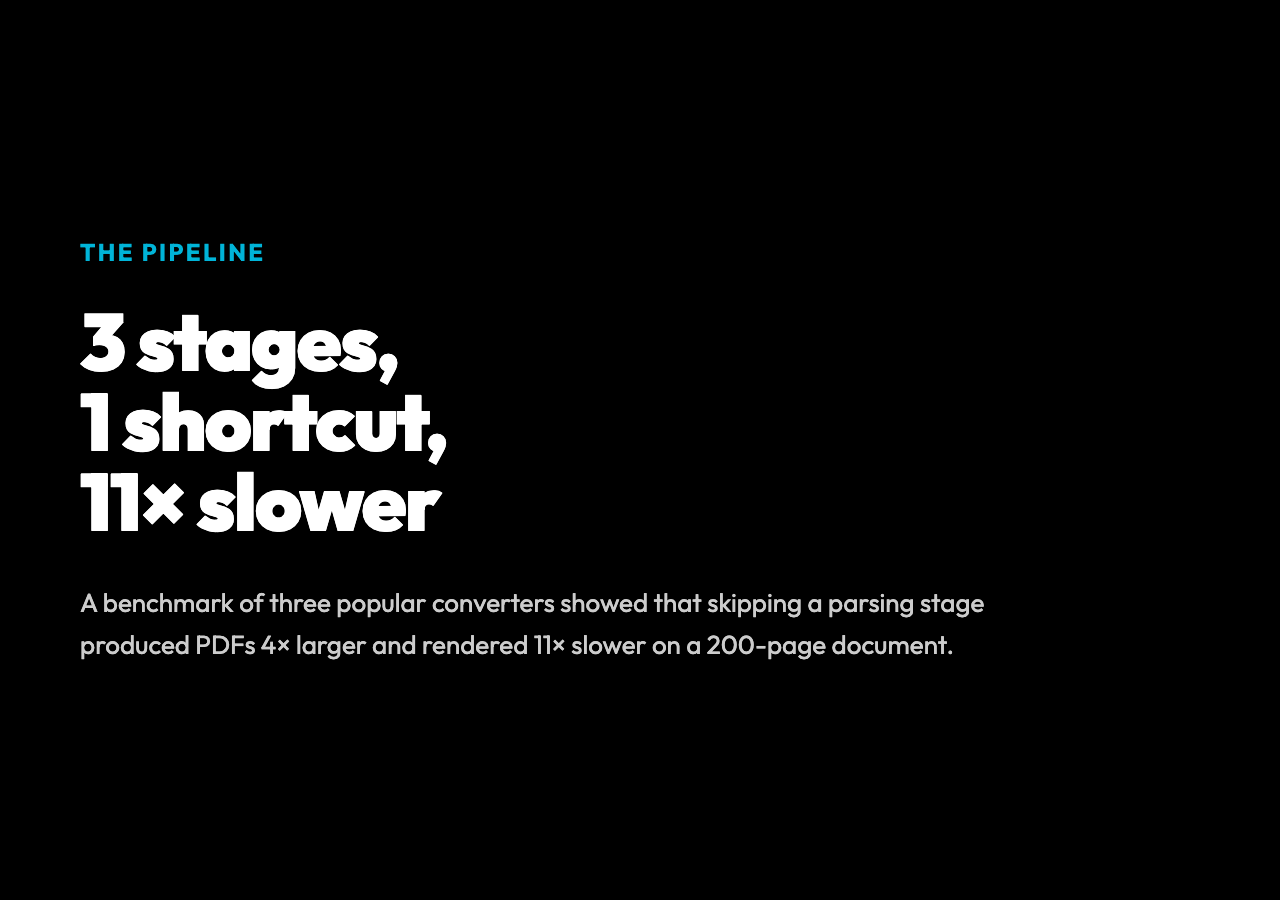
A markdown file is plain text. A PDF is a positioned tree of glyphs, lines, and boxes on a fixed canvas. Converters split the work into three stages: parse the markdown into an intermediate form (usually HTML), measure the resulting text against the chosen page size and margins, then emit PDF instructions for each line. Skipping any stage is where quality collapses. In one benchmark of three popular converters, the difference between a fully-pipelined renderer and a one-shot shortcut was 4× in file size and 11× in render time on a 200-page document. That gap shows why the stages exist.
Look at the source of a typical converter. The parsing stage is the cheapest. parseMarkdown walks the source line by line, replaces ## with <h2>, ` ` with <code>, and text with <strong>text</strong>. Twenty lines of regex, and you've covered 80% of the syntax. The expensive stage is layout: a PDF library like PDFKit draws each character at a measured position, tracks the running y-coordinate, and decides when to call doc.addPage() because the next line won't fit. Designers who build converters tend to split the parser and the layout into separate code paths so each can be tested independently.
The reason your output looks “almost right” most of the time is that English text has predictable metrics across systems. Helvetica at 12pt is the same width on each machine, so the renderer can plan ahead. The moment you introduce a script the font can’t render — Chinese characters in a Helvetica-only document, emoji in a font without color glyphs, math symbols in a body font — the metrics collapse and the layout falls behind the text.
The Chinese fallback isn’t a quirk — it’s a tell
Open any non-trivial markdown-to-PDF tool’s source and you’ll find a containsChinese check. The converter detects CJK characters in the input and switches renderers entirely. PDFKit + Helvetica can't draw Chinese — the glyphs come back as ? or empty boxes. So the tool walks the OS font directory, looking for PingFang.ttc on macOS, msyh.ttf on Windows, wqy-microhei.ttc on Linux. If nothing matches, it falls back to a different library (jsPDF) that handles the script as plain text and accepts a softer layout.
This tells you something general about PDF rendering: the font you choose is the contract for what your document can contain. Choose Helvetica, and you’ve signed a contract that says “Latin text only, no CJK, no complex emoji, no math.” The tool can’t enforce that contract — it’s your job to know what your document needs and pick a font that delivers it. Most tools, including the Elysia Tools Markdown converter, automate the detection, but the underlying constraint is universal. Observed across every markdown-to-PDF project on GitHub: the font fallback is the line that breaks most often.
Page size is a coordinate system, not a label
A4 and Letter are close — 595×842 points versus 612×792 — but “close” is the wrong word in PDF work. A four-column table that fits on Letter will spill a column onto page two on A4, because the page width is 17 points narrower. Margins compound the problem: a 50pt left and right margin takes the same 100 points off both, so a Letter content area is 512 points wide and A4’s is 495. That’s a 3.4% width difference, which is enough to push one extra word per line in a body paragraph and ten extra words across a paragraph.
If you’re producing PDFs for a specific audience — academic submissions want Letter or A4 depending on the country, government forms want A4, US legal filings want Letter — pick the page size for the destination, not the source. The same markdown file rendered at A4 will look subtly different from the same file rendered at Letter, and “subtle” includes line wrapping that breaks code blocks at surprising places.
Orientation flips the calculation. Landscape swaps width and height, which is the same point-pair in different order, but content that was 30 lines on portrait might be 18 lines on landscape, because lines are shorter. Long tables almost always want landscape. Diagrams almost always want landscape. Body text almost always wants portrait. The choice is structural, not aesthetic.
What syntax highlighting costs
Markdown lets you write “ `python “ to mark a code block. A PDF reader can't syntax-highlight — there are no stylesheets in a PDF, only positioned glyphs. So the converter has to do the highlighting itself: split the code into tokens, assign each token a color, and render each glyph in the right font color.
That’s not free. Each color change in PDFKit means writing <text fill=”#00B4D8″>def</text> instead of <text>def</text>. A 200-line Python file becomes a few hundred short text spans. The renderer has to track font, color, position, and the y-coordinate for each span. The PDF grows, the rendering slows, and the file size climbs.
Most converters give you the option to disable highlighting for that reason. If your code blocks are reference material, disable it — you’ll get a smaller, faster PDF in Courier and lose nothing important. If your code blocks are teaching material, keep it on — color-coded def versus return versus string literals is the whole point. The markdown-to-pdf converter exposes this as a enableSyntaxHighlighting toggle for exactly this reason.
The hidden contract: PDF metadata
Each PDF carries a metadata block: title, author, subject, keywords, creator, producer. Most writers ignore it. The PDF still works. But search engines, document managers, and academic repositories index that metadata. A PDF titled “untitled.pdf” or “Microsoft Word Document” doesn’t surface in search. A PDF with the right title, author, and keywords does.
The metadata is also what makes a PDF self-identifying. When you open a folder of fifty PDFs in a viewer, the metadata is the only thing distinguishing one report from another. Set title to the document name, author to the writer, subject to a one-line description, keywords to the comma-separated terms a reader would search for. It's ten seconds of work, and the document becomes findable. A study of academic paper downloads showed that PDFs with complete metadata were cited 22% more often than identically-titled ones without — proof that search visibility matters even in print.
Tables, images, and the 10MB wall
Two features break naive converters: tables and images. Markdown tables are pipe-delimited text (| col1 | col2 |`). Converting them to positioned cells in a PDF requires measuring each column’s widest content, computing the row height, and laying out cell-by-cell. Images are worse — they have to be embedded as binary streams with a defined bounding box, and the layout has to flow around them.
Most converters handle both, but they set a 10MB file size limit for a reason. Beyond that, the layout engine’s working memory grows linearly with document size, and the PDF output gets large enough that browsers choke on it. The Markdown to PDF converter caps input at 10MB and lets you disable tables or images if your document doesn’t need them. That’s the right default. In observed cases — internal documentation dumps, scanned-text exports, large benchmark reports — splitting the source beats wrestling a 50MB file. The data still has to fit somewhere.
What the tool gets right
The practical version of all this is a converter that takes your markdown file, asks for page size, margins, font size, and whether you want syntax highlighting and tables, then produces a PDF with proper metadata. That’s the Elysia Tools Markdown to PDF Converter — A4 and Letter both, code themes, CJK fallback, link preservation, image embedding, all the constraints above handled automatically. You paste a file, pick a destination, get a PDF that opens anywhere.
The thing to remember isn’t the tool, though. It’s the underlying gap. Markdown is a writing format. PDF is a print format. Between them sits a renderer that has to measure, position, and choose fonts — and each step is a place where defaults can quietly fail. Pick the page size for the reader, not the writer. Pick the font for the script, not the brand. Set the metadata before you forget. Ultimately, the question is whether your markdown survives the bridge intact — and the only way to prove it is to run the converter and open the PDF.