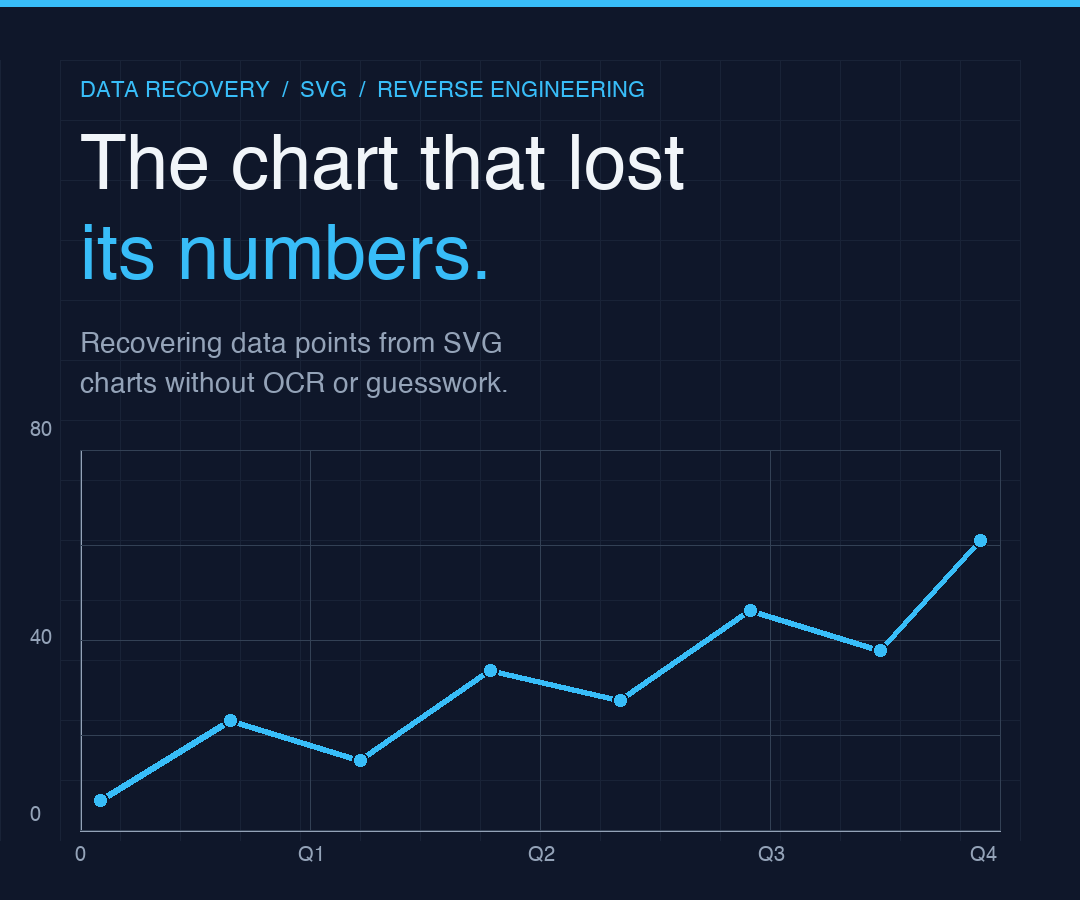
The PDF You Cannot Click, Only Squint At
It usually arrives as a screenshot attached to an email, or worse, a one-page slide in a deck that someone else built four years ago. A quarterly revenue chart. A regional breakdown that ends in March and starts in some year you no longer remember. The numbers matter — they always matter — but they live inside an SVG, and the SVG lives inside a PNG, and the PNG lives inside the deck, and the deck lives in a folder nobody can find again by tomorrow morning.
The reflex is to read the points off the axis. “That one looks like it’s around sixty-eight.” “This one is maybe twelve.” Three people squint, three people disagree, and the number that ends up in the report is the average of three guesses. There is a quieter path: every SVG chart is a coordinate transform in disguise. The chart author took your data, multiplied it by a scale factor, and stuffed it into a <polyline> or a <rect> element. The reverse transform is mechanical. The chart-to-data extractor at Elysia Tools does the inverse mapping for you, on line, bar, scatter, and pie shapes — paste the SVG, get the numbers back as JSON.
What follows is how the math works, the four chart types it handles, and the three points where most reverse-engineering attempts collapse into guesswork.
What the tool actually does
The SVG Chart to Data Extractor reads an SVG document, locates the geometric primitives that represent the chart’s marks — polylines for line charts, rects for bar charts, circles for scatter, paths for pie slices — and converts each shape’s pixel coordinates back into chart coordinates using the viewBox and your declared axis ranges. The output is a structured JSON object with a per-series list of {x, y} points (or slice angles for pie), plus a summary block counting series and points.
The interface is intentionally small. You paste the SVG source, pick the chart type (or leave it on auto-detect), and tell the extractor the axis ranges the original chart used. The axis ranges are the only piece of information you cannot read off the SVG itself — the SVG only knows pixel space, not what the pixels mean. Once you give it the chart’s domain and range, the transform is one multiplication per point.
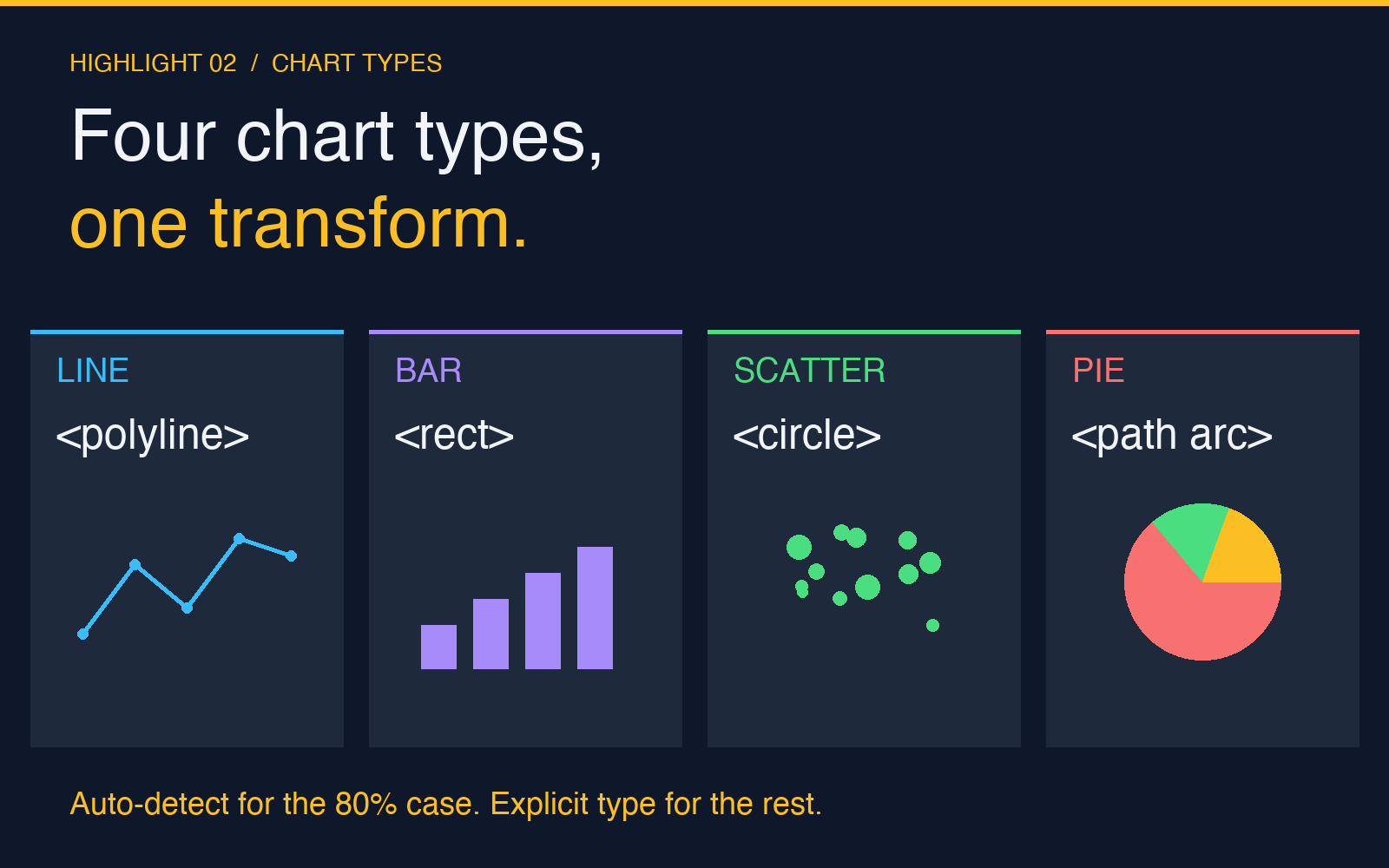
The tool handles four chart families:
- Line / polyline — single-stroke line charts with one
<polyline>per series. Most line charts in dashboards fall here. - Bar / rectangles — column charts, Gantt bars, histogram bins. Each
<rect>becomes one data point, with width and height representing the bar extent. - Scatter / polyline points — dot plots and bubble clusters. Output is x/y pairs, ready for regression or clustering.
- Pie / arc paths — wedge angles recovered from
<path d="M ... A ...">arc segments, converted to percentages of the full 360°.
For the corner case where the SVG uses both <polyline> and <circle> (a line with markers, say), auto-detect will pick the dominant shape; explicit selection is more reliable when the chart is mixed.
Why reverse-engineering an SVG is not the same as reverse-engineering a PNG
Scanning a rasterized chart — taking a screenshot of a chart in a PDF, running OCR over it, and pulling numbers out by recognizing digits — is the failure mode this tool was built to avoid. OCR sees pixels. Pixels are an artifact of the rendering pipeline: the size of the canvas, the device pixel ratio, the antialiasing kernel. The same chart exported at 600 DPI and 1200 DPI has different numbers of pixels between two y=80 gridlines. The OCR pipeline has to recover the underlying scale, which is the hard problem.
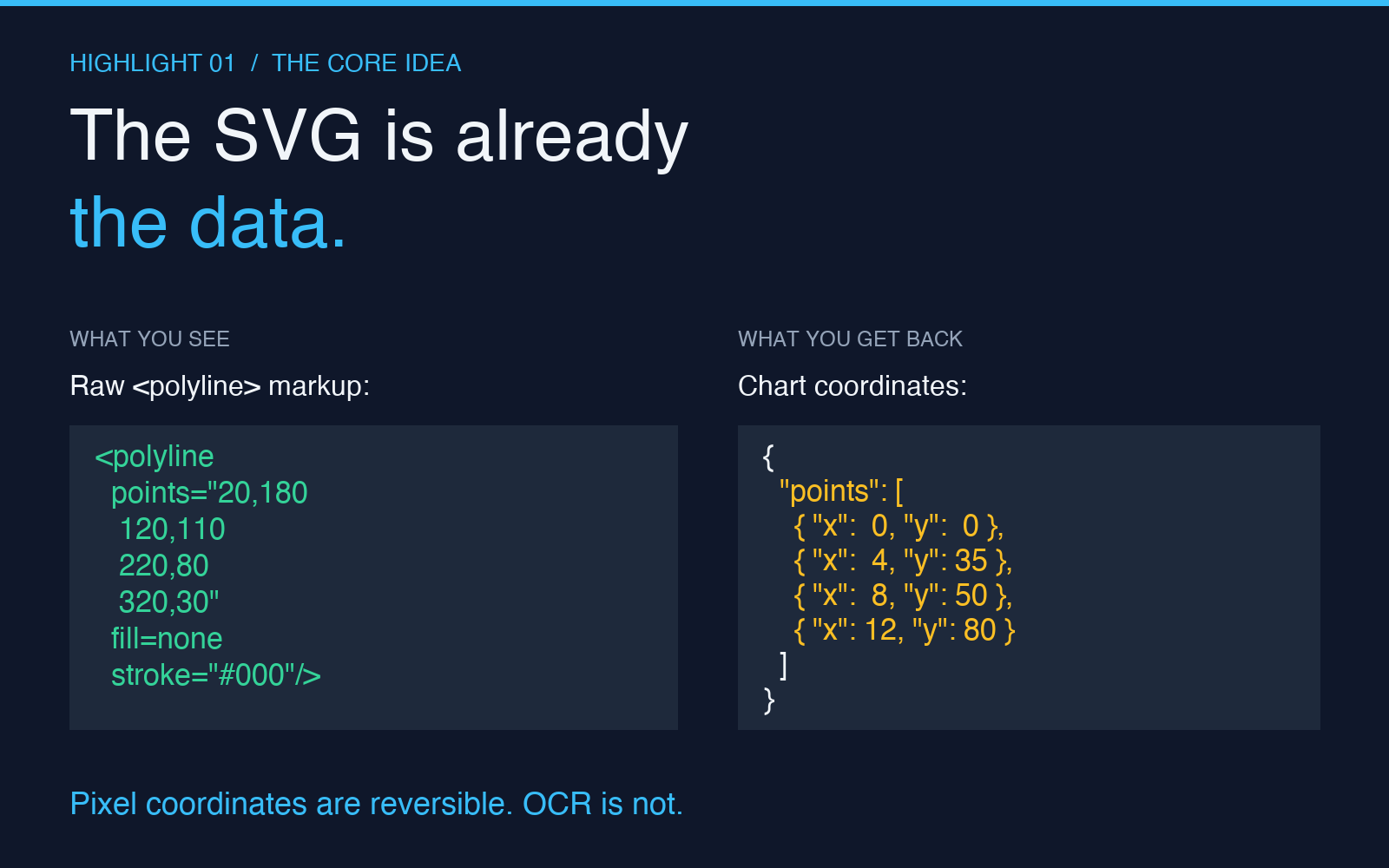
An SVG chart never lost the scale. The viewBox attribute declares the coordinate system explicitly. The <polyline points="20,180 120,110 220,80 320,30"> string is not a picture of data — it is the data, just encoded in the chart’s local pixel space. The transform is one division per coordinate, given the axis ranges. No machine learning, no template matching, no guessing where the gridlines fall. The work that OCR cannot do reliably is the work the SVG already did for you.
This is also why the tool requires the axis ranges as inputs. The SVG knows where 0 and 100 sit on the y-axis (they sit at certain pixel coordinates); it does not know what those pixel coordinates mean in user space. The author’s chart titled “Quarterly revenue, $millions” had a y-axis from 0 to 80. The SVG-encoded points hit pixels (180, 110, 80, 30) corresponding to (0, 12, 80, value-of-fourth-quarter). Without the 0-to-80 declaration, the extractor would happily hand you four raw pixel pairs and you’d be back to squinting.
The four bugs that look like bugs but are features
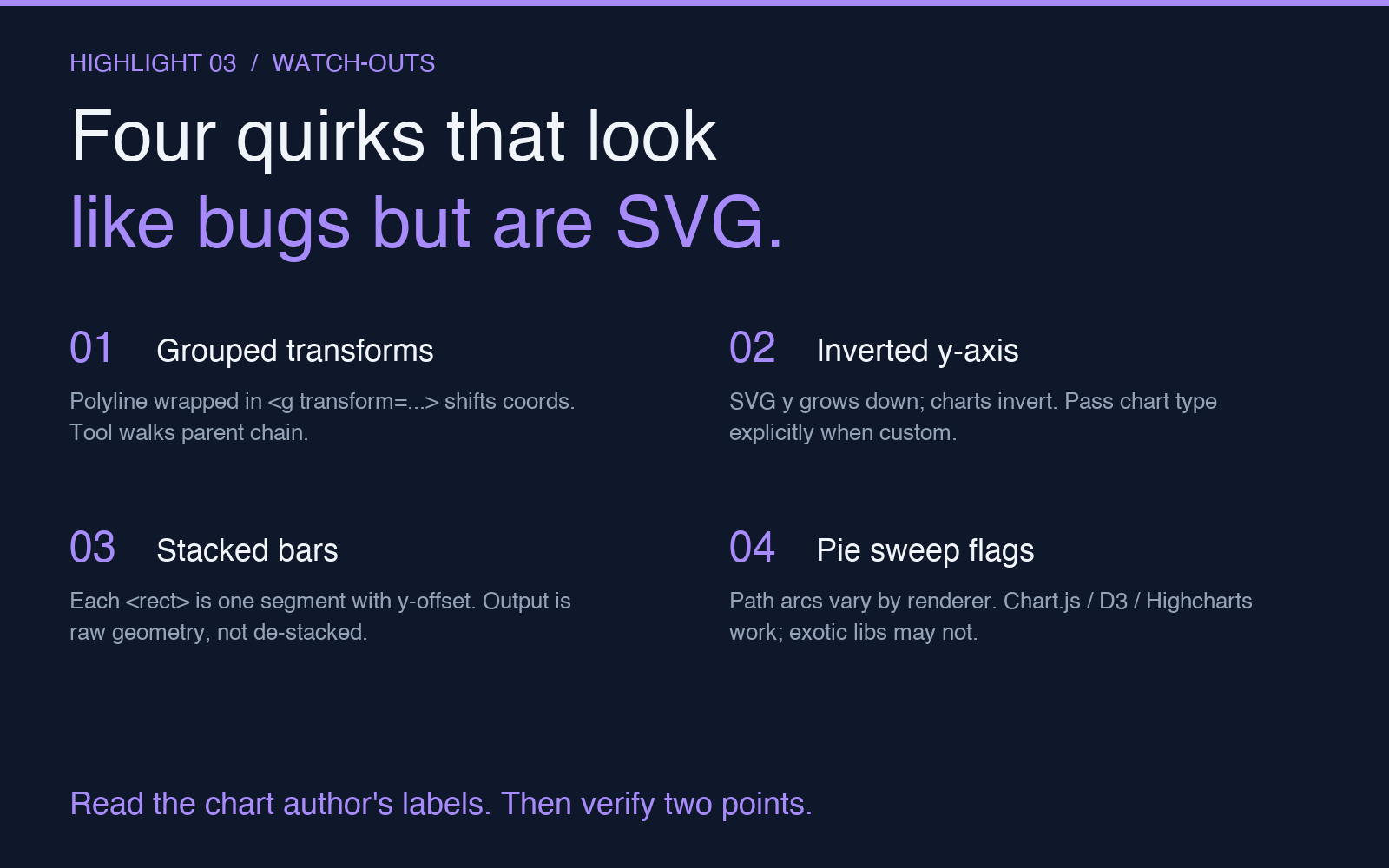
When people first run an SVG through the extractor, they hit one of four surprises. None of them are bugs — they are consequences of how SVG charts are authored. Knowing them in advance saves a back-and-forth.
1. The polyline is grouped, not flat. A chart library that uses D3 or Highcharts will often wrap the polyline in a <g> with a transform: <g transform="translate(40, 20)"><polyline points="..." /></g>. The raw points are offset by (40, 20). The extractor handles this: it walks up the parent chain, applies inherited transforms, and produces coordinates in the chart’s local frame. But if the chart uses nested groups with multiple transforms, the math compounds. Output will be in the deepest group’s frame, not the outer SVG’s. Pass the chart type explicitly when the SVG is grouped.
2. The y-axis is inverted. SVG’s coordinate system has y growing downward. Chart authors almost universally invert this: y=0 is at the bottom, the largest value is at the top. The extractor assumes this convention. If you paste a custom-drawn SVG where y=0 is at the top, the output values will be inverted — a “60” will come out as “20”. Either re-author the SVG, or feed it through a flip transform before pasting.
3. Bar charts with stacked groups encode two series per rect. A stacked bar chart’s <rect> for the second segment is positioned at (x, y + height_of_first_segment), not at (x, 0). The extractor recovers each rect’s top-left and dimensions, which is the right behavior for unstacked charts. For stacked bars, you’ll get the raw geometry, not the de-stacked values. Reconstruct the stack from the y-offsets manually.
4. Pie chart paths use sweep flags that depend on the renderer. SVG arc paths come in two flavors depending on whether the wedge is “large arc + sweep 1” or “small arc + sweep 0”. The extractor normalizes both. But if the chart was rendered with an exotic library that produces self-intersecting paths or non-standard arcs, the angle calculation will be off. Standard pie charts from Chart.js, D3, Highcharts, and Recharts all work; hand-rolled animations are hit-or-miss.
These four cases are why the tool exposes a chart-type selector even though auto-detect exists. Auto-detect is for the 80% case. The other 20% wants an explicit type and the right axis ranges.
Reading the output
The JSON the extractor returns has two top-level blocks. The first is summary, with seriesCount (how many distinct data series were found) and extractedPointCount (total points across all series). The second is series, an array where each entry has an id derived from the SVG element ID (or auto-generated if missing), a type, and either a points array for line/scatter/bar charts or a slices array for pie charts.
A typical line-chart entry looks like:
{
  "id": "polyline-1",
  "type": "line",
  "points": [
    { "x": 0,  "y": 0 },
    { "x": 4,  "y": 35 },
    { "x": 8,  "y": 50 },
    { "x": 12, "y": 80 }
  ]
}
Pie slices come back as angle ranges in degrees plus a percentage:
{
  "id": "path-2",
  "type": "pie",
  "slices": [
    { "label": "North America",  "startAngle":   0, "endAngle": 144, "percent": 40.0 },
    { "label": "Europe",          "startAngle": 144, "endAngle": 252, "percent": 30.0 },
    { "label": "Asia-Pacific",    "startAngle": 252, "endAngle": 342, "percent": 25.0 },
    { "label": "Rest of World",   "startAngle": 342, "endAngle": 360, "percent":  5.0 }
  ]
}
The structure is intentionally round-trippable: paste the JSON into any charting library that consumes arrays of objects, and you have your chart back — except now the numbers are yours to query, sort, filter, and recompute.
When this is faster than the alternatives
OCR-based extraction is the right tool when the chart is a raster image — a screenshot, a scan, a slide export. The SVG Chart to Data Extractor is the right tool when you can get to the SVG source. The friction is the access. Most modern dashboards render charts client-side from JSON, which means the SVG is in the DOM and a quick “view source” or “inspect element” gets you the raw markup. Older dashboards may bake the chart as a static SVG asset, which means a “save as” on the image works. Legacy PDFs that embed SVG-as-image are the worst case — the SVG is there, but it is inside a PDF object stream that needs extraction first.
The pipeline that ends up being the fastest in practice: open the chart in a browser, open DevTools, find the <svg> element, “Copy outerHTML”, paste into the extractor. Twenty seconds, often. The numbers you get back are exact to the precision the original chart claimed to show — which, if the chart was honest, is the precision the data actually has.
For a worked example with full input and output, the SVG Chart to Data Extractor page walks through a polyline-to-coordinates extraction step by step, so you can compare what you typed against what the tool returns.
A short workflow
When you have a chart you need the numbers from, the shortest path is:
- Open the chart in a browser (or extract the SVG from the file format it lives in).
- Copy the SVG markup. The whole
<svg>element, including the viewBox. - Find the y-axis labels in the original chart and note the min and max. Same for x.
- Paste the SVG into the extractor, pick the chart type, enter the axis ranges.
- Read the JSON. If the numbers look inverted, swap the y-axis min and max. If the numbers look way too small, check whether the chart’s author used a log scale and you’re seeing log values.
The last two steps are where 90% of “this tool gave me the wrong numbers” tickets come from. The transform is correct. The axis ranges you declared were the ones the chart author labeled, but the chart author may have been showing a log scale, a percentage, or a normalized index. Trust the chart’s labels, but verify against one or two points you happen to know the true value of.
Why this matters beyond the spreadsheet
Charts are compressions. A 50-point line chart is a 200-character JSON array, but it is also a visual claim — “this trend is going up” or “this region overtook that region in Q3” — that no audit trail can verify until the underlying numbers are back. The recovery is part of the workflow the same way source control is part of the workflow: not because every chart gets reverse-engineered, but because every chart could be, and that possibility changes what people put into charts in the first place. When the numbers are recoverable, the chart author is more careful with the numbers. When they are not, the chart becomes a screenshot, and screenshots are how data gets lost.
The SVG Chart to Data Extractor is a small tool — paste an SVG, get JSON back — but it sits in a useful place in the data-recovery chain. The same inverse-transform math applies to a range of chart recovery tasks across the elysia-tools suite; explore more at elysiatools.com/en/tools.