It is 2:47 AM. PagerDuty woke you. Checkout latency spiked to 9 seconds for one user in Frankfurt, and you have a 12MB Jaeger JSON dump open in Vim because the staging VPN is down, your home network blocks the corporate Grafana, and the on-call engineer’s “can you reproduce?” message has been sitting unread for nine minutes.
The dump is perfectly readable JSON. The problem is that 12MB of nested spans, processes, and references arrays is not a waterfall. A waterfall is the visual shape your brain needs: parent above, children indented below, durations rendered as horizontal bars you can compare in a single glance. JSON cannot give you that. Jaeger can. Tempo can. Honeycomb can. But you cannot reach any of them from where you are.
What you can do is paste the dump into a browser tab. The Distributed Trace Decoder & Waterfall Visualizer on Elysia Tools takes raw Jaeger, Zipkin, or OpenTelemetry JSON and renders the waterfall locally — no backend, no login, no trace export leaving your machine. The whole decoding pipeline runs in the browser. For an on-call engineer at 3 AM, that is the entire value proposition.
The Three Trace Formats That Look Identical and Are Not
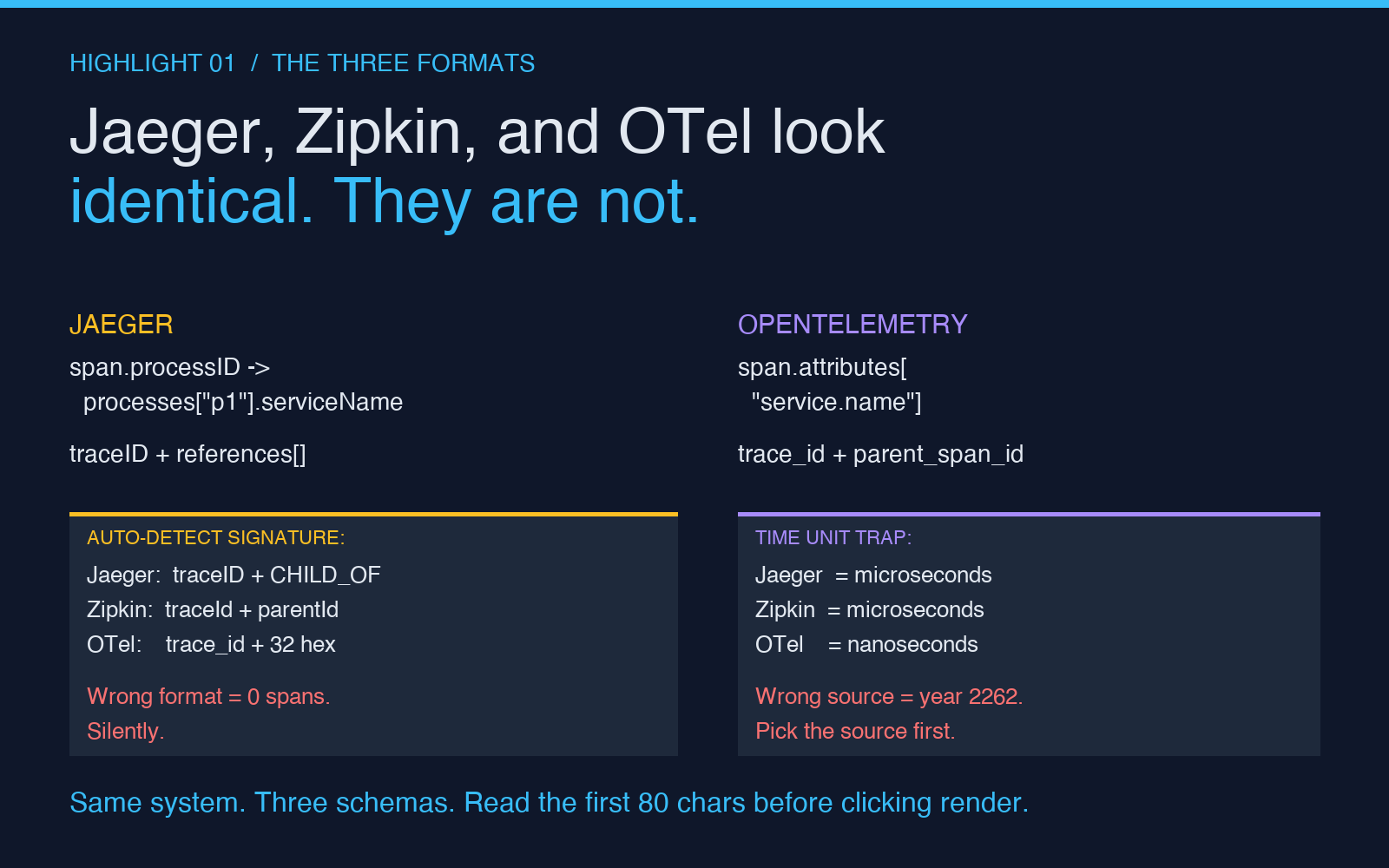
The first 30 minutes of any trace-decode session are spent discovering that Jaeger, Zipkin, and OpenTelemetry all describe the same distributed system but refuse to share a schema. Open one of each in a text editor side by side and the differences are obvious; open one in isolation and you will write a parser for the wrong shape three times before lunch.
Jaeger exports a structure rooted at data[]. Each entry has a spans array where every span carries a processID that points into a sibling processes map. The process table is what tells you which service ran the span, because Jaeger treats service names as a denormalized lookup. OpenTelemetry takes the opposite approach: each span has its own nested attributes object including service.name. Zipkin is older and flatter, with localEndpoint.serviceName directly on each span and no shared process table at all.
The tool’s auto-detect mode reads the first non-whitespace token and chooses a parser accordingly. In practice, you should still glance at the structure once before clicking render — picking the wrong format on a malformed dump produces a silent “0 spans found” result that looks identical to a healthy decode. The fix is to look for one signature per format: Jaeger carries traceID with a hex value and a references array; Zipkin uses traceId (camelCase) with a parentId string; OTel uses trace_id (snake_case, lower-case) and 32-char hex strings inside span_id arrays. If the auto-detect picks the wrong one, the dropdown is right there.
The Four Span Attributes That Decide Everything
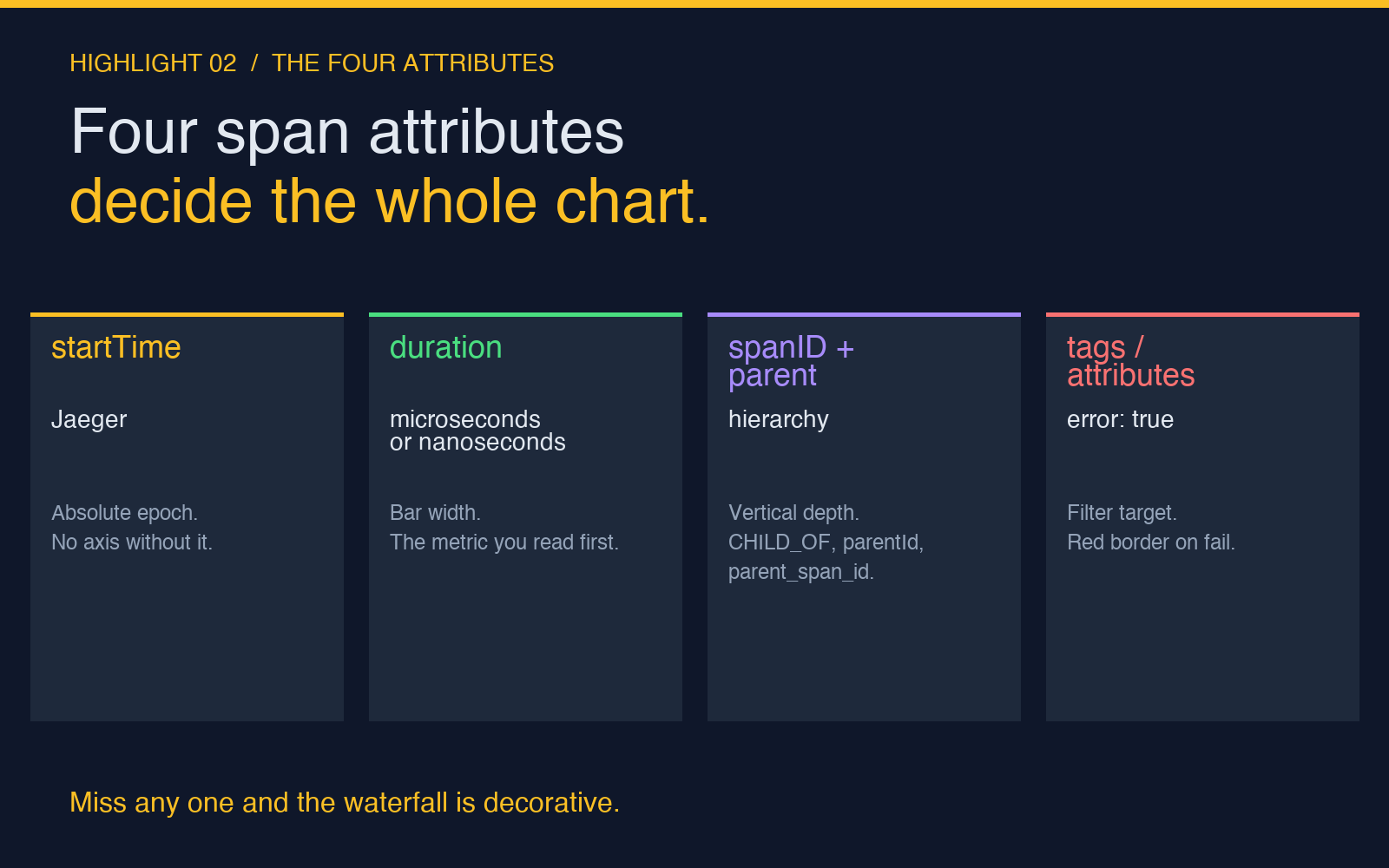
Once the parser is right, the waterfall shape comes down to four attributes per span. Miss any of them and your chart is decorative.
startTimein Jaeger /start_time_unix_nanoin OTel — the absolute epoch. Without it, the waterfall has no horizontal axis. A common pitfall is Jaeger using microseconds and OTel using nanoseconds; the tool’s display-unit dropdown (us/ms/s) handles the scaling but does not normalize the source. Pick the wrong source format and your spans render at year-2262 timestamps.durationin microseconds (Jaeger, Zipkin) or nanoseconds (OTel) — the bar width. This is the metric your eye reads first.spanIDand its parent reference. The waterfall’s vertical hierarchy is built entirely from these. Jaeger encodes parent links asreferences: [{ refType: "CHILD_OF", spanID: "..." }]; Zipkin uses a flatparentIdstring; OTel nestsparent_span_idinside the span. Get this wrong and you get a flat list of equal-depth bars that tells you nothing about which service called which.tags(Jaeger/Zipkin) orattributes(OTel) — the key/value bag that includeserror: true, HTTP status codes, database statements. The “only errors” filter reads this attribute to decide which spans to red-flag.
The waterfall visualizer surfaces all four as column headers in the rendered HTML — service, operation, start, duration — and the error spans get a red left border so they pop without you having to scan each row.
The Three Filters That Find Your Error in 50MB of JSON
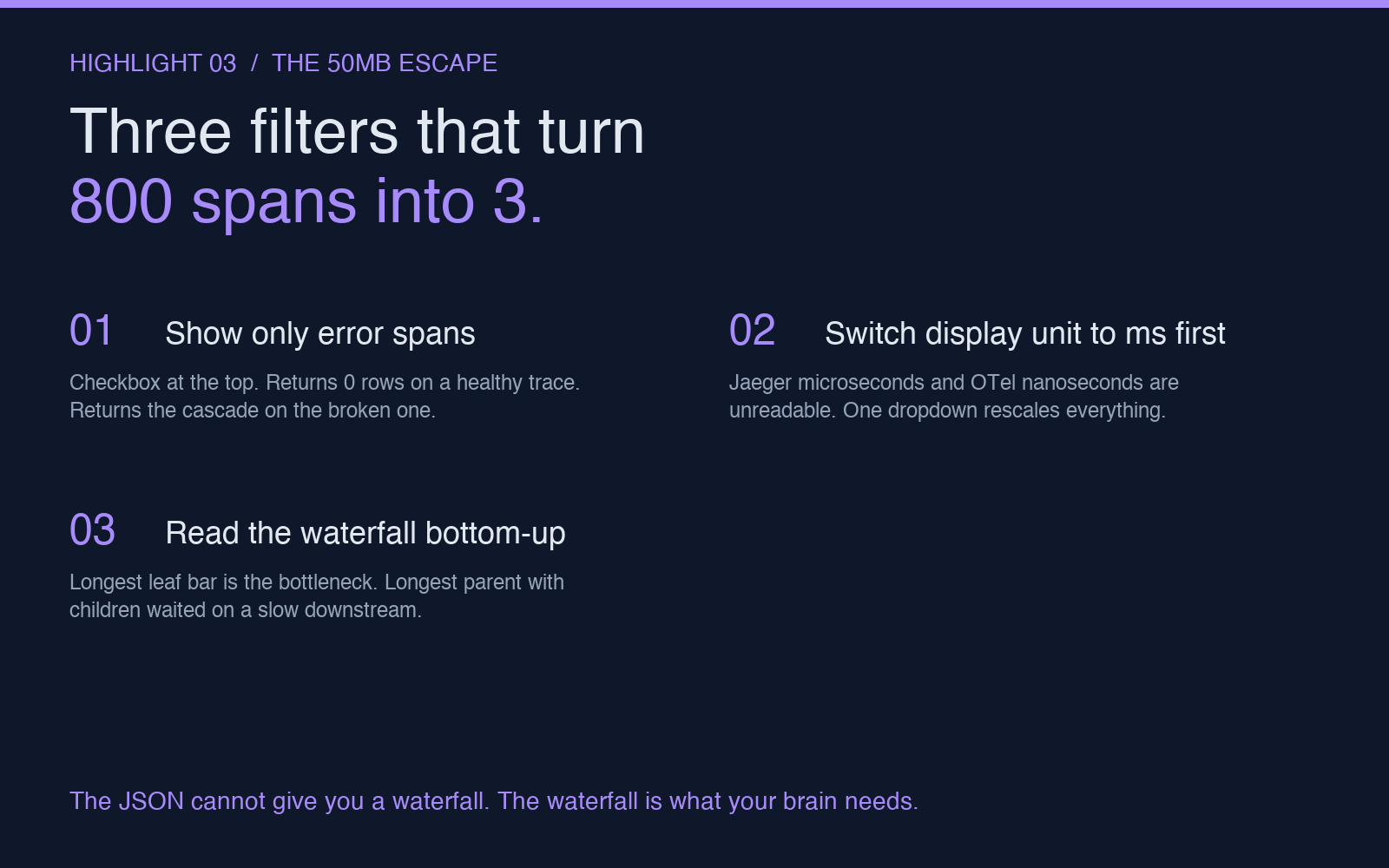
A real production trace is not 12MB. The first 50MB trace you open will be a microservice mesh with 800 spans across 14 services and you will want to give up and grep for "error". Don’t. Three filters turn 800 spans into the 3 you actually care about.
- Show only error spans. The checkbox at the top of the rendered waterfall hides every span whose
errortag is absent or false. The remaining bars are your failure candidates. In a healthy trace this returns 0 rows. In the trace that woke you up, it returns the one span that started the cascade. - Switch display unit to
msfirst. Jaeger microseconds are unreadable; OTel nanoseconds are a war crime. The dropdown at the top rescales everything without re-parsing. - Read the waterfall bottom-up. The longest bar that has no children is almost always the bottleneck. The longest bar with many children is a parent that waited for a slow downstream — and the slow downstream is usually one of the leaf bars below it. Reading bottom-up trains you to find the leaf in three seconds rather than tracing parents for thirty.
For a payment-flow trace with a 320ms POST /checkout span parenting an 180ms charge-card span, the waterfall shows the parent bar extending across both, with the child bar starting where charge-card begins inside it. Visually, the 180ms of charge-card is sitting under the right-hand half of the parent. That single visual fact is what the entire raw-JSON dump was hiding from you for nine minutes.
The MCP Server Trick for IDE-Native Trace Inspection
Once the on-call is over, the more interesting use case is the IDE-native one. The same tool exposes an MCP (Model Context Protocol) server endpoint at https://elysiatools.com/mcp/sse?toolId=distributed-trace-decoder-waterfall-visualizer. Adding it to your editor’s MCP config gives your AI assistant the ability to fetch, parse, and summarize traces without you copying JSON between windows. The assistant gets a structured waterfall back, not a 50MB paste bomb.
The chain config is the same shape as every other Elysia Tools MCP server. Up to 20 tools can be chained with a comma-separated toolId query — useful when you want to pair the trace decoder with the JSON formatter or the regex replace previewer for span-attribute cleanup. The whole chain runs server-side as a single SSE response.
When Not to Use It
The decoder is local-only and process-bound, which is exactly what you want for sensitive production traces but exactly what you do not want for live debugging against a real backend. If Tempo is up and your laptop can reach it, use Tempo — the live query language is more powerful than anything a static JSON dumper can do. Use the Elysia Tools decoder for the cases Tempo cannot help with: traces pulled from a customer-support ticket, dumps exported from a closed corporate environment, and the 3 AM moment when the only network you have is your phone’s hotspot.
What to Try First
Paste the example Jaeger checkout trace (linked from the tool page) to confirm your browser renders the waterfall as expected. Then drop in your own export and toggle the three filters. The pattern most people miss is the “only errors” filter combined with the ms unit switch — that combination alone converts a 50MB trace into a 3-line diagnosis in under a minute.
For everything else the Elysia Tools site covers — from the HTTP headers analyzer to the regex linter to the data outlier processor — the same offline-local-in-browser design principle applies. No data leaves your machine. That is the entire point.