Your CSV knows who lives in which time zone. It does not know that the Berlin engineer is asleep at 06:00 her local time, that Sydney goes to bed two hours before New York has lunch, or that India runs on a half-hour offset the rest of the world politely ignores. The first question who is in which time zone has a clean answer in any spreadsheet. The second question who is awake when never does.
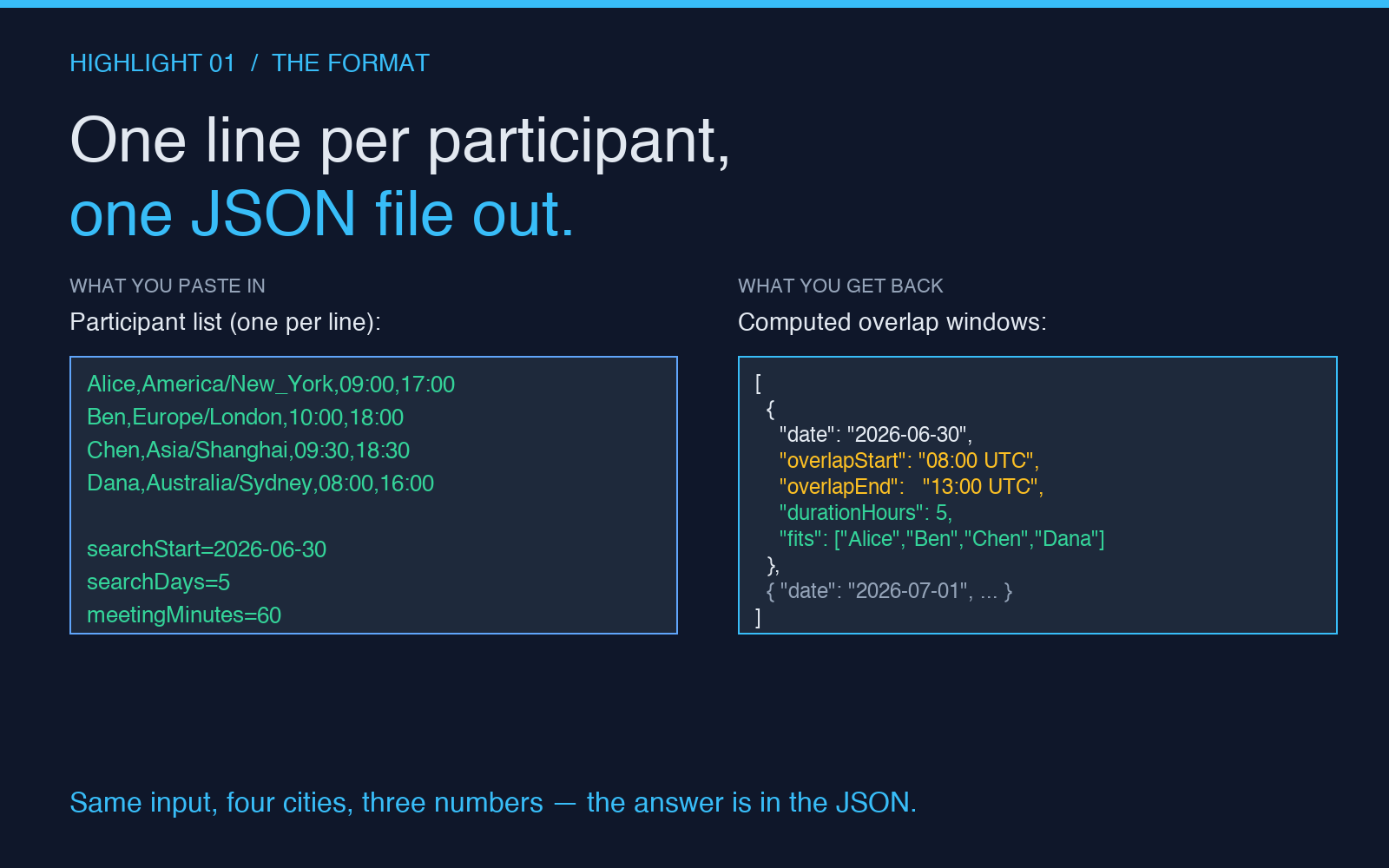
The Time Zone Workflow Scheduler exists to answer that second question. Paste one participant per line in the format Name,TimeZone,09:00,17:00. Pick a search start date, a duration in days, and a meeting length in minutes. The tool runs the search, normalizes every local working window to UTC, finds the slots that fit every participant, and exports the best candidates as either a flat JSON or an ICS file you can drop straight into a calendar.
This article is the field guide: three things this tool gets right that your spreadsheet cannot, the four use cases it covers without you writing any code, and the four watch-outs it handles silently so you do not have to.
What the tool does in one sentence
It computes the union of local working windows for any list of participants and emits a list of overlap windows in UTC, sorted by how many participants they fit. That sentence is short. The work behind it is the entire reason the tool exists.
The input format is deliberately one line per participant. Alice,America/New_York,09:00,17:00. The four fields are name, IANA time zone identifier, local start hour, local end hour. The IANA names are the same ones your browser uses, your calendar app uses, and every modern JavaScript date library uses. They are the right format because they automatically absorb DST shifts, historical time zone changes, and the half-hour offsets that break naive UTC math.
The output is a list of candidate windows. Each window carries the date, an overlap start time, an overlap end time, a duration in hours, and the list of participant names it fits. The duration is what you use to decide whether the window is long enough for the meeting length you specified. If a 60-minute meeting needs a 60-minute overlap, the duration is your filter.
The four use cases the tool handles without code
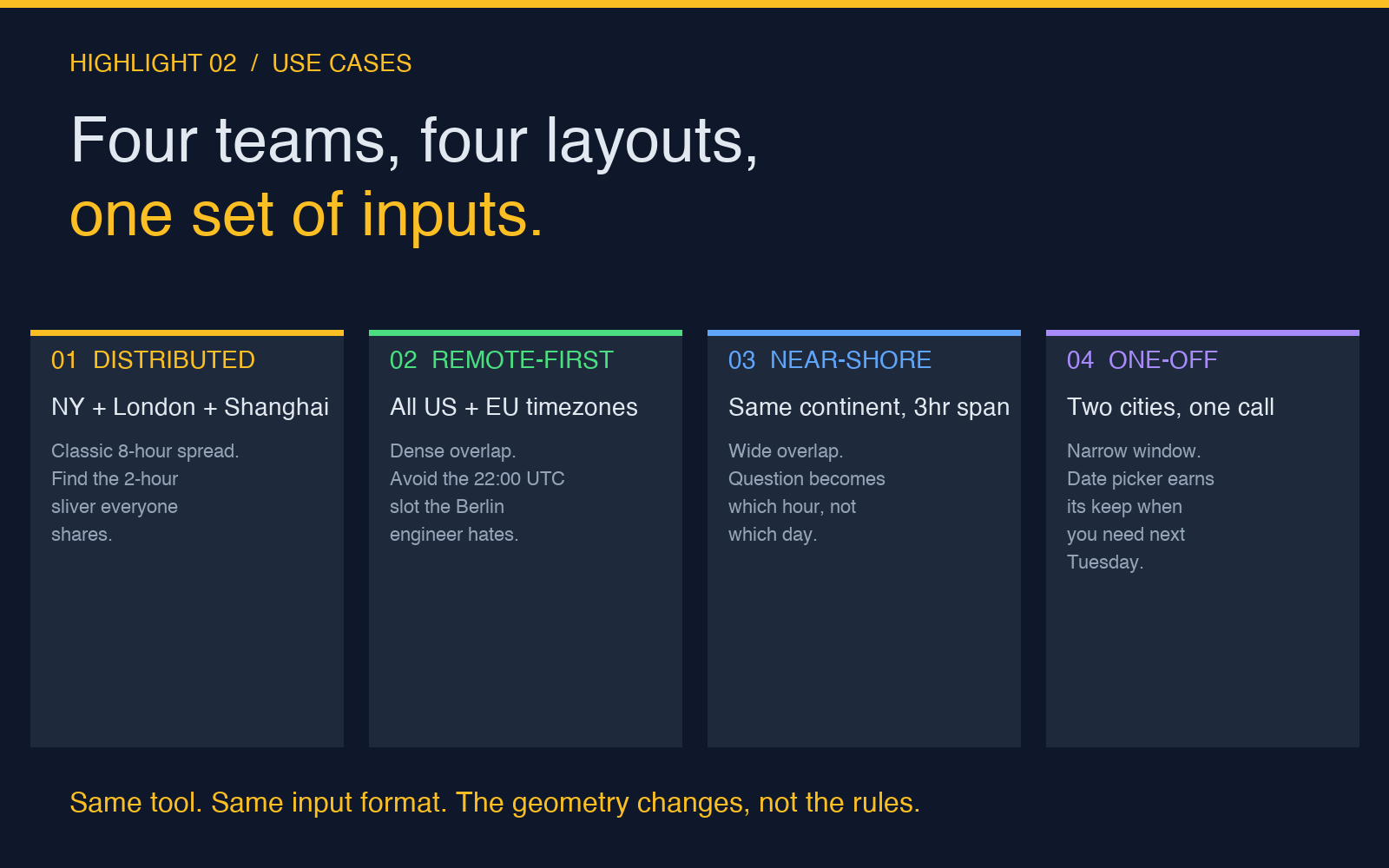
The same input format powers four very different workflows. The geometry of the problem changes, the rules do not.
1. Distributed teams across three continents
The classic case. New York, London, Shanghai. The window where all three are awake is somewhere between 08:00 and 10:00 UTC. Your spreadsheet can show the local times. It cannot tell you which 60-minute slot in that range does not collide with Chen’s lunch break. The scheduler can. It just runs the math and returns the answer.
2. Remote-first companies with US and EU only
Denser overlap. The question becomes which hour, not which day. The scheduler lets you filter the result list to only windows that fit every participant, then rank by start time in the meeting organizer’s local zone. The Berlin engineer hates the 22:00 UTC slot. The scheduler tells you that explicitly. You pick the 16:00 UTC slot everyone can tolerate.
3. Near-shore teams with a small time spread
Mexico City, Austin, and Vancouver are three hours apart. The overlap is wide. The question shifts from is there a meeting today to which hour. The scheduler gives you the full list of overlap windows and lets you pick the one that matches the cadence. Standups at 09:00 local. Code reviews at 14:00 local. Design crits at 16:00 local.
4. One-off calls between two cities
The narrowest case. Two people, two cities, one meeting. The window is often a single hour, sometimes none. The scheduler becomes a date picker. You pick the next Tuesday. It tells you whether the 09:00 PT slot fits both your working windows or whether you need to slide one of them.
Four things your spreadsheet gets wrong about time
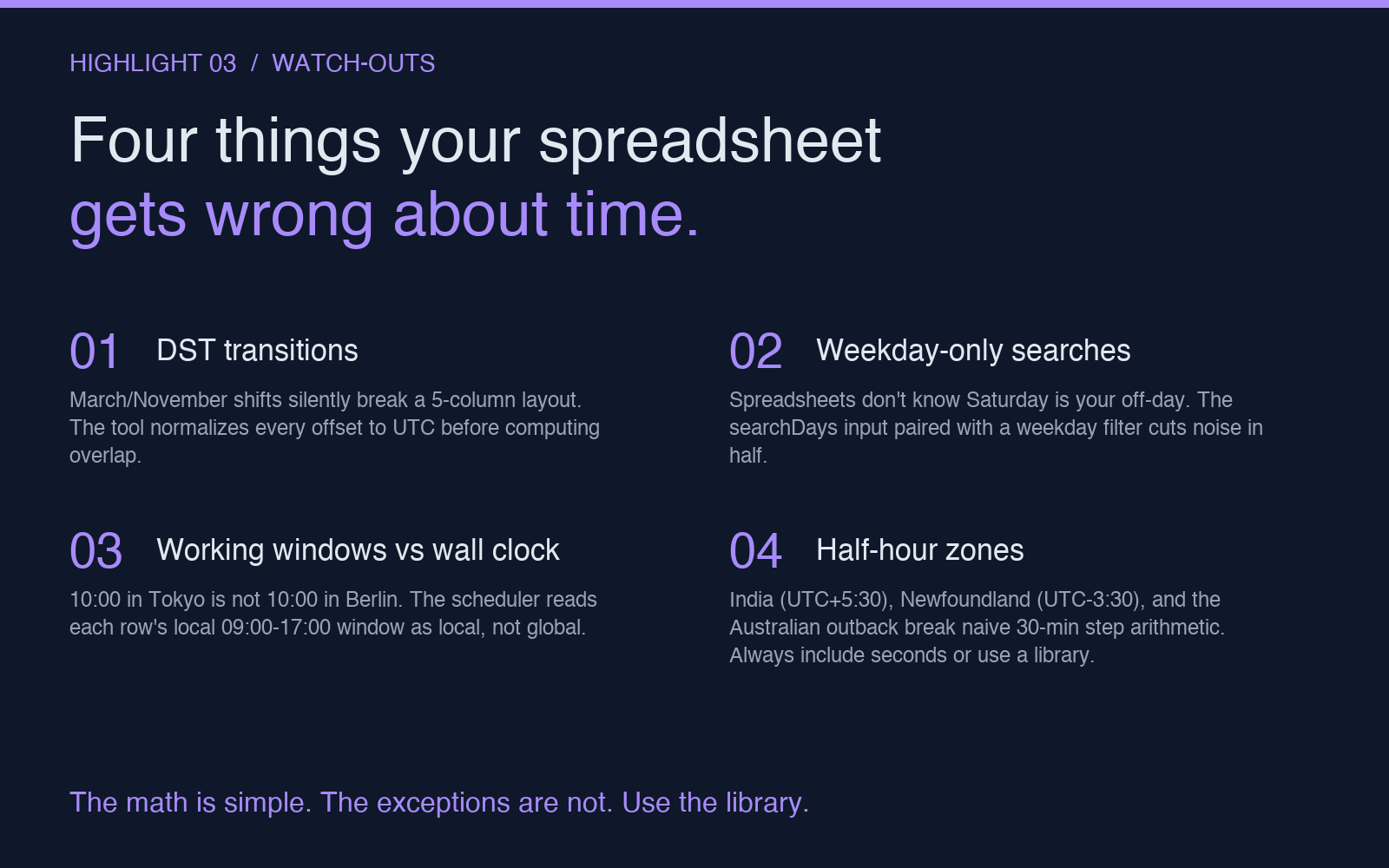
The tool handles these silently. You do not need to think about them. You should know they exist, because the day you reach for a spreadsheet to do this yourself, you will hit one of them.
DST transitions
March and November shift silently break a five-column layout. The local hour column gets you through the day, but the moment you copy a formula across the DST boundary the offsets drift by an hour. The tool normalizes every local time to UTC before computing overlap, so the DST shift is absorbed in the conversion step. You never see it.
Weekday-only searches
Spreadsheets do not know Saturday is your off-day. The scheduler accepts a searchDays input and a weekday filter, so the candidate list comes back with only Monday-to-Friday slots. If you want weekends, you opt in. If you do not want them, they are filtered out by default.
Working windows vs wall clock
10:00 in Tokyo is not 10:00 in Berlin. The scheduler reads each row’s local 09:00-17:00 window as local, not global. Your spreadsheet treats time as wall clock. The scheduler treats it as local at that moment on that day, in that time zone. The distinction is invisible until you cross a DST boundary, and then it is the only thing that matters.
Half-hour zones
India runs on UTC+5:30. Newfoundland runs on UTC-3:30. Parts of the Australian outback run on UTC+9:30. Naive arithmetic that steps in whole hours will give you the wrong answer for any participant in one of these regions. The scheduler uses the IANA zone database and computes offsets to the second. Always include seconds or use a library. The library is what this tool ships.
When to use the JSON output vs the ICS export
The JSON output is for automation. A script that needs the overlap windows to schedule a recurring meeting, generate a candidate list for a poll, or feed a downstream tool that does its own thing with the data. The JSON is structured, sortable, and machine-readable.
The ICS export is for humans. A calendar file you can attach to an email, import into Google Calendar, or open in any calendar app. The ICS export is the format you want when the answer to when is the meeting is more important than the data behind it.
Both outputs come from the same calculation. Pick the one that matches the next step in your workflow.
What it does not do
It does not pick the meeting time for you. It returns the list of candidates that fit your constraints. The decision is yours. It also does not handle recurring meetings across a date range that spans DST transitions differently than it handles the same range without DST transitions. The math is consistent, but the candidate windows shift by an hour on the day of the transition. That is correct behavior, but you should know to expect it.
The tool does not invite participants. It does not send reminders. It does not integrate with Google Calendar, Outlook, or any specific calendar app. It is the front half of the workflow: find the slots. The back half is yours.
Try it on a real meeting
Paste a real participant list. Use the IANA zones your calendar app already speaks. Set the meeting length to the real length. Pick a date range that covers the week you actually want to schedule. The candidate list comes back in seconds. The output is yours to use however you want.
For more scheduling and time-zone tools, see the full tools index. If you are working with calendar recurrences specifically, the ICS Calendar Recurrence Rule Expander handles the RRULE side of the same problem space.