Most accessibility audits end the same way. A consultant runs a scanner, exports a 47-page PDF, drops it in a Slack channel, and three weeks later nobody can remember which finding was the one that mattered. The PDF is technically accurate. It is also, in any practical sense, unread.
The Accessibility Audit Report Generator is built around a single assumption: the report’s value comes from the structure of the severity buckets, not from the page count. Group every issue into five named severity tiers, surface a one-line summary at the top, and hand the engineer the PDF that maps a finding directly to the line of code that needs to change.
This piece walks through the five buckets the tool exports, the three checks that move findings between them, and the order of inputs that turns a flaky audit into one your frontend team will actually open on Monday morning.
The five severity buckets are not arbitrary labels
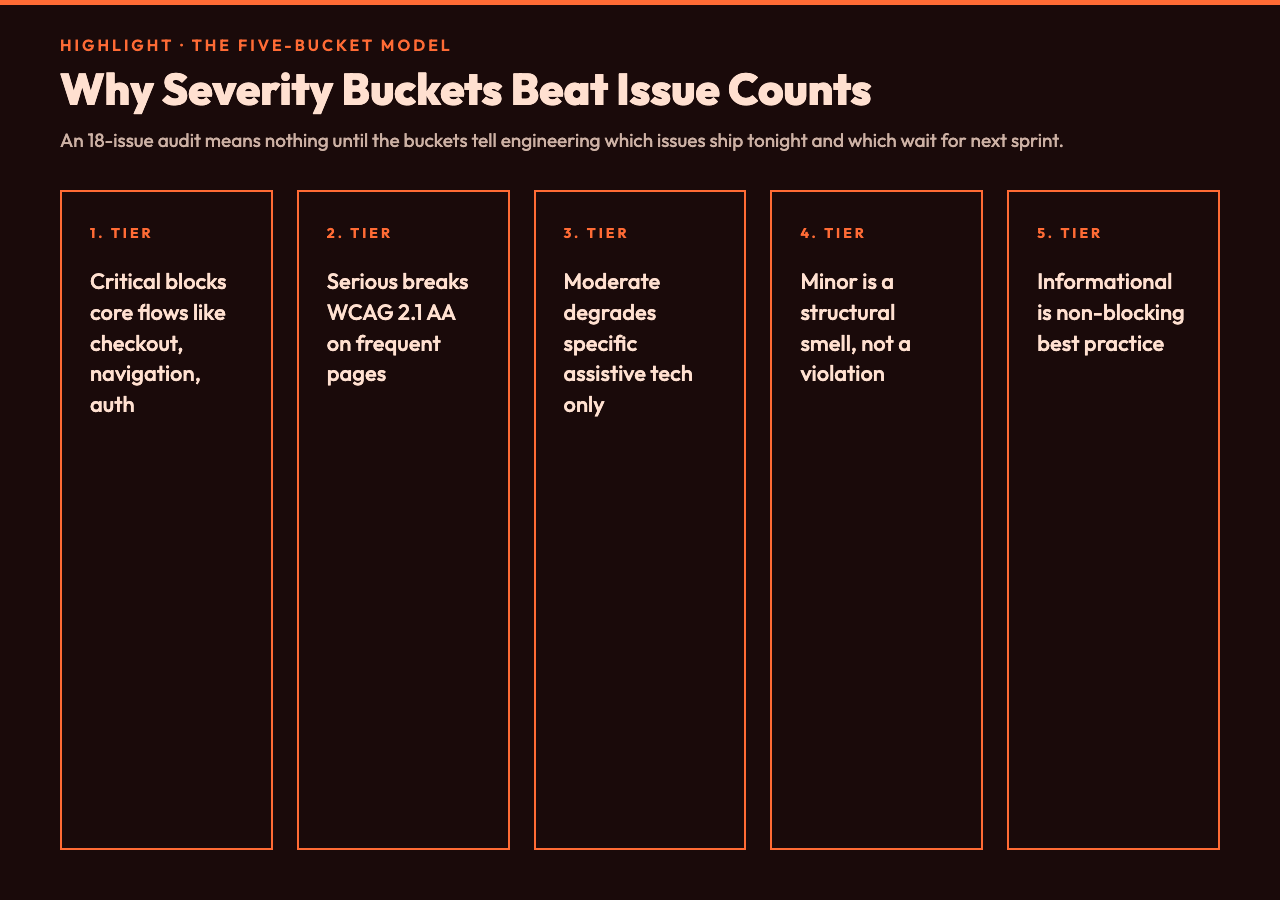
Most WCAG scanners flatten everything into a single pass/fail signal or, worse, a count of “issues.” The report generator splits every finding into one of five tiers:
- Critical — blocks keyboard or screen-reader use of a core flow (payment, navigation, authentication).
- Serious — breaks WCAG 2.1 AA conformance on a frequently visited page.
- Moderate — degrades the experience for a specific assistive technology or user group.
- Minor — cosmetic or structural smell that does not violate WCAG but hurts maintainability.
- Informational — non-blocking best practice the team should know about.
The split matters because a single “18 issues” count does not tell the engineering lead whether to ship a hotfix tonight or schedule the work for next sprint. The five-bucket split does. Engineers triage Critical first, queue Serious for the next sprint, and stop reading past Moderate unless they have time. That is the actual workflow the report has to support.
Pick the right input mode: URL, pasted HTML, or HTML file
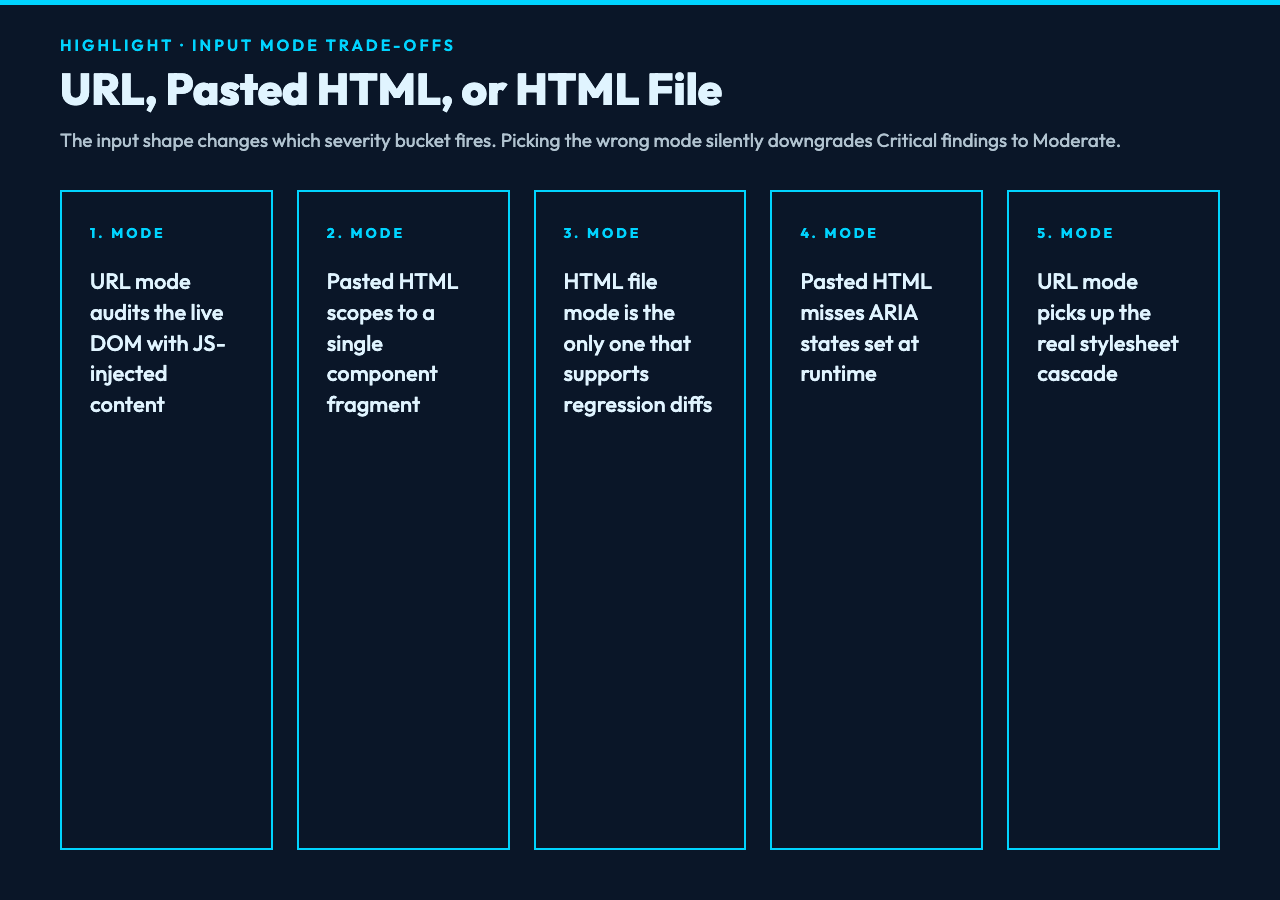
The tool accepts three input shapes and each one changes which severity bucket tends to fire. The choice is not stylistic.
URL mode is the right call when the page is already deployed. The audit runs against the live DOM, picks up script-injected content, and respects the real stylesheet cascade. The most common Critical finding from a URL scan is missing form labels on a checkout flow that was dynamically rendered after first paint.
Pasted HTML mode is for design QA. Drop the component markup from Figma export or Storybook into the textarea and the tool audits the fragment in isolation, without the surrounding page chrome. Use it when you are reviewing a single component before it ships. The trade-off: injected styles, runtime attributes, and ARIA states set by JavaScript are not visible, so you will see more false-positive Moderate findings around aria-expanded and aria-selected.
HTML file mode is for batch auditing. Upload a captured HTML file (from curl, a save-as, or a build artifact) and the audit runs against the static markup. This is the only mode that lets you compare two revisions cleanly — diff the file you saved before the change with the file you saved after, and the report becomes a regression detector instead of a one-off snapshot.
Pick the WCAG level honestly
The selector at the top of the tool is not a knob to twist. It controls which set of success criteria the audit checks against, and each level is a strict superset of the one below.
- WCAG 2.1 A — the absolute floor. If a site fails A, it is functionally unusable for screen-reader and keyboard-only users.
- WCAG 2.1 AA — the standard most public-sector and enterprise contracts actually require. This is what your auditor will test against.
- WCAG 2.1 AAA — aspirational. Pick this only if you have already passed AA cleanly and you are documenting the gap.
The default is AA and the right answer for almost every team. Switching to AAA to look thorough will fill your Critical bucket with sign-language and extended-context findings that nobody on the engineering team can resolve in a sprint, and the report stops being actionable. Run AA first, ship the Critical and Serious findings, then run AAA as a separate pass if you need the documentation for a tender.
The three checks that decide which bucket a finding lands in
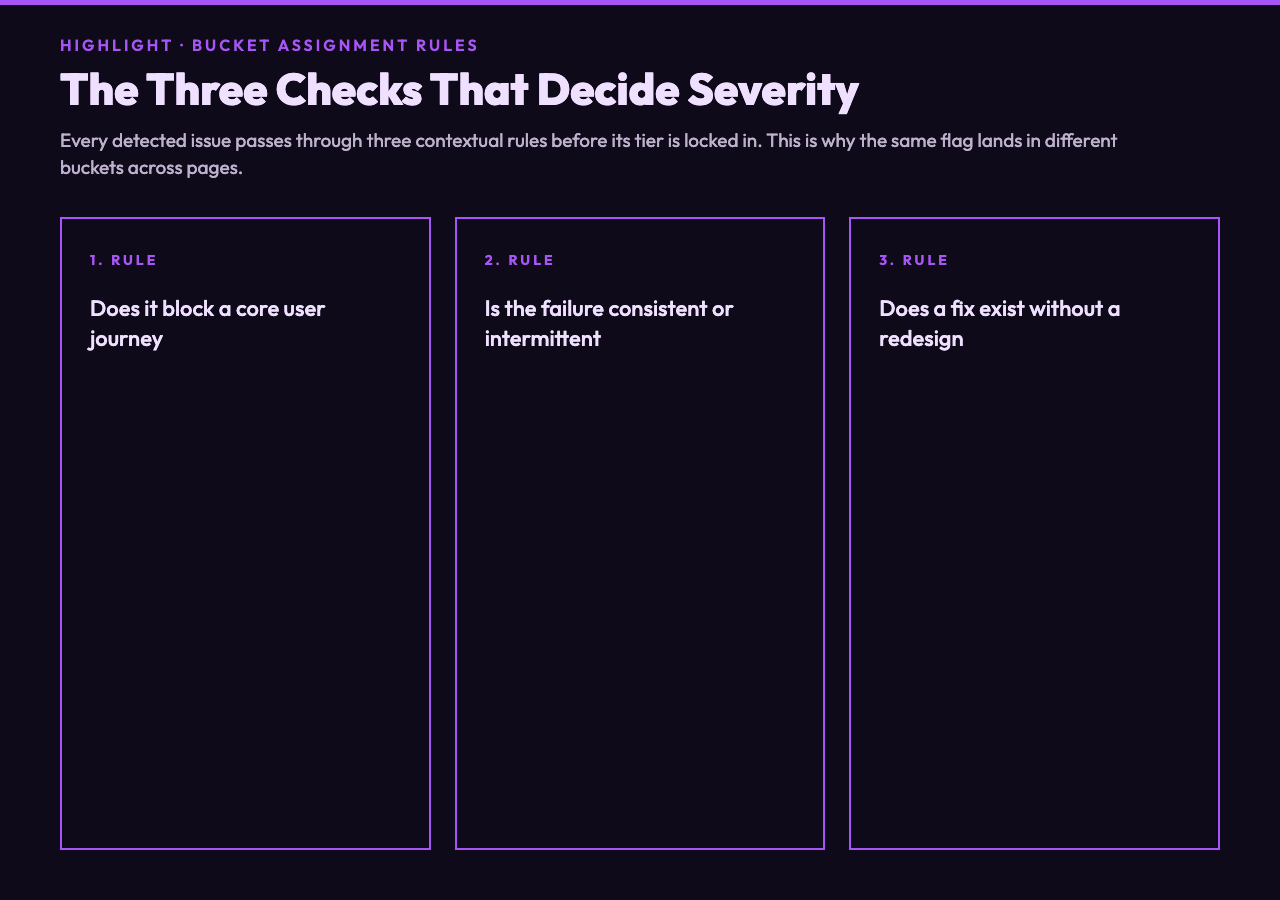
Severity is not automatic. The report generator applies three rules, in this order, to every detected issue:
1. Does it block a core user journey? Missing alt text on a decorative image is informational. Missing alt text on the product image in the cart is Critical. The same rule, applied with awareness of the page’s purpose, lands in different buckets.
2. Is the failure consistent or intermittent? Color contrast below 4.5:1 on every heading is Serious. The same contrast failure on a hover state that is only visible for 200ms is Moderate. The audit tracks where the rule fires and downgrades intermittent failures by one tier.
3. Does a fix exist that does not require a redesign? A landmark region missing on a page is Moderate if the page already has a <nav> element to wrap. The same missing landmark on a single-page app with no semantic regions at all is Serious, because the fix touches the routing layer. The tool knows the difference and adjusts the bucket accordingly.
These three rules are why the same scanner flag can show up as Serious in one report and Critical in another. The audit is contextual, not flat.
What the PDF report actually exports
The exported PDF is structured for triage, not for compliance theater. Page one is a one-line summary at the top, a count per severity bucket, and the URL or filename that was audited. Pages two through five break out each severity tier with a per-finding block that contains the WCAG reference, the element selector, and the specific attribute or value that failed. The last page is a grouped fix list, ordered by severity, ready to paste into a Jira ticket.
This is the layout the engineering team opens. The 47-page flat list is the layout they skip. The five-bucket split is the difference.
Run the Accessibility Audit Report Generator on a deployed URL first to see how the buckets populate against your real DOM, then re-run it on the same page after your next accessibility-targeted sprint to confirm the Critical bucket is empty. If you want a faster pre-audit sanity check on a single fragment, the Accessibility Checker covers the same rules without the PDF export. For batch regression testing on multiple pages, save each rendered HTML to a file and feed the files in one at a time — the audit is fast enough that a sweep across a 40-page site takes under ten minutes.
Explore more tools at elysiatools.com.