If you have ever wondered why Hollywood blockbusters look unmistakably "movie-like" even on a phone screen, the answer is not the cameras or the lighting. It is a deliberate color choice, applied in a few seconds to the final grade. The teal and orange split-complementary pair, pushed into the highlights and shadows, is the single most recognizable cinematic signature of the last twenty years, and it sits at the top of the cinematic grading preset list in the Cinematic Color Grading tool.
This post walks through how the eight built-in presets differ, what each control knob actually does to your pixels, and how to choose the right preset and intensity for the mood you are trying to set, without buying a colorist subscription or learning DaVinci Resolve.
Why every movie looks the same now
Cinematic color is not about taste, it is about contrast on the color wheel. The teal-orange split-complementary pair sits roughly 180 degrees apart on the wheel, which is the maximum possible chromatic distance. That distance is what your eye reads as "depth" when the rest of the frame is muted. Hollywood pushes orange into the skin tones (midtones and highlights) and pushes teal into the shadows and background, so the actor pops forward and the world behind them recedes. The hollywood preset in the Cinematic Color Grading tool reproduces exactly this lift.
The same split-complementary logic explains why noir looks stark (it removes chroma entirely and pushes the same shadows-to-highlights contrast into luminance), why horror reads as ominous (it desaturates everything except a narrow cool band), and why romance reads as warm (it collapses the contrast on the warm side and lets only the highlights breathe). Each preset is not a random filter, it is a deliberate position on the color wheel.
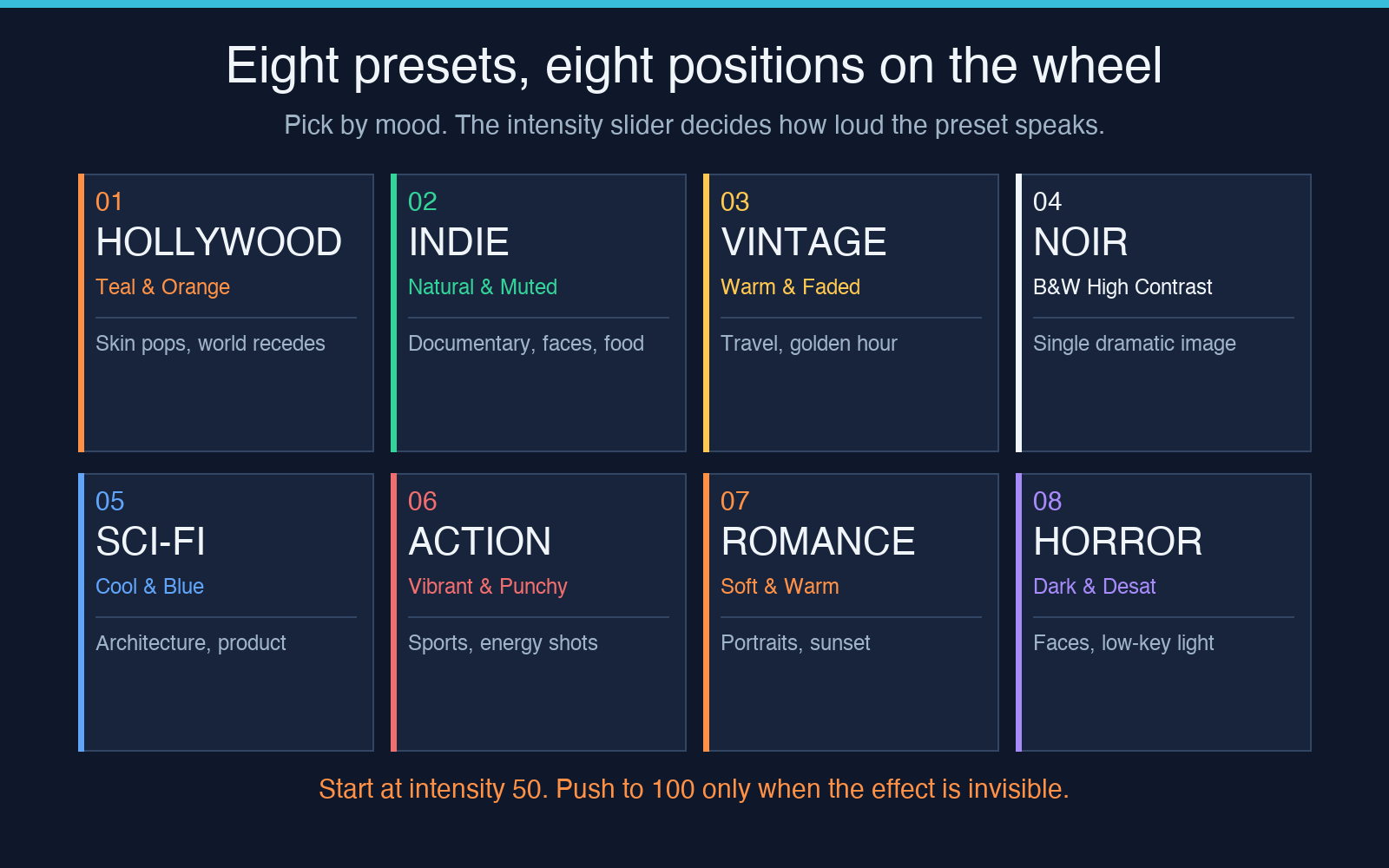
The eight presets, ranked by use case
If you are choosing a preset for the first time, the right answer is rarely the most dramatic one. Hollywood Blockbuster is the loudest and the easiest to over-apply. Indie Film is what you want when the subject is a face, because it preserves natural skin tones while desaturating the background. Vintage Film works for travel and food photography where you want warmth without losing detail. Film Noir is the strongest statement you can make with a single image, so use it sparingly.
The remaining four are situational. Sci-Fi pushes cool blue across the whole frame and works best on architecture or product shots. Action Movie cranks saturation and contrast together and is the right pick for sports and energy shots. Romance softens contrast and warms highlights and is the safe default for portraits in golden hour. Horror darkens the midtones and pulls saturation almost to zero except in the shadows, which is why it reads as "creepy" on faces but can look flat on landscapes. Try them all on a single image before committing, and start every export at intensity 50, not 100.
The seven control knobs, in order of importance
After preset selection, the only knobs that actually matter are intensity, contrast, and temperature. The other four are finishing touches. The Cinematic Color Grading tool exposes each one as a slider from negative fifty to positive fifty (or zero to one hundred for the percentage ones), and each one targets a specific color property.
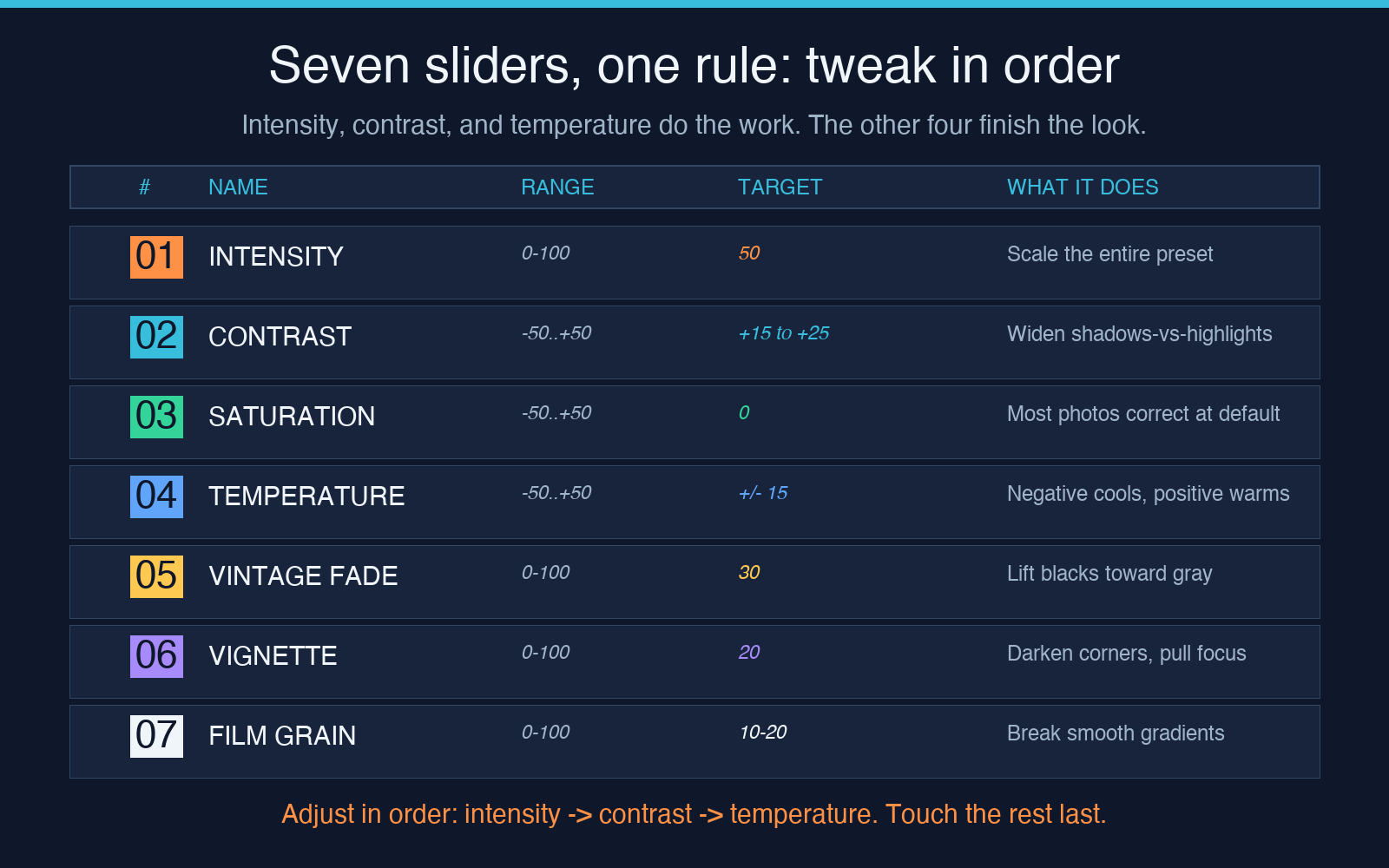
Here is what each one does, in the order you should adjust them:
- Intensity (0-100) — scales the entire preset. The single most common mistake is starting at 100. Start at 50, look at the result on the intended screen size, and only push higher if the effect is invisible.
- Contrast (-50 to +50) — widens the distance between shadows and highlights. Positive values push the cinematic look further. Negative values flatten the image and start to undo the preset.
- Saturation (-50 to +50) — scales the chroma. Negative values mute the preset (useful for documentary work), positive values push toward comic-book territory. Most photos look correct at 0.
- Temperature (-50 to +50) — shifts the white point. Negative cools, positive warms. Combine with a preset:
hollywood+ positive temperature gives sunset,scifi+ negative temperature gives arctic. - Vintage Fade (0-100) — lifts the blacks toward gray, simulating faded film stock. Pairs naturally with
vintageandromance. - Vignette (0-100) — darkens the corners. Pulls focus to the center. Anything above 30 starts to look amateurish.
- Film Grain (0-100) — adds high-frequency noise. Useful at 10-20 for breaking up smooth gradients, distracting above 40.
Teal and orange, explained properly
Most explanations of the teal-orange look stop at "Hollywood uses teal and orange." The actual reason it works is that human skin sits in the orange-yellow region of the color wheel, around hue 30 to 45. If you leave skin tones where they are and shift everything else toward the complementary blue-green, the skin naturally pops because it is now the only warm element in the frame. Every other preset in the tool uses a similar trick: noir moves the entire frame into the luminance channel and lets skin tone carry the only hue. romance does the opposite, pushing the warm side wider so even non-skin elements feel inviting.
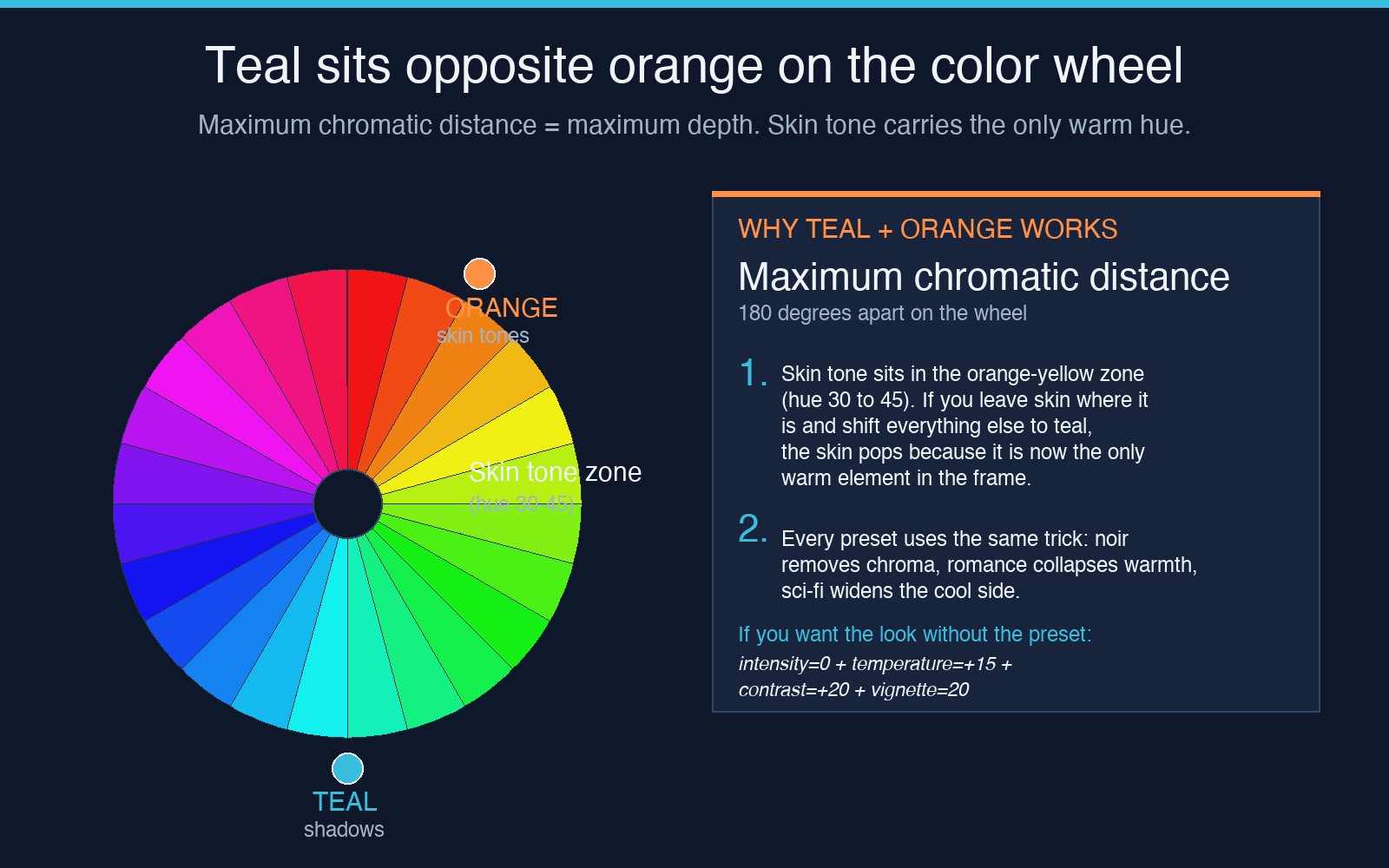
If you want the look without the preset, set intensity to 0 and apply only the controls: temperature around +15, saturation around -10, contrast around +20, vignette around 20, film grain around 10. The result is a subtle cinematic grade that survives compression to JPEG and works on small screens. Crank intensity up only when the image is already low-contrast and the preset needs to do most of the lifting.
Three situations where the preset is wrong
The cinematic grade is a look, not a correction. It assumes you shot in a controlled lighting environment and you want the result to feel like a film. There are three situations where applying it actively hurts the image.
First, anything where color accuracy is the subject. Product photography, food photography for delivery apps, and medical or technical imagery should stay at intensity 0. The grade will lie about the actual color of the subject, and the lie is more memorable than the truth. Second, low-light documentary work where you already pushed ISO high. The grade will pull noise into the teal channel and make grain look green and ugly. Third, any image where the background already has a strong color, like a red sunset or a green forest. The grade will fight the existing palette and produce something that looks artificially split-toned.
For those cases, the right answer is to apply intensity at 20 or 30, not 0 and not 100. The grade provides a hint of cinematic DNA without overriding the natural color story. This is also the right call when you are processing a batch of mixed images for a social feed: a partial grade unifies the set without flattening it.
Putting it together
The fastest path from a flat JPEG to a cinematic frame is preset selection plus three slider tweaks. Pick the preset that matches the mood (or hollywood when in doubt). Set intensity to 50. Push contrast up by 15 to 25 if the image looks washed out, or down by 10 if it looks too aggressive. Set temperature toward warm for portraits and toward cool for architecture. Leave saturation at 0 unless the image is already over-saturated. Add vignette at 20 and film grain at 10 to finish, and export as PNG at quality 95.
The whole sequence takes under a minute in the Cinematic Color Grading interface, and it produces output that survives Instagram compression and small-screen viewing. The presets are not magic, they are positions on the color wheel, but the wheel is a real thing, and once you understand which preset sits where, you stop guessing and start choosing. For a deeper dive into how color theory shows up in real tools, the Elysia Tools library has companion utilities for color extraction, palette generation, and image analysis that pair well with this workflow.