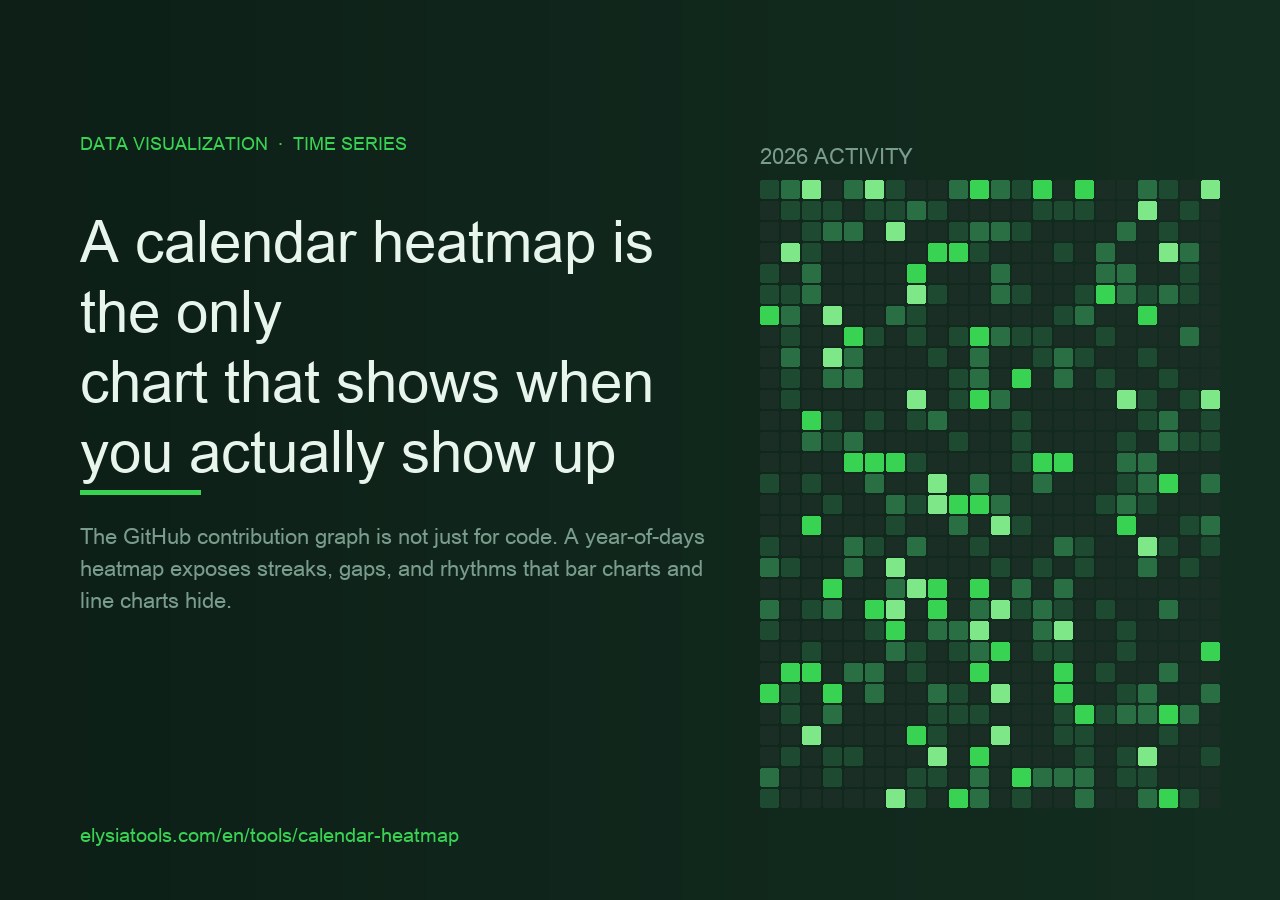
Open GitHub and look at the green grid above any active developer’s profile. Those 365 squares — one per day, shaded by intensity — answer a question no bar chart can: when, exactly, did the work happen. Not “how much per month.” Not “the trend over the year.” The heatmap says, “you disappeared for the first two weeks of February, came back hot on the 15th, and Thursday is clearly your strongest day.”
You have read that grid about a stranger’s commits. Have you ever read your own data that way?
Most teams never look at their own data this way. They have Jira tickets, sales numbers, support tickets, server logs, calorie logs, gym check-ins, study sessions — and they summarize them all into monthly bar charts. Which is like reading a novel by skimming chapter titles. The shape of a year lives in the day-to-day, not in the aggregate.
A calendar heatmap generator lets you feed any dated, numerical data into that exact visualization. The chart is small, the input is simple, and the patterns it surfaces are the kind that change how you plan a quarter.
What the format actually wants
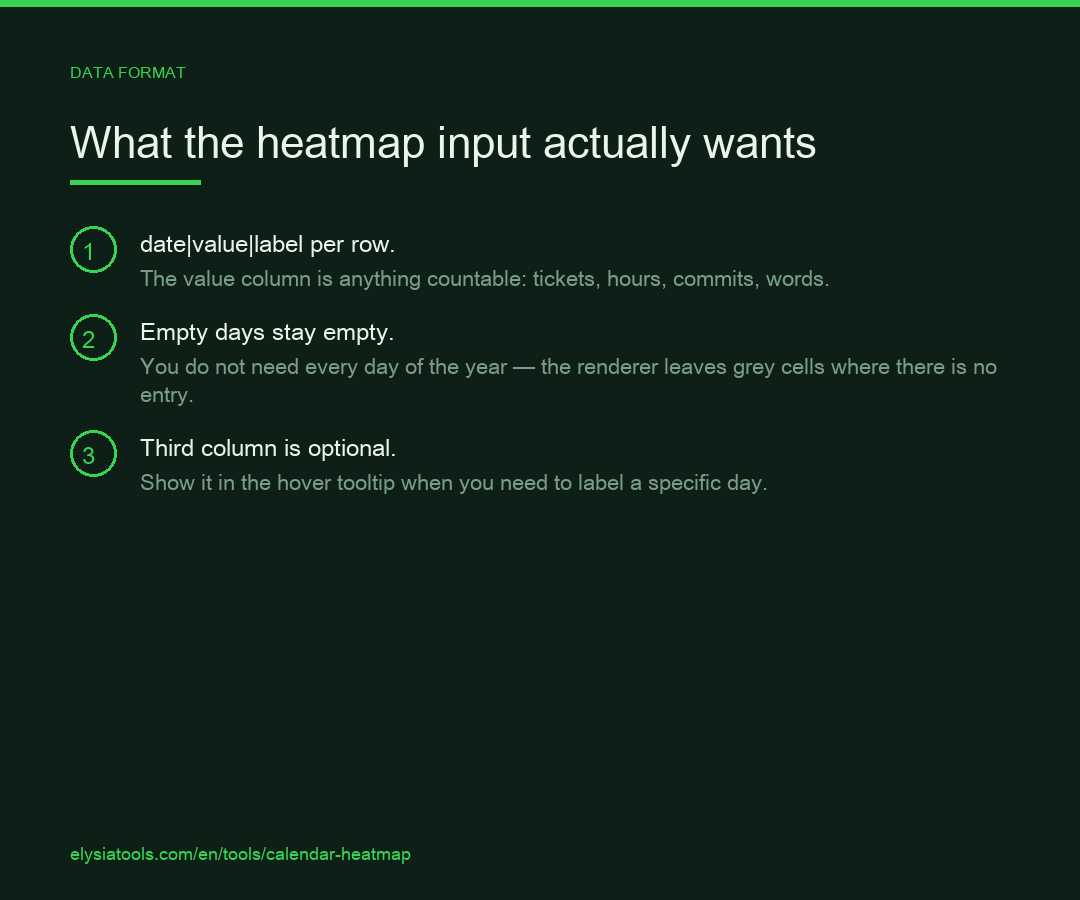
The data shape is `date|value|label`, one row per day. You do not need every day of the year — the renderer just leaves empty squares where there is no entry. A small real-world example, last quarter of a small SaaS company’s support tickets per day:
2025-10-01|18|Weekday rush
2025-10-02|22|
2025-10-03|14|Friday dip
...
2025-10-06|3|Weekend quiet
...
2025-12-31|5|New Year's Eve
The “value” is anything with a count or magnitude per day. Tickets received. Hours slept. Commits shipped. Words written. The third column is optional and shows up in the hover tooltip. Once you paste the block into the Calendar Heatmap Generator, the year-grid renders in under a second.
This matters because the data preparation is the only part of the workflow that has any friction. After that, the chart is the chart. So the value is entirely in what you choose to feed it.
Five things the heatmap sees that bar charts cannot
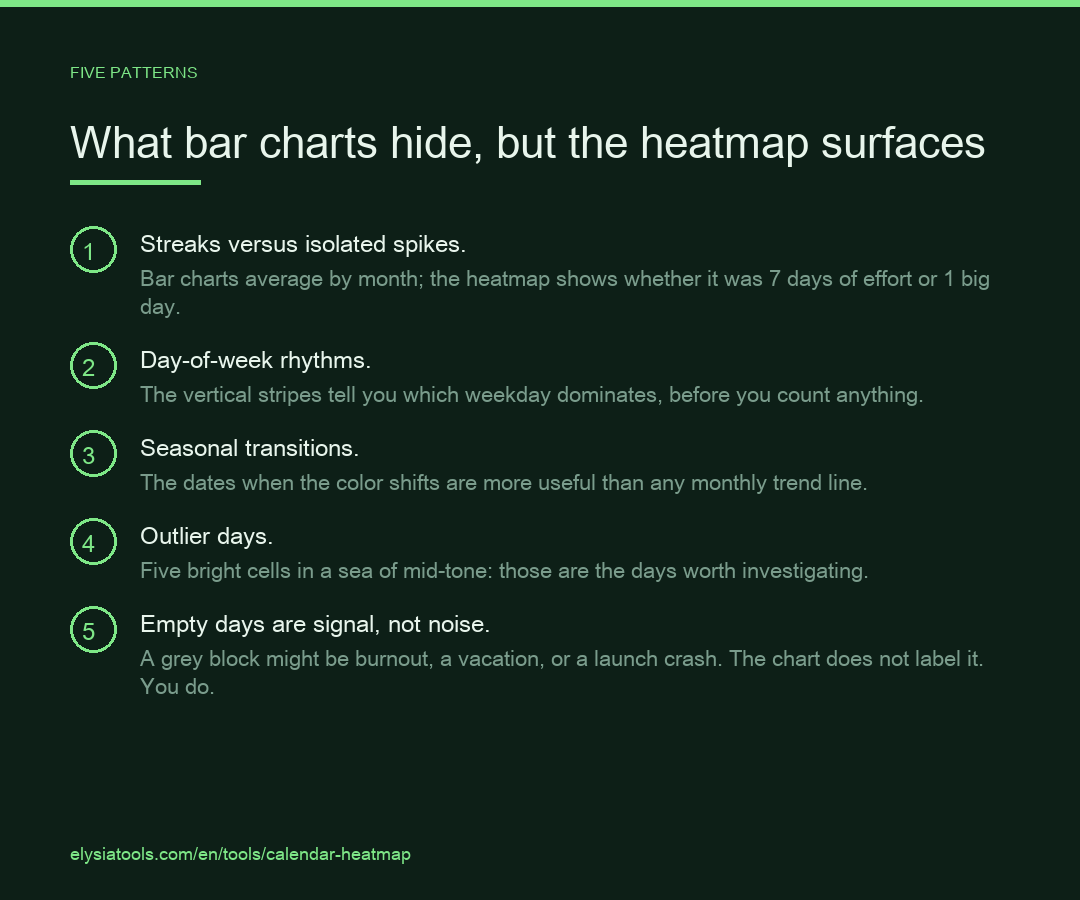
1. Streaks versus isolated spikes. A bar chart averages by month. A 7-day streak of writing 1000 words looks identical to a single 7000-word day followed by six quiet days — both round to “7000 words this week.” On a heatmap, the streak is a continuous block of medium-green, and the spike is one bright cell next to six grey ones. Those are different stories about the same data.
2. Day-of-week rhythms. Every team has one. Support queues spike on Mondays. Gym attendance peaks on Tuesday and Wednesday. Sales closes cluster on Thursday. The heatmap is the fastest way to see this — your eye picks up the vertical stripes (stronger columns) before you consciously count anything. A bar chart bucketed by weekday hides this inside a single bar per day.
3. Seasonal transitions. A line chart shows the slope. A heatmap shows the date the slope changed. A fitness tracker that ran steady from January through April, then collapsed in May, then rebuilt in September, looks like three different heatmap textures — the first dense, the second sparse, the third dense again. The transition dates are immediately visible as horizontal bands where the color shifts.
4. Outlier days. A year with 360 normal days and 5 explosive days (launch day, Black Friday, the day the dashboard broke) reads as five bright cells in a sea of mid-tone. In a bar chart those days get smoothed into “high month” and the lesson — “something specific happened on those five days” — is lost.
5. Empty days are signal, not noise. A streak of zero-value cells is the strongest pattern the heatmap can show. It is also the thing monthly aggregation is designed to erase. Burnout looks like a grey block. A vacation looks like a grey block. A product launch crunch followed by collapse looks like a bright block followed by a grey block. The chart does not label these. The reader does.
Where the visualization breaks
Two failure modes show up the moment you use a calendar heatmap on real data.
First, the “value” needs to be on a comparable scale. If you mix days where “value” means tickets received and other days where it means hours of downtime, the color scale lies. Stick to one metric per chart. If you want to compare two metrics, render two charts side by side with the same color scale.
Second, the empty-color choice is editorial. Setting the empty day color to a barely-visible grey makes the heatmap a celebration of your busy days and a quiet burial of your quiet days. Setting it to white with a border makes the gaps more obvious than the activity. The default in the Calendar Heatmap Generator is a soft grey, which most readers read as “neutral.” Pick deliberately.
Using this on your own data
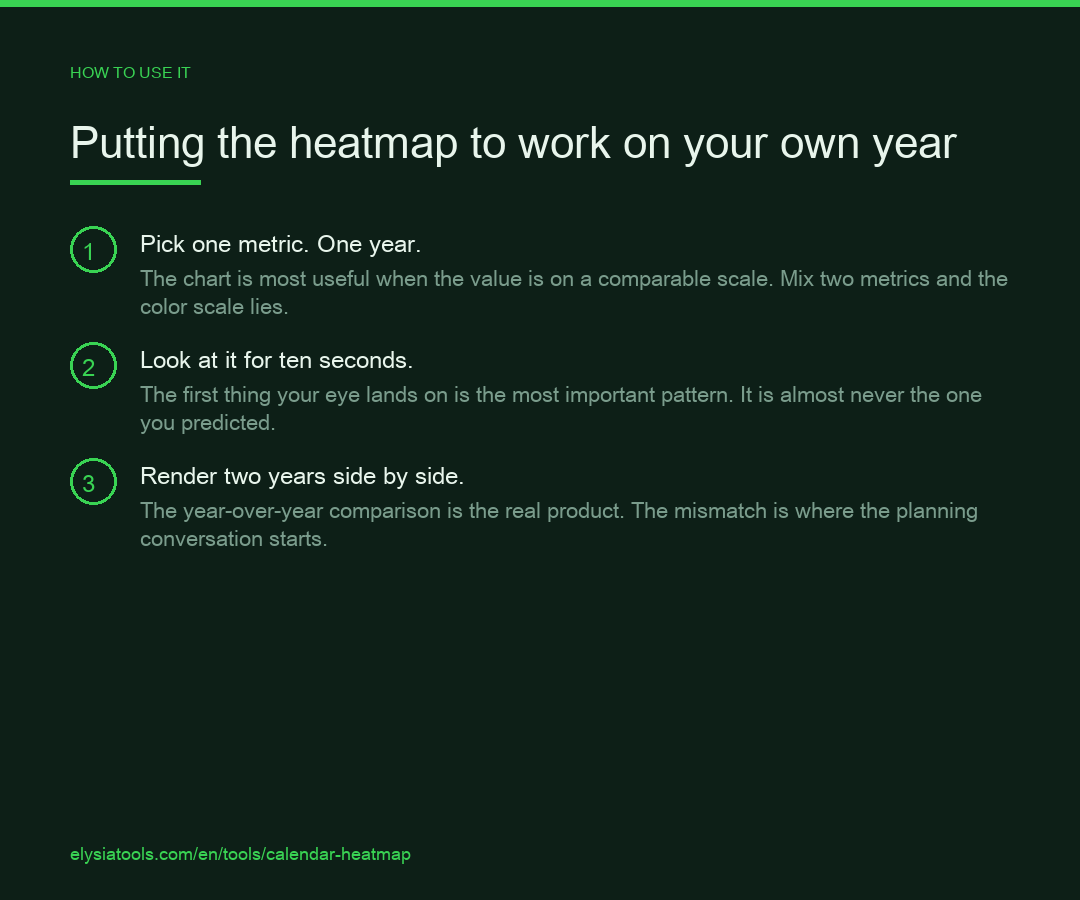
The most useful exercise is to take one full year of one metric, paste it in, and look at the result for ten seconds without trying to interpret anything. The first thing your eye lands on is the most important pattern in your year. It is almost never the thing you would have predicted.
If you want to go further: render the same metric for two consecutive years on the same canvas. The year-over-year comparison is the real product — same days, same scale, but the second year either matches the rhythm of the first or it does not. The mismatch is where the planning conversation starts.
The Calendar Heatmap Generator is one of those tools that looks like a single chart and turns out to be a way of looking at time itself. You put a year in. You get back the dates you were fooling yourself about.
The question is not whether you have a year of data worth visualizing. Of course you do. The question is whether you are willing to look at it at the resolution it actually deserves — one day at a time, colored by what you actually did, with no aggregation to soften the worst weeks. Most planning conversations start with this chart and end with someone admitting they already knew.
Explore more data visualization tools at elysiatools.com.