Cron Expression Generator: The Five-Field Decision Nobody Reads on Monday
The right side of 0 9 1-5 is not a decoration. It is a load-bearing decision: that single dash turns a daily nine o’clock job into a Monday-through-Friday nine o’clock job, and the wrong choice there is why most cron bugs live, not in the daemon, but in five characters nobody on the team can read on a Monday morning. Elysia Tools turns that decision into an explicit input instead of a guessed token.
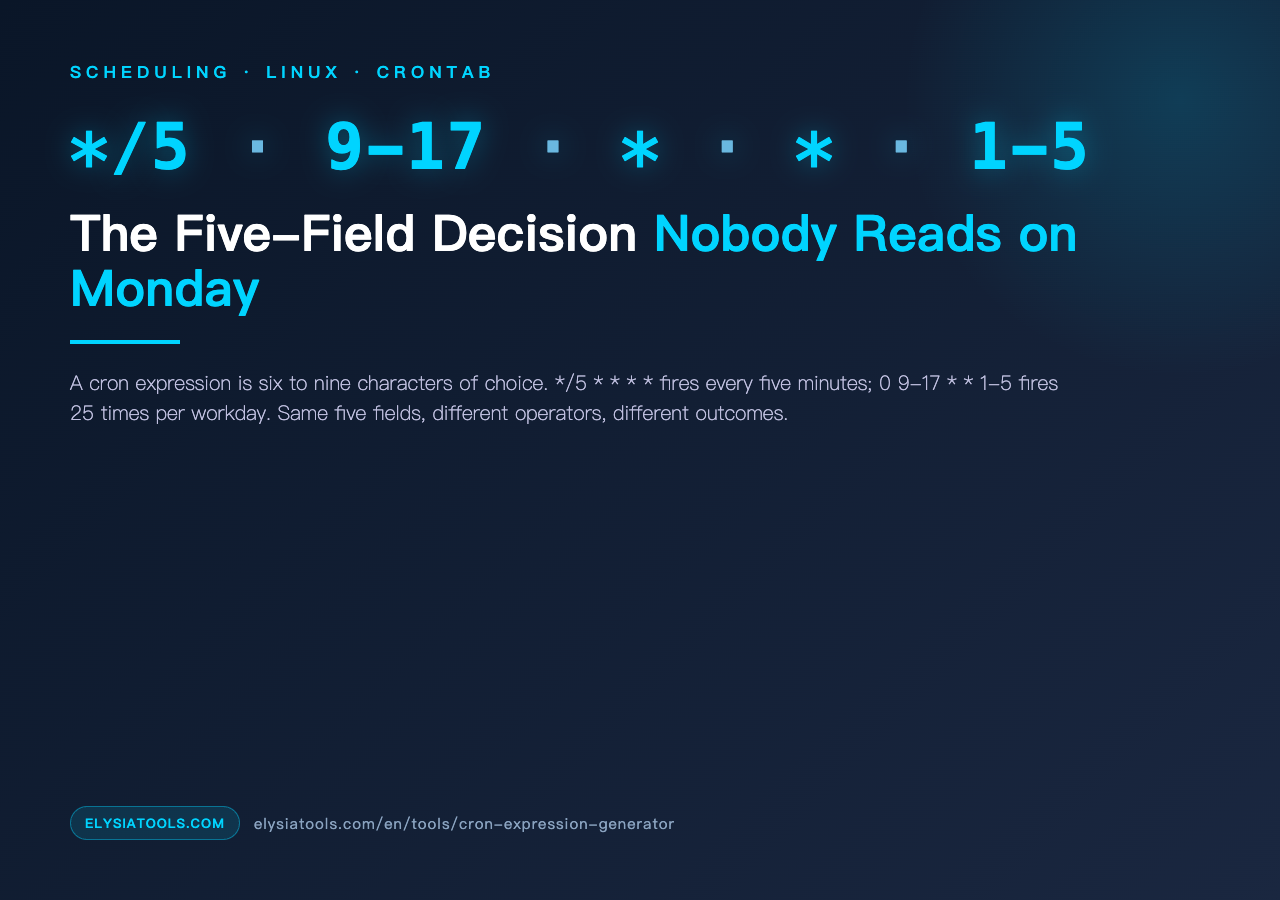
A cron expression is five whitespace-separated fields — minute, hour, day of month, month, weekday — followed by a command. Each field accepts numbers, ranges, steps, lists, and a wildcard. The wildcard is the source of both flexibility and silent mistakes: means “every,” and the scheduler interprets that literally. There is no human-friendly reading. A line like /opt/backup.sh fires every minute of every hour of every day, which is rarely what was intended.
What the Five Fields Actually Mean
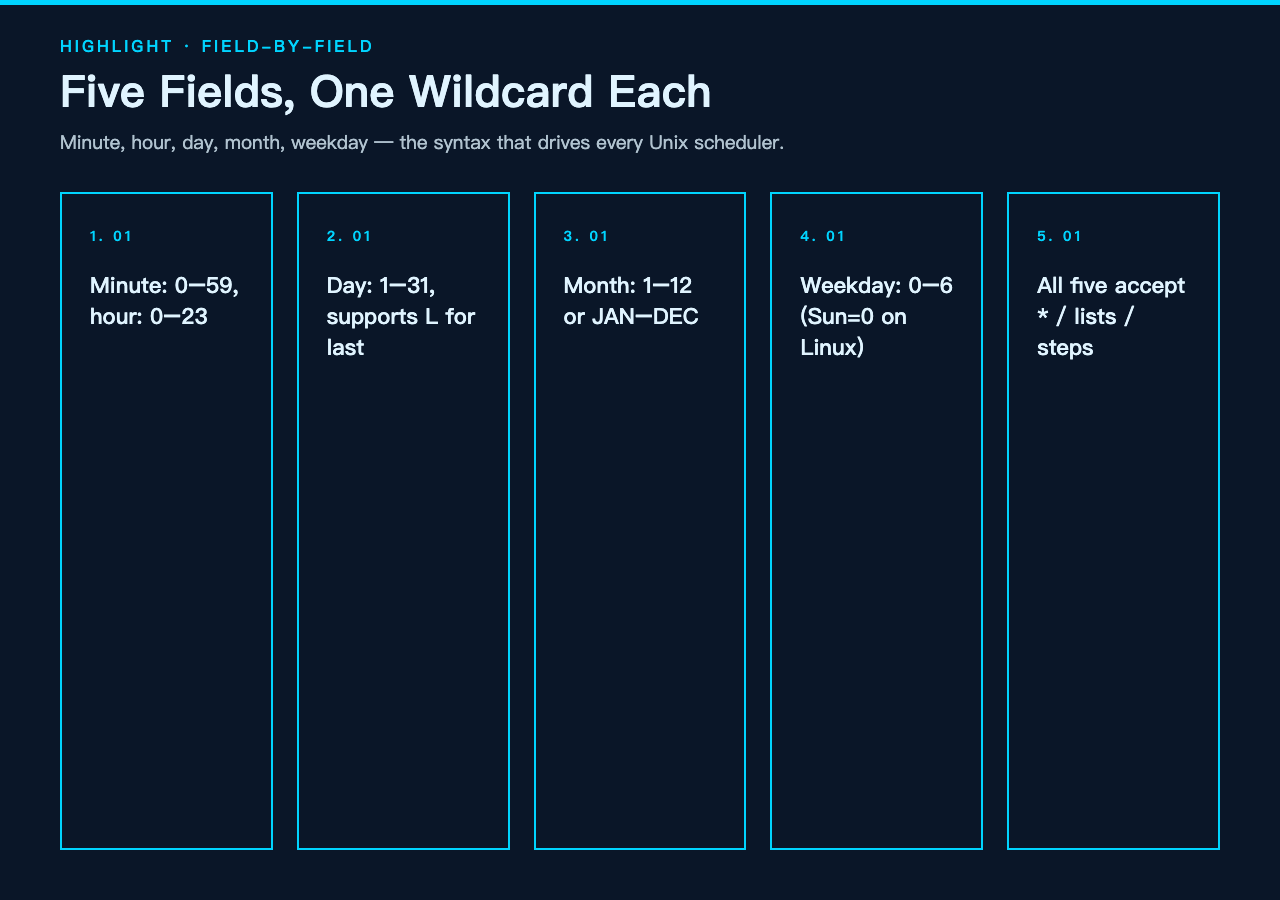
The minute field runs from 0 to 59. The hour field runs from 0 to 23. Day of month runs from 1 to 31 — and accepts the special token L for “last day.” Month runs from 1 to 12, with three-letter abbreviations like JAN or SEP. Weekday runs from 0 to 6 — but there is a long-running disagreement about whether 0 means Sunday or Monday. On Linux cron, 0 is Sunday; on Quartz and many cloud schedulers, 0 is Monday. The generator from Elysia Tools uses the Unix convention: 0 is Sunday, 6 is Saturday.
Every field accepts four syntax patterns that compose:
- Wildcard —
matches every value in the field’s range. - List —
1,15,45matches exactly those values. - Range —
9-17matches every value in the closed interval. - Step —
/10matches every tenth value starting from the field’s minimum; combine with a range for offset steps like5-55/10.
These patterns stack. /15 in the minute field fires at minutes 0, 15, 30, 45. 1-30/5 in the day field fires on days 1, 6, 11, 16, 21, 26. Reading a step expression left-to-right — start, optional range, slash, interval — is the entire skill.
Five Decisions That Decide Whether the Job Actually Runs
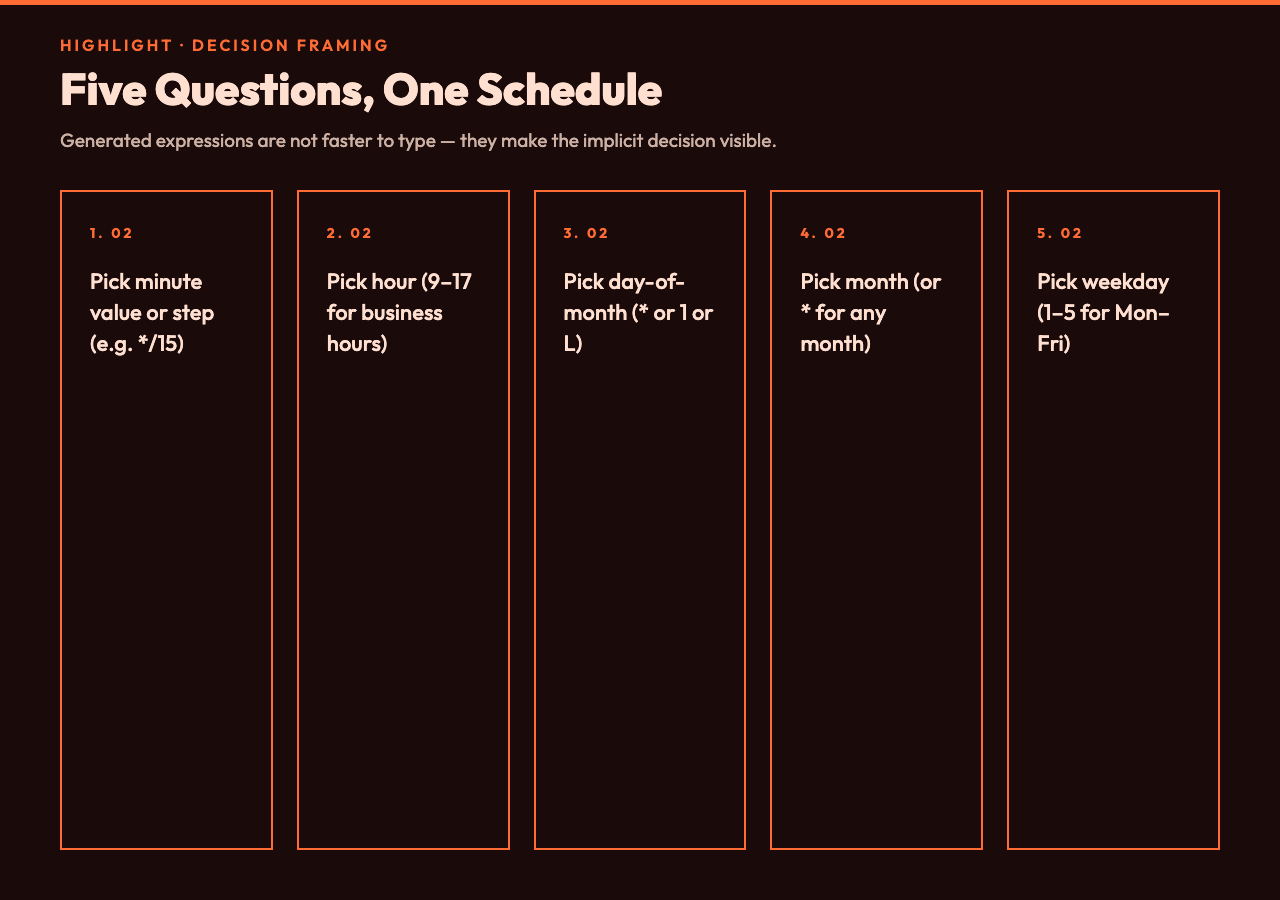
The reason a generated expression is more reliable than a hand-typed one is not the typing — it is the decision framing. Five questions decide every schedule:
- How often per hour? Pick a minute value or step.
0once an hour,/15four times an hour,every minute. - At what hour? Pick a specific hour or step, or use
for any hour. Business-hour patterns typically use9-17. - On which days of the month? Use
for any day,1for the first,Lfor the last. - In which months? Use
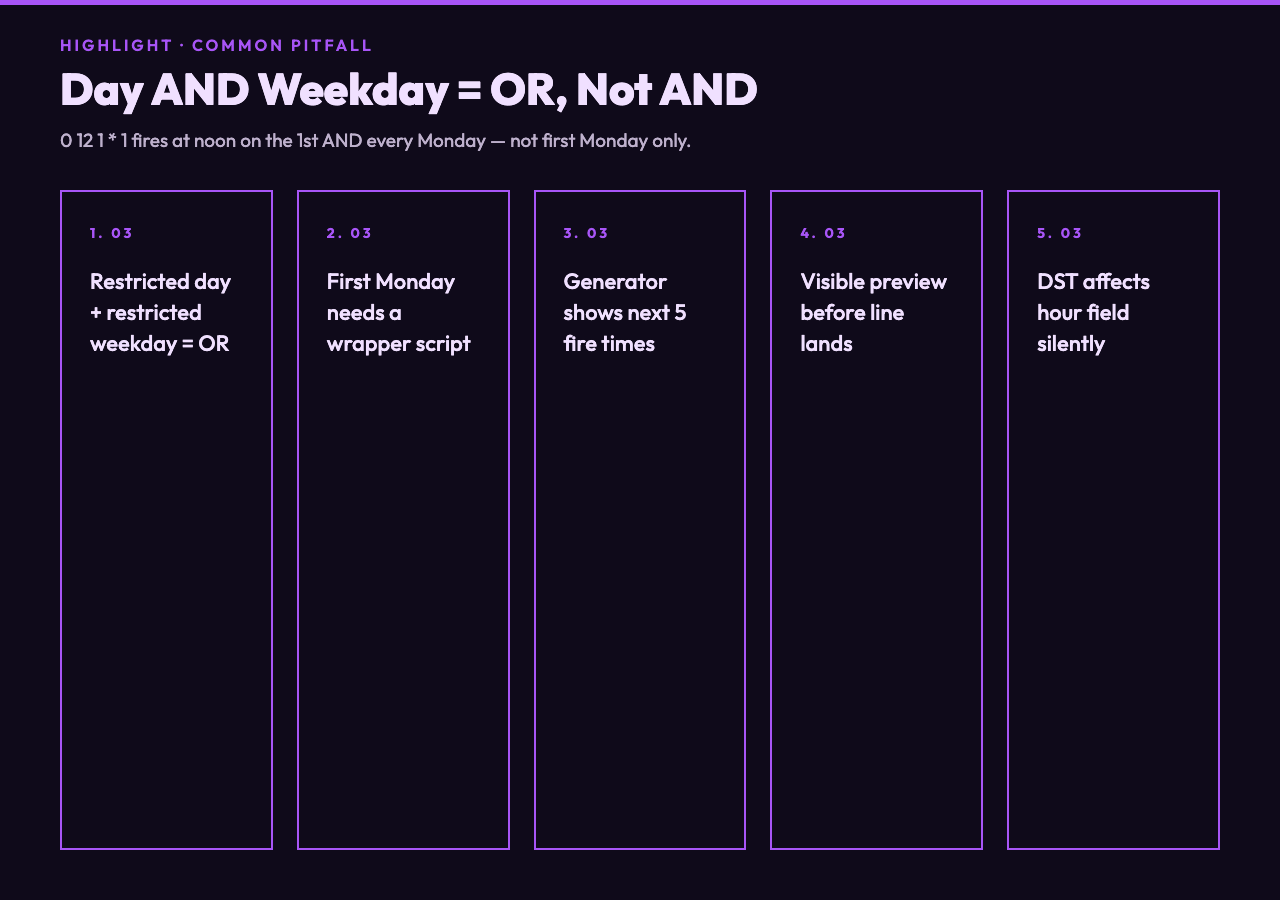
for any month, or list specific months like1,4,7,10for quarterly. - On which weekdays? Combine with the day-of-month field using the OR rule — if both are restricted, the job runs when either matches.
That last rule is the most-cited mistake. 0 12 1 1 does not mean “noon on the first Monday of each month.” It means “noon on the first of the month, and also noon every Monday.” Cron treats day-of-month and weekday as a logical OR when both are restricted. To express “first Monday only,” you need a wrapper script that checks the day-of-week programmatically.
Why the Preset List Saves an Hour of Trial-and-Error
The Cron Expression Generator ships eleven presets that cover the patterns every team reaches for: every minute, every hour, every day at midnight, every day at noon, every week on Monday, every month on the first, every year on January 1st, weekdays, weekends, and business hours. Each preset sets four of the five fields and leaves one editable — for example, the weekday preset locks minute, hour, day-of-month, and month, and exposes only the weekday field so you can change “Monday” to “Friday” without rebuilding the expression.
The business-hours preset produces 9-17 1-5, which reads “every minute during the hours 9 through 17, on weekdays.” That is correct as a starting point, but it fires 540 times per day. Most users want 0 9-17 1-5 instead — at the top of every business hour. The distinction between “every minute during business hours” and “every hour on the hour during business hours” is one asterisk versus one zero, and that is exactly the kind of edit the form makes explicit.
Custom Expressions: Reading the Output Before You Save It
Switch the preset dropdown to “Custom Expression” and all five fields become editable. The tool renders the resulting schedule as a human-readable sentence — “At 09:00 AM, every day” — beside the expression, and shows the next five fire times so you can verify the schedule matches your intent. If the next fire time is at 03:00 instead of 09:00, you have the hour field wrong, and you see that before the line ever lands in a crontab.
The custom mode also accepts the step and range syntax in every field. /2 in the hour field gives every-other-hour firing. 9-17/2 gives 9, 11, 13, 15, 17. 0 9-17/2 1-5 reads “every other hour from 9 to 17 on weekdays” — a meeting-reminder pattern that fires 25 times per week, evenly spaced through the workday.
Time Zones, DST, and the One Setting Cron Will Not Save You From
System cron runs in the system time zone. The hour field is interpreted in that zone, not in UTC and not in the user’s local zone. On a server hosted in UTC, 0 9 fires at 09:00 UTC, which is 04:00 in Eastern Standard Time and 17:00 in China Standard Time. If your team is in one zone and the server is in another, the only reliable fix is to express the schedule in UTC and translate it in your head, or to wrap the cron job in a script that checks the local time.
Daylight saving time makes this worse. 0 2 on a server in a DST-observing zone either fires twice on the spring-forward day or skips once on the fall-back day, depending on the scheduler’s implementation. The generator from Elysia Tools does not change that — it produces the same string the daemon will read — but the live preview makes the next fire time visible, so a DST-displaced job is obvious before it lands in production.
Putting It Together: Five Schedules Worth Memorizing
Five patterns cover most production cron jobs:
- Every 5 minutes:
/5 - Hourly at minute 0:
0 - Daily at 03:00:
0 3 - Weekdays at 09:00:
0 9 1-5 - First of every month at midnight:
0 0 1 *
Each one is six to nine characters of decision. The generator handles them as presets so you can pick from the list, confirm the next fire time, and copy the expression straight into your crontab — no manual typing, no silent off-by-one in the weekday field, no missed DST transition.
A cron expression is a small language with five tokens, three operators, and one timezone assumption. The decision to use a generator instead of typing from memory is not about typing speed — it is about making the next fire time visible before the schedule goes live. That is the entire value of Elysia Tools for cron work, and it is the same value a CI pipeline brings to deployment: the line that ships is the line that was verified.
For more scheduling and automation helpers, browse the full library at elysiatools.com.