You open a 47 MB CSV exported from the warehouse. The header row has nine variants of the same customer id. The amount column is mixed currency strings and bare numbers. Three rows are corrupt. The deadline is forty minutes away. You do not want to write a pandas script. You want to hand the file to something that already knows the six operations you would have typed anyway, and you want to walk away while it runs.
That something is the CSV Transformer at elysiatools.com. Paste your file, paste a JSON array of operations, pick an output format. Six operation types cover ninety percent of the cleanup work you would otherwise write Python for: rename, add_column, remove_column, convert_type, calculate, and filter_values. The order of operations in the array is the order they run, which is the order of your mental model. That last sentence is the whole reason this tool exists.
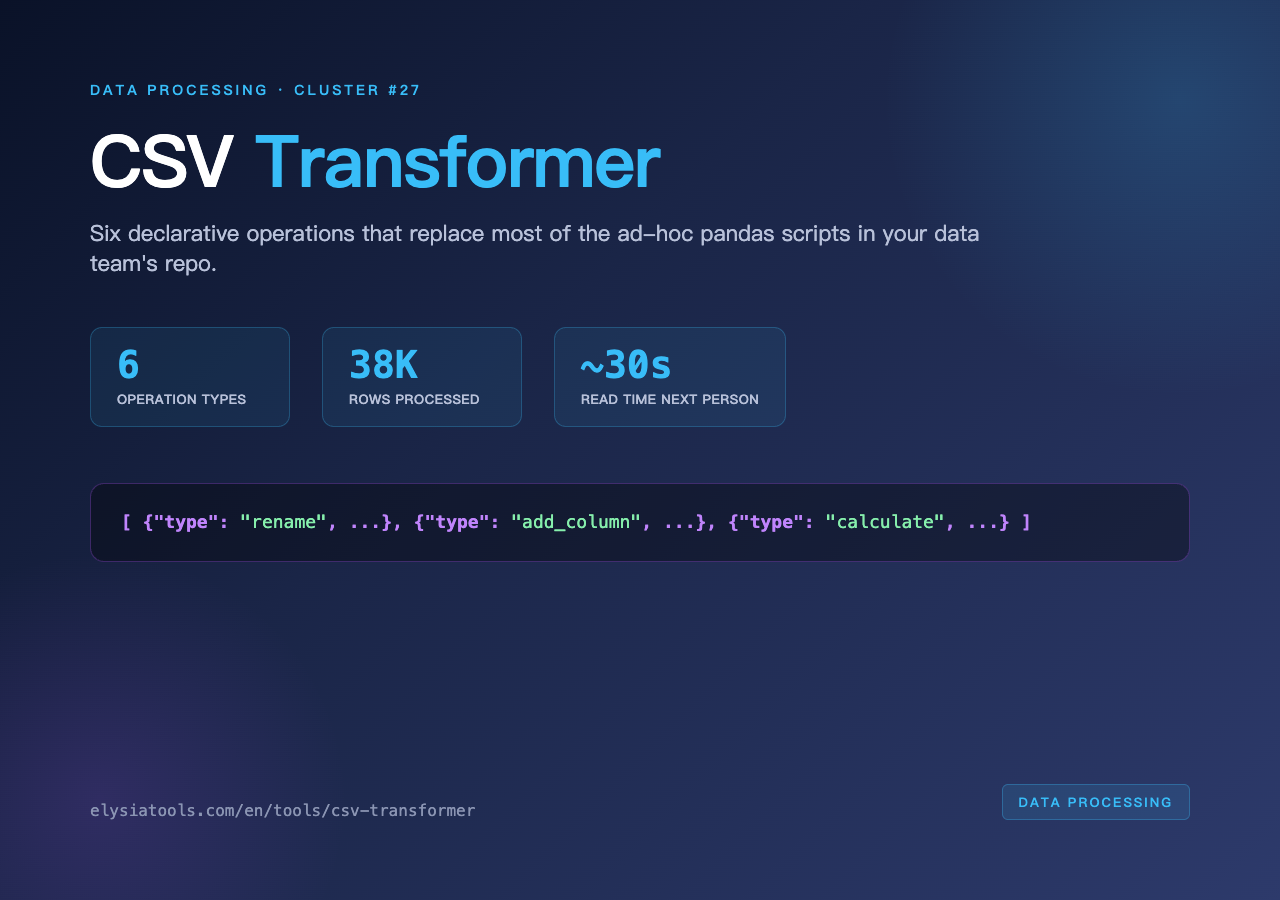
The Six Operations, With the Edge Cases That Matter
The mental model is a tiny pipeline. Each operation reads the current state of the data and writes a new state. Six types is small enough to hold in working memory, large enough to express every transformation we have actually needed in production. Here they are, in the order you would chain them.
1. rename — the first thing you always do
Real CSV headers are noisy. customer_id, Customer ID, cust id, CUST_ID, customerId, user_id, and the inevitable customer_id (with a trailing space, courtesy of an Excel export from 2014) all refer to the same column. The CSV Transformer lets you write a rename per alias:
[{"type": "rename", "column": "Customer ID", "new_name": "customer_id"}]Run it six times if you must. The next operation in the chain sees the canonical name. This is also where the difference between column and new_name matters: the first is the source, the second is what downstream operations see. A common bug is to swap them, rename nothing, then wonder why the add_column two steps later cannot find customer_id. The tool runs the operations in array order, but the data flow is left-to-right.
2. convert_type — string is the default and that is the problem
Every column arrives as a string. That is not a design choice; it is the cheapest thing to do for a CSV parser. The convert_type operation accepts number, boolean, date, and a few others. The two failure modes that bite people are both silent: a row where "1,234.56" looks like a number but has a thousands separator fails conversion, and the default errorHandling mode (keep_original) leaves the string in place. Downstream calculate then sees a string and silently produces NaN instead of throwing.
The fix is not to write defensive code. The fix is to switch errorHandling from keep_original to throw while you are setting up the chain, watch which rows blow up, fix them in source, then switch back. The tool also exposes an errorReporting enum: silent, log, verbose. verbose prints the offending row and column, which is usually enough to identify the bad data.
3. add_column and 4. calculate — the only two ways to make new data
add_column adds a column from a formula referencing existing columns. calculate writes into an existing column. The distinction matters when downstream tools check whether a column existed before the transformation:
- add_column — create a new column from a formula.
[{"type": "add_column", "new_column": "total", "formula": "price quantity"}] - calculate — overwrite an existing column with a formula.
[{"type": "calculate", "target_column": "total", "expression": "price tax + shipping"}]
If you need to preserve the raw input column for debugging, use add_column with a different name. If you are certain the formula is the new ground truth, use calculate and let it overwrite. Both accept the same expression syntax — basic arithmetic, column references, parentheses, the four operators.
The expressions are not a full programming language. There is no if, no case, no string concatenation. If you need conditional logic, the canonical move is to add_column with a derived flag column upstream and filter_values on it downstream — the pipeline architecture forces clarity.
Chaining Operations: The Pipeline Mental Model
Here is a real transformation chain we ran last week on a 38 000-row customer export:
[
  {"type": "rename", "column": "Customer ID", "new_name": "customer_id"},
  {"type": "rename", "column": "Amount ($)", "new_name": "amount"},
  {"type": "convert_type", "convert_column": "amount", "target_type": "number"},
  {"type": "add_column", "new_column": "amount_eur", "formula": "amount * 0.92"},
  {"type": "filter_values", "filter_column": "status", "operator": "equals", "value": "active"},
  {"type": "remove_column", "remove_column": "internal_notes"}
]
Six operations. Four cleanups (rename ×2, convert_type ×1, remove_column ×1), one calculation (add_column ×1), one filter (filter_values ×1). The chain is readable top-to-bottom. The next person who opens the JSON file understands it in under thirty seconds. That is the entire value proposition — not that pandas cannot do it, but that this JSON file is what gets committed to the data team’s repo and survives the next person.
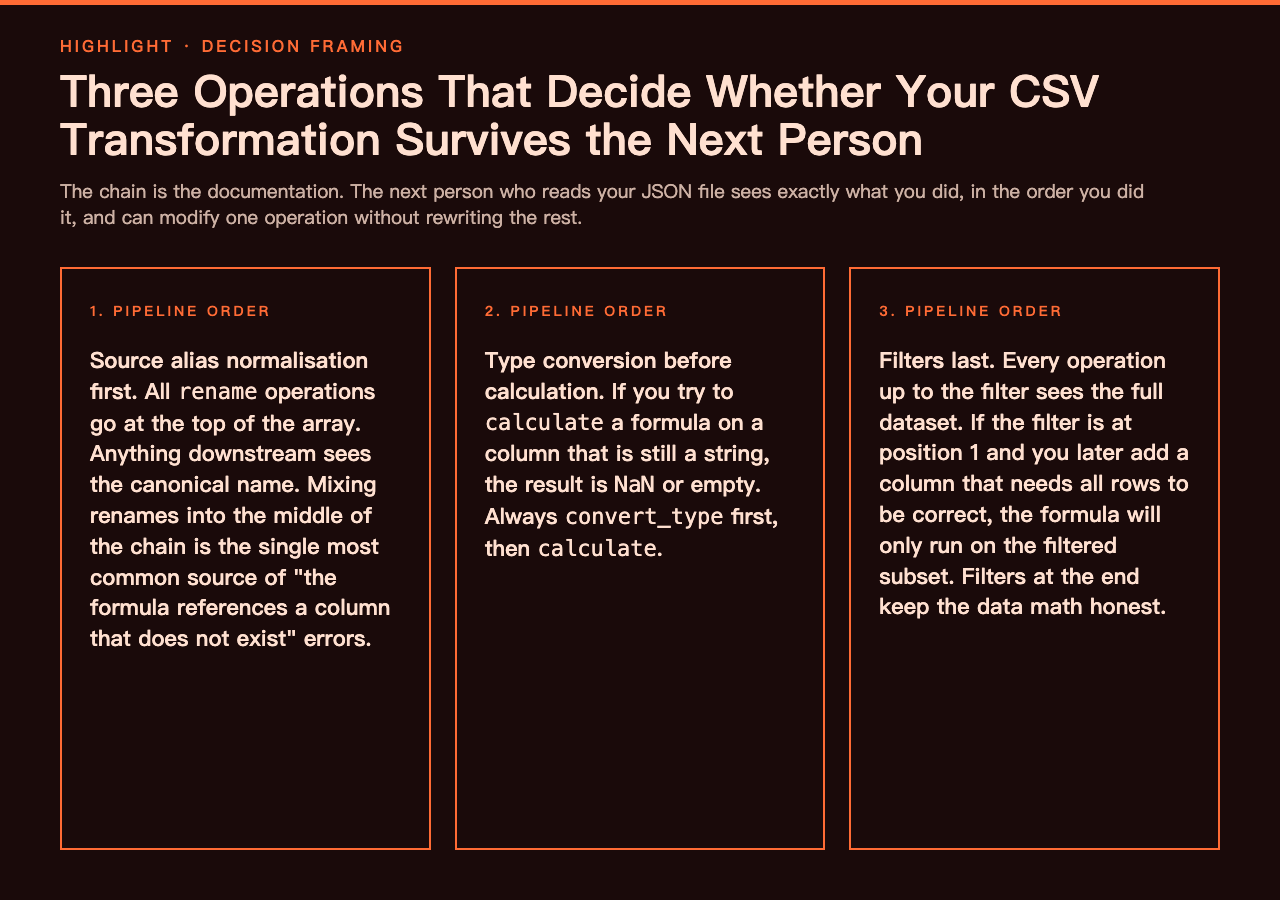
The three decisions that decide whether your chain survives
- Source alias normalisation first. All
renameoperations go at the top of the array. Anything downstream sees the canonical name. Mixing renames into the middle of the chain is the single most common source of “the formula references a column that does not exist” errors. - Type conversion before calculation. If you try to
calculatea formula on a column that is still a string, the result isNaNor"". Alwaysconvert_typefirst, thencalculate. - Filters last. Every operation up to the filter sees the full dataset. If the filter is at position 1 and you later add a column that needs all 38 000 rows to be correct, the formula will only run on the filtered subset. Filters at the end keep the data math honest.
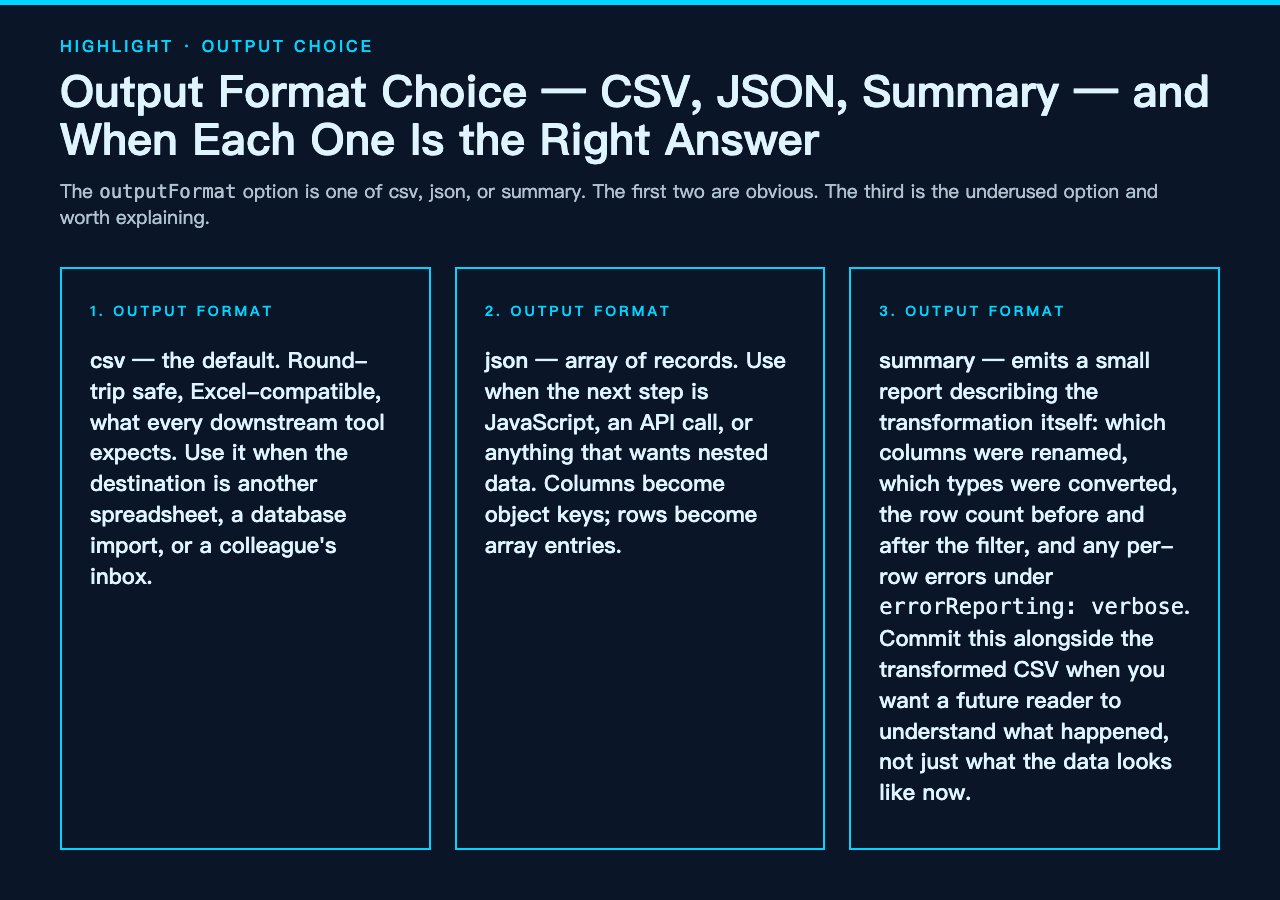
What the Output Format Choice Actually Changes
The outputFormat option is one of csv, json, or summary. The first two are obvious — you either want a CSV or a JSON array of records. The third is the underused option and worth explaining.
summary emits a small report describing the transformation itself: which columns were renamed, which types were converted, which columns were added or removed, the row count before and after the filter, and any per-row errors that occurred under errorReporting: verbose. It is the right output to commit alongside the transformed CSV when you want a future reader to understand what happened, not just what the data looks like now.
If you need to keep a copy of the original column order for archival, set includeHeader: true (the default) and the chain will respect whatever order the columns end up in after your rename and remove_column operations. There is no explicit reorder operation in this tool — for that, the CSV Column Reorderer is the right neighbour in the tool family.
Where This Tool Fits in the elysia-tools Family
The CSV Transformer is the workhorse. It assumes you already have a CSV file and want to reshape it. The other tools in the same family cover the steps before and after.
Before: if you have an Excel file and need it as a CSV first, the CSV Column Selector extracts specific columns, and the CSV Filter can drop rows by column-value conditions — both useful when you want a smaller dataset before the heavy transformation.
After: when you need to group by columns and aggregate, the CSV Data Grouper takes the cleaned output and produces summaries. For pure sort operations without transformations, the CSV Sorter is faster than chaining add_column with a sort expression.
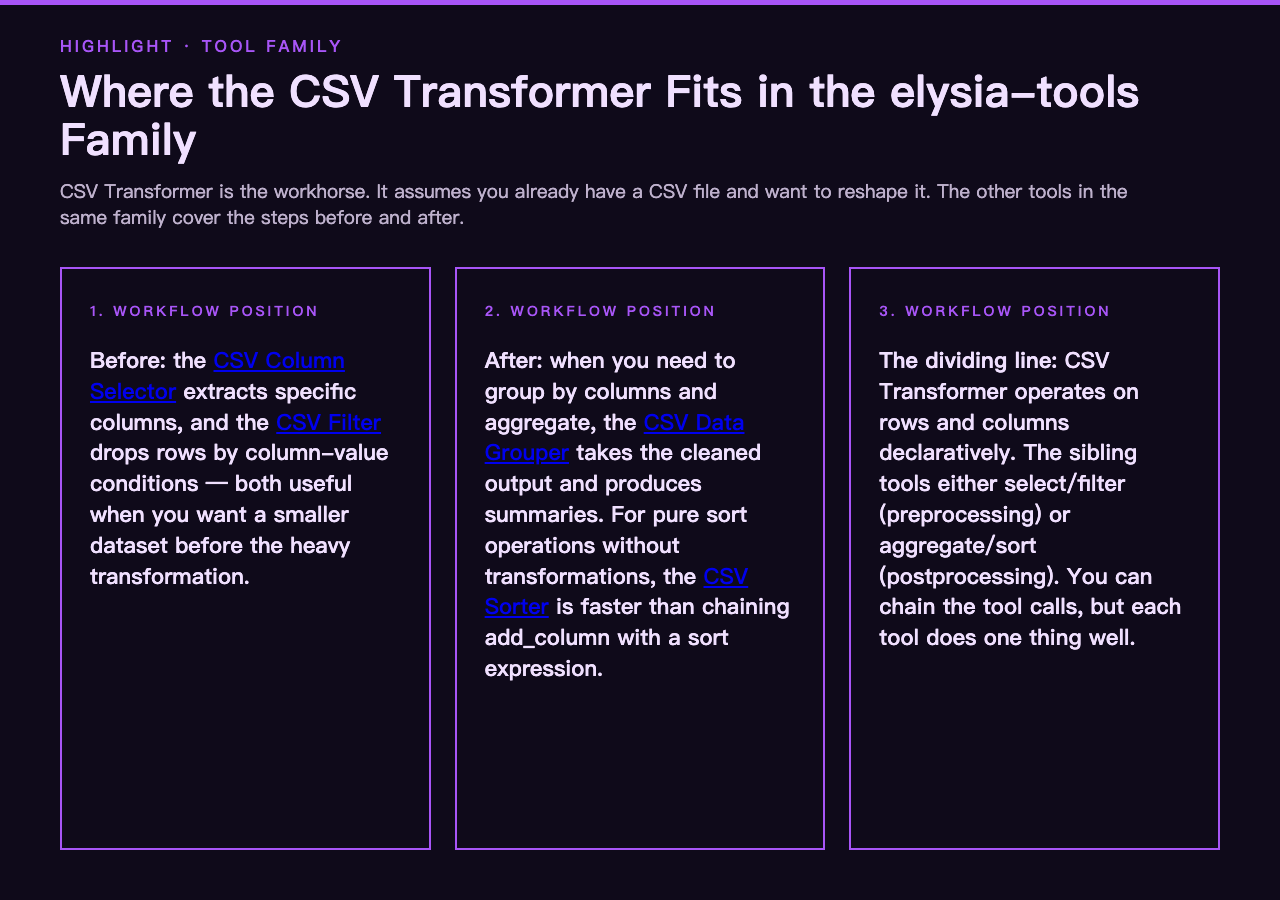
The dividing line is small but useful: CSV Transformer operates on rows and columns declaratively. The sibling tools either select/filter (preprocessing) or aggregate/sort (postprocessing). You can chain the tool calls — Transformer’s output is the input to Selector or Sorter or Grouper — but each tool does one thing well.
Sample Data for Trying It Out
Working with real-shaped data beats synthetic dummy rows every time. Three sample hubs that pair naturally with CSV transformation work:
- The CSV Samples hub gives you a range of header noise, mixed types, and the messy edge cases the transformer’s six operations were designed to clean up.
- The XLSX Samples hub is the parallel tabular format — useful when you need to convert Excel to CSV before feeding it to the Transformer.
- The Regex Replace hub covers the text-cleaning patterns that often run alongside CSV transformations, especially when a column’s values need normalisation before
convert_type.
Closing — When to Reach for It
Reach for the CSV Transformer when the transformation you want to do can be expressed as a sequence of rename, type-convert, add/calculate, filter, and column-remove operations on a single dataset. Reach for pandas when you need conditional logic per cell, joins across files, or streaming aggregation that does not fit in memory. Reach for SQL when the data is already in a database and the transformation is set-based.
For the declarative ninety percent — the cleanup, the calculated columns, the type fixes, the row filters — the CSV Transformer is the right tool. The chain is the documentation. The next person who reads your JSON file sees exactly what you did, in the order you did it, and can modify one operation without rewriting the rest.
Explore more at elysiatools.com.