Maps live in two worlds that don’t speak the same language. The browser-friendly one is GeoJSON — small, JSON-shaped, easy to parse in JavaScript. The desktop-GIS one is KML — XML, namespaces, an explicit <Document> root, and a long heritage from Google Earth. If you build anything that touches maps, the moment arrives when you have a GeoJSON FeatureCollection from the GeoJSON to KML converter on Elysia Tools and need to hand it to a colleague who only opens QGIS, Google Earth Pro, or ArcGIS Earth. Or you have a KML file exported from Google My Maps and need to drop it into Mapbox GL, Leaflet, or a Turf.js pipeline that only accepts GeoJSON. The format boundary is real, and the right converter makes it disappear.
This article walks through what actually changes between the two formats — not the surface syntax, but the semantic differences that catch developers off guard. It then shows how to convert cleanly, what to do when geometries are nested deeper than a single Feature, and how the converter handles the KML-specific constructs (<ExtendedData>, <Style>, network links) that GeoJSON has no native equivalent for.
Why two formats, and why neither is going away
GeoJSON was published as RFC 7946 in 2016 and is now the lingua franca of web mapping. Every modern browser mapping library — Leaflet, Mapbox GL JS, OpenLayers, deck.gl — accepts it directly. KML predates it by almost a decade: it was an OGC standard before that, born inside Keyhole Inc. and inherited by Google when they acquired the company in 2004. KML’s home turf is desktop GIS (QGIS, ArcGIS, Google Earth Pro) and any pipeline that ingests .kmz zipped bundles.
The two formats describe the same conceptual model — geometries plus properties plus a coordinate reference system — but they encode it differently:
- Geometry types: GeoJSON has
Point,LineString,Polygon,MultiPoint,MultiLineString,MultiPolygon, andGeometryCollection. KML hasPoint,LineString,Polygon, plus a genericMultiGeometrythat subsumes the other multi-types. - Coordinates: GeoJSON uses
[longitude, latitude]— always WGS84 (RFC 7946 §3). KML useslongitude,latitude,altitudeand inherits whatever datum the file declares (though WGS84 is the practical default). - Properties: GeoJSON attaches arbitrary JSON to each Feature under
properties. KML uses<Placemark>with optional<name>,<description>(HTML allowed), and a structured<ExtendedData>block for typed values. - Styling: GeoJSON leaves style entirely to the consumer. KML embeds
<Style>and<StyleMap>blocks that Google Earth and QGIS honor natively — colors, icons, line widths. - Hierarchy: KML supports folders, network links, region-based loading, and time-stamped animations. GeoJSON has none of these natively — they live one layer up in your application code.
Neither format is “winning.” Teams ship GeoJSON to browsers and KML to desktop apps and analysts, and a round-trip rarely loses anything important when done right.
The translation rules that matter
Doing a GeoJSON → KML conversion in raw Python is straightforward once you map each construct, but a few details will bite you if you write it by hand:
- Wrap everything in a
<Document>root. KML files are technically valid as bare<Placemark>streams, but every serious consumer (Google Earth, QGIS, ArcGIS) expects a<Document>wrapper. The converter adds it automatically. - Promote Feature properties to
<ExtendedData>. GeoJSON properties become a sequence of<Data name="key"><value>...</value></Data>entries. The original key names are preserved asnameattributes, which keeps round-trip fidelity for tools that understand<ExtendedData>. - Convert altitude properly. GeoJSON’s
[lng, lat]becomeslng,lat,0in KML. If your GeoJSON uses the rare[lng, lat, alt]three-element form, the altitude carries through. If it uses[lng, lat, alt, m_value](the non-standard 4-element form some libraries emit), them_valueis dropped — it has no KML equivalent. - Handle
GeometryCollectionas<MultiGeometry>. GeoJSON’sGeometryCollectionis the closest thing to KML’s<MultiGeometry>, but the geometrytypefield inside the collection is preserved — KML just wraps the parts in a single<MultiGeometry>parent. - Preserve
idon Feature. GeoJSON Featureidbecomesidattribute on the<Placemark>. Useful for stable references in your downstream app.
Run any one of those wrong and the output still opens in Google Earth — but the attributes disappear, or the polygons all stack at altitude zero, or your round-trip back to GeoJSON loses data. The GeoJSON to KML converter follows the RFC 7946 + OGC KML 2.2 conventions so you don’t have to memorize them.
A worked example: a small trail network
Imagine you have a GeoJSON FeatureCollection with three hiking trails, each a LineString, plus a viewpoint marker and a polygon for the parking area. The GeoJSON might look like this:
{
  "type": "FeatureCollection",
  "features": [
    {
      "type": "Feature",
      "id": "trail-blue",
      "properties": {
        "name": "Blue Ridge Trail",
        "difficulty": "moderate",
        "length_km": 4.2,
        "color": "#3366ff"
      },
      "geometry": {
        "type": "LineString",
        "coordinates": [
          [-73.9857, 40.7484],
          [-73.9842, 40.7491],
          [-73.9820, 40.7503]
        ]
      }
    },
    { "type": "Feature", "id": "viewpoint", "properties": {"name": "Summit View"}, "geometry": {"type": "Point", "coordinates": [-73.9810, 40.7510]} },
    { "type": "Feature", "id": "parking", "properties": {"name": "Trailhead Lot"}, "geometry": {"type": "Polygon", "coordinates": [[[-73.9865, 40.7475], [-73.9855, 40.7475], [-73.9855, 40.7480], [-73.9865, 40.7480], [-73.9865, 40.7475]]]} }
  ]
}
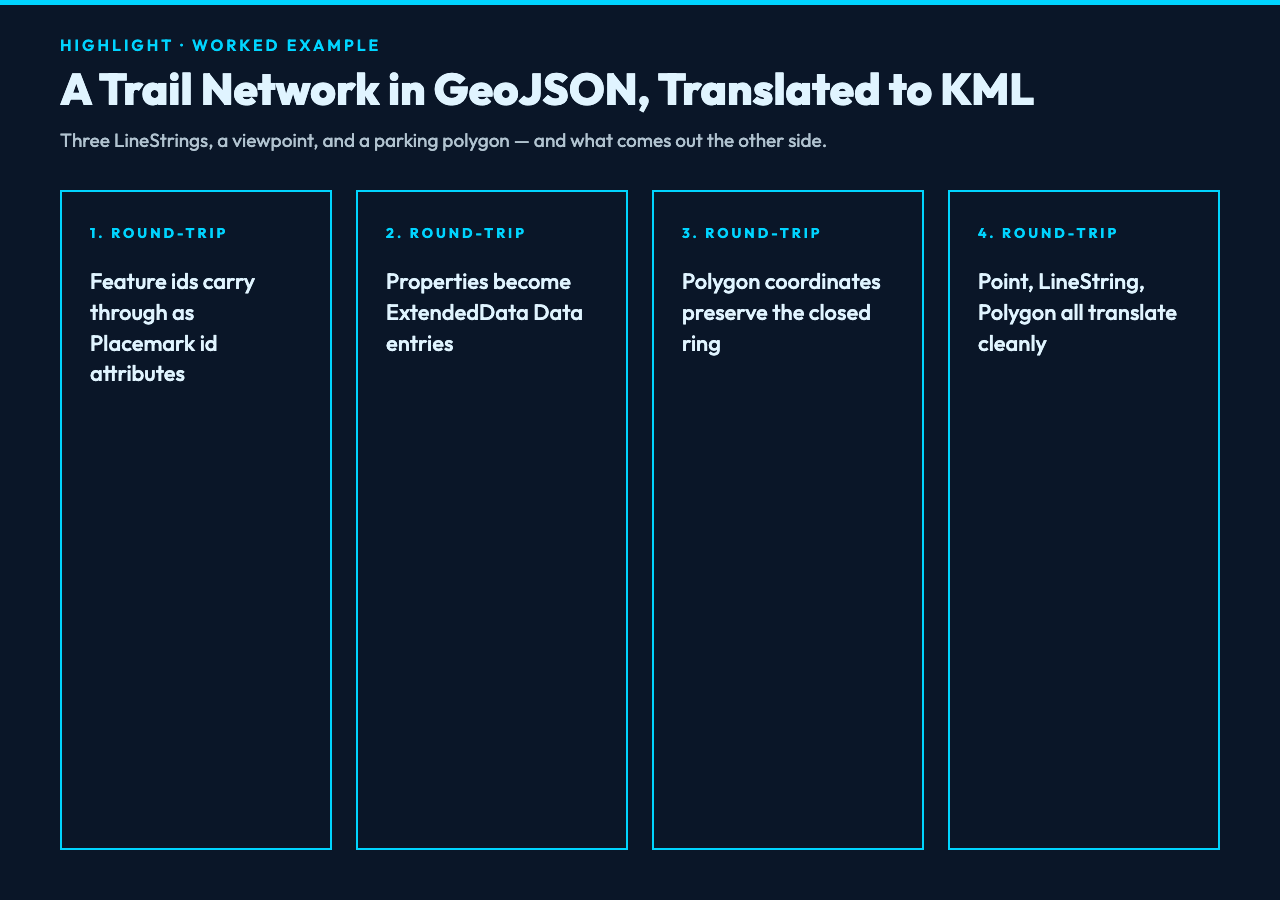
Convert it through the converter and the KML output preserves every id, every property, every coordinate. Open the resulting .kml in Google Earth and the three trails render as polylines, the viewpoint pops up as a placemark with a name balloon, and the parking lot draws as a filled polygon. No data loss.
Common pitfalls and what the converter does about them
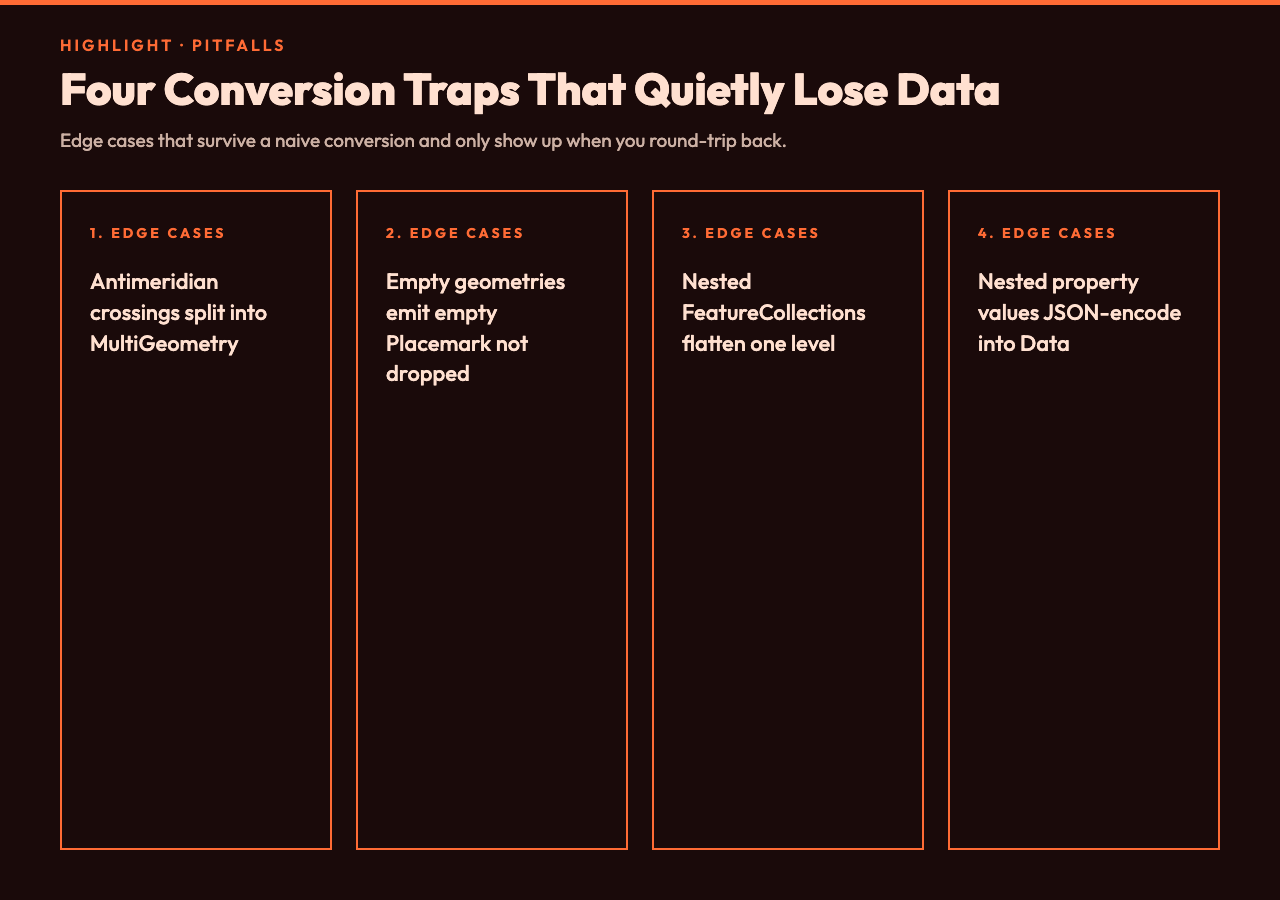
- Antimeridian crossings. A LineString that crosses the International Date Line (longitude ±180) is split into two
<LineString>segments inside a<MultiGeometry>. KML has no clean way to express the wraparound otherwise; the converter handles the split. - Empty geometries. GeoJSON allows
"coordinates": []for a degenerate geometry. The converter emits a<Placemark>with empty geometry, which Google Earth ignores silently — better than dropping the feature and losing its properties. - Nested
FeatureCollections. Some pipelines wrap a FeatureCollection inside another FeatureCollection. The converter flattens one level. - Property values that are nested objects or arrays. KML
<Data>values are strings. The converter JSON-encodes nested values into the<value>field, which keeps them intact through round-trips with tools that understand the encoding.
The reverse direction: when you have KML and need GeoJSON
Going KML → GeoJSON is its own conversation, mostly because of KML constructs that have no GeoJSON analog: <NetworkLink>, <Region> with LOD, <TimeSpan>/<TimeStamp> for time animation, and the full styling system. The reverse converter preserves the geometry and properties faithfully; KML-only constructs are dropped with a warning rather than silently mangled. If your downstream consumer is Leaflet or Mapbox, dropping styling is usually fine — you re-style client-side anyway.
For teams that round-trip between formats regularly, having both converters in the same toolbox is what makes the workflow feel frictionless. The same data goes out to a colleague’s QGIS instance and back into your browser app without manual editing.
When GeoJSON alone isn’t enough
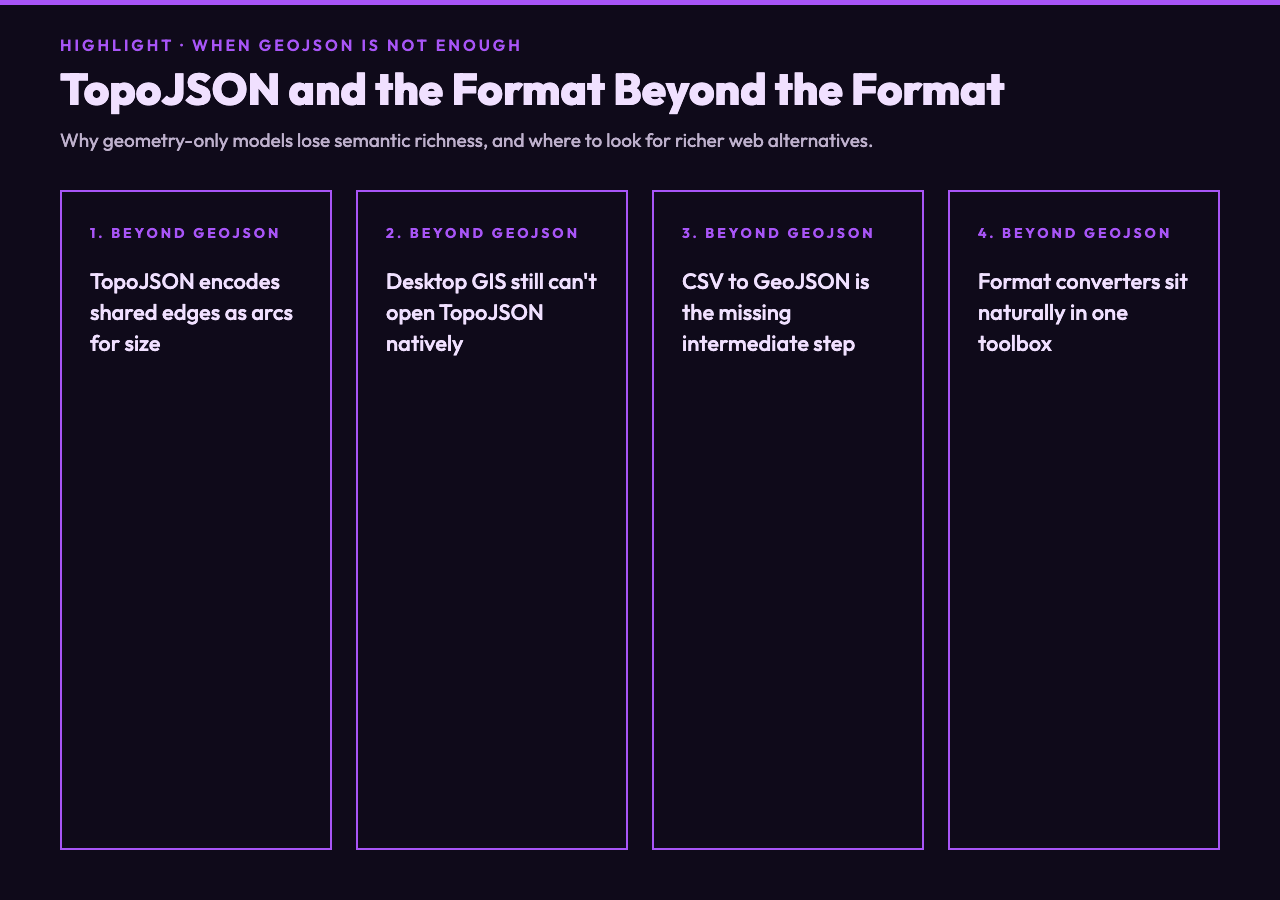
GeoJSON’s coordinate-only model is great for points and polygons but stumbles on data with semantics attached — typed measurements, units, time ranges, sensor readings. The richer alternative for the web is TopoJSON, which encodes shared edges between adjacent polygons as arcs (huge file-size win for contiguous regions like country boundaries). TopoJSON isn’t a substitute for KML though; it’s a different geometry optimization, and most desktop GIS tools still won’t open it without conversion.
If your pipeline ingests CSV with coordinates, the more common intermediate is to convert CSV to GeoJSON first — turning rows like name,lat,lng into a FeatureCollection of Points — and then convert that GeoJSON to KML if the destination is desktop GIS. Tools like CSV to JSON and JSON to CSV sit naturally alongside the GeoJSON to KML converter in a typical data-prep pipeline, even though they don’t touch geometry directly.
Putting it together
The right mental model is: GeoJSON is for the web, KML is for desktop GIS, and your data may need to live in both. Pick a converter that handles the boring semantic differences (CRS, altitude, properties → ExtendedData, antimeridian) so you don’t reinvent the rules every time. Round-trip often to catch data loss early. And if your broader workflow touches other text formats — JSON, CSV, XML, YAML — having a small suite of format converters in the same place keeps the cognitive load low. The GeoJSON to KML converter is one piece of that toolkit; the value shows up when you stop thinking about formats and start thinking about the map.
For more tools across the format-conversion spectrum, the full Elysia Tools catalog has converters for nearly every text and data format pair you’ll encounter in practice.