A customer success team needs to send a clean, readable PDF of last Tuesday’s support chat to a billing reviewer. A product manager is wrapping up five rounds of feedback with an LLM assistant and wants a printable record of the entire exchange. An educator is collecting simulated student-AI dialogues and needs them formatted with role labels for a workshop handout. Each of these scenarios has the same moving parts: a multi-role transcript in JSON, a layout decision, and a destination document that needs to look like a finished piece of writing rather than a raw log dump.
The Chat Transcript to PDF tool sits between a JSON export and a presentable PDF. You hand it a messages array, pick a few layout choices, and download a bubble-style conversation document. It is one of the more practical document-layout tools in the broader Document Tools cluster because it handles the parts that tend to break naive PDF exporters: role grouping, alternation between right-aligned user bubbles and left-aligned assistant bubbles, system prompts rendered as muted preamble, and timestamps on each turn.
1. What the input actually looks like
The tool accepts a JSON object with a messages array. Each entry is a role-keyed object with a content string. The schema is intentionally permissive — you can also include optional timestamp, name, and metadata fields on individual messages, and the renderer will pick them up where they appear in the bubble.
A minimal valid input is one line of JSON: { "messages": [{ "role": "user", "content": "Hello" }, { "role": "assistant", "content": "Hi there" }] }. The tool will render that as a two-bubble exchange with no header. A more realistic input for a real support transcript looks like this:
{
  "title": "Case #4421 — Refund Eligibility",
  "messages": [
    { "role": "system", "content": "You are a polite billing specialist.", "timestamp": "2026-06-08T09:02:14Z" },
    { "role": "user", "content": "I was charged twice for invoice INV-8821.", "name": "M. Ortega", "timestamp": "2026-06-08T09:02:48Z" },
    { "role": "assistant", "content": "I see two authorizations on June 5. Let me check the ledger.", "timestamp": "2026-06-08T09:03:01Z" },
    { "role": "user", "content": "Thanks.", "timestamp": "2026-06-08T09:03:55Z" },
    { "role": "assistant", "content": "Confirmed duplicate. Refunding $84 to card ending 4421.", "timestamp": "2026-06-08T09:06:22Z" }
  ]
}
The Chat Transcript JSON Samples hub has thirty-plus real transcripts covering support, sales, tutoring, dev-pairing, and multi-agent simulations. Browse them when you want to confirm a JSON shape — for example, the hub includes an extended 14-message customer-onboarding exchange with embedded markdown, which is useful when you need to test how the renderer handles bold and inline code inside a bubble.
2. Five layout decisions that shape the output
The tool exposes a small set of switches that change the document’s tone more than you’d expect. Most teams only ever touch the title, but the others are worth knowing.
- Bubble style — rounded soft-shadow boxes (default) versus flat rectangles. The flat variant prints better on monochrome laser printers and is the right pick for legal hand-off bundles.
- Role colors — user, assistant, system, and tool get distinct accent colors. The defaults are tuned for screen reading; if you’re exporting for a print run, pick the high-contrast grayscale palette so the role labels read under photocopying.
- Timestamp placement — inside each bubble under the role label, or in a right-aligned gutter. Gutter mode makes the document read more like a court transcript; bubble mode reads more like a chat client screenshot.
- Group consecutive same-role messages — on by default, so three short user messages in a row appear as one tall bubble rather than three tiny ones. Turn it off for legal forensics where each turn must remain visually distinct.
- System-prompt handling — render at the top of the document as a muted preamble block, or inject at the start of the conversation as a regular bubble. The latter is better for transcripts where the system message evolved over time (multi-version conversations).
You can preview how each setting looks by trying a two-message test JSON against the tool, then re-exporting with the same content after flipping the switches. The PDF re-renders in roughly a second for transcripts under 200 turns, so iteration is cheap.
3. Common failure modes in raw transcripts
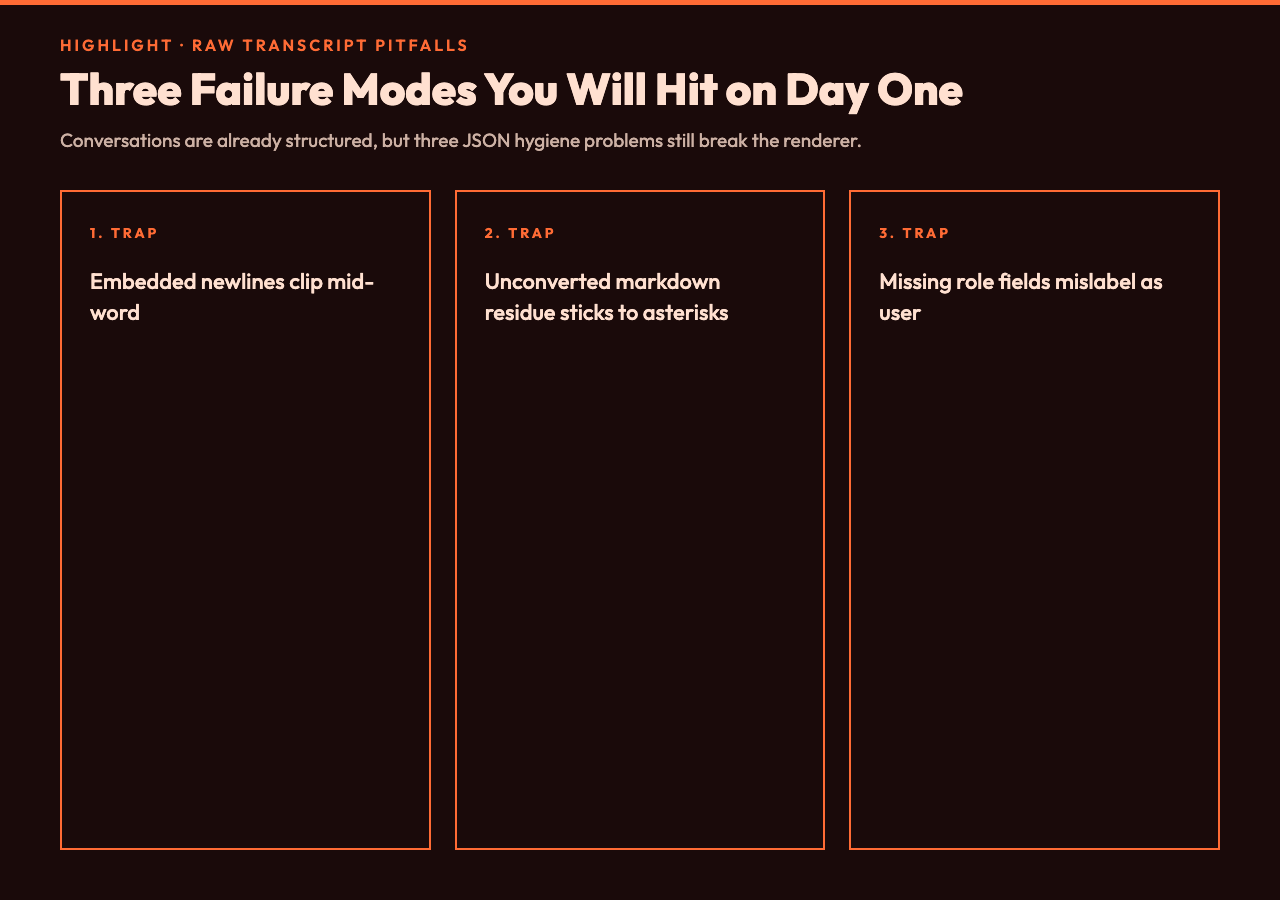
The renderer is forgiving but not magic. Three patterns break it often enough to call out:
- Newline characters in
content— JSON allowsnin a string, and most chat UIs display them as line breaks. The PDF renderer preserves them, but it does not wrap them, so a 1,200-character content string with embeddedns will overflow the page width and clip mid-word. The fix is either to stripns before sending, or to use<br>tags which the renderer interprets as soft breaks. - Markdown residue inside
content— raw LLM outputs often contain**bold**and*italic*that have not been converted to HTML yet. The PDF renderer treats those as literal asterisks. Run the JSON through a markdown-to-HTML pass before exporting, or accept the asterisks as-is if you want the document to read like an LLM terminal capture. - Missing
rolefield — if a message omits therolekey, the renderer falls back touserstyling. That masks data hygiene problems. The audit-script-safe pattern is to validate roles against an allowlist (user,assistant,system,tool) before exporting.
If you are exporting large volumes of historical chats from a vendor platform — Intercom, Salesforce, Chatwoot — pre-flight the JSON. A five-minute cleanup pass saves a half-hour of re-rendering when the bubble layout breaks on message #47.
4. Where this tool fits in the document-conversion family
Document conversion usually splits along two lines: structural preservation versus layout refinement. Tools like PDF to Word and PDF to Image Converter fall on the structural side — they want to capture pixels and glyphs, not interpret content. The Chat Transcript to PDF tool sits on the layout-refinement side. It does not care about the visual character of the original chat window; it cares that the role-keyed sequence renders as a presentable document.
That distinction matters when you are mixing tools. A typical pipeline pairs it with one of the markdown-flavored converters. You might extract a chat from an API, run it through Markdown to PDF Converter if you prefer a typeset look (great for academic hand-offs) or use Chat Transcript to PDF directly when you need role-anchored bubbles (better for support audit trails and simulated student dialogues).
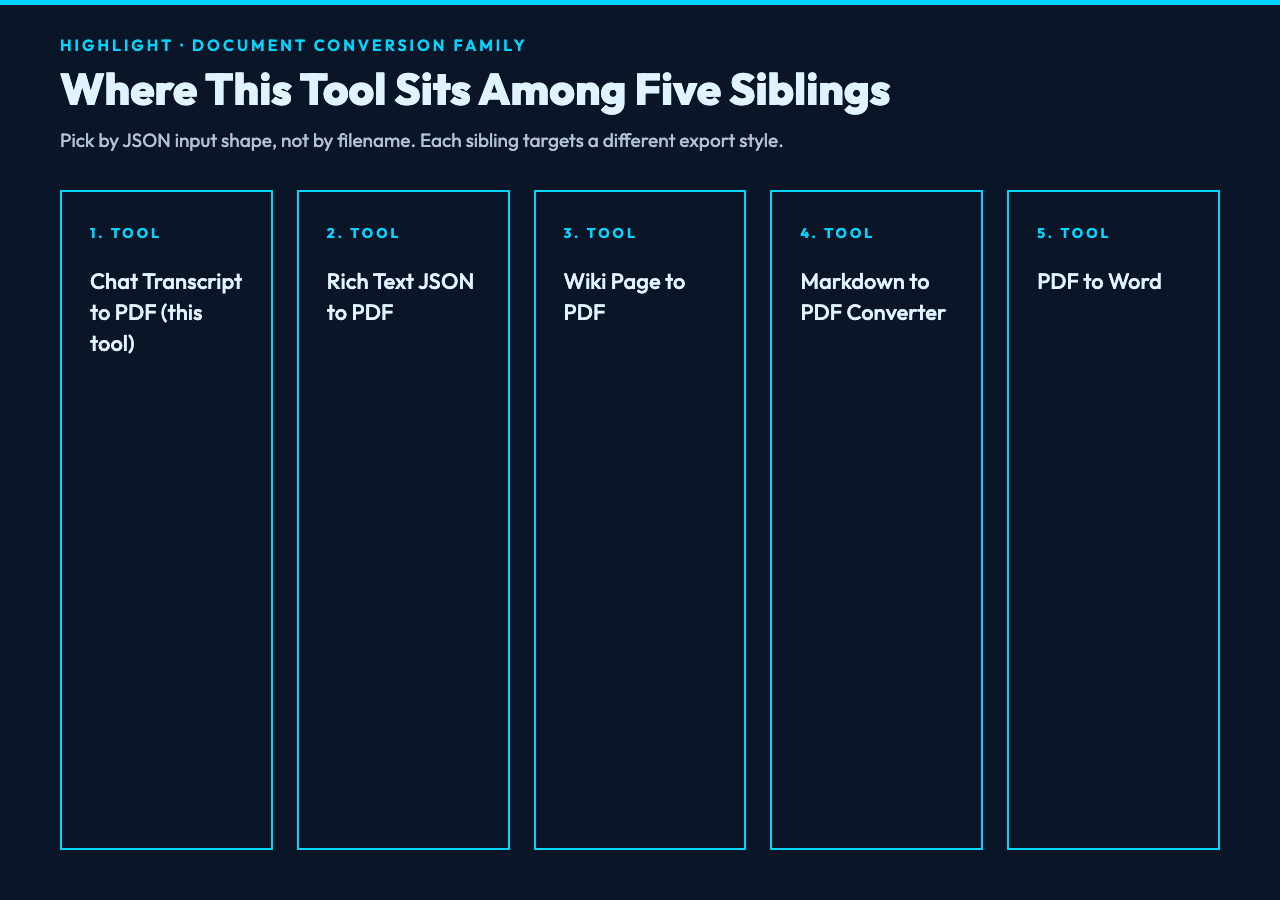
Two of the most-used siblings are Rich Text JSON to PDF, which targets editor exports (TipTap, Quill, Slate) rather than chat, and Wiki Page to PDF, which fetches a URL and renders it. Each is right for a different input shape. Picking among them is mostly a matter of which JSON schema your source produces.
5. Real-world pipelines
Three concrete workflows show up repeatedly.
Customer-support audit packet. A support lead exports a CSV of conversations from Zendesk. A small Python pass converts each row into the JSON messages format, batches them through the tool, and produces one PDF per ticket. The PDFs get stitched with PDF Watermark Tool to mark CONFIDENTIAL across the page, and the bundle is sent to a compliance reviewer.
LLM evaluation record. A prompt-engineering team records every model response during an A/B test. They pipe the JSON to the tool to generate a printable evidence packet, then submit the PDF alongside the metric tables in their evaluation report. Real-time WebSocket samples are useful here as a reference when the conversation came from a streaming endpoint and needs to be reassembled with turn boundaries.
Teaching artifact. A writing instructor models “good AI-assisted editing” by walking through a dialogue with ChatGPT. She exports the conversation to PDF with a header containing the lesson date, then hands the PDF to students as the starting point for the next exercise. The bubble layout makes the multi-turn structure legible at a glance, which a flat markdown transcript would not.
6. Limits worth knowing in advance
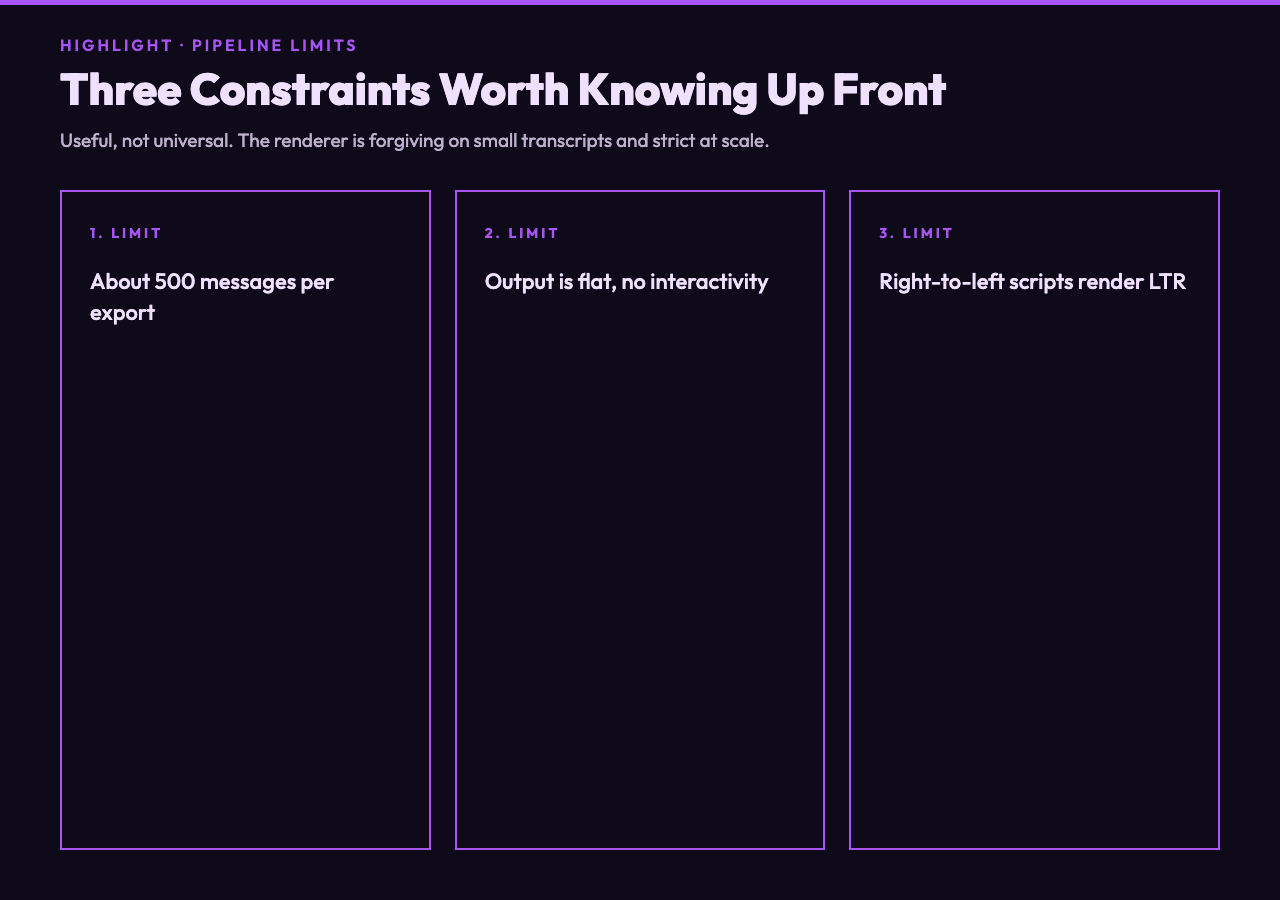
Three limits keep the tool in the “useful, not universal” category:
- Transcript size cap — about 500 messages per export before the layout engine starts to slow. For longer exchanges, split the JSON into chapters and merge the resulting PDFs with a tool like PDF to Word downstream.
- No interactive elements in output — the PDF is flat. Collapsible accordions, hover tooltips, and inline expand buttons from chat clients are all flattened to text or stripped. If you need the interactivity, export to HTML instead.
- Locale handling — CJK content is supported, but bidirectional text (Arabic, Hebrew) renders left-to-right. If your audience reads right-to-left, check the output carefully or invert the role alignment with the bubble-style switch.
7. Putting it together
The chat-to-PDF conversion is one of those tasks that looks trivial until you try it: the JSON is already structured, the role keys are already there, what could possibly go wrong. In practice, three things will go wrong on the first export — embedded newlines, markdown residue, and a missing role field — and a small pre-flight script catches all three. Once that script is in place, the tool itself becomes a reliable workhorse for support teams, LLM evaluators, and educators who need the same artifact in the same shape every time.
Open the Chat Transcript to PDF page, paste a transcript, and walk through the five layout switches once. You will know within five minutes whether the output matches the look you want, and the remainder of the work is just plumbing. Browse the Chat Transcript JSON Samples hub for input shapes you have not seen before, and reach for the sibling tools in the Document Tools cluster — Rich Text JSON to PDF, Wiki Page to PDF, Markdown to PDF Converter — when your source data is not exactly chat-shaped.
For more layouts, sample transcripts, and rendering switches, explore the rest of the Elysia Tools document converter library.