
Why your CSV file has no headers — and what to do about it
Most CSVs that turn up in real life are not the polite, comma-separated-with-tidy-first-row kind that the textbook promises. They come out of database exports, analytics dashboards, REST API responses, and Excel “save as CSV” workflows where the user already had a header row and saved without one. By the time they land on your desk, the first row is just more data, indistinguishable from the rest.
That is a bigger problem than it looks. Without a header row, you cannot import into pandas, you cannot pivot in a spreadsheet, and you cannot ask a downstream tool “what is the third column?” — every column is anonymous. The Header Adder tool exists to fix exactly this: paste the raw, header-less CSV, choose how you want the columns named, and get back a properly structured file in one step. You can try it on real CSV fixtures at Elysia Tools CSV Samples.
The problem in concrete terms
Here is the kind of input that shows up in your terminal every Tuesday morning:
John,25,New York,Engineer
Jane,30,Los Angeles,Designer
Bob,35,Chicago,Manager
Five rows, four columns, zero names. Try pd.read_csv(io.StringIO(text)) and pandas will happily call them Unnamed: 0, Unnamed: 1, Unnamed: 2, Unnamed: 3 — which is technically a header, but not one a human can use. Try to df.merge() on the third column and you are forced to either guess the meaning from the data or read the source system that produced it.
The root cause is almost always one of three things: the upstream tool genuinely did not write a header (older SQL exports, some REST APIs), the header was stripped by a transform step (a CSV-to-CSV pipeline that lost track), or the file was hand-edited and the top row was removed. None of those are the user’s fault, but all of them end up in the same place.
Five naming modes, and which one to use
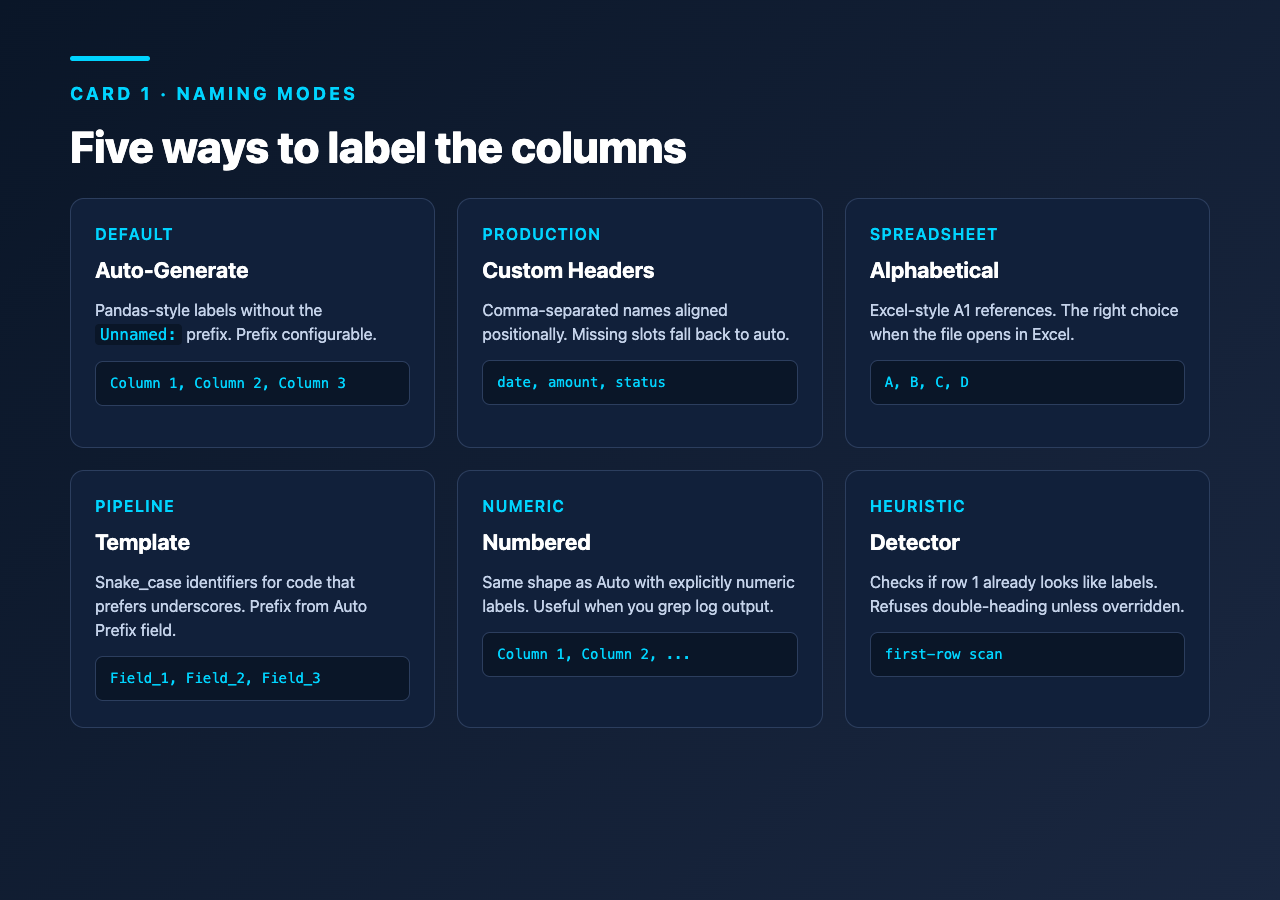
The tool exposes five ways to label the columns, and picking the right one is half the job. The mode dropdown is the first place your eye should go after pasting data.
Auto-Generate Headers is the default and the right choice when you do not know what the columns are. It produces labels like Column 1, Column 2, Column 3 — which is exactly what pandas does on its own, but consistent and without the Unnamed: prefix. The Auto Prefix field defaults to Column; change it to Field, Metric, or any short noun if your downstream code reads more naturally that way.
Custom Headers is what you want when you do know what the columns are. Type the names as a comma-separated list — Name,Age,City,Role — and the tool aligns them positionally. The first name goes to column 1, the second to column 2, and so on. If you list fewer names than there are columns, the remaining columns fall back to the auto-generated naming pattern with whatever prefix you have set.
Numbered Headers produces Column 1, Column 2, .... Functionally identical to Auto mode, but the labels are explicitly numeric — useful when you want to grep for column references in logs.
Alphabetical Headers produces A, B, C, D, .... This is the spreadsheet convention — column A is the first, column B is the second. It is the right choice when the output is going to be opened in Excel and the user expects A1-style references.
Template Headers produces Field_1, Field_2, Field_3, .... The leading noun is configurable via the Auto Prefix field. This is the right choice when the output is going to be ingested by code that prefers snake_case identifiers to human-readable names — a lot of analytics pipelines and ORM-style loaders expect this shape.
Separators that break the naive case
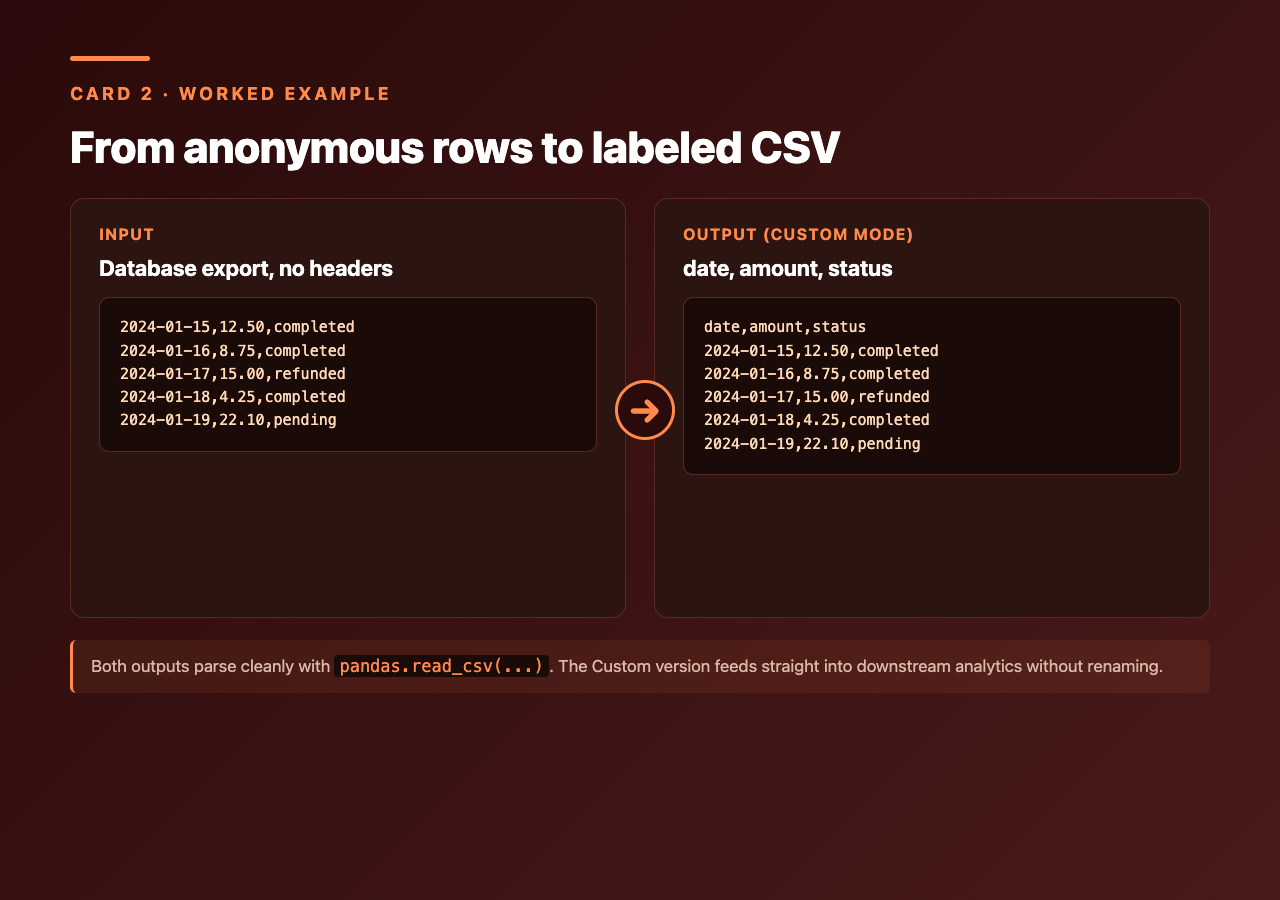
The CSV specification is a polite fiction. In real data, the delimiter is just as likely to be a semicolon (European spreadsheets), a tab (anything that came out of a Unix pipeline), a pipe (Postgres copy with non-comma output), or even a space (some legacy mainframe exports). The tool’s CSV Separator dropdown exposes all five, and picking the wrong one silently produces garbage: a 12-column file is read as one 12-character-wide column, and the result looks valid until you try to parse it.
A useful diagnostic: if your file has thousands of rows and the tool says “1 column detected,” the separator is wrong. Switch from comma to semicolon, click again, and watch the column count jump. The same trick applies to tab-delimited files — paste, select Tab, and the columns resolve.
Working with existing data: detection and overwrite
The most common mistake is to assume a file has no headers when it actually does, and add a second header row on top. The tool runs a quick heuristic on the first row to detect this: if the first row is mostly non-numeric strings while the rest are mostly numbers, the file is treated as already having headers, and the tool refuses to add another row. You can override this with the Custom Headers mode if you genuinely want to overwrite, but the default behavior saves you from the most common header-related bug in data pipelines.
The inverse mistake — assuming a file has headers when it does not — is harder to catch. The detection only runs on the first row, so a file where every row happens to look like headers (rare but possible with short symbolic data) will be mis-classified. When in doubt, open the raw file in a text editor and look at the first line yourself.
Real input, real output
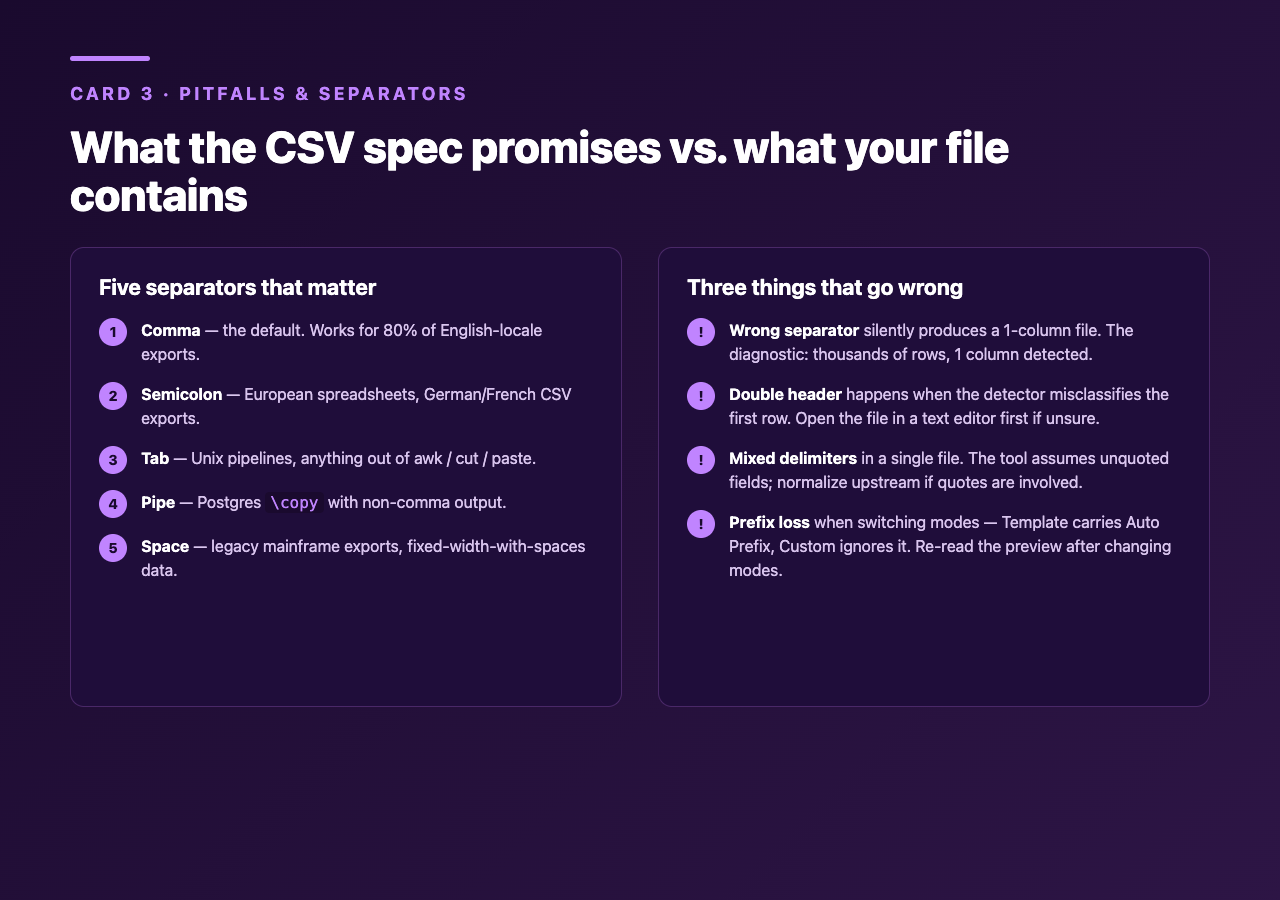
Here is a worked example using the mode that pairs best with the CSV Samples library.
Input (an export from a database that strips column names by default):
2024-01-15,12.50,completed
2024-01-16,8.75,completed
2024-01-17,15.00,refunded
2024-01-18,4.25,completed
2024-01-19,22.10,pending
Auto-Generate with default prefix, comma separator:
Column 1,Column 2,Column 3
2024-01-15,12.50,completed
2024-01-16,8.75,completed
2024-01-17,15.00,refunded
2024-01-18,4.25,completed
2024-01-19,22.10,pending
Custom Headers with date,amount,status:
date,amount,status
2024-01-15,12.50,completed
2024-01-16,8.75,completed
2024-01-17,15.00,refunded
2024-01-18,4.25,completed
2024-01-19,22.10,pending
Both outputs parse cleanly with pandas.read_csv(io.StringIO(text)) and produce a DataFrame with sensible column names. The Custom Headers version is ready to feed directly into a downstream analytics job without renaming anything.
Batch processing and the CSV-as-glue use case
The tool handles files up to a few hundred thousand rows without complaint, which covers the common case of “I have a database export from last quarter and I need to load it into the new schema.” The output is plain CSV — no exotic binary formats, no proprietary extensions — so it drops straight into any downstream pipeline.
When you have many files to process at once, the manual loop is: paste each file, choose Custom Headers with the same name list, copy the output, paste into the destination. For one-off migrations of two or three files, this is faster than writing a script. For ten or more files, switch to a real pandas one-liner and use the tool as the source-of-truth for what your column names should look like.
Common pitfalls
Adding headers to a file that already has them. The detector catches most of these, but if the first row is all-symbolic strings (every cell looks like Y, N, 1, 0), the heuristic misfires and you get a doubled header. Always open the file in a text editor first if you are not sure.
Picking a separator that almost-but-not-quite matches. Some European CSVs use semicolons but also quote fields with commas inside them. The tool does not have a quote-handling option — it assumes unquoted fields. If your file mixes delimiters, normalize it upstream first.
Losing the prefix when switching modes. If you set Auto Prefix to Field in Auto mode and then switch to Template mode, the prefix carries over and you get Field_1, Field_2, .... If you switch to Custom mode, the prefix is ignored entirely. Always re-read the preview pane after changing modes.
How the tool fits a real workflow
The shortest end-to-end workflow with the Header Adder is three steps:
1. Paste the raw, header-less CSV into the textarea. 2. Pick the mode that matches your downstream format (Auto for one-off analysis, Custom for production loads, Alphabetical for Excel hand-off). 3. Copy the labeled output and feed it to pandas, Excel, or whatever consumes CSVs downstream.
The whole thing takes ten seconds once you know which mode you want, and the cost of being wrong is low — you can paste the output back in, pick a different mode, and try again.
For a deeper look at the data-cleanup side of this workflow — handling bad rows, mixed delimiters, encoding issues — the Header Adder page documents the full option list, including the Custom Headers field’s positional alignment and the Auto Prefix fallback chain. If you want raw test fixtures to run against, the CSV Samples collection includes ten files at varying complexity, from simple student records to mixed-type product catalogs.
A header row is the difference between a CSV that a human can read and one that only a machine can parse. The tool is the bridge.
