
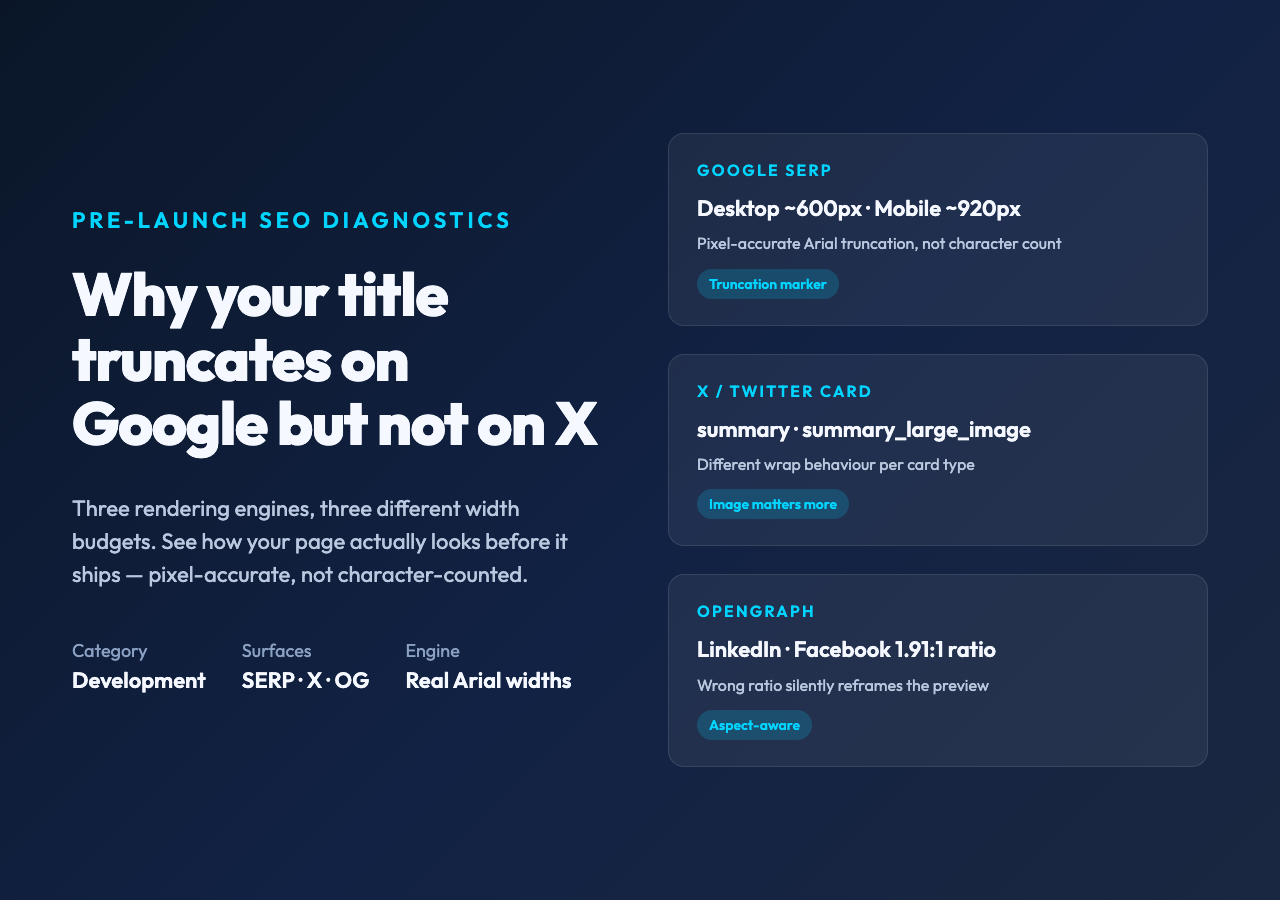
Why your page title truncates differently on Google and X (and how to fix it before launch)
You write a page title, drop it into your CMS, and the social share preview breaks. The Google result cuts off mid-sentence. The X card crops your tagline. The LinkedIn preview shows the wrong image. None of these problems are about your title being “too long” — they are about three different rendering engines, each with its own width budget and its own rules for what to do when the budget runs out.
The right way to ship a launch page is to see the same page render across all three surfaces before you publish, with real pixel-width math, not a character count. That is the whole reason the SERP & Social Preview Studio exists — and it is also why a 65-character title that looks fine in your editor can quietly lose its last six words in mobile search.
The three engines are not measuring the same thing
Most SEO tooling tells you “title is 64 characters, you’re fine.” That number came from Google’s old desktop pixel-width heuristic. It is misleading in three concrete ways.
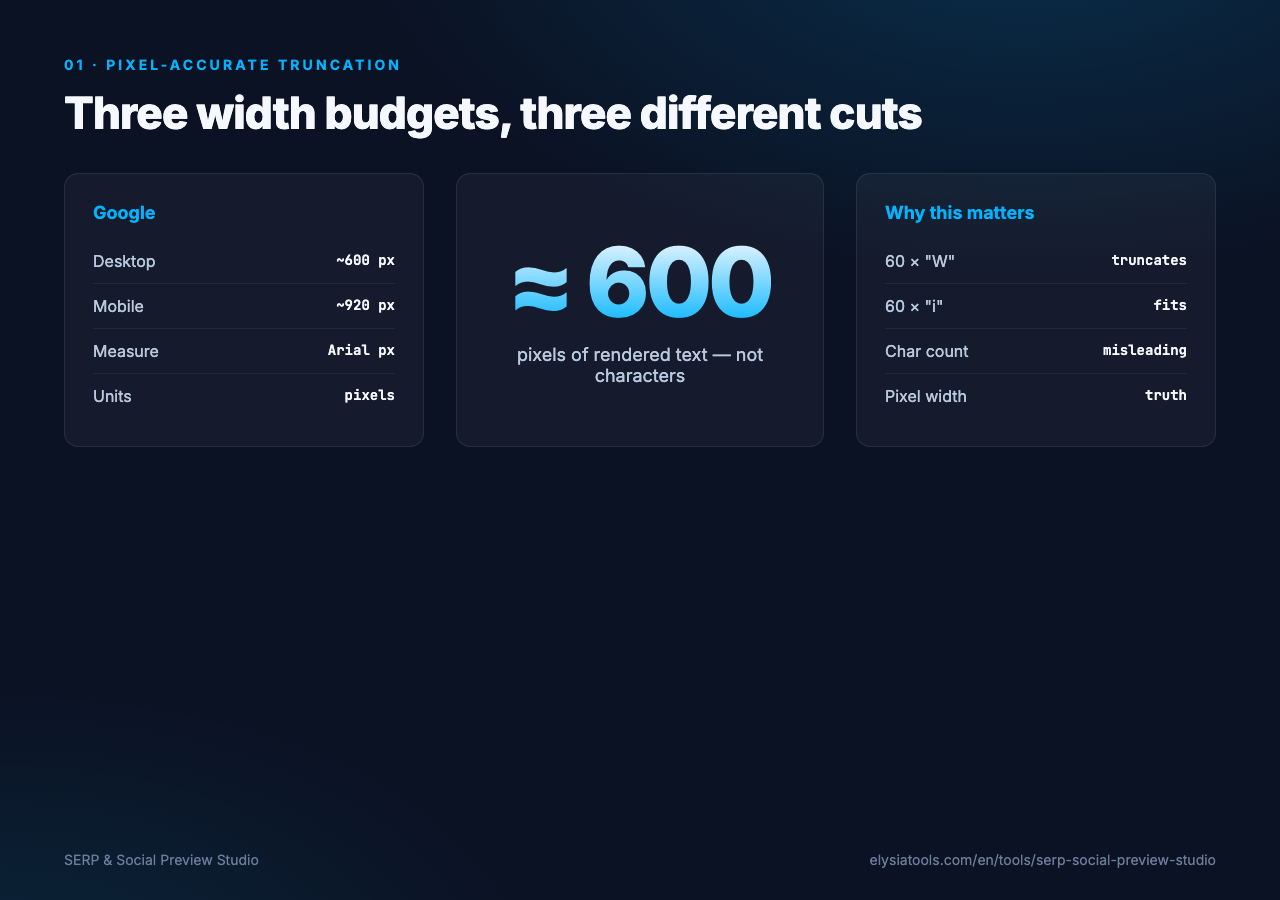
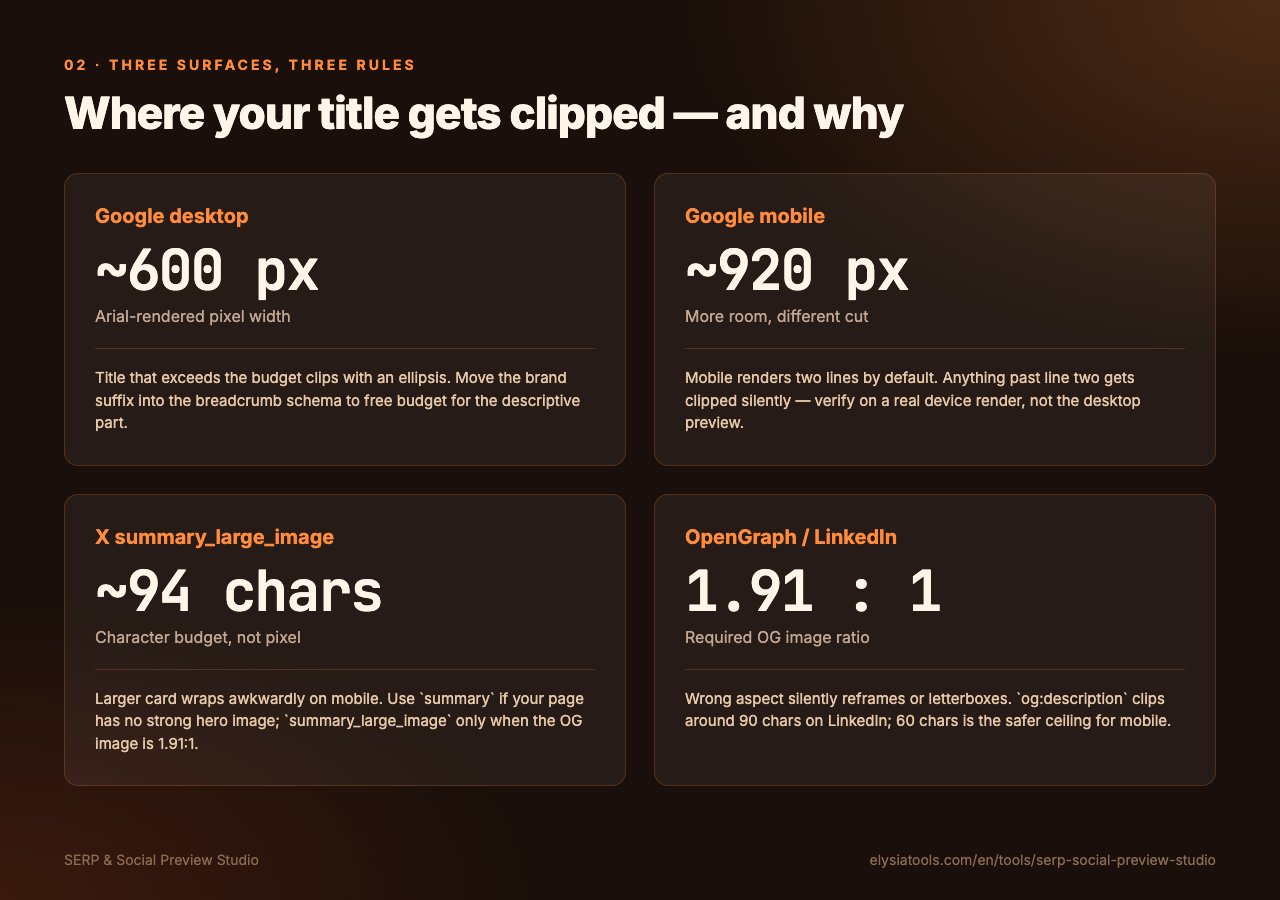
Google mobile uses ~920px, desktop uses ~600px. Both are measured in pixels of rendered Arial/Helvetica text, not character counts. A title with 60 Ws truncates earlier than 60 narrow Is.
X (Twitter) Cards truncate at ~70 characters for summary and ~94 characters for summary_large_image with very different wrap behavior. A summary_large_image card that fits on desktop can wrap awkwardly on mobile.
OpenGraph (og:title) has no hard truncation limit. LinkedIn and Facebook each clip at different widths, and the wrong og:image aspect ratio (not 1.91:1) will silently reframe your preview.
When you preview the same metadata in all three at once, the disagreements between them are the diagnostic.
What the preview studio actually computes
Drop your title, description, canonical URL, og:image, and twitter:card into the studio and you get three rendered cards — Google SERP (desktop + mobile), X Card (summary + summary_large_image), and OpenGraph — drawn with the same Arial pixel widths the real platforms use. The interesting part is the diagnostics table underneath each preview:
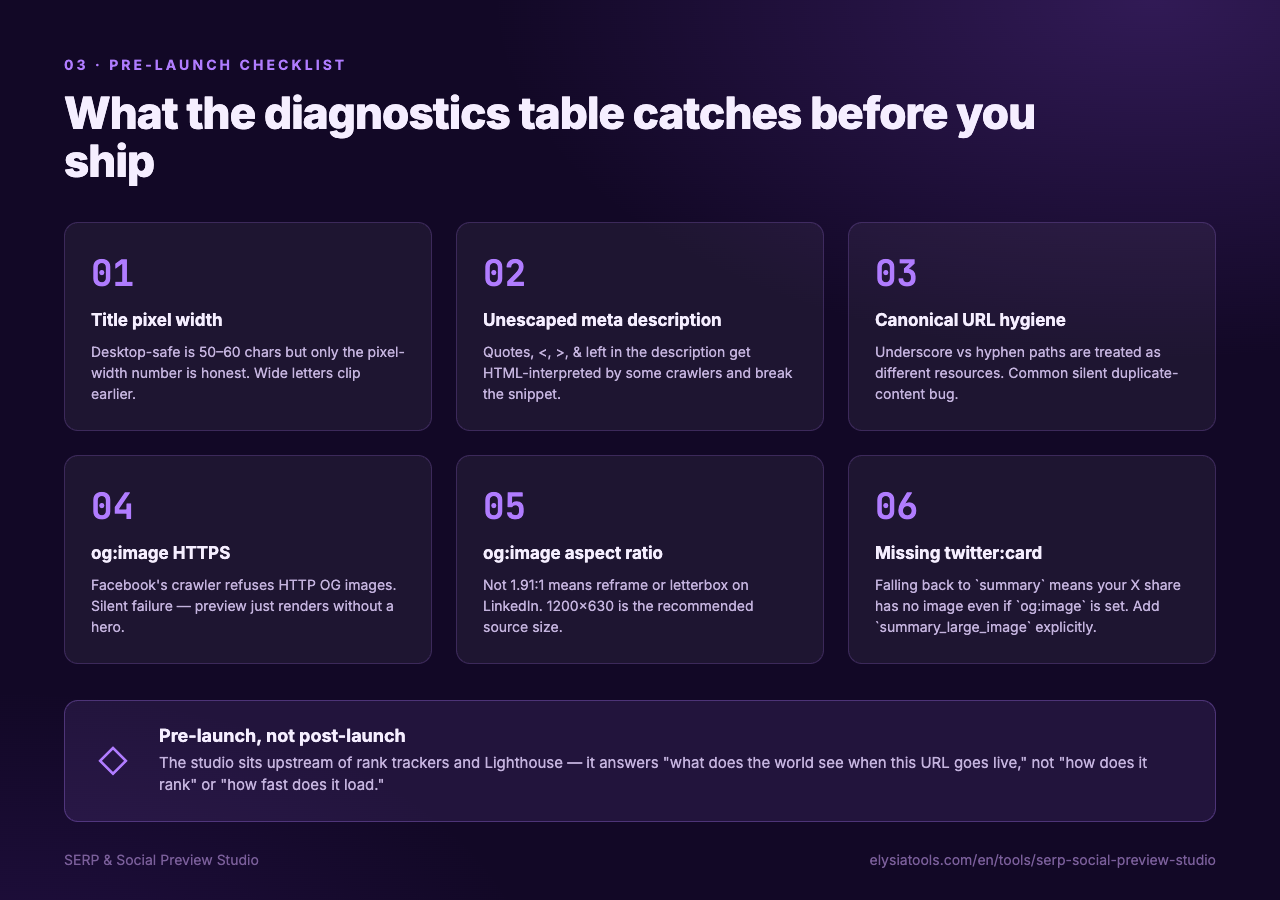
Title too long for desktop (over 600px) — desktop truncation point shown with a marker.
Title too long for mobile (over 920px) — same, on the mobile preview.
Description unescaped characters — quotes and HTML special chars left in the meta description get HTML-interpreted by some crawlers and break the snippet.
og:image not HTTPS — Facebook’s crawler refuses HTTP OG images. Silent failure.
og:image aspect ratio wrong — not 1.91:1 means reframe or letterbox on LinkedIn.
Canonical URL underscore vs hyphen — my_page is treated as a different resource than my-page by most crawlers. A common silent duplicate-content bug.
Missing twitter:card — falling back to summary means your X share has no image even if you set og:image.
These are exactly the checks that used to take three separate browser tabs and a Lighthouse run.
A worked example: 64 characters that still truncates
Consider a typical product page title. A raw example illustrates the trap: the title Best Running Shoes 2026 — Tested & Reviewed by Podiatrists | RunLab runs 73 characters with a pixel width of roughly 612px at Google desktop. The trailing brand suffix gets clipped, and you lose the part that signals credibility.
The fix is not “shorten the title” — it is to move the brand suffix into the breadcrumb or the SERP siteName slot, where it does not consume title budget. The shortened form Best Running Shoes 2026 — Tested by Podiatrists lands at 50 characters and roughly 445px wide, which both desktop and mobile render cleanly. The brand suffix lives in the breadcrumb schema instead.
For the record, the original problematic title:
Best Running Shoes 2026 — Tested & Reviewed by Podiatrists | RunLabThis is the workflow the studio enables: render, measure, edit, re-render, in a single tab, before any push to production.
The three surfaces you should preview, in order
Google SERP first. It is the largest source of organic traffic for most pages and the most aggressive about pixel-width truncation. Fix your title length here first.
X Card (summary_large_image) second. This is what every link share looks like in Slack, Discord, and email clients. The image matters more than the title here.
OpenGraph / LinkedIn third. LinkedIn is the most permissive but the most opinionated about og:image aspect ratio and og:description length.
If your title, description, and OG image pass all three, your page is launch-ready from a social preview perspective. If only one fails, you know exactly which surface to tune for.
A pre-launch checklist the studio turns into a one-pager
After running a real page through the studio, the diagnostic output reads like a QA checklist.
Title length — 50–60 chars (desktop-safe). Confirm with the studio pixel-width value, not the character count.
Meta description — 140–160 chars, no unescaped HTML special chars or raw quote characters.
Canonical URL — HTTPS, hyphen-separated, no trailing slash mismatch.
og:image — HTTPS, 1200×630 (1.91:1), under 5 MB, JPEG/PNG/WebP.
og:description — 60–90 chars; LinkedIn clips around 90.
og:site_name — present and under 30 chars.
twitter:card — summary_large_image if you have an OG image.
Structured data hint — if the title starts with “How to”, “What is”, or “Best X for Y”, the studio flags FAQ / HowTo / Product schema opportunities.
You can copy this straight into your launch runbook.
How this fits the rest of your pre-launch stack
The studio is not a rank tracker and it is not a backlink tool. It sits upstream of those — in the same seat as a schema validator or a Lighthouse run. The output is “what the world sees when this URL goes live.” That is a different problem from “how does this URL rank” and a different problem from “how fast does this URL load,” but it is the one that decides whether anyone clicks at all.
If you are already validating structured data, accessibility, and performance separately, the studio plugs into the same workflow without replacing any of it. You preview, you fix, you push, and the page that lands in search results and on social feeds matches what you intended.
Open the SERP & Social Preview Studio, paste a real title from your CMS, and look at the mobile preview first. Most launch-day surprises show up there. Explore more launch-readiness tools at Elysia Tools.
