
What the Polaroid look is actually doing under the hood
The Image Polaroid Effect tool at Elysia Tools does not add a sticker. It rebuilds the photograph on a larger canvas, composites the original inside a hand-measured white margin, then layers a stylised colour grade on top of the pixels themselves. The output is a single PNG or JPEG whose physical dimensions exceed the source image by an 8% border on every side — wider than the canvas you sent in, with your photo sitting in the middle like a frame on a gallery wall. If you can describe the look you want (the warmth of a 600-series cartridge, the haze of a box that sat in a glovebox for two summers, the clean white of a fresh pack), you can get it without leaving your browser or opening a Photoshop subscription.
Four styles, one border, and which one earns its keep
The tool offers four named styles, each driven by a different sharp filter chain. Picking between them is mostly an aesthetic call, but a couple of distinctions matter.
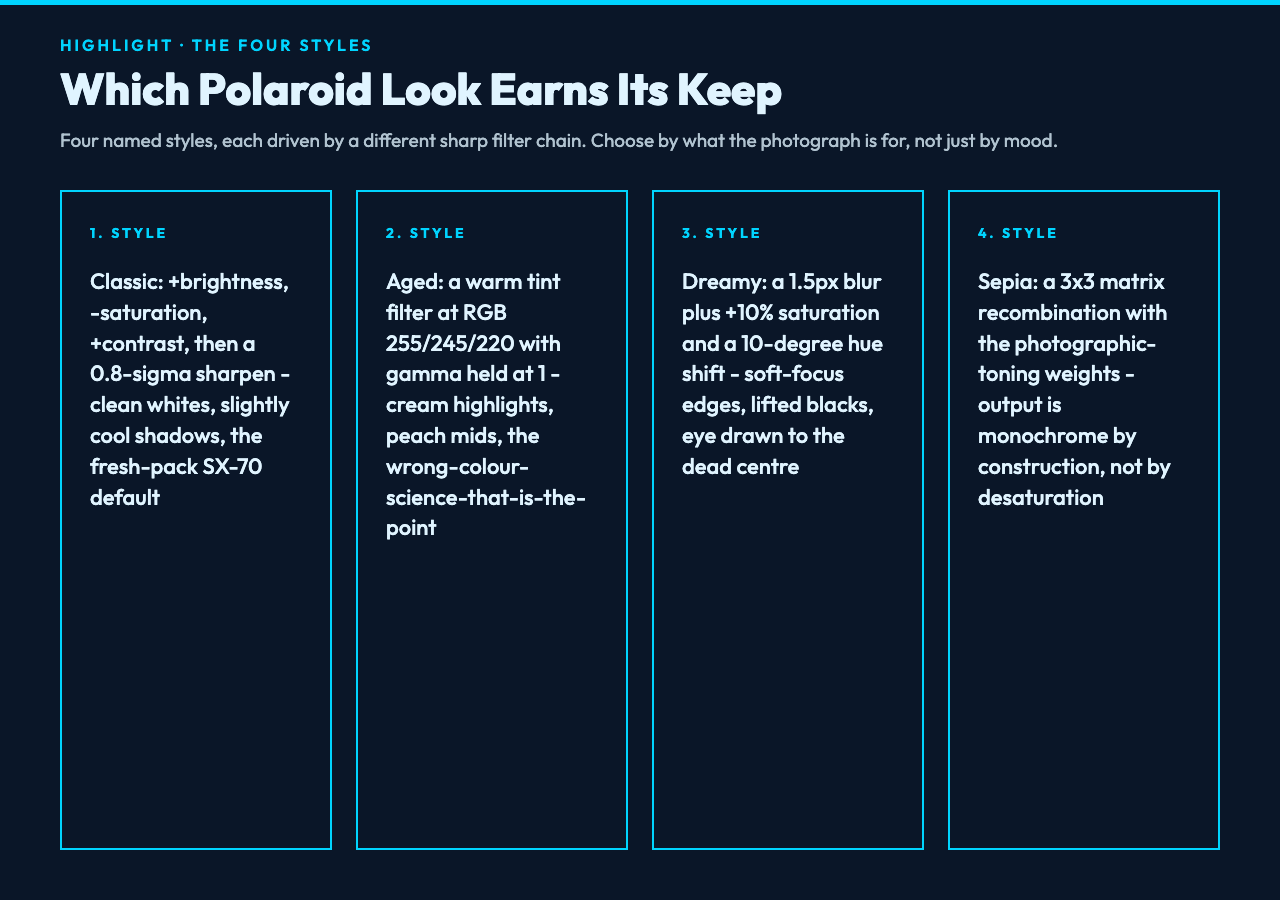
Classic Polaroid is the default. It boosts brightness by 10%, drops saturation by 10%, raises contrast by 20% (via linear 1.2 0), then runs a mild 0.8-sigma sharpen on top. The result feels like a fresh pack of SX-70 film pulled from a museum gift shop: clean whites, slightly cool shadows, edges that read as sharp but not over-cooked. Reach for this when the photo is the message and the frame is the bow on it.
Aged Polaroid swaps the saturation/contrast dance for a warm tint filter (RGB 255, 245, 220) and keeps gamma at 1. Cream-coloured highlights, peach-tinted midtones, no contrast push. It is the look of a print you found in a shoebox — the colour science is wrong but the wrongness is the point. Best on portraits with skin in the middle of the frame; cheap on clean architectural shots where the warmth reads as a colour cast rather than as nostalgia.
Dreamy Polaroid blurs the whole frame by 1.5px and adds 10% saturation with a 10° hue rotation. Soft-focus edges, lifted blacks, slightly more chromatic intensity than the original. The blur is intentional, not a bug: it pulls the eye to whatever sits at the dead centre of the original frame.
Sepia Polaroid applies a 3×3 matrix recombination with the canonical Photoshop-photographic-toning weights — 0.393, 0.769, and 0.189 for the red channel; 0.349, 0.686, and 0.168 for green; 0.272, 0.534, and 0.131 for blue. Every channel becomes a weighted sum of all three inputs, so what you started with as orange becomes fully red, what you started with as blue becomes nothing at all. Output is monochrome by construction, not by desaturating the whole image. Use this when you genuinely want the brown-print look; do not use it as a “make it look old” shortcut on colour photographs, because the matrix destroys colour information irreversibly.
The border mathematics you would have written by hand
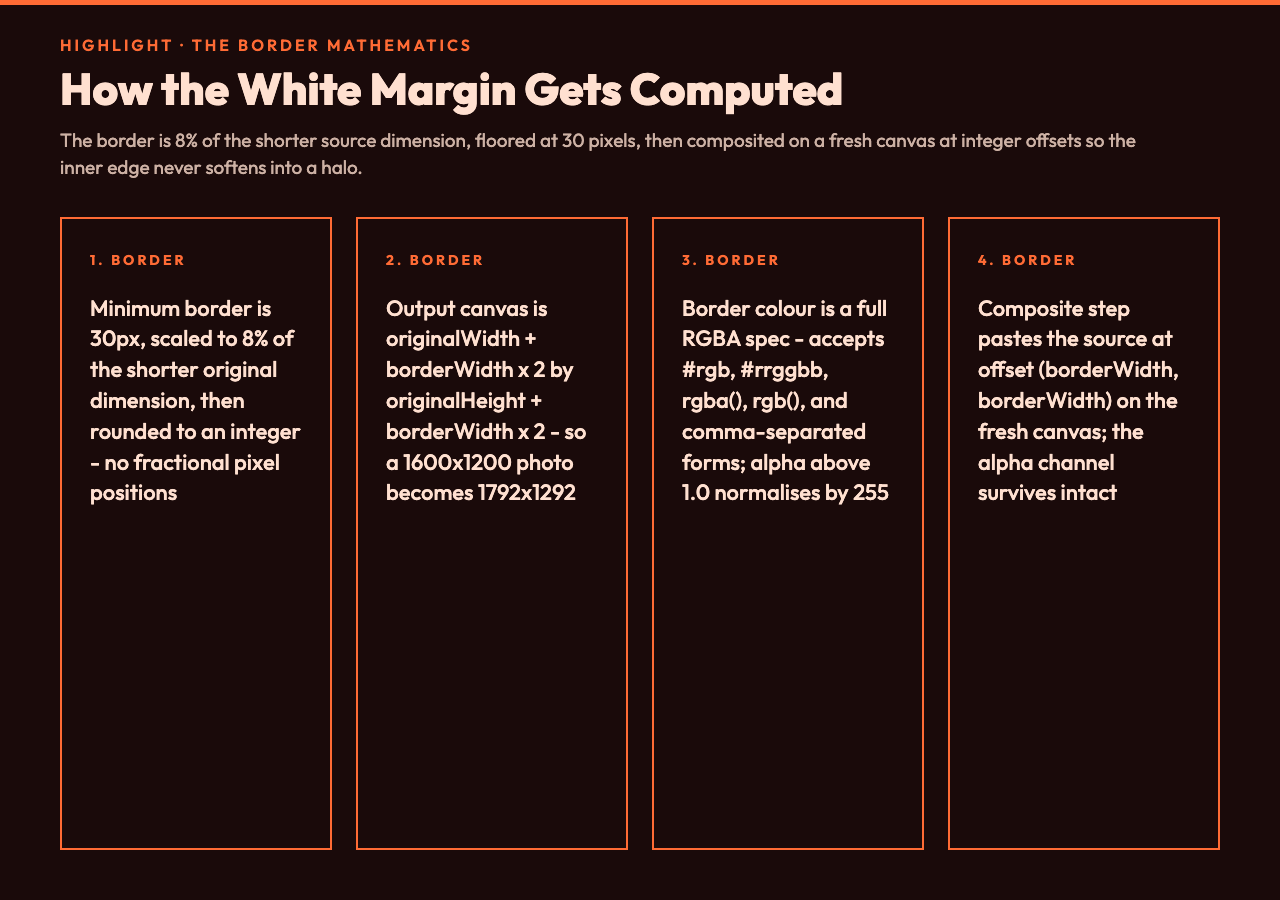
The tool enforces a minimum border of 30 pixels but scales it up to 8% of the shorter original dimension for larger photos. The output canvas is originalWidth + borderWidth × 2 by originalHeight + borderWidth × 2, so a 1600×1200 photo with a 96-pixel border becomes a 1792×1292 canvas with the source pasted at offset (96, 96). Both axes round to integers before the composite call: the tool never writes fractional pixel positions, which is what causes most home-rolled “add a border” scripts to anti-alias the inner edge into a soft halo.
The border colour is a full RGBA spec, not a CSS hex shorthand. Default is #000000 but the parser also accepts #fff, #ffffff, #ffffffff, rgba(255, 255, 255, 1), rgb(255, 245, 220), and the legacy comma-separated form 255, 245, 220, 1. Alpha values above 1.0 are normalised by dividing by 255 (so rgba(255, 0, 0, 128) becomes solid red, not broken red), and values below 0 or above 255 are clamped per-channel. A white border with alpha: 0 is a fully transparent border, which means the composite step still creates a wider canvas but the visible frame on a non-white page is just the inner image. Set the alpha to anything between 0.95 and 1.0 if you want a watermark-grade see-through effect.
Quality and format without the lossy-format surprise
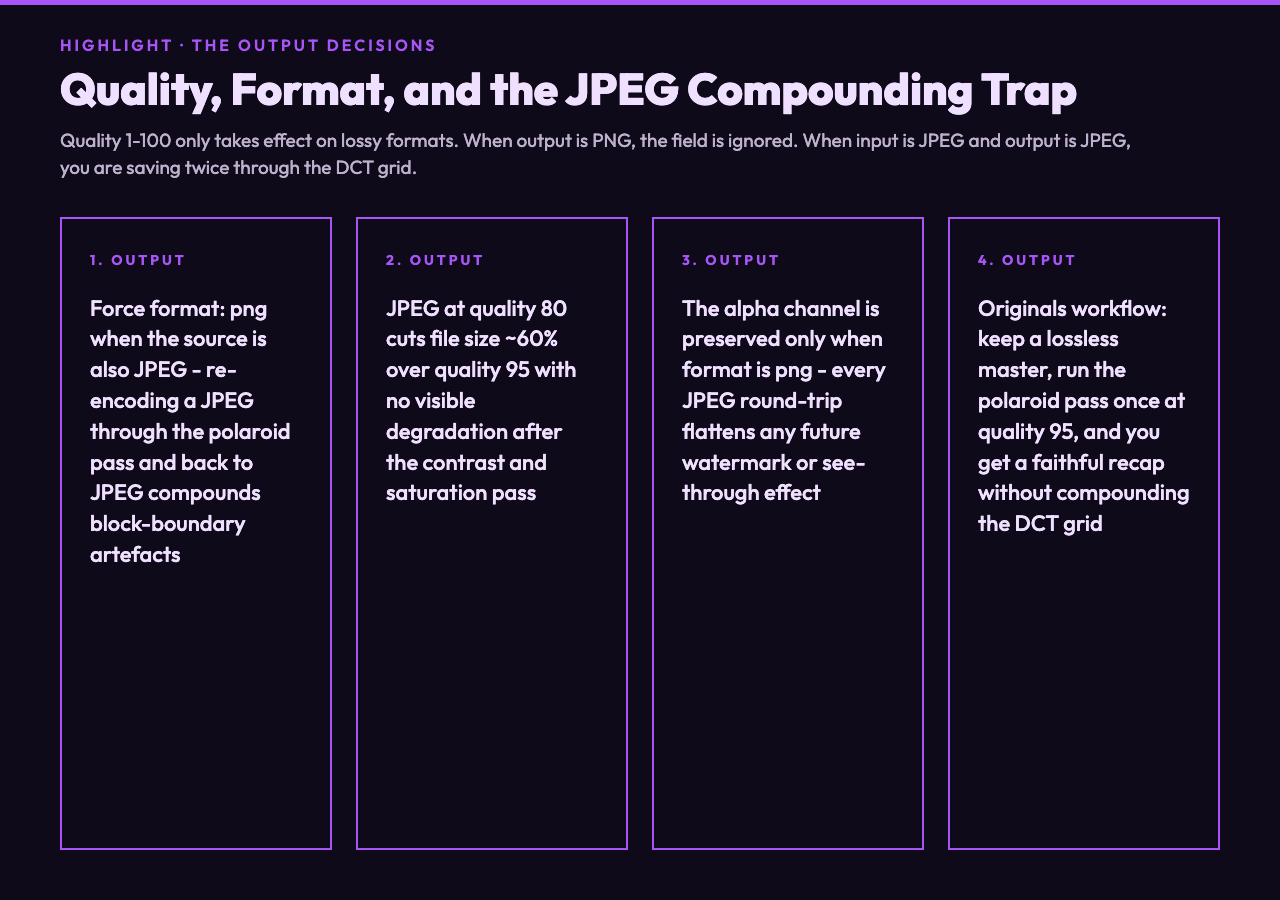
The format field has only three real choices: keep original, force JPEG, force PNG. The quality field (1–100, default 95) only takes effect when the output is a lossy format — JPEG in this tool’s case. If you set format: png, the quality value is ignored: PNG is lossless, and trying to control its quality would mean re-encoding the alpha channel as palette indices, which is not what a Polaroid simulation should be doing.
A workflow gotcha worth naming explicitly: JPEG re-encoding on a JPEG source compounds. If you upload a 95-quality JPEG, run the polaroid pass, and re-export as JPEG at quality 95, you are saving the file twice through the DCT block grid and any 8×8-pixel block boundary in the original becomes a new ringing artefact. For archival or re-print work, force format: png on the way out. For web thumbnails, JPEG at quality 80 cuts file size by about 60% with no visible degradation after the tool has already raised contrast and dropped saturation.
Closing: when a Polaroid is the right answer
The tool earns its place any time the desired output is a deliverable — a printed guest-book photo, a journal spread, a slide that needs an instant-camera cue to signal “this is a memory, not a screenshot.” It does not earn its place when you want a clean colour-correct photograph with a wide white margin (use a borders-only tool, not a stylised-effect tool), and it does not earn its place when you want the artefacts of a real scan (the look of dust, the uneven exposure, the prints-just-out-of-the-camera-of-1997) — that needs a noise injection tool layered on top of this one. Try it on a single portrait first; the difference between Classic and Aged is small on a headshot and huge on a landscape.
For a quick demo that opens in the browser without any install step, visit Elysia Tools. The full source options list — every variable, its default, and its accepted range — is documented inline on the tool page. Explore more tools at elysiatools.com.
