
SSH keys are the difference between logging into 200 servers with a password and never typing a password again. Ed25519, RSA 4096, and ECDSA P-256 all solve the same problem — proving identity without sending a secret over the wire — but they trade off speed, key size, and compatibility in ways that matter on real infrastructure. This field guide walks through how each algorithm works, what the OpenSSH one-line format actually means, why your authorized_keys fingerprint is the only thing that matters when you double-check a pasted key, and how to generate a key pair locally with Elysia Tools’ SSH Key Pair Generator.
Why SSH keys beat passwords (and passkeys beat both)
A password is something you know. An SSH key is something you have — a private file on disk that proves possession without ever transmitting the secret. The server only sees the public half. Brute-forcing a 256-bit Ed25519 key would take longer than the age of the universe on every classical computer on Earth; nobody is going to guess it, and the operational hassle of “rotate the leaked password” disappears entirely when the secret never leaves your laptop in the first place.
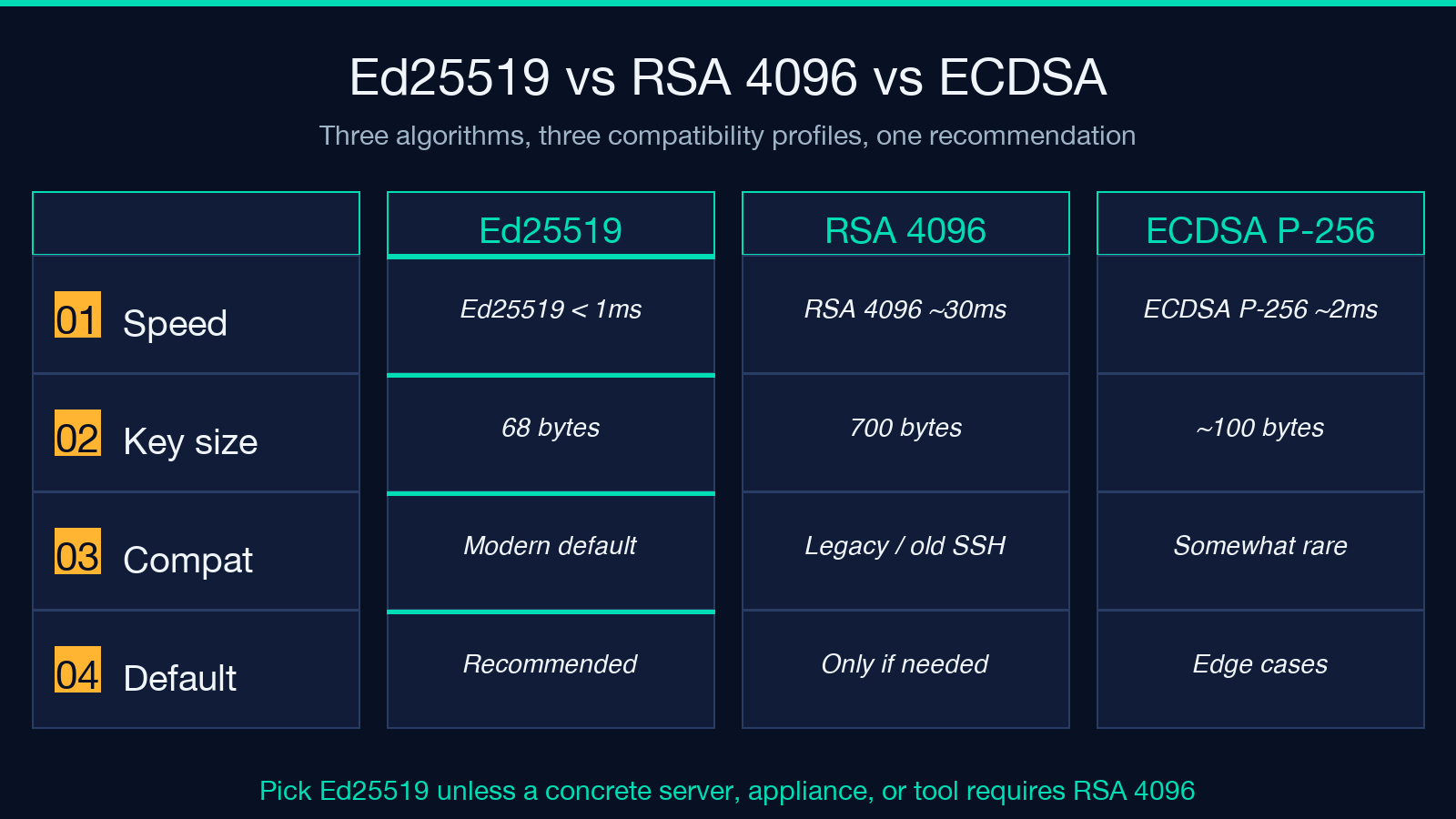
The three algorithm choices in the SSH Key Pair Generator cover the real compatibility matrix you actually see on production infrastructure. Ed25519 is the modern default — small keys (68 bytes after the comment), sub-millisecond signing, and a verification path that has been audited for over a decade. RSA 4096 is the legacy-compatibility choice; some old network appliances, embedded routers, and one or two ancient Solaris boxes still don’t accept Ed25519 keys, so 4096-bit RSA is the highest-strength RSA variant that fits in a sane SSH handshake. ECDSA P-256 sits in the middle — smaller than RSA, faster than RSA, but historically less common than Ed25519 and historically the target of biased-nonce concerns that have since been patched. Pick Ed25519 unless you have a concrete reason not to.
Anatomy of an OpenSSH public key
The string that goes into ~/.ssh/authorized_keys looks like ssh-ed25519 AAAAC3NzaC1lZDI1NTE5AAAAIGb... alice@laptop. Decoded, that line has four distinct fields:
– Algorithm prefix — ssh-ed25519, ssh-rsa, or ecdsa-sha2-nistp256. This is what tells the server which signature scheme to use when you connect.
– Base64 blob — the actual public key material, encoded so it’s safe to paste through any text channel without corruption.
– Comment — freeform text (usually user@hostname) appended at the end. It is not part of the key; it is a label so a sysadmin scanning authorized_keys can tell which laptop a key belongs to.
– Trailing newline — OpenSSH tolerates a missing newline but most other parsers do not. End the line with an actual newline character, otherwise a future sysadmin will curse you.
The OpenSSH format is deliberately minimalist so that a key generated anywhere in the world can be pasted into any authorized_keys file on any Unix-like server. If you want to verify a pasted key is the one someone showed you in chat, compare the SHA256 fingerprint — that is the cryptographic identity of the key, not the comment or the algorithm prefix alone.
How the key pair works (without the hand-waving)
When you run ssh user@host, three things happen that are worth understanding:
1. The key exchange negotiates a shared session key using the algorithm tied to the type prefix on the server’s public host key. This is separate from your user key — it proves you are talking to the right server, not that you are the right user.
2. The client proves possession by signing a session-specific challenge with the private key. The server, holding the public key from authorized_keys, verifies the signature. The private key never crosses the network.
3. The agent shortcut is what makes this practical. Once ssh-agent holds your decrypted private key in memory, every subsequent ssh invocation reads from the agent and never asks for a passphrase. This is why the Passphrase field on a key isn’t just defensive — it gates whether your private file on disk is useless to a thief.
What this means operationally: never trust the password prompt alone as evidence that you reached the right server. Trust the host key fingerprint; trust the public-key signature for your identity; treat the password (if any) as a fallback layer that almost never fires in modern workflows.
Passphrase, PEM, and the SHA256 fingerprint
The tool emits the private key in PKCS#8 PEM format (-----BEGIN PRIVATE KEY-----). This is the most portable container — it works with OpenSSL, Node’s crypto, Python’s cryptography, and most modern SSH clients without complaint. The older OpenSSH-specific container (-----BEGIN OPENSSH PRIVATE KEY-----) carries slightly more metadata (the key’s comment, the salt) and is what ssh-keygen -f id_ed25519 -p produces natively.
If you need the OpenSSH container (for example, an older version of paramiko or a specific CI/CD tool), the conversion is one command:
ssh-keygen -p -m OPENSSH -f id_ed25519You will be prompted for your passphrase (if any) and the file is rewritten in place. The public key on the matching .pub file is unchanged, so the server side needs no reconfiguring.
Every OpenSSH key has exactly one canonical identity: its SHA256 fingerprint, displayed as SHA256:abcd1234... when you run ssh-keygen -lf id_ed25519.pub. This fingerprint is what you put in a wiki, a ticket, or a Slack message when you need someone to verify “this is the key you should expect to see.” It is independent of:
– The path the key lives at on disk (~/.ssh/id_work vs ~/.ssh/id_personal). – The comment appended to the public key (alice@laptop vs bob@desktop). – The .pub filename or any directory the file has been moved through.
Two keys with the same fingerprint are the same key. Two keys with different fingerprints are not — and if you ever paste a public key into a chat and the fingerprint on the receiving end doesn’t match, somebody is intercepting the channel. The Elysia Tools SSH Key Pair Generator shows the fingerprint alongside the public key for exactly this reason: copy one, paste one, verify one.
Generating a key with one paste: the Elysia Tools flow
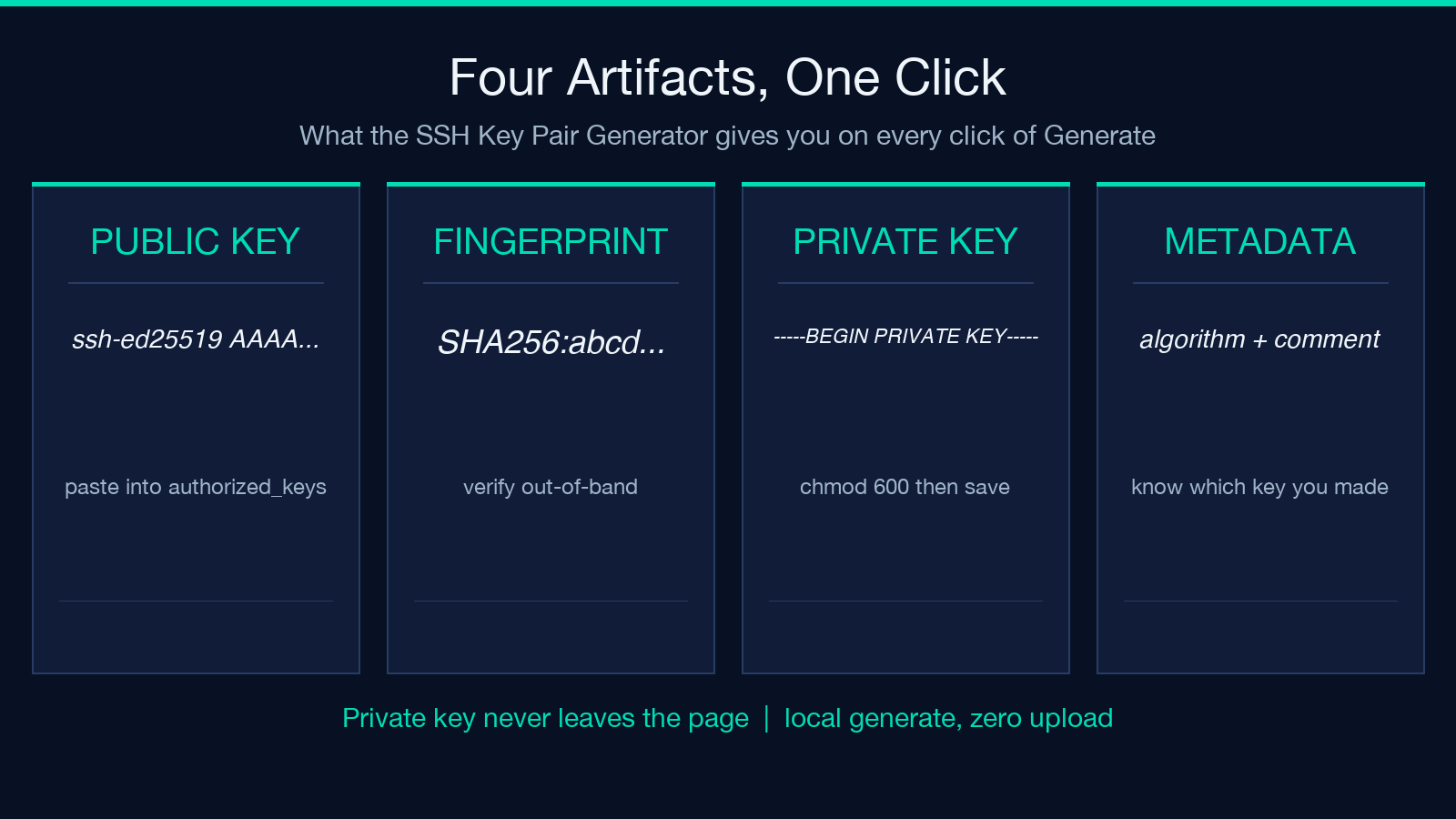
The fastest path to a working key pair in modern browsers is a local generator that runs in-page, never sends the secret anywhere, and gives you all four artifacts at once. The SSH Key Pair Generator on Elysia Tools does exactly that — pick an algorithm, optionally add a comment and a passphrase, and the output panel shows:
– Public key in ssh-ed25519 AAAA... comment form, ready to paste straight into ~/.ssh/authorized_keys.
– SHA256 fingerprint in OpenSSH’s SHA256:... format, ready to verify out-of-band.
– Private key in PEM form, ready to save as ~/.ssh/id_ed25519 (chmod 600) or feed into ssh-agent.
– Algorithm + comment metadata at the top of the panel so a reader knows which of the three choices produced the artifact.
The full workflow takes about 15 seconds: open the page, click Generate, copy the public-key line into the server’s ~/.ssh/authorized_keys, copy the private key into a local file at ~/.ssh/id_ed25519, and chmod 600 it. From that point on, every ssh user@server skips the password prompt entirely. There is nothing to install, no agent to launch, no keyring to unlock.
Because the generator runs in the browser, the private key never traverses a server. You can audit this by opening DevTools, watching the network panel during generation, and confirming zero outbound requests fire while the keys compute. For an algorithm as sensitive as key generation, that property — the secret never leaves the page — is the whole reason a browser-local tool beats a CLI on a shared box for routine day-to-day use.
When to choose RSA 4096 anyway
Ed25519 is the recommended default, but there is a real exception list:
– Old network appliances — some routers and switches shipped before 2018 only accept RSA keys.
– Old Solaris / AIX systems — commercial Unix heritage sometimes means SSH builds predating Ed25519.
– A few CI/CD services — rare, but some hosted build systems still expect RSA fingerprints in their audit logs.
For all of these, RSA 4096 is the high-strength choice. RSA 3072 also passes the 128-bit security floor the NSA publishes for TOP SECRET, but 4096 gives you margin against any future cryptanalytic improvement and is the value most modern security policy templates recommend. RSA 2048 is technically still acceptable for short-lived keys but is increasingly being phased out in policy documents; if your organization has not yet migrated, this is a good moment.
The cost is real but acceptable: the public key balloons to ~700 bytes (versus 68 for Ed25519), signatures are larger, and signing takes tens of milliseconds instead of sub-millisecond. For human-driven ssh sessions, this is unobservable. For high-volume automated workflows (think: tens of thousands of deploys an hour), Ed25519 wins on bandwidth alone.
Common failures and the fix for each
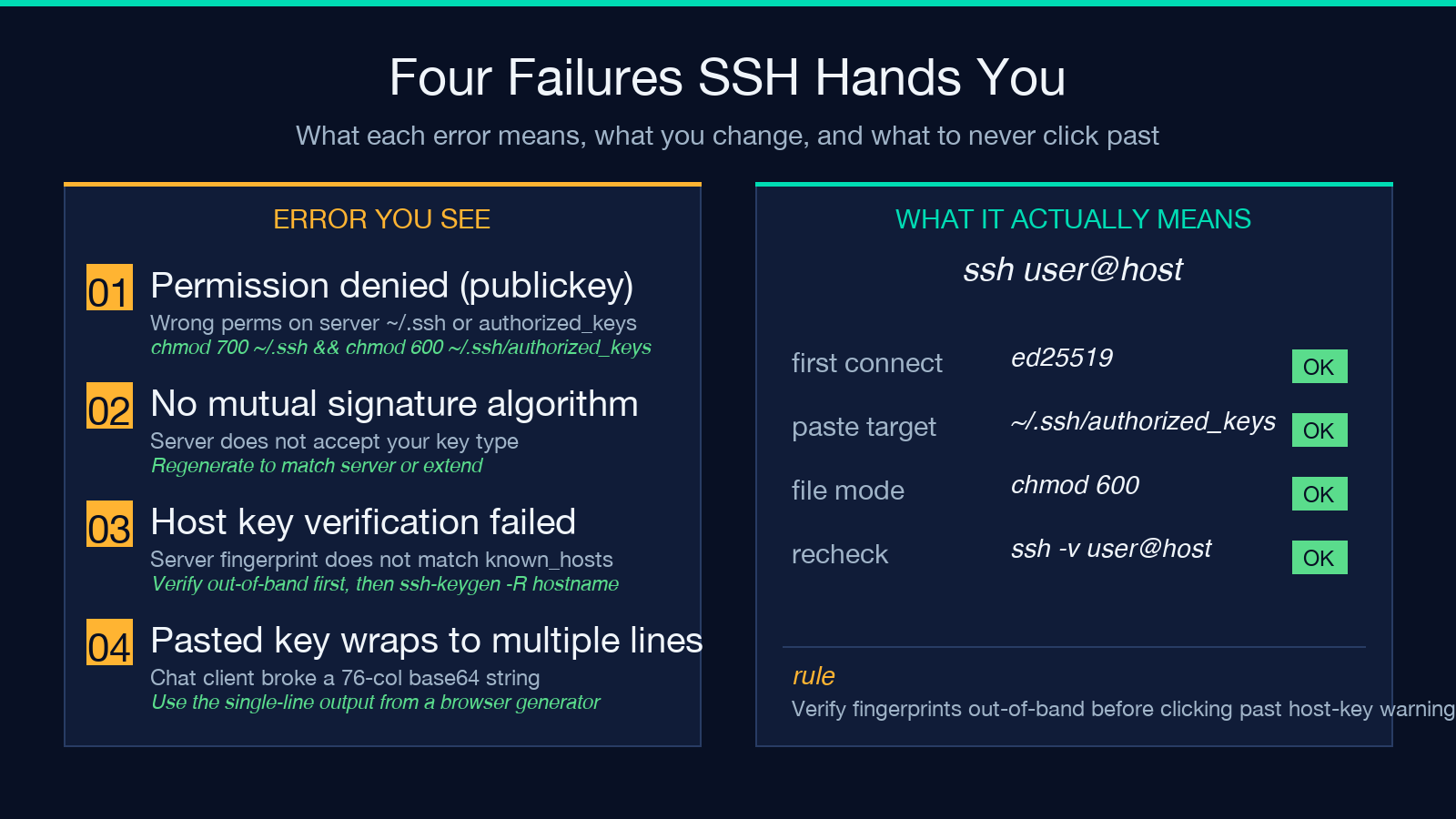
“Permission denied (publickey)” on the client, after a fresh key paste, almost always means a permission issue on ~/.ssh or ~/.ssh/authorized_keys. Run chmod 700 ~/.ssh && chmod 600 ~/.ssh/authorized_keys on the server side. If that doesn’t fix it, check ssh -v user@host — the verbose log names exactly which path was rejected.
“sign_and_send_pubkey: no mutual signature algorithm” means the server’s sshd does not recognize your key’s algorithm. Most often this is the RSA 3072/4096 vs RSA 2048 edge, where a server supports only the older variant. Regenerate to match, or extend the server’s PubkeyAcceptedAlgorithms in sshd_config if you control it.
“Host key verification failed” is about the server’s host key (not yours). The fingerprint you expected doesn’t match the one in ~/.ssh/known_hosts. Before clicking through, verify the fingerprint with your hosting provider out-of-band (a status page, a support ticket, a colleague on a known-good channel). If it matches, ssh-keygen -R hostname removes the stale entry.
The pasted key wraps lines. Some chat clients and email clients soft-wrap long base64 strings at 76 columns. OpenSSH tolerates this only with explicit continuation: backslash-newline followed by a leading space, and the lines must be rejoined before pasting into authorized_keys. The Elysia Tools generator outputs the public key as a single wrapped-but-copyable line, which sidesteps this entirely.
Building the workflow that doesn’t break
The habits that pay off longest:
– One key per identity, not per machine. A single Ed25519 key on a USB drive or in your password manager travels with you; a per-machine key matrix is an audit nightmare.
– Rotate on suspicion, not on schedule. Ed25519 has no known break path; the practical reason to rotate is “I think this file got copied somewhere it shouldn’t have.”
– Always keep a passphrase in memory only. The passphrase unlocks the private key when SSH agent restarts; without it, a stolen .ssh/id_ed25519 is still encrypted at rest.
– Use the fingerprint as the identity. When you ask a colleague “is this your key?”, send the SHA256 fingerprint — never the public-key string, never the comment alone.
If you want a single, repeatable starting point, the SSH Key Pair Generator gives you exactly one clean Ed25519 pair per click — paste the public half into the server, store the private half in your password manager, and the rest of the workflow is just ssh. Browse more security tools on Elysia Tools when you’re ready to harden the rest of the stack.
