
A WCAG contrast checker is the one accessibility tool that turns subjective design debates into numbers you can act on. When a brand palette passes review on a laptop but the same blue-on-white reading on a phone outside fails, the cause is almost always a contrast ratio that looked comfortable in the designer’s screen but measured below 4.5:1. The Accessible Color Palette Contrast Checker at Elysia Tools runs every pair in a palette against WCAG 2.1 AA and AAA thresholds, returns a JSON verdict for each pair, and suggests a minimum adjustment direction (darken or lighten) so the fix is concrete instead of “try something else”.
Why contrast ratios are the part of accessibility that cannot be eyeballed
Color contrast is one of the few accessibility properties with a precise numeric definition. WCAG 2.1 defines the contrast ratio between two colors as (L1 + 0.05) / (L2 + 0.05), where L1 and L2 are the relative luminances of the lighter and darker color. A pure white-on-black pair scores 21:1; a pair where the foreground is barely darker than the background scores 1.0:1; the threshold for AA normal text is 4.5:1.
The reason this matters for design teams is that monitors and ambient lighting make the same hex value look very different. A #1D4ED8 indigo on a calibrated studio monitor reads as dark, confident, and high-contrast against #FFFFFF. The same pair on a phone in sunlight, or against a #F5F5F5 surface instead of pure white, often lands at 3.0:1 instead of 7.5:1. The auditor fixes this by computing the ratio from the actual hex values, not from how the colors look on the designer’s screen.
This is also the part of accessibility that a screen reader cannot catch. A user with low vision will see the text as a washed-out blur and have no way to ask the page for a contrast number. The only place to catch the discrepancy is at design time, before the palette is locked into the design system.
The four WCAG thresholds you should know before you start pairing colors
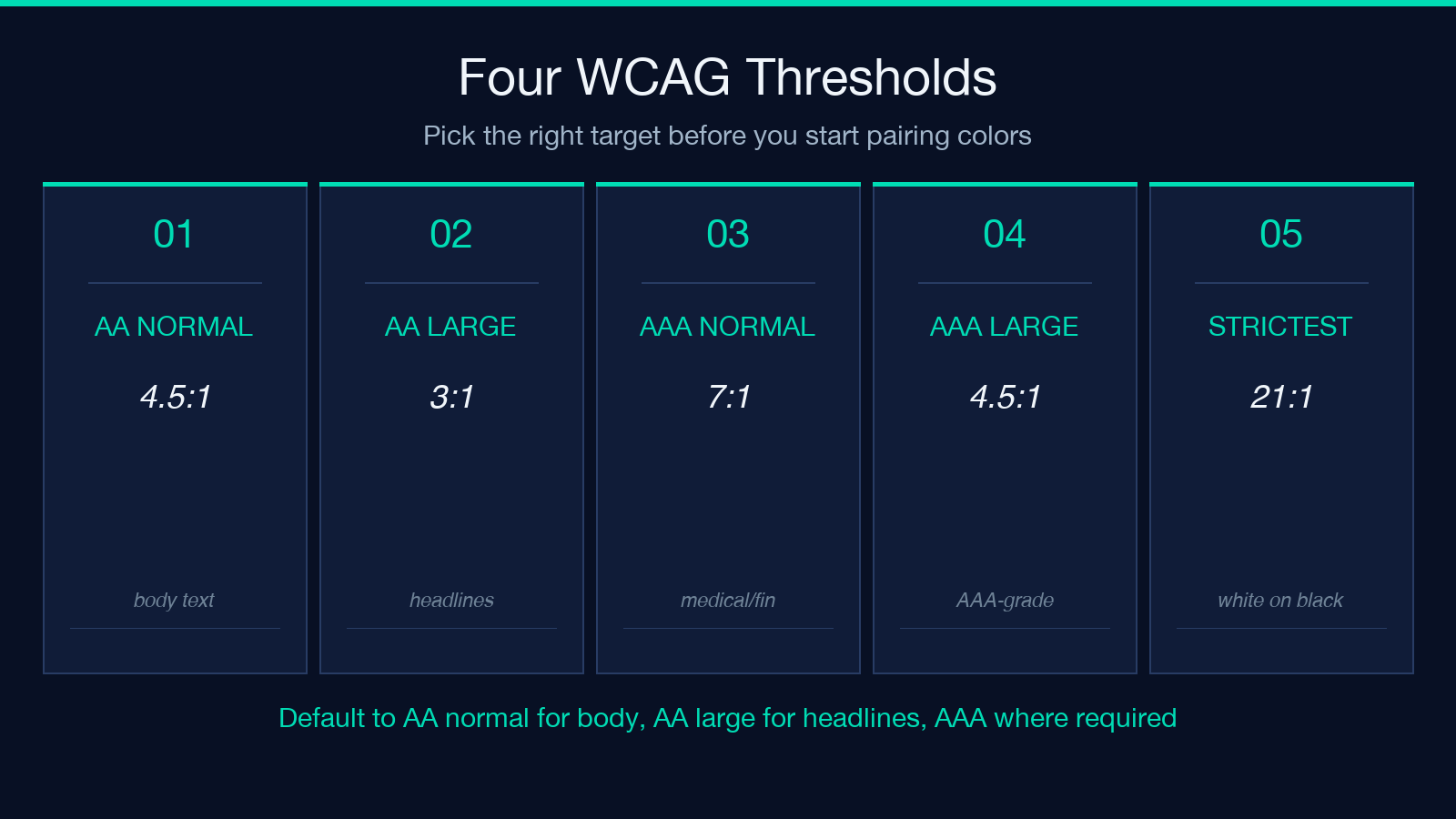
WCAG 2.1 defines four contrast thresholds, and the right one to target depends on the text size and weight. The checker asks you to pick the target up front so every pair is judged against the same rule.
– AA Normal Text (4.5:1) — body text under 18pt or under 14pt bold. This is the most common target and the safest default for any production design system. – AA Large Text (3:1) — text at 18pt or larger, or 14pt bold or larger. Useful for marketing banners, hero headlines, and section dividers. – AAA Normal Text (7:1) — the strictest threshold. Reserved for high-stakes reading like medical or financial reports, or for sites that have a baseline accessibility commitment. – AAA Large Text (4.5:1) — for AAA-grade large text; almost the same as AA normal, only useful in mixed-mode designs.
The convention most teams settle on is: AA normal for body, AA large for headlines, and AAA only for specific high-contrast contexts. Trying to hit AAA across an entire brand palette usually means a redesign.
What the audit actually does — five numbers per pair
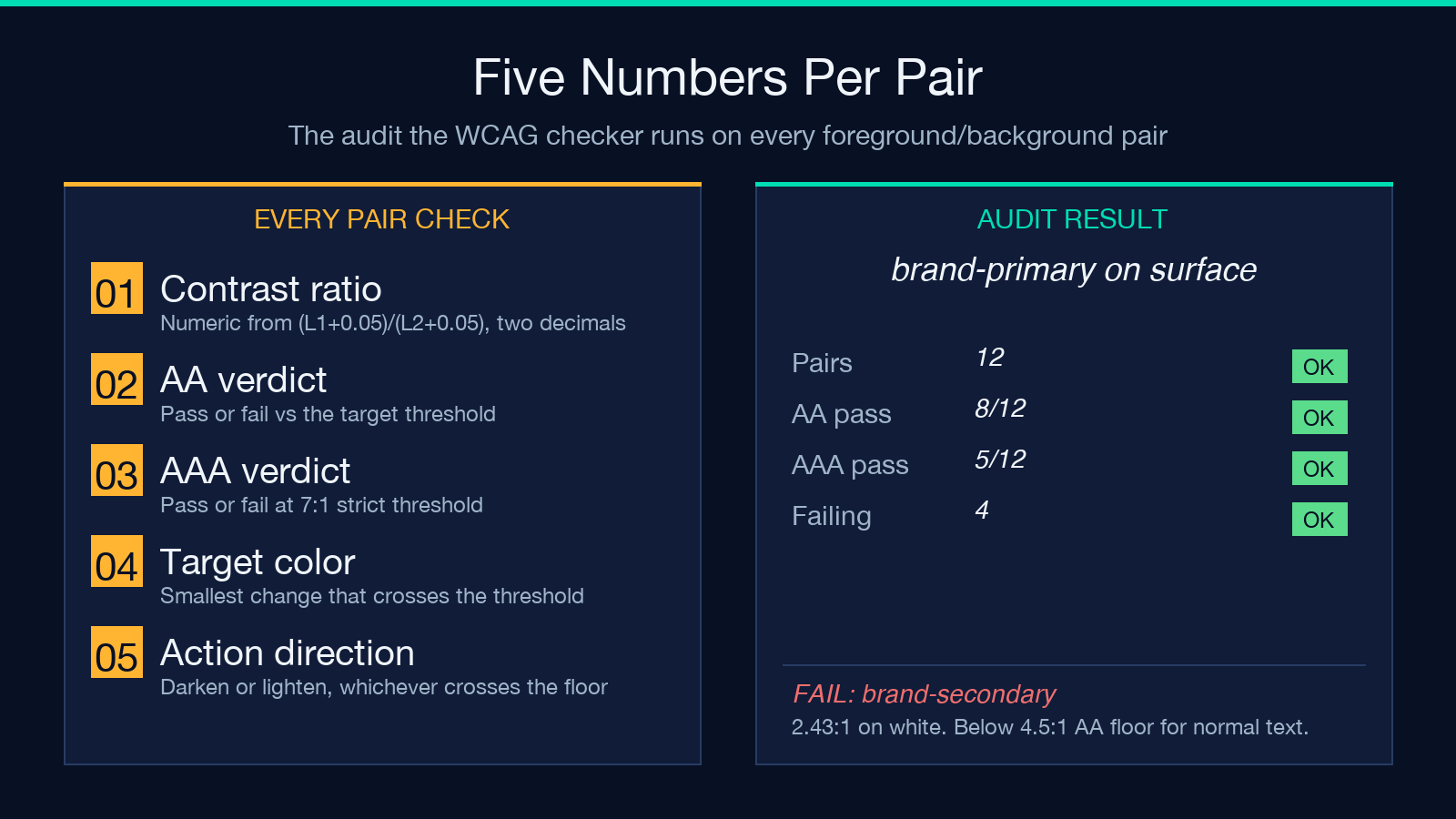
For every ordered pair of foreground and background colors in the palette, the auditor computes five values and returns them in a JSON object. The numbers are small enough to memorize and the structure is consistent enough to scan quickly.
{
  "pair": "brand-primary on surface",
  "foreground": "#1D4ED8",
  "background": "#FFFFFF",
  "ratio": 7.46,
  "aa": "pass",
  "aaa": "pass"
}
The five numbers behind each pair are:
1. Foreground hex — the color text would be drawn in. 2. Background hex — the color the text sits on. 3. Contrast ratio — the WCAG ratio, rounded to two decimal places. 4. AA verdict — pass or fail against the 4.5:1 (or 3:1 for large) threshold. 5. Recommendation — for any failing pair, a direction (darken or lighten) and a target hex the auditor reached by walking the foreground or background in 2% steps until it crossed the threshold.
The recommendation is the part most teams skip when rolling their own contrast checker. A bare pass/fail flag tells you the problem; the recommendation tells you the smallest change that fixes it.
Reading the auditor’s recommendations JSON
The full audit returns a top-level summary plus a per-pair array. The summary is what you surface in dashboards; the per-pair array is what you wire into a code-review comment.
{
  "summary": {
    "colorCount": 4,
    "combinationCount": 12,
    "failingCount": 4
  },
  "recommendations": [
    {
      "pair": "brand-secondary on surface",
      "foreground": "#F59E0B",
      "background": "#FFFFFF",
      "ratio": 2.43,
      "target": "#B45309",
      "action": "darken"
    }
  ]
}
For a four-color palette, the auditor computes 12 combinations (4 × 3, excluding self-pairs by default). If you turn on the includeSelfPairs option, it adds 4 more so you can see the 1:1 ratio for each color against itself, which is useful when debugging a “ghost” layer that’s accidentally the same color as the surface.
The combinationCount field doubles as a sanity check: if it does not match n × (n - 1) (or n × (n - 1) + n with self-pairs), the palette input was malformed and you should re-run with a corrected palette.
Three real-world palettes that look fine and fail anyway
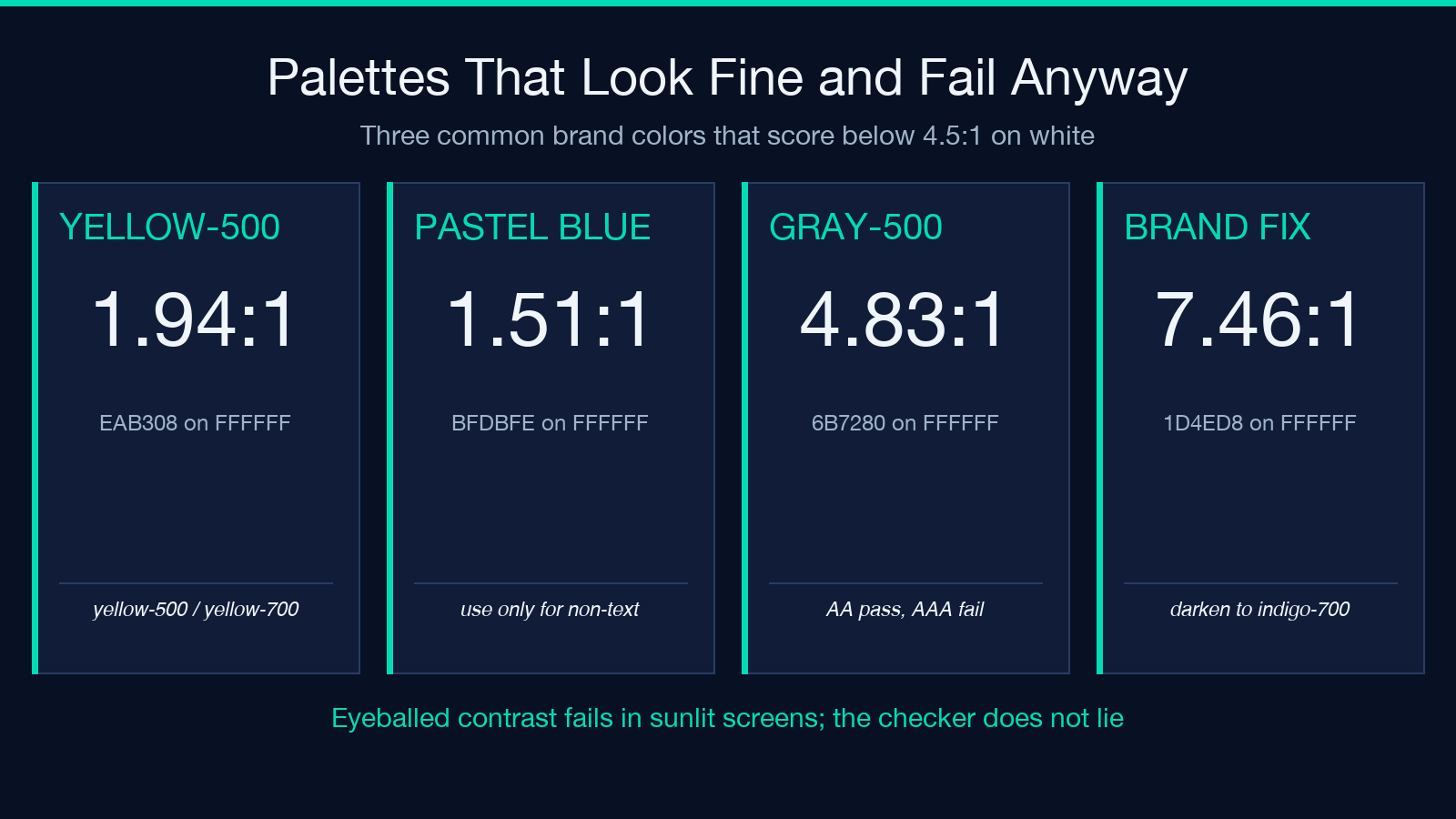
Some of the most common brand palettes in production today fail AA at the default threshold. The auditor catches them in a single pass.
1. Tailwind yellow-500 on white — #EAB308 on #FFFFFF lands at 1.94:1. Yellow is the most common brand-accent color that fails AA, and the only practical fix is to either pair it with a darker shade (yellow-700 or yellow-800) or use it only for non-text decoration. 2. Pastel “calm” palettes — #BFDBFE on #FFFFFF is 1.51:1. Pastel blues and greens are visually soothing but functionally invisible. The auditor will recommend darkening the foreground to at least #1E3A8A for AA normal text. 3. Mid-gray body text — #6B7280 (Tailwind gray-500) on #FFFFFF is 4.83:1, which passes AA but fails AAA. If your brand standard is AAA, every body text color needs to be gray-700 or darker.
The pattern is consistent: lightness differences that look fine in a stadium-lit Figma file collapse under portable-device viewing. The auditor is the only way to catch this systematically.
Why text size and weight change which threshold applies
WCAG 2.1 treats large text more leniently because thicker letterforms are easier to read at lower contrast. The rule is:
– Normal text — anything under 18pt (24px) or under 14pt (18.66px) bold. Must hit 4.5:1 for AA. – Large text — 18pt (24px) or larger, or 14pt (18.66px) bold or larger. Hits 3:1 for AA.
The catch is that the threshold is about the rendered text, not the design-system token. A text-base element that becomes font-size: 1.125rem at a larger breakpoint is still normal text, not large text. A font-bold text-sm element is normal text, not large text, because the size is below 18.66px.
This is where most production accessibility bugs hide. A button label that’s text-sm font-bold reads as “large” to a designer but is classified as normal by WCAG. The auditor’s “minimumTarget” parameter is what disambiguates this: pass aa-large if every pair in your palette is for headlines, aa if body text is involved, and aaa if you have a documented commitment.
Using the tool for batch palette audits and CI hooks
The auditor returns a JSON object, which makes it the right shape to wire into a CI pipeline. A common pattern is:
1. Run the auditor against a JSON palette file in the repo (palettes/brand.json). 2. Fail the build if the failingCount is non-zero. 3. Comment the recommendations array on the PR so the designer gets the fix list inline.
The auditor also supports a includeSelfPairs mode for code reviews that need to verify every color is documented against its own surface (a reasonable audit for design-system tokens). For most teams, the default aa target with self-pairs off is the right configuration: it catches the worst contrast failures and produces a manageable recommendation list.
Once the palette is locked, the same auditor can be used as a “dark mode check” by adding the dark-mode surface and text colors to the palette and re-running. If both light and dark palettes pass AA, the design system is formally compliant.
Putting it together — a 5-minute brand-audit workflow
The fastest way to lock in a brand palette that passes AA is a five-step loop:
1. Define the palette as a JSON object with both light and dark mode tokens. Include every color that ever appears as a foreground or background. 2. Run the auditor against the palette with minimumTarget: aa and includeSelfPairs: false. Capture the JSON. 3. Read the recommendations — for any failing pair, apply the auditor’s target color and the darken or lighten direction. The auditor picks the smallest change that crosses the threshold. 4. Re-run the audit with the corrected palette. The failingCount should be zero. 5. Promote the corrected palette to the design system and check the JSON into the repo so future audits can rerun automatically.
The whole loop takes about five minutes per palette. The cost of skipping it is a redesign-driven by a user complaint, a legal letter, or a WCAG audit at the end of the project.
For more on contrast and color systems, the Elysia Tools homepage lists complementary tools: color palette extractors from images, hex-to-OKLCH converters, and Pantone-matching lookups. Every one runs in your browser, no signup required.
