
A WebSocket connection is a long-lived TCP socket that both sides can write to at any time, in either direction. The WebSocket Tester is the fastest way to open one in your browser, send a few frames, and watch what comes back without writing a single line of client code. If you’ve ever spent twenty minutes wiring up a wscat script just to verify that an endpoint accepts JSON, this is the replacement.
This field guide walks through what the tool actually does at the wire level, how to read the event panel during a session, the four message shapes you’ll see on the wire, the seven event types the inspector surfaces, the three debugging patterns that catch 90% of real bugs, and the cases where WebSocket testing needs more than one client at a time. Skip to any section from the table of contents below.
How the tool opens and inspects a WebSocket
The handshake is HTTP, the data is frames. When you enter wss://echo.websocket.events and hit Connect, the browser sends an HTTP GET request with two upgrade headers — Upgrade: websocket and Connection: Upgrade — plus a Sec-WebSocket-Key and an optional Sec-WebSocket-Protocol. The server responds with 101 Switching Protocols and a Sec-WebSocket-Accept hash. From that point on, the same TCP socket carries binary frames instead of HTTP requests. Each frame has a 2-byte header (with optional masking, payload length, and opcode) followed by the payload.
The tool keeps the handshake out of your way. You give it the URL, an optional subprotocol, and an auto-reconnect toggle; it does the GET and surfaces every state transition — CONNECTING, OPEN, CLOSING, CLOSED — in the event log, with the close code and reason on shutdown. If the server rejects the upgrade, you see the HTTP status and the response headers, not a generic “connection failed”.
Send a frame with Hello, world! and the echo server replies with the same payload in the next frame. Send a JSON object in the message box, the inspector parses it and shows the syntax-highlighted tree on the right. The frame counter increments; the byte counter tracks how much you’ve sent and received. Everything is plain text or binary, no serialization tricks, no protocol negotiation beyond the optional subprotocol.
Reading the event panel during a session
Every state transition the WebSocket goes through is a row in the event panel, in chronological order, with a millisecond timestamp. Three habits make the panel useful instead of just noisy. First, filter by event type — the toggle buttons at the top of the panel let you hide SEND rows when you only care about incoming traffic, or hide PING/PONG rows when you’re not debugging keepalive. Second, watch the timing column — a 50 ms gap between SEND and MESSAGE is healthy round-trip, a 5 s gap is server-side backpressure. Third, copy the raw payload before scrolling — once the panel overflows, older rows age out and you lose the frame.
The panel survives reconnects. When auto-reconnect is on, each retry attempt becomes its own RECONNECT row with the backoff delay, so you can confirm the cadence is hitting the right curve. When auto-reconnect is off, a disconnect produces one CLOSE row, and any frames you sent between the previous OPEN and this CLOSE are still in the panel — useful when you need to correlate a server-side log line with a specific client frame.
Four message shapes you’ll see on the wire
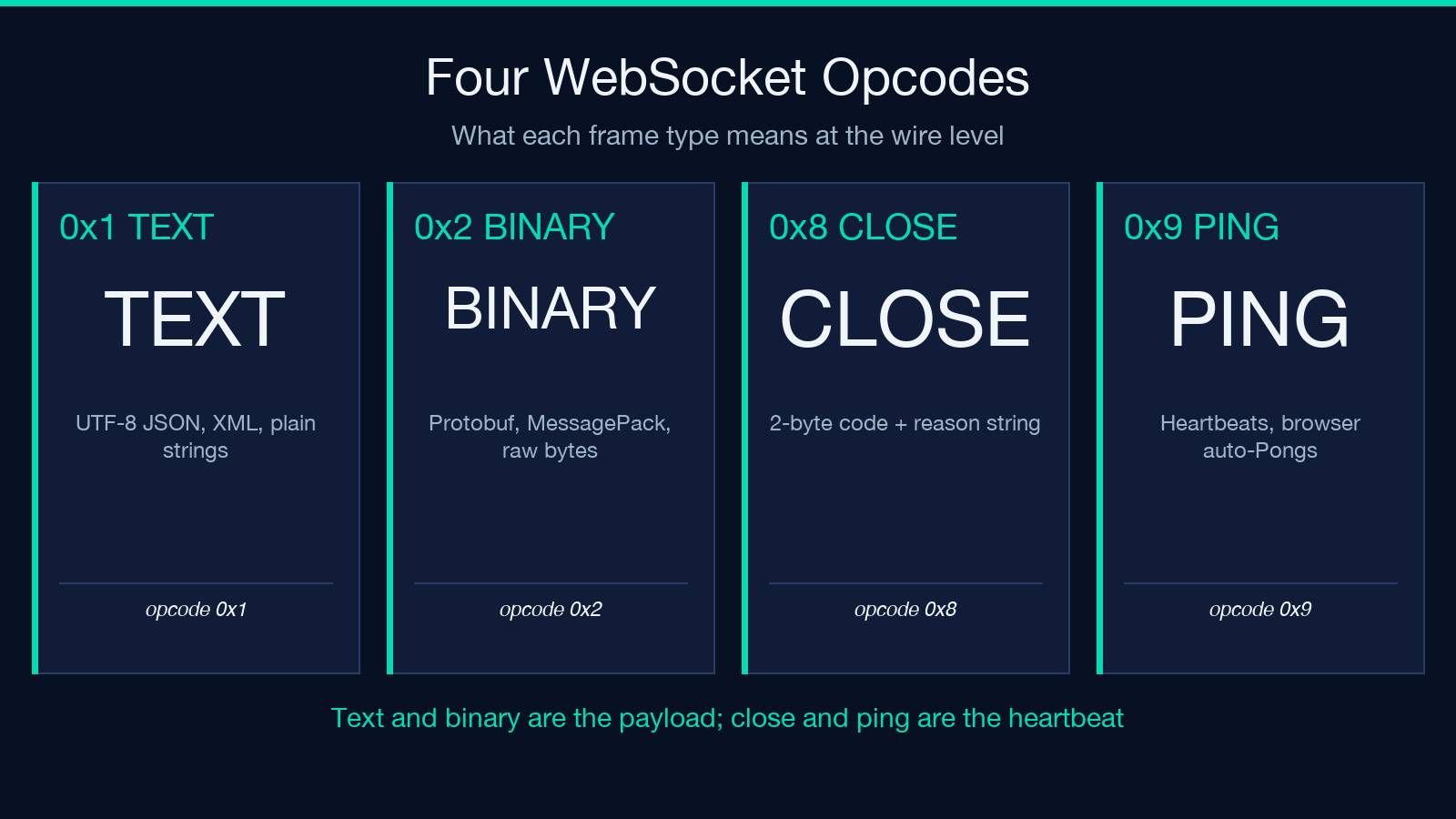
WebSocket defines four opcodes that you’ll see in any realistic testing session:
- Text frames — opcode
0x1. UTF-8 encoded payload, what JSON, XML, and most plain-string APIs send. The tool highlights these with a monospace font and shows the byte count, so you can spot the case where you sent 1 KB of JSON because the server added 200 bytes of padding. - Binary frames — opcode
0x2. Anything else: protobuf messages, MessagePack blobs, raw bytes. The tool renders the first 256 bytes as a hex dump with the ASCII overlay, which is the fastest way to see whether a binary protocol parsed correctly or just produced garbage. - Ping frames — opcode
0x9. Heartbeats, sent by either side. The browser’s WebSocket implementation auto-responds with a Pong (0xA); the tool shows you when a Ping arrived and whether the Pong round-tripped within the timeout window. - Close frames — opcode
0x8. The closing handshake. Carries a 2-byte status code (1000for normal closure,1001for going away,1006for abnormal closure with no close frame received) plus an optional reason string. The tool extracts both and displays them as a structured record, not as raw bytes.
If you see a 0x3–0x7 opcode, you’re looking at reserved non-control frames that aren’t supposed to appear in production traffic — that’s a sign the server is speaking a custom protocol on top of WebSocket, which the tool flags as a parse warning so you can correlate it with a specific request.
Seven event types the inspector surfaces
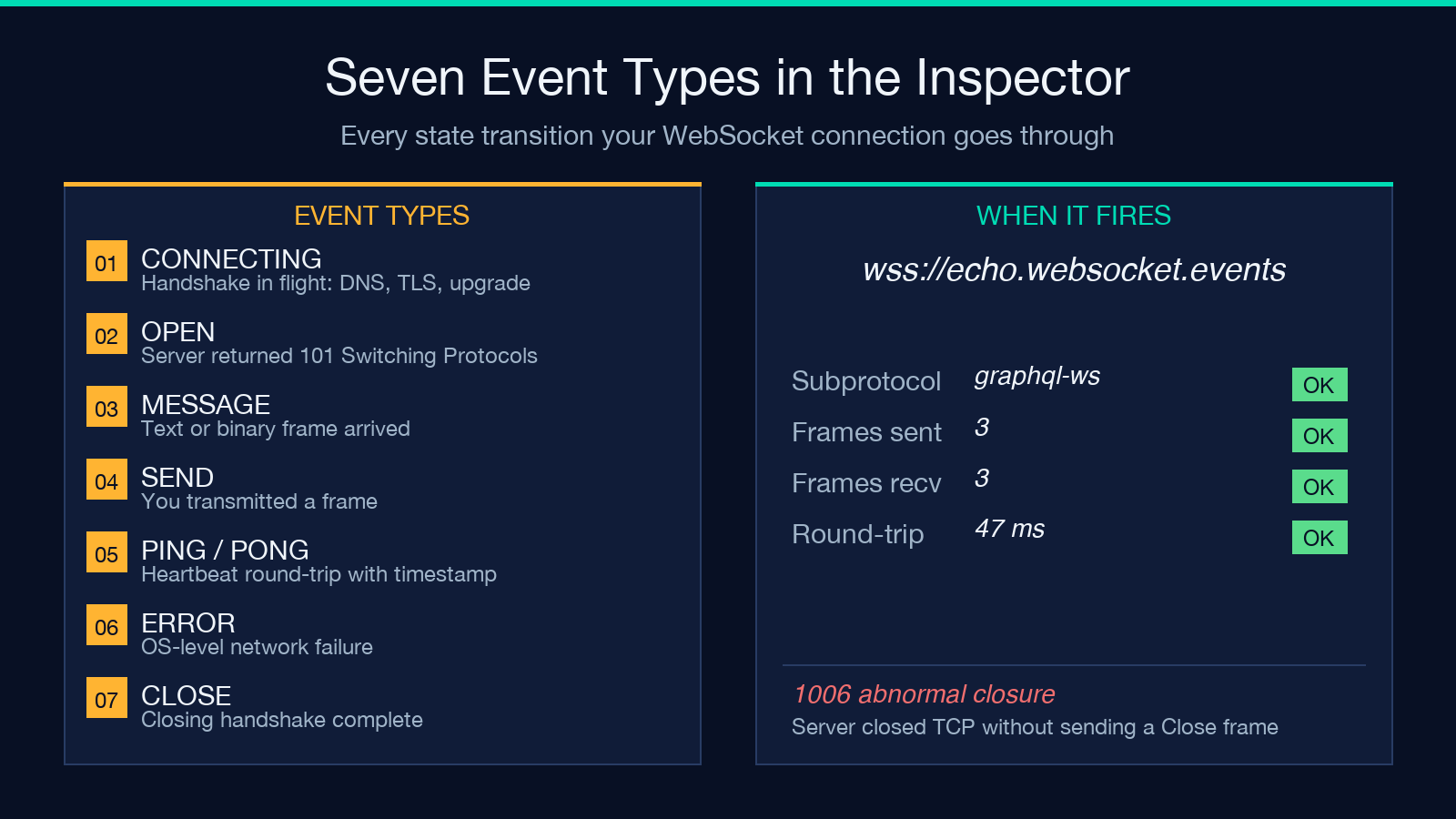
The event panel records every transition the connection goes through. Seven types show up in practice:
- CONNECTING — the handshake is in flight. The tool reports this the moment you hit Connect, not after the TCP socket opens, so latency in DNS or TLS shows up here.
- OPEN — the server returned
101. The tool records the timestamp and the negotiated subprotocol so you can verify thatwss://api.example.com/v2/socketacceptedSec-WebSocket-Protocol: graphql-ws. - MESSAGE — a text or binary frame arrived. The tool logs the opcode, the byte count, and the first 80 characters of the payload, with a “view full” toggle for longer messages.
- SEND — you transmitted a frame. The tool logs the same fields, plus a copy of what you sent (text frames only; binary frames get a SHA-256 hash so you can correlate them with a downstream log).
- ERROR — a network-level failure. The tool surfaces the OS-level error message (
ERR_CONNECTION_RESET,ERR_SSL_PROTOCOL_ERROR, etc.) and the timestamp, so you can correlate with a deploy or a load balancer change. - CLOSE — either side initiated the close handshake. The tool records who closed, the close code, and the reason. A
1006from the server side almost always means the underlying TCP connection dropped without a proper close frame. - RECONNECT — only fires when auto-reconnect is enabled. The tool logs each retry attempt with the delay, so you can see whether the backoff is hitting the right cadence.
Run a 60-second test against any real endpoint and you’ll see most of these fire. The tool is built to make them cheap to read.
Three debugging patterns that catch 90% of bugs
The pattern is almost always the same. Pick the right test, send the right probe, read the right log line.
- The handshake shape mismatch — the most common cause of an
OPENthat never comes. The server requires a subprotocol you didn’t send, or rejects theOriginheader, or the TLS cert doesn’t match the hostname. The tool shows you the rejected HTTP response (status + headers), so you can confirm which one. - The JSON envelope mismatch — the connection opens, you send a frame, the server is silent. The most likely cause is that the JSON envelope doesn’t match what the server expects:
typevsevent,datavspayload, a missingidfield for an idempotent operation. The tool’s syntax-highlighted parse makes the discrepancy obvious side-by-side. - The silent close — the connection drops after N seconds or M messages with no error and no log line. This is the keepalive case: the server’s idle timeout fired, or a load balancer decided the connection was stale. The tool’s
CLOSEevent records the close code, and1006(abnormal closure, no close frame) is the tell that nothing graceful happened.
For all three, the fix is the same: send a probe, read the event log, correlate the timestamp with the server-side log line. The tool is the client half of that loop.
When one client isn’t enough
Most WebSocket bugs surface with a single client. A few don’t. Three patterns need multiple clients:
- Broadcast endpoints — chat rooms, collaborative editors, multiplayer games. Open two clients in two browser tabs (or two incognito windows, so the cookies don’t collide), connect to the same endpoint, send a message from tab A, verify it appears in tab B. The tool supports this trivially because each tab is its own isolated WebSocket connection.
- Reconnect behavior — auto-reconnect is enabled, you want to see whether the server’s session token survives the reconnect. Open one tab, connect, capture the session ID from the first frame, force a disconnect (close the tab or kill the server), reconnect, capture the session ID from the second frame. If they’re the same, the session survived; if not, you have a state-loss bug.
- Rate-limit boundaries — the server claims “max 100 messages per second per connection”. Open three tabs, send 100 messages per second from each, watch the event panel for
CLOSEevents with code1008(policy violation) or1013(try again later). If you don’t see them, the claim is wrong.
The tool keeps each tab independent. You get clean per-connection state, not a shared inspector across all of them.
Connecting through proxies and load balancers
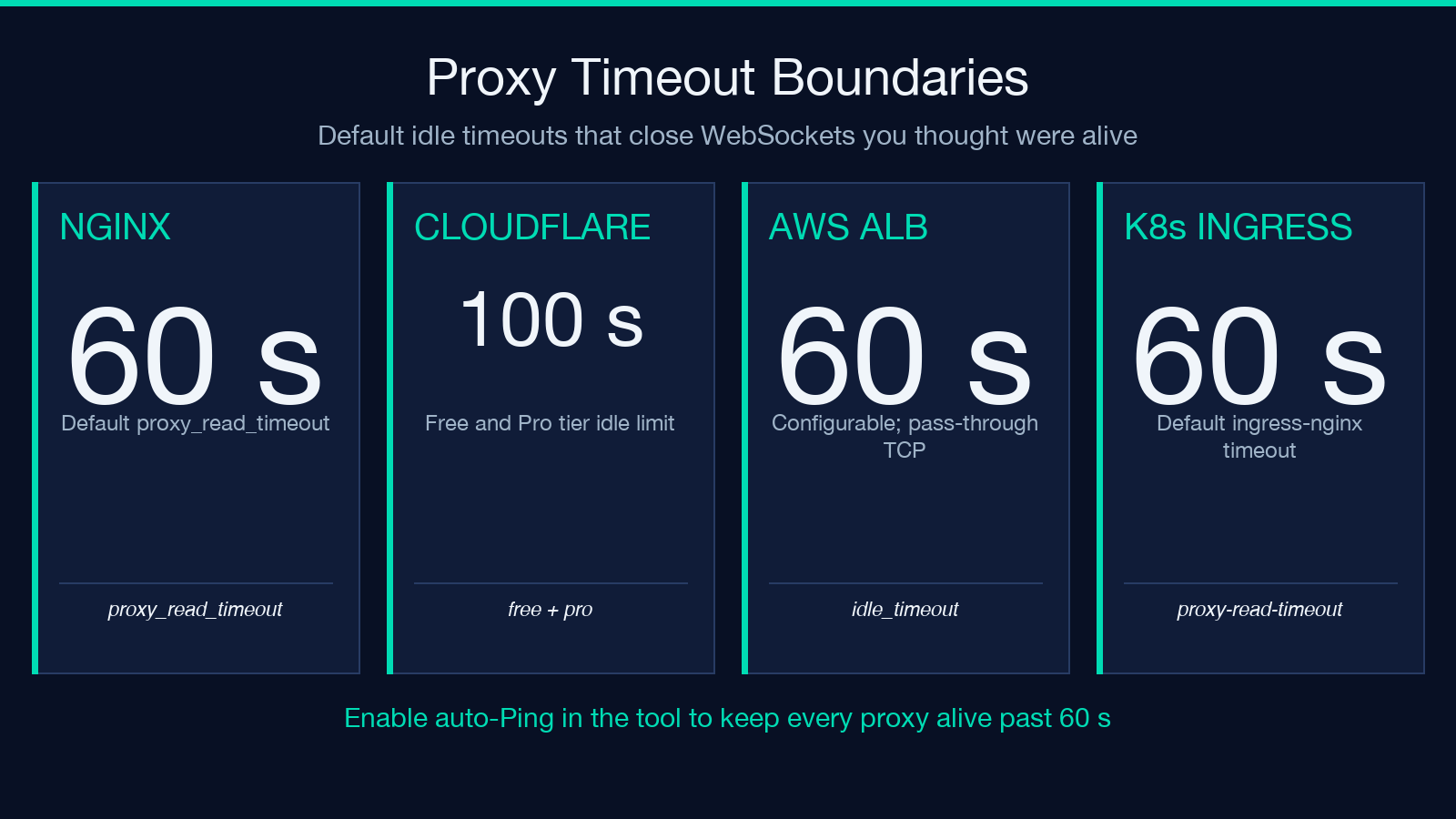
Production endpoints are almost never a single WebSocket server. They sit behind an Nginx reverse proxy, a Cloudflare CDN, an AWS ALB, or a Kubernetes ingress, all of which have their own timeouts and frame-handling quirks.
- Nginx — the default
proxy_read_timeoutis 60 seconds, and there’s no auto-Ping. If your client doesn’t send a frame within 60 seconds, Nginx closes the upstream connection and the client sees1006. The tool’s auto-Ping option (sending a Ping frame every N seconds) is the standard workaround. - Cloudflare — free and Pro tiers have a 100-second idle timeout. The tool shows the
CLOSEevent with code1006about 100 seconds after the last frame, which is the tell. - AWS ALB — the idle timeout is 60 seconds, configurable. The
Connection: Upgradeheader is preserved, but WebSocket frames are not parsed at the LB layer; they pass through as opaque TCP bytes. The tool can’t distinguish this case from a direct connection, but theCLOSEevent timing is identical. - Kubernetes ingress-nginx — the default
proxy-read-timeoutis 60 seconds. Same fix: enable auto-Ping in the tool.
For any of these, the test is the same: open the connection, wait 90 seconds without sending anything, watch for a CLOSE event. If the connection survives, the proxy is configured for long-lived sockets. If it dies, you’ve found the timeout boundary.
Putting it together
WebSocket testing is mostly about reading the event log at the right granularity and recognizing the four message shapes in the bytes. The WebSocket Tester gives you the inspector, the frame counter, the JSON syntax highlighting, and the auto-reconnect toggle without writing any client code. Pair it with the HTTP Request Tester for the upgrade-handshake HTTP traffic and the JSON Formatter for the payloads you’re about to send. Explore more development and debugging tools at elysiatools.com.
