
Group by a column, pick an aggregator, and the CSV summary writes itself. When a dataset is small enough to read in one breath, GROUP BY barely matters; once it crosses a few thousand rows, the question stops being “what does the data look like” and starts being “what does it look like at the grain I care about”, and that is the question a hand-rolled spreadsheet never quite answers. The CSV Data Grouper at Elysia Tools takes a CSV payload, a list of grouping columns, and an aggregation rule, then emits a tidy per-group table in CSV or JSON. It is a single-purpose tool that does one thing well — and that one thing is the analytical move you will make most often on tabular data.
Why CSV Grouping Is Its Own Thing
Spreadsheets have pivot tables, databases have GROUP BY, pandas has groupby().agg(). Each of those is powerful inside its own environment and clunky outside of it. Pivot tables silently aggregate everything numeric as SUM unless you remember to switch to COUNT; GROUP BY requires a schema and a SQL client; pandas requires a Python runtime and a DataFrame in memory. The CSV Data Grouper lives in the narrow gap between them: it parses raw CSV text in the browser, picks grouping columns by header name, applies a small set of aggregation functions, and outputs tidy rows that you can paste back into a sheet or pipe into another tool. No schema, no runtime, no copy-paste from a notebook.
The case the tool is built for is the one every analyst meets: a vendor sends you a CSV with ten thousand transactions, you want the total per region, the count per product per day, the average order value per channel, or the first and last event per user. Each of those is a grouping question, and the moment you have more than two or three of them the spreadsheet either chokes on its own formulas or hands you a pivot that hides the working rows you need to inspect.
The Six Aggregation Primitives That Cover 90 Percent of Cases
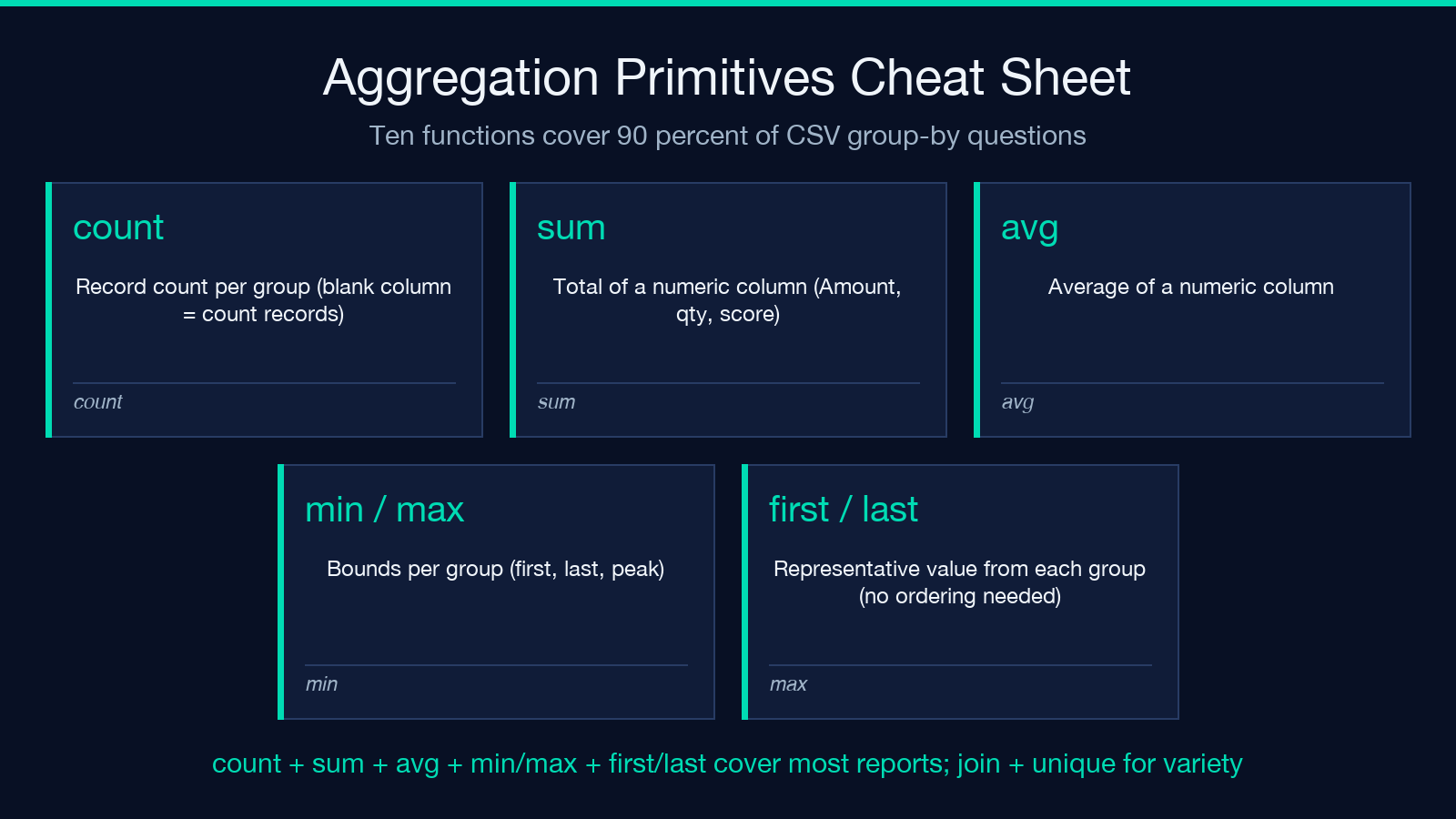
Open the tool and the aggregation field is the one place where format matters more than usual. The accepted syntax is either JSON — [{"column":"Amount","function":"sum","as":"Total_Amount"}] — or the short form Amount:sum,Name:count. The available functions are exactly the ones you reach for first: count, sum, avg (or average), min, max, first, last, join, unique, and count_unique. There is no median, no stddev, no percentile, and that is intentional. The tool stays narrow on purpose; if you need a median you almost always want a histogram and you should be in a different tool.
For most reports, two primitives do all the work. count answers “how many rows fell into this group” without naming a column — when you leave the column field blank, the grouper counts records. sum and avg cover the financial and the per-record arithmetic. min/max handle bounds. first and last are the underrated ones: they preserve a representative sample from each group without you having to think about ordering, which is the kind of detail-checking you only notice you needed once it is missing.
Picking Group Columns Without Overthinking
The Group By Columns field takes a comma-separated list of header names — Region,Year, Category, Customer,OrderDate. Order matters: when you group by more than one column, the result has one row per unique combination, and the column order in the output matches the order you typed it. There is no “hierarchical” grouping in the dimensional sense — every combination is its own flat row — which means the tool behaves the way a SQL GROUP BY behaves, not the way a pivot table’s row dimension behaves. That is a feature: when you want a crosstab, you can produce one by grouping on both axes and reshaping outside the tool. When you want a flat per-group summary, the tool gives it to you in one pass.
A small but important detail: the Group By field is matched against the header row of your CSV, not against cell values. If your column is named customer_id in the input, you write customer_id here, not Customer ID. Trailing whitespace and case are normalized, but spaces inside a header name are part of the name — wrap the column reference in quotes in the JSON form if it contains spaces.
What the Output Looks Like in Practice
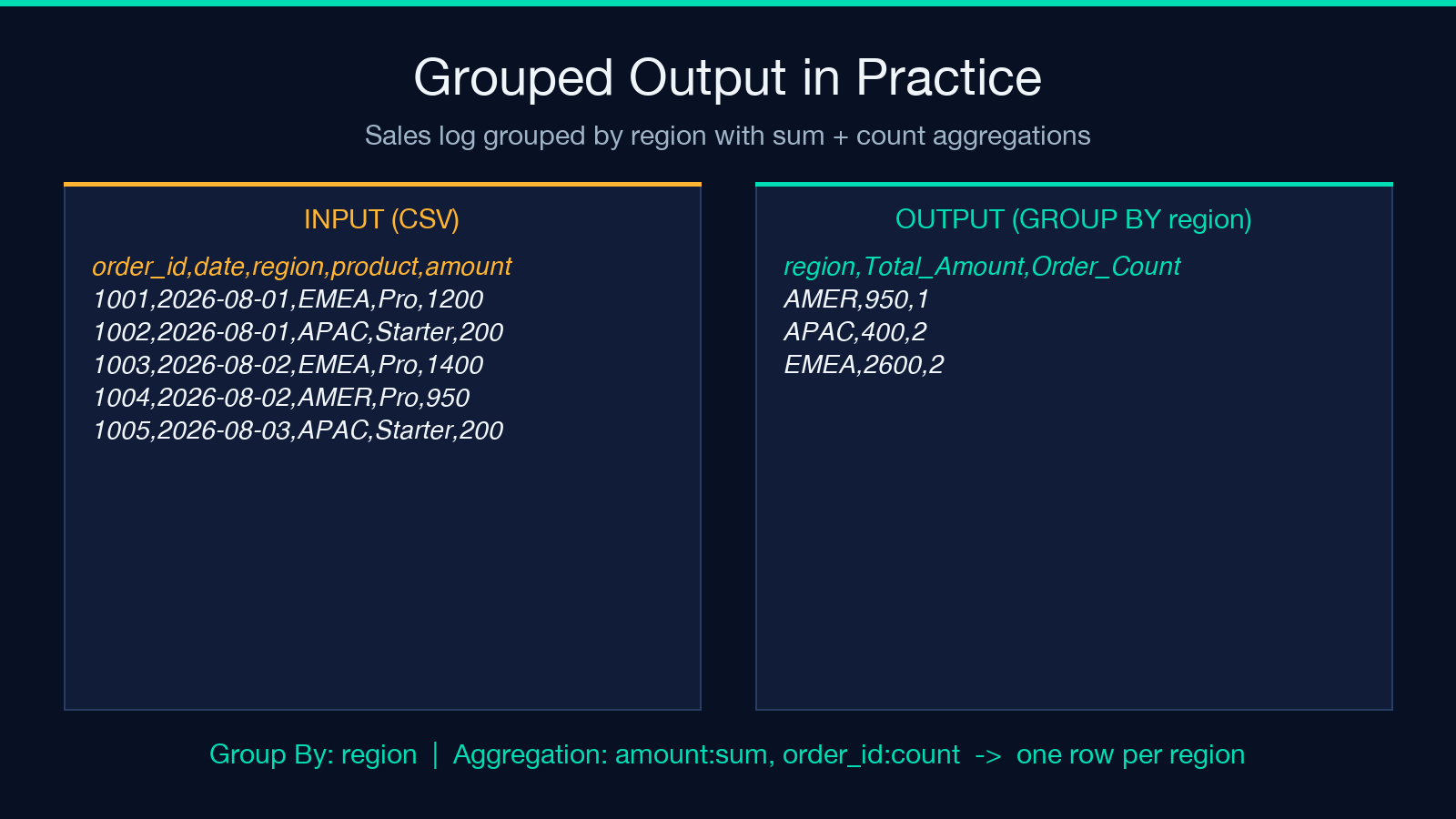
Paste a small sales log into the input:
order_id,date,region,product,amount 1001,2026-08-01,EMEA,Pro,1200 1002,2026-08-01,APAC,Starter,200 1003,2026-08-02,EMEA,Pro,1400 1004,2026-08-02,AMER,Pro,950 1005,2026-08-03,APAC,Starter,200
Set Group By Columns to region, Aggregation Options to amount:sum,order_id:count, and the tool returns:
region,Total_Amount,Order_Count AMER,950,1 APAC,400,2 EMEA,2600,2
Add date to the grouping, leave the aggregation as amount:sum, and you get one row per region per day. Add join as an aggregation function — product:join — and the output column lists every distinct product seen in that group as a comma-separated string. That is the trick for spot-checking the variety inside a group without leaving the tool.
Reading the Other Options
Three toggles quietly earn their keep. Trim Cell Values strips whitespace from the start and end of each cell before any grouping or aggregation runs, which means "EMEA " and "EMEA" end up in the same group instead of producing two near-duplicate rows. Sort Groups Alphabetically controls the order of the output rows; on a small summary it does not matter, on a fifty-group report it is the difference between scanning top-to-bottom and hunting. Include Header Row controls whether the output CSV has the standard first row of column names — turn it off if you are piping straight into another tool that expects data-only input.
The Delimiter dropdown matters more often than people expect: if your source uses semicolons (common in European exports) or tabs (common in anything that came out of a legacy system), pick that explicitly and the parser will not silently misalign your columns. A silent delimiter mismatch is the single most common cause of “the summary has the right groups but every number is wrong” — the values that were supposed to land in amount landed in product, the totals came out as the concatenation of region codes, and an hour is gone before you notice.
A Note on Numeric vs Non-Numeric Aggregation
sum and avg only do something useful when the column they are aggregating actually contains numbers. The tool does not silently coerce — if you point avg at a column of region names, the output is NaN in JSON and empty in CSV. The same goes for min and max: they coerce to a number when one is parseable and otherwise return nothing useful. If you are aggregating a column that looks numeric but occasionally has stray units attached ("1200 USD" instead of "1200"), clean the input first — the CSV Transformer at elysiatools.com is the obvious upstream step, or just keep the cleaning rules in your CSV export.
The text-friendly aggregations — first, last, join, unique, count_unique — handle strings, dates, and IDs without complaint. join is the one to remember: when you want a single row per group that still preserves the variety inside it, product:join produces "Pro,Starter" for a group that saw both, and you have eyeball-able evidence of coverage without expanding to one row per product.
When the Right Move Is to Reach for a Different Tool
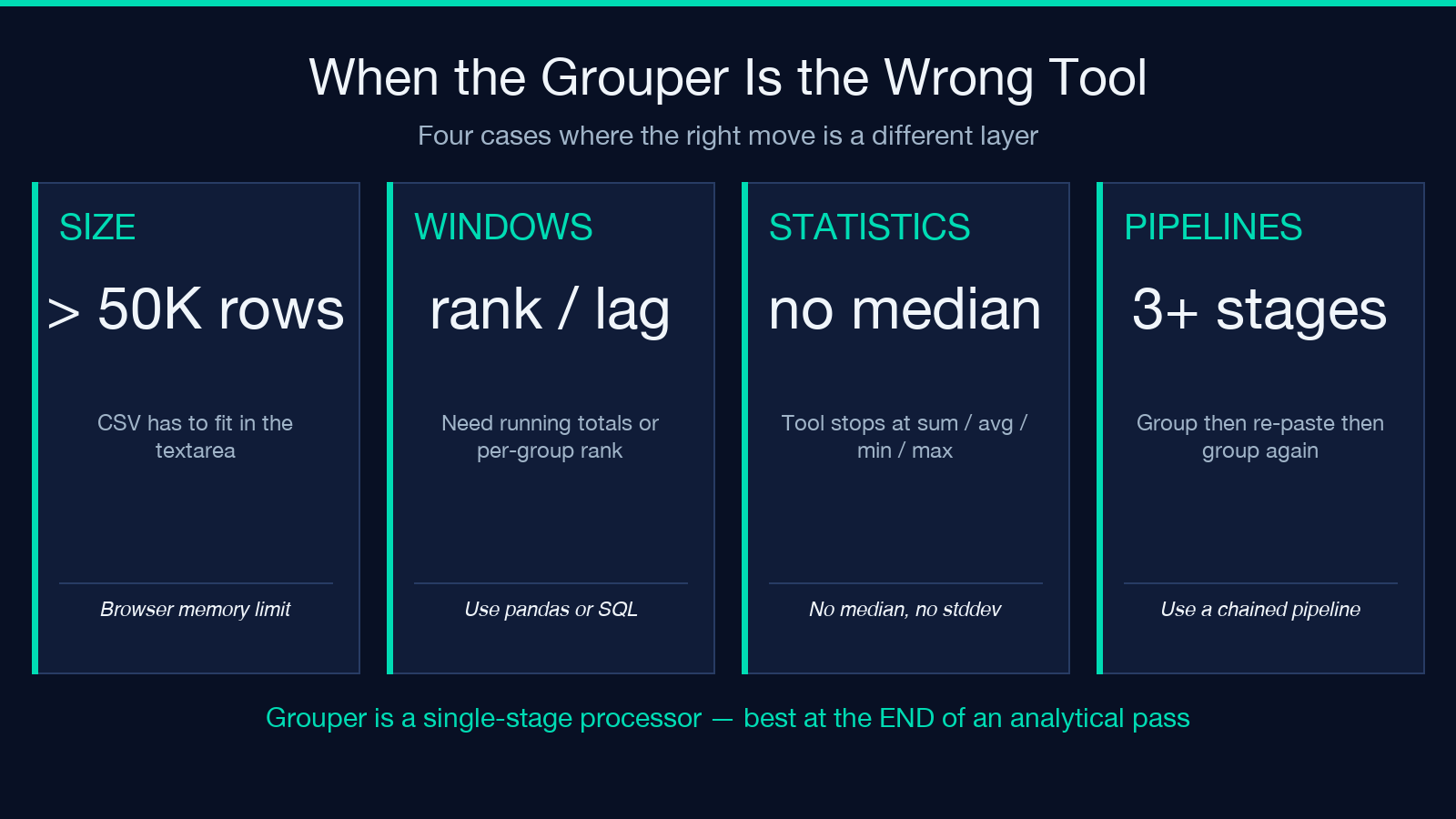
The CSV Data Grouper does not handle streaming input — your whole CSV has to fit in the textarea — and it does not handle files bigger than the browser is willing to keep in a string. For a 50,000-row sales log it is fine; for a 5-million-row clickstream it will start to feel slow or refuse to load. If your grouping question needs more than ten aggregations on the same set of groups, or if you need a window function (a running total, a per-group rank, a lead/lag between rows), the grouper is the wrong layer — those are SQL or pandas jobs.
The other sign you have outgrown it is when you find yourself grouping, then pasting the output back as input, then grouping again. That is the pattern of someone who really wants a chained data pipeline; the grouper is a single-stage processor, and that is the right place for it in a workflow. The summary rows it produces are designed to be the end of an analytical pass — a tidy table you can paste into a report — not the start of another transformation loop.
The Grouping Habit Worth Building
Most analytical time spent on tabular data is spent answering the same kind of question repeatedly: what does this look like at the grain of X. The CSV Data Grouper at Elysia Tools is a fast, dependency-free way to ask that question on raw CSV without a pivot table’s defaults or a database’s schema tax. Run it on a thousand rows or a hundred thousand; the same input, the same aggregation rule, the same output. Try it alongside the related CSV Column Selector when you want to slim a wide file before grouping, or the Pivot Table Generator when the question is really a crosstab and a flat grouping is not enough. For everything else, the tool catalog at elysiatools.com is a few clicks deeper into the same no-installer workflow.
