
A text repeater is the smallest useful tool in the chat toolbox. You paste a line, pick a count, choose a separator, and the tool hands you back the same line — repeated, joined, and ready to paste. No scripts, no regex, no spinning up a notes app. This field guide walks through the three separator modes (inline, new line, countdown), the moment each one earns its keep, the boring edge cases (count of 1, multi-line input, the 1000 cap), and how to wire the tool into a small broadcast workflow without looking like a bot. By the end you’ll know which mode to pick for a chat-spam joke, a stage countdown, and a column-pad — and why the tool is closer to a typography primitive than a “spam generator.”
Try the live tool at Elysia Tools.
What a text repeater actually does
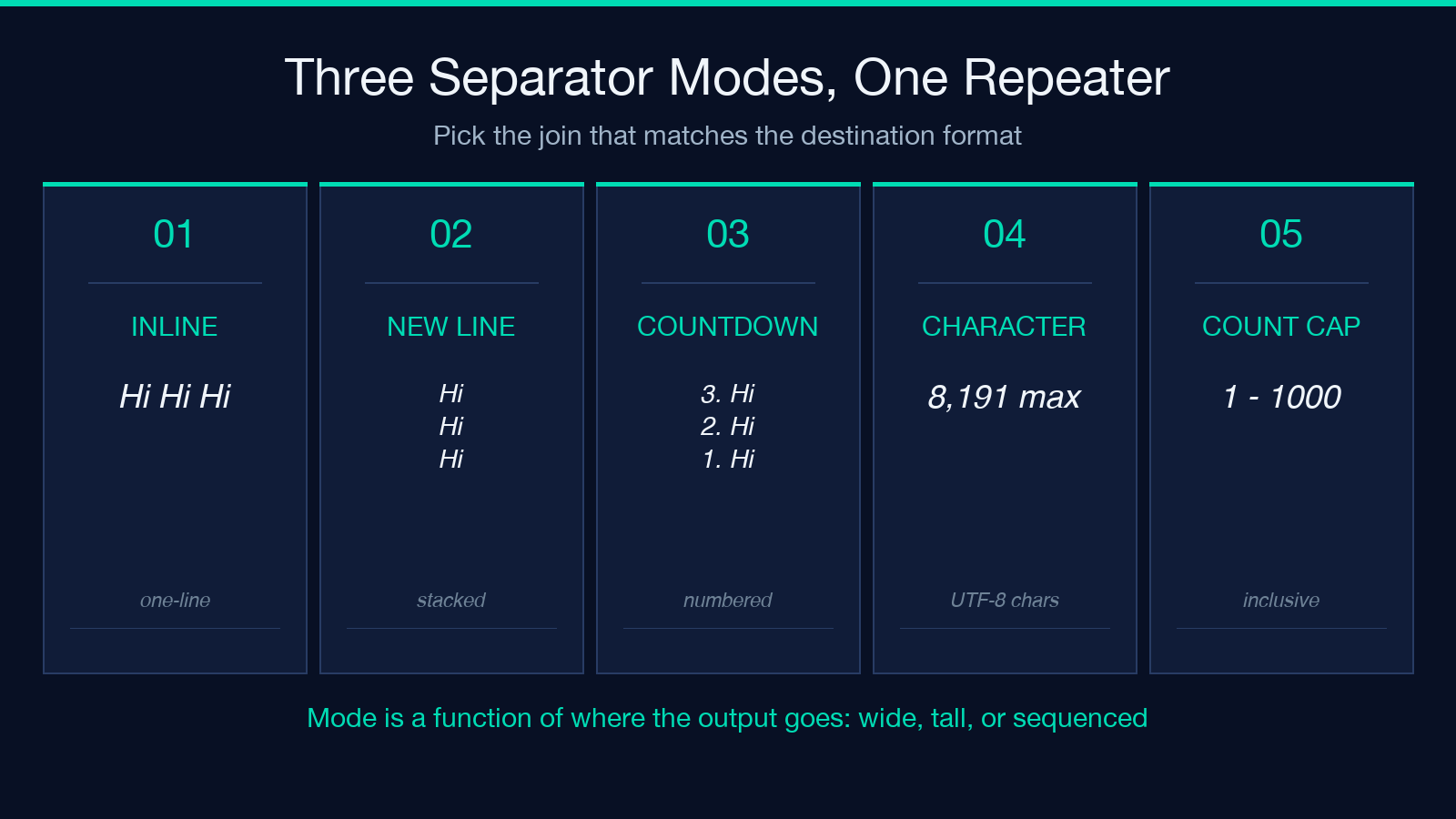
A text repeater takes three inputs: a chunk of text, a count (1–1000), and a separator mode. It then produces count copies of the text joined by the rule the mode defines. That’s the whole model. There’s no per-copy variation, no randomization, no smart formatting — the same string, repeated, joined. The interesting choice is the join.
The three modes solve three different presentation problems. Inline joins copies with a single space on one line: Hi Hi Hi. New line stacks each copy on its own row: Hi\nHi\nHi. Countdown prefixes each line with a decreasing number: 3. Hi\n2. Hi\n1. Hi. The choice is purely about how the output renders. The semantics never change — you get count copies of the same text. If you want different text on each line, you need a different tool.
The three modes in context
Inline mode for compact chat
Inline mode is the chat-spam default. You paste a single word, set count to 50, and paste the result into a Discord channel. The output is one long line that scrolls naturally as people type. The reason this mode wins for chat is that chat windows are wide. You can fit 50–80 copies of a short word on a single line at most display widths, and a single line is what the chat client expects to receive.
The other place inline mode earns its keep is the “rule-of-three” or “rule-of-five” emphasis pattern. Three identical words in a row (e.g. now now now) read as a single emphatic utterance; five read as a tap on the shoulder; ten read as filler. If you’re writing copy and need exactly three emphatic beats without counting characters, paste your word, set count to 3, and copy.
New line mode for columns and stacks
New line mode is the workhorse for filling space. Three common uses:
- Status indicators — paste a unicode check mark with count 20 to fill a status bar.
- Lorem-ipsum stand-ins — need a visually long paragraph under a heading for layout testing? Paste a single sentence with count 30 and join with new lines.
- Repeating banners — chat welcome messages, moderation disclaimers, “this server is for X” footers are often the same line repeated three to five times for emphasis.
The key difference from inline is that new-line mode respects the height of the layout. A countdown in inline mode would be unreadable 3. Hi 2. Hi 1. Hi — a single line that requires the reader to split it mentally. New-line mode gives each copy its own row, which is what the visual hierarchy expects.
Countdown mode for build-ups
Countdown is the mode that turns a text repeater into a stage prop. The number prefix gives each line a position, so the reader scans top-to-bottom and feels the sequence. The classical “T-minus 10” announcement is structurally identical to a 10-line countdown from the same tool with a different word.
Three real places countdown mode earns its keep:
- Hype reels — short-form video often stages a countdown right before the reveal. Five lines of
3. Wait\n2. Wait\n1. Waitcut to your final frame. - Live event moments — a stream starting, a product dropping, a fight hitting a boss phase. The countdown itself becomes the content.
- Countdown stickers in chats — when you want to tell a friend “I drop the link in 60 seconds,” a 60-line countdown pasted into a chat reads as commitment, not a promise.
The countdown is also the only mode where the count shows up in the output. If you ever need a visible count of how many copies there are, this is the mode that delivers it.
Counting the cost: which mode for which size
Not every count belongs in every mode. The interesting failure modes are at the edges:
- Inline mode past ~80 copies becomes a single line longer than most chat windows will render. Past ~200 copies some clients will silently truncate. The right move is to switch to new-line mode before the count gets large enough to bump into the line-width limit.
- New-line mode past ~50 copies becomes a tall block that requires scrolling. Past ~200 copies some clipboards will refuse to copy. The right move is to chunk the output into multiple pastes.
- Countdown mode past ~15 copies gets visually noisy — the small number prefix starts to dominate the line. If you need a long countdown, use a different visual pattern (e.g. a header line and a separator row at the midpoint).
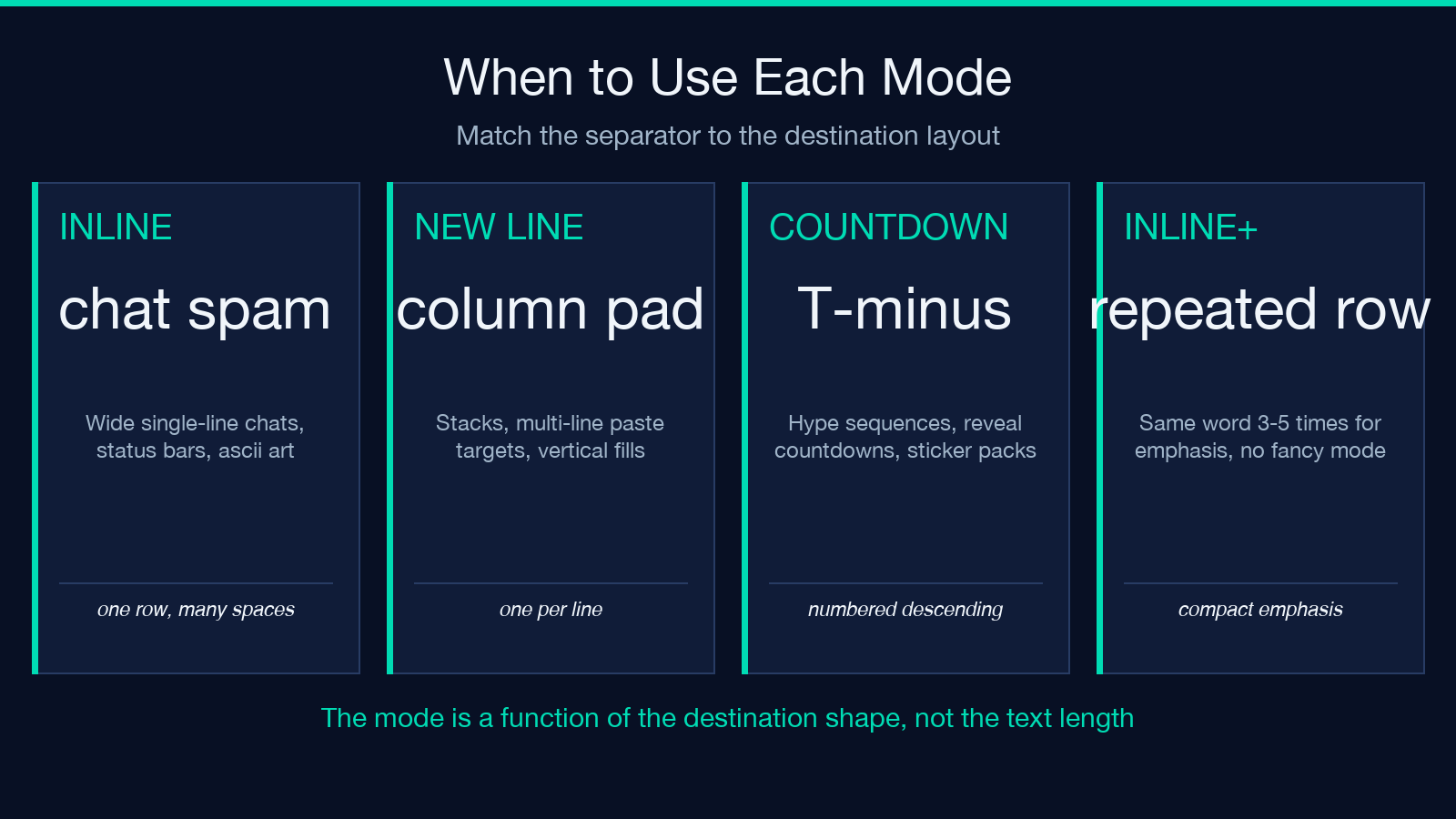
The mode is a function of the destination’s shape, not the length of the text. A wide destination wants inline. A tall destination wants new line. A numeric sequence wants countdown.
Edge cases that bite
The tool’s behavior is small enough that the edge cases are easy to internalize once.
A count of 1 returns the text once, with no separator. That’s the spec — there’s no trailing space, no newline, no “1. ” prefix. If your pipeline expects a separator after every copy, count to 1 will give you a one-line result with no join. This is the correct behavior but breaks naive pipelines that assume “every count produces a separator.”
The cap is 1000. The tool refuses to go above 1000. Very large counts produce very large output, and the cap is there to keep the response size sensible. If you need more than 1000 copies, chain the tool — paste the previous output as the next input, count to 1000, repeat. It’s slower than a single call but the per-paste UI is what makes chaining practical.
Multi-line input is preserved inside each copy. If you paste a three-line block and set count to 5 with new-line separator, you get 15 lines: each block, repeated 5 times, with a blank row between blocks. Annoying if you didn’t expect it, useful if you did. The way to flatten this is to convert the input to a single line first or to use inline mode and accept the spacing.
The output is plain text. No bold, no italic, no Unicode emphasis inside the result. If you need a styled countdown, the tool gives you 3. Hi not 3. Hi with extra emphasis. Layer styling downstream.
Counting characters is the only arithmetic the tool does. The other constraint is the screen width of wherever you’ll paste the result. A 1000-copy inline output can be a megabyte of text — won’t help anywhere.
Character safety: what survives the repeat
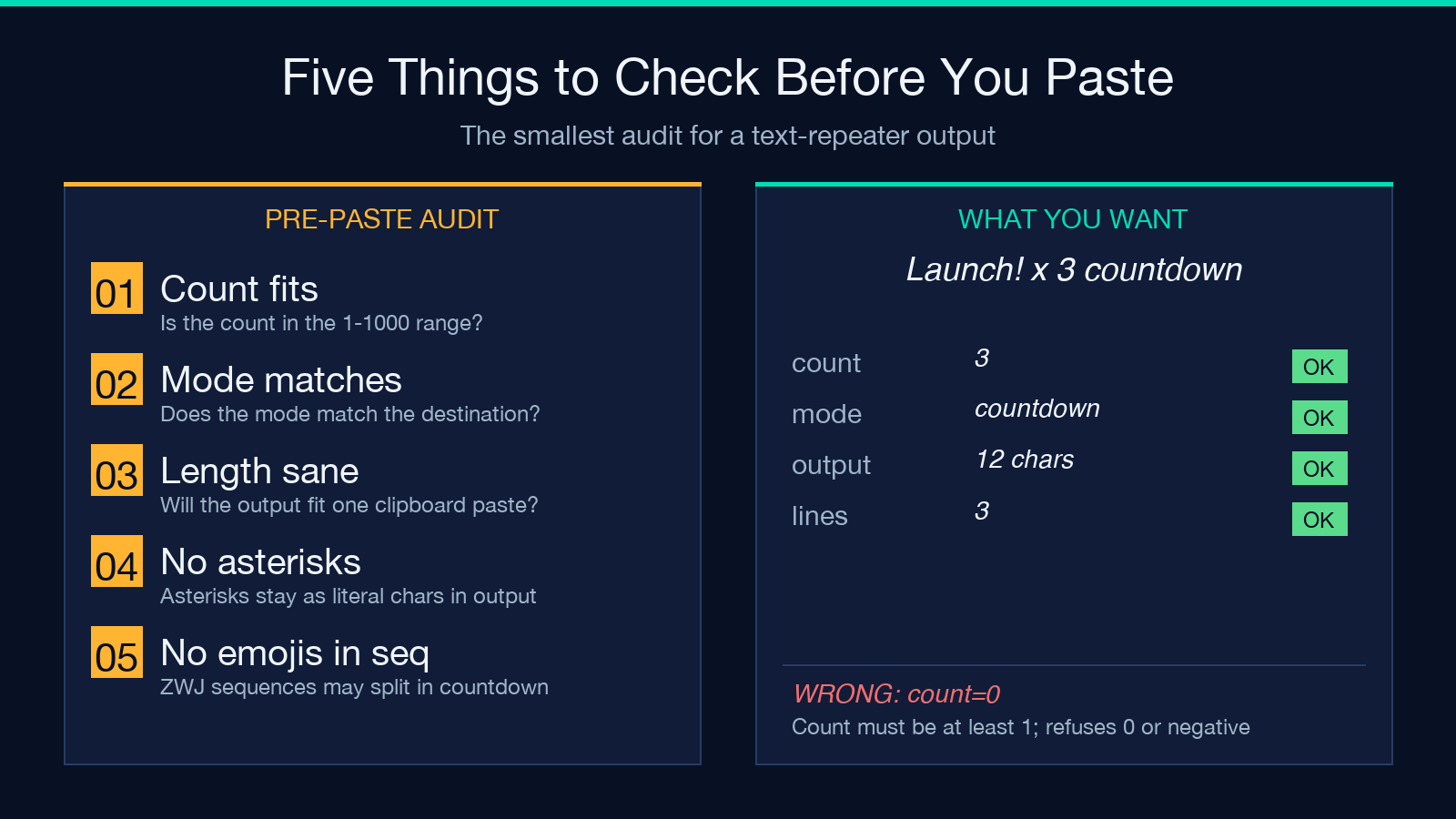
Three character classes are worth flagging because they survive the repeat but render differently across destinations:
- Emoji — most emoji pass through cleanly. ZWJ sequences (combined emoji like
familywith multiple joined figures) split on some renderers; if you need the joined form, render outside the tool and paste the result. - Whitespace — tabs collapse to single spaces in inline mode (the join is a single space). In new-line mode, tabs inside each copy are preserved verbatim but the join is a newline, not a tab.
- Markdown — the output is plain text, so any markdown characters (asterisks, backticks, hash signs) survive as literal characters. If you paste a string with
in count-down mode, the output reads3. Hi*as literal text, not as italic emphasis.
The pattern that catches most users is the markdown one. The tool does not parse markdown. If your input has any markdown syntax, the output will too. Pre-process the input if you need clean text.
How to wire it into a small workflow
The tool is small enough that the interesting workflow question is “where else does this string go?” rather than “how do I configure the tool?” Three patterns come up:
- Copy once, paste many. Open the tool, fill it in, copy the result, paste into a chat. The copy-paste round-trip is the workflow. If your chat supports paste with one tab of preview, this is the fastest path.
- Save as a snippet. If you reuse the same text repetitively (e.g. a moderation disclaimer), save the output as a text-expansion snippet on your OS. The tool becomes a snippet factory: paste the source text, count to 3, copy the output, drop it into your snippet manager.
- Combine with a countdown for stage visuals. Build the countdown in the tool, then paste into a text-to-image app for a graphic. The tool doesn’t render, but it gives you the exact sequence you need to feed a renderer.
If you want to script the same pattern — repeat text N times, join with a separator — the tool’s logic is short enough to replicate in any language:
function repeat(text, count, mode) {
  if (mode === 'inline') return Array(count).fill(text).join(' ');
  if (mode === 'newline') return Array(count).fill(text).join('\n');
  // countdown
  const lines = [];
  for (let i = count; i >= 1; i--) lines.push(i + '. ' + text);
  return lines.join('\n');
}
The tool gives you the same shape with a UI on top — useful when the count is a one-off and you don’t want to fire up a REPL.
When the tool is the wrong choice
A text repeater joins copies of the same line. If your output needs variation between lines (numbered list with different content per item, a template with field substitution, a reply chain that quotes different messages), the tool won’t help. The wrong tool is more annoying than no tool at all, because the output looks plausible until you read it.
A text repeater is also wrong for filling a metric-ton of space — pasting a 1000-line block into a chat will rate-limit you. The tool’s cap is a sanity guard, not a challenge.
Finally, the tool is wrong for anything Unicode-fancy. It will repeat emoji, but ZWJ sequences and skin-tone modifiers can split depending on the renderer. If you need reliable emoji rendering, paste the emoji as part of the input and test on the destination.
The same pattern on the page
The reason text-repeater is worth its own field guide is that the pattern — same string, repeated, joined — is everywhere once you start looking. Defaults in word processors work this way (repeat dashes to fill a line). ASCII art uses a similar idea (repeat a character to draw a frame). The tool is the simplest possible expression of that pattern, and the three modes are the three formats the pattern most often takes on a screen.
When you reach for the tool, ask which of the three formats the destination expects. If it’s a single line, inline. If it’s a column, new line. If it’s a sequence, countdown. The tool handles the rest.
The full tool, with the three modes, lives at Elysia Tools Text Repeater. Paste a line, pick a count, pick a separator, copy. That’s the whole loop, and it’s the loop the tool was built for.
Explore more text utilities at Elysia Tools.
