
Small caps are Unicode, not a font toggle. The Small Caps Converter turns the uppercase letters in your input into Phonetic Extensions glyphs (U+1D00 through U+1D5A) and leaves the rest of the string alone. Punctuation, digits, and lowercase letters pass through unchanged because the Unicode block has no small-cap counterparts for them. This guide explains what the converter actually maps, where small caps quietly beat bold headers, and the few edge cases where the fallback surprises you.
What the converter actually maps
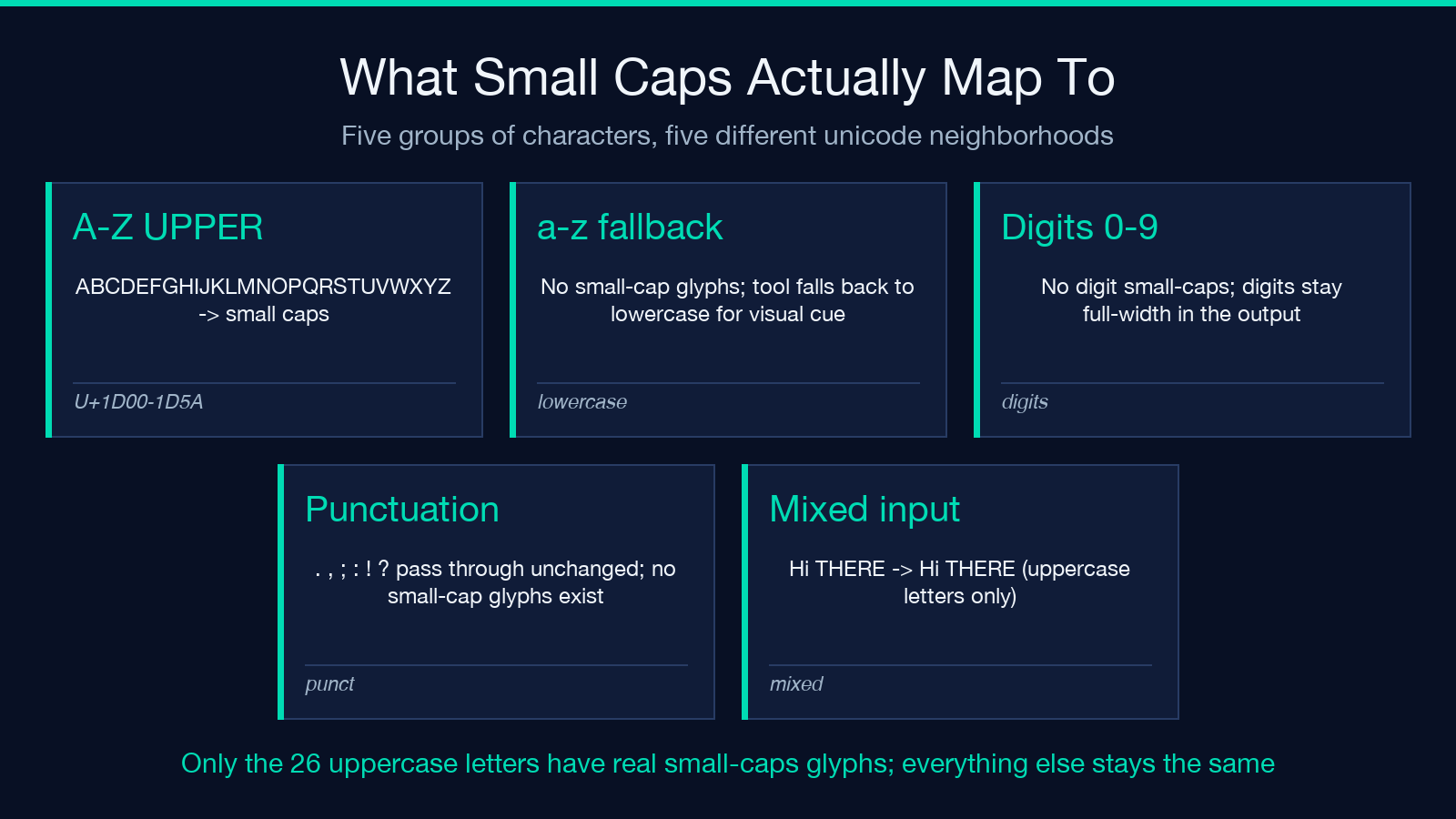
Five character groups behave differently when you push a string through the converter. The tool lowercases the input first, then walks character by character and replaces anything in the U+1D00-U+1D5A range with its small-cap equivalent.
ABCDEFGHIJKLMNOPQRSTUVWXYZ becomes the small-cap form of each letter. The glyphs are real Unicode characters, not styled HTML; they live in the Phonetic Extensions block, originally introduced for phonetic transcription. The visual result reads as capital-height characters at a slightly narrower width than the regular uppercase form, which is the traditional small-caps look.
abcdefghijklmnopqrstuvwxyz stays unchanged. There are no lowercase small-cap glyphs in this block, so the tool falls back to lowercase as the visual cue. This is the conventional small-caps approximation that typography has used for centuries, and it is why small caps always render as capital-height glyphs over a lowercase x-height baseline.
0123456789 stays as full-width digits. No digit small-caps exist in the Unicode block. If your input mixes digits with uppercase letters, the digits render at full height alongside the small-cap letters, which is what you want for table-of-contents-style labels like CHAPTER 1 or SECTION 12.
. , ; : ! ? and friends pass through unchanged. Punctuation has no small-cap glyphs. The tool does not strip them, normalize them, or add anything new. A semicolon in your input becomes a semicolon in the output, no matter what.
Hi THERE becomes Hi THERE with the uppercase letters replaced and the lowercase preserved. The tool preserves mixed-case input; only the letters that already exist in the small-cap block get replaced. If you typed HI there it would become HI there (the lowercase stays lowercase). This is the expected behavior for headers and titles that have both cases.
Why small caps and not just bold or italic
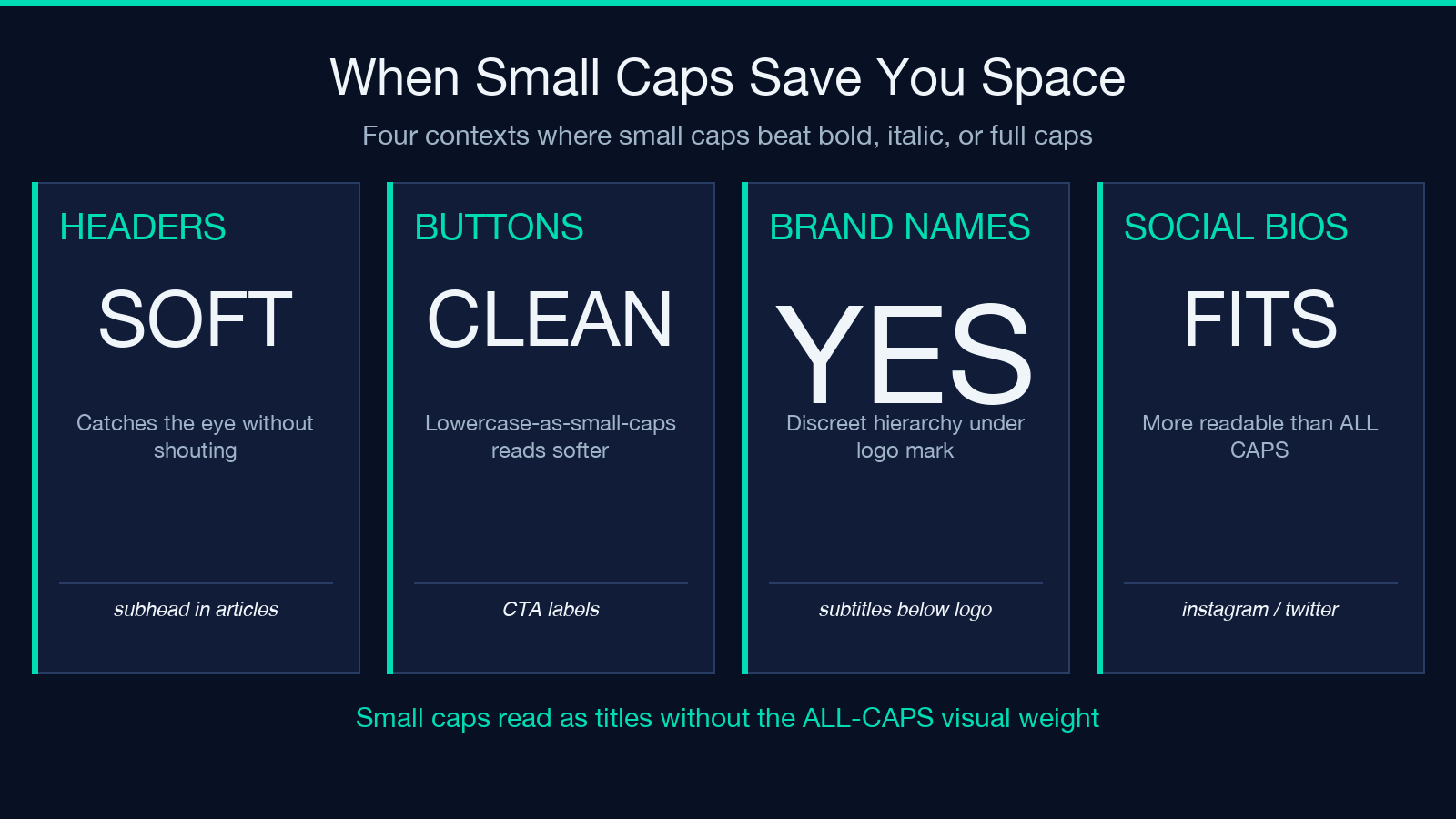
Small caps read as a typographic hierarchy cue without the visual weight of full uppercase. That distinction matters in four recurring contexts.
In subhead and section labels, full caps shout. Italics read as emphasis. Bold reads as importance. Small caps read as quiet structure — the reader’s eye registers “this is a label, not body text” without the volume knob turning up. Article subheads, chapter titles, and table-of-contents rows are where small caps earn their keep.
In button and CTA labels, full caps look aggressive on a screen and condescending in print. The lowercase-as-fallback rendering is friendly and reads at a glance. Most buttons are short enough that this approximation looks polished; a longer label would lose the effect and start to read as a typo.
In brand subtitle stacks, the logo sits at full size and the subtitle sits beneath in a smaller, calmer voice. Small caps give you the typographic weight of an uppercase letter with the visual size of a lowercase letter. This is exactly the hierarchy a subtitle wants: present but not competing with the mark above it.
In social bios and bylines, full caps on a profile feel like yelling. Lowercase alone feels too casual. Small caps land in the middle: structured, distinctive, and easy to scan past. The effect works in the short-string context where most profile text lives.
Phonetic Extensions vs Subscript Letters
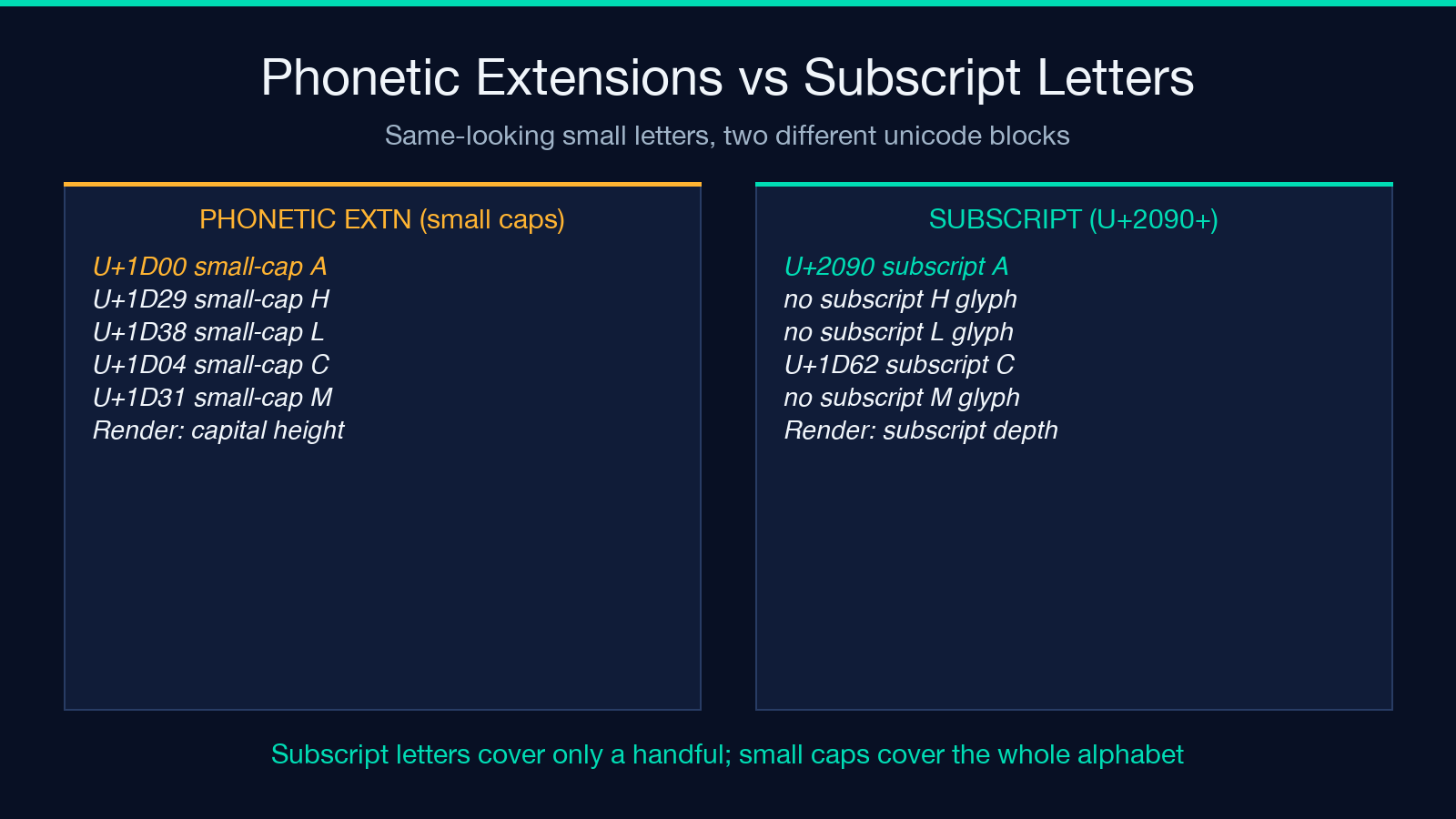
The Unicode tables group small-looking letters into several blocks, and they look identical at first glance. They are not the same.
Phonetic Extensions (U+1D00 through U+1D5A) cover the full alphabet in small-cap form. This is what the converter uses. These glyphs render at capital height but slightly narrower than the regular uppercase form, which is the traditional small-caps look that book typography has used for centuries.
Subscript letters (U+2090 through U+209C) cover only about a dozen characters, mostly vowels and a few consonants used in math and chemistry notation. There is no subscript H, no subscript L, no subscript M. If you tried to assemble a small-caps-style string from subscript glyphs, you would run out of letters fast and have to mix in regular characters.
The render widths are different too. Phonetic Extensions glyphs render at the height of capital letters. Subscript letters render at subscript depth, which is significantly shorter and sits below the baseline. They are designed for chemical formulas like H2O and math notation like x1, not for typographic hierarchy.
When you see a small-caps-style string anywhere — in a book, a website, a marketing email — it is almost certainly using Phonetic Extensions, not Subscript Letters. The converter keeps you in the right block so you do not have to think about it.
Practical examples
Three examples show how the converter behaves on real-world input.
HELLO WORLD becomes HELLO WORLD rendered as small caps. Notice that the space stays a regular space. The tool does not collapse whitespace, add tracking, or apply any CSS-style letter-spacing. Whatever your source layout was, the output preserves it.
Chapter 1: The Beginning becomes Chapter 1: The Beginning — only the uppercase letters get the small-cap treatment; the lowercase letters stay lowercase, the digits stay digits, the colon stays a colon. The result reads as a typographic small-caps label, not as CHAPTER 1: THE BEGINNING shouted at the reader. That is the typographic win small caps were designed for.
PRODUCTIVITY TIPS becomes PRODUCTIVITY TIPS — a useful pattern for repeating headers in a document outline. The converter does the same character-by-character work every time, so it is safe to use in a build pipeline or content template where you want consistent small-caps treatment across many headings.
The one case where the converter surprises people is when their input has only lowercase letters. If you pass hello world to the tool, the output is hello world — unchanged. The tool first lowercases the input (so Hello becomes hello), then walks it for small-cap replacements. Lowercase has no small-cap glyphs, so lowercase input stays lowercase. To get the small-caps effect, your input needs uppercase letters.
How to verify the output
After you run your text through the converter, you can confirm the result by inspecting the codepoints in the output. Most browsers and editors expose this in different ways; the simplest check is to paste the output into a Unicode inspector or write a one-line script that walks the string and prints the codepoint of each character. If your output contains U+1D00 through U+1D5A, the converter worked.
You can also paste the output into a search box or character picker to confirm visually. Modern operating systems ship with the full Phonetic Extensions range; if you see small-cap glyphs in the rendered text, the conversion landed.
When the rendering falls back
If you see boxes or fallback characters where the small caps should be, your rendering target does not have the font. Older embedded displays, some PDF readers, and a handful of email clients fall back to a placeholder glyph for codepoints outside the BMP that the host font does not cover. Test before you ship to the destination that matters.
For screen reader output, the small-cap glyphs read as their base letters; the reader does not distinguish between capital A and small-cap A. If your label is meant to be visually distinct but spoken the same way, the converter works as expected. If your label needs a different spoken form, you are better off with styled HTML using font-variant-caps.
For PDF export, most modern PDF generators embed the font that contains the glyphs. If your PDF library uses an older font, the small-cap characters render as the regular base letters or as missing-glyph boxes. Specify a Unicode-complete font like Noto Sans or Roboto before generating.
Where this falls short
The converter covers the 26 ASCII uppercase letters and that is the whole alphabet for this block. If you need small-cap-style rendering for accented letters like À or Ö, Greek letters, or Cyrillic, the Unicode block does not have you covered — those scripts use their own typographic conventions and you would need a CSS font-variant-caps: small-caps rule against a font that supports the styling, not a character replacement.
The tool also does not synthesize missing letters. If a font on the rendering device does not include the U+1D00 range glyphs, you see boxes or fallback rendering. Modern browsers and operating systems ship with this range, but older systems and some embedded displays do not. Test before you ship.
Finally, the converter does not produce styled HTML or CSS. It produces Unicode characters. If your destination is a screen reader, a code formatter, or a non-Unicode legacy system, the small-caps effect disappears or breaks. Use this tool for display text, not for data interchange.
Try it on your own text
Paste any heading, label, or subtitle into the Small Caps Converter and you will see the result instantly. The conversion is deterministic, so the same input always produces the same output, and you can drop the result into any place that accepts Unicode: a tweet, a Markdown heading, an HTML title attribute, or an email subject line.
The tool is one of many small, sharp utilities on Elysia Tools. For related typography work, the Bold & Italic Text tool wraps your string in the matching Unicode ranges for emphasis, and the Underline Text tool covers the underlining and double-underlining ranges. The Unicode Escape Converter sits on the other end: it converts your text to \uXXXX escapes for any Unicode block, including the small-cap glyphs this guide introduced.
