
Three rows, three columns, one decision. A crosstab (or pivot table) collapses thousands of rows into a small grid that answers a single business question: how does one dimension change across another. The Data Crosstab Generator turns a CSV into that grid with totals, percentages, and six aggregation functions, so a sales analyst can find the gap between regions in under a second without opening a spreadsheet.
Why a single merged cells output beats five separate filters
When you run a regional sales report the old way, you write five queries: SUM sales by region, SUM sales by product, COUNT orders by region, COUNT orders by product, and a third query for the average. You then merge them into a spreadsheet, copy totals across, and hope you did not transpose a row. A crosstab consolidates that entire pipeline into one shape: rows become the row dimension, columns become the column dimension, and the cell holds the chosen aggregate. The cost of getting it wrong is small — flip the dimensions, re-run — and the cost of getting it right is that you have a chart-ready summary instead of a fragmentary table.
The tool at Elysia Tools accepts a CSV with the column headers you already have, so there is no schema migration before you can summarize. The full configuration for the field guide is below; the rest of the article walks through each dial and the cases where it matters.
Picking the row and column dimensions before you pick the value
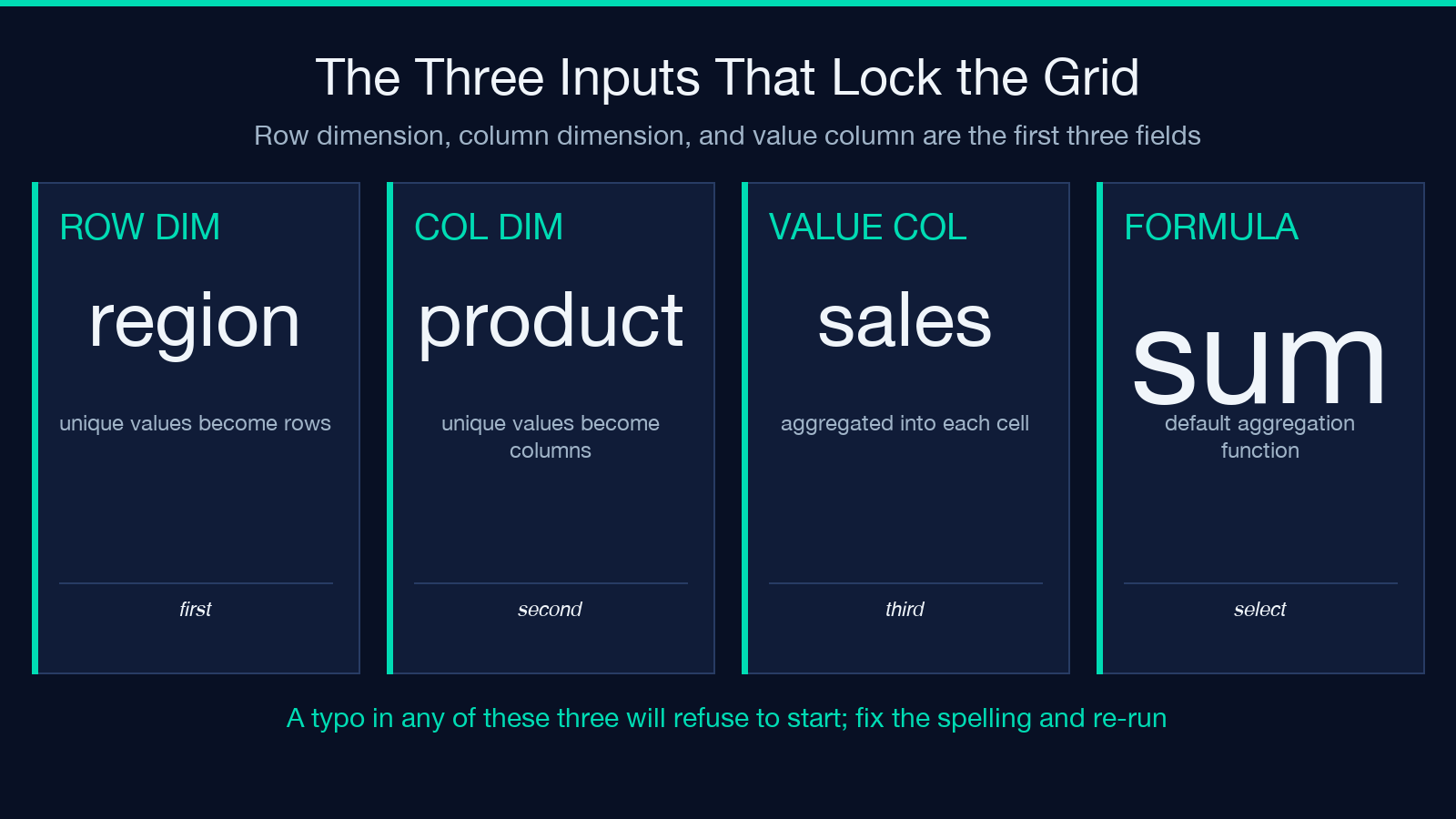
The first three inputs lock the shape of your output. rowDimension is the column whose unique values become the rows of the crosstab. columnDimension is the column whose unique values become the columns. valueColumn is the column that gets aggregated into each cell. Common pairings are region rows with product columns, quarter rows with channel columns, or customer_segment rows with plan_tier columns. The tool refuses to start if any of these three is empty or contains a column name that does not exist in the CSV, so the most common failure mode is a typo in a column name — fix the spelling and re-run.
Choose the dimensions so that the resulting grid has roughly the same number of rows as columns, or one axis roughly 2x the other. A 10-row by 4-column grid reads cleanly; a 60-row by 30-column grid is too sparse to drive a decision. If your row dimension has too many unique values, push a higher-level grouping into a derived column upstream and re-run.
Choosing the aggregation function for the question you are asking
The aggregateFunction select controls what each cell means. SUM is the right choice when the value column is a count of money or units — total sales, total units shipped, total hours billed. COUNT is the right choice when you want to know how many records fell into each bucket, regardless of the value column. AVERAGE is the right choice when one record can appear multiple times per cell and you want the typical row’s value. MIN and MAX are the right choice when you are looking for the worst case (e.g. longest delivery time) or the best case (e.g. highest single transaction). MEDIAN is the right choice when the distribution is skewed — a small number of large orders would pull a SUM or AVERAGE upward, but MEDIAN stays near the typical order size. STDDEV is the right choice when you care about consistency across regions, not just the average.
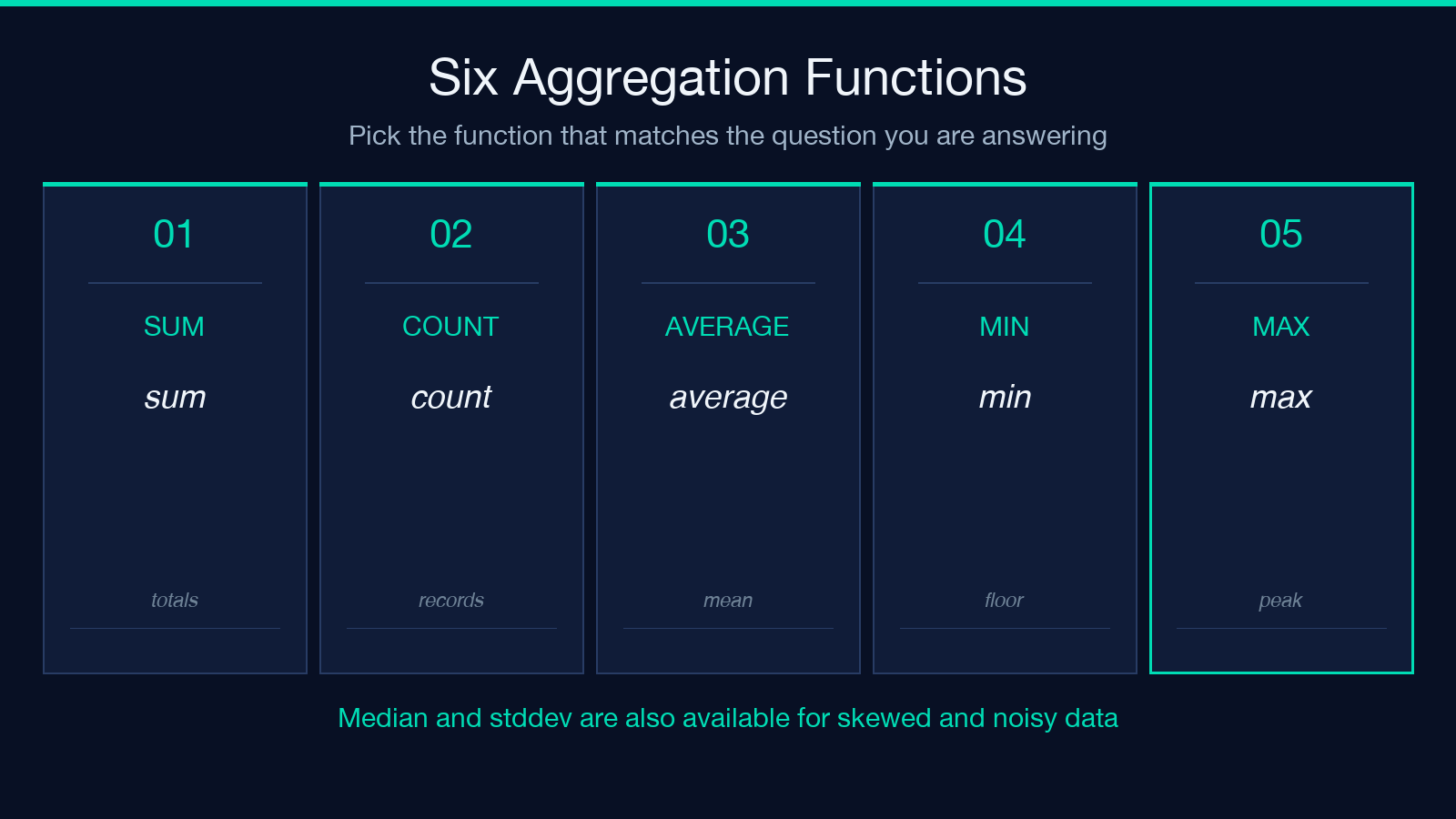
When in doubt, start with SUM if the value column is a quantity, COUNT if you have a logical key, and AVERAGE if you have a rate. Do not switch back to SUM after switching to AVERAGE — the totals will be wrong by orders of magnitude and you will spend the next 30 minutes figuring out why.
Totals and the grand total: when they hide the answer
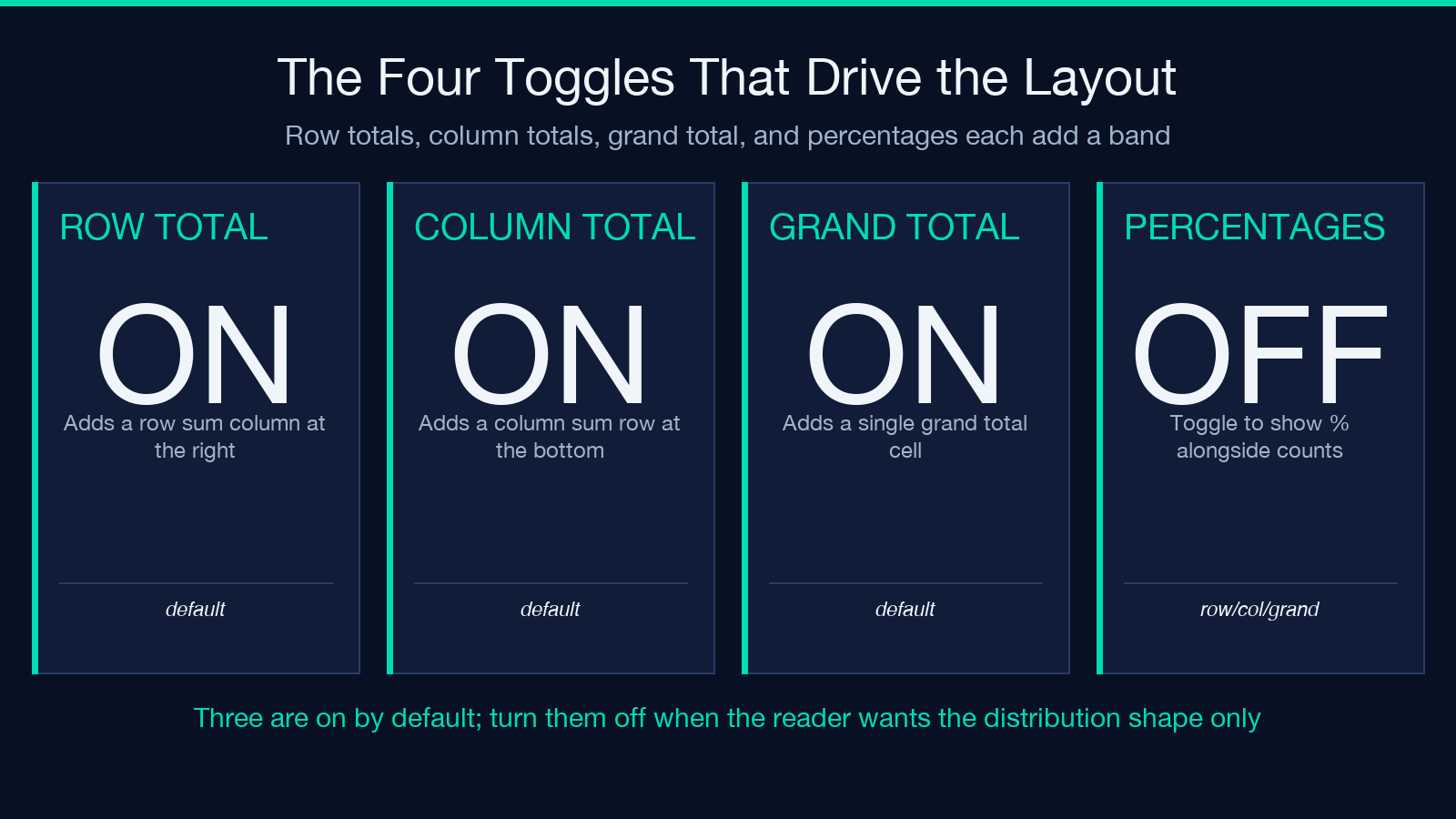
includeRowTotals, includeColumnTotals, and includeGrandTotal add the row, column, and grand sums respectively. Check all three by default. The grand total is the single number that tells you the size of the business; the row totals tell you which region is the largest; the column totals tell you which product is the most popular. Skipping the row totals means you cannot rank regions without copying the column into a downstream spreadsheet. Skipping the column totals means you cannot tell at a glance which product line is winning.
There is one case where you want to disable the totals: when the value column is a unique identifier (e.g. an order ID) and the aggregation is COUNT. The grand total is then the number of records, which is interesting but unrelated to the question the crosstab is answering. In that case, hide the totals and add showPercentages instead — the user is asking for the distribution shape, not the totals.
Percentages as the second axis when raw counts mislead
A crosstab with sales dollars shows which region sells the most. A crosstab with row percentages shows which region’s mix leans toward which product. Toggle showPercentages and the tool adds a second number to each cell, computed by percentageType. Row percentages answer: “of the sales in this region, what fraction is this product?” Column percentages answer: “of the sales of this product, what fraction is in this region?” Grand percentages answer: “of all sales, what fraction is this region-of-product cell?” A regional manager often wants row percentages; a product manager often wants column percentages; a CEO almost always wants grand percentages on a single page.
Do not enable both raw counts and percentages on the same dimension unless the reader wants both. The grid becomes twice as wide and the contrast between cells blurs. Pick one — the one that maps to the question — and disable the other.
Sorting: the cheapest readability boost you can apply
sortByRows and sortByColumns order the rows and columns by the value column. Pair with sortOrder (ascending or descending). When you turn both on at once, the largest row and the largest column both go to the top, so the eye lands on the heavy hitters without searching. This is the difference between a crosstab that reads like a deck slide and one that reads like a database dump.
Disable sort when the row dimension is ordered (months, quarters, weekdays) and the alphabet would scramble the meaning. A crosstab of quarter rows and product columns should keep Q1 at the top, not “First” or any alphabetical artifact. Same for region if you have a logical north-to-south ordering, or customer_segment if you have an SMB-to-Enterprise ordering.
Formatting: numberFormat, roundDecimals, and emptyCellValue
The default number format is ,.2f — thousands separator with two decimal places. Change it to ,.0f for whole-number counts, .2% for percentages, or .4f for scientific notation. roundDecimals rounds to a fixed number of decimal places; set it to 0 for whole numbers, 2 for currency, 4 for ratios. emptyCellValue controls what shows in cells where no records fell into the row/column combination — the default is -, but a blank cell is also fine if your downstream processor recognizes the difference.
fillEmptyCells toggles the empty cell replacement. When it is on, every cell has a value, including the empty ones. When it is off, the absence of a value is itself information — the dimension combination simply did not occur. Choose off when the reader is going to act on the absence (e.g. “this product is not sold in this region”), on when the reader is going to copy the grid into a deck and needs every cell filled.
Header style, column width, and conditional formatting for the deliverable
headerStyle controls the look of the header row: simple (plain text), bold (emphasized), or boxed (with borders). Pick bold when the grid is the primary artifact; pick boxed when the grid is one of several tables on a page and the eye needs to anchor. maxColumnWidth caps the column width in characters; 15 is the default and works for most product names, region names, and ISO date columns. Lower it to 8 for compact grids with short labels (East, West, North). Raise it to 25 when the column dimension has long values (full product names with edition numbers).
conditionalFormatting adds color coding: high values in one color, low values in another. Leave it off for pure data analysis — color in a working grid is noise. Turn it on for the final report: a one-glance grid where the heavy cells are obvious without scanning the numbers. The grid is then a chart, not a table.
For a deeper walkthrough of the input shape and a live walkthrough of the row-and-column pivots, see the Data Crosstab Generator on Elysia Tools. The tool’s input field accepts the CSV directly, so the loop from raw data to summary grid is one paste-and-run. The crosstab is rarely the final step — the output grid is what gets copied into a chart, and the chart is what gets pasted into a deck. The dimensional choices get fixed in the chart step: if you sorted by descending sum, the chart inherits that order; if you included row totals, the chart has a margin bar. Conditional formatting pays off in the deck step — the slide has the same color coding as the grid, so the reader does not have to flip back.
Explore more tools at elysiatools.com.
