
The fastest path to a verifiable image-to-audio bridge. When a bitmap is mapped straight to a time-frequency grid and re-rendered as a spectrogram, the reconstruction will not look like the source unless three things are pinned down: which axis is time, which axis is frequency, and how brightness turns into amplitude. The Image to Spectrogram Audio tool at Elysia Tools does exactly that — width equals time, height equals frequency bins, brightness equals amplitude — and ships the WAV or FLAC together with a verification spectrogram so you can see whether your round-trip worked before you push it anywhere.
How the time-frequency mapping is laid out
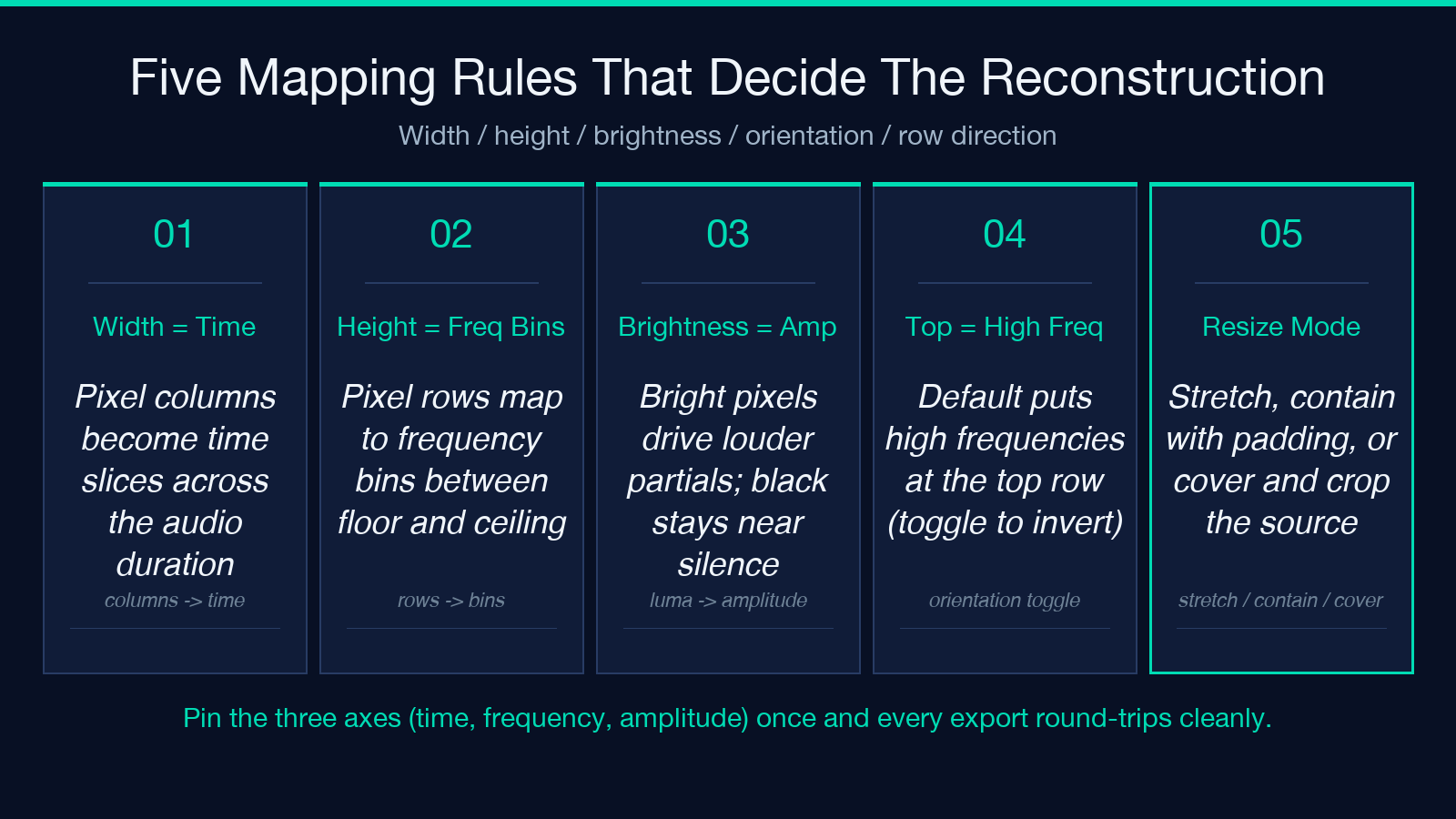
The mapping is the part most people get wrong on their first script. A 1280-pixel-wide bitmap stretched across eight seconds becomes 160 samples per time-slice per pixel column. A 256-pixel-tall bitmap mapped to 160 frequency bins between 200 Hz and 12 kHz puts each row at roughly a 74 Hz step. The pixel brightness in each cell drives a sine partial at the cell’s mapped frequency, scaled by an amplitude envelope so the dark background of the source stays near silence. When you flip “Top Row = High Frequency” off, the rows reverse so the top of the image becomes the lowest bin — a small choice that changes whether the spectrogram reads like a horizon or an inverted skyline. Pick the orientation once and keep it consistent across every export so a viewer who loads the audio in a third-party tool sees the same image you uploaded.
Picking a frequency scale that matches the artwork
Linear frequency spacing is the default and the right call for shapes that read at a glance — letters, simple icons, chunky symbols. Logarithmic spacing shifts the bins so that the lower part of the image gets more resolution and the upper part compresses. That matters when the upper region of your bitmap holds the bulk of the visual information — fine waveforms, hairlines, text in a small font. For dense upper-half imagery, switch to log and tighten the bin range to keep the spectrogram readable. The Image to Spectrogram Audio tool lets you set the floor and ceiling between 20 Hz and 20 kHz so the same bitmap can speak as a bass-heavy thump or a top-end shimmer just by adjusting those two numbers.
Time slices, frequency bins, and the resolution trade-off
Two numbers decide how much detail the spectrogram can hold: timeSlices and frequencyBins. Time slices cap the horizontal resolution — 640 is a comfortable default that matches most spectrogram viewers, 1280 holds a long banner but doubles the audio length per pixel of source. Frequency bins decide vertical detail: 96 bins reads cleanly for letterforms, 192 bins is the right pick for full-width text and geometric patterns, 320 bins is the upper bound for dense artwork and will push your audio length toward the practical ceiling. Match these to the source dimensions before you tweak anything else. A 256-by-256 bitmap stretched to 1280 slices and 320 bins turns into a 12-second, 10 MB WAV with more samples than the source had pixels — a clear signal you are over-spec’d.
Contrast, threshold, and the black-background assumption
The amplitude model treats near-black pixels as silence and bright pixels as full-scale partials. Two controls decide whether that assumption holds. Contrast boost above 1.25 sharpens the difference between faint strokes and the background but also clips mid-tones, so a bitmap with subtle grey detail starts to lose information past 1.5. The black threshold lifts the floor — anything below the threshold is forced to silence instead of low-amplitude noise. Set threshold around 0.05 for clean black backgrounds, raise it to 0.10 when the source has JPEG artifacts or PNG compression haze around the strokes. The tool’s verification spectrogram preview shows you where the contrast curve is clipping — if the verification image has hard horizontal bands where the source had soft gradients, drop the contrast back toward 1.10.
Output formats and why FLAC beats WAV for archival
WAV at 44.1 kHz is the standard output and works in every audio editor, every browser autoplay, and every podcast pipeline. FLAC is lossless and roughly 60 percent of WAV’s size, with no audible difference because the synthesis is deterministic and the data is already sparse. Pick FLAC when the audio will sit in storage for a while — a research archive, a generative-art library, a dataset — and pick WAV when the audio will be re-edited or resampled downstream. Sample rate is the third lever: 22.05 kHz is enough for narrow frequency bands under 8 kHz, 44.1 kHz covers the full 20 Hz to 12 kHz range cleanly, and 48 kHz only earns its keep when you widen the frequency band or plan to slow the audio down for stretching.
A worked example: turning a glyph into a 6-second FLAC
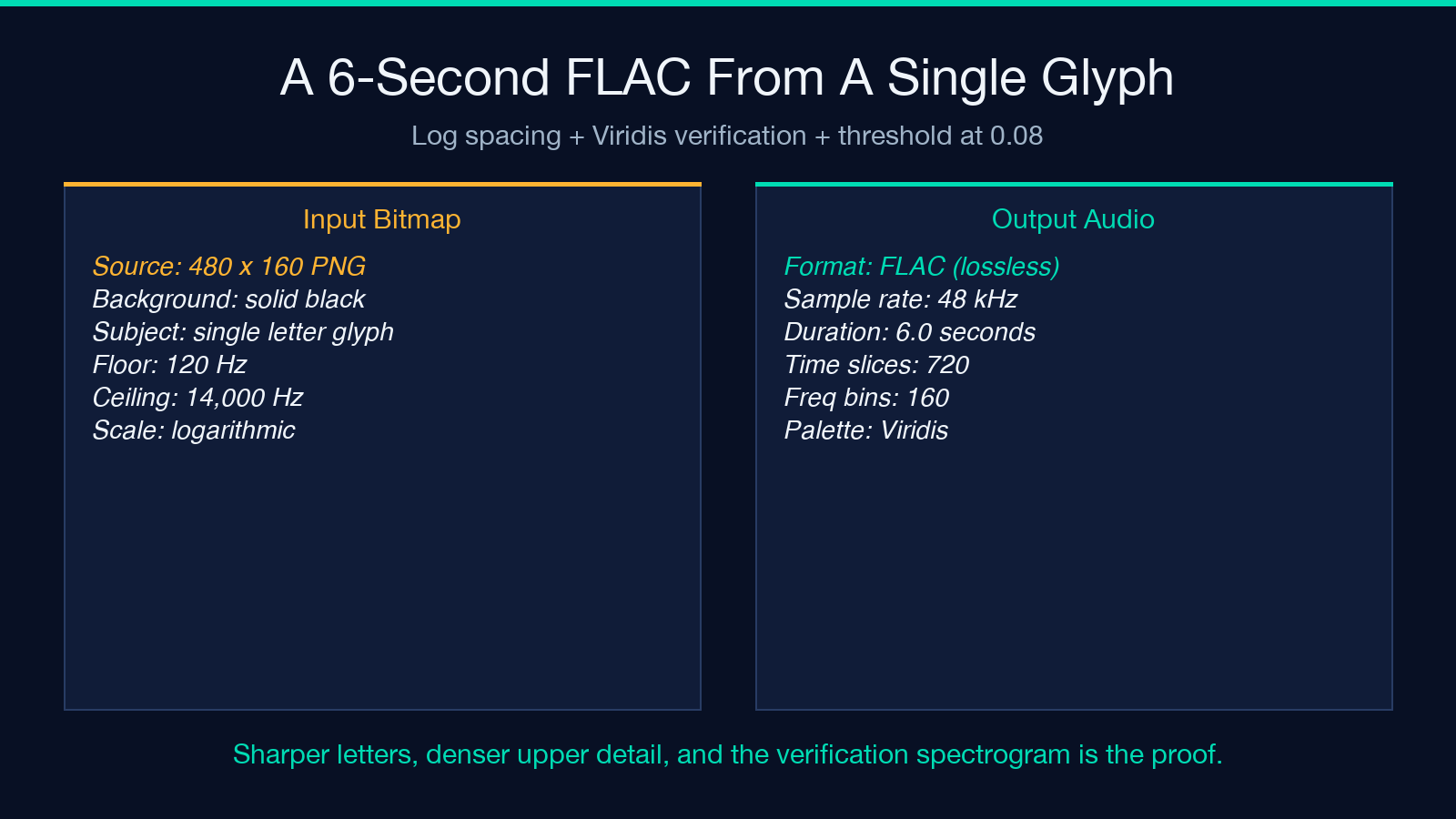
Take a black-background PNG of a single letter, 480 pixels wide by 160 tall. Set timeSlices=720, frequencyBins=160, minFrequencyHz=120, maxFrequencyHz=14000, frequencyScale=log, contrast=1.4, threshold=0.08, outputFormat=flac, sampleRate=48000. The bitmap stretches to a 720-by-160 grid over six seconds. Logarithmic frequency spacing allocates more bins to the lower half of the image where the letter’s stems live, the contrast boost sharpens the edges, and the threshold drops JPEG haze into silence. The verification spectrogram preview renders with the Viridis palette so the spectrogram is unmistakable in a screenshot. The result: a six-second FLAC that, when fed back into a spectrogram viewer, shows a sharp dark-blue letter on a teal background — the same letter you uploaded, in sound.
Putting It Together
The tool keeps the round-trip auditable. Every export ships its own verification spectrogram, so the moment the audio is ready the comparison artifact is ready too — no second script, no extra render. That is the difference between sonification as a curiosity and sonification as a verifiable pipeline. When the verification preview agrees with the processed source preview, you can hand the audio to a downstream consumer with confidence that what they see in their own spectrogram viewer matches what you intended.
Three checks before you ship the export
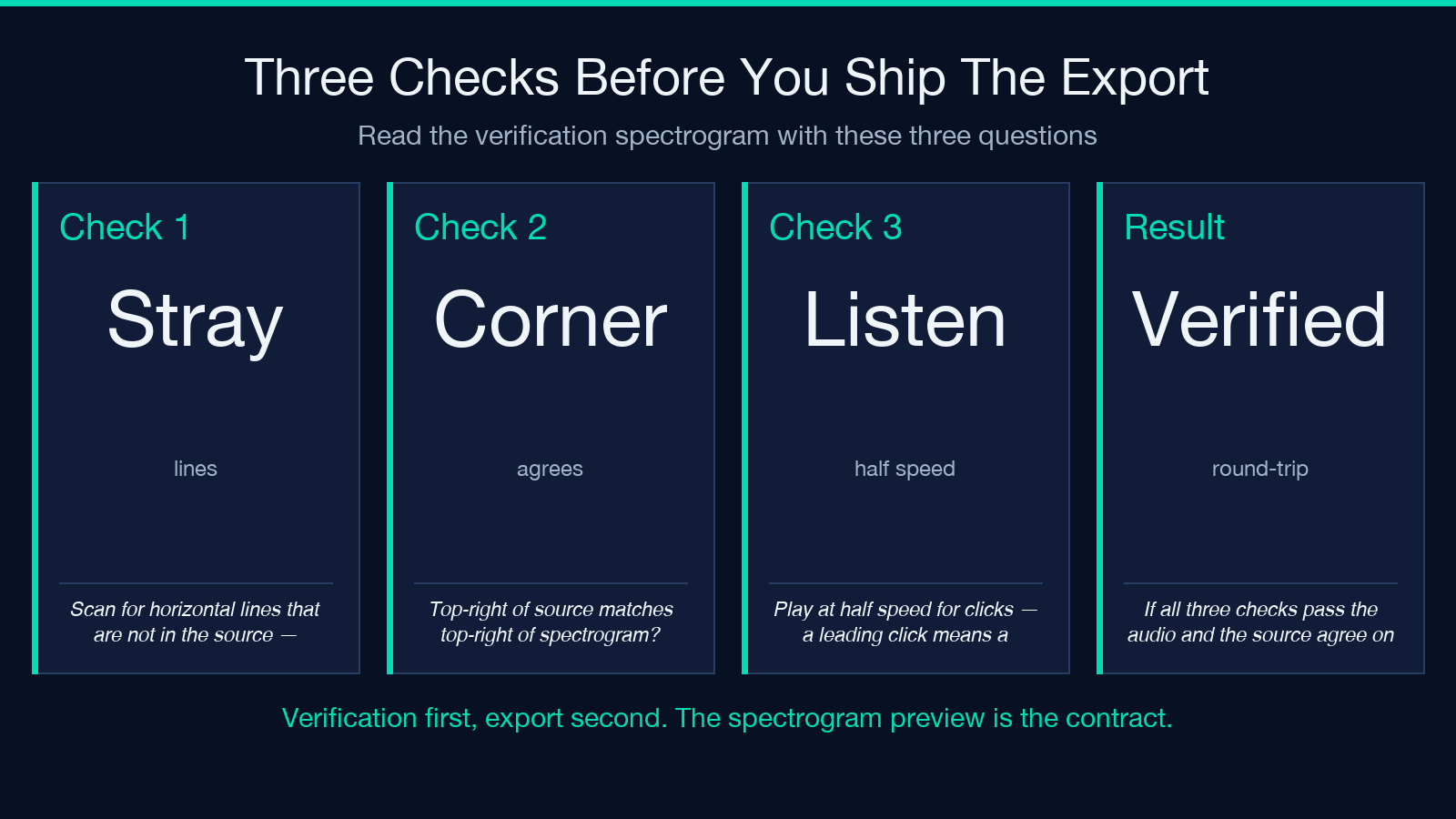
Before saving the audio and moving on, run three checks against the verification spectrogram. First, scan the spectrogram for stray horizontal lines that are not in the source — they usually mean the threshold is too low and ambient noise is leaking into the reconstruction. Second, confirm the orientation matches your mental model by reading one corner: if the top-right of the source is the top-right of the spectrogram, the “Top Row = High Frequency” toggle is correct. Third, play the audio at half speed and listen for clicks — a click at the very start means a DC offset from a non-zero pixel at the leftmost column, fixable with a one-pixel margin. If all three checks pass, the audio and the source agree, and the export is ready to publish or archive.
For a different angle on the same source material, try the Audio Spectrogram Generator which runs the inverse path — audio in, spectrogram out — so you can verify that your exported audio reads back as the same image. For animated variations, the Audio to Spectrogram Video tool wraps the spectrogram in a video container with a moving cursor, useful for social posts where a still spectrogram does not move the viewer. More related image and audio tools are listed in the Media category and the broader tool index at elysiatools.com/en/tools.
