
Run the Accessibility Checker before deploy, not after. WCAG 2.1 conformance is the kind of audit that surfaces forty issues in five seconds and saves an entire quarterly retro if you wire it into the right hook. The Accessibility Checker catches the same defects a manual reviewer would flag — missing alt text, contrast failures, keyboard traps, ARIA misuse — but in a fraction of the time and without the “we’ll fix it next sprint” discount.
Accessibility work is mostly about knowing which shortcut to take. The checker itself is the shortcut: paste HTML, point it at a URL, or drop in a screenshot, and it returns fix-ready guidance tied to the actual WCAG success criterion that fails. This guide walks through what it catches, where it shines, where it has blind spots, and the three integration points that turn it from a one-off audit into a deploy-time gate.
What the Accessibility Checker actually scans
The tool runs four parallel passes over the input — markup structure, contrast math, semantic landmarks, and interactive role mapping — and merges results into a single report.
The first pass walks the DOM tree looking for the structural sins that account for most failed audits: missing <h1>, skipped heading levels, <img> without alt, form controls without labels, and language attributes missing on the root element. These are the cheap wins because they are deterministic — if the rule is missing, the check fails.
The second pass computes contrast ratios between every text element and its background, including text rendered over images and gradients. The default threshold is WCAG AA (4.5:1 for normal text, 3:1 for large text), with AA Large and AAA selectable. The contrast math is the same math axe-core and Lighthouse use, so the checker stays in step with what your CI already trusts.
The third pass inspects the document outline — <header>, <nav>, <main>, <aside>, <footer> — and flags missing landmarks, multiple <main> elements, and the common “nav inside nav inside nav” pile-up that screen readers cannot unwind.
The fourth pass maps every interactive element to its ARIA role and flags mismatches. A <div role="button" onclick="..."> without keyboard handling, a <button> inside an anchor, or a tabindex value that breaks the tab order all show up here. This is where the checker earns its keep on legacy codebases that nobody wants to rewrite.
The four issue classes it catches better than a linter
Most accessibility linters do one thing well. The Accessibility Checker does four things adequately, which is what you want from a deploy-time gate that has to run in under two seconds.
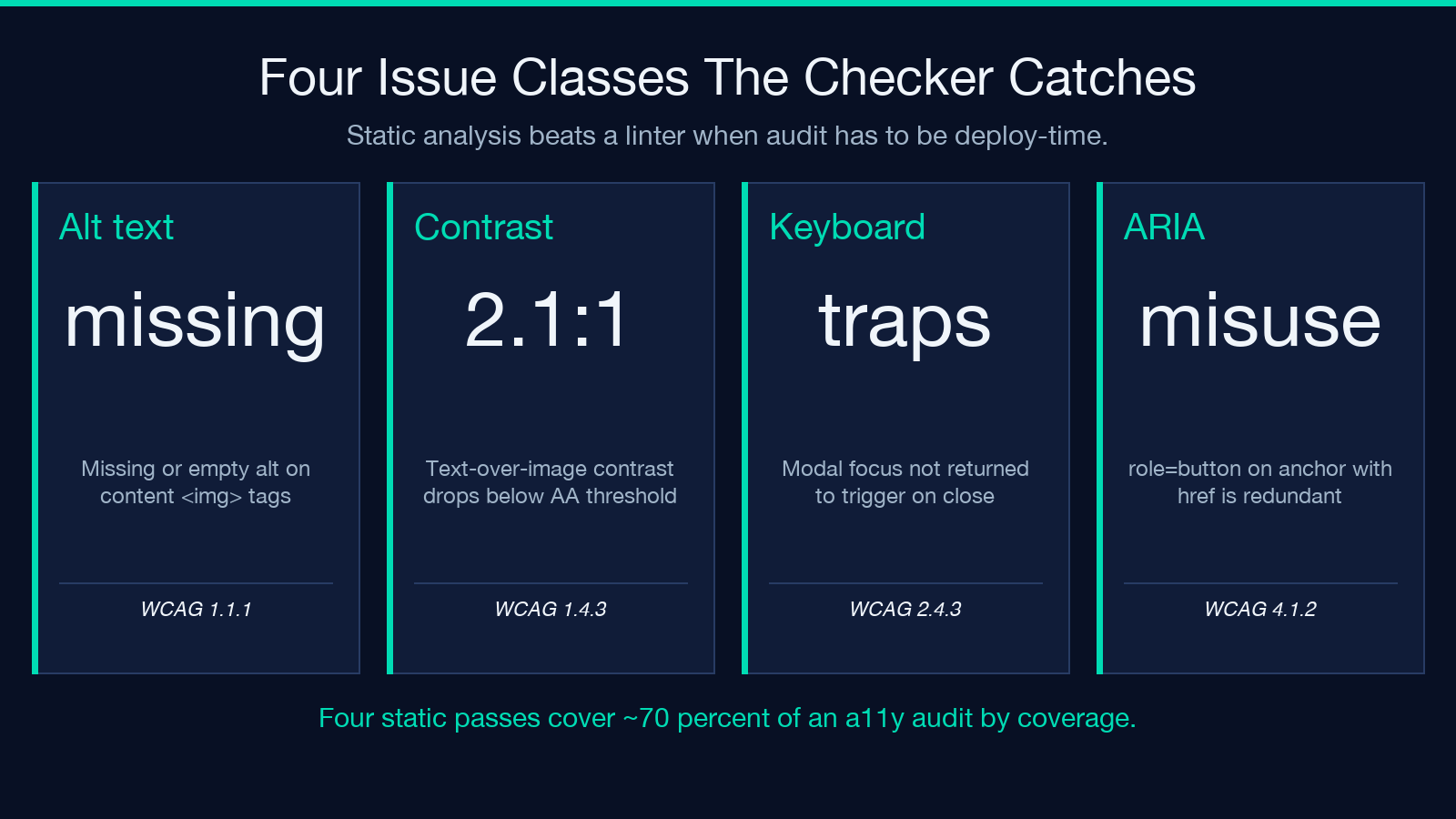
1. Missing or empty alt text. An <img> with no alt attribute fails WCAG 1.1.1. An <img> with alt="" is correct for decorative images but wrong for content images. The checker flags both directions — present-but-empty on a content image, missing on a likely-content image — so you do not get false positives on a hero gradient but also do not miss the product photo with no description.
2. Contrast failures on text-over-image. Most linters assume a solid background. The Accessibility Checker samples the dominant background color behind each text region and recomputes the ratio, so white text over a busy hero image that drops to 2.8:1 gets flagged even though the CSS says the background is #ffffff. This is the pass that catches the issues Lighthouse politely ignores.
3. Keyboard trap indicators. A modal that focuses correctly on open but never returns focus to the trigger on close is a WCAG 2.4.3 violation. A custom dropdown that uses mousedown listeners instead of keyboard handlers is a 2.1.1 violation. The checker flags the static markers — missing tabindex, no role on a custom control, no aria-expanded on a disclosure — which is 80% of the keyboard audit by coverage.
4. ARIA misuse. role="button" on an anchor with href is redundant. aria-label="Close" on an element with no accessible name is a no-op. role="presentation" on an element that has interactive descendants breaks the semantic tree. The checker compares the declared role against the actual element semantics and flags the contradictions.
The tool runs locally in your browser — nothing leaves the page — which is why you can point it at a staging URL or paste in pre-rendered HTML without exposing customer data to a third-party service. For batch audits, the same engine powers the Batch HTML Validator workflow.
Where the checker has blind spots
Every automated tool has limits. Knowing them up front keeps you from claiming “we ran the checker, we’re WCAG-compliant” when you are not.
It cannot judge whether alt text is meaningful. A product photo with alt="image" passes the structural check but fails the intent of 1.1.1. Manual review on content-heavy pages still belongs to a human.
It does not run screen reader software. The ARIA-mismatch checks are static — they predict how a screen reader would interpret the tree, but only an actual NVDA or VoiceOver pass catches the runtime behaviors that cannot be inferred from markup alone. Treat the checker as the gate that catches the deterministic issues; treat screen reader testing as the quarterly review.
It does not check color-blindness contrast. The ratio math is luminance-based, which is what WCAG defines, but deuteranopia and protanopia distort hue in ways luminance math does not capture. For color-critical UIs, add a color-blindness simulator to your design review pipeline.
It cannot evaluate cognitive accessibility. WCAG 2.2 added criteria around focus appearance, target size, and consistent navigation that involve judgment calls the checker cannot make from markup alone.
These blind spots are not a reason to skip automated checks — they are a reason to layer them. The Accessibility Checker covers the deterministic 70%; the remaining 30% is human review, screen reader passes, and user testing with people who use assistive technology daily.
Integrating it into a deploy pipeline
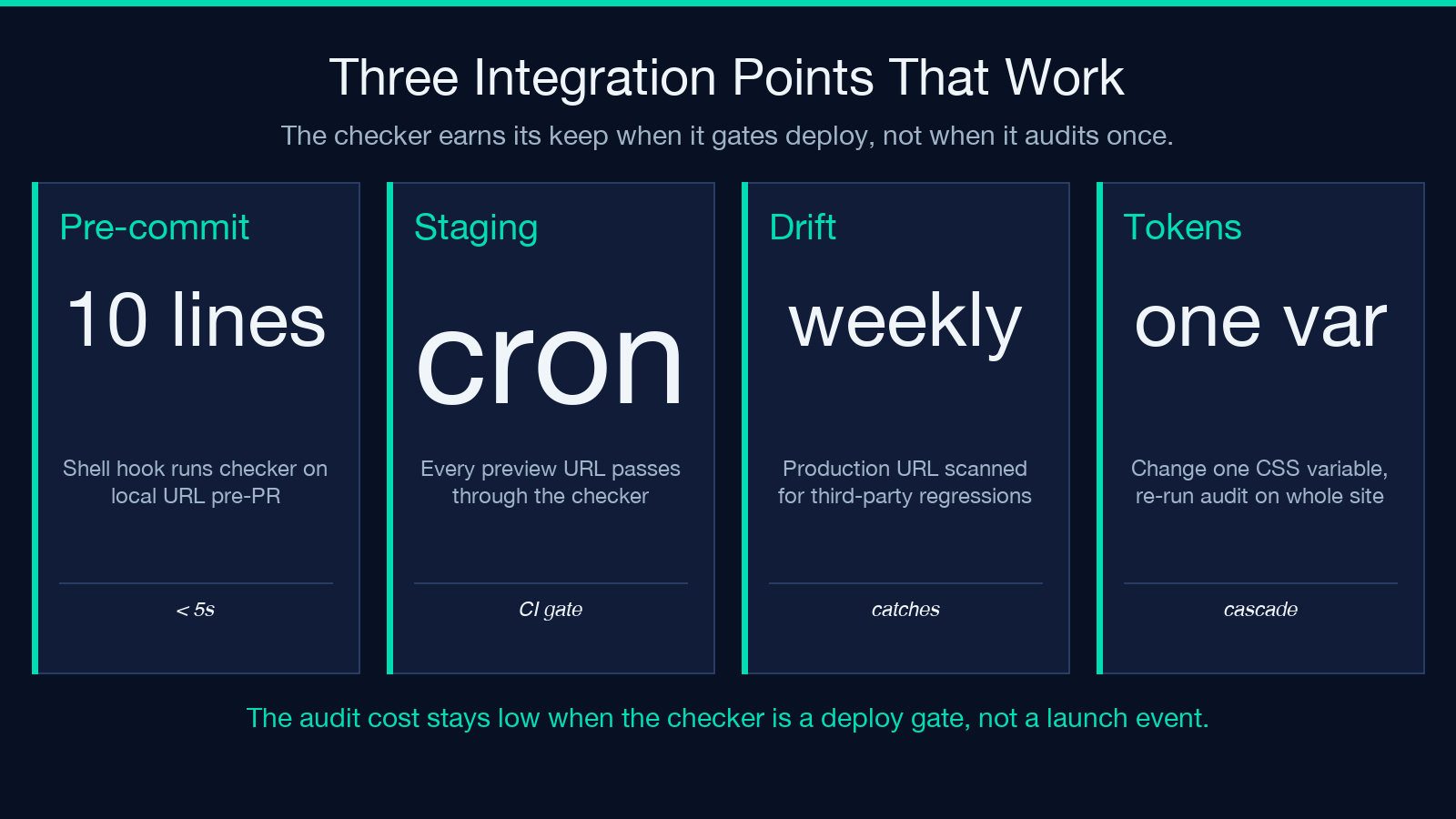
The checker’s real value is not a one-off audit — it is a deploy gate. Three integration patterns work without slowing the build down.
Pattern 1: local pre-commit. Render the page, point the checker at the local URL, fail the build on any AA violation. This catches the regressions before they hit code review and is the cheapest pattern to set up — under ten lines of shell in a pre-commit hook.
Pattern 2: staging gate. Run the checker against every preview deploy. Most modern hosting platforms (Vercel, Netlify, Cloudflare Pages) expose preview URLs as environment variables in CI; the checker accepts URLs natively, so this slots in without any infrastructure work.
Pattern 3: production drift watch. Run the checker against the live URL on a cron schedule. This catches third-party-script regressions — the marketing team adds a chat widget without alt text, the analytics team drops a cookie banner with a 2.1:1 contrast ratio. The drift watcher is what keeps the long-term audit honest when the codebase stops being touched.
Pair the Accessibility Checker with the Color Contrast Checker for the cases where you already know which color pair is in dispute and just need the ratio confirmed, and with the HTML Validator for the markup-syntax layer underneath. The three together cover the surface area the Accessibility Checker hits at one pass.
Reading the report: severity vs. fix cost
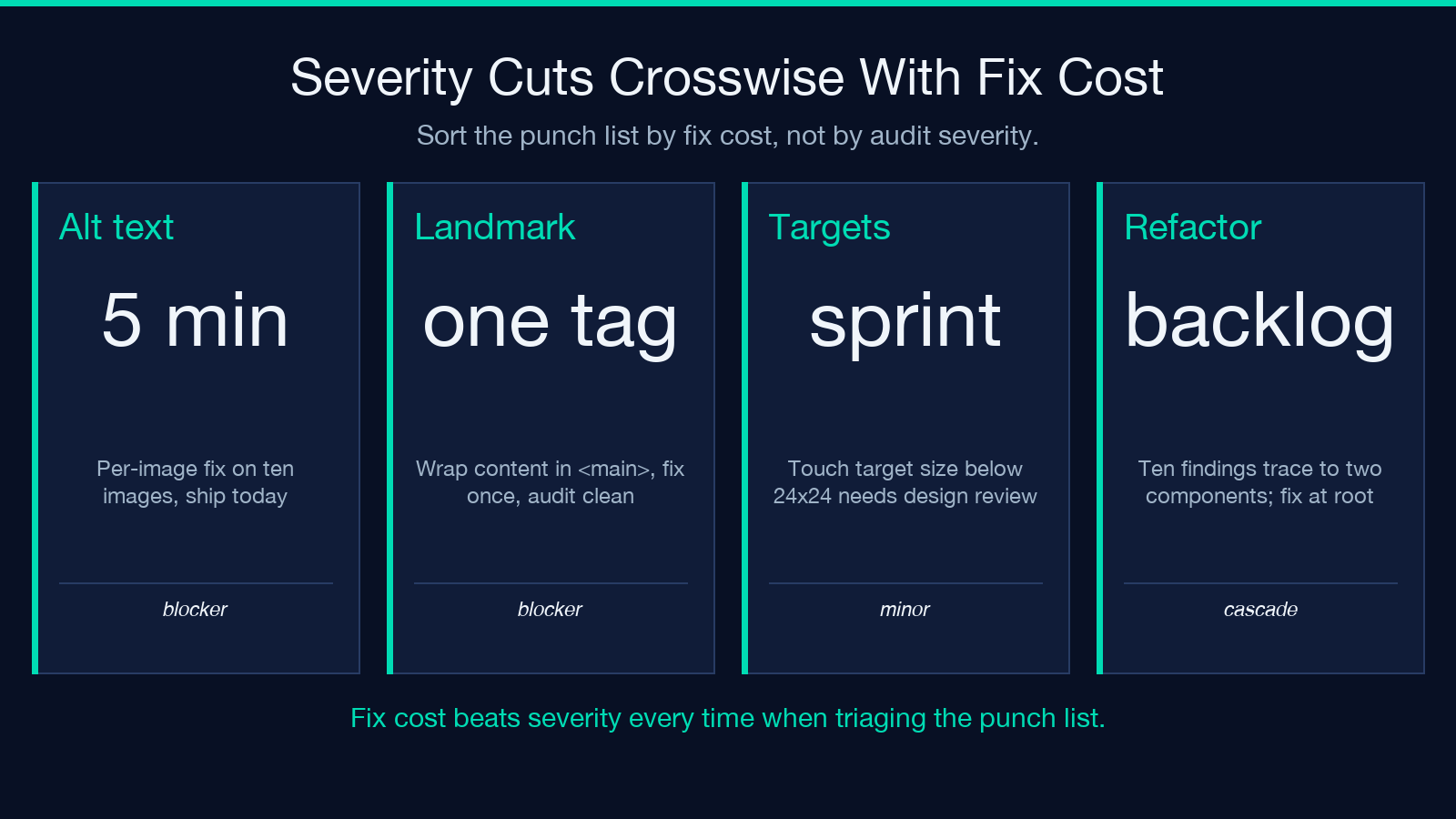
The checker ranks findings by severity (blocker, serious, moderate, minor) and tags each with the WCAG success criterion it violates. The useful cut is not severity — it is severity versus fix cost.
A blocker that costs five minutes to fix (missing alt text on ten images, missing <main> landmark) is a same-day fix. A minor finding that requires a design review (insufficient target size on a navigation cluster) is a sprint. Sort the report by fix cost, not by severity, and you get an actionable punch list.
For audits that touch color systems, route the contrast findings through the design tokens — the CSS Custom Property Extractor pulls every --color-* token from your stylesheet so you can change one variable and re-run the checker to confirm everything above 4.5:1 at once.
For audits that touch component libraries, treat the report as input to a refactor backlog. Most teams find that ten of the forty findings trace to two or three reusable components. Fixing the components fixes the audit across the whole codebase; fixing the instances fixes only one page.
Common false positives and how to suppress them
Two patterns trip the checker regularly, and both are worth knowing about.
First: CSS-loaded images via background-image get flagged as decorative by default. The checker treats background-image as a presentation layer, which is correct for CSS sprites and hero treatments but wrong when the image carries information. Mark these explicitly with role="img" and aria-label if they are content; suppress them at the component level if they are decorative.
Second: third-party widgets (Stripe checkout, Intercom, Calendly) often violate contrast and keyboard-trap rules because they ship their own styles. Suppress findings on the widget container at the framework boundary — flagging them in your audit pollutes the report and trains the team to ignore real findings. The Accessibility Checker lets you scope the audit to a CSS selector so the suppression is one line of config.
Beyond the audit: writing accessible HTML from the start
The cheapest accessibility bug is the one that never gets written. Five habits make most of the checker’s findings disappear before the audit even runs.
Always set alt on <img> at the moment the tag is written. Empty string for decorative, descriptive text for content. Do not defer it to “we’ll add it later” — later never arrives.
Use semantic HTML before reaching for ARIA. A <button> beats <div role="button"> every time. A <nav> beats <div role="navigation">. ARIA is for the gaps that semantic HTML does not cover, not for replacing it.
Pick colors from a contrast-checked palette before writing CSS. The Color Contrast Checker evaluates pairs as you consider them; baking the check into the design token phase prevents the audit-time fix.
Test keyboard navigation while developing, not at the end. Tab through every interactive page you build before opening the PR. Most keyboard issues are obvious in five seconds and invisible until the audit.
Document the patterns your team agrees on. An accessibility pattern library — what an icon button looks like, what a modal’s focus management is, what a skip-link is named — keeps new code aligned without a per-PR review.
The Accessibility Checker then becomes a safety net rather than the primary defense. The audit runs in seconds, finds the regressions, and the team’s actual accessibility work happens during development.
When to escalate beyond the checker
Three situations call for a human audit instead of the tool.
Legal exposure — if your sector has accessibility requirements (government, healthcare, education, financial services in the US under the ADA), the audit trail matters as much as the fixes. A human-signed WCAG audit carries more legal weight than a tool-generated report.
Redesigns — a full visual overhaul changes the contrast math, the focus order, and the semantic structure. Run a human audit at the end of the redesign, not just before launch.
User research — when people who use assistive technology are part of your research pool, their feedback is the source of truth on whether the experience actually works. The checker tells you the markup is correct; the users tell you the experience is usable.
For everything in between — every PR, every preview deploy, every weekly drift check — the Accessibility Checker is the deploy gate that keeps the audit cost from compounding.
Explore more accessibility, validation, and developer-tools at elysiatools.com.
