
Why Batch Conversion Quietly Shapes Every Data Workflow
A single file’s converter is a small thing, but the moment a workflow touches more than one CSV, one TSV, or one XLSX — a reporting pipeline, a quarterly ingest, an Excel archive that needs to ship as plain text — the small tool needs to multiply. Operators who do this by hand eventually lose more time to the click-and-save loop than to the actual transformation logic. The XLSX CSV Batch Converter at Elysia Tools exists precisely to absorb that repetitive loop. It handles CSV/TSV → XLSX direction and the reverse, batched in a single run, with explicit controls for delimiter and character encoding — the two fields that routinely break a naive convert.
The most common reason batches fail is that one file in the set uses a non-default separator, or worse, a non-UTF-8 encoding. When the first row of one CSV reads apple;banana;cherry while the rest of the queue are comma-delimited, or one file is latin1 because an export script was written before internationalisation mattered, a per-file tool either silently corrupts or generates an error mid-batch. Batch mode with per-file flags solves both: it accepts directory-level processing while still letting the operator pin encoding and separator per file or per group.
What “Batch” Actually Means Here
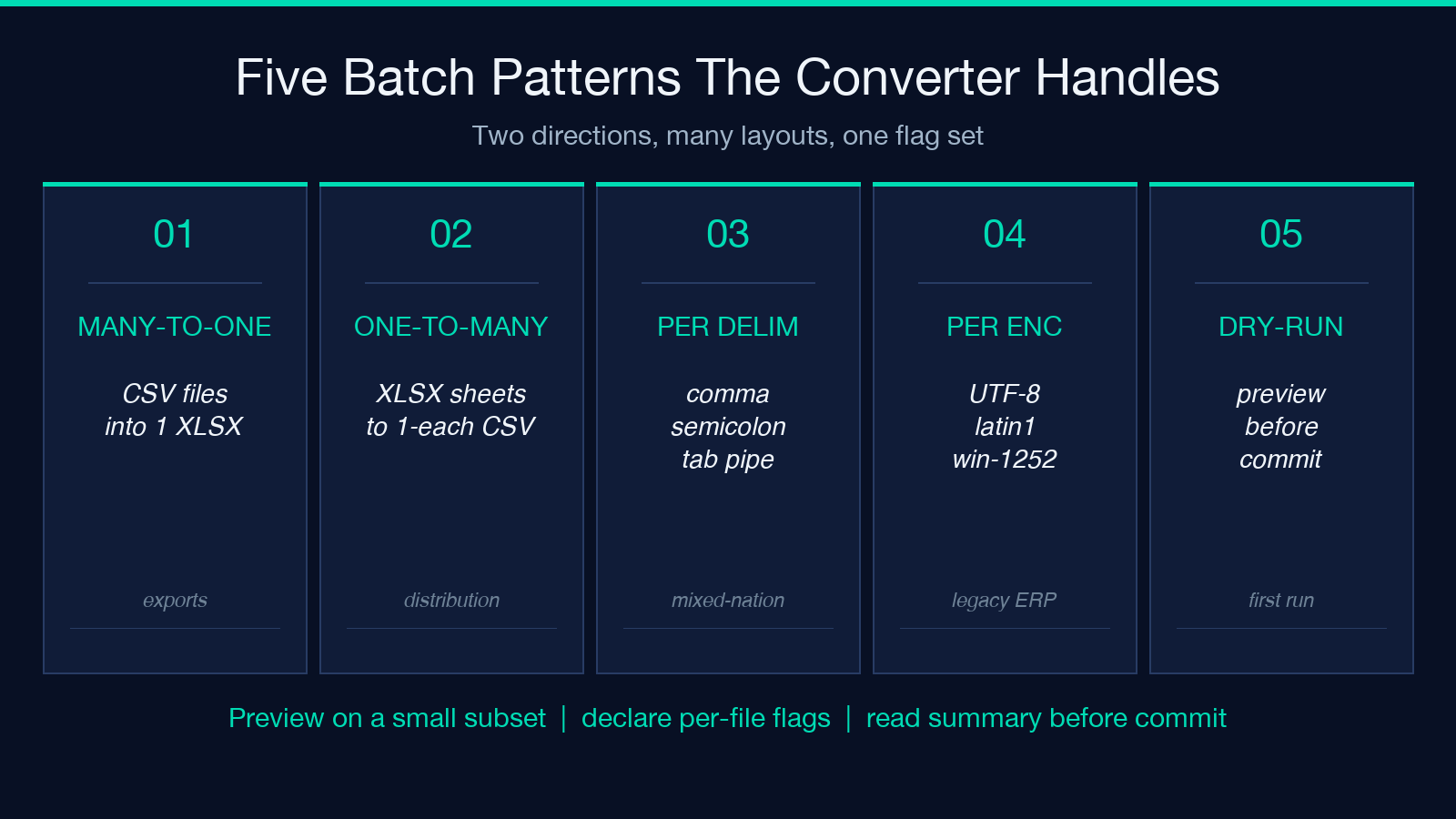
There are two patterns the converter handles well: many-to-one (fifty CSV files into a single workbook where each file is its own sheet) and one-to-many (one XLSX with twelve quarterly sheets into twelve standalone CSVs). Many-to-one is the export side — combining thin slices of measurement data, log files keyed by sensor, or per-store sales daily breakdowns into a single archive. One-to-many is the data-pipeline distribution side, where one canonical source yields per-team artifacts. The same tool covers both without a flag flip, because per-sheet routing lives inside the XLSX side already; the output extension just controls whether everything nests into one file or fans out.
What the converter does not do is CSV-merge semantic joins. If two CSV files share an order_id column and the desired output is one CSV with both columns attached, this is not the tool for that job — that is a relational operation, not a format conversion. Picking the right tool means recognising the difference between “shape” (the file boundary) and “structure” (the row inside the file). The converter handles shape changes, not row-level joins. That distinction is what keeps batch jobs honest when they grow to thousands of files.
Delimiter and Encoding: The Two Traps In Every Batch
Delimiters are deceptively regional. North American CSV is almost universally comma-separated, but European comma-decimal locales historically produced semicolon-separated files; the tab character itself is the safest for ampersand-heavy content. The XLSX CSV Batch Converter takes a per-file delimiter override, which means a mixed batch of comma and semicolon files can be folded into one workbook with no pre-processing. The same flag also rescues TSV files (tab-separated) and pipe-delimited files without an extension change.
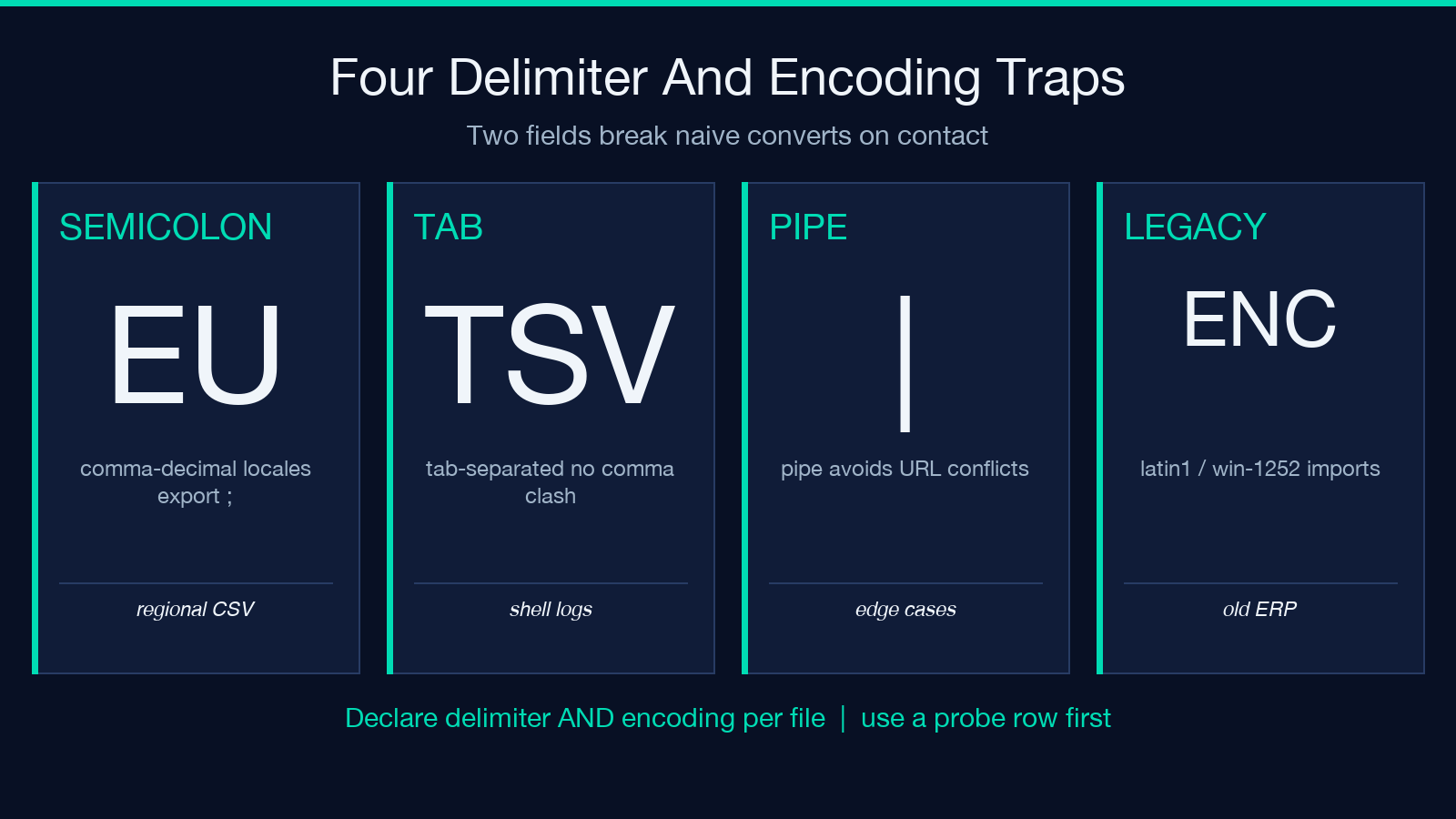
Encoding follows the same logic. UTF-8 is the default expectation, but exports from legacy ERP systems, mainframe-style feeds, or older Windows-specific CSV writers commonly emit windows-1252 or latin1. When these files open in a tool that assumes UTF-8, two failure modes are common: a single mojibake character in a name field, or — more dangerously — a silent truncation at the first unrecognised byte. Per-file encoding handling keeps the queue moving. For batch runs mixing encodings, the convention is to declare an encoding per file group, or scan and tag first.
How the Pipeline Stays Predictable At Scale
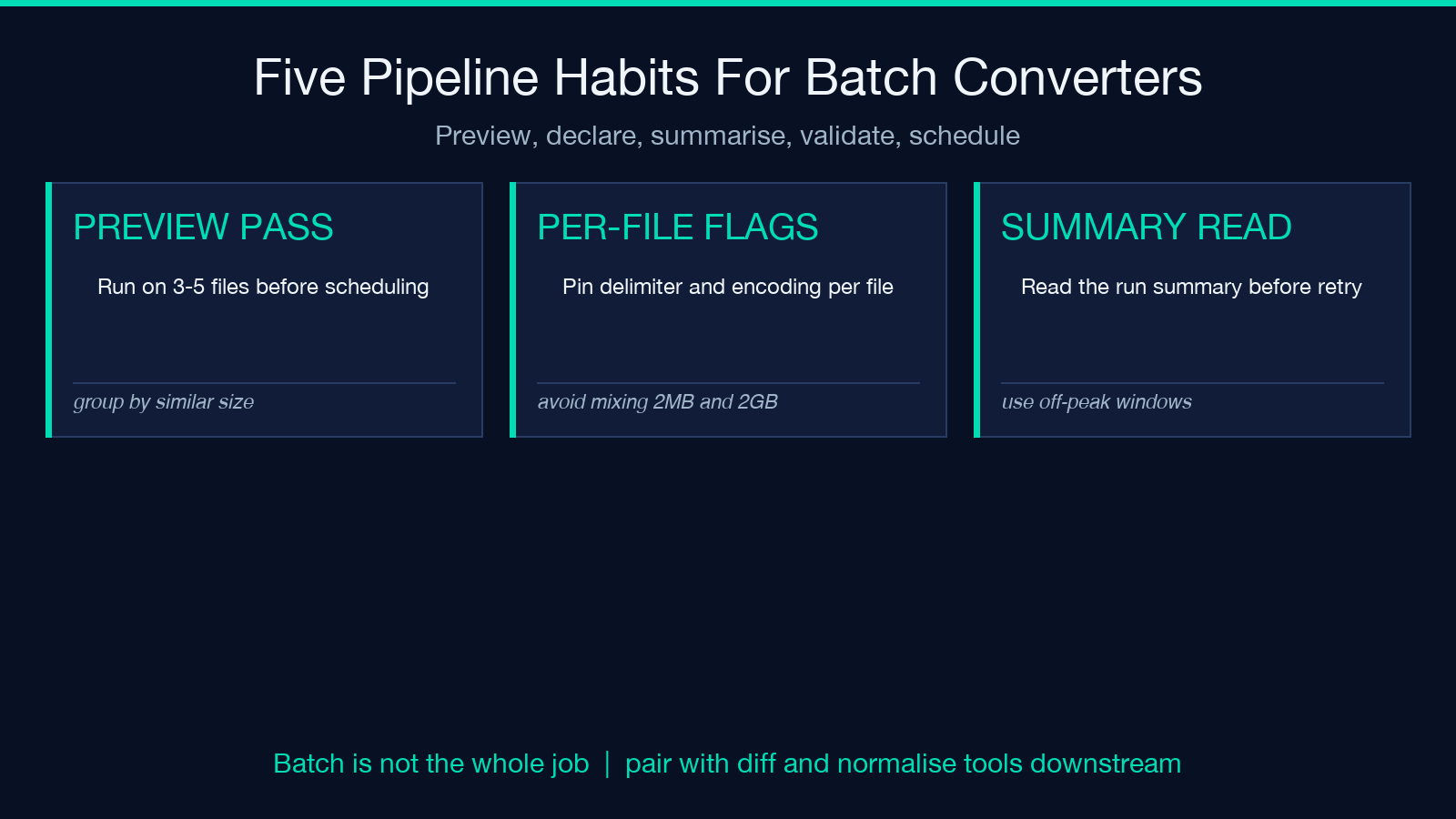
Most batch jobs that “almost work” lose their bearings when files fail mid-batch. The pattern that breaks a five-hour job the second day is: process file 1 through N-1 successfully, fail on file N, drop partial state, redo everything from 1. The XLSX CSV Batch Converter is built to keep the queue moving and report per-file outcomes: successful entries, skipped files with reasons, and a summary at the end. Run it once with a dry-run flag where the tool supports it; when not available, run on a small subset first to confirm delimiter and encoding flags behave against real files. The small preview pass is what separates a one-shot batch from a recurring weekly job that an operator trusts without thinking.
When the output is a single multi-sheet XLSX, sheet naming matters more than people expect. Default to either the original file basename (without extension) or an explicit renaming convention; otherwise the workbook ends up with sheets named Sheet1, Sheet2 — useless when a downstream user is asked to find “the Q3 data.” A predictable sheet-name convention converts the output from a black box into a navigable artifact.
When Batch Conversion Is The Wrong Tool
Two cases make batch conversion the wrong choice. The first is when the input files do not share a row schema — two CSVs in the same directory can have entirely different column orders, and merging them into a single sheet produces a row misalignment that looks valid but reads as garbage. Validate that every file in the batch has the same header row before you batch. The second is when “batch” really means “I want to split one big CSV into multiple smaller CSVs by some criterion” — that is split-by-row semantics, not format conversion, and a different problem class.
A third, subtler misuse: treating batch conversion as a data-cleaning step. A CSV with mixed date formats, embedded line breaks, or unescaped quote characters does not become clean by being converted to XLSX. The same character handling applies; conversion moves bytes between formats, never interprets them. For cleaning jobs, pair the converter with a per-file scan or a row-level validator upstream. Try Elysia Tools once on a few files before committing to a recurring slot; the preview pass is what builds operator trust.
Performance And Memory At The Batch Boundary
When a single file in the batch is large (hundreds of megabytes), the conversion rate can drop sharply because the tool reads the file, materialises an intermediate workbook representation, then writes the output — peak memory is roughly two-times the largest input. Three habits keep the memory picture under control: run batches of similarly sized files together; avoid mixing a 2 MB file and a 2 GB file in the same queue; schedule conversion jobs during off-peak windows when system load is otherwise low. None of these are constraints of this specific tool — they apply to every XLSX library — but recognising the boundary is what stops a Monday-morning batch from running into memory pressure at 14:00.
The other performance lever is the encoding flag. Forcing a per-file decode from latin1 to UTF-8 inside one direction, then back to latin1 in the other, doubles the byte-passes. Pick a single canonical encoding at the queue boundary when the source data is homogeneous; the converter will then take the fast path.
Pair It With The Right Neighbours In A Workflow
A standalone batch conversion is rarely the only step. Common neighbours in a full pipeline are: CSV / Excel Diff Tool for verifying the conversion actually preserved byte content (diff here); XLSX CSV Detect Normalize for pre-flight validation before a queue (normalize here); and a per-row validator downstream when the destination is a database ingest. Treating the batch converter as one stage in a sequenced workflow — not as the entire job — produces archives that survive the next quarter’s audit pass without anyone reverse-engineering what happened.
If you are evaluating whether to script this in Python or run the batch tool directly, the rule of thumb is: when the queue is large and the per-file logic is uniform, the batch tool wins because it handles encoding detection, delimiter negotiation, and multi-sheet routing without ceremony. When per-file logic differs (one file needs reformatting, another needs column reordering), wrap the converter in a thin orchestrator and process file-by-file.
Closing Field Notes
The shape of the XLSX CSV Batch Converter job is the same wherever batch conversion lives in a data pipeline: declare delimiter and encoding explicitly, preview on a small subset first, validate per-file outcomes, and treat the converter as one stage rather than the whole job. The four habits — explicit flags, preview pass, per-file summary, paired validation — are what separate a one-off conversion from a recurring, trustable batch slot. Open the XLSX CSV Batch Converter on a representative subset of your own files before wiring it into a weekly slot; the preview pass is what builds confidence in the rest. For more tools covering CSV normalisation, Excel diffing, and format-detection cleanup, the Format Conversion section of elysiatools.com is the natural next stop.
