
When Three Trace Formats Hide Behind One Waterfall View — And Why Auto-Detect Saves Your Debugging Hour
Paste the JSON, see the spans, follow the parent-child chain down to the bottleneck. Distributed tracing is one of those areas where the difference between “five minutes to find the slow service” and “an hour of grepping logs” comes down to whether your inspector can read the format you already have. The Distributed Trace Decoder & Waterfall Visualizer at Elysia Tools takes Jaeger, Zipkin, or OpenTelemetry JSON exports and renders the same interactive waterfall for all three — no exporter plugin, no agent sidecar, no SDK swap. The trick is that all three exporters already speak a near-identical span model underneath their slightly different top-level wrappers, so a small adapter layer can normalize them on the fly.
What The Decoder Actually Does
The tool at Elysia Tools accepts a raw trace JSON payload, detects its source format, and renders span timing, depth, parent-child relationships, and error flags as a horizontally-laid-out waterfall chart in the browser. You paste the export from your Jaeger UI, your Zipkin collector, or your OpenTelemetry collector — whichever you happen to have — and the same visualization comes out the other side. The output is HTML; the input is whatever your tracing stack already produced.
There is no SDK to integrate, no agent to install, no exporter to reconfigure. The tool does not call back to your services or replay the trace. It reads the JSON you already exported, normalizes it into a uniform span list, and lays the spans out in time order with depth encoded as the y-axis and duration encoded as the x-axis width. Error spans are colored differently. Parent links are drawn as connecting lines.
Why Three Formats Need One Viewer
Jaeger, Zipkin, and OpenTelemetry each define their own JSON schema, but they all model the same conceptual object: a span with a start time, a duration, a service name, an operation name, and a parent reference. Jaeger’s format wraps each span as {traceID, spanID, operationName, startTime, duration, tags, logs, processID, warnings} inside a {data: [...]} envelope. Zipkin v2 wraps spans as [{"traceId":..., "id":..., "name":..., "timestamp":..., "duration":..., "localEndpoint":..., "tags":...}] at the array root. OpenTelemetry’s JSON exporter wraps each span as {traceId, spanId, parentSpanId, name, kind, startTimeUnixNano, endTimeUnixNano, attributes, events, status} inside an OTLP {resourceSpans: [...]} envelope.
The field names are different (traceID vs traceId vs traceId, operationName vs name, startTime in microseconds vs timestamp in microseconds vs startTimeUnixNano in nanoseconds). The wrapper shapes are different. But once you flatten any of them into {span_id, parent_id, name, service, start_us, duration_us, status, attributes}, you have the same waterfall data. The decoder’s adapter layer does exactly this normalization, and the rest of the rendering pipeline is format-agnostic. That is why one viewer can serve all three ecosystems — and why the format-detect dropdown defaults to “Auto Detect” rather than making you pick the right tab.
What The Waterfall Tells You At A Glance
The waterfall chart has three layers of information, and reading it efficiently means using all three in sequence.
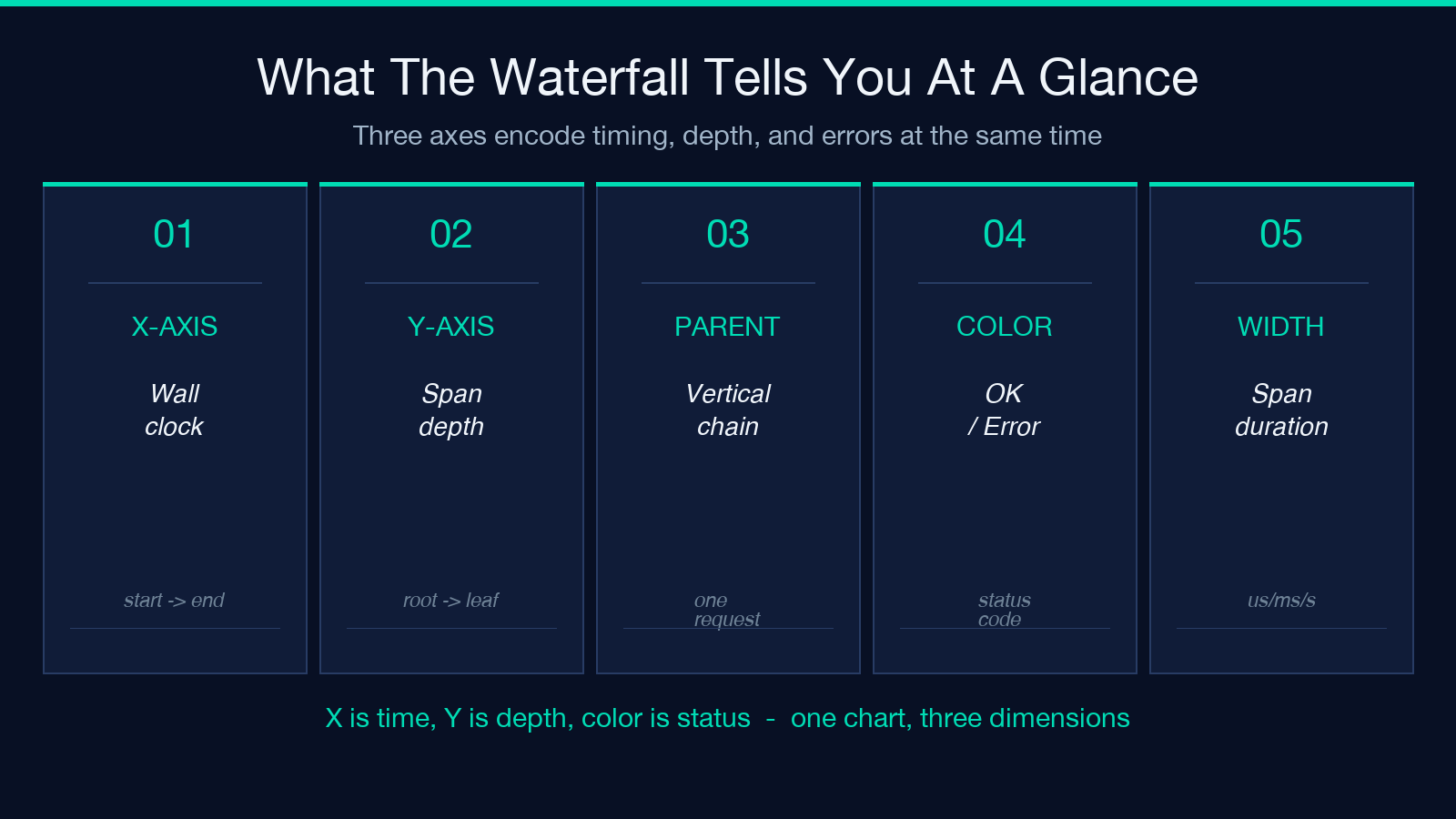
The x-axis is wall-clock time (in your chosen display unit — microseconds, milliseconds, or seconds). Spans are drawn as horizontal bars whose left edge is the span’s start time and whose width is its duration. Long-running spans visually dominate the chart, which is the first thing to look at: a 4-second parent with 80% of its width consumed by one child is almost always the latency source.
The y-axis is span depth. The root span sits at the top. Each child span sits below its parent. Sibling spans (children of the same parent, like parallel service calls) share the same depth row. The visual indent makes the call tree immediately readable — you can trace a request’s path through your service graph just by following the vertical columns downward.
The color and badge layer encodes errors. Spans whose status code is not OK are rendered in red (or with a red badge), and any span whose children include an error gets a visual marker so you can find the failing leaf without scanning every row. Error attributes (exception type, message, stack-trace snippet) are surfaced in a popover when you hover.
Common Patterns The Waterfall Surfaces
Once you can read the chart, four patterns show up over and over — and each one points at a different class of fix.
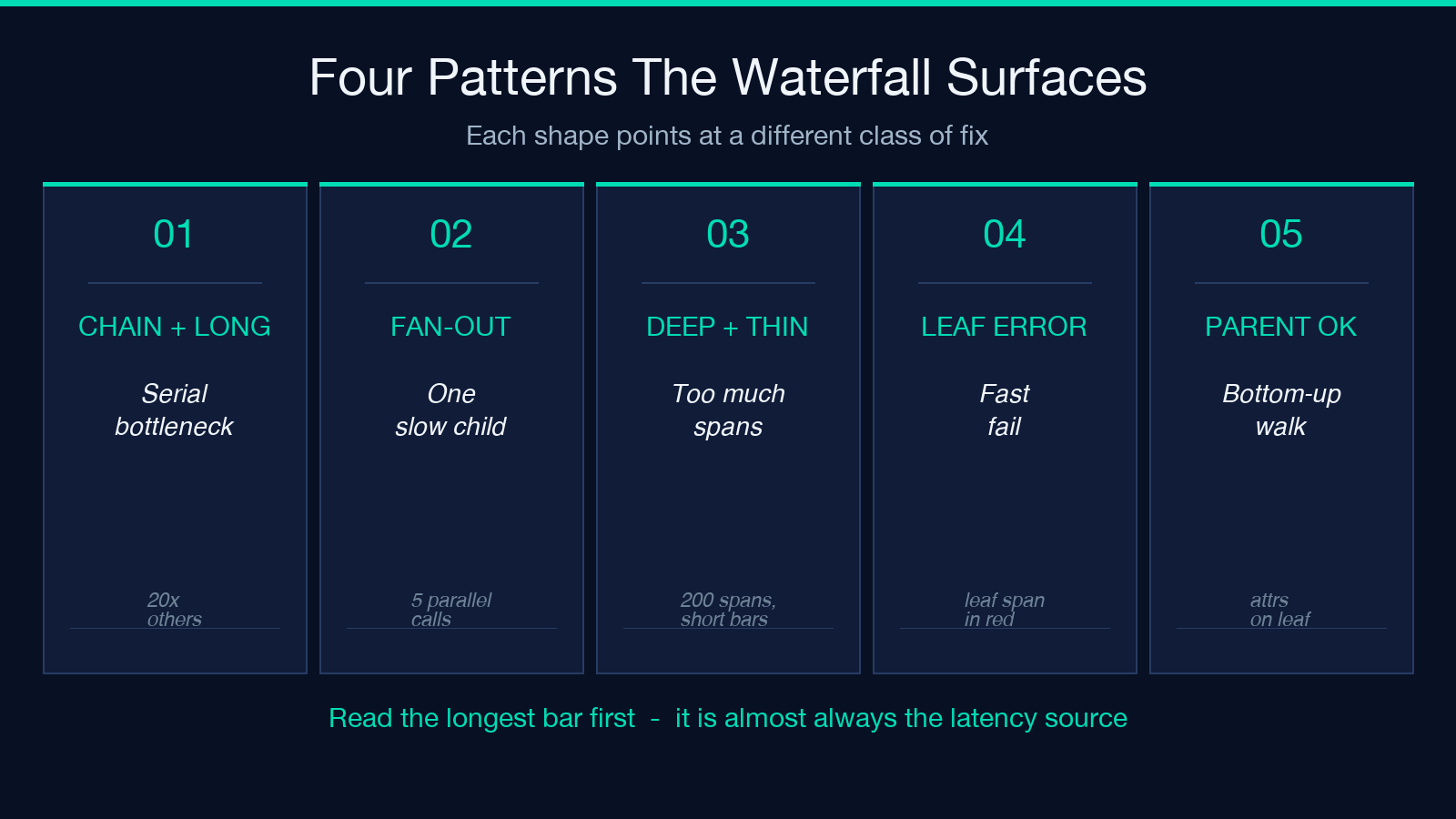
Serial span chain with one long bar. A request that crosses four services in a chain (gateway → auth → business → DB) where the third span is 20x the duration of the others is almost always waiting on a downstream call — usually a synchronous HTTP call to an internal service that itself is making a blocking call. The waterfall shows it as a single fat bar with no children. The fix is usually to add async, batching, or caching at the long bar.
Fan-out with one slow child. A request that fans out to five parallel calls (search, profile, recommendations, inventory, pricing) where four finish in 50ms and one takes 1200ms. The slow child is the bottleneck — the parent span’s duration is dictated by the slowest child. Reading the chart in this case means finding the longest bar in the bottom half and starting your investigation there.
Many shallow spans, all short. A trace with 200 spans, all under 10ms, with deep fan-out (depth 8 or 10) is usually a sign of an over-eager instrumentation library that is recording every database query, every cache hit, every internal method call. The waterfall is not telling you anything useful in this case because the real cost is the sheer volume of spans. The fix is at the instrumentation layer: add span filtering or sampling rules.
Error span deep in the tree with a healthy parent. The root span says OK, the gateway says OK, the auth service says OK, but the database span has a red error badge and a short duration. This is the classic “fast failure” pattern — the database rejected the query immediately, the failure propagated up, and the upper services returned their error response. The waterfall tells you the failure happened at the bottom and the duration tells you it was instant (not a timeout).
What The Display Unit Setting And Span Attributes Tell You
The display-unit dropdown (microseconds, milliseconds, seconds) does not change the underlying trace data — it changes how the waterfall labels the x-axis and how the duration values render in tooltips and side panels. Microseconds is the right choice for traces with sub-millisecond spans (database calls, cache hits, in-process queues) where a 200µs span and a 2ms span should look visibly different. Milliseconds is the right choice for typical web request traces where spans live in the 1ms-5000ms range. Seconds is right only for long batch jobs and background workers where everything is at least 100ms. The choice matters because a span that takes 50ms will appear as one bar width in milliseconds mode and as a barely-visible sliver in microseconds mode (since the chart auto-scales to fit the longest span). If you find yourself wondering why all your spans look the same size, switch the display unit — you are probably using seconds for a millisecond-scale trace, or milliseconds for a microsecond-scale trace.
Every span carries a dictionary of key-value attributes that the rendering layer surfaces in the side panel. HTTP spans carry http.method, http.url, http.status_code. Database spans carry db.system, db.statement, db.rows. RPC spans carry rpc.service, rpc.method. Custom attributes vary by service. The right way to read attributes is the same way you would read a stack trace from the bottom up. Start with the failing span’s attributes (statement that was run, URL that was requested, payload that was sent). Then walk up to the parent span’s attributes (which user, which request ID, which feature flag). The combination of “what the failing layer tried to do” and “what context triggered it” is almost always enough to reproduce the bug locally. A common mistake is to read only the root span’s attributes and treat the chain of child spans as opaque. The root span typically carries high-level metadata (http.route, user.id, request.id) but not the failure detail. You need to follow the chain down to the leaf error span to find the failing operation.
Where Auto-Detect Beats Manual Selection
The decoder’s format-detect dropdown defaults to “Auto Detect” — the right choice in 95% of cases. The detection logic reads the top-level wrapper shape ({data: [...]} for Jaeger, [...] for Zipkin v2, {resourceSpans: [...]} for OpenTelemetry) and picks the adapter accordingly.
Manual selection is the right choice when (a) your trace JSON is wrapped in a non-standard envelope (your collector wraps everything in {traces: ...} before exporting), (b) the auto-detect mis-classifies because your spans happen to match a pattern from two formats, or (c) you are debugging a malformed export and want to force the parser to attempt one format and surface a clean error. In normal operation, auto-detect just works and you do not need to think about which format you have.
A subtle benefit of auto-detect: you can use the same tool across multiple projects that use different tracing stacks. A team migrating from Zipkin to OTel does not need to swap inspector tools mid-migration — paste both formats into the same box, get the same waterfall view, compare traces side-by-side without learning a new UI.
Edge Cases And Gotchas
Clock skew across services. A trace whose spans disagree on wall-clock time by hundreds of milliseconds will render with gaps and overlaps that do not actually exist. The waterfall shows you a parent ending before a child starts, or two siblings with disjoint time ranges that should be parallel. The fix is at the collector layer — sync clocks with NTP or chrony — not at the viewer.
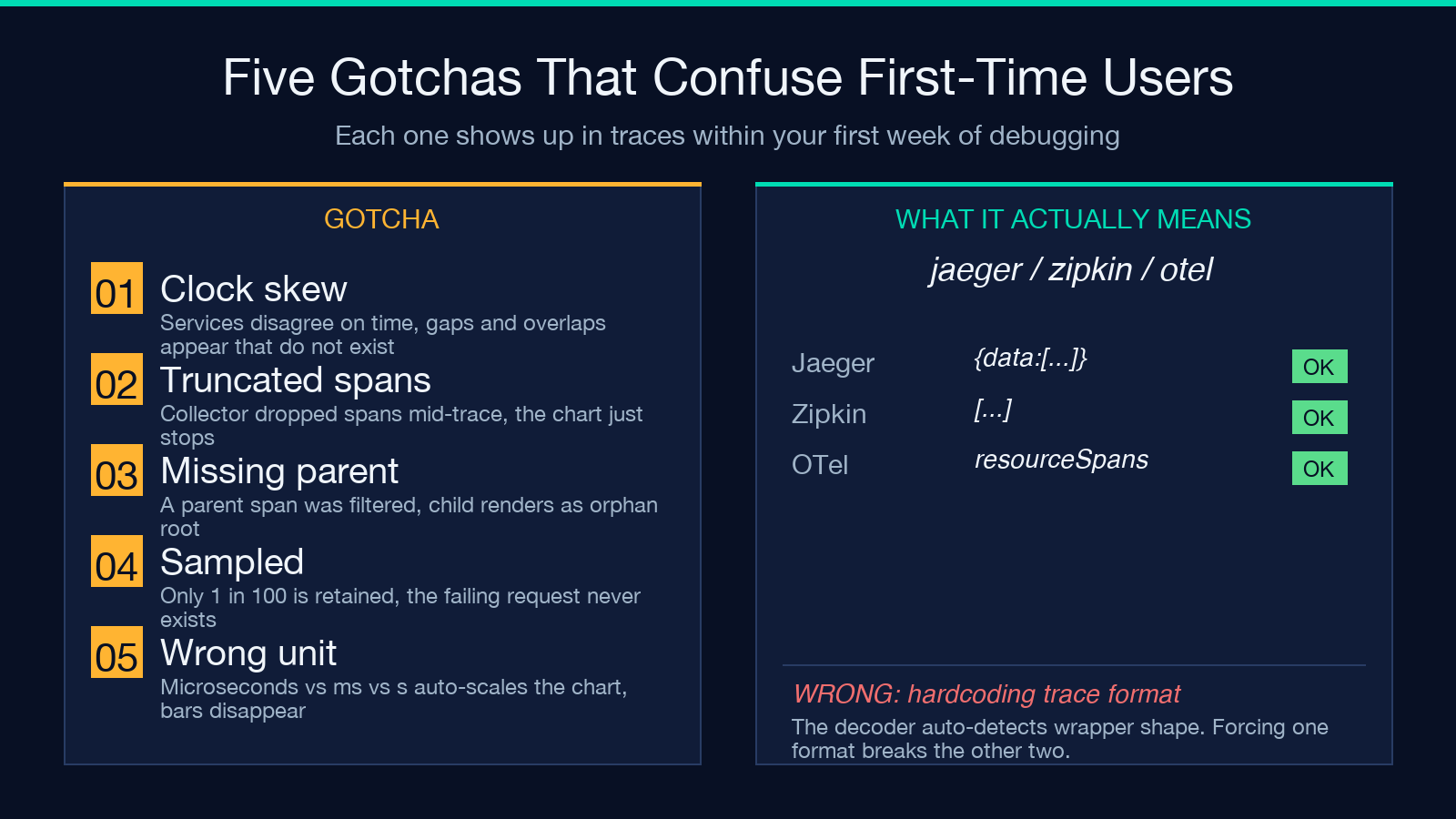
Truncated spans. If your collector has a max-span-count limit and the trace was longer, the waterfall will show the visible spans but stop mid-tree. The leaf nodes will look like the end of the request, but they are actually just the cut-off point. The right fix is to raise the collector’s span limit; the workaround is to look for “truncated” markers in the side panel.
Missing parent references. A span whose parentSpanId does not match any other span in the trace will render as a root-level orphan — at the top of the waterfall with no connecting line above it. Orphans usually mean a parent span was filtered out at the collector (sampling dropped it, or a service crashed before emitting its span). The waterfall still renders correctly; the orphan is just a visual flag that you are missing context.
Sampling. If only 1 in 100 requests is being sampled, you can never see the specific failing request’s trace. The waterfall tool cannot help here — the trace does not exist. The fix is at the tail-based sampling layer to ensure errored requests are always retained.
When To Reach For The Decoder — And When Not To
Reach for it when you have a JSON trace in hand and want to read it without setting up a Jaeger or Zipkin backend. It is also the right tool when you are comparing traces across formats (a team migrating from one collector to another, or a developer who bounces between stacks).
Do not reach for it when you need real-time visibility into a live system (a proper backend with search and filtering across all traces is the right tool for that), when your traces are in a format that is not Jaeger / Zipkin / OTel (the decoder handles those three, no others), or when the trace is so large that pasting the JSON exceeds the input limit (split into smaller traces first). For everything else — one-shot trace debugging, exporter comparison, post-mortem trace inspection — paste the JSON and read the waterfall. Try it at Elysia Tools. For a side-by-side JSON inspection workflow, see the JSON Path Extractor — useful for digging out specific span attributes without opening a full IDE. More developer-focused utilities live in the Development category.
