
A real-time API only feels right when every frame, ping, and close code lands where you expect it. The WebSocket Tester at Elysia Tools is a browser-native console for connecting to any ws:// or wss:// endpoint, sending and receiving frames, and watching the open / message / close / error lifecycle without installing Postman, wscat, or a CLI. This field guide walks through the seven decisions that decide whether a session is debuggable or a black box: which URL pattern to use, when a subprotocol header matters, how to read a close code, why auto-reconnect can hide a server-side bug, how to verify TLS handshakes against a staging echo service, when a binary frame is a deal-breaker, and how to capture a session for a bug report. The tool itself runs entirely client-side, so the wire format you see is the wire format the server sees — no proxy, no recording, no surprises.
What “browser-native WebSocket testing” actually means
Every other WebSocket client on your laptop is, structurally, a script pretending to be a browser. The WebSocket Tester uses the same WebSocket constructor your production frontend code uses, so the handshake that succeeds in the tester is the handshake that will succeed in your React, Vue, or vanilla JS app. That matters more than it sounds: a wscat session connecting to wss://api.example.com/v1/stream with node will negotiate the same TLS_AES_128_GCM_SHA256 cipher suite your Chrome browser will, but a Python websockets client may not — and the server’s Sec-WebSocket-Protocol rejection behavior can differ between runtimes.
The tester exposes three option fields: the URL (placeholder wss://echo.websocket.events), an optional subprotocol (placeholder chat, graphql-ws), and an auto-reconnect on unexpected close toggle. That is the entire configuration surface, and intentionally so. Real-time APIs fail in a small number of well-understood ways — wrong URL, wrong subprotocol, premature close, server-side reconnect storm — and a focused surface keeps the diagnostic path short.
The Three Connection Patterns You Will Actually See
Most real-time services fall into three URL shapes, and knowing which one you are looking at changes the debugging strategy.
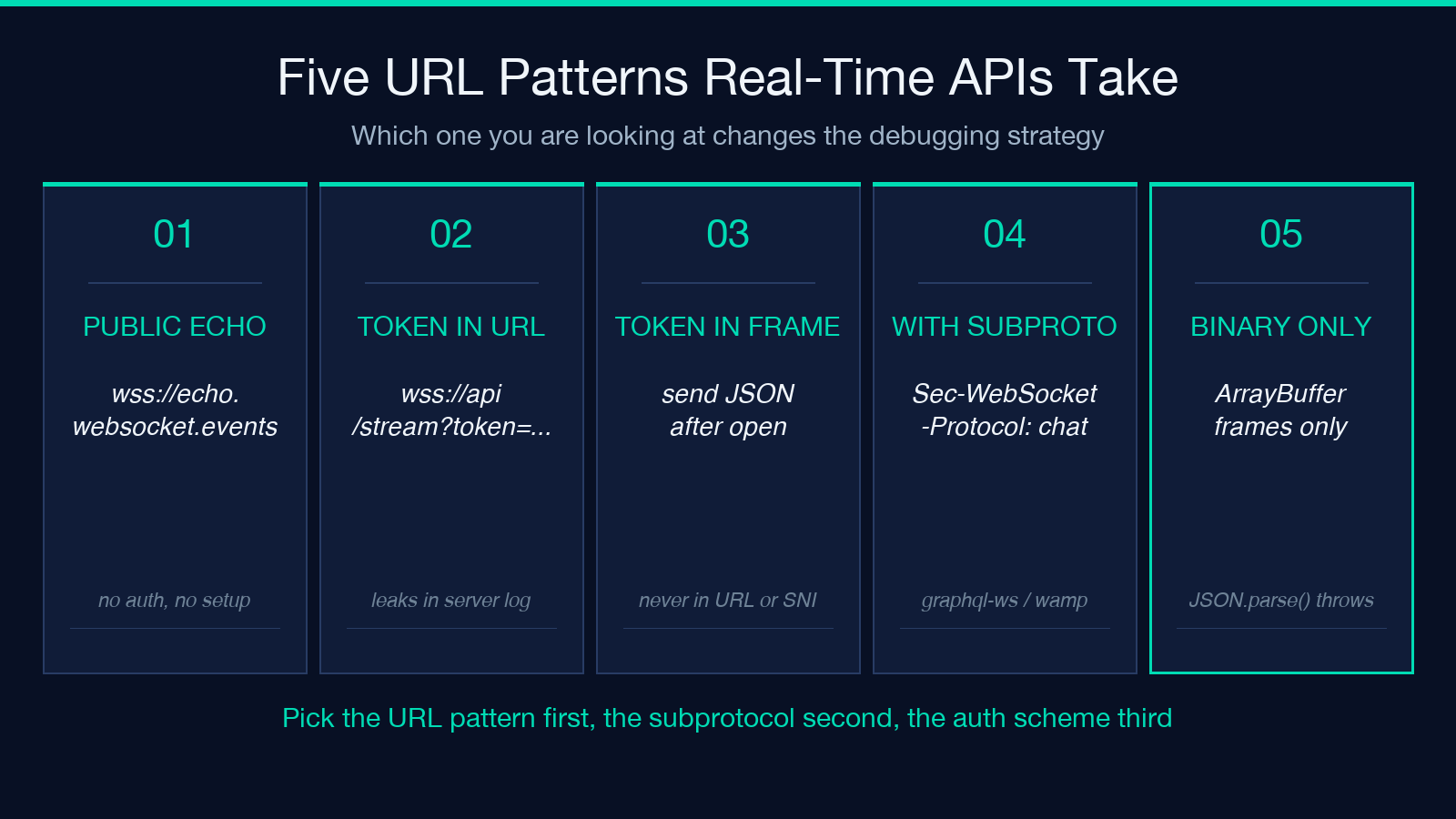
– wss://echo.websocket.events and other public echo services — useful for proving the browser can reach a real WebSocket at all. No auth, no subprotocol, frame in / frame out. – wss://api.example.com/v1/stream?token=... — token in the query string. Convenient for first connection, but logs the token in every server access log that records the URL. – wss://api.example.com/v1/stream with the token passed in the first frame as JSON — the more secure pattern, because the token never appears in the URL or the TLS SNI extension.
A common first-time failure: the tester connects, the server accepts, and the first frame never arrives. The cause is almost always a subprotocol mismatch. Public echo services default to no subprotocol, so wss://echo.websocket.events works out of the box. But wss://api.example.com/graphql may require graphql-transport-ws as the subprotocol header — the server checks Sec-WebSocket-Protocol during the handshake and closes with code 1002 (protocol error) if the value is wrong.
Subprotocols: The Header Most Bugs Hide In
The subprotocol field on the tester is a free-text input. It maps directly to the Sec-WebSocket-Protocol request header. Three subprotocols cover the majority of real-time APIs in production:
– graphql-transport-ws — the modern GraphQL over WebSocket protocol, the successor to the older graphql-ws (which is a different protocol, not a version of this one). – wamp — the Web Application Messaging Protocol, used by Crossbar and some industrial IoT bridges. – chat.v1 and other vendor-defined strings — the API is asking for a specific protocol version, and getting it wrong closes the connection before the first frame.
If you connect to a wss:// endpoint and the tester shows an immediate close event with code 1002, copy the URL, paste it without the subprotocol, and try again. If the connection then succeeds, the subprotocol was the issue and the fix is to set the right string in the field. A handy side-by-side reference for these three is the GraphQL Playground tool, which speaks the same graphql-transport-ws over its own subscription transport.
Close Codes: What 1006, 1011, and 4000 Actually Mean
The close code is the single most useful diagnostic field a WebSocket tester surfaces, and most engineers only know what 1006 means. There are four ranges, and each tells a different story.
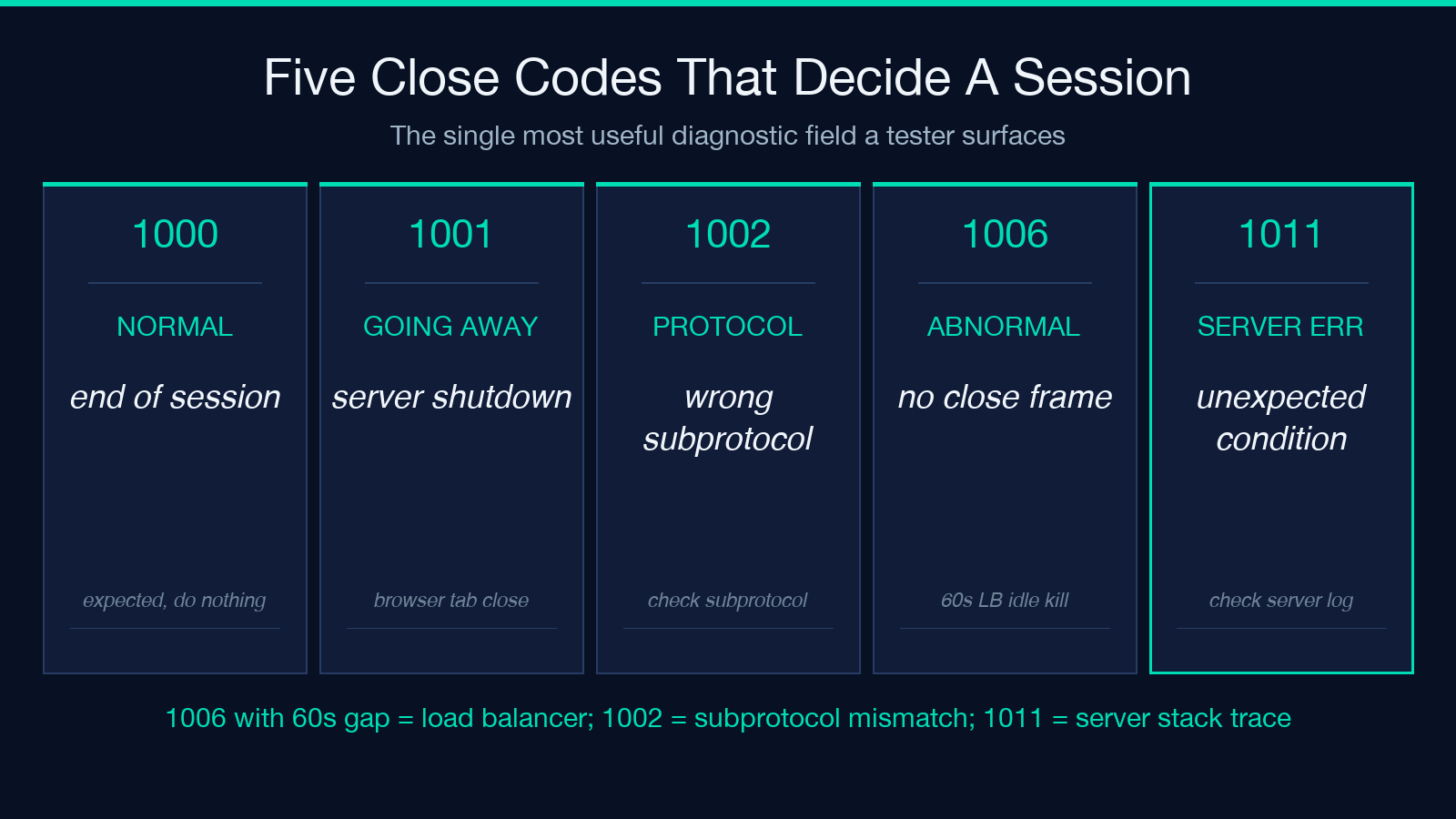
- 1000 (Normal Closure) — the server or client intentionally closed the connection. This is the expected code at the end of a session.
- 1001 (Going Away) — the server is shutting down, or the browser tab is being navigated away. Not a bug.
- 1002 (Protocol Error) — the server received a frame that did not conform to RFC 6455. Common cause: wrong subprotocol, or sending a text frame where a binary frame is required.
- 1006 (Abnormal Closure) — the WebSocket was closed without a close frame being received. The classic “the connection just died” code. The most common cause is a TLS termination issue at a load balancer that drops idle connections after 60 seconds.
- 1011 (Internal Server Error) — the server encountered an unexpected condition and is closing the connection. Often the server is logging a stack trace that you cannot see.
- 4000-4999 (Application-Defined) — the server is using a private range. Some services use 4001 for “invalid auth token”, 4003 for “subscription not found”, 4029 for “rate limit exceeded”. The meaning is per-service and the API documentation is the only source of truth.
A useful pattern when the close code is 1006: enable the auto-reconnect toggle and watch the gap between reconnects. If the gap is exactly 60 seconds, the load balancer is the suspect. If the gap is variable, the server is the suspect.
Binary Frames: When Text-Only Testing Fails You
The default tester sends and receives text frames, which is what 95% of real-time APIs use. But a non-trivial number of services — especially in gaming, audio, and IoT — speak only binary frames. If you connect to a binary-only endpoint and the tester shows a message event with content that looks like garbage, the issue is almost always that the server is sending ArrayBuffer and your client code is reading it as text.
The browser’s WebSocket constructor exposes event.data as either a string (for text frames) or an Blob / ArrayBuffer (for binary frames). A common bug in production code is to do JSON.parse(event.data) unconditionally, which throws on binary frames and leaves the message handler in an undefined state. The tester’s value here is that it surfaces both frame types side by side, so you can confirm the server is sending what you think it is sending.
A useful related tool for inspecting binary payloads is the Hex Editor, which lets you paste the raw bytes and see the UTF-8, ASCII, and offset views. The combination of a WebSocket session and a hex inspector is the fastest way to debug a binary protocol without writing a custom client.
Auto-Reconnect: Why It Is A Debugging Tool, Not A Convenience
The auto-reconnect toggle exists for one reason: to make flaky connections reproducible. If the server is killing idle connections every 60 seconds, the right fix is server-side idle timeout configuration, not client-side reconnect. But during development, having the tester reconnect automatically lets you capture the exact gap, the exact close code, and the exact state when the connection drops.
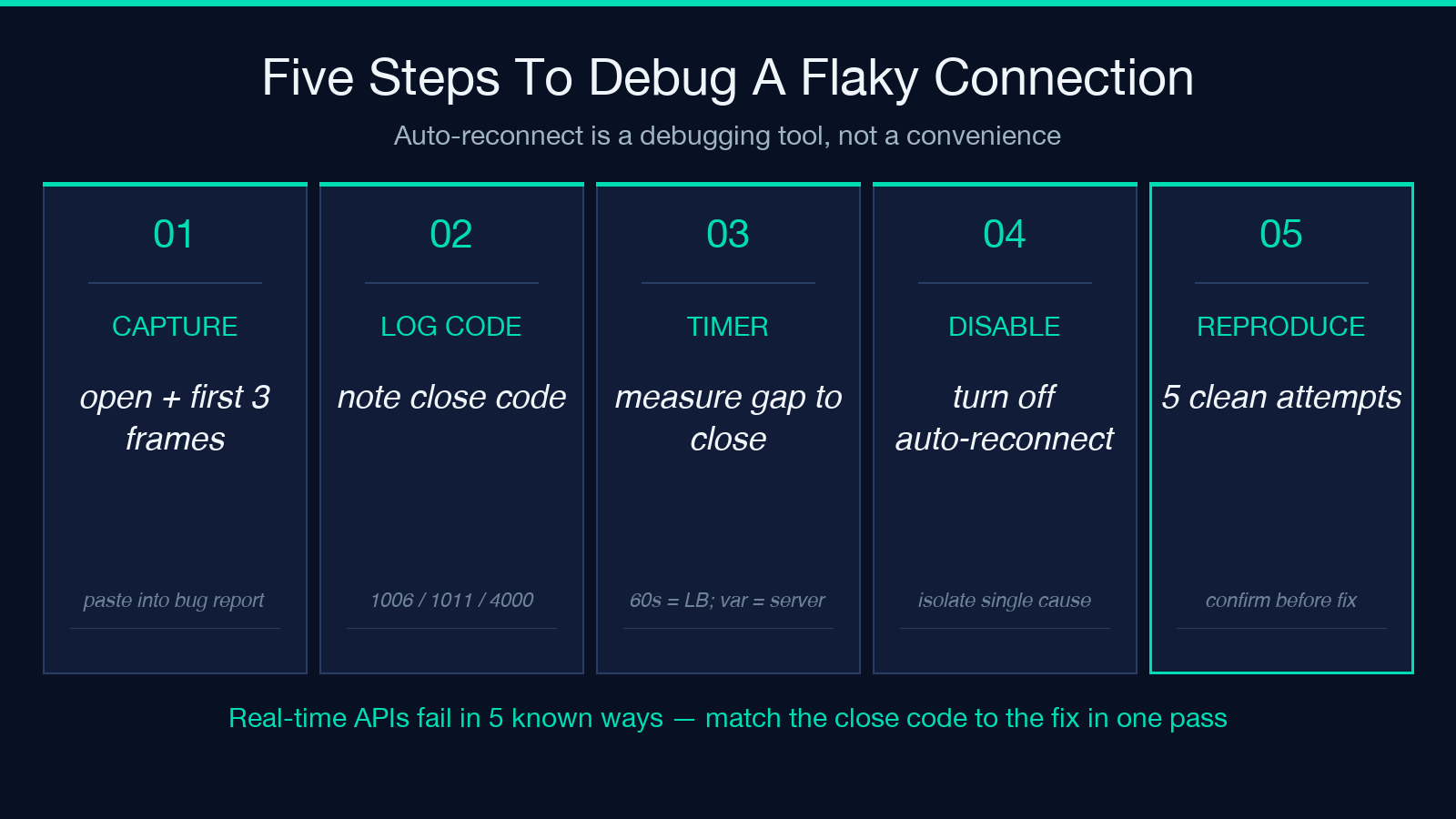
A subtle bug that auto-reconnect exposes: a server that returns 1008 (policy violation) on the first connection attempt, then 1011 on every reconnect. The cause is usually a server-side rate limiter that increments on every handshake. The client never sees a successful frame, and the reconnect loop turns a 5-minute investigation into a 2-hour investigation. The fix is to disable auto-reconnect, connect once, capture the close code, and read the server’s rate-limit headers in the response.
Capturing A Session For A Bug Report
A bug report that says “the WebSocket doesn’t work” is a bug report that gets closed. A bug report that includes the open event, the first three frames, the close code, and the gap before close is a bug report that gets fixed. The tester keeps the full session in the message log, so capturing it is a copy-paste of the log panel into the issue.
For sensitive payloads — auth tokens, personally identifiable information, payment data — scrub the log before pasting. A useful pre-flight is to search the log for the auth token’s first 8 characters and confirm the search returns zero hits before you share the URL with anyone. Tools like the JWT Inspector & Verifier and Regex Tester are good companions for this kind of session scrub.
When The Tester Is The Wrong Tool
The WebSocket Tester is the right tool for one engineer, one URL, one session. It is the wrong tool for load testing, multi-client concurrency, fuzzing, or sustained production monitoring. For those, the right move is a real client in a real environment — wscat for ad-hoc CLI sessions, k6 or Artillery for load, and a server-side APM tool for production. The tester is the diagnosis step before you reach for any of those, and a 30-second session in the tester often saves an hour of guessing.
For more client-side API debugging, the GraphQL Playground covers the same surface for GraphQL, and the JSON Formatter handles the JSON parsing side. Together with the WebSocket Tester, they cover the four shapes real-time APIs take in production: REST, GraphQL, server-sent events, and WebSocket.
The fastest way to debug a real-time API is to see the wire, not to guess at it. The WebSocket Tester puts the wire format — handshake, subprotocol negotiation, frame types, close codes, gaps — on one screen, in the same browser your users will use, with no install, no proxy, and no recording. Open the tool, paste the URL, send a frame, read the close code, and you are 80% of the way to a fix before you touch the server.
Explore more real-time and protocol debugging tools at elysiatools.com.
