9 Free Image Design Tools That Actually Ship Real Results
Stop downloading bloated photo editors for tasks that take 30 seconds. These 9 free tools handle specific image design problems — background removal, vintage film effects, professional watermarks, smart thresholding — without an account, without a subscription, and without the learning curve.
—
1. Image Blur — Soften, Gaussian, or Motion Blur in Seconds
Blurring isn’t just for pixelating license plates. It’s a core design technique for emphasizing focus, creating depth, and softening harsh photography.
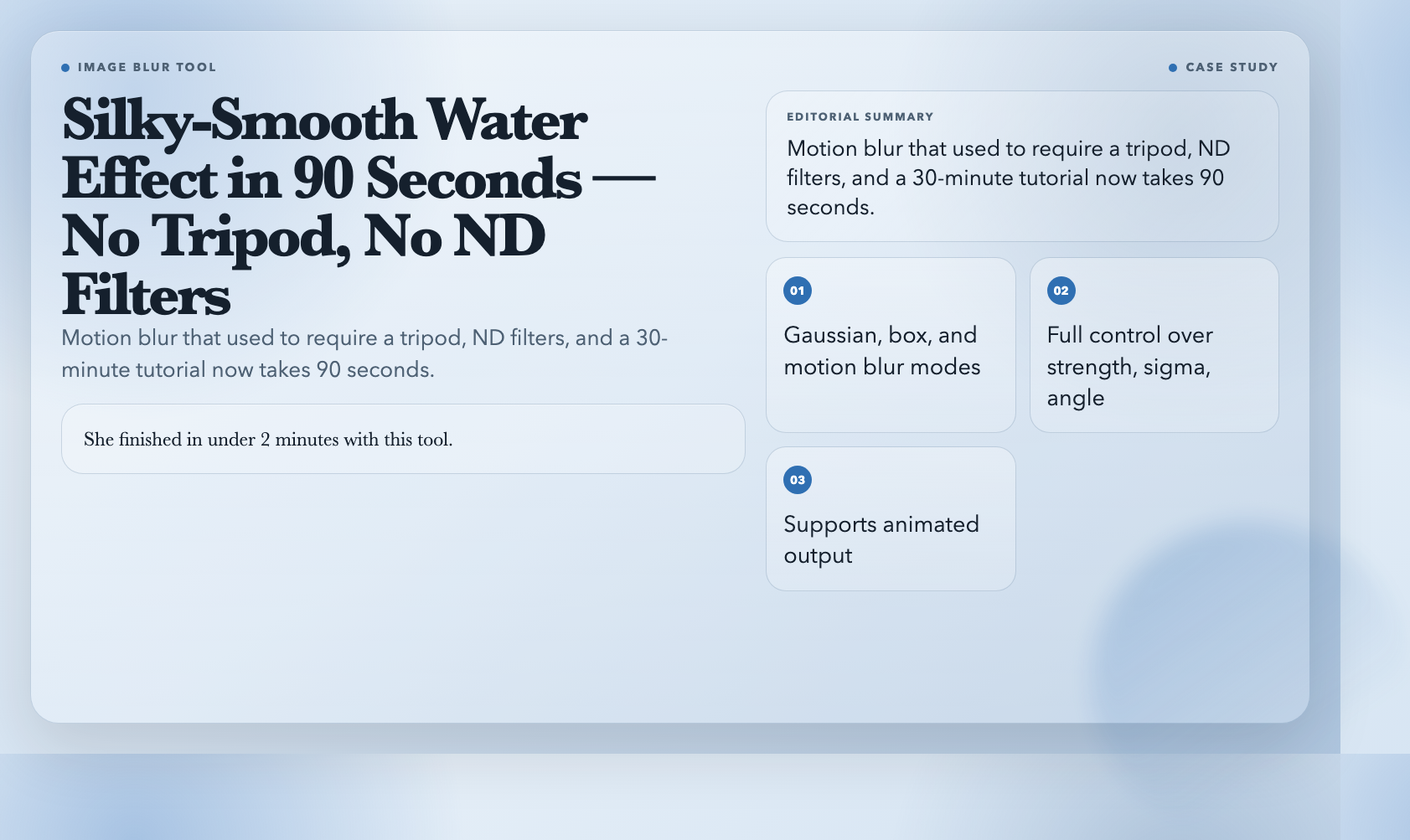
The Image Blur tool supports multiple blur types — Gaussian, box blur, and motion blur — with full control over strength, sigma, angle, and iterations. Drop in a photo, pick your blur mode, tune the intensity, export.
When to use it: Creating hero images with defocused backgrounds, softening portraits, or building motion blur effects for sports photography without touching Photoshop.
Concrete case: A travel blogger used motion blur on a waterfall photo to create a silky-smooth water effect — the kind of edit that used to require a 30-minute tutorial and a paid plugin. She finished in under 2 minutes with this tool.
—
2. Image Resizer — The Right Way to Resize Without Losing Quality
Resizing is the most basic operation in image editing — and the one most people do wrong. Stretch a photo to fit a new dimension and you get jagged edges. Using the wrong resampling algorithm turns even sharp product photos into mush.
The Image Resizer goes beyond basic scaling. Multiple resize methods (nearest neighbor, bilinear, bicubic, lanczos), aspect ratio preservation, animated GIF and WebP support, and output in JPEG, PNG, or WebP. It even handles upscaling intelligently.
When to use it: Batch-processing product photos for an e-commerce catalog, preparing images for social media at platform-specific dimensions, or bringing older photos to a usable resolution without the watercolor effect.
—
3. Image Trim Whitespace — Auto-Detect and Crop Dead Space
Every designer has wrestled with a scanned document or exported graphic that has 300 pixels of empty margin for no reason.
The Image Trim Whitespace tool auto-detects and removes those blank margins. Adjust sensitivity, choose between checking for white color or transparency, run an analysis pass first to preview, then commit.
When to use it: Cleaning up scanned documents, trimming whiteboard photos from conference rooms, or preparing screenshots for documentation where white borders distract from the actual content.
—
4. Image Sharpen — Recover Detail Without Amplifying Noise
A slightly out-of-focus photo isn’t always unsalvageable. Sharpening can recover surprising detail — if you use the right tool with the right settings.
The Image Sharpen tool offers multiple sharpening methods with adjustable intensity, radius, and amount. You can mask sharpening to affect only edges, leaving smooth areas untouched.
When to use it: Fixing photos taken with a phone camera that tends to over-soften images, recovering detail from slightly underexposed shots, or preparing scanned documents for legibility before OCR processing.
—
5. Image Threshold — Convert Photos to Crisp Black and White
Thresholding converts a grayscale or color image into pure black and white based on a brightness cutoff. It’s not a filter — it’s a mathematical operation with predictable, reproducible results.
The Image Threshold tool gives you full threshold level control and supports adaptive thresholding for uneven lighting.
When to use it: Creating high-contrast graphics for print, generating clean stencil art from photographs, processing document scans where maximum readability matters, or creating vintage newspaper-style layouts.
—
6. Image Solarize Effect — The Darkroom Mistake That Became an Art Form
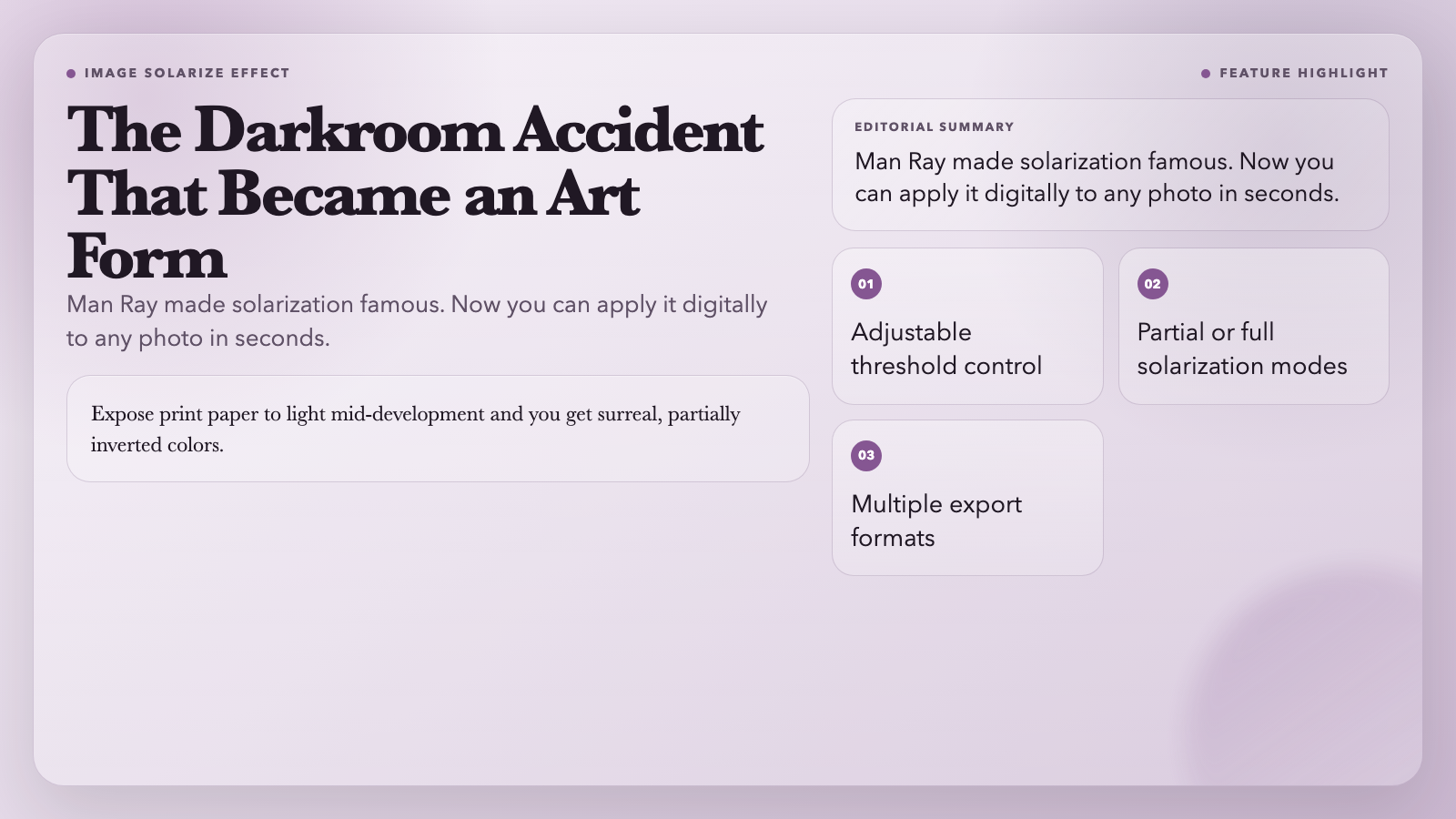
Solarization was originally a photographic accident — exposing print paper to light mid-development. The result: bizarre, surreal color inversions that became a signature look of darkroom artists like Man Ray and Herbert List.
The Image Solarize Effect tool recreates that effect digitally. Adjust the threshold, choose between partial or full solarization, export in multiple formats.
When to use it: Creating surreal editorial visuals, adding character to flat product photography, generating album art with a look no preset filter can replicate.
—
7. Image Vintage Effect — Film Grain, Fading, and the Passage of Time
“Instagram filters” destroyed the meaning of “vintage” in design circles. But done right — proper grain, realistic fading, authentic vignetting — vintage effects still carry genuine emotional weight.
The Image Vintage Effect tool applies film grain, color fading, vignette, and texture as independent parameters. You’re building a look, not applying a one-size preset.
When to use it: Marketing campaigns that want to feel handcrafted, editorial photography for publications with a grounded aesthetic, wedding albums, or brand imagery that deliberately resists algorithmic polish.
—
8. Image Watermark Tool — Protect Your Work Without Ruining It
You finished a photography session. Before posting samples online, you need watermarks — but lazy watermarks are ugly and aggressive watermarks distract from the work you’re trying to sell.
The Image Watermark Tool gives you full positioning control, font size, color, opacity, and rotation. Find the balance: visible enough to deter theft, subtle enough to let the image breathe.
When to use it: Freelance photographers protecting portfolio samples before client delivery, designers sharing work-in-progress publicly, or businesses watermarking product images for social media where content scraping is routine.
—
9. Image Adaptive Threshold — Smart Binarization for Uneven Lighting
Standard thresholding uses one brightness cutoff for the whole image. That works for evenly lit photos — and fails for everything else. Shoot a whiteboard under fluorescent lights and part of it washes out.
Adaptive thresholding calculates threshold values locally across the image. The Image Adaptive Threshold tool handles exactly this scenario, which is indispensable for document photography when lighting can’t be controlled.
When to use it: Processing whiteboard photos shot in conference rooms, scanning receipts near windows, converting any photograph with complicated lighting into clean, readable black and white.
—
The Pattern Behind These Tools
Each tool solves a problem that used to require either expensive software or tedious manual work. They’re specific — not “image editing” broadly, but blur this way, trim that way, threshold for this lighting condition.
Professional image design isn’t about one super-tool that does everything. It’s about having the right tool for the specific problem in front of you. These 9 are the ones you’ll reach for most often — not because they’re versatile, but because they’re precise.
The next time you open Photoshop to do something that should take 30 seconds, check ElysiaTools first. More often than you’d expect, the task is already solved.