
# LibreOffice XLSX to PDF Report Field Guide: When Batch Print Layout, Page Setup, and One Merge Step Decide Whether 30 Workbooks Land as One PDF or Thirty Loose Files
Thirty workbooks, one PDF, no manual clicks. The LibreOffice XLSX to PDF Report tool at Elysia Tools converts Excel spreadsheets to printable multi-page PDF reports through LibreOffice CLI and merges the batch output into a single downloadable file in one pass. The five decisions that decide whether your batch lands as a clean 38-page PDF or thirty loose files you have to drag-and-drop into a folder yourself are: which file types you accept, which print layout you ship, whether you preserve page setup overrides per sheet, how you handle hidden sheets, and whether you want the merged output or per-workbook files. This field guide walks through each decision with a worked example, three highlighted anti-patterns, and the batch recipe that ships a thirty-workbook quarterly report into a single PDF in under a minute.
What the LibreOffice XLSX to PDF Report actually does
The tool runs LibreOffice headless on the server side, taking one or many `.xls` or `.xlsx` files, asking LibreOffice to render each sheet according to its declared print area, and then merging the resulting PDF streams into a single file using a deterministic filename rule. It is not a screenshot pipeline — it is the same render path LibreOffice uses when you click File > Export as PDF inside the desktop app, which means charts, conditional formatting, named ranges, page breaks, headers and footers, and pivot tables all survive the conversion. That fidelity is the whole reason to use the LibreOffice CLI rather than a quick screenshot trick or a Python library with limited formatting support.
Two design choices are baked in and should not be overridden lightly. First, the tool always respects the print area and page setup that your workbook already declares — if Sheet 1 has a print area of A1:F40 and Sheet 2 has a print area of B2:K50, both are honored in the merged output with their declared page breaks. Second, the tool processes files in alphabetical order by filename, so the merged PDF opens in the same order you would read the source folder if you were working through it manually. If you need a different ordering (by date, by sheet count, by importance), rename the source files with a numeric prefix before uploading.
Input format: how to hand off thirty workbooks cleanly
The tool accepts up to thirty files per batch, with a combined size limit of one hundred megabytes. The accepted types are `.xls` (the legacy Excel binary format) and `.xlsx` (the Office Open XML format), which covers every workbook Excel has shipped since 2007 and most workbooks that pre-date the format change. The input accepts both files individually via drag-and-drop or as a zipped bundle if you need to ship more than thirty. The output is always a single merged PDF in the order processed, with one combined page count and a TOC-style filename suffix you can rename on download.
The two input shapes are not interchangeable in subtle ways. Single-file mode is the right call when the source is one consolidated workbook with multiple tabs — the tool will render each tab as a separate page block in the PDF and the merged output is identical to a per-sheet export. Multi-file mode is the right call when the source is a folder of quarterly or per-department workbooks and you want them stitched together into one report. Mixing the two is allowed but produces a PDF where the intra-workbook page ordering and the inter-workbook file ordering compete — usually fine, occasionally confusing, almost always avoidable by sorting the file list up front.
Print layout decisions that decide whether the PDF reads
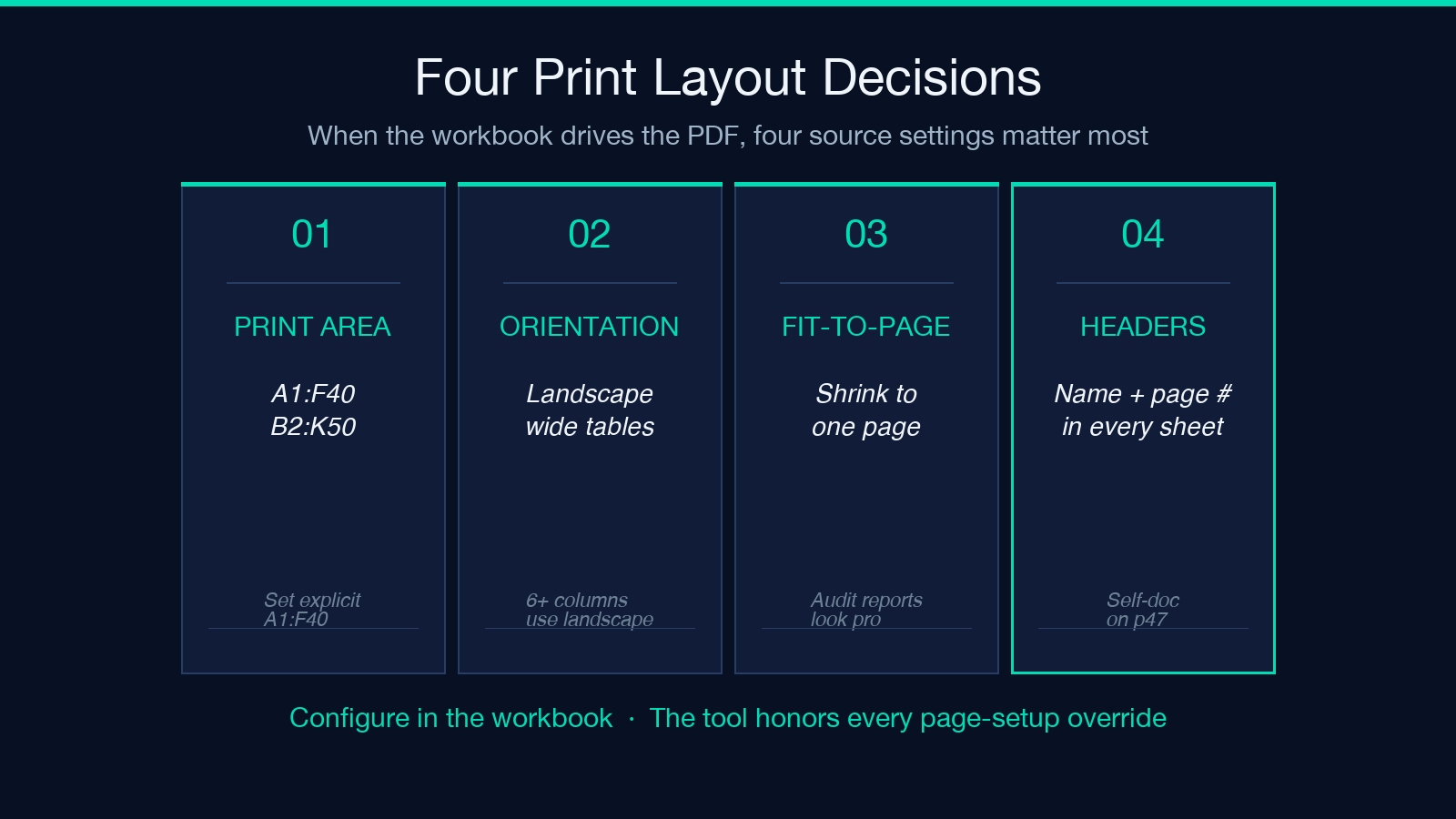
Print layout is configured inside the workbook itself, not at the tool level — the tool honors whatever the workbook says. Four layout decisions matter. First, whether to set a print area on each sheet, or let LibreOffice guess — guessing works for one-page sheets but produces three-page runoffs on wide tables, so always set a print area on any sheet wider than eight columns. Second, whether the orientation is portrait or landscape — landscape is the right call for any sheet with more than six columns of data. Third, whether the fit-to-page option is on — when enabled, LibreOffice shrinks the print area to fit on a single page, which is the cleanest output for audit reports and similar documents that must look consistent across batches.
Fourth, whether the headers and footers carry page numbers and the workbook name. Headers and footers are the easiest place to give a merged PDF a professional finish — set the workbook name in the header left-aligned, the sheet name in the header center, and the page number in the footer right-aligned, and you have a self-describing document that reads correctly whether the reader opens page 1 or page 47. The companion PDF Merge tool at Elysia Tools is the right primitive when you already have multiple PDFs and need to concatenate them without re-running the spreadsheet conversion step.
Common failure modes and how to spot them
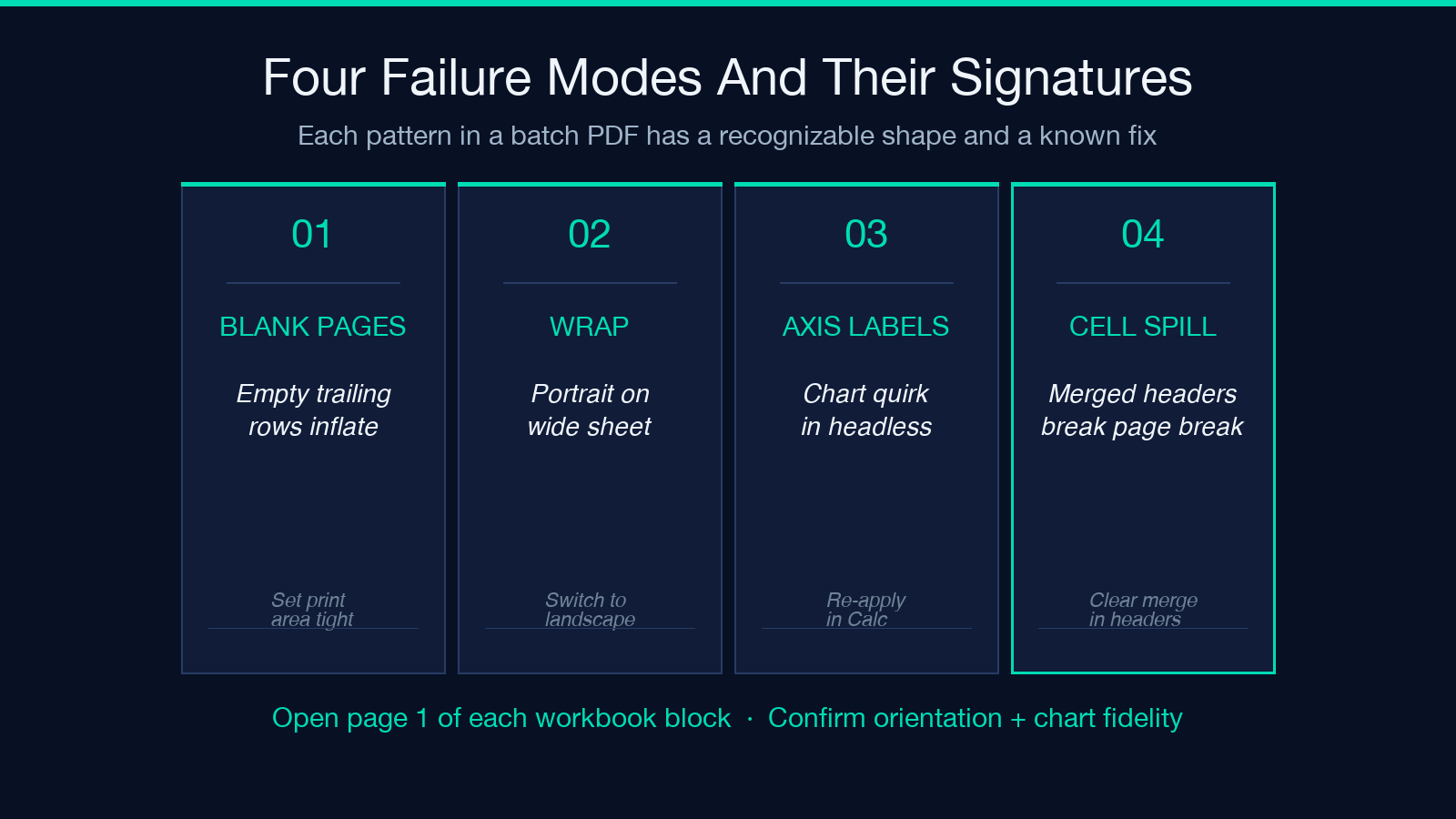
Four patterns show up repeatedly in batch spreadsheet-to-PDF conversions, and each one has a recognizable signature. The first is the “blank trailing pages” — a workbook that should render as three pages lands as five with two blank pages at the end. This almost always means the print area extends past the last row of data into a formatted-but-empty range; the fix is to set the print area explicitly to the last populated row, or to delete the formatting on those trailing rows. The second is the “wide-table wrap” — a sheet that fits on one screen lands as a PDF where every page is a single column wrapping across five pages. This means the page setup is missing an orientation override; switch to landscape and the same sheet fits on one page.
The third is the “chart missing axis labels” — a sheet with charts renders without axis titles or category labels in the PDF even though they are visible on screen. This is a known LibreOffice quirk on certain chart types when the source workbook was authored in Excel; the fix is to open the chart in LibreOffice Calc, re-apply the axis labels, save, and re-upload. The fourth is the “merged-cell spillover” — a sheet with merged cells in the header row renders the merged text spilling across the page break in a way that breaks reading flow. The fix is to clear the merged cells in the header row and use Format > Merge Cells only on the printed header band of each page. For documents where the source is already a PDF and the goal is to inspect its structure, the PDF Page Extractor tool handles the reverse path.
Hidden sheets, very hidden sheets, and the protection trap
Excel supports three sheet visibility states: visible, hidden, and very hidden. The LibreOffice conversion honors all three by default — visible sheets render, hidden sheets render, and very hidden sheets render — which is almost always what you want for a batch report. Where it goes wrong is when a workbook is protected with a sheet-level password and the hidden sheets carry sensitive content that should not appear in a published PDF. The tool does not currently accept a per-sheet redaction list, so the right workflow is to either unprotect the workbook in Excel before upload, or to convert in two passes and merge with the PDF Merge tool at Elysia Tools while skipping the protected sheets manually.
Two design heuristics are worth keeping in your toolkit. First, the “publication pass” workflow — make a copy of the source workbook, unhide every sheet, clear the very-hidden sheets that should not publish, save as a new filename with a `-pub` suffix, and upload the publication copy. This decouples the source-of-truth workbook from the published artifact and makes rollbacks trivial. Second, the “two-pass audit” — convert the workbook once with all sheets, then convert it a second time with the publication filter, and diff the two PDFs to confirm the only difference is the deliberately-redacted sheets. The diff is the audit trail. The PDF Merge Documents tool at Elysia Tools handles the case where you want to recombine per-workbook outputs into a single deliverable after the publication filter.
Performance and scaling behavior
For batches under ten files at under one megabyte each, the conversion completes in under ten seconds end-to-end, dominated by LibreOffice cold start. Past that, LibreOffice reuses the running headless instance and the per-file overhead drops to roughly one second per workbook. For batches of thirty files at ten megabytes each (the practical upper limit), expect a two-to-three minute run including the merge step. Memory is rarely the constraint at this scale — the bottleneck is the per-sheet render loop inside LibreOffice, which is linear in the number of distinct page configurations across the batch.
Three performance patterns are worth keeping in mind. First, workbooks with many charts take longer per page than workbooks with pure tabular data — a thirty-page workbook with embedded charts is roughly twice as slow as a thirty-page workbook with no charts. Second, workbooks that reference external data sources (Excel queries, Power Query connections, ODBC links) will fail to render correctly because the headless LibreOffice instance cannot resolve those external sources — flatten the workbook with Data > Queries & Connections > Close All before upload. Third, very wide sheets (more than twenty columns) with default portrait orientation will produce multi-page horizontal wraps that dramatically inflate the output page count — set landscape orientation in the source workbook and the output shrinks dramatically.
When to ship per-workbook files instead of a merged PDF
Not every batch wants a single merged PDF. Two cases favor per-workbook output. The first is when the source workbooks are independent deliverables — thirty vendor invoices, thirty per-client reports, thirty weekly status docs — and the recipient expects one file per recipient, not one fat file for the whole cohort. The second is when the downstream workflow is per-document — each PDF needs its own email attachment, its own upload to a different system, its own audit trail. For both cases, the right pattern is to either rename the source workbooks with a clear per-recipient prefix before upload (the tool will preserve the prefix in the output filename), or to split the merged PDF back into per-workbook files using a PDF splitter tool after the conversion.
The decision rule is straightforward: if the reader of the output is one person reading one document, ship merged. If the readers are many people each receiving their own slice, or if the downstream system expects per-file inputs, ship per-workbook. The conversion cost is identical either way — LibreOffice still renders every workbook once — so the only cost of switching from merged to per-workbook is the split step on the output side.
Testing the merged PDF before it ships
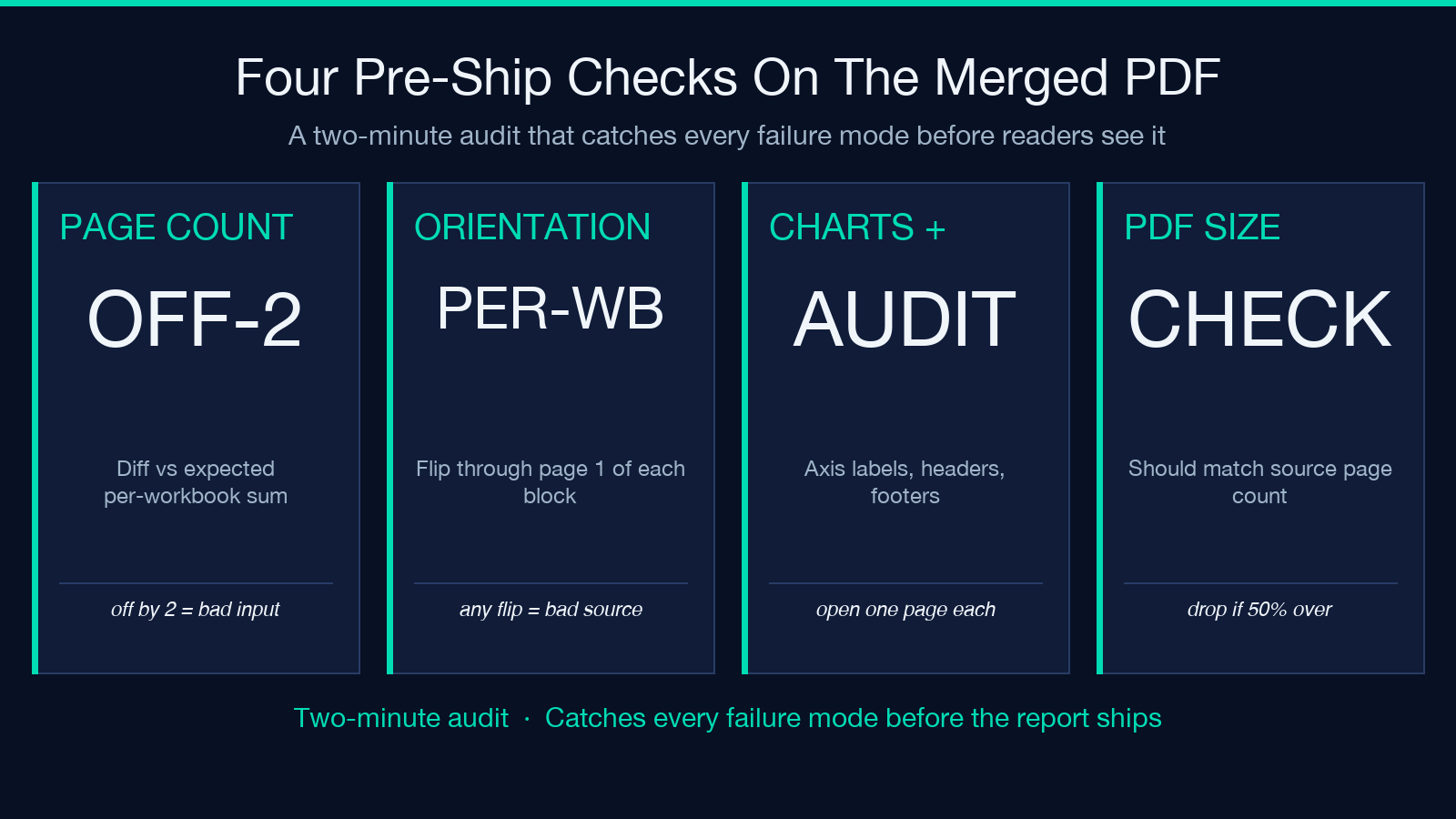
Four checks are worth running on every merged PDF before you ship it. First, the page-count check — open the PDF, confirm the total page count matches your expected sum of per-workbook page counts, and confirm the per-workbook page boundaries are visible as expected. Second, the orientation check — flip through the first page of each workbook block, confirm every sheet renders in the orientation it was authored in, and flag any workbooks where the orientation flipped unexpectedly (which signals a missing page setup override in the source). Third, the chart-and-formatting check — open at least one page from each workbook, confirm the charts render with their axis labels, confirm the conditional formatting is intact, and confirm the header/footer band is present on every page.
Fourth, the size sanity check — confirm the merged PDF is roughly the expected total size based on the source workbook page counts, and flag any output that is more than fifty percent over or under the expected range, which usually signals either a missing page setup (output much smaller) or a runaway print area on a wide sheet (output much larger).
Two follow-up recipes are worth keeping in your toolkit. First, the “page count sanity script” — write a small script that opens the merged PDF, counts the pages, and compares against the expected sum. Anything off by more than two pages usually signals one of the failure modes above. Second, the “per-workbook bookmark” — if your reader needs to navigate to a specific workbook quickly, generate the PDF with bookmarks per source filename using LibreOffice’s File > Export as PDF > Options dialog before upload, which the tool will honor automatically. Explore more spreadsheet and document conversion tools at Elysia Tools — the XLSX-to-PDF pipeline is one of dozens of similar batch document conversions in the catalog.
