
Thirty Word documents, one merged PDF, no font swaps. The LibreOffice DOCX to PDF tool at Elysia Tools takes a batch of legacy .doc and modern .docx files, runs each through LibreOffice headless on the server, and stitches the per-file PDF streams into a single downloadable file in one pass. The six decisions that decide whether your batch lands as a faithful 240-page contract binder or a thirty-page document with substituted fonts, dropped footnotes, and stripped comments are: which file types you accept, which track-changes state you export, whether you accept or drop Word comments, how you handle footnotes and endnotes, whether you preserve the original section breaks, and whether you trust font fallback or pre-install the missing fonts. This field guide walks through each decision with a worked example, three highlighted anti-patterns, and the batch recipe that ships a thirty-document legal binder into a single PDF in under a minute.
What the LibreOffice DOCX to PDF tool actually does
The tool wraps the LibreOffice CLI (soffice --headless --convert-to pdf) in a server-side batch runner that uploads each Word file, converts it inside a sandboxed LibreOffice profile, captures the output PDF, and concatenates the per-file PDFs into one combined file in alphabetical order by source filename. It is the same render path you get when you click File > Export as PDF inside LibreOffice Writer, which means tables, section breaks, list numbering, headers and footers, footnotes, endnotes, comments, track-changes markup, and embedded images all survive the conversion when configured correctly. That fidelity is the entire reason to run this through LibreOffice rather than through a quick screenshot pipeline or a Python library with limited OOXML coverage.
Two design choices are baked in and should not be overridden lightly. First, the tool uses a fresh LibreOffice profile per batch, so the global soffice configuration on the server does not leak into the converted PDFs — fonts you have not explicitly registered will fall back to the LibreOffice defaults, which is the safest behavior but also the most common source of “the output looks different from what I see on screen” complaints. Second, the tool processes files in alphabetical order by filename, and the merged PDF opens in that exact order with a single combined page count; if you need a different ordering (by date, by author, by importance), rename the source files with a numeric prefix before uploading.
Input format: how to hand off thirty Word documents cleanly
The tool accepts up to thirty files per batch with a combined size limit of one hundred megabytes. The accepted types are .doc (the legacy Word binary format from Word 97 through Word 2003) and .docx (the Office Open XML format that has shipped since Word 2007), which covers every Word document in active circulation. The input accepts both files individually via drag-and-drop or as a zipped bundle if you need to ship more than thirty. The output is always a single merged PDF in the order processed, with one combined page count and a TOC-style filename suffix you can rename on download.
The two input shapes are not interchangeable in subtle ways. Single-file mode is the right call when the source is one consolidated document with multiple sections — the tool will render each section as a separate page block in the PDF and the merged output is identical to a per-section export. Multi-file mode is the right call when the source is a folder of contracts, briefs, or per-author documents and you want them stitched into one binder. Mixing the two is allowed but produces a PDF where the intra-document section ordering and the inter-document file ordering compete — usually fine, occasionally confusing, almost always avoidable by sorting the file list up front.
Track changes: the single most-exported decision in legal documents
Track changes is the single feature that most often breaks a DOCX-to-PDF batch and is the single feature most often misconfigured by the author. Three export modes are available, and the choice between them decides whether the PDF reader sees the final document, every redline in the document, or the original document with no record of the edits. The first mode is “accept all changes” — the cleanest output, the document as it would read after every redline is accepted, and the mode to use when the goal is a final, signed deliverable. The second mode is “reject all changes” — the original document with every redline undone, useful when the goal is to recover the pre-edit state for legal hold or restoration purposes. The third mode is “show markup” — every insertion, deletion, and comment visible in the output PDF as colored balloons and strike-through text, which is the right mode for a redline review or a negotiation binder.
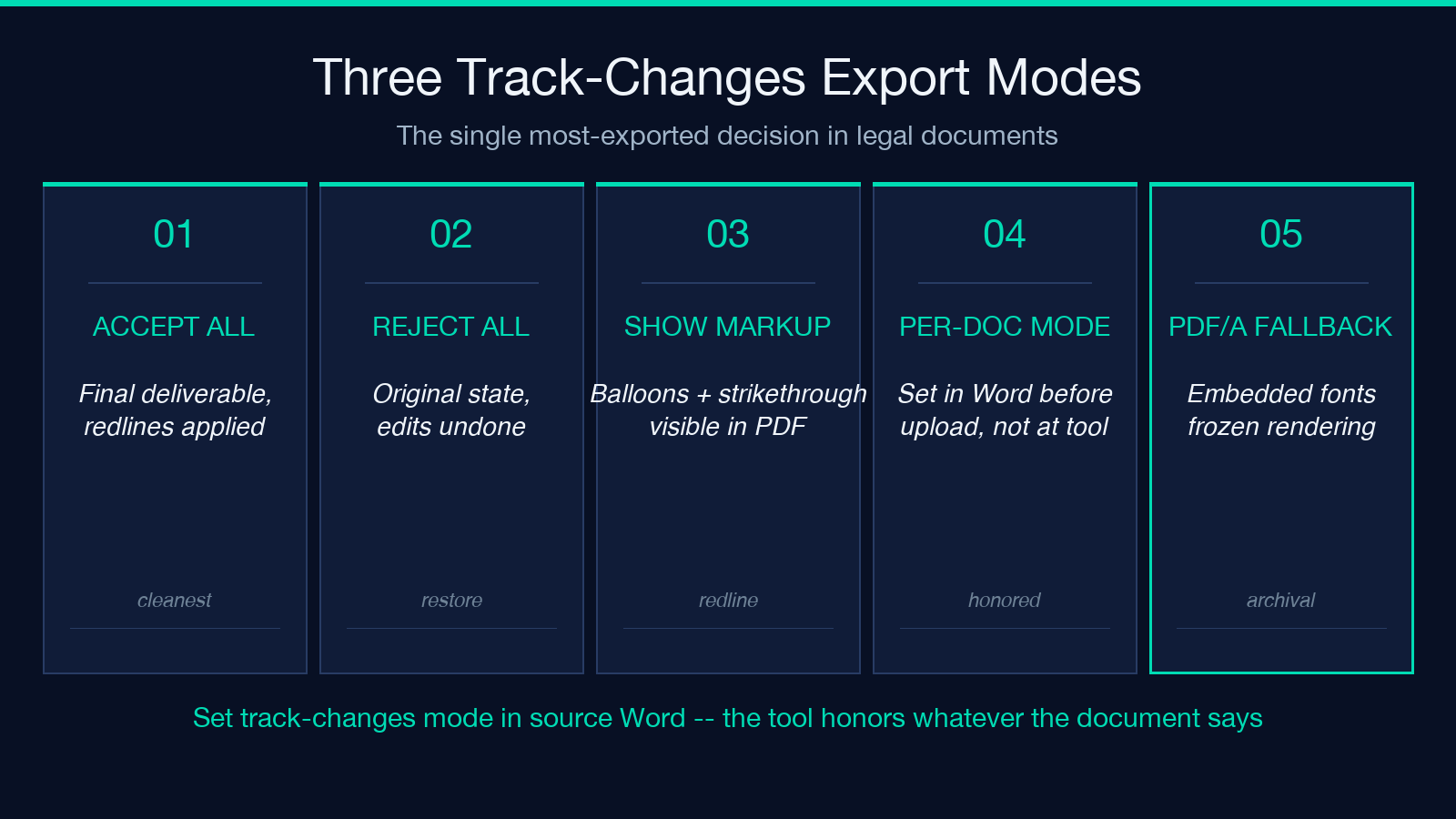
The export mode is set per-document in the Word file itself under Review > Track Changes > All Markup or by accepting or rejecting every change before upload. The tool honors whatever the source document says — it does not infer the mode from the filename or the upload batch. If the document is set to “All Markup” the merged PDF shows every redline; if it is set to “Final” the merged PDF shows the accepted state. The two companion tools in the Elysia Tools Document cluster are LibreOffice XLSX to PDF Report for the spreadsheet-to-PDF batch path and LibreOffice ODT to PDF for the OpenDocument Text-to-PDF batch path; both follow the same per-document export decision model.
Comments, footnotes, and endnotes: the three annotation layers
Word documents carry three distinct annotation layers, and each one survives the DOCX-to-PDF conversion through a different path. Comments are the inline balloons that appear in the right margin of the document when the author hovers over a highlighted span; they export to PDF as printed annotations on the relevant page when the document is set to “print all markup”, and they export as invisible metadata when the document is set to “final” or “no markup”. Footnotes are the bottom-of-page numbered references; they always export with the body text on the same page, with the footnote text rendered immediately below the page footer. Endnotes are the end-of-document numbered references; they always export at the very end of the converted document, regardless of section breaks.
The two failure modes that show up repeatedly in batch conversions are both traceable to the same root cause. The first is “comments disappeared” — a reviewer marks up the document with twenty comments, the document converts to PDF, and the comments are nowhere to be found. The fix is to verify that the source document is set to “All Markup” before upload; “Final” mode strips the comments from the exported PDF entirely. The second is “footnotes landed on the wrong page” — a footnote on page 12 lands on page 13 because LibreOffice reflowed the body text. The fix is to set the source document’s footnote settings to “bottom of page” rather than “below text”, which is the default in most Word templates but is occasionally changed when authors edit footnote properties manually. The PDF Merge Documents tool at Elysia Tools is the right primitive when you already have per-document PDFs and need to concatenate them without re-running the Word conversion step.
Font fallback: the silent quality killer
Font fallback is the single most common source of “the PDF looks different from what I see in Word” complaints. The mechanics are simple: when a Word document references a font that is not installed on the server running LibreOffice, LibreOffice substitutes the closest available font and renders the substitution in place of the original. The substituted font may have different metrics, different line spacing, different character widths, or different ligature behavior, which means the same text reflows differently, breaks differently, and reads differently in the output PDF than it did on the author’s screen. Two patterns show up repeatedly. The first is “Calibri became Carlito” — Carlito is the open-source metric-compatible replacement for Calibri, and the substitution looks identical at first glance but breaks the line count on every page where Calibri was the dominant font. The second is “Times New Roman became Liberation Serif” — also metric-compatible, also visible only in subtle line-break shifts, and the most common cause of “page count grew by one” in legal documents where the original page count was contractually specified.
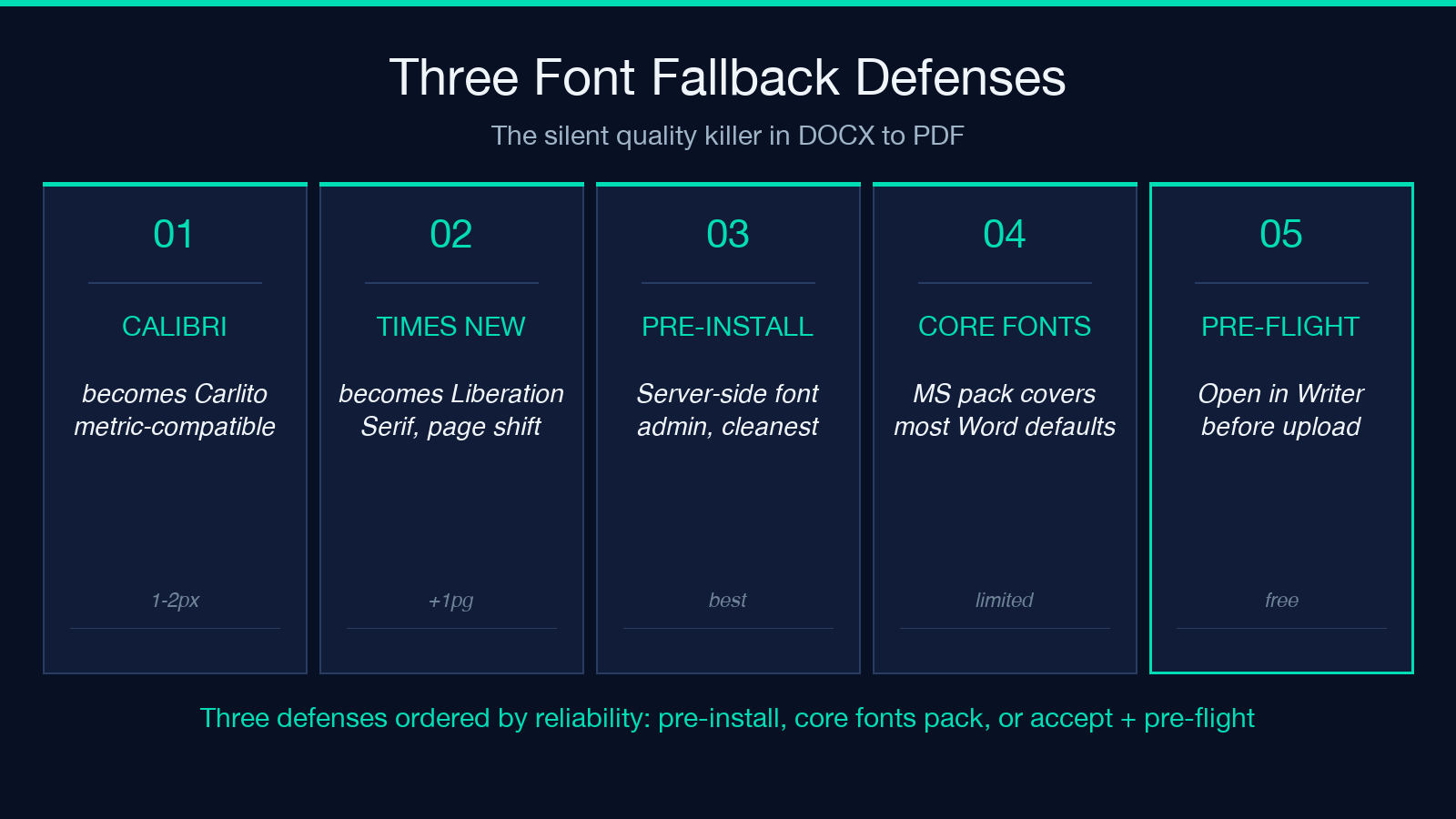
Three defenses are available, ordered by reliability. First, pre-install the original fonts on the LibreOffice server so no substitution is needed; this is the cleanest path but requires server-side font administration, which is out of reach for most batch users. Second, run the conversion on a machine that has the Microsoft Core Fonts pack installed; this covers most of the common Word defaults (Times New Roman, Arial, Calibri, Cambria) but not the licensed fonts (Calibri Light, Aptos, etc.) that ship with newer versions of Word. Third, accept the substitution and pre-flight your documents by opening them in LibreOffice Writer yourself before upload; if the source looks correct in LibreOffice, the conversion will be correct. The LibreOffice DOCX to PDF/A tool at Elysia Tools is the right primitive when the goal is a long-term archival PDF with embedded fonts and a fixed visual baseline; the PDF/A profile bakes the substituted fonts into the output and freezes the rendering.
Section breaks, headers, and footers: the page-by-page traps
Section breaks, headers, and footers are the third silent quality killer in DOCX-to-PDF batches. The mechanics are well-known but consistently underestimated. A Word document with three sections, each with a different header, converts to PDF with three distinct page ranges, each with the correct header from the source section. A Word document with three sections, all with the same header, converts to PDF with three page ranges sharing the same header — but if the author edited headers on the second section manually and forgot to enable “link to previous”, the second section renders the wrong header in the PDF, and the third section renders the right header. Section breaks come in four flavors in Word (next page, continuous, even page, odd page), and each one tells LibreOffice to start a new page, continue on the same page, force the next even page, or force the next odd page. The conversion honors all four by default; the failure mode is when an author changes a section break type without previewing the result, and the converted PDF lands with page numbering that does not match the original.
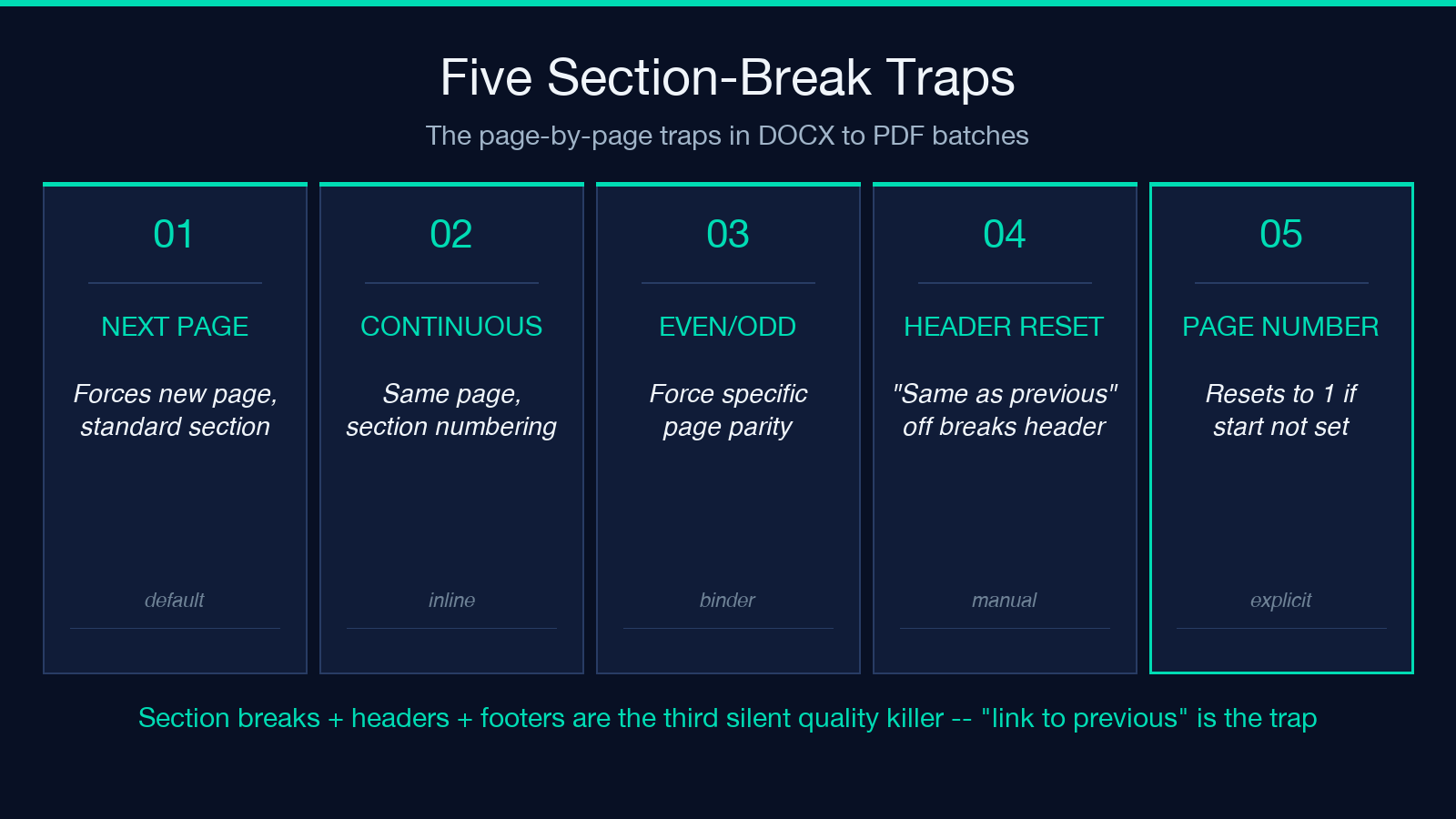
Headers and footers carry the page number, the document title, the author, the date, and the case number — every detail that makes a legal binder self-describing. The three failure modes that show up repeatedly are all traceable to the same root cause: “same as previous” is on by default in Word but is the easiest thing to disable accidentally. First, “page number starts at 1” — a contract binder where the original Word file has page numbers starting at 47 (because it is a section of a larger document) converts to a PDF where every page number resets to 1. The fix is to set the section’s page number start explicitly before upload. Second, “header is missing on the first page” — a Word document with “different first page” enabled converts to a PDF where page 1 has no header, even if every other page does. The fix is to disable “different first page” or to add the same header content to the first-page header. Third, “footer text is cut off” — a long footer with the document title and the date is clipped at the right margin in the PDF. The fix is to shorten the footer or to reduce the footer font size. For documents where the source is already a PDF and the goal is to inspect its structure, the PDF Extract Selected Pages tool at Elysia Tools handles the reverse path.
Tables, images, and embedded objects
Word documents carry three classes of embedded content, and each one survives the conversion through a different path. Tables are the simplest — they render in the converted PDF as a grid of cells with the same row heights, column widths, and border styles as the source, with one caveat: very wide tables (more than six columns) will overflow the page width in the converted PDF unless the source document is set to “fit to page width” in the table properties. The conversion honors the source setting, so a wide table that does not fit renders as a clipped or wrapped table in the PDF. Images are also straightforward — they render in the converted PDF at their native pixel dimensions, anchored to the same paragraph as in the source, and at the same DPI as the source. The failure mode is “image is blurry in the PDF”, which means the source image was saved at a low DPI; the fix is to re-save the source image at 300 DPI before re-uploading.
Embedded objects (Excel charts, Visio diagrams, OLE objects from older Word versions) are the third class. Modern Word documents embed charts as native Word objects, which convert cleanly to PDF; older Word documents embed them as OLE objects, which require the original application to be installed on the server to render correctly. The LibreOffice conversion handles the modern path without intervention; the legacy OLE path falls back to an “embedded object placeholder” icon in the PDF, which is recognizable but is not the chart the author intended to embed. The two companion tools in the Elysia Tools Document cluster — LibreOffice PPT to PDF Handouts for PowerPoint-to-PDF batches and LibreOffice Office to Image for the raster-export path — both follow the same modern-vs-legacy embedded-object decision model and both produce clean output when the source is modern and predictable output when the source is legacy.
Batch recipe: shipping a thirty-document legal binder in one minute
The end-to-end recipe for shipping a thirty-document legal binder into a single PDF in under a minute has seven steps. First, sort the source files alphabetically by the order you want them to appear in the merged PDF; rename with a numeric prefix if the alphabetical order is not the right order. Second, open each document in LibreOffice Writer on your local machine and verify that the track-changes mode, the comment visibility, the font fallback, the section breaks, the headers and footers, and the embedded objects all look correct; this pre-flight check takes about thirty seconds per document and catches the failure modes that the batch conversion cannot fix in post. Third, drag-and-drop the sorted file list into the LibreOffice DOCX to PDF tool at Elysia Tools. Fourth, click convert and wait for the merged PDF to download. Fifth, open the merged PDF and verify the page count, the headers, the page numbers, and the first page of every section. Sixth, if anything looks off, identify the offending source document by reading the merged PDF table of contents (LibreOffice generates one automatically when the document has a TOC) and re-upload the corrected source file alone. Seventh, archive the merged PDF in your document management system with the original Word files as the source of truth. Explore more tools at elysiatools.com.
