Every developer hits the same wall at some point: something’s wrong with the network, and you have no idea what. Is DNS resolving? Is that port actually open? Did that webhook even arrive? You start guessing—restart the service, toggle a firewall rule, pepper team chat with question marks.
There’s a better way. A small set of free browser-based tools can answer most network questions in seconds, without installing anything or spinning up a VM. Here are eight that developers at ElysiaTools reach for regularly.
1. CIDR Calculator — Know Your Network Boundaries
Subnetting math trips up even senior engineers. When you’re setting up a VPC, configuring a firewall rule, or assigning IP ranges, you need to know the network address, broadcast address, usable host range, and subnet mask—fast.
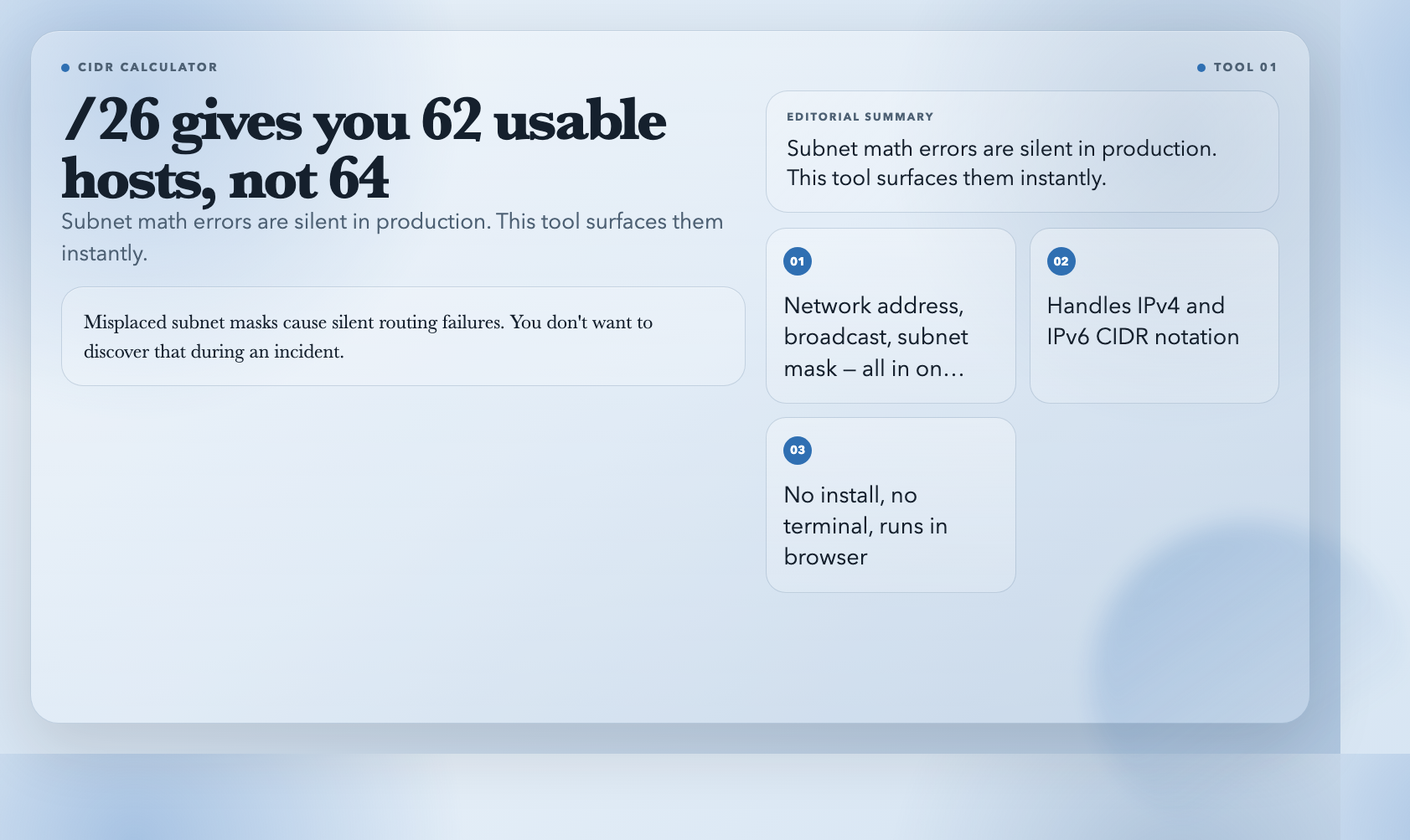
The CIDR Calculator takes a CIDR notation like `192.168.1.0/24` or `2001:db8::/32` and instantly returns the full breakdown: network address, broadcast, subnet mask, wildcard mask, first and last usable IP, total addresses, and usable host count.
Why it matters: Misplaced subnet masks cause silent routing failures. A `/26` gives you 62 usable hosts, not 64. You don’t want to discover that during an incident. The tool handles both IPv4 and IPv6, so it’s useful whether you’re in a cloud VPC or working with IPv6 transition mechanisms.
Try it with: `10.0.0.0/8` (a common private cloud range) and see how it compares to `10.0.0.0/16`.
2. DNS Query Tool — Verify Every Record Type
DNS problems are among the most frustrating to debug because they’re invisible. The domain resolves on your machine but fails for users. Mail isn’t delivering. SSL certificates are wrong. You’re chasing ghosts.
The DNS Query Tool lets you query any domain for A, AAAA, MX, TXT, NS, and CNAME records in one place. Toggle “Show All Record Types” and you get a complete picture of how the domain is configured—including TTL values, priority ordering for MX records, and response time.
Why it matters: `dig` and `nslookup` are powerful but require the right environment. This tool runs in a browser and formats results clearly. When you’re coordinating with a DNS provider, being able to screenshot a clean record dump beats quoting terminal output.
Common use case: Verify that your new A record has propagated before telling stakeholders a migration is complete. If your laptop still resolves the old IP and your colleague’s machine already shows the new one, you know it’s mid-propagation.
3. WHOIS Lookup — Who Owns This Domain?
Before you trust a service, before you file a trademark dispute, before you try to buy an expired domain—it helps to know who’s behind it.
The WHOIS Lookup returns registrar name, registration and expiry dates, name servers, domain status, and DNSSEC configuration. It calculates days until expiry automatically and flags domains expiring within 30 days. Optional raw WHOIS output is available for cases where you need the full unparsed record.
Why it matters: Security teams use WHOIS to assess phishing domains. Developers use it to check if a vendor’s domain is legitimately old (a sign of stability) or suspiciously new. The expiry date check is underrated—if you’re evaluating a SaaS tool and the domain expires in 6 months, that’s a red flag.
Interesting detail: It parses multiple WHOIS record formats from different registries, so it works reasonably well even when the raw output looks like a wall of text.
4. Network Packet Analyzer — What Is That Traffic Actually Doing?
You have a `pcap` file from a failed request, a network trace from Wireshark, or a capture you took with `tcpdump`. But opening Wireshark feels heavy, and you’re on a machine without it installed. Now what?
The Network Packet Analyzer lets you upload a `.pcap` or `.pcapng` file directly in the browser. It parses Ethernet + IPv4 packets, detects TCP/UDP/HTTP/DNS flows, extracts top IPs, top ports, session counts, and a per-second packet timeline. You can filter by protocol or specific IP, and export results as JSON or CSV.
Why it matters: Packet analysis is typically a desktop-only task. This tool makes it accessible from any machine with a browser. For quick triage—checking whether a certain host appears in the capture, or whether HTTP requests are actually being made—it’s significantly faster than launching Wireshark. It’s not a Wireshark replacement for deep analysis, but for the first 5 minutes of investigation, it’s perfect.
Scope note: It focuses on Ethernet + IPv4 and doesn’t decode TLS, IPv6, or ARP. For deeper analysis, you still need Wireshark. But for the common cases of TCP/HTTP/DNS traffic inspection, it’s sufficient.
5. Port Scanner — Is That Port Actually Open?
Your service is running locally on port 3000 but isn’t reachable from the outside. You suspect a firewall. Your ops team says the rule is configured. Nobody’s lying—there’s just a gap in communication. What do you actually check?
The Port Scanner performs real TCP scans against any host. You can scan common port sets (20 predefined services), custom ranges like `1-1024`, or specific lists like `3306,5432,27017,6379` for database auditing. It reports open, closed, and timed-out ports with service names and response times.
Why it matters: It’s a quick way to verify firewall rules from the outside. If you know your service is listening but the scanner shows the port as filtered, the rule isn’t actually open. If it shows closed, nothing is listening. This separates three different failure modes that look identical without testing.
Responsible use: Scanning ports you don’t own or haven’t been given permission to scan can be illegal. These tools are for scanning your own infrastructure or infrastructure you’ve been explicitly invited to test. Don’t point it at random production services.
6. IP Info — Where Is This IP Actually From?
You’re investigating a spike in API requests from an unfamiliar IP range. You’re blocking a suspicious address and want to know if it’s a VPN exit node or a datacenter. Or you just inherited a legacy configuration and need to classify a list of IPs.
The IP Info tool looks up any IPv4 or IPv6 address and returns geolocation (country, region, city, ZIP, coordinates, timezone), ISP and organization details, and network classification (public, private, loopback, link-local). Toggle security analysis and it flags VPN and proxy ranges, assigns a basic security score, and identifies the network class.
Why it matters: Geolocation data is only as accurate as the database behind it. This tool uses ip-api.com, which is reasonably reliable for country and region-level data. City-level accuracy varies, especially for mobile and VPN IPs. But for the question “is this traffic coming from the US or Brazil?” it’s usually right.
Practical use: Classifying inbound traffic by country helps with fraud detection, compliance auditing, and capacity planning by region.
7. IP Address Validator — Catch Bad Inputs Before They Cause Problems
User submits an IP address in a config form. Your server tries to connect to it. It fails with a cryptic error. The user’s CIDR notation is wrong. These bugs are embarrassing and hard to reproduce.
The IP Address Validator catches all of this. Paste any IP address—IPv4, IPv6, with or without CIDR notation—and it validates the format, detects the version, and returns a full analysis: network class, IP type (public/private/loopback/multicast), subnet mask, network/broadcast addresses, and usable host range for CIDR inputs.
Why it matters: Validation at input time prevents bad data from flowing through your system. A malformed IP reaching a firewall API can cause silent rule deletion in some systems. Front-end validation with this tool costs nothing and saves debugging time.
The CIDR case is especially useful: `192.168.1.0/24` and `192.168.1.0/25` look similar but give you different host counts (254 vs. 126). The validator shows you the difference before you apply the wrong rule.
8. Webhook Debugger & Relay — Finally, Webhooks You Can See
Integrating with Stripe, GitHub, Twilio, or any webhook-based API means you have a blind spot: what exactly is the provider sending? You can’t see the request until it’s already hit your endpoint—and by then, if your code crashes, the data may be gone.
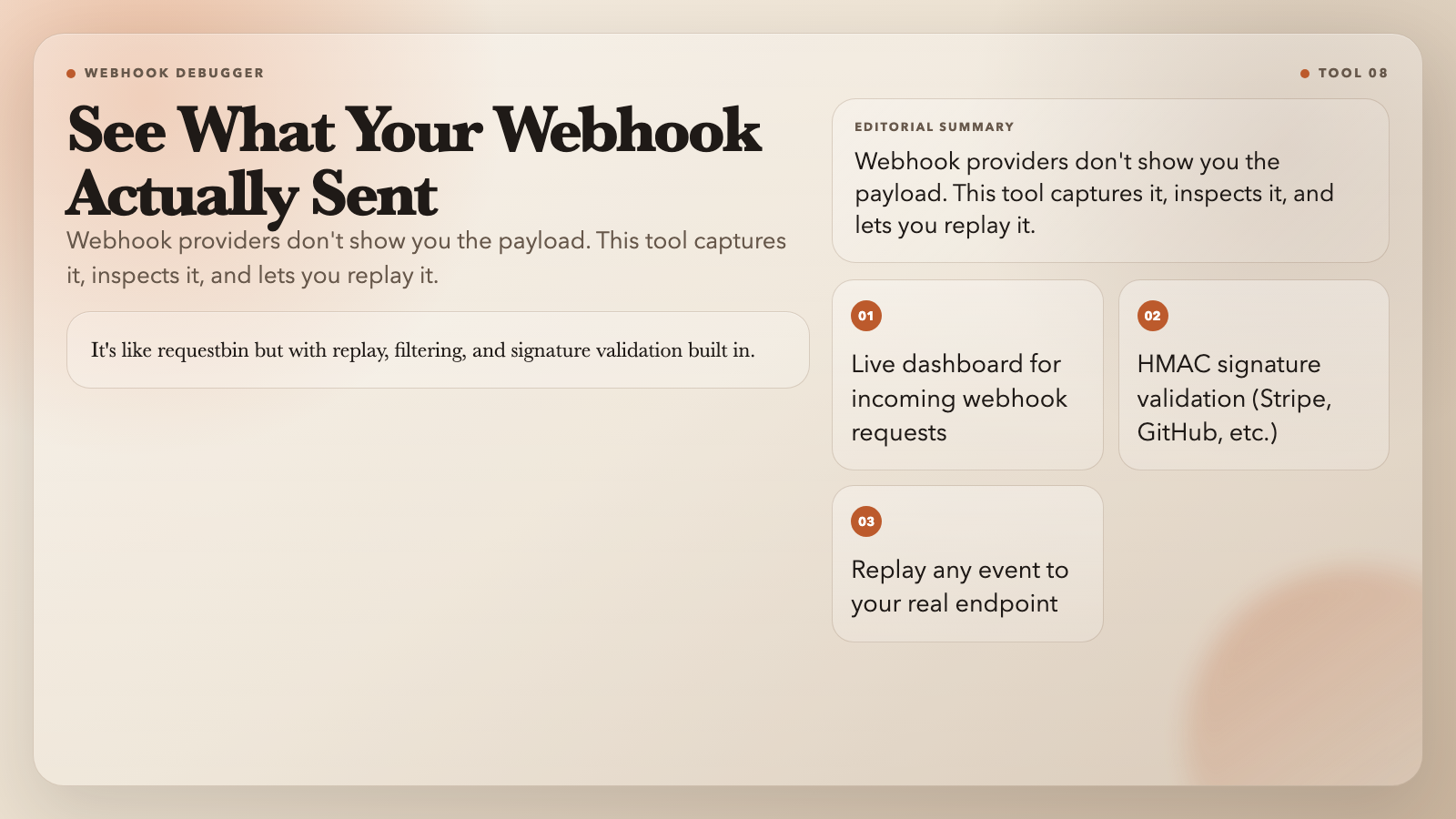
The Webhook Debugger & Relay generates a unique capture URL you can give to any webhook provider. Incoming requests appear in a live dashboard where you can inspect headers, body, signature validity, and timing. You can replay individual requests to your real endpoint, filter by HTTP method or body content, and configure automatic relay so verified requests forward automatically after inspection.
Why it matters: Webhook debugging is notoriously painful because the sender controls timing and payload. This tool puts you in the middle—you control the URL, you decide what gets relayed, and you can replay any event as many times as you need. It’s like `requestbin` but with replay, filtering, and signature validation built in.
Signature validation is the key feature: Paste your webhook secret, set the header name (`stripe-signature`, `x-hub-signature-256`, etc.), and the dashboard validates incoming signatures automatically. This tells you whether a request is actually from the provider or an injection attempt.
The Stack Behind the Stack
These eight tools answer questions that are quick to ask but painful to resolve without the right instrument. Network debugging traditionally requires a full toolkit—Wireshark, `nmap`, `dig`, `netstat`, a cloud console. These tools run anywhere with a browser and require nothing to install.
Not everything belongs in the browser. Deep packet analysis still needs Wireshark. Comprehensive port scanning still needs `nmap`. But for the first question—”is this port open?”, “did DNS update?”, “what did that webhook actually send?”—a browser tab is often all you need.
Bookmark https://elysiatools.com/en/categories/network and use it the next time you’re staring at a network problem with no clear next step. The answer is usually a click away.