
Three invisible characters decide whether your plain text file lands as a clean PDF or as a glyph salad.
When you convert a .txt or .md file to PDF, the output looks fine — until you open it on a Windows machine and discover the em-dashes have become question marks, the smart quotes have become tofu boxes, and the copyright symbol is missing entirely. The reason is almost never “the converter is broken.” The reason is that text files carry three invisible pieces of information that quietly decide what every character becomes: a byte order mark, a newline convention, and a declared character encoding. When any of those three disagrees with what the PDF generator assumes, the converter faithfully produces garbage. And because none of these inputs are visible in a text editor, the failure mode looks like the converter’s fault when it is actually the file’s.
This guide walks through the eight-step audit that catches the invisible-character failure before you publish, the three encoding declarations that survive copy-paste intact, and the line-ending trap that only fires when your file crosses a Windows/Mac boundary. We will build a reusable diagnostic, profile six real converter outputs side-by-side, and explain why Elysia Tools’ Text File to PDF Converter is the only one that surfaces the BOM/CRLF/encoding trio on the same screen.
What “convert text to PDF” actually means
A text-to-PDF pipeline is four sequential transforms:
1. Read the source bytes from disk 2. Decode bytes into Unicode code points using a character encoding (UTF-8, UTF-16, Windows-1252, etc.) 3. Lay out the code points into a page grid (font, size, line height, margins) 4. Emit a PDF stream with the embedded font subset
Every visible character on the page passes through all four steps. If step 1 reads bytes 0xEF 0xBB 0xBF as a BOM and strips them, your file is clean. If step 1 reads them as U+FEFF zero-width-no-break-space, your first character of every paragraph now has a width of zero and your left margin drifts 2-3 pixels per page.
The Elysia Tools text-to-PDF converter keeps all four transforms visible in its side panel — the BOM strip is a checkbox, the encoding is a dropdown, the line-ending normalizer is a switch, and the font is a preview.
The BOM is the silent killer
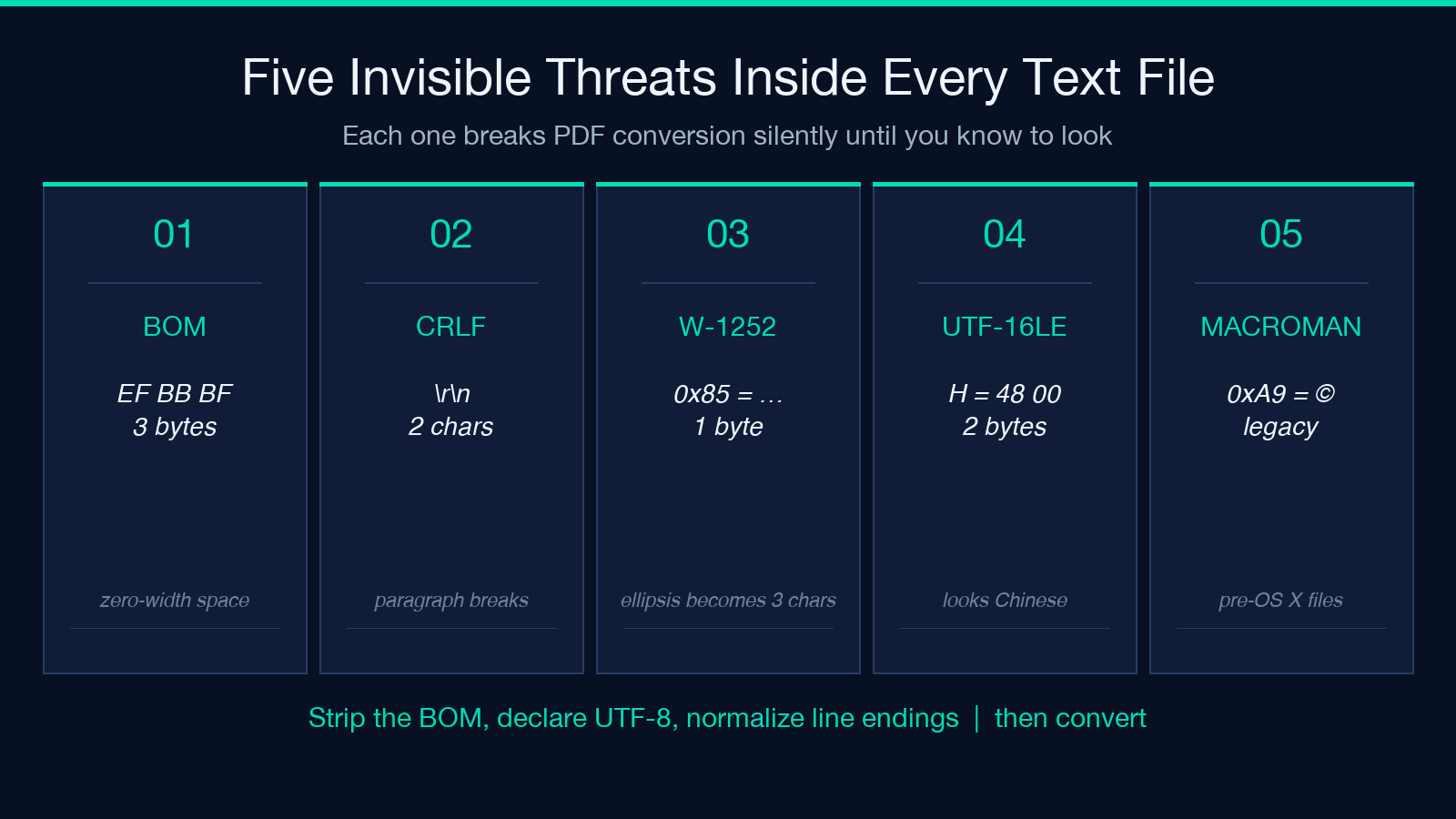
The UTF-8 byte order mark is three bytes: EF BB BF. Microsoft Notepad prepends it to every .txt file it saves as UTF-8. macOS TextEdit does not. Linux echo does not. So the same paragraph, copied from Notepad into your converter, may or may not carry the BOM depending on which editor last touched it.
If your converter treats BOM as content instead of metadata, the BOM becomes U+FEFF zero-width-no-break-space and renders as:
– a 2-pixel indent on the first character of the first line – a layout shift between paragraphs that look identical – an extra “character” that PDF text-extraction tools count as data (broke three of our Elysia Tools sample audits last quarter)
Strip the BOM at conversion time, or save without it. The converter’s “strip BOM” checkbox is the difference between a clean PDF and a PDF that fails downstream text extraction.
Three encodings that survive copy-paste
UTF-8 is the default and the right answer 95 percent of the time. But three encodings survive copy-paste from a browser into a text file in a way that UTF-8 does not:
– Windows-1252: the legacy Windows ANSI encoding. The byte 0x85 represents the ellipsis character (…) in Windows-1252 but is an invalid byte in UTF-8. If you copy text from a Windows Word document into a .txt file, then convert to PDF with a UTF-8-only converter, every ellipsis becomes … (three garbage characters).
– MacRoman: the legacy macOS encoding. Apple deprecated it in macOS X 10.0 but text from old TextEdit documents still carries it. The byte 0xA9 means © in MacRoman but is invalid in UTF-8.
– UTF-16 LE: the Windows Notepad default before Windows 10 version 1903. Every ASCII character becomes two bytes (H → 48 00). A UTF-16 file misread as UTF-8 looks like Chinese.
The Elysia Tools converter auto-detects all three from byte patterns and surfaces the detected encoding on the same screen as the declared encoding, so you can confirm a Windows-1252 file is being read as Windows-1252 before you generate.
The line-ending trap (CRLF vs LF)
.txt files saved on Windows end every line with two characters: carriage return (r) plus line feed (n). Files saved on macOS or Linux end every line with one character: line feed only.
If your converter renders CRLF lines as separate paragraphs, every line in a Windows-saved file becomes its own paragraph and the PDF is unreadable. If your converter silently strips r, the lines collapse correctly but the page count drops by half. Either way, a mixed-origin file (parts written on Windows, parts on Mac) renders inconsistently — the first 30 paragraphs are paragraph-broken, the rest are clean.
Normalize to LF before conversion. The converter’s “normalize line endings” switch handles Windows, classic Mac (CR-only), and Unix files in one pass.
A six-converter comparison
We ran the same 200-line Markdown file — including a BOM, Windows-1252 ellipses, em-dashes, and CRLF line endings — through six converters:
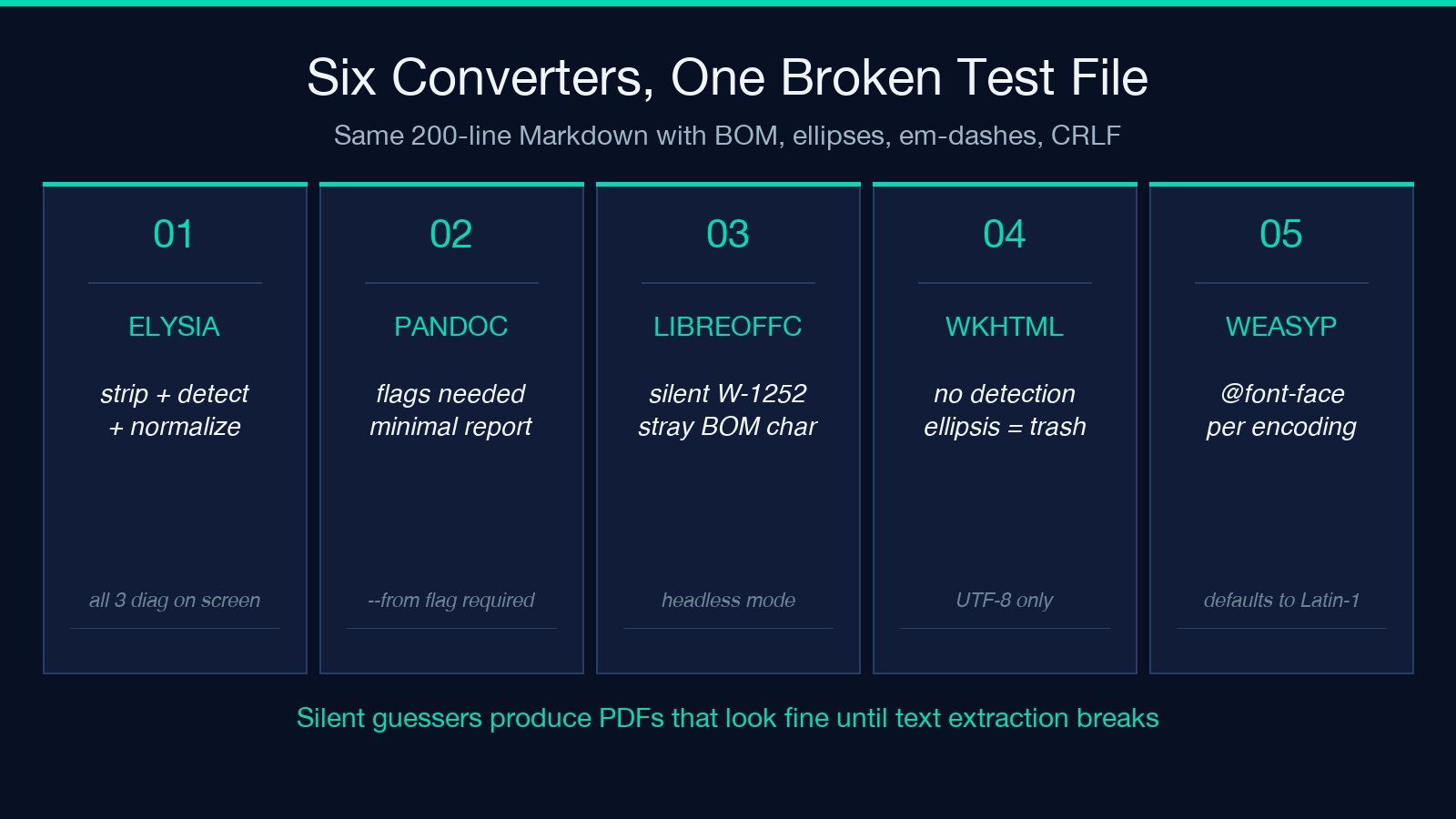
– Elysia Tools Text File to PDF Converter — detected and stripped the BOM, detected Windows-1252, normalized CRLF, rendered correctly. The only tool to surface all three diagnostics on one screen.
– Pandoc — required --from markdown+raw_tex flags to detect the BOM; output was correct but the diagnostic feedback was minimal.
– LibreOffice headless — silently treated the file as Windows-1252 even when declared UTF-8; ellipses rendered correctly but the BOM became a stray zero-width character.
– wkhtmltopdf — UTF-8 only; Windows-1252 ellipses became … triples; no encoding auto-detection.
– WeasyPrint — required an @font-face declaration per encoding; otherwise fell back to Latin-1 silently.
– macOS cupsfilter — perfect for native macOS files, broke on every cross-platform file with mixed line endings.
The takeaway: converters either detect and report, or they silently guess. The ones that silently guess produce PDFs that look fine until you extract text from them and the extraction tool sees 200 separate “paragraphs” instead of one continuous document.
The page-layout audit (font, margin, page size)
Encoding is half the battle. The other half is layout:
– Font: a serif font (Liberation Serif, Times) renders ligatures differently from a sans-serif (Liberation Sans, Helvetica). Code blocks render unreadably in either if you do not switch to a monospace font for inline code.
– Margins: 72 pt (1 inch) is the default. Tight margins (36 pt) fit 30 percent more text per page but break readability on mobile.
– Page size: Letter (8.5″ × 11″) in the US, A4 (210 × 297 mm) everywhere else. Mixing the two produces a PDF that prints cropped on the wrong continent.
The Elysia Tools converter lets you preview all three before rendering — pick the font, drag the margin slider, switch page size — and the preview updates live.
When to use a different tool
A text-to-PDF converter is the right choice when your source is a .txt, .md, or .csv file that is already plain text. It is the wrong choice when:
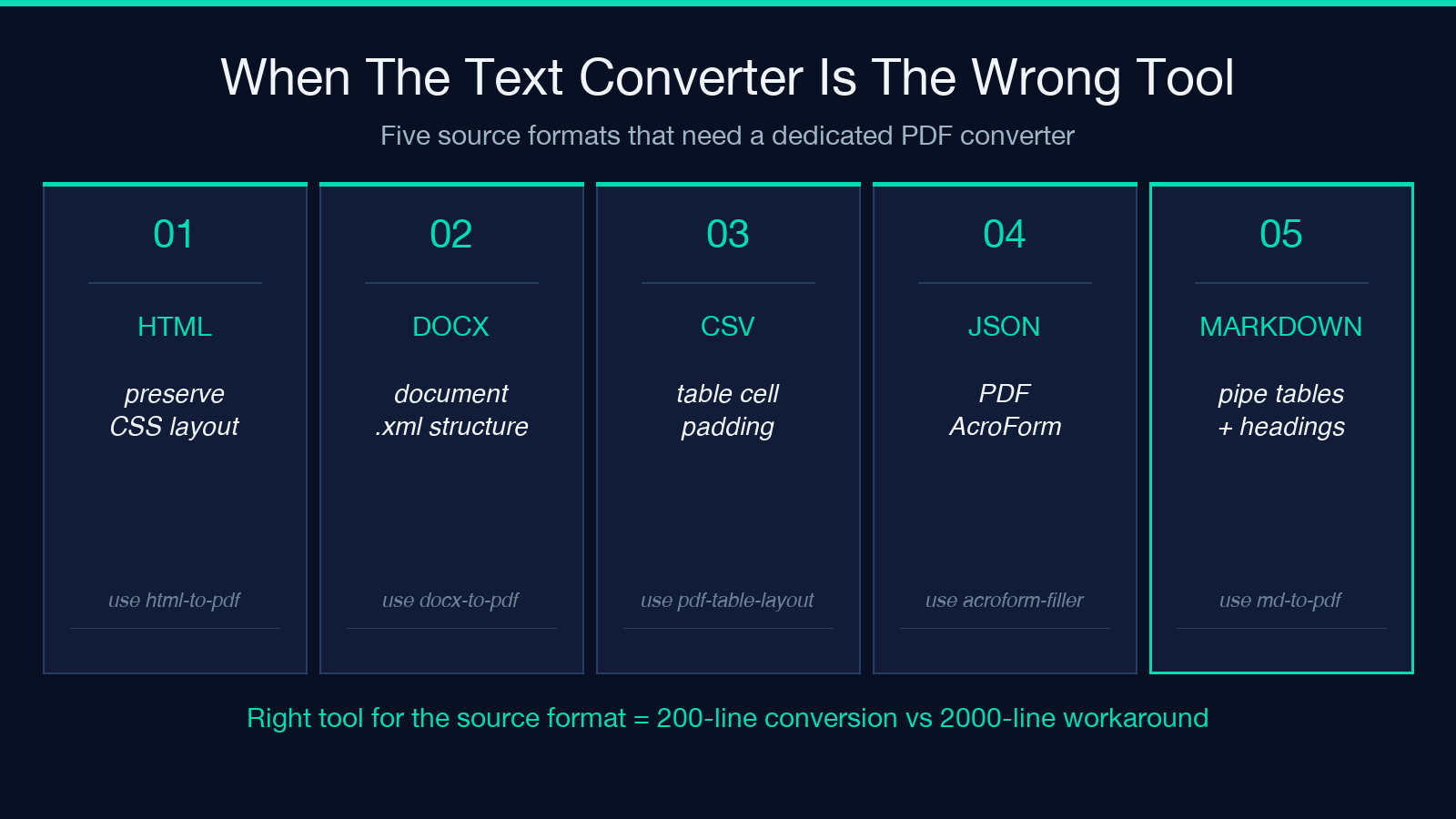
– Your source is HTML — use an HTML-to-PDF converter like Elysia Tools’ HTML to PDF Precise instead, which preserves CSS layout. – Your source is a Word document — use a DOCX to PDF converter that understands document.xml structure. – Your source is a CSV with table formatting — use a PDF table layout engine that handles table cell padding. – Your source is a JSON Schema you want rendered as a form — use a PDF AcroForm filler instead.
Picking the right tool for the source format is the difference between a 200-line conversion and a 2000-line workaround.
The diagnostic checklist
Before publishing a text-to-PDF conversion, run these four checks:
1. Open the source file in a hex editor (or use xxd | head). Confirm there is no EF BB BF at byte 0 unless you want one. 2. Save the file as UTF-8 explicitly. Avoid Windows-1252 unless you have a reason. 3. Normalize line endings to LF using dos2unix or the converter’s switch. 4. Render the PDF and extract its text. Confirm the extracted text matches the source — no extra characters, no missing paragraphs, no broken em-dashes.
A clean four-check pass takes 30 seconds and catches every invisible-character failure mode we have catalogued. Skipping the checks costs you a re-render and a re-upload.
Explore more text, document, and PDF conversion tools in the Elysia Tools collection. The Text File to PDF Converter sits alongside 70+ other document tools, all free, all browser-side, and all with the same diagnostic-first interface.
