
Strong close-first lead. Standard deviation sounds like the most rigorous spread metric you can compute, but it hides a trap the moment your data lives on different scales. A column of marketing-conversion percentages and a column of dollar-revenue per visitor can both have a standard deviation near zero and still describe radically different distributions. The Coefficient of Variation (CV) is the unit-free fix: divide the standard deviation by the mean and you get a relative spread that survives the scale change. This is the field guide to running CV correctly across CSV columns, reading the low/medium/high bands, and understanding when CV is the wrong metric entirely.
Why CV Beats Raw Standard Deviation for Cross-Column Comparison
Standard deviation is bound to the units of your data. A Sales_Amount column measured in dollars carries an SD in dollars; a Conversion_Rate column measured in percent carries an SD in percentage points. The two numbers cannot be compared directly, even when one is “obviously” smaller than the other. A column with mean $1,000 and SD $50 has tighter clustering than a column with mean 5 percent and SD 4 percentage points — but you cannot tell that from the raw SDs alone.
The Coefficient of Variation removes the unit by dividing SD by the mean. The result is a unitless ratio, conventionally expressed as a percentage. CV = (standard deviation / mean) × 100. Anything measured on a ratio scale can be put on the same CV axis.
This is why the Coefficient of Variation Calculator sits in the data-quality workflow right after the Standard Deviation Calculator check. The first pass tells you absolute spread; the CV pass tells you relative spread; together they tell you whether two columns are similarly noisy or just similarly scaled.
How to Read a CV Result: The Three Bands
CV values cluster into three practical bands that almost every analyst uses without thinking:
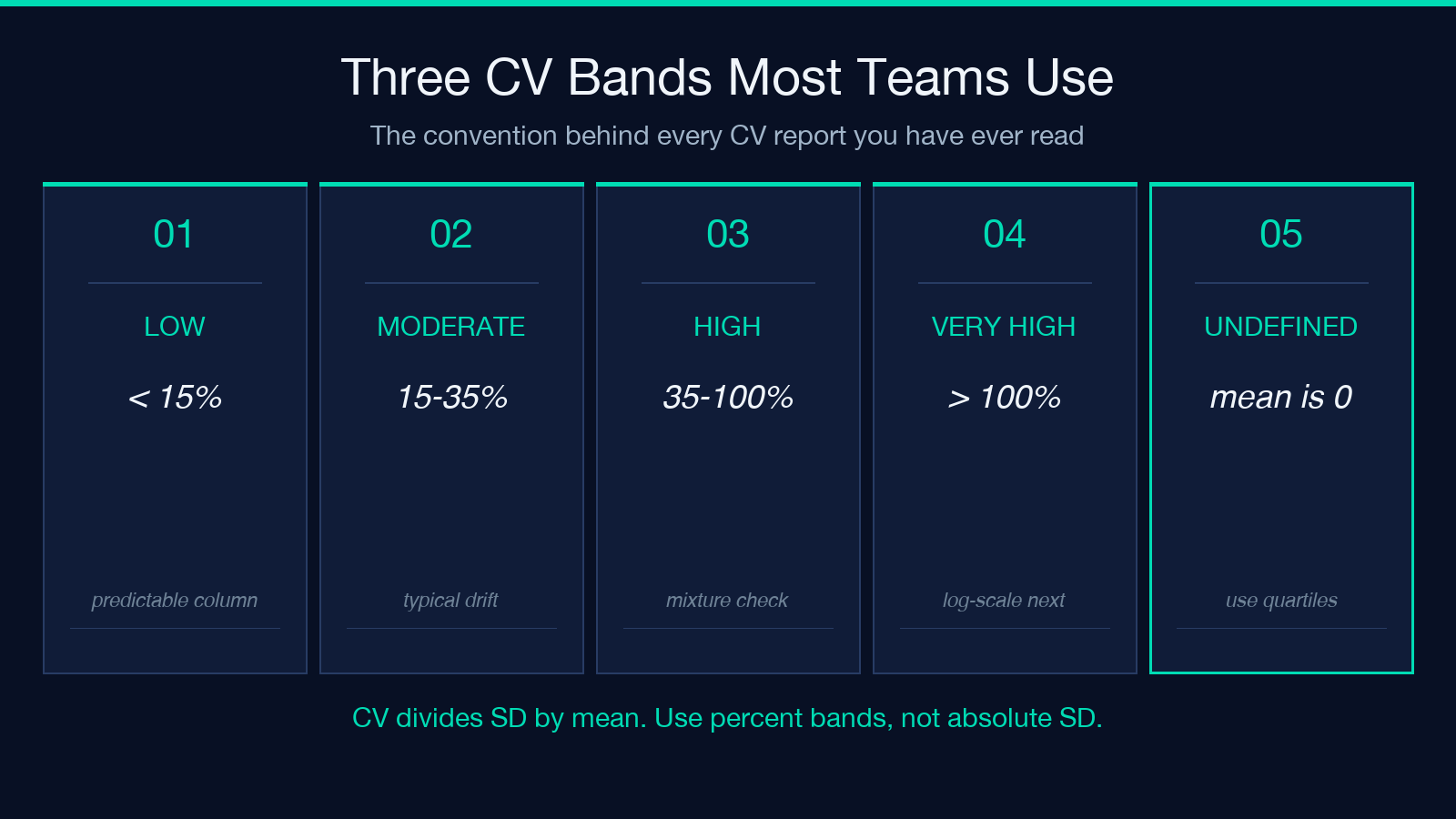
- CV < 15 percent — low variability. The column behaves predictably; one value predicts the next within a tight band.
- 15 ≤ CV < 35 percent — moderate variability. The column drifts, but is still usable for point forecasts; plan for material dispersion in tail segments.
- CV ≥ 35 percent — high variability. The column’s mean is a weak summary statistic; you need to look at percentiles, not averages, before making decisions.
The bands are conventions, not laws. A clinical lab might call anything above 10 percent “high” because biological samples drift. A marketing dashboard might tolerate 50 percent on a campaign-conversion column because campaigns naturally swing. The point is to know which band you are in before you read the mean.
When CV Is the Wrong Metric
CV divides by the mean. The mean appears in the denominator, which makes CV meaningless whenever the mean is near zero, negative, or genuinely zero. A column of temperatures in Celsius can drift through zero in winter; a column of profit-and-loss values crosses zero by definition for any business with losses. CV on these columns is undefined, near-infinity, or worse — silently misleading. The CV calculator returns NaN for these cases rather than pretend the calculation has a result.
If your column can carry negative values, fall back to the Quartile Calculator or Percentile Calculator — median and IQR are robust to negative values because they ignore the mean entirely. CV is a complement, not a replacement, for the robust-spread toolkit.
The Five Output Bands the Calculator Tags on Every Row
The calculator runs the CV calculation across every numeric column in the CSV, then tags each column with one of five result bands. Knowing what each band tells you saves a round-trip to the dashboard.
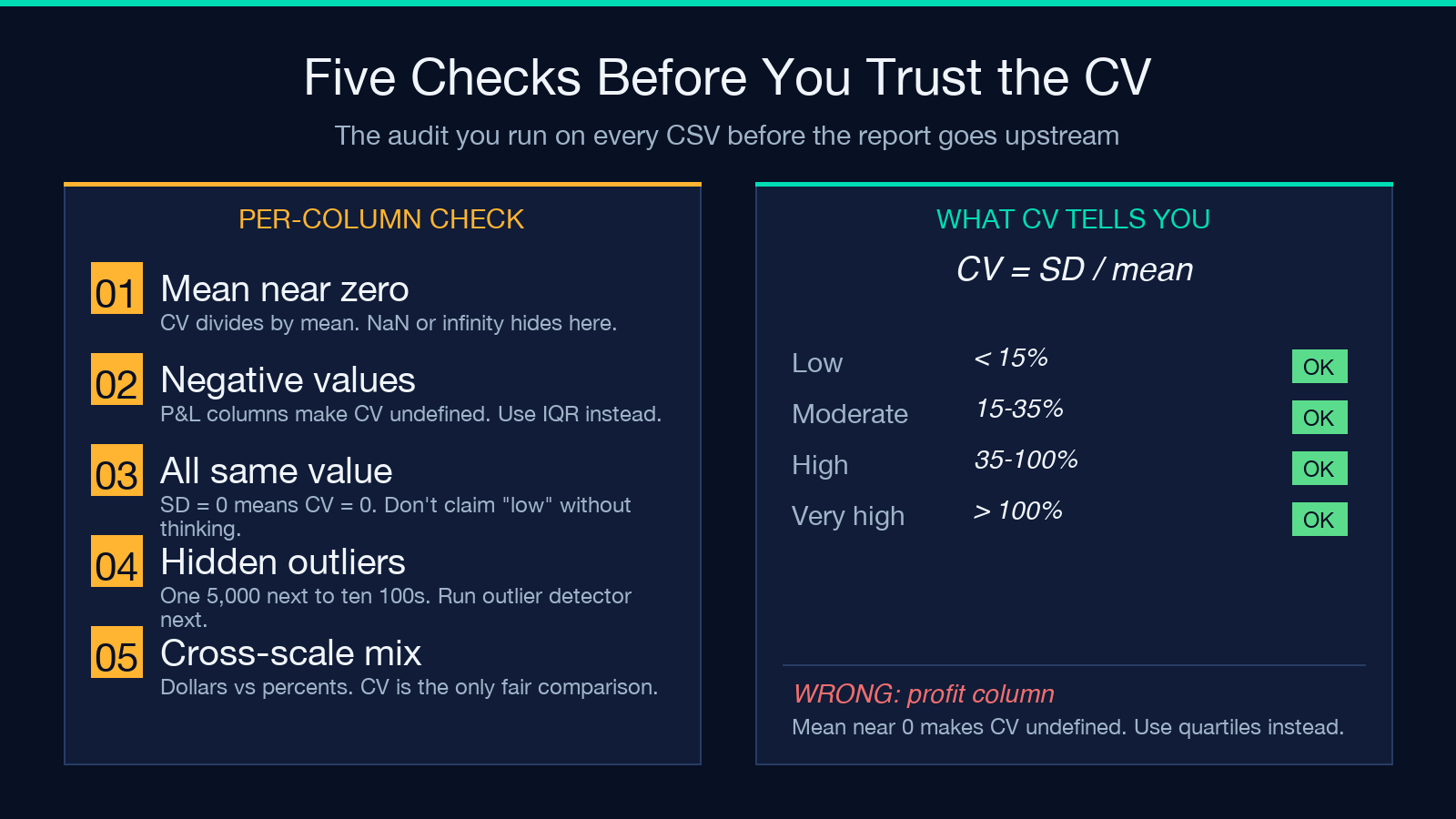
- Low (< 15%) — stable column; safe to summarize with mean and SD alone; outliers are likely true anomalies.
- Moderate (15 to 35%) — typical business data; means are useful but plan for tails; check percentiles before quoting the average.
- High (35 to 100%) — wide dispersion; report median and IQR alongside the mean; the column may be a mixture of two populations.
- Very High (> 100%) — the SD is larger than the mean; the mean is no longer a useful summary; switch to log-scale or percentile-based reporting entirely.
- Undefined (mean ≈ 0 or non-numeric) — CV is not defined here; the calculator returns NaN and excludes the column from the variability table.
Reading the CSV Input Format
The calculator accepts a CSV with headers in the first row. Numeric columns are auto-detected; you can pin a subset by listing column names in the optional “Columns to Analyze” field. Non-numeric columns are silently skipped. Missing values are counted and excluded from the per-column statistics — you get a count of missing values per column in the report output.
Three output formats are supported:
- Detailed Report — full per-column breakdown with mean, SD, CV, count, min, max, and missing-value count.
- Summary Table — column, mean, SD, CV percent, band. This is what most teams use for the dashboard.
- JSON Format — the same data as the Detailed Report, machine-readable, suitable for piping into a downstream pipeline.
A Worked Example: Why Two “Tight” Columns Are Not Equally Tight
Imagine a CSV with three columns:
Product,Sales_Amount,Conversion_Rate
A,1500.50,2.1
B,2300.75,1.7
C,890.25,3.4
E,1750.80,2.6
Running Standard Deviation Calculator on each column gives roughly:
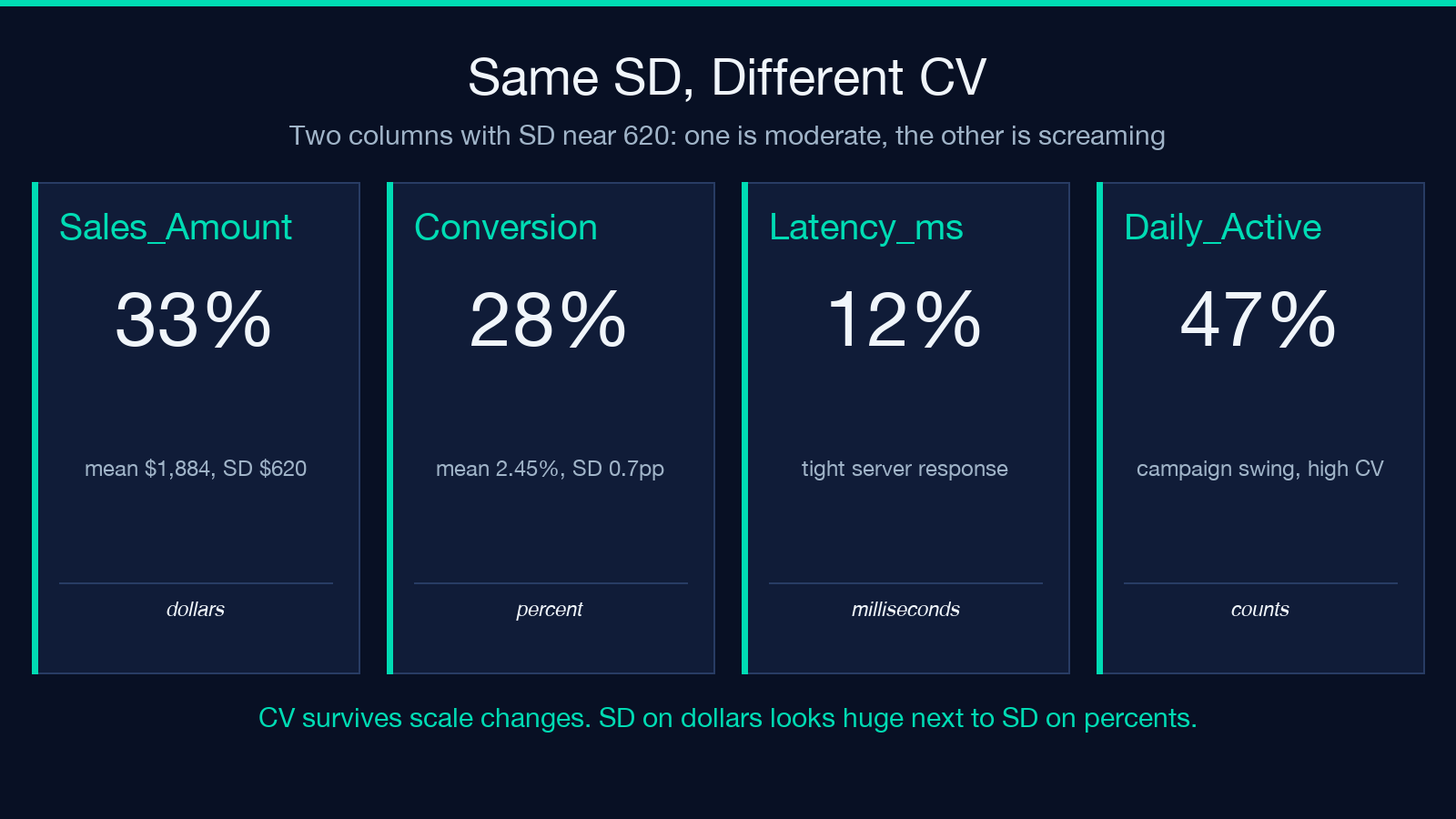
– Sales_Amount: SD ≈ $620 (mean $1,884) – Conversion_Rate: SD ≈ 0.7 percentage points (mean 2.45 percent)
The SDs are incommensurable. Running Coefficient of Variation gives:
– Sales_Amount: CV ≈ 33 percent (moderate) – Conversion_Rate: CV ≈ 28 percent (moderate)
The two columns are actually similarly variable in relative terms, even though the SD of Sales_Amount is hundreds of times larger numerically. Without CV, you would have flagged Sales_Amount as “more volatile” simply because of the units — a classic data-review trap.
When to Reach for Outlier Detection Instead
CV tells you how spread out the column is on average. It does not tell you whether the column contains a few extreme values dragging the SD upward. A column of nine values near 100 and one value at 5,000 will have a high CV even though nine of ten observations are tightly clustered. If the CV is high, the next check is the Outlier Detector with IQR or modified Z-score thresholds. CV is the alarm; outlier detection is the diagnosis.
Picking the Right Companion Tool
CV is one number from one column. Most reporting workflows need three or four metrics to actually describe the data:
- Mean and SD — the Standard Deviation Calculator.
- Quartiles and IQR — the Quartile Calculator.
- Percentiles — the Percentile Calculator.
- Outliers — the Outlier Detector.
- Z-scores — the Z-Score Calculator when you need to flag observations against a known distribution.
Run CV first as a triage, then drill into the column with whichever spread metric fits the data shape. CV on its own is a screening tool, not a verdict.
CV is one of the few statistics that survives scale changes cleanly. If your reporting stack routinely mixes dollars and percentages, weights and counts, latencies and rates, running CV across the board before summary tables go upstream will catch unit-driven “volatility” that looks alarming but is really just unit math. Five minutes per dataset is usually enough.
Browse more variability and spread tools at elysiatools.com/en/tools.
