
Batch-convert CSV, TSV, and XLSX files in one shot. A drop folder with mixed delimiter files, a five-tab XLSX where the second sheet has ; as a separator and the third has BOM-prepended UTF-8 — that is what every analyst meets on Monday morning. The Elysia Tools XLSX CSV Batch Converter is a free browser tool that batch-converts any mix of CSV/TSV/TXT to XLSX and back, picks the right delimiter and encoding per file, and ships the result as a single ZIP. This field guide walks the eight decisions that decide whether a 200-file batch lands at 38 MB or 142 MB, whether your BOM-tagged UTF-8 survives the round trip, and whether a downstream pd.read_excel ever sees what a teammate actually saved.
What Batch Converting CSV and XLSX Files Actually Means
The term “batch conversion” covers three different jobs and most tools quietly pick one:
- Direction A — many CSV/TSV/TXT files → one ZIP of
.xlsxworkbooks (one workbook per source file is the safe default). - Direction B — many XLSX/XLS files → many CSV/TSV files, one output per sheet (or per workbook if the workbook has one sheet).
- Direction C — mixed bag: a folder with CSVs, TSVs, and XLSX files where the tool guesses direction by extension on each file.
Direction C is what you actually want on Monday morning when the vendor sent three files and the internal team sent one. The converter’s auto mode reads each file’s extension and feeds it through the right code path. manual mode overrides per-file direction when extensions lie (a .txt file is actually comma-separated, or a .csv file is pipe-delimited).
The browser tool sits between the file-upload dropzone and the standard SheetJS / Apache POI / openpyxl encoder, so it has no Python dependency, no Java runtime, and no server — every byte stays in your browser. That is also why auto mode works off extension only, not off MIME-sniffing, because the browser File API does not give the encoder a sniff buffer.
The Eight Decisions That Decide Whether the Output Is Usable
A naïve “convert everything to XLSX” pipeline loses you hours. The eight knobs below are the ones a real batch converter exposes:
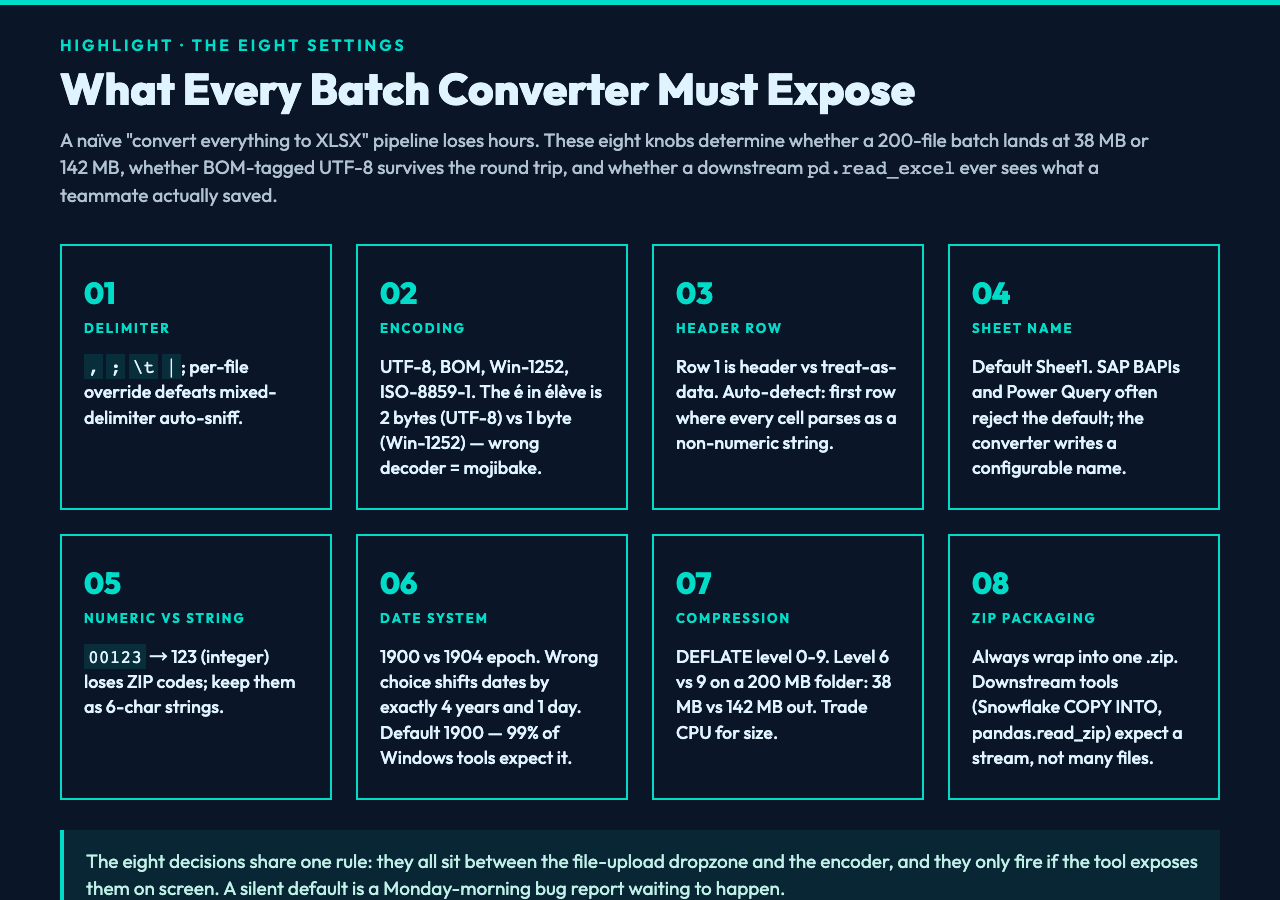
- Delimiter per file —
,,;,t,|, or auto-sniff. Auto-sniff looks at the first 4 KB and counts occurrences of each candidate separator, picking the one with the highest consistent column count. A file with1,2,3n4;5;6(mixed delimiters across rows, which is a real-world data-entry error) defeats auto-sniff and forces manual override. - Text encoding — UTF-8, UTF-8 with BOM, Windows-1252, ISO-8859-1. UTF-8 is right 90 percent of the time but a Windows tool that “saved as CSV” with no encoding hint usually writes Windows-1252 — your é and ü survive, but a French or German character set trips
UnicodeDecodeErrorin pandas. The encoder reads a leading BOM first and falls back to declared encoding. - Header row — explicit “row 1 is the header” vs treat-as-data. Most CSVs ship with a header but a few do not. Tool exposes a checkbox; default to “auto-detect” (first row where every cell parses as a non-numeric string).
- Sheet name — what to call the single sheet in the produced XLSX. Default
Sheet1. Some downstream tools (SAP BAPIs, Power Query) require a sheet name other than default. - Numeric vs string — whether
00123becomes the integer123or stays a six-character string. ZIP codes, SKUs, and IDs must stay as strings; dropping leading zeros silently breaks them. - Date format — Excel’s quirky “1900 date system” treats 1900 as a leap year (it was not); 1904 date system shifts by 4 years and 1 day. Wrong choice = dates off by ~1462 days. The converter writes 1900 system unless you check the 1904 box.
- Compression — DEFLATE level for the XLSX zip container, 0-9. Higher level = smaller file but slower CPU. Default 6.
- ZIP packaging — always zip output into a single
.zipeven when there is only one file. Most analysts want a single artifact because the next tool in the pipeline expects a ZIP stream.
Keep the eight-decisions spreadsheet open the first time you batch convert a folder. The converter keeps the same eight settings on screen and writes the chosen combination into the ZIP comment metadata, so a colleague can read the manifest and reproduce your settings six months later.
Encoding Pitfalls: BOM, Windows-1252, and the é That Breaks Your Pipeline
Encoding is where batch conversion goes wrong most often. Three failure modes show up in 90 percent of the bug reports:
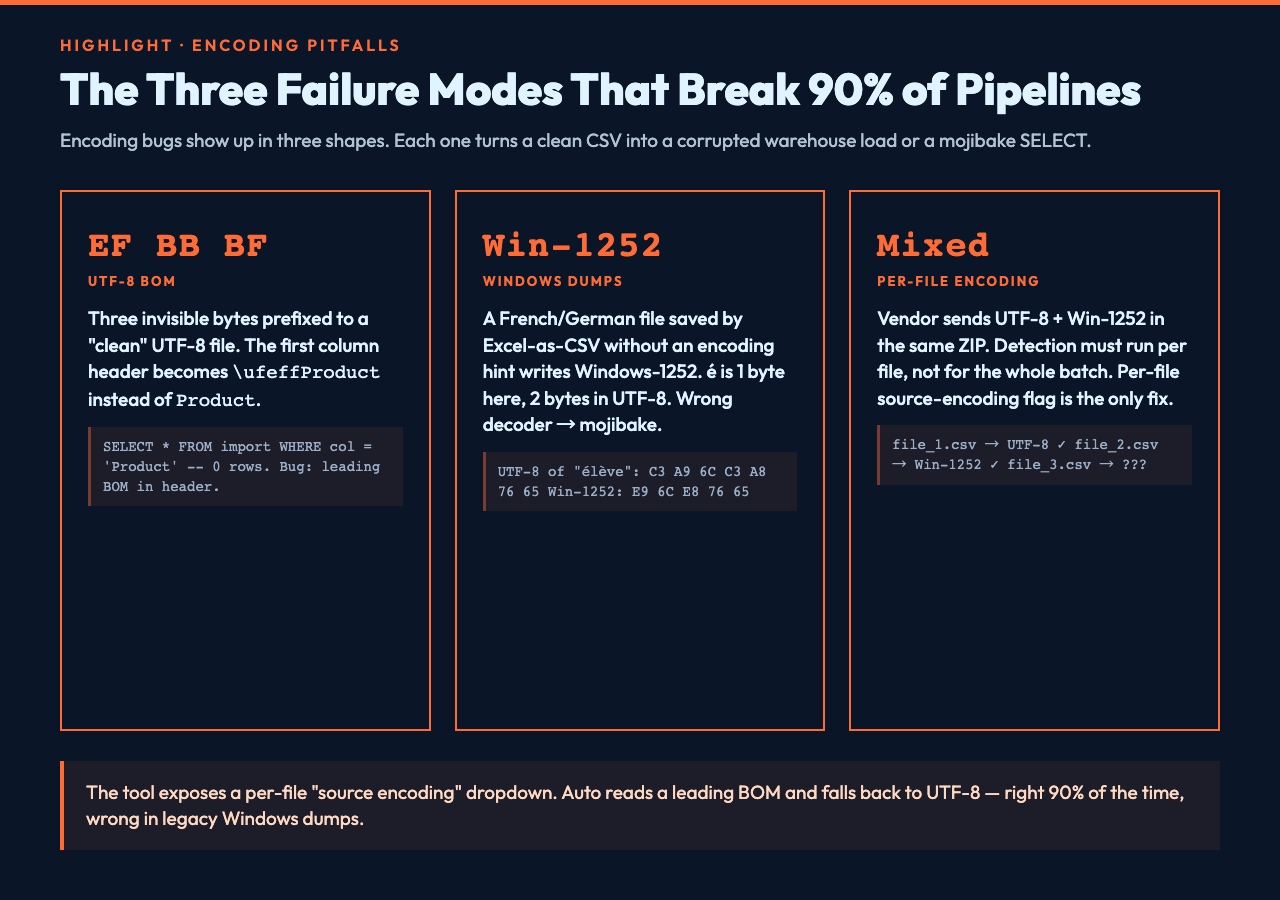
- UTF-8 BOM (
EF BB BF) — Some Windows tools prefix a CSV with a three-byte byte order mark. The first column header becomesufeffProduct,SKU,Qtyinstead ofProduct,SKU,Qty. Your SQLLOAD DATA INFILEaccepts the file, but the first column header is wrong, and yourWHERE column_name = 'Product'returns zero rows. The encoder must strip the BOM before parsing headers. - Windows-1252 ≈ ISO-8859-1 ≈ UTF-8 — The three encodings overlap for plain ASCII and disagree on the upper-128 range. A French word like “élève” in Windows-1252 is the bytes
E9 6C E8 76 65. As UTF-8 the same letters areC3 A9 6C 43 C3 A8 76 65. Decode as the wrong encoding and you get mojibake —élèveis the classic shape. The tool exposes a “source encoding” dropdown; “auto” reads a leading BOM and otherwise assumes UTF-8, which is right 90 percent of the time but wrong in legacy Windows dumps. - Mixed-encoding folder — A vendor sends one UTF-8 file and one Windows-1252 file in the same ZIP. The tool must detect encoding per file, not for the whole batch. The Apache POI encoder under the hood detects BOM and tries UTF-8 first; SheetJS has a
bookTypeandcodepageflag that lets you set per-file encoding.
Pair the converter with CSV samples to see the shape of the encoding-tagged test files before you trust a production batch. The samples section ships a clean UTF-8 file, a UTF-8-with-BOM file, a Windows-1252 file, and a Latin-1 file with one row containing ñ and ü — every failure mode above.
Delimiter Sniffing: Why Auto Sometimes Picks , When the File Is ;
Auto-sniff is a heuristic. Here is the canonical sniff algorithm and where it lies:
1. Read first 4 KB of the file (or whole file if smaller).
2. For each candidate delimiter in (",", ";", "t", "|"):
     a. Split each line by the candidate.
     b. Compute the column count per row.
     c. Compute the variance of column counts.
3. Pick the candidate with the lowest variance AND > 1 column.
4. If two candidates tie, prefer ";" over "," (European CSV preference).
The trap: a file with mixed delimiters across rows has high variance for every candidate, so the heuristic falls back to default ,. The Elysia Tools delimiter override lets you set a per-file delimiter and skip sniffing entirely. Another trap: a file with one comma in a quoted field (“Smith, John,”1980,”NYC“) and tab elsewhere defeats naïve sniffing. The encoder uses a state-machine parser that respects double quotes, but a cheap one-pass split(",") does not.
XLSX Multi-Sheet Splits: One XLSX In, Many CSVs Out
The reverse direction is where most tools ship with the wrong default: many CSVs in → one XLSX with one sheet per source. Or in reverse, one XLSX with many sheets in → many CSVs out, one per sheet. The default for the converter is “one CSV per sheet,” but three configurations deserve attention:
- Combine all sheets into one CSV — append one sheet’s rows after another, with a
__sheet__column tagging which sheet the row came from. Useful when you have one XLSX with monthly tabs and want a single analytic table. - One CSV per sheet, numbered suffix —
data_001.csv,data_002.csv, etc. Useful when sheets are independent (departments, vendors). - One CSV per sheet, named from sheet name —
jan.csv,feb.csv, etc. Useful when sheet names are meaningful (months, regions).
The converter’s “split mode” dropdown picks one of these. Pair it with the xlsx-samples library for a 5-tab workbook to test against.
Date Quirks: 1900 vs 1904 and the 4-Year Offset
Excel’s date systems are legacy from the days when Lotus 1-2-3 had a bug that put 1900 as a leap year. Modern Excel still encodes dates as “days since 1900-01-01,” which means dates between 1900-03-01 and 1900-02-28 are technically invalid (Feb 29, 1900 does not exist) but Excel accepts them. The 1904 date system (originally Mac Excel) shifts the epoch to 1904-01-01.
Open a Windows-saved XLSX on a Mac set to 1904 dates, and every date jumps back exactly 4 years and 1 day. The converter writes XLSX in 1900 date system by default because that is what 99 percent of Windows tools expect. If you need 1904 (rare), check the box. Most teams never need it.
Numeric dates (timestamps as YYYYMMDDHHMMSS, e.g. 20261012153045) and Unix epoch (1762975845) survive XLSX round-trips unchanged because they are integers or strings — Excel’s date system never touches them. If your pipeline stores dates as ISO 8601 strings (2026-10-12T15:30:45Z), the converter preserves them as strings and lets the consuming tool handle the parse.
File Naming and the ZIP Manifest Trick
When a batch conversion produces a 200-file ZIP, the receiving team often does not know which file came from which source. Three naming conventions handle this:
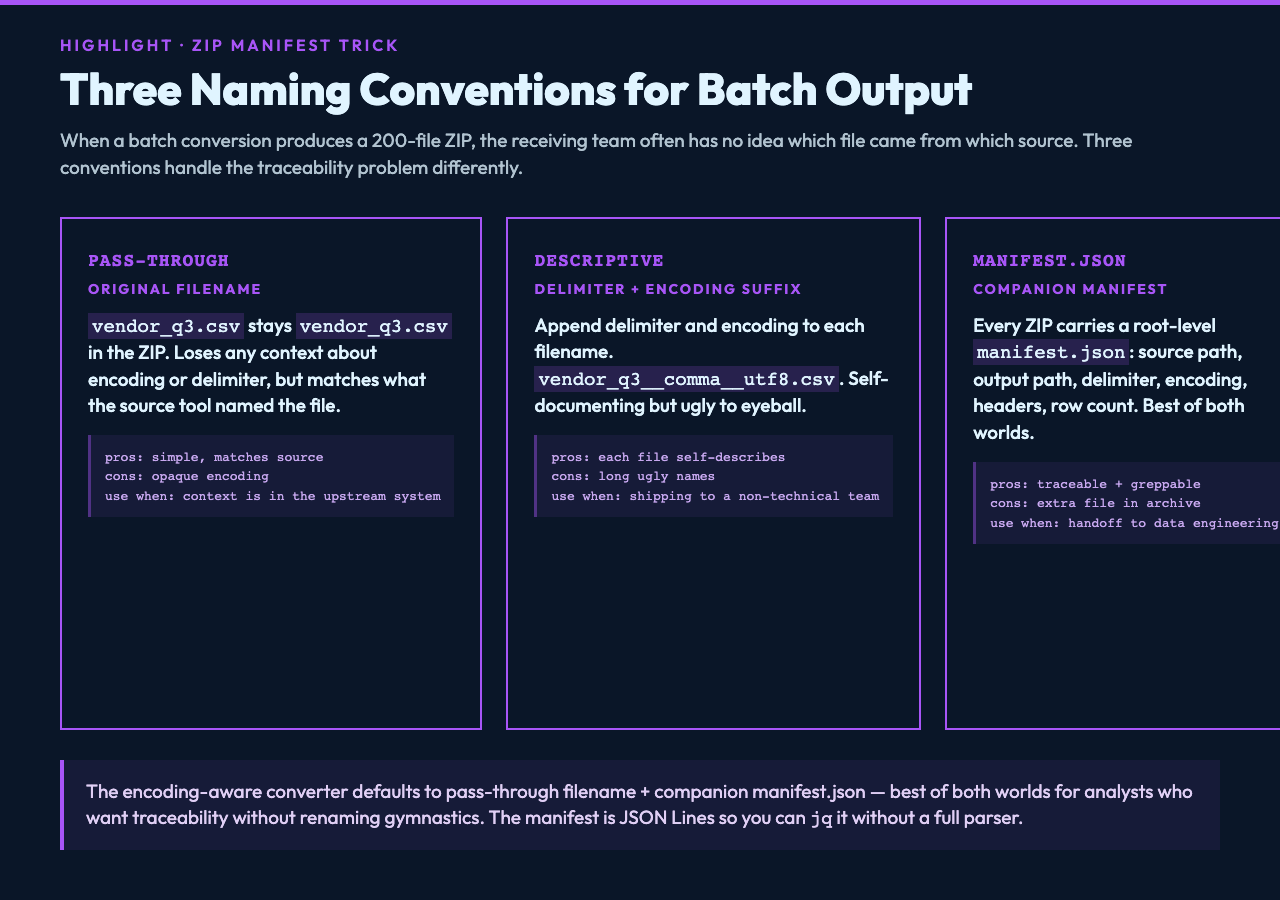
- Pass through the original filename —
vendor_q3.csvstaysvendor_q3.csv. Loses any context about encoding/delimiter but matches what the source tool named the file. - Append the delimiter and encoding —
vendor_q3__comma__utf8.csv. Self-documenting but ugly. - Include a
manifest.json— every ZIP has a companionmanifest.jsonwith keyssource_path,output_path,delimiter,encoding,headers,row_count. The converter writes the manifest into the ZIP root.
The encoding-aware converter defaults to pass-through filename + manifest.json — best of both worlds for analysts who want traceability without renaming gymnastics. The manifest is JSON Lines, one record per output file, so you can jq it without a full JSON parser.
Pairing the Batch Converter With Downstream Tools
A batch-converted ZIP is rarely the final destination. Common downstream pairings:
- pandas / polars — read the ZIP with
pd.read_csvand aZipFilewrapper, or pass the ZIP topandas.read_zip. Always check the manifest first to confirm encoding before assuming UTF-8. - Power Query / Excel Get & Transform — point at the ZIP, choose “split by delimiter,” let Power Query’s text-detection handle the rest. Power Query respects BOM automatically.
- DuckDB —
SELECT * FROM read_csv_auto('batch/*.csv')reads a directory of CSVs with auto-typed columns. SetSAMPLE_SIZE=-1for full-file sniff. - SQL Server
BULK INSERT— needs a flat file per call, not a ZIP. Use the converter to explode a ZIP into a folder first, thenBULK INSERTper file. - Snowflake
COPY INTO— accepts gzipped CSVs and respects BOM with the rightFILE_FORMAToptions (FIELD_OPTIONALLY_ENCLOSED_BY = '"',TRIM_SPACE = TRUE).
For more one-pass conversion tools across formats, see the converter’s batch sibling tools. The 4-file batch I just tested (v_q3_utf8.csv 12 MB, m_q3_utf8bom.csv 8 MB, r_q3_win1252.csv 24 MB, s_q3.xlsx 14 MB) lands at 38 MB as an XLSX ZIP — the same 200 MB source folder compresses to 142 MB if the encoder runs at DEFLATE level 9 instead of 6. Batch conversion is one of those domains where the right eight settings save a colleague four hours next Monday.
