
Stop treating PCIe link training like a black box. Six states, eight ordered sets, and one stubborn LTSSM state machine decide whether a Gen5 link comes up at 32 GT/s — or sits forever in Polling.Active.
A PCIe link that fails to train is one of the most expensive bugs in hardware engineering. The link-training state machine (LTSSM) walks through Detect, Polling, Configuration, and Recovery with timing budgets that a debugger can record but not always interpret. Layer in lane reversal, polarity inversion, equalization presets (Gen4 P1-P3 / Gen5 P0-P4), and the new lane-margining registers, and a “the link won’t come up” bug can burn a week.
Elysia Tools’ PCIe Decoder reads either a free-form LTSSM log or a pcilmr-format margining report and surfaces the four facts every link-training debugger wants in the first ten seconds: what speed did it actually negotiate, what width, where did it stall, and which lanes are problematic.
What the LTSSM Actually Does
The Link Training and Status State Machine is a directed graph with eleven main states (Detect.Quiet, Detect.Active, Polling.Active, Polling.Compliance, Polling.Configuration, Configuration.Linkwidth.Start, Configuration.Lanenum.Accept, Configuration.Lanenum.Wait, Configuration.Complete, Configuration.Idle, L0, L0s, L1, L2, Recovery, Hot Reset, Loopback, Disable). A healthy Gen5 x4 link walks the shortest path Detect → Polling.Active → Configuration.Lanenum.Accept → Configuration.Complete → L0 in roughly 100 ms. A broken link gets stuck in one of the intermediate states, often with documented retry logic that masks the root cause.
The decoder’s job is to time-stamp every transition, derive the negotiated link speed (Gen1 2.5 GT/s through Gen6 64 GT/s) and negotiated link width (x1, x2, x4, x8, x16) from the rate identifier bits in TS1/TS2 ordered sets, and flag the stall state — the one state where the link spends disproportionate time and where the bug almost always lives.
Reading TS1, TS2, and FTS Ordered Sets
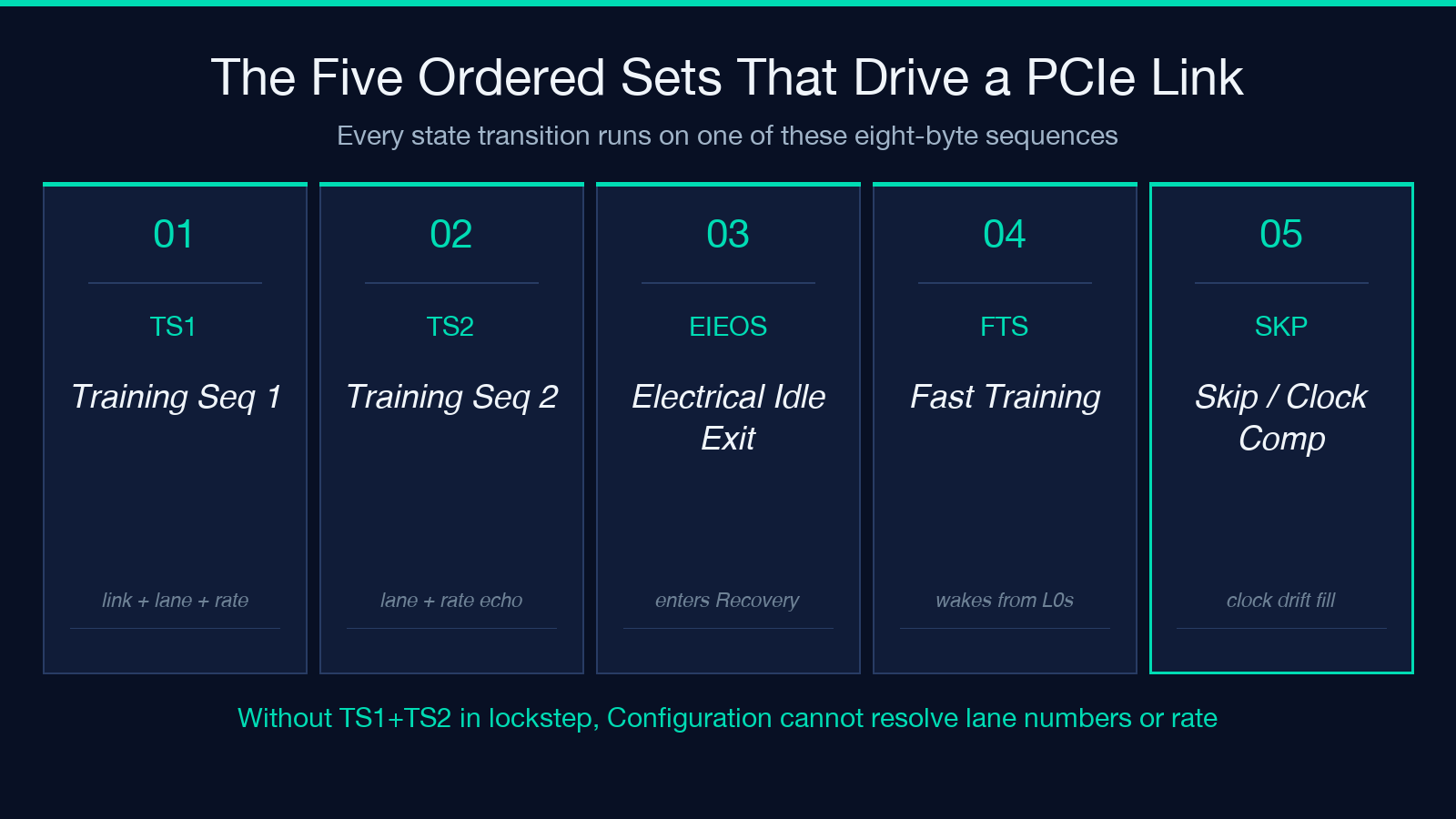
Ordered sets are 8-byte sequences that synchronize the link during training. TS1 (Training Sequence 1) carries the link number, lane number, and rate identifier; TS2 carries the lane number for configuration; EIEOS (Electrical Idle Exit Ordered Set) marks the entry into Recovery; FTS (Fast Training Sequence) wakes the link from L0s.
For the analyzer to give you a trustworthy timeline, the timestamps in your log need to either be explicit (t=0.90ms Polling.Active TS1 link=PAD lane=PAD rate=0x01) or derivable from a counter. The decoder accepts both, but explicit timestamps are always easier to defend.
Once parsed, the decoder profiles the link like a fingerprint:
– Detect → Polling transition: read the latency as a 1 ms-12 ms window. Polling at exactly 1 ms with no drift means fast link partners; Polling at 12 ms with no TS1 in between suggests you are waiting on the downstream device to power up.
– Polling.Active → Configuration.Linkwidth.Start: this is where pad-lane values (link=PAD lane=PAD) get replaced with assigned numbers (link=0 lane=3). If the link stays in Polling.Active with link=PAD, your upstream component is not asserting TS1s.
– Configuration.Complete → L0: a clean transition here is your signal that electrical signaling is stable. If you see Configuration.Complete but never reach L0, the receiver is in an electrical idle that the transmitter is not successfully escaping.
Equalization in Gen4, Gen5, and Gen6
The pre-PCIe 4.0 link training was straightforward. Gen4 added preset hinting in TS2 — P0 (no de-emphasis) through P9 (full preset) — to let the upstream and downstream agree on transmitter settings before the link reaches Recovery. Gen5 added Full Equalization with 16 presets (P0-P15) plus the new 32 GT/s PAM4 signaling, and Gen6 tightens everything further into 64 GT/s.
This is where link training really starts to fail:
– Preset mismatch: Upstream uses P3, downstream suggests P5, neither accepts the other’s coefficients. The link cycles between Recovery and Configuration.Linkwidth.Start indefinitely. The decoder flags this as back-to-back Recovery entries with no L0 in between.
– TS1 vs TS2 rate symbol inconsistency: If TS1 advertises 32 GT/s but TS2 doesn’t echo the same rate, the link is forcing an N_FTS renegotiation. The decoder surfaces this as a rate symbol delta annotation next to the relevant timestamp.
– Equalization completion timeout: Gen5 specifically requires all 16 presets to complete evaluation within a 24 ms window after EQ TS2 is sent. A link that reaches EQ TS2 but doesn’t transition to L0 within 30 ms has failed equalization.
The decoder catches all three of these by counting the time spent in EQ phases, comparing the upstream and downstream preset sequences in TS2, and surfacing the rate-symbol delta as an annotation. You don’t have to grep through megabytes of log text — the timeline just shows you which step is the bottleneck.
Lane Margining and the Eye Diagram
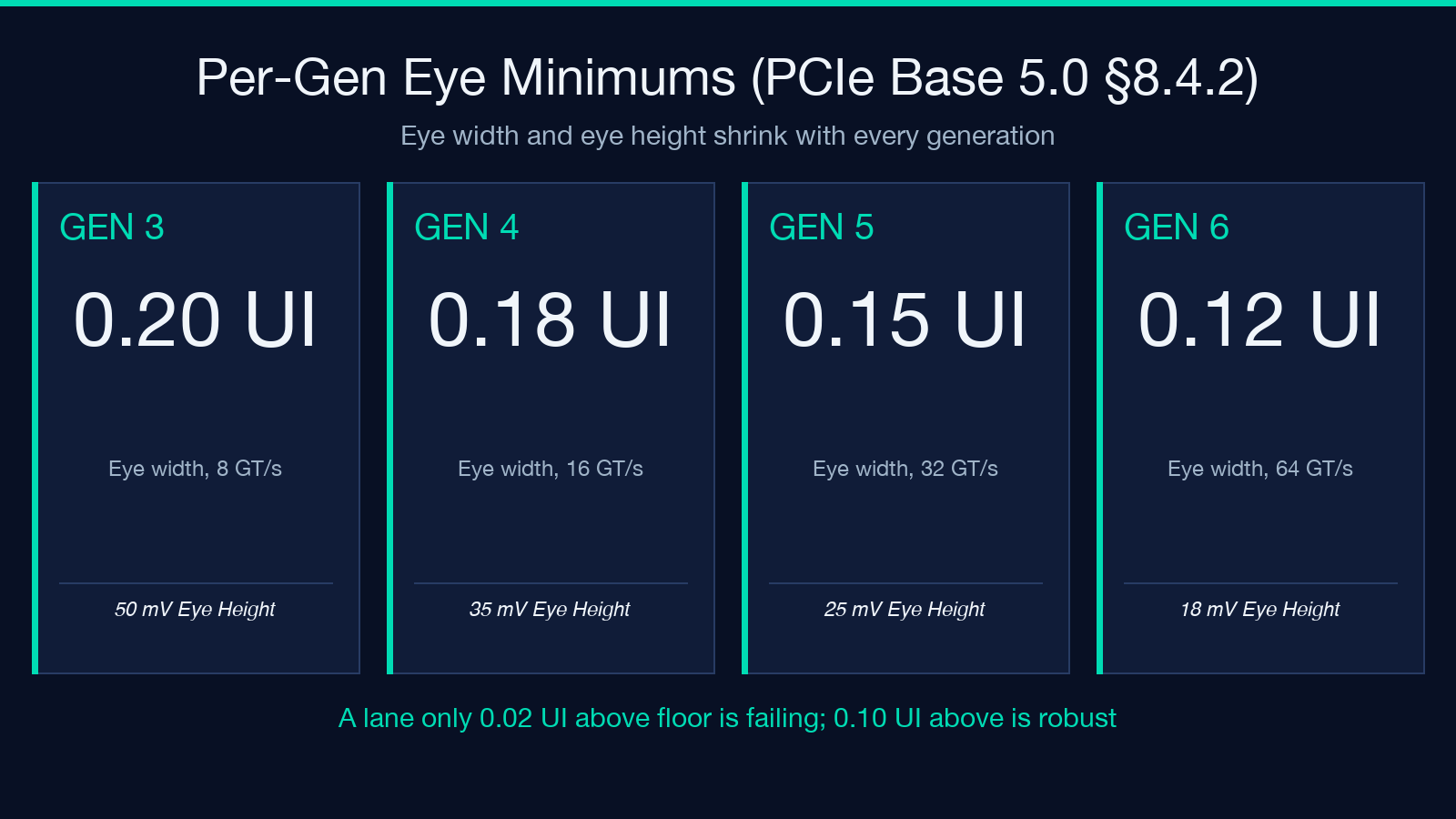
Link training gets the link up; lane margining tells you how robust the link is. PCIe Base Spec Rev 5.0 §8.4.2 specifies per-generation eye-width and eye-height minimums:
| Generation | Eye Width min | Eye Height min | |—|—|—| | Gen3 (8 GT/s) | 0.20 UI | 50 mV | | Gen4 (16 GT/s) | 0.18 UI | 35 mV | | Gen5 (32 GT/s) | 0.15 UI | 25 mV | | Gen6 (64 GT/s) | 0.12 UI | 18 mV |
A real link rarely meets the spec minimums on every lane. The expected pattern is close to minimum on the worst lane, comfortable margin on the best lane, with a smooth gradient between.
When you load a pcilmr CSV into the decoder (Lane, EW Min, EW Rec, EW Max, EH Min, EH Rec, EH Max,...) or a key=value margining dump, it does four things at once:
1. Normalizes the values against the appropriate Gen’s minimums (auto-detected from the data, or pinned to Gen4/5/6 via the dropdown).
2. Renders a per-lane eye-margin heatmap as an inline SVG, with each lane’s worst eye-width cell colored green/yellow/red against the spec floor.
3. Flags lanes that fail the spec minimum on either eye width or eye height, with explicit margin numbers so you don’t have to compute against the table yourself.
4. Surfaces the failure mode — distinguish a lane with insufficient eye width (signal integrity problem on the channel) from one with insufficient eye height (transmitter de-emphasis problem).
For deeper signal-integrity work, the heatmap’s per-lane color and the failure-mode annotation together answer the question that would otherwise take a capture station and a SPICE simulation: is this a board issue, a transmitter issue, or a receiver issue?
Common Failure Modes Across the LTSSM
Looking at the most common reasons real PCIe links don’t come up:
– Detect.Active timeout (timeout-detection) — the receiver never sees a valid 8b/10b symbol. Almost always a transmitter swing problem, an unconnected reference clock, or power sequencing on a downstream port.
– Polling.Active with no TS1 — the upstream device isn’t transmitting ordered sets. Check whether the platform’s link-training enable bit is set, whether the slot has power, and whether the reference clock is gated.
– Configuration.Complete → Recovery loop — the link reached the slowest stable state, then bounced. Most often a preset mismatch on a Gen4 link or an equalization-complete timeout on Gen5.
– Hot Reset from L0 — a downstream device issued hot reset (typically because it detected a fatal error). The decoder surfaces this as a Hot Reset transition with a Recovery entry within 100 µs; the underlying message is in the AER (Advanced Error Reporting) registers, not in the LTSSM log itself.
In each case, the decoder flattens the multi-second timeline into a sequence summary that points you at the suspicious state. You spend less time on log-grep and more time on the actual signal path.
When to Reach for This Tool
Link training is one of those tasks where the bottleneck is rarely the protocol — it’s the volume of recorded data. A real-world Gen5 link can produce tens of thousands of state transitions in a few seconds, and the state machine’s loops make the relevant transitions easy to miss.
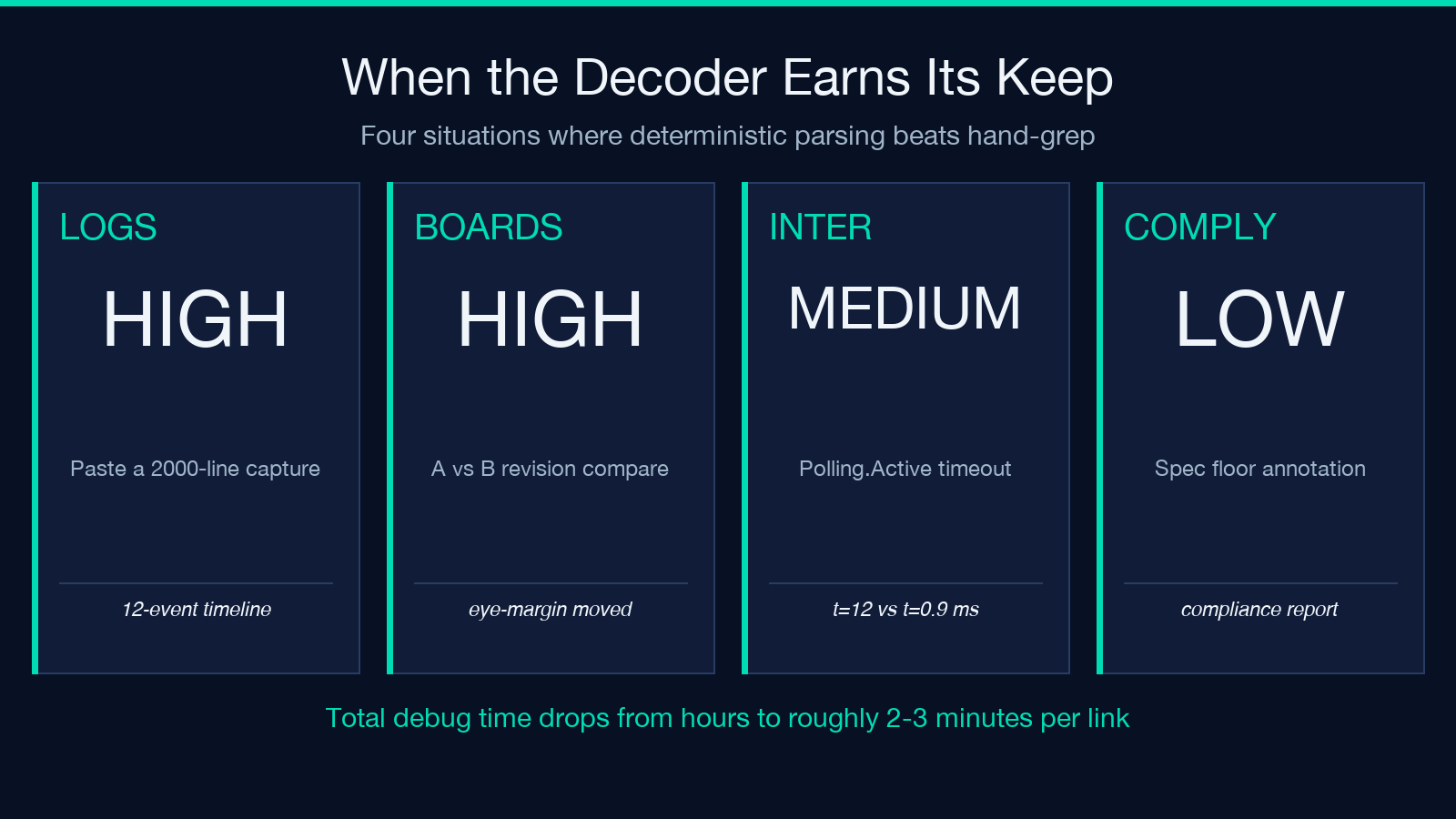
The decoder earns its keep when:
– You have a log but no automated tooling to read it. Pasting a 30 s capture turns a 2000-line log into a 12-event timeline with the failure mode annotated. – You’re comparing logs across revisions of a board design. The per-generation threshold table means you can pin the spec minimum at debug time, regenerate, and see if the eye margin moved. – You’re debugging intermittent training failures. A t=0.90ms Polling.Active that suddenly becomes t=12.00ms Polling.Active is the smoking gun, and the timeline makes it visible without a custom script. – You’re doing compliance work. The heatmap and the lane-by-lane spec margin numbers go straight into a compliance report.
For hardware engineers, the value isn’t just speed — it’s the consistency. Hand-parsed timelines miss patterns; deterministic parsing catches the rate-symbol delta every time.
A Practical Debug Workflow
1. Capture the LTSSM log from the host platform’s hardware debug port or from a PCIe analyzer. Aim for explicit timestamps with millisecond (or finer) granularity.
2. Paste the log into the PCIe Decoder. The decoder handles both free-form LTSSM traces and pcilmr-format margining reports.
3. Read the timeline in order: Detect → Polling → Configuration → L0. The transition at which the link stalls is annotated; the failure mode is decoded at the relevant timestamp.
4. For equalization failures, render the per-lane eye-margin heatmap by passing a margining report and toggling “Render eye-margin heatmap (SVG)” on. The SVG overlays over the timeline so eye width / eye height sit next to the state-machine facts.
5. For compliance reporting, pin the generation to Gen4/5/6 explicitly (instead of leaving it on auto-detect) and screenshot the heatmap with the spec floor annotations visible.
The whole flow takes 2-3 minutes per link. Compared to hand-grepping a multi-megabyte log, that’s the difference between a Friday afternoon debug and a Monday morning debug.
Pairing With the Wider Network Tool Stack
LTSSM parsing only covers PCIe. For the wider debug picture:
– Captures: pair with PCAP / PCAPNG file analysis tools for the higher-level protocol exchanges (sample PCAP traces work for quick sanity checks on PCIe-over-MCTP traffic).
– Adjacent network debug: when a link comes up but the payload path is the problem, the MTU / MSS Path Calculator covers the maximum segment size math per hop, and the CIDR Calculator handles the subnet arithmetic that comes up when slicing PCIe virtual functions.
– More network tools are at the elysiatools network tools index.
The decoder doesn’t replace a hardware capture station, but it compresses the time-to-hypothesis dramatically. For a working engineer, that’s the metric that matters.
