
A contact sheet is a print viewport, not a gallery. The moment you set the grid to 4 columns by 3 rows, every photo you drop in is scaled into a fixed 4:3 thumbnail box and cropped to fit. That one line of CSS decides what your client actually sees, and it is not the same decision your camera made when it framed the shot.
A Contact Sheet Is a Print Viewport, Not a Gallery
The PDF Photo Contact Sheet tool builds a paginated grid of thumbnails, prints the filename under each one, and optionally prints the EXIF block underneath that. What the name does not tell you is that the grid is not free-form. Every thumbnail sits in a box whose aspect ratio is pinned to 4:3 by a single CSS declaration, and the image inside that box is scaled with one of two fit modes. Your source frames keep their own proportions; the sheet does not.
That distinction matters because contact sheets are used for exactly the job where the difference is invisible until it is expensive. You hand a client a printed grid so they can pick the keepers. A crop that removes a third of the picture, or a letterbox that leaves a quarter of every cell empty, changes which frame they choose without ever announcing itself.
The tool is one of several document generators in the Elysia Tools catalog, and the PDF Photo Contact Sheet is the one built for print. What separates it from a generic image grid is that the grid is a print artifact: fixed page sizes, real pagination, and a metadata block under each thumbnail rather than beside it.
Cover Crops 43.75% Off a Portrait Frame
Cover is the default fit mode, and it is the one that hides content. The rule is simple: the image is scaled until it covers the whole 4:3 box, and whatever no longer fits is trimmed off the edges.
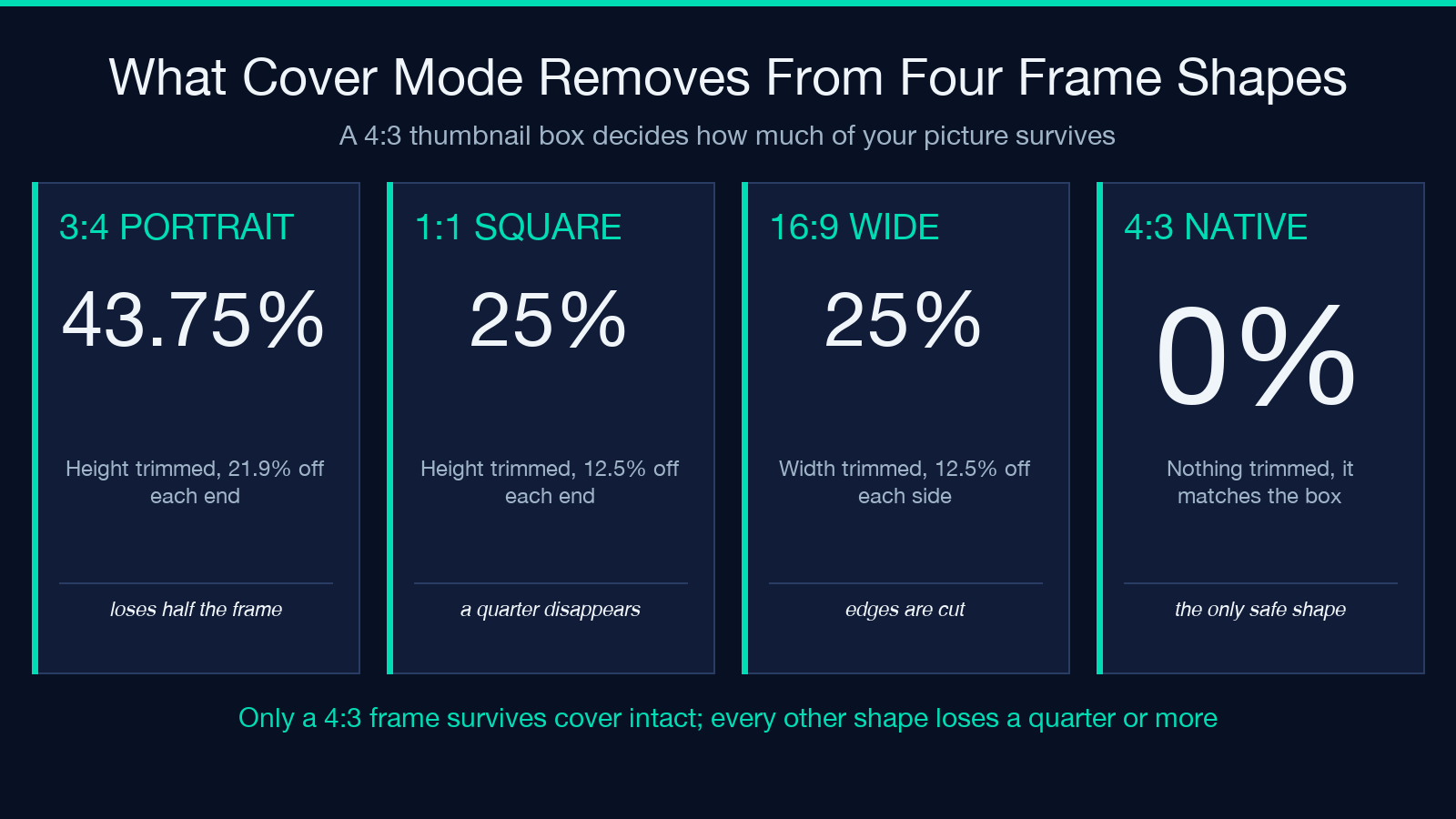
Run the arithmetic on a portrait frame. The box is 4:3, so 1.333 wide per unit of height. A 3:4 photograph is 0.75. To cover the box, the image scales to the box width, which makes its height 1.333 divided by 0.75, or 1.778 times the box height. The visible share of the picture is 0.75 over 1.333, which is 56.25 percent. The remaining 43.75 percent of the image height is gone, 21.9 percent off the top and 21.9 percent off the bottom.
Squares fare better but are not safe. A 1:1 frame in a 4:3 box shows 75 percent of its height, so a quarter of the picture is trimmed, 12.5 percent from the top and 12.5 percent from the bottom. Only wide frames crop horizontally, and they crop the same 25 percent of width: a 16:9 photograph keeps 75 percent of its width, losing 12.5 percent on each side.
Put those three numbers next to the worked example in the tool’s own sample set. Ten images: four squares, three 3:4 portraits, three 16:9 landscapes. With cover enabled, five of those ten frames are visibly trimmed and three of them lose nearly half their height. Nobody is told.
Contain Shows the Whole Frame and Wastes a Quarter of the Box
Contain is the honest mode and it has its own cost. The image is scaled to fit entirely inside the 4:3 box, with the remainder filled by the thumbnail background, a pale grey that reads as empty matting rather than as a crop.
For a square image in a 4:3 box, contain leaves a band of grey on the left and the right. In a 400 pixel wide cell, the picture occupies 300 pixels of it, so a quarter of the cell width is grey. A 3:4 portrait leaves proportionally more: the picture takes 56.25 percent of the cell height, and the rest is grey above and below.
Neither mode is free, and the cost lands in different places. Cover spends content to buy a clean, fully filled grid. Contain spends space to buy completeness. The mistake is to leave the default in place and assume you chose. Switching to contain for a set of 3:4 portraits is a deliberate trade; getting cover by accident is not.
The tool exposes the fit mode as a single dropdown with cover and contain as the only two entries, so the decision is one click either way. You can also compare the effect against the PDF Image Layouts generator, which fixes a multi-image layout on a single page rather than paginating one.
Twelve Cells, Ten Photos, Two Empty Ones
Pagination is arithmetic, and the arithmetic is visible in the sheet header. The grid is described by two numbers, columns and rows, and the number of cells on a page is their product. The header on every page reads the sheet number and the item range it covers, computed from the files that were actually kept rather than from the files you uploaded.
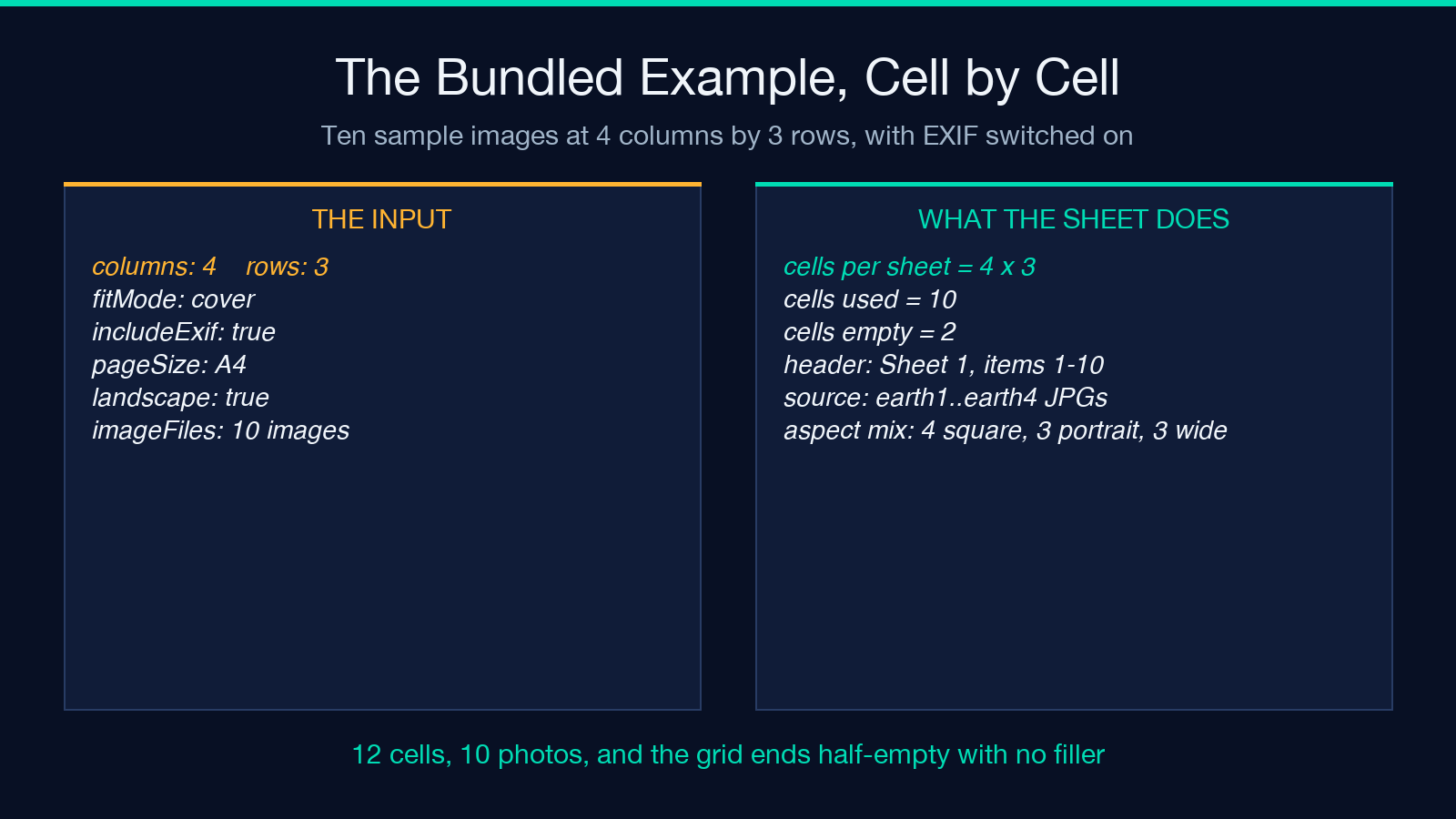
The bundled example uses 4 columns and 3 rows with 10 images. Twelve cells, ten photos, and the last row of the grid is half empty because there is no filler. The header reads Sheet 1 with items 1 to 10, which is the only place the shortfall shows up: the grid itself just ends, and two blank cells look like a design choice until you count them.
The ranges are worth understanding because they tell you where a new image will land. At the maximum grid of 8 columns by 10 rows you get 80 cells per sheet, so the 81st image starts a second sheet rather than reflowing the first. The upload limit is 120 files, which at that maximum grid means two sheets of 80 and 40. At the default grid of 4 by 5 you get 20 cells per sheet and 120 files needs six sheets.
If you want the frames themselves rather than the grid, the PDF Storyboard Sheet generator is the closer relative: it reserves a description area next to each thumbnail for shot notes rather than EXIF lines.
Seven EXIF Fields, Four Printed Lines
Here is the finding that should change how you use the tool. The EXIF block under each thumbnail never shows more than four lines, and which four is decided by a hard cutoff in the code rather than by relevance.
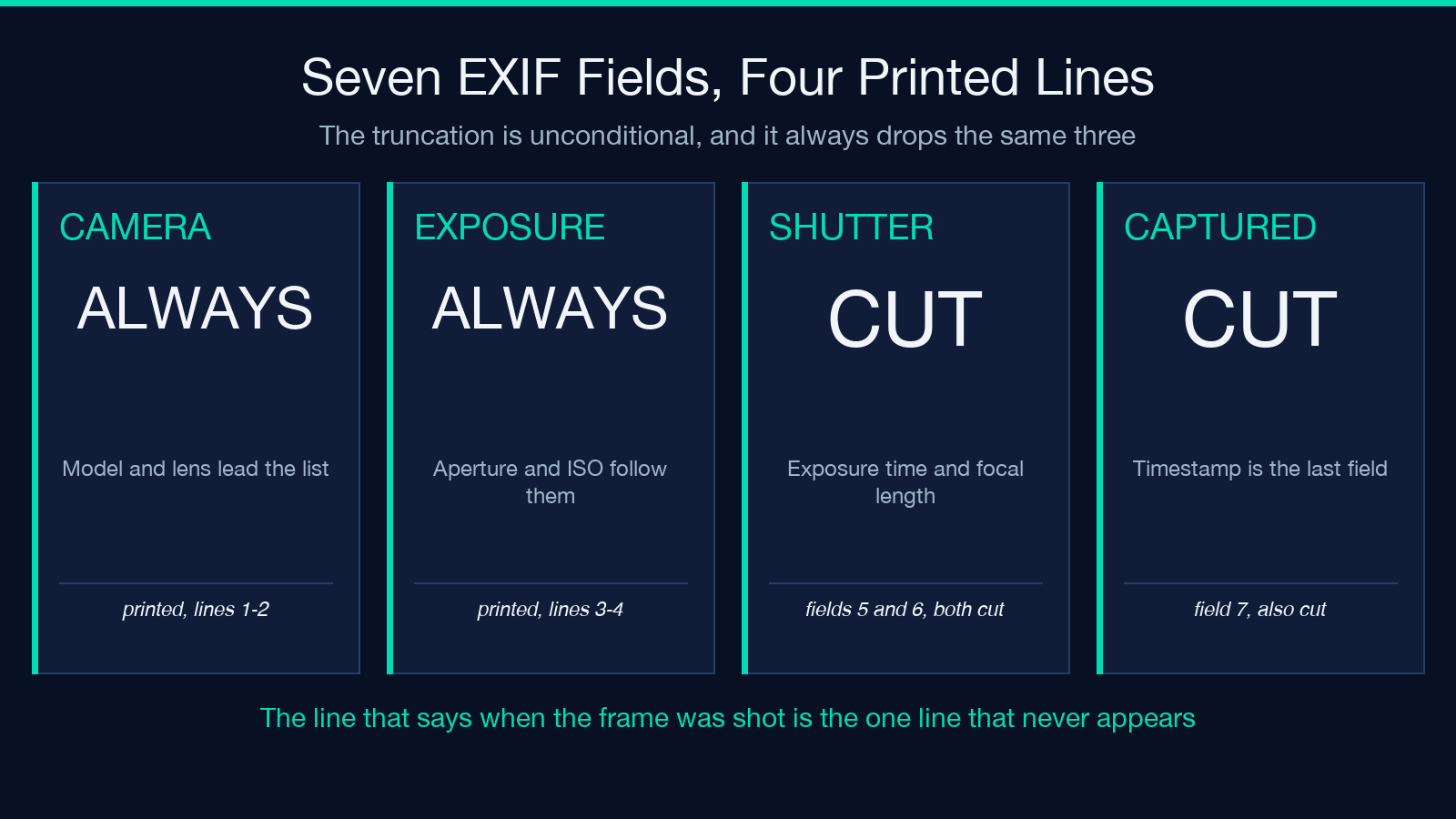
The reader pulls seven fields from each image: the camera model, the lens model, the aperture, the ISO, the exposure time, the focal length, and the original capture date. Those are assembled into labelled lines in a fixed order, and the list is then truncated to the first four entries. The truncation is unconditional.
The first four are always camera, lens, aperture and ISO. Shutter speed, focal length and the capture timestamp are positions five, six and seven, so on a normal camera JPEG with a lens recorded, all three are dropped every time. The capture timestamp is the last of them, which means the one line that tells you when the frame was taken is reliably the one line that never appears.
The fallback is equally unhelpful. When the reader finds no usable metadata at all, the cell prints a single muted line saying there is no EXIF metadata, and the four-line budget is not spent on anything useful. If you need the full metadata rather than the first four fields, read it with a dedicated viewer: the Batch EXIF Viewer is built for exactly that job.
Shutter Speeds Print Two Ways, and One of Them Rounds
The exposure line deserves its own note because the formatting is a conversion, not a display. Exposures of one second or longer print as a decimal with a trailing digit, so 1.5 seconds becomes 1.5s. Anything faster prints as a reciprocal fraction, so 1/125 of a second becomes 1/125s.
The reciprocal is built by dividing one by the exposure value and rounding the result to a whole number. That rounding is where two different exposures collapse onto the same label. An exposure of 0.4 seconds is 2.5 reciprocals, which rounds to 3, so it prints as 1/3s. A genuine one-third-second exposure also prints as 1/3s. The sheet cannot tell you which one you shot, and the label looks like a precise measurement either way.
Aperture has a smaller tell. It is always printed with one decimal place, so a perfectly ordinary f/8 becomes f/8.0 on the sheet. ISO and focal length are printed as the raw numbers read from the file, and the capture date is normalised to a plain timestamp with no timezone marker, so frames shot in two different places can carry clock times that do not line up.
A File That Will Not Decode Vanishes Without a Trace
The most dangerous behaviour in the tool is not a wrong number. It is a missing file that leaves no evidence at all.
Images are converted to embedded data before the sheet is rendered. A file whose extension is not in the supported set, or whose contents cannot be read, is skipped and the loop moves on. There is no error, no placeholder cell, no note in the header, and no gap in the numbering. The cell simply is not there, and every count the sheet reports, including the item range in the header and the image count in the result metadata, is computed from the files that survived.
That means the sheet cannot tell you a photo was dropped. If you upload 10 files and one is a corrupt export, you get a sheet of 9 with a header that says items 1 to 9, and the missing frame is only detectable by comparing against your own folder.
Eight extensions are supported, covering the common web and print formats: PNG, JPG and JPEG, WebP, GIF, BMP, TIFF and AVIF. Per-file size is capped at 20 MB, and the upload list is sliced to the first 120 files, so anything past that limit is discarded before any of it is read. A run of 200 images is not rejected. It is quietly trimmed to 120, and you are left with a sheet that looks complete.
What to Check Before You Send a Sheet to a Client
Run the sheet against these before it goes out, and the review is quick. Count the cells and compare the count with your folder, because that is the only place a dropped file shows up. Count the item range in the header and check it ends where you expect, since the header is computed from the kept files and will quietly end at 9 instead of 10.
Then check the fit mode against the frame mix. If the set contains any 3:4 portraits, cover is trimming 43.75 percent of their height, and if it contains squares, a quarter of their height is going. Switch to contain and accept the grey matting, or accept the crop and say so.
Look at one EXIF block and see which four lines you got. If the capture time is the field you need for the review, it is not on the sheet and no setting will put it there, so pull the metadata separately.
Finally, check the page count against the grid you chose, and check the orientation. A 4 by 3 grid on a portrait page leaves the sheet taller than it needs to be, and the landscape switch is a single checkbox that changes the whole layout.
Print it once before you send it. The sheet is rendered as a web page and then printed to PDF, and the stylesheet pins colour adjustment to exact so that the cell borders and the grey matting survive the print. That same pipeline is why a border one pixel wide disappears on a cheap printer but renders correctly on screen, and why the first proof is worth more than the fifth.
You can generate a sheet and compare it against the PDF samples collection to see the output format before you commit to a grid, and browse the wider catalog of document tools for the variants built around different layouts.
