
A slide converter is a regex wearing a presentation costume. I rendered the same deck at 14, 20 and 32 pixels and measured each element in a real browser: 11 of 15 element types never budged. Two of this tool’s seven controls turn out to be nearly inert, and the dead ones are the ones you would reach for first.
What the Converter Actually Does
Four steps, no more. It strips YAML front matter from the top of the file. It splits the rest on a single regular expression looking for a line of three dashes. It runs each surviving fragment through Showdown, a Markdown converter configured with tables, strikethrough, GitHub-style code blocks and automatic link detection, but with emoji conversion switched off. Then it wraps each fragment in a section element, paints it with a fixed stylesheet, and asks Chrome to print one page per section.
There is no presentation engine in that pipeline. No layout algorithm, no autofit, no text-fitting heuristic. No image rule and no table rule either: the stylesheet defines headings, paragraphs, lists, links, code, blockquotes and a footer, and stops there. A slide is a block of HTML at a fixed size, and a page is a fixed-size rectangle that holds it.
The two page sizes are concrete. Sixteen-by-nine renders at 1280 by 720 pixels; four-by-three renders at 1024 by 768. Each slide becomes exactly one page, because each section carries a page-break rule. Nine slides in, nine pages out. I confirmed the count by exporting a deck and counting the page objects in the resulting PDF.
That is a reasonable design. It is also the whole design.
The Separator Is a Regex, Not a Parser
The split looks for a line holding exactly three dashes, surrounded by newlines. It is not a Markdown block parser, and it does not know what it is looking at.
I ran the tool’s own splitting logic against four ways of writing the same two-slide deck. A deck that opens with a line of three dashes loses its first slide outright: the front-matter extractor sees the opening dashes, scans forward to the next one, and swallows the title slide as if it were metadata. The deck ships as one slide.
Those same three dashes inside a fenced code block split the block in half and yield three slides, with the YAML torn across two of them. There is no escape hatch, because the regex never looks at fence markers. For example, this deck reads ---, then title: Deck, then ---, then # Slide One, then ---, then ## Slide Two.
The extractor reads title: Deck as front matter, then the splitter cuts at the separator between the two headings. Two slides, as expected, but only because the front matter was stripped first. Remove those opening dashes and the title slide is consumed as metadata instead.
Five dashes do not split: the pattern needs exactly three, and the extra characters break the match. Two spaces of indentation do split, and so do trailing spaces after the dashes. Only the exact spelling matters, and only in the narrowest sense.
The consequence for a working deck is simple. Three dashes are a slide break, everywhere, always, including inside your code examples. The tool’s own error message admits as much when it finds nothing to split: "No slides found. Use --- to separate slides."
Your Front Matter Is Extracted and Discarded
Front matter handling shows the clearest gap between the interface and the input. The extractor recognises a YAML block at the top of the file, pulls it out, and then throws it away. The HTML builder receives the slide fragments only, so the front matter never reaches the renderer.
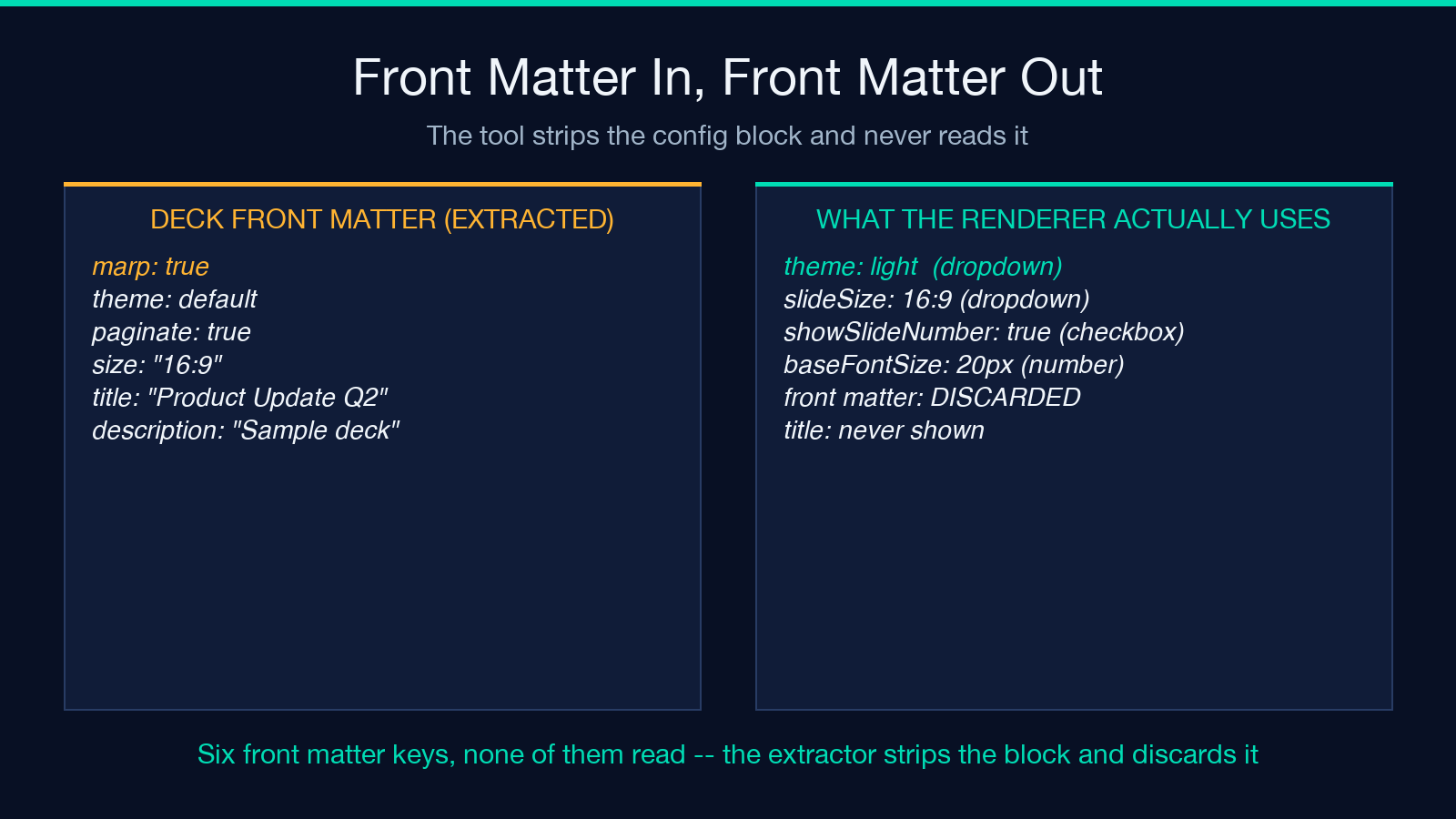
That matters because the deck dialect this tool imitates is Marp, and Marp is configured entirely through front matter. The tool’s own sample deck opens with six keys: marp, theme, paginate, size, title and description. Not one of them is read. size: "16:9" does not set the slide size, because the size comes from a separate dropdown. paginate: true does not turn on page numbers, because a separate checkbox does. theme: default does not select a theme, because there are exactly two and the dropdown calls one of them light. title never appears on a slide.
The front matter’s only remaining job is to delete itself. It is a preamble stripper wearing a config file’s clothes.
The Base Font Size Slider Moves Three Things
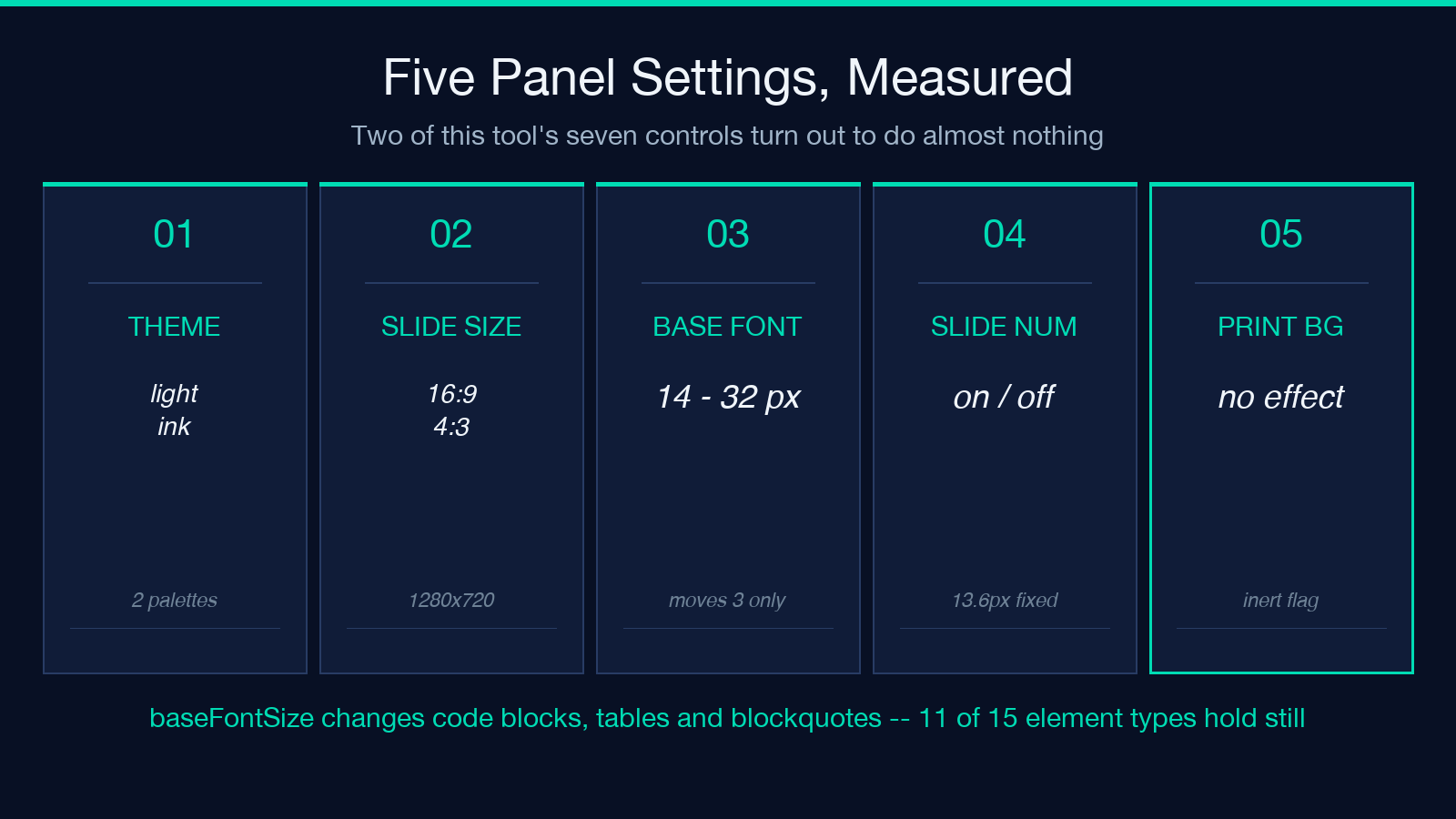
The panel offers a base font size from 14 to 32 pixels, and it is the control where the settings and the output most visibly disagree. The stylesheet sets that size on the slide container and then overrides almost each child with its own value in rem, the unit that resolves against the root font size instead of the container. Headings, paragraphs, list items, inline code and the page footer are all pinned there.
I rendered the same deck at 14, 20 and 32 pixels and measured each element in a real browser. Here is what came back.
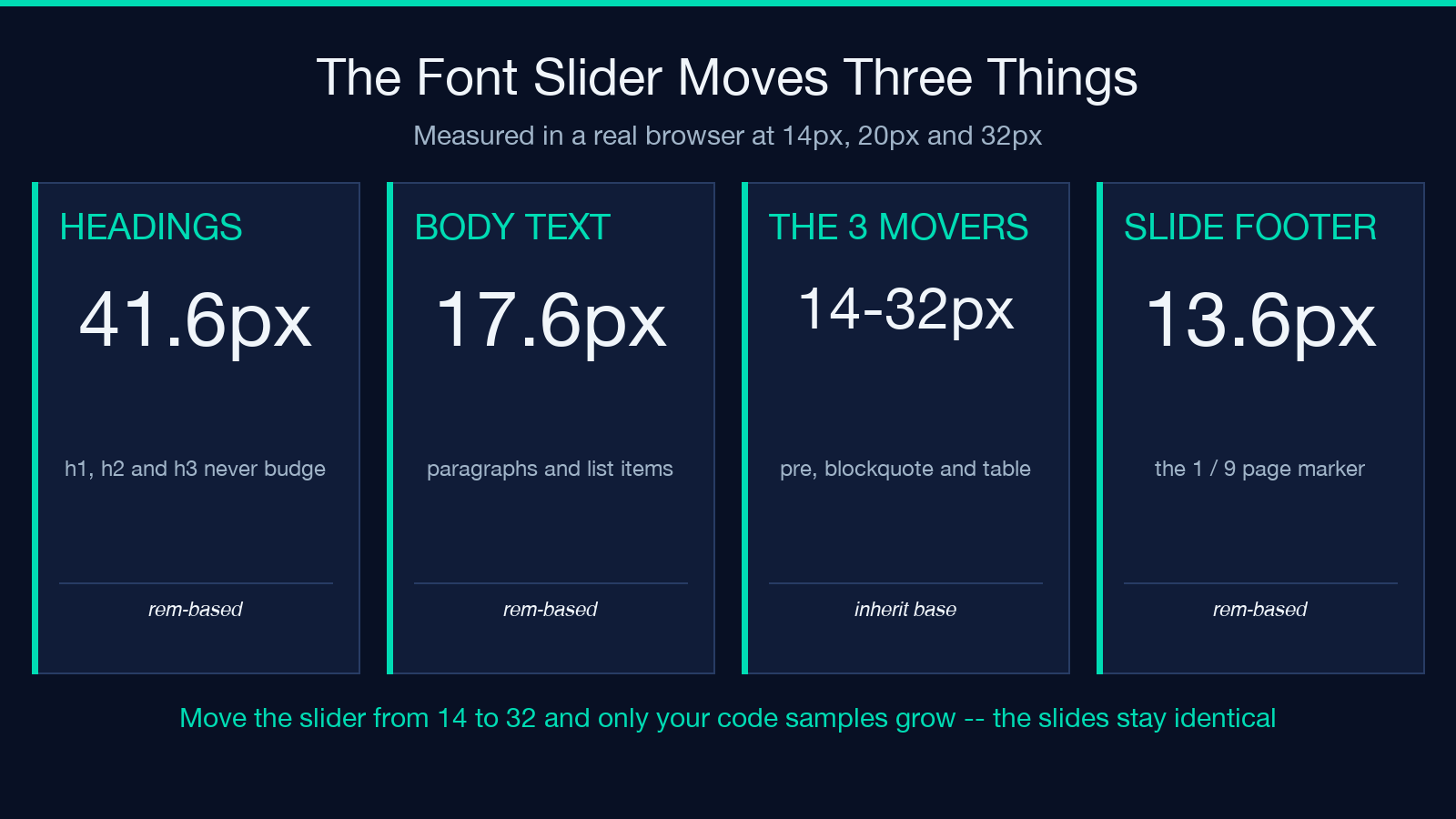
- h1 heading measured 41.6px at all three settings. It does not track the slider.
- h2 heading measured 32px at all three settings. It does not track the slider.
- h3 heading measured 24px at all three settings. It does not track the slider.
- body paragraph measured 17.6px at all three settings. It does not track the slider.
- list items measured 16.8px at all three settings. It does not track the slider.
- inline code measured 16.72px at all three settings. It does not track the slider.
- slide footer measured 13.6px at all three settings. It does not track the slider.
- blockquote measured 14px, then 20px, then 32px. It tracks the slider.
- code block measured 14px, then 20px, then 32px. It tracks the slider.
- data table measured 14px, then 20px, then 32px. It tracks the slider.
Eleven of the fifteen element types I measured never budged. Moving the slider from 14 to 32 makes your code samples bigger and leaves your slides alone. Inline code is the subtlest of the fixed ones: its em value resolves against the paragraph instead of the slider, so it holds at 16.72 pixels whatever you set.
Print Background Is a No-Op, and That Is a Blessing
The panel’s second dead switch is the checkbox labelled Print Background, which normally decides whether a page prints with its background colour or on plain white. I exported the same deck twice, once with the checkbox on and once with it off, and compared the results.
The output was identical in each respect that matters: same page count, same byte length, same rendered pixels. Only the creation timestamp inside the PDF metadata differed.
The reason sits in the stylesheet, which hard-codes print-color-adjust: exact on the page element. That declaration tells the print engine to keep background colours whether or not the print-background flag is set, and it wins. To confirm the mechanism instead of assuming it, I removed both declarations and re-exported: with the checkbox off, the dark theme’s background vanished and the pages came out white. With the declarations restored, the dark pages came back. The measured dark-pixel share of the page area moved from 99.6 percent to 0.0 percent and back again.
Here is the part worth keeping. On its own that would be a bug worth filing, because white pages with white text give you invisible slides. Because the stylesheet pins the behaviour, the dead checkbox is currently harmless. The setting is inert, and the inertness is what saves you.
The Dialect Is Showdown, Not Marp
The Markdown side is Showdown with a fixed option set, and it is worth knowing what that set does and does not include.
Tables convert, and they convert properly, into a table with a header row and a body. Nothing in the stylesheet styles them, so they arrive unbordered and unpadded, which on a projected slide looks like a spreadsheet that lost its formatting. Emoji shortcodes do not convert at all: :smile: stays as those eight characters on your slide. Task lists do not convert either, so a checklist item renders with the literal bracket and space. Remark’s speaker-note syntax is unrecognised, and a block fenced in ??? markers renders as ordinary paragraph text, markers included.
Tilde fences do work, which is how the tool’s own sample deck writes its TypeScript slide. Bare URLs become links automatically. And because Showdown assigns an id to each heading it renders, two slides sharing a heading title produce two elements with the same identifier on the same page.
What Still Works, and How to Use It
None of this makes the tool bad. It makes it specific, and specificity is usable once you know it. The settings that do what they say are the ones worth reaching for: the theme gives you two genuine palettes, the slide size gives you two real page boxes, and the slide-number checkbox gives you the 1 / 9 footer that comes out at 13.6 pixels whether you want it or not.
The workarounds are equally concrete. Write the deck so it never opens with three dashes. Keep front matter to nothing at all. Choose your code-sample size through the container and expect the rest to hold still. Assume the dark theme will print dark, because it will. Write tables as prose, or accept that they arrive unstyled.
You can see the whole thing working at Markdown Slide Deck to PDF, and the Markdown Slide Deck samples collection carries a starter deck that exercises a title slide, a numbered agenda, a metrics table, a code slide and a quote slide. If your own PDFs come out of a different pipeline and you need the same shape of output, the Markdown to PDF Theme Pack handles documents instead of decks, while PDF Header/Footer Snippets adds reusable headers and footers to HTML you control. The wider Document Tools collection covers the rest of the conversion chain.
Regex Renders Need Escape Hatches
I went in expecting to catalogue two broken checkboxes and hand you a list. What I found was a pattern worth more than the list: the visible controls are decoration, the Markdown is the contract, and the stylesheet is the part you cannot reach.
That is not a defect in this converter specifically. It is what happens whenever a rendering pipeline is built from a regular expression and a stylesheet, and someone then attaches a panel of knobs to make the tool look finished.
The question to carry to the next tool in this category is not what its options do. It is what its parser accepts, what its CSS hard-codes, and which of the two the settings may change. Ask those three and you will find the dead switches before you ever find the broken slides.
So start with the settings the panel promises and check the three questions against the source. If a dropdown has two options and the CSS hard-codes a third, you have found your answer before you ever exported a PDF.
I expected the panel to describe the renderer. It describes nothing at all, and the deck still renders. The question is what the next tool’s panel will claim, and which of its knobs will be wired to nothing. What you wrote is what you get.
